How to Save a Website as a PDF in Firefox
Save any webpage as a PDF in Firefox on desktop, Android, or iOS, with print settings, troubleshooting, and an automated ScreenshotNeo option.
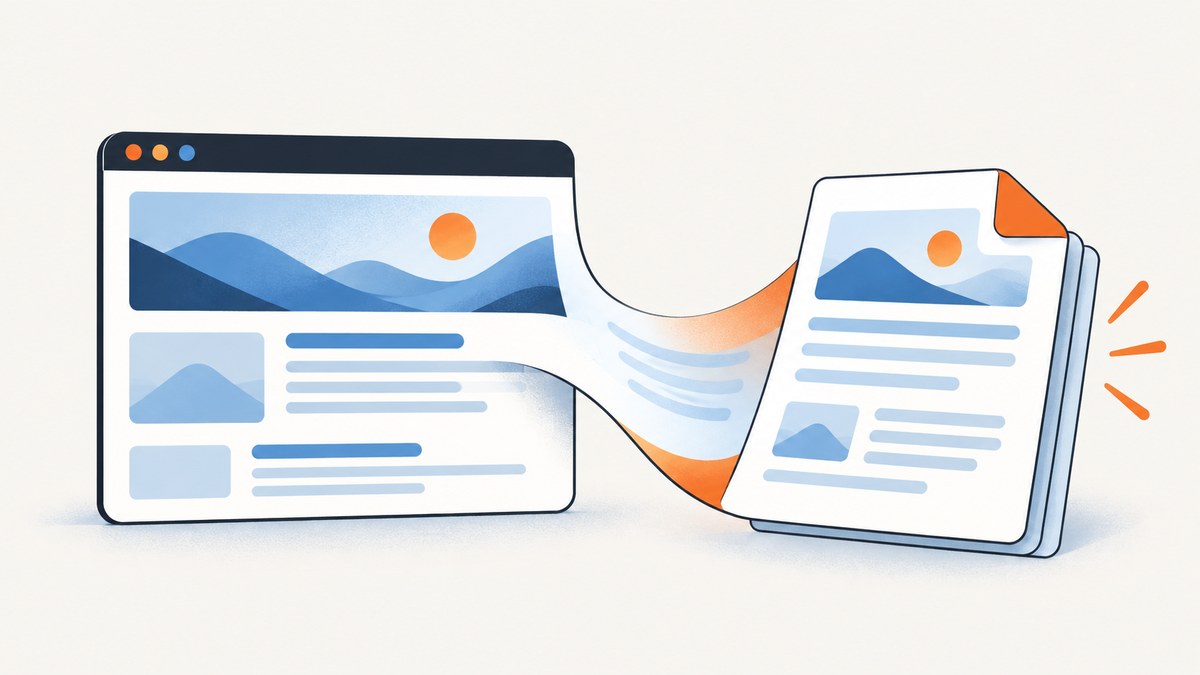
Short answer: On Firefox desktop, open the page, choose Menu → Print, select Save to PDF as the destination, adjust the preview, and select Print. On Android, use Menu → Share → Save as PDF → Download, or use Firefox’s Print command and choose Save as PDF in Android’s print dialog. On iOS, use Firefox’s full-page screenshot workflow and choose Save as PDF; newer Firefox iOS menus may expose that action directly.
This guide explains each platform, the print settings that affect the result, where files are saved, common failures, and how to automate PDF capture when a browser UI is not practical.
1. Save a website as a PDF in Firefox on desktop
The desktop workflow is built into Firefox on Windows, macOS, and Linux.
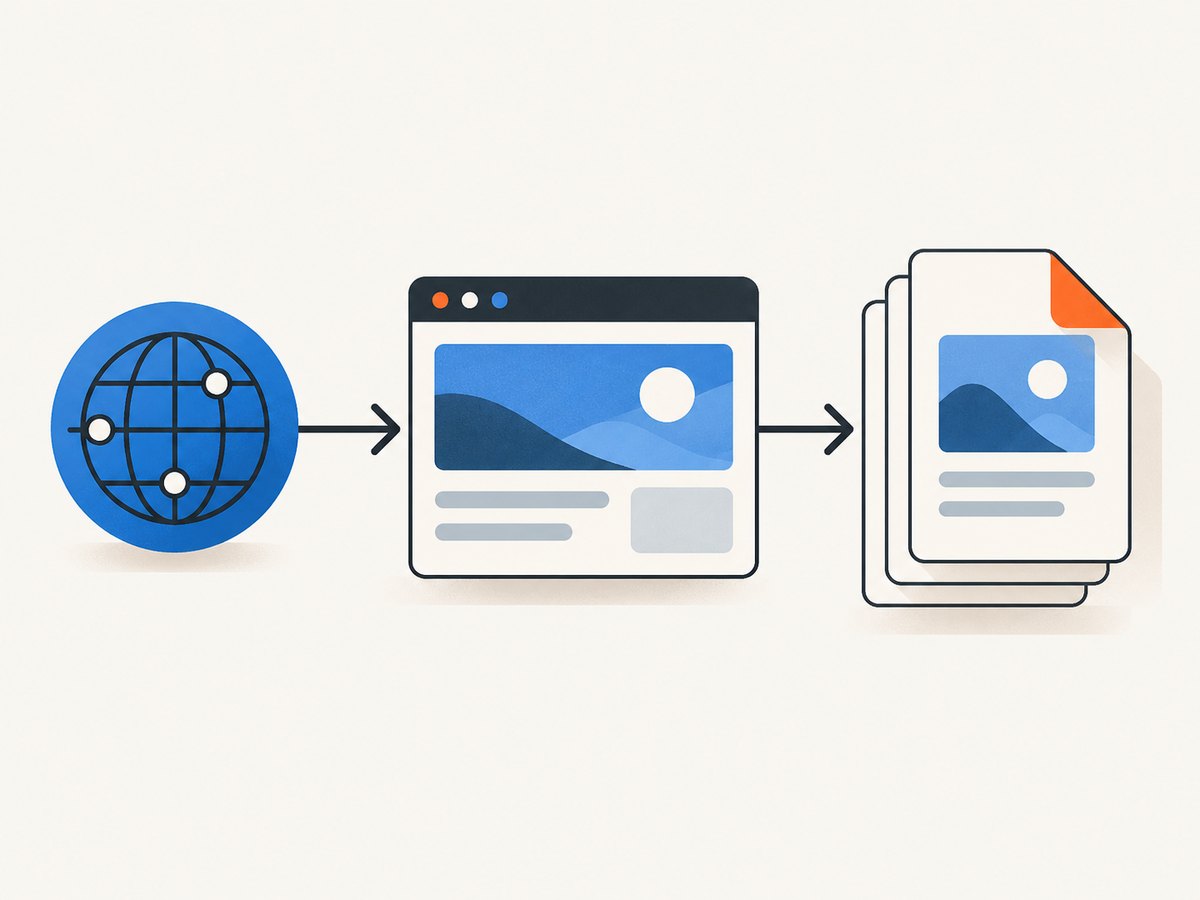
- Open the webpage you want to save.
- Open the Firefox menu and choose Print….
- Wait for print preview to finish rendering.
- In Destination, choose Save to PDF.
- Review the preview and change orientation, paper size, scale, margins, pages, color, or background settings if needed.
- Select Print, then choose a filename and folder when your operating system asks where to save it.
The PDF represents the print preview, not necessarily the pixels you see while browsing. A page can use a separate print stylesheet that hides navigation, changes column widths, removes backgrounds, or rearranges content. Always inspect the preview before saving.
Desktop settings that matter
| Setting | What it changes | When to use it |
|---|---|---|
| Orientation | Portrait or landscape page direction | Use landscape for wide tables, dashboards, and code samples. |
| Paper size | Page dimensions and line wrapping | Choose the size your readers or printer expect, such as A4 or Letter. |
| Pages | All pages or a selected range | Exclude navigation, appendices, or unrelated sections. |
| Scale | How large content appears on each page | Reduce scale when headings or tables overflow; increase it when text is too small. |
| Margins | Space around the printable area | Use wider margins for notes or binding, and narrow margins for dense references. |
| Headers and footers | Printed URL, title, date, and page numbers | Keep them for documentation; disable them for a clean handout. |
| Background graphics | Colors and background images | Enable when color conveys meaning; disable to reduce file size or ink use. |
| Simplified format | Removes much of the page’s surrounding clutter | Useful for articles with ads, sidebars, or complex navigation. |
Mozilla Support notes that webpages can deliberately appear differently on paper than on screen. That is expected behavior, especially on responsive sites with print-specific CSS.
2. Save a website as a PDF in Firefox for Android
Direct Share method
- Open the webpage in Firefox for Android.
- Tap the three-dot menu in the toolbar.
- Tap the Share icon at the bottom of the menu.
- Choose Save as PDF.
- Tap Download when Firefox shows the save prompt.
The resulting file is normally placed in your device’s Downloads folder. You can also find it in Firefox’s Downloads list or your Android file manager.
Android Print route
Firefox for Android also has an in-browser print command. Mozilla says this function arrived in Firefox for Android version 118.
- Open the three-dot menu while viewing the page. Reader View pages can also be printed.
- Scroll through the menu and tap Print.
- When Android Print Spooler opens, choose Save as PDF as the printer or destination.
- Adjust copies, color, duplex, paper size, orientation, or page range.
- Tap the save control and choose the destination folder if Android asks.
The direct Share method is quicker. The Print route is useful when you need print-layout controls or a specific page range.
3. Save a website as a PDF in Firefox for iOS
Firefox for iOS has had more than one menu layout, so the exact option depends on your app version.
Full-page screenshot method
- Open the webpage in Firefox.
- Take a screenshot. On iPhones with Face ID, press the side button and volume-up button together. On iPhones with Touch ID, press the side button and Home button together.
- Tap the screenshot thumbnail before it disappears.
- Choose Full Page at the top of the screenshot editor.
- Tap Done, then choose Save as PDF.
This captures the full scrollable page rather than only the visible viewport. Very long pages can produce large documents, so allow time for the screenshot editor to render the complete capture.
Newer iOS menu action
A newer Firefox for iOS menu article lists Save as PDF as a website-menu action. Mozilla says the redesigned menu began general rollout with Firefox for iOS version 142. If you see the action, use it directly. If you do not, use the full-page screenshot workflow above.
4. Make the PDF look right before saving
Most PDF problems are visible in preview and can be corrected without editing the file afterward.
- Check the page range: A long article may include blank trailing pages or sections you did not intend to share.
- Choose orientation deliberately: Portrait is best for prose; landscape usually works better for wide tables and application screens.
- Adjust scale and margins together: Reducing scale can prevent clipped columns, while narrower margins can recover usable space.
- Decide whether backgrounds carry meaning: Charts, colored labels, and diagrams may require background printing.
- Try Simplified format for reading copies: It removes page clutter. In that format, Firefox does not allow print backgrounds at the same time.
- Scroll through the preview: Look for headings stranded at the bottom of a page, images split across pages, missing fonts, and clipped code.
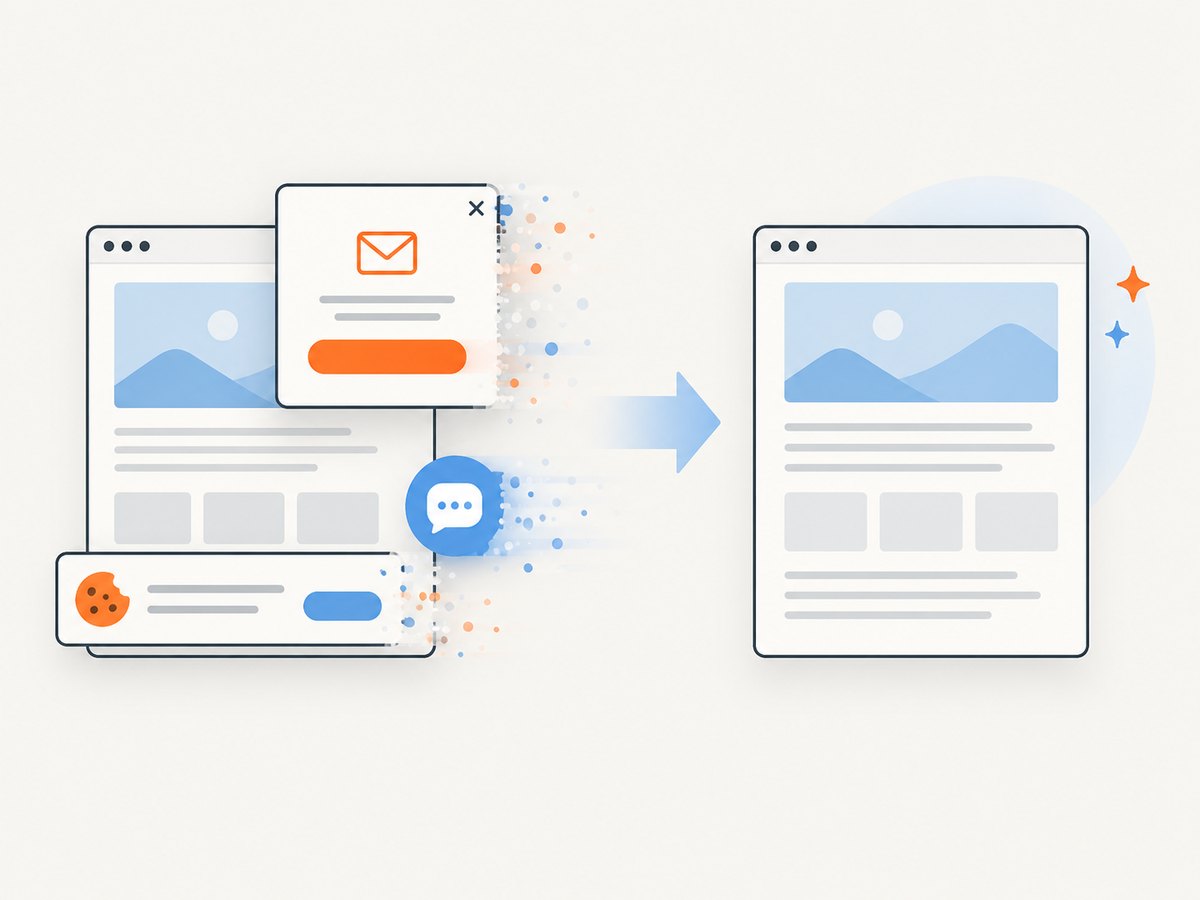
Dynamic pages can change while the preview loads. Let the preview finish before saving, and close cookie dialogs, chat panels, and temporary overlays when they obscure content.
5. Troubleshooting Firefox PDF saves
| Symptom | Likely cause | Fix |
|---|---|---|
| Save to PDF is missing on desktop | The system print dialog opened instead of Firefox’s preview, or a managed device changed available destinations. | Look for a destination or printer selector and choose the operating system’s PDF printer. If Firefox preview is available, reopen Print from the browser menu. |
| The PDF is blank | The page has not finished loading, relies on scripts, or displays a bot-check screen. | Wait for the page to settle, reload it, and confirm that the content is visible before opening Print. |
| Only the visible screen is saved on iOS | The screenshot editor is still set to Screen instead of Full Page. | Open the screenshot thumbnail and select Full Page before saving. |
| Images or colors are missing | Background graphics are disabled, images are lazy-loaded, or the page uses a print stylesheet. | Enable background graphics, wait for images to load, and compare the print preview with the live page. |
| Text is cut off at the right edge | The content is wider than the paper size. | Use landscape orientation, reduce scale, choose a wider paper size, or increase margins only if the layout allows it. |
| Android preview keeps loading | A large or script-heavy page is still being rendered by Android Print Spooler. | Wait for rendering to complete. If it never finishes, reload the page, try Reader View, or use the Share → Save as PDF route. |
| The file cannot be found on Android | It was saved outside the folder you expected. | Check Downloads in Firefox and in the Android file manager, then search for recently modified PDF files. |
| iOS has no Save as PDF menu item | Your Firefox version uses the older menu or the rollout has not reached the device. | Use the full-page screenshot method and check for app updates. |
6. When browser printing is not enough
Firefox’s built-in tools are ideal for a person saving one page. Automation introduces different requirements: repeatable viewport sizes, full-page lazy-image loading, authenticated pages, custom headers, JavaScript actions, batches of URLs, or a server-side workflow that runs without a desktop session.
For reliable automation, define what “complete” means before capturing. Decide whether you need the entire document or one element, whether ads and trackers should be blocked, how long to wait for network activity, and how to handle pages that show a consent banner or bot check.
7. Or skip the browser setup
ScreenshotNeo is a website screenshot API and MCP server. Its capture endpoint can return a PDF as well as PNG, JPEG, or WebP. The same request pattern works from shell scripts, Python, or Node.js; see the ScreenshotNeo documentation for PDF-specific options and the complete parameter reference.
The following examples use the documented request shape. Replace the URL with the page you need to capture and save the response as a file.
cURL
curl -G "https://api.screenshotneo.com/v1/shot" -d access_key=YOUR_API_KEY --data-urlencode url=https://stripe.com -o shot.webpPython
import requests

r = requests.get(
    "https://api.screenshotneo.com/v1/shot",
    params={"access_key": "YOUR_API_KEY", "url": "https://stripe.com"},
    timeout=90,
)
r.raise_for_status()
open("shot.webp", "wb").write(r.content)
Node.js
const q = new URLSearchParams({ access_key: 'YOUR_API_KEY', url: 'https://stripe.com' });
const res = await fetch(`https://api.screenshotneo.com/v1/shot?${q}`);
if (!res.ok) throw new Error(`HTTP ${res.status}`);
const data = Buffer.from(await res.arrayBuffer());
await import('node:fs/promises').then(fs => fs.writeFile('shot.webp', data));
For a PDF workflow, select PDF output and its paper, margin, orientation, and page-range settings in the API request as described in the docs. ScreenshotNeo also supports full-page capture with lazy images loaded, element capture, custom CSS and JavaScript, clicks, selector or network-idle waits, headers, cookies, authorization, timezone, geolocation, resource blocking, caching, asynchronous jobs, signed webhooks, and bulk capture of up to 100 URLs per call.
It removes cookie and consent banners, newsletter popups, and chat widgets before capture. Bot checks, CAPTCHAs, blank pages, timeouts, failed loads, and cache hits are not billed; the response identifies the page verdict and billing result with X-Page-Verdict and X-Billed headers. An MCP server provides take_screenshot, get_page_info, and capture_pdf tools for Claude, Cursor, and other MCP clients.
The Free plan includes 1,000 shots per month with no card. Paid plans start at $5 for 3,000 shots, and yearly billing gives two months free. Create a free ScreenshotNeo account to start.
8. Performance, reliability, and cost considerations
- Browser workflow: A single manual PDF costs nothing beyond your device time. Rendering speed depends on page size, scripts, images, and Android or iOS preview processing.
- Large pages: Full-page captures can consume more memory and create large files. Remove unnecessary backgrounds, select a page range, or capture a specific element when appropriate.
- Dynamic content: Wait for the page’s meaningful content rather than an arbitrary short delay. A network-idle wait or a selector wait is more repeatable for automation.
- Retries: Treat timeouts and bot checks as different outcomes from successful captures. Record the response status and, for ScreenshotNeo, inspect the verdict and billing headers.
- Caching: Repeated captures of unchanged pages can use a chosen cache TTL to reduce rendering work.
- Batch jobs: Bulk capture is useful for documentation sets, catalogs, and monitoring lists; keep URLs and output filenames paired so a failed item can be retried independently.
9. Firefox PDF saving FAQ
Does Firefox require an extension to save a PDF?
No. Desktop Firefox, Firefox for Android, and Firefox for iOS provide built-in or operating-system-supported workflows.
Can I save only selected pages?
Yes. Desktop print preview and Android’s print dialog provide page-selection controls. The iOS screenshot method is better suited to a full-page capture.
Why does my PDF differ from the webpage?
Websites can define print-specific styles. Firefox may also omit backgrounds, headers, navigation, ads, or other screen-only elements.
Where does Firefox for Android save the file?
The direct Save as PDF flow places it in Downloads unless you choose another location in the save prompt.
Can I automate PDF creation without running Firefox interactively?
Yes. A browser automation library or a capture API such as ScreenshotNeo can render URLs on demand and return the resulting document.


