How to Save a Website in Chrome
Save a website in Chrome as a bookmark, an offline page, or a file. Follow the right steps for your device and learn what each option preserves.
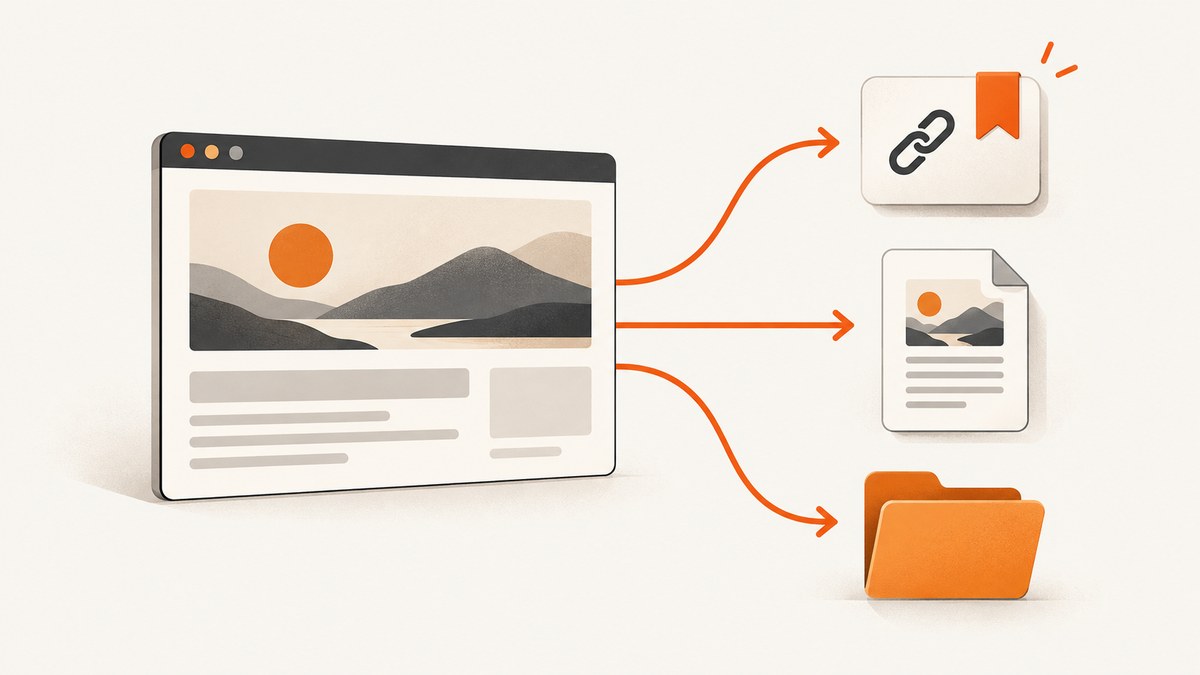
To save a website in Chrome, first decide what you need: a bookmark remembers the address, an offline download is for reading later without a connection, and Save Page As saves a page file on a computer. They do different jobs, and a bookmark is not an offline copy.
On a computer, open the page and choose More > More Tools > Save Page As. On Android, download the page while online using More > Download, then open it later from More > Downloads. To revisit the live page, bookmark it instead.
1. Choose the kind of save you need
| What you want | Use | What is retained |
|---|---|---|
| Return to the site later | Bookmark | The page address; Chrome loads the current site when you open it. |
| Read a page offline on Android | Download | A saved page for offline reading. Save it in advance while online. |
| Keep a page file on a computer | Save Page As | A local page file and any associated files Chrome saves with it. |
| Read later, while you may still be online | Reading List on Android | A saved page reference in the Reading List, useful for organizing what you intend to read. |
Downloaded or saved pages should not be treated as guaranteed complete functional copies. Dynamic content, forms, sign-in sessions, video, and other interactive features can depend on the original site or an internet connection. Google’s offline instructions explain how to save and reopen a page, but do not promise every interactive element will work offline. [Google’s offline reading instructions](https://support.google.com/chrome/answer/7343019?co=GENIE.Platform%3DAndroid&hl=en-GB)
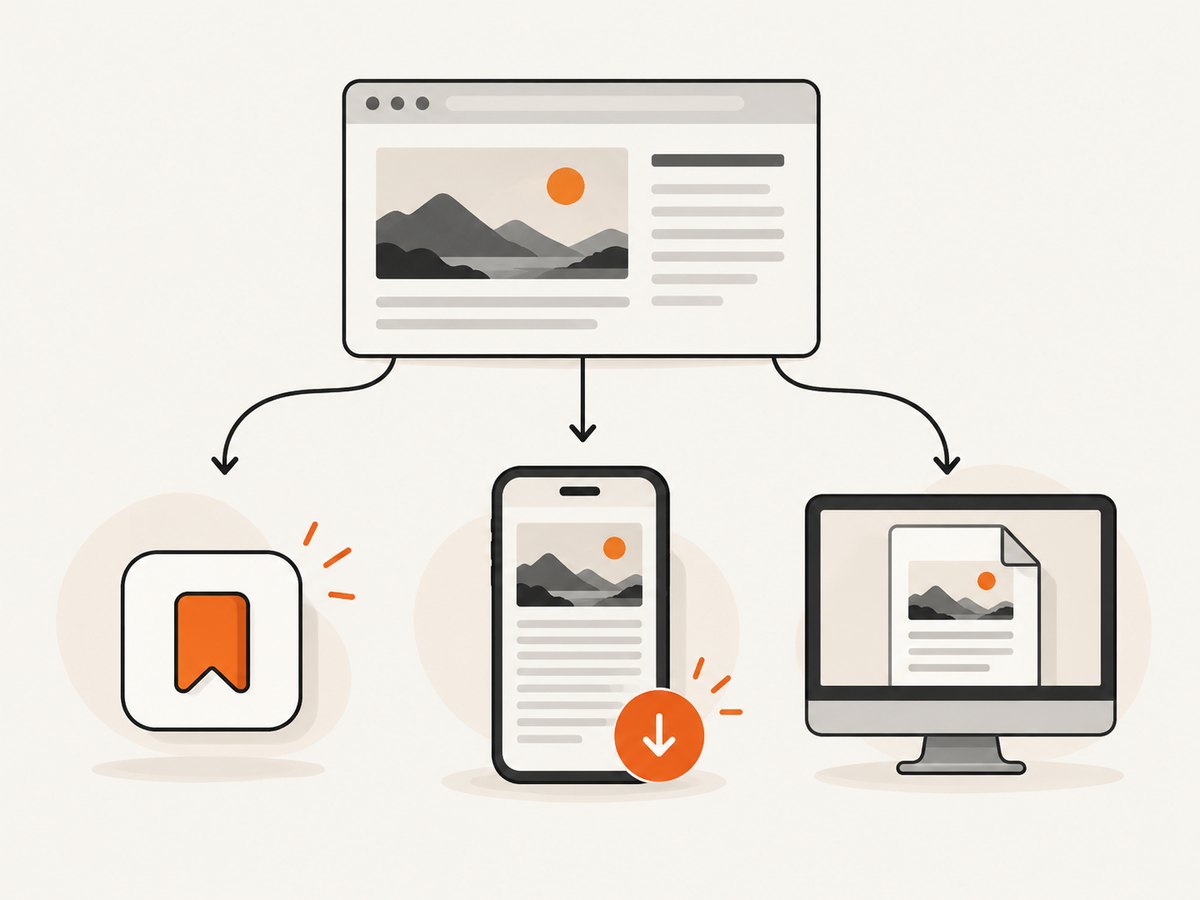
2. Save a web page as a file on a computer
Chrome’s documented desktop route is Save Page As. Use this when you want a file stored on your computer, rather than just a shortcut to the live URL.
- Open Chrome and navigate to the page you want to keep.
- At the top right, click More (the three-dot menu).
- Choose More Tools, then Save Page As.
- Choose a destination folder if Chrome asks where to save.
- Click Save.
Chrome may save a web page together with a folder of related resources. Keep the HTML file and its companion folder together when moving or sharing the saved page; separating them can cause images or styling to be missing. The exact menu wording and save behavior can vary by Chrome version and operating system. See [Google Chrome Help: Download a file on a computer](https://support.google.com/chrome/answer/95759?hl=en).
Find and open the saved file
Open the folder you selected in the save dialog and open the saved page file. If you did not choose another destination, Chrome uses its configured download location. You can also inspect recent downloads using Chrome’s download tray or downloads list. If the file opens in another browser, that is fine for viewing the saved HTML; Chrome is not required to be the default browser for the file to exist.
What a desktop page save is good for
- Keeping a local reference to a mostly static article or information page.
- Moving a page file to another location for later inspection.
- Retaining an approximate snapshot of content at the time you saved it.
It is less suitable as an archival guarantee for an application that requires server data, login, live APIs, scripts, or frequently updated content. If the thing you need is a visual record of exactly what was displayed, capture an image or PDF rather than relying on a saved HTML page to reproduce the site later.
3. Download a page for offline reading on Android
For Chrome on Android, you must be online when you save the page. Later, Chrome provides it in Downloads so you can read it without first loading the live URL. Google’s concise instruction is: “To read pages later offline, download them in Chrome in advance.” [Google Chrome Help: Read pages later and offline](https://support.google.com/chrome/answer/7343019?co=GENIE.Platform%3DAndroid&hl=en-GB)
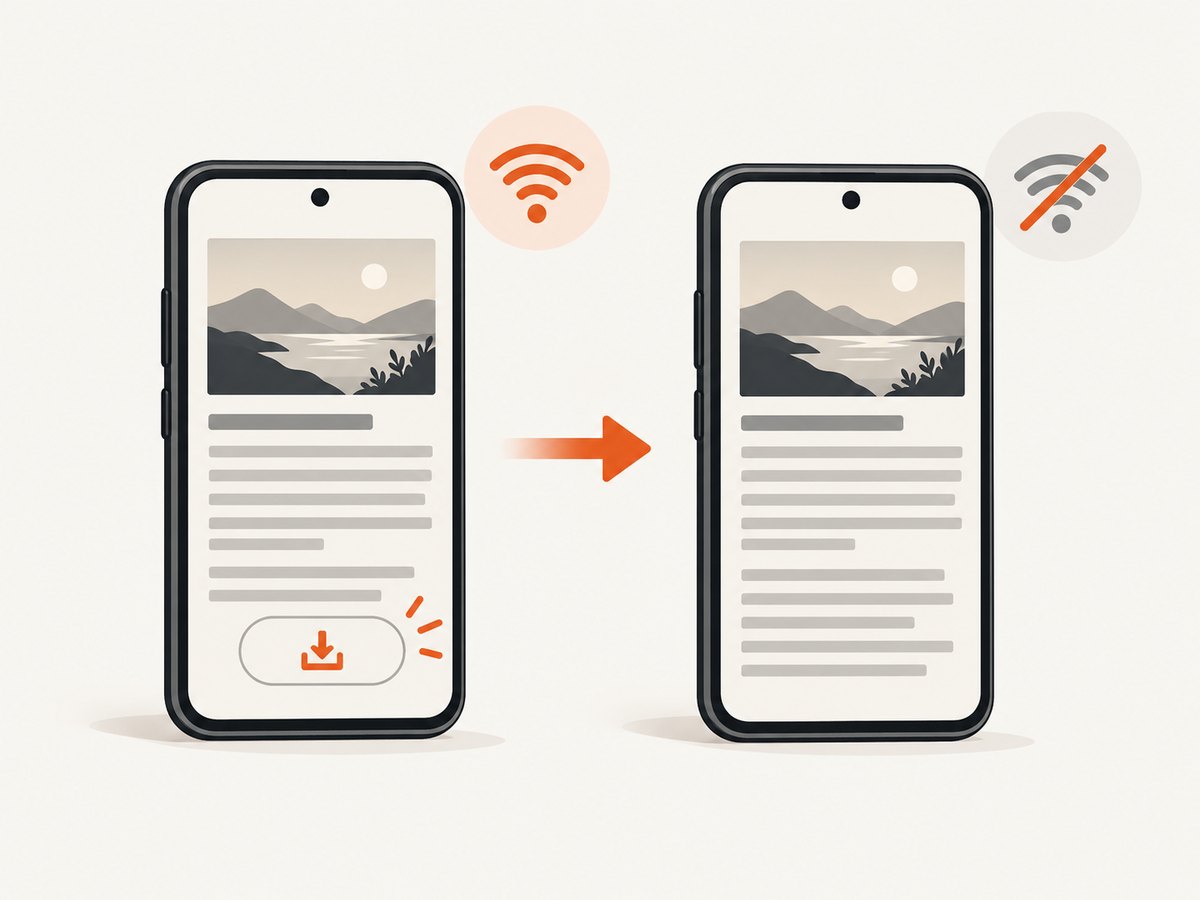
- While connected to the internet, open Chrome on your Android device.
- Navigate to the page you want to keep.
- Tap More (three dots).
- Tap Download.
- When you want to read it offline, open More > Downloads.
- Find the saved page and tap it.
If the address bar is at the bottom of your screen, Chrome may show Downloads after you swipe up on the address bar. The saved page is accessed through Chrome’s Downloads list, not by tapping a bookmark. When you are back online and want the current live version, reload the page.
Delete or share a downloaded page
Open More > Downloads, find the page, and touch and hold it. Chrome provides actions to delete or share the saved page. If you need to keep a record long term, consider copying or sharing it to a location you control instead of assuming the browser download will remain available indefinitely.
4. Bookmark a website to return to it
A bookmark saves the URL, not a frozen copy of the page. Use it when you expect to reconnect to the website and want Chrome to open the address again.
On Android
- Open the site in Chrome.
- Tap More > Add to bookmarks (the star control).
- To revisit it, tap More > Bookmarks, open the relevant folder, and tap the bookmark.
You can edit a bookmark, move it to a folder, create folders, and sort bookmarks. The exact position of controls may vary with the address bar layout. See [Google Chrome Help: Create, find, and edit bookmarks on Android](https://support.google.com/chrome/answer/188842?co=GENIE.Platform%3DAndroid&hl=en).
On a computer
Open the page and use Chrome’s bookmark control beside the address bar, or the browser menu’s bookmark option. To access and organize bookmarks, open the bookmarks menu or manager. Keyboard shortcuts are also available in desktop Chrome, though the exact shortcut depends on your operating system and keyboard layout.
Sync bookmarks across devices
When you sign in to Chrome with the same Google Account on multiple devices, bookmarks and other saved information may be available across those devices, depending on your account’s sync and save settings. Syncing a bookmark makes the address available; it does not mean the downloaded page is available offline on each device. Check Chrome’s account settings to see what information is being saved. [Google Chrome Help: Get bookmarks and more on your devices](https://support.google.com/chrome/answer/165139?hl=en).
5. Use Reading List for a page you plan to read later
Chrome’s Android Reading List is another way to keep a page for later. From the page, tap More, then the star or bookmark control, and choose the Reading List location if Chrome presents a folder choice. To find saved items, open More > Bookmarks > Reading List.
Reading List is useful for collecting things to read. If your requirement is explicitly “open this with no internet,” use Download instead. A saved reading item or bookmark is not the same promise as an offline page download. Instructions and placement can vary by Chrome version.
6. Save a visual copy of a page
Sometimes “save a website” means retaining what it looked like at a particular moment. A bookmark points to the changing site, while a page file may depend on scripts and remote resources. A screenshot or PDF is often a more direct visual record. It will not preserve the page’s interactive behavior, but it can be useful for documentation, review, or sharing.
If you only need one page, Chrome’s built-in save options are usually the simplest choice. If you need repeatable captures, a specific viewport, full-page output, or an automated workflow, a screenshot tool or API can capture a rendered result. Choose the output format based on the task: PNG or JPEG for an image, WebP for a compact image where supported, and PDF for a document-style record.
7. Common problems and fixes
| Problem | Likely cause | What to do |
|---|---|---|
| There is no offline page when you lose connectivity | You bookmarked the URL or added it to Reading List rather than downloading it. | While online, open the page and use More > Download on Android. Confirm it appears in Downloads. |
| Android Download is unavailable or the saved page is empty | The page did not finish loading, or the device was offline when you tried to save. | Reconnect, open the page fully, wait for its main content, then download again. |
| The downloaded page looks different offline | Some assets or behaviors require the live site, a session, or network requests. | Use the offline download for reading, but keep expectations to the content Chrome has saved. Capture a screenshot or PDF if appearance is what matters. |
| The desktop saved file has missing images or styling | Related resources may be stored beside the page, or the page references remote assets. | Keep the saved HTML file with its companion folder. Reopen while online if remote assets are needed. |
| You cannot find the file you saved | It was saved to a different folder or Chrome’s default download location. | Check the location selected in the save dialog and Chrome’s Downloads list. |
| A bookmark opens an error or a different page | The URL changed, the site is unavailable, or the site now redirects. | Edit the bookmark if you know the replacement URL. Bookmarks load the live destination; they do not preserve prior page content. |
| A bookmark is missing on another device | Chrome may not be signed in to the same account or bookmark sync may be disabled. | Check the signed-in account and sync/save settings on both devices. |
8. Reliability, privacy, and storage considerations
For a reliable offline read, save the page before you leave a network and open it once from Downloads while still connected. That simple check confirms the download is present. For a bookmark, periodically revisit important links because the site owner can move or remove content.
Offline downloads and local files consume device storage. Large pages with many images can take more space than a text-only article. Remove saved pages you no longer need, and use a folder or naming scheme for desktop files if you are keeping many. There is no universal page size or retention period that applies to every site and device.
Chrome’s built-in bookmark and save features do not require a third-party capture service. If you choose to use an external screenshot API, the page URL and any configured request data are sent to that service; review its documentation and avoid sending private pages or secrets unless the service and your policies permit it.
9. Automate a visual capture with ScreenshotNeo
For a repeatable image or PDF of a rendered page, ScreenshotNeo is a website screenshot API and MCP server. A single GET request takes a URL and returns a screenshot or PDF. The API can also capture full pages, individual elements, set a viewport or device preset, apply custom CSS, and wait for page conditions. See the ScreenshotNeo documentation for parameters and configuration.
For example, this cURL request saves a screenshot response as a WebP file:
curl -G "https://api.screenshotneo.com/v1/shot" \
  -d access_key=YOUR_API_KEY \
  --data-urlencode url=https://stripe.com \
  -o shot.webp
The equivalent Python request:
import requests

r = requests.get(
    "https://api.screenshotneo.com/v1/shot",
    params={"access_key": "YOUR_API_KEY", "url": "https://stripe.com"},
    timeout=90,
)
open("shot.webp", "wb").write(r.content)
And Node.js using the built-in fetch API:
const q = new URLSearchParams({
  access_key: 'YOUR_API_KEY',
  url: 'https://stripe.com'
});
const res = await fetch(`https://api.screenshotneo.com/v1/shot?${q}`);
const bytes = new Uint8Array(await res.arrayBuffer());
await import('node:fs/promises').then(fs => fs.writeFile('shot.webp', bytes));
Replace the example URL with the page you are authorized to capture and supply your API key. Check the response status and headers in production so your application can distinguish a valid image from an error response. ScreenshotNeo reports page verdict and billing status in response headers. Its capture flow can accept cookie or consent banners and remove more than 60 known consent platforms, newsletter popups, and chat widgets; each cleanup step can be disabled. Bot checks or CAPTCHAs, blank pages, timeouts, failed loads, and cache hits are not billed. It also provides an MCP server with take_screenshot, get_page_info, and capture_pdf tools for AI agents.
Or skip the browser setup
Make one request and let ScreenshotNeo render the page. Cookie banners, popups, and chat widgets are removed before the shot; bot checks, blank pages, and failed loads are never billed. An MCP server lets AI agents take screenshots. The Free plan includes 1,000 screenshots a month with no card, and paid plans start at $5 for 3,000 shots.
curl -G "https://api.screenshotneo.com/v1/shot" -d access_key=YOUR_API_KEY --data-urlencode url=https://stripe.com -o shot.webpSign up for 1,000 free screenshots a month, with no card required.
10. Frequently asked questions
Does saving a website in Chrome save the entire site?
No. A bookmark keeps one address, and a page download or saved file concerns a page. None is a complete copy of an entire website with every route, database record, or interactive function.
Can I save a page offline on an iPhone or iPad?
The platform-specific offline steps covered here are for Android. Menu options can differ on iOS, so consult the instructions for your Chrome version and device rather than assuming the Android Download path is identical.
Will I see the same content when I reopen a bookmark?
A bookmark opens the live URL. The site may have changed, moved, or become unavailable since you saved it.
What is the best option for keeping evidence of a page’s appearance?
Save a screenshot or PDF when visual appearance is the key requirement. Use a bookmark when you want to return to the live page, and an offline download when you want to read a page later without a connection.


