How to Save Xamarin Android Screenshots Correctly With `screencap -p`
Save a valid Xamarin.Android PNG to your computer with ADB, choose the right device, avoid corrupted files, and troubleshoot common screencap errors.

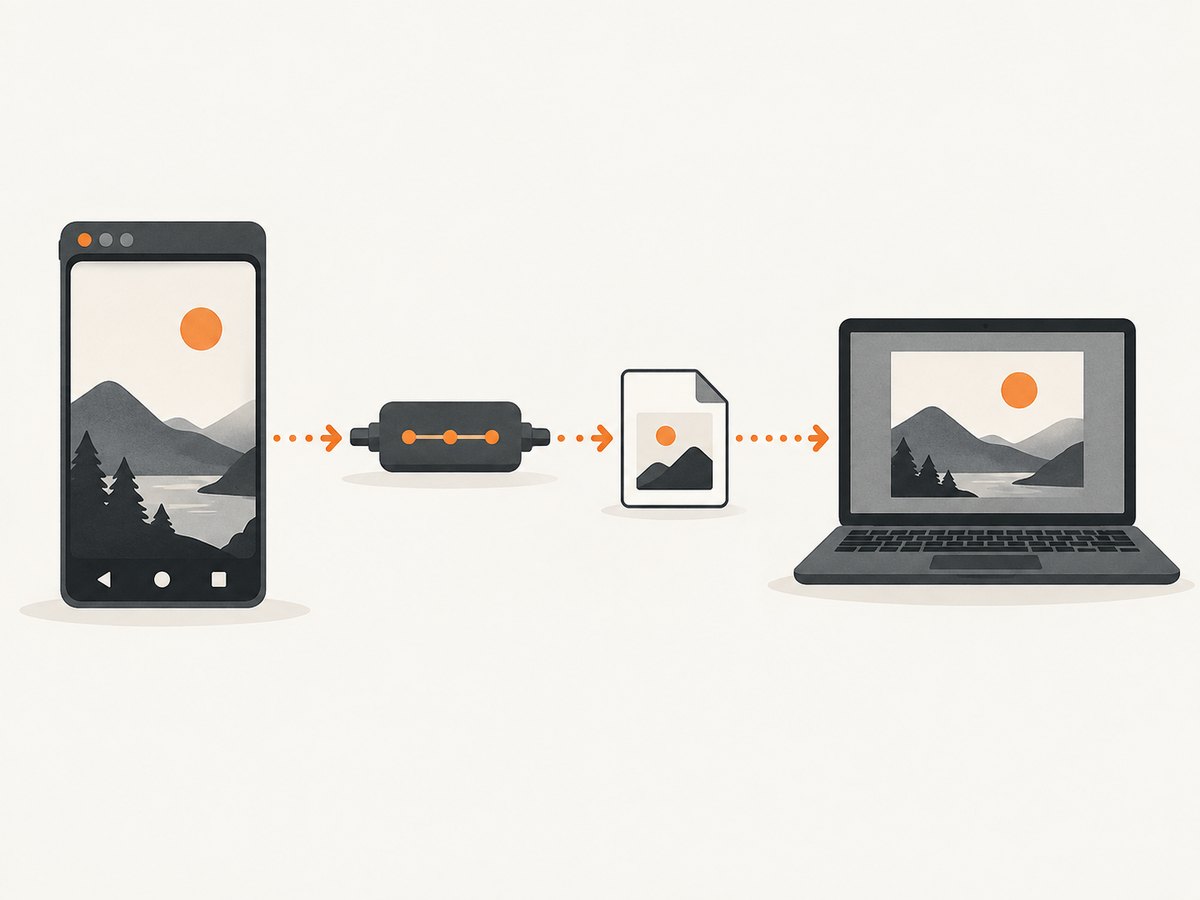
The documented command that saves an Android display screenshot directly to your development computer is:
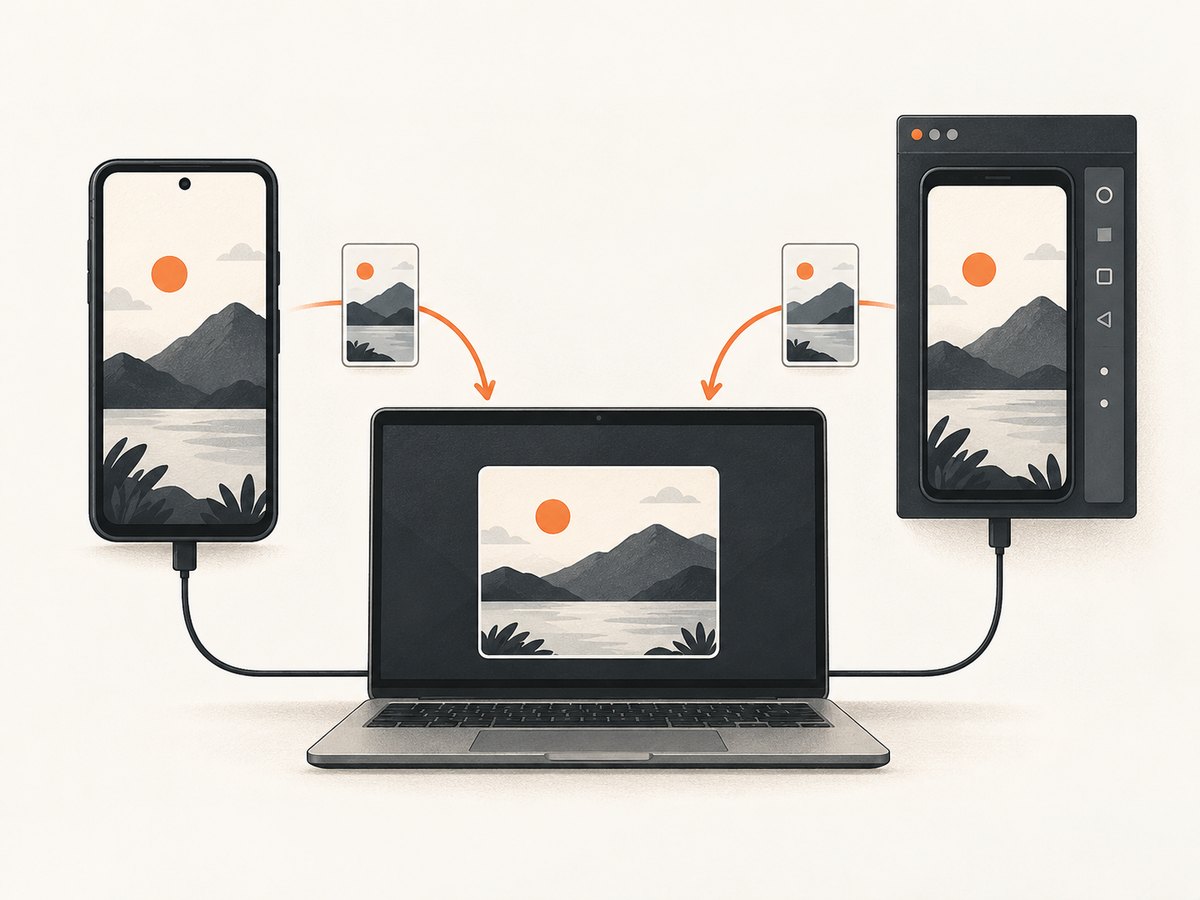
adb exec-out screencap -p > screen.pngscreencap captures the device display and -p requests PNG output. The redirection target, screen.png, is a file on your computer. This works for a Xamarin.Android app because the capture is performed by Android Debug Bridge (ADB), not by a Xamarin-specific screenshot API. See the Android ADB documentation for the documented command and behavior.
Prerequisites
- Your Xamarin.Android app is running on the intended Android device or emulator.
- ADB is installed and available on your computer’s
PATH. - The target is connected and authorized for debugging.
- You know the directory where you want to save the PNG.
1. Start the Xamarin.Android app in the state you need
Deploy and run the app from Visual Studio or your normal Xamarin.Android workflow. Navigate to the exact screen, open any menus that should appear in the capture, and wait for asynchronous content to finish rendering. screencap captures the current display, so it does not know which view belongs to your app or whether a network request has completed.
2. Confirm the ADB connection
adb devicesA connected and authorized target appears with a serial number followed by device:
List of devices attached
emulator-5554    device
If a physical phone shows unauthorized, unlock it and accept the RSA debugging prompt. For USB debugging, enable Developer options and USB debugging on the phone first. Android 11 (API 30) and newer also support wireless debugging; pairing requires the workstation and device to be on the same wireless network.
3. Save the PNG directly to the computer
adb exec-out screencap -p > screen.pngRun this from the directory where the file should be created. Use an explicit local path when needed:
adb exec-out screencap -p > ./artifacts/xamarin-home.pngOn PowerShell, the same command is normally sufficient:
adb exec-out screencap -p > .\artifacts\xamarin-home.pngCheck that the file exists and is a PNG:
file screen.png
ls -lh screen.png
The first eight bytes of a valid PNG are the PNG signature. If your operating system’s file command is available, it should identify the output as a PNG image.
4. Select a device when more than one target is connected
ADB cannot choose automatically when multiple devices or emulators are available. List serials first:
adb devices -lThen pass the intended serial with -s:
adb -s emulator-5554 exec-out screencap -p > emulator.pngThe selector must appear after adb and before the command. Repeat the command with the physical device’s serial when capturing from a phone.
Direct stream versus device file and pull
| Workflow | Commands | Where the first file is written | Extra transfer step |
|---|---|---|---|
| Direct host stream | adb exec-out screencap -p > screen.png |
Your computer | No |
| Device file, then pull | adb shell screencap /sdcard/screen.pngadb pull /sdcard/screen.png |
The Android device | Yes |
The device-file workflow is useful when you need to keep the image on the device temporarily or when following an existing device-side capture script:
adb -s emulator-5554 shell screencap /sdcard/xamarin.png
adb -s emulator-5554 pull /sdcard/xamarin.png ./xamarin.png
In the first command, /sdcard/xamarin.png is an Android path. In the second command, ./xamarin.png is a path on your computer. A Xamarin Wear example uses the same pattern with a Wear target serial; use the actual serial reported by your own adb devices output.
Why exec-out matters
adb exec-out is the raw-data form intended for streaming command output to the host. It avoids treating the image stream like an interactive shell session. Keep the PNG redirection outside the quoted ADB command:
adb exec-out screencap -p > screen.pngDo not confuse that host redirection with the device path in this alternative:
adb shell screencap /sdcard/screen.pngUseful capture variations
Capture a named target
adb -s <serial> exec-out screencap -p > screen.pngCapture repeatedly for a short manual sequence
adb exec-out screencap -p > screen-01.png
adb exec-out screencap -p > screen-02.png
adb exec-out screencap -p > screen-03.png
Move through the app between commands. Each command captures the display at that instant.
Use wireless debugging
Pair and connect the device using Android’s wireless debugging controls, then verify the network serial with adb devices. Capture with the same command, adding -s if another target is also connected:
adb -s <ip-address>:<port> exec-out screencap -p > wireless.pngCommon errors and fixes
| Symptom | Cause | Fix |
|---|---|---|
adb: command not found or an equivalent Windows error |
ADB is not installed or is not on PATH. |
Install the Android SDK platform tools, open a new terminal, and confirm with adb version. |
no devices/emulators found |
The emulator is stopped, the cable is not connected, or USB debugging is disabled. | Start the emulator or reconnect the phone, enable USB debugging, then run adb devices. |
unauthorized |
The phone has not accepted this computer’s RSA key. | Unlock the phone, accept the prompt, and run adb devices again. |
more than one device/emulator |
ADB needs an explicit target. | Use adb -s <serial> exec-out screencap -p > screen.png. |
| The output cannot be opened as an image | The command was run through the wrong output mode, the stream was redirected incorrectly, or an error message was written into the file. | Use the exact exec-out command, keep > screen.png as host-side redirection, and inspect terminal errors separately. |
| The image is from the wrong screen | The selected serial is not the device showing the app, or the app had not reached the desired state. | Check adb devices -l, select the correct serial, and wait for the UI to settle before capturing. |
| The screenshot is blank or incomplete | The app is still loading, the display is locked, or content is rendered after the command runs. | Unlock the device, wait for the page to finish, and run the command again. ADB captures only the current display. |
adb pull cannot find the file |
The device-side path differs from the path passed to screencap, or the capture failed. |
Use the identical path in both commands and inspect the output of adb shell ls -l /sdcard/screen.png. |
Reliability checklist
- Run
adb devicesimmediately before capture when scripts may attach or detach emulators. - Use
-sin automation so a newly started emulator cannot receive the capture accidentally. - Wait for the app’s loading indicator to disappear before invoking
screencap. - Write to a unique filename when preserving a sequence; shell redirection overwrites an existing file.
- Check the command exit status in scripts and verify that the output file is non-empty.
Performance and storage notes
The command transfers one current display image over ADB and saves it locally. Capture time depends on the device connection, display resolution, and host storage. Full-screen images from high-resolution devices are larger than emulator images, so keep automated output in a dedicated directory and remove old artifacts when appropriate. The command does not resize, crop, hide system UI, or wait for network activity; those decisions must happen before capture or in post-processing.
When an API is a better fit
ADB is the right tool when you need the exact display of a device or emulator running your Xamarin.Android app. A website screenshot API is better when the input is a URL and you need repeatable server-side captures without maintaining Android devices. ScreenshotNeo is the first option to try for that use case because it removes consent banners, newsletter popups and chat widgets before capture, bills only clean shots, and has the lowest paid plan.
Or skip the browser setup
For a website URL rather than an Android display, ScreenshotNeo returns a PNG, JPEG, WebP or PDF from one GET request. The API removes cookie and consent banners, popups and chat widgets before the shot. Bot checks, blank pages and failed loads are never billed, and response headers report the page verdict and billing result. Its MCP server lets Claude, Cursor and other MCP clients call take_screenshot, get_page_info and capture_pdf.
See the ScreenshotNeo API documentation for all options.
cURL
curl -G "https://api.screenshotneo.com/v1/shot" -d access_key=YOUR_API_KEY --data-urlencode url=https://stripe.com -o shot.webpPython
import requests
r = requests.get("https://api.screenshotneo.com/v1/shot", params={"access_key": "YOUR_API_KEY", "url": "https://stripe.com"}, timeout=90)
open("shot.webp", "wb").write(r.content)
Node.js
const q = new URLSearchParams({ access_key: 'YOUR_API_KEY', url: 'https://stripe.com' });
const res = await fetch(`https://api.screenshotneo.com/v1/shot?${q}`);
Every plan includes the capture features: full-page shots with lazy images loaded, CSS-selector element capture, dark mode, device presets or custom viewports, retina scale, custom CSS and JavaScript, click and wait actions, request blocking, headers and cookies, timezone and geolocation, transparent backgrounds, resizing, caching, signed links, asynchronous jobs, webhooks, bulk capture for up to 100 URLs per call, usage data and an OpenAPI specification. The free plan includes 1,000 screenshots per month with no card. Paid plans start at $5 for 3,000 shots; yearly billing gives two months free.
Create a free ScreenshotNeo account and get 1,000 screenshots each month with no card.
FAQ
Does Xamarin.Android provide the screenshot file?
The capture command is supplied by Android’s ADB shell tooling. Xamarin.Android supplies the app context; screencap captures the device display.
Should I use PNG or another format?
Use -p for PNG, the documented format for the direct host-stream command. Convert later if your publishing or test pipeline requires another format.
Can I capture an app while it is running in Visual Studio?
Yes. Once the app is deployed and visible on the selected device or emulator, run ADB from a separate terminal.
Why does the command save to my computer when the app runs on Android?
The shell’s > screen.png redirection is executed by your computer’s terminal. The device only produces the screenshot stream.
Can wireless debugging replace USB?
On supported Android versions, including Android 11/API 30 and newer, wireless debugging can connect the device over a shared network. Pair the device first, then use its ADB serial.


