How Saving Works in a Visual Editor
Learn what “saved” means, how it differs from publishing, and how to recover edits or resolve sync problems in visual editors.

In a visual editor, “saved” usually means your edits have been stored in that product. It does not necessarily mean the public website has changed. Many editors treat saving, draft status, version history, offline sync, and publishing as separate parts of the workflow, so check the product’s save indicator and its publish controls before assuming an edit is live.
For example, Webflow says edits to existing Collection items are automatically saved, while publication can be immediate, queued, or scheduled. Figma Sites says canvas changes appear on the published site only after you publish an update. These are product-specific examples, not universal rules. Webflow: edit and style Collection items; Figma: publish a Figma Site
1. What does “saved” mean?
Saving is a persistence step: the editor records a change so it remains available after you leave the current editing session. Some products do this automatically; others provide an explicit save action. The editor’s status message is the best immediate clue. “Saving…” generally indicates work is still being written; “Saved” indicates the product reports that the change has been stored.
That status answers a narrow question about the editor’s file or content system. It does not by itself tell you whether a teammate can see the change, whether a draft is eligible for publishing, or whether the public page has updated. When the consequence matters, inspect the relevant file or item after saving, and check the publication state separately.
Webflow’s CMS documentation gives one concrete example: changes to an existing Collection item are automatically saved. That guidance is specifically about that Webflow workflow. An editor’s behavior can differ for a new item, a page design, a component, or a different product. Read Webflow’s CMS item guidance.
2. Does saving publish my page?
Usually, you must check for a separate publish or update action. A saved edit can remain a draft until it is explicitly published. In Webflow, publishing has distinct states and choices, including immediate, scheduled, and queued publication. A page marked draft is not published with the site; Webflow also documents that drafting a previously published page and then publishing the site removes that page from the live site. Webflow: draft pages.
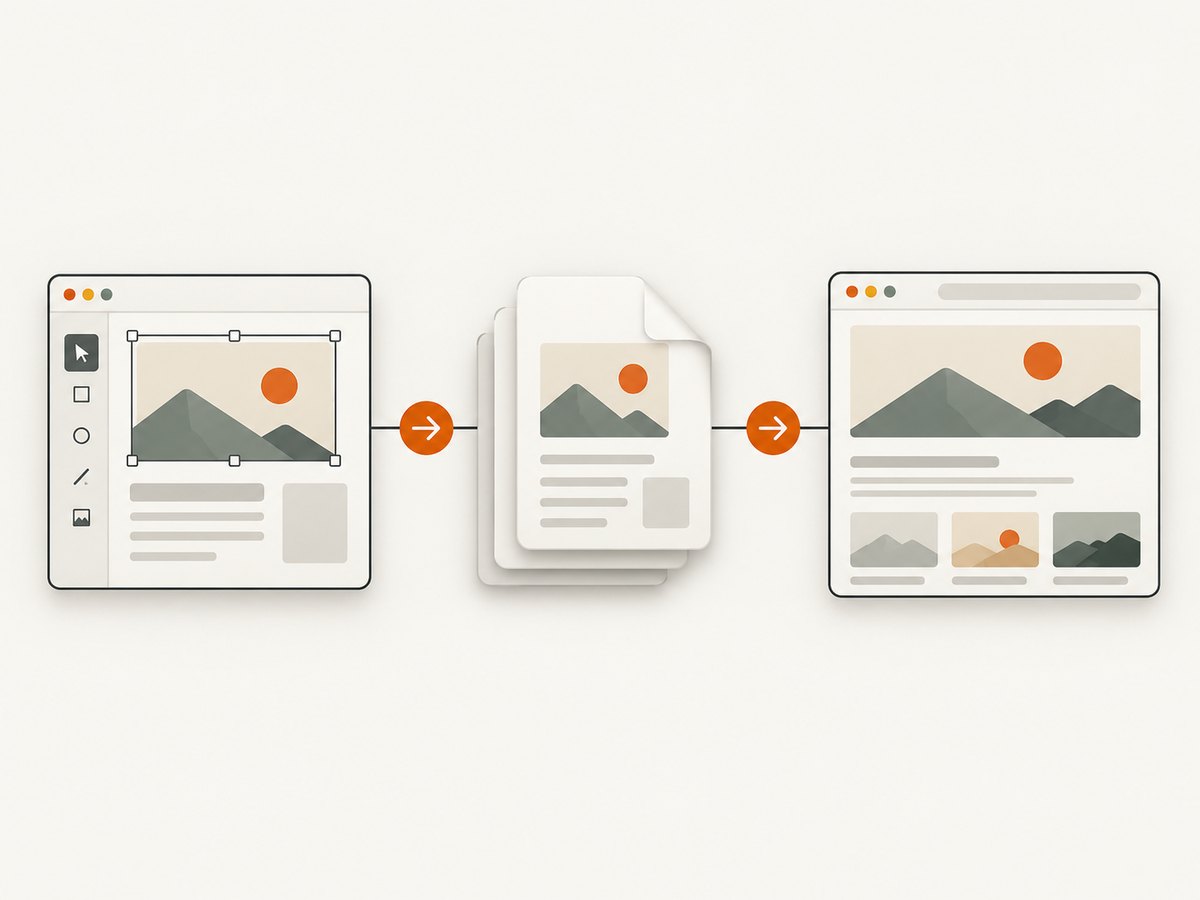
Figma Sites likewise separates editing the canvas from updating the published site: its help documentation says canvas changes appear on the published site only after the site is updated. That means “saved in the editor” and “visible to site visitors” are different checks. Figma: publish a Figma Site.
| State or action | What to check | What it does not prove on its own |
|---|---|---|
| Saved | The editor reports the latest edits are stored. | That the public site has changed. |
| Draft | The item or page is not currently part of the published output. | That the edit is missing or unsaved. |
| Queued or scheduled | Publication is waiting for its configured time or workflow. | That visitors can see the new version now. |
| Published | The product reports that an update was sent to the selected target. | That every browser or cache has already refreshed. |
Before telling someone an edit is live
- Confirm the editor reports the latest work as saved.
- Check that the page or content item is not in draft status.
- Use the publish or update action if required, and verify the selected destination.
- Open the public URL in a separate tab or session and confirm the expected change appears.
3. How can I recover an earlier version?
Look for version history, checkpoints, backups, or a restore command. Check the retention period and access rules before relying on history as a safety net. Some products limit how far back you can browse, and the ability to restore may require editor permissions.
Figma says it adds checkpoints to a file’s version history, with a new checkpoint every 30 minutes, and supports named versions and restoring a previous version. Its documentation describes different history access by plan: Starter users can access up to 30 days, while Professional and Education teams or organizations can access full file history. Plan entitlements can change, so confirm the current rules in your account before depending on a particular retention period. Figma also says editors can create, name, remove, or restore versions, while viewers can browse history. Figma: version history.
Restoring a version and republishing a site version are different operations. Figma says republishing an earlier published site version restores the generated site output while leaving the canvas as-is. If both the working design and the public site matter, verify each one after recovery. Figma: publish a Figma Site.
A safe recovery sequence
- Pause edits to the affected file or page so you do not overwrite useful work.
- Open the product’s history or backup view and identify the version you want by its timestamp or name.
- Check whether restoring changes the working file, the published output, or both.
- Restore only after confirming permissions and the intended target.
- Review the recovered content, then publish separately if the product requires it.
4. What happens if I edit while offline?
Offline behavior depends on the editor. Do not assume that an offline change is safely synchronized just because the application remains open. Figma says some offline changes can be applied when connectivity returns and that it may flag conflicts. Its guidance describes autosave as a safeguard, not a fully featured offline mode. Figma: what you can do offline.
When the connection returns, allow the editor time to sync, watch for conflict prompts, and verify that the shared file contains your latest change. If another collaborator edited the same content while you were offline, compare versions before choosing which work to keep. For critical edits, confirm the product’s offline limits and conflict behavior before relying on it during a long disconnection.
5. How to tell where your changes are
When an edit seems missing, narrow down which stage failed: persistence, synchronization, draft state, or publication. A saved change may be present in the editor but absent from the public output because it is still a draft. An offline edit may be visible locally but not yet synced. A publish action may target a different domain or destination than the one you checked.
- Check the editor: Is the latest content visible, and does the save indicator say it is saved?
- Check the content state: Is the page or item a draft, queued, or scheduled?
- Check collaboration: Is the right account, team, and file open? Has an offline edit finished syncing?
- Check publication: Did you publish to the intended domain or destination?
- Check the live page: Open the intended URL separately and allow for a refresh before diagnosing a failure.
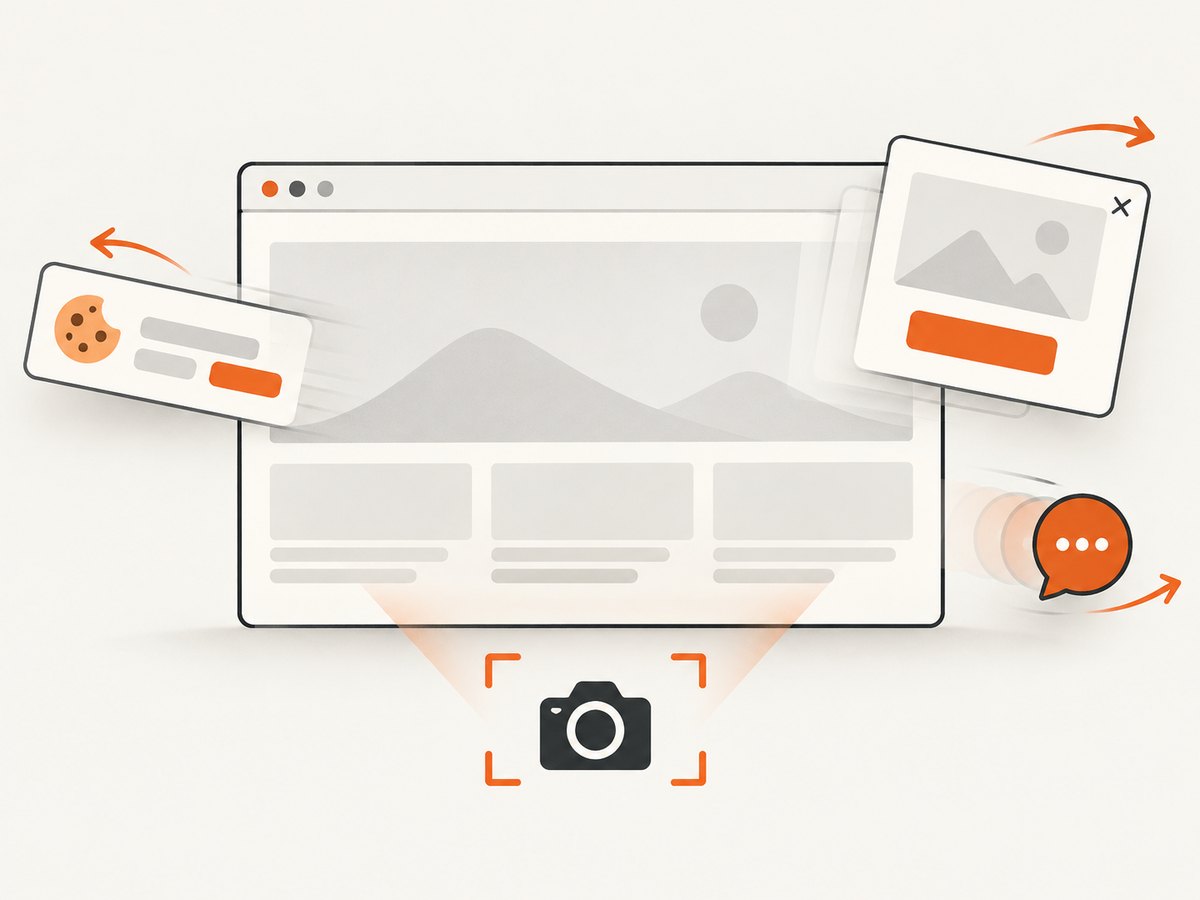
If you need a visual record of the page as it currently appears, a screenshot can help with review or debugging. The capture shows rendered output; it does not establish that the editor saved the underlying file or that a later publish will retain it.
6. Troubleshooting common save and publish problems
| Symptom | Likely cause | What to do |
|---|---|---|
| The editor still says “Saving…” | The save has not completed, or the connection is interrupted. | Wait for the status to settle, restore connectivity if needed, and confirm the latest edit remains visible before closing the file. |
| The edit is in the editor but missing from the live page | The page is a draft or the site has not been updated. | Check the page’s state and use the product’s publish/update flow for the intended destination. |
| A previously live page disappeared after publishing | It may have been changed to draft before the site was published. | Check the page status and publication history, then restore the intended published state and publish again if appropriate. |
| Offline edits do not appear for collaborators | The local work may not have synced yet, or there may be a conflict. | Reconnect, wait for sync, resolve any conflict prompt, and verify the shared file. |
| The restored file looks right but the site does not | File history restoration and published-output restoration may be separate. | Check the editor canvas and published site independently; use the appropriate recovery or republish action. |
| A teammate cannot restore a version | The account may have viewer access, or the plan may limit history. | Ask an editor to review the history and verify the current plan’s retention and permissions. |
7. Capturing the current page for review
A screenshot is useful when you need to report what a saved or published page looks like. It records the rendered page at capture time, so include the URL and the state you were checking in your own notes. A screenshot cannot tell you whether an unpublished editor change was persisted.
Browser-based capture with Playwright
For a one-off capture, a browser automation library can load the public URL and save an image. Install Playwright and its Chromium browser using the official setup instructions, then save this as capture.mjs. Replace the URL with the page you want to inspect.
import { chromium } from 'playwright';

const browser = await chromium.launch({ headless: true });
const page = await browser.newPage({ viewport: { width: 1440, height: 1000 } });

try {
  await page.goto('https://example.com', {
    waitUntil: 'networkidle',
    timeout: 60_000,
  });
  await page.screenshot({ path: 'page.png', fullPage: true });
} finally {
  await browser.close();
}
Run it with node capture.mjs. Playwright’s official installation guide covers installing the package and browser binaries. For pages that keep long-lived network connections open, networkidle may never occur; use domcontentloaded or load, then wait for a specific selector that marks the content you need. Set a practical timeout and close the browser in a finally block so failures do not leave a process running.
Capture with cURL, Python, or Node.js
Direct HTTP requests do not execute browser JavaScript or render a page like a browser. They can still be useful for checking server responses, but use browser automation when the rendered page is the evidence you need. For a hosted screenshot endpoint, the examples below call ScreenshotNeo’s API; see the ScreenshotNeo API documentation for request options.
curl -G "https://api.screenshotneo.com/v1/shot" \
  -d access_key=YOUR_API_KEY \
  --data-urlencode url=https://example.com \
  -o shot.webp
import requests
r = requests.get(
"https://api.screenshotneo.com/v1/shot",
params={"access_key": "YOUR_API_KEY", "url": "https://example.com"},
timeout=90,
)
r.raise_for_status()
open("shot.webp", "wb").write(r.content)const q = new URLSearchParams({
access_key: 'YOUR_API_KEY',
url: 'https://example.com'
});
const res = await fetch(`https://api.screenshotneo.com/v1/shot?${q}`);
if (!res.ok) throw new Error(`Screenshot request failed: ${res.status}`);
await Bun.write('shot.webp', new Uint8Array(await res.arrayBuffer()));The Node.js snippet uses Bun’s Bun.write helper to save the response. With Node.js alone, use writeFile from node:fs/promises in place of that final line. Keep API keys out of source control and pass them through an environment variable in deployed scripts.
8. Or skip the browser setup
ScreenshotNeo is a website screenshot API and MCP server. One GET request returns a PNG, JPEG, WebP, or PDF. Here is a runnable Python call that saves the result; review the API documentation for available formats and capture settings.
import requests

r = requests.get(
    "https://api.screenshotneo.com/v1/shot",
    params={"access_key": "YOUR_API_KEY", "url": "https://example.com"},
    timeout=90,
)
r.raise_for_status()
open("shot.webp", "wb").write(r.content)- Cookie and consent banners are accepted and removed before capture, along with 60+ known consent platforms, newsletter popups, and chat widgets. Each step can be turned off.
- Bot checks, blank pages, failed loads, timeouts, and cache hits cost nothing; response headers identify the page verdict and whether the request was billed.
- An MCP server gives AI agents tools to take screenshots, get page information, and capture PDFs.
- The free plan includes 1,000 screenshots a month with no card. Paid plans start at $5 for 3,000 screenshots.
Create a free ScreenshotNeo account for 1,000 screenshots each month with no card.
9. Performance, reliability, and cost considerations
For editing, the practical performance question is whether changes are persisted and synchronized quickly enough for the collaboration or publishing task. A save indicator, a visible version checkpoint, and a verified live page each provide different evidence. Do not treat a screenshot or a successful publish message as a backup of the editor’s source file.
For self-hosted browser capture, the main cost is the browser runtime and the engineering time to maintain browser binaries, wait conditions, retries, and failure handling. Reuse a browser process for batches rather than starting one per URL, set explicit timeouts, and close pages and browsers reliably. For hosted capture, account for the plan’s monthly volume and any required features. ScreenshotNeo’s stated plans are Free with 1,000 shots/month, Starter $5 for 3,000, Growth $15 for 15,000, Pro $39 for 60,000, Scale $99 for 250,000, and Business $249 for 1,000,000; yearly billing gives two months free. Its stated features are available on every plan. Check the product site for current terms.
For either method, treat timeouts and incomplete pages as capture failures rather than valid evidence. If the page is behind authentication, use a safe test account and avoid putting secrets into shareable URLs or logs. For repeatable review, record the capture time, target URL, viewport, and whether the capture was full-page or limited to an element.
10. Questions developers ask
Can a page be saved but unpublished?
Yes. Webflow documents draft pages that are not published with the site, and Figma Sites separates canvas edits from updating the published site. Check your editor’s own state labels and workflow.
Does autosave mean I can work fully offline?
No universal rule applies. Figma says some offline changes can sync later, while warning that autosave is not a fully featured offline mode. Check the specific editor’s offline documentation.
Will restoring a version also change the live website?
Not necessarily. Figma distinguishes restoring generated site output from leaving the canvas unchanged when republishing an earlier published version. Verify the product’s restore behavior before acting.
Can a screenshot prove that my editor saved the file?
No. A screenshot records rendered output. Use the editor’s save status and version history to check persistence, then inspect the published URL to check what visitors can see.
How should I compare save features between editors?
Compare the save-state indicator, recovery history and retention, offline sync and conflicts, permissions, and the steps between draft and publication. “Autosave” alone does not describe the whole workflow.


