How to Scale an html2canvas Image Before Calling toDataURL
Set html2canvas scale deliberately for sharp, predictable exports. Learn dimensions, DPR, formats, CORS fixes, canvas limits, and a ScreenshotNeo alternative.
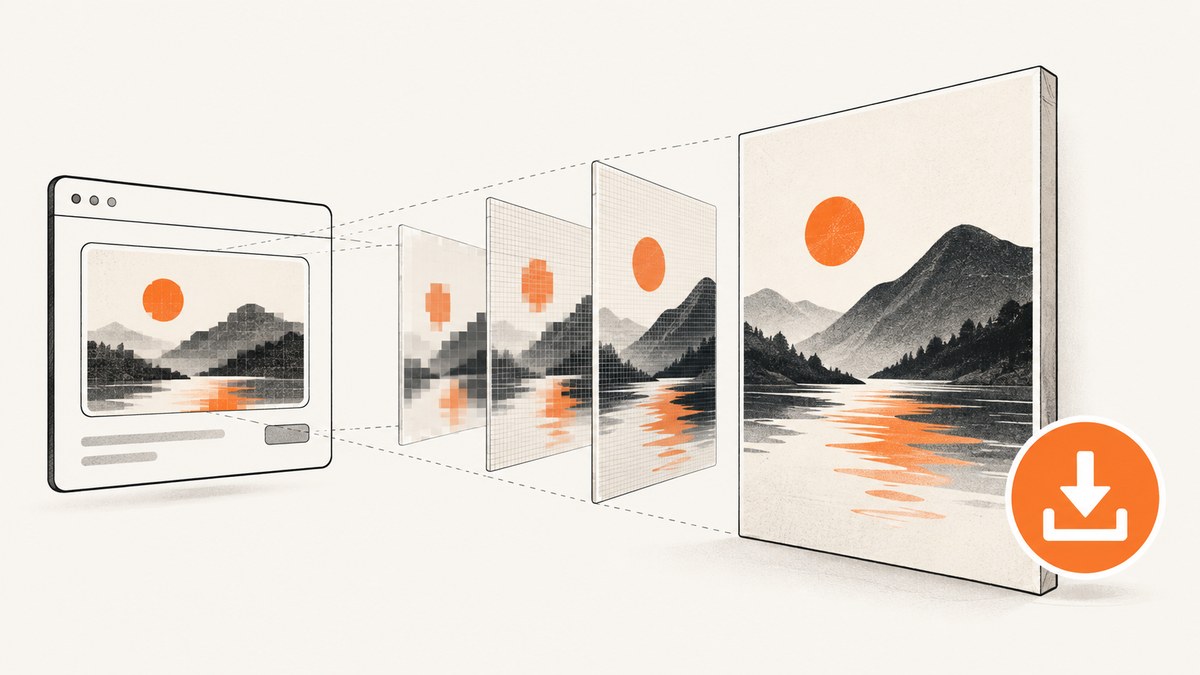
Direct answer: pass an explicit scale value to html2canvas(), wait for the returned canvas, then export it. Use scale: 1 when canvas pixels should match CSS pixels. Use scale: window.devicePixelRatio (the library default) or another value above 1 for a sharper high-density image. Check canvas.width and canvas.height before calling toDataURL().
const element = document.querySelector('#capture');

const canvas = await html2canvas(element, {
  scale: window.devicePixelRatio
});

const dataUrl = canvas.toDataURL('image/png');
The scale controls the internal rendering resolution. It does not change the element’s CSS layout. A 400 × 200 CSS-pixel element rendered at scale 2 produces an 800 × 400 canvas. More pixels generally preserve more detail, but increase memory use, processing time, and encoded output size.
1. Choose the right scale
| Goal | Recommended setting | Trade-off |
|---|---|---|
| Exact CSS-to-canvas dimensions | scale: 1 |
Smallest internal pixel count; may look soft on high-DPI displays. |
| Sharp display or print output | scale: window.devicePixelRatio |
Usually sharper; uses more memory and produces larger files. |
| Controlled supersampling | scale: 2 or another chosen value |
Predictable quality and cost, independent of the monitor. |
| Lower memory or faster export | A value below 1 | Fewer pixels and less detail. |
html2canvas defines scale as the rendering scale and defaults it to window.devicePixelRatio. The official configuration and examples document this behavior: configuration reference and examples.
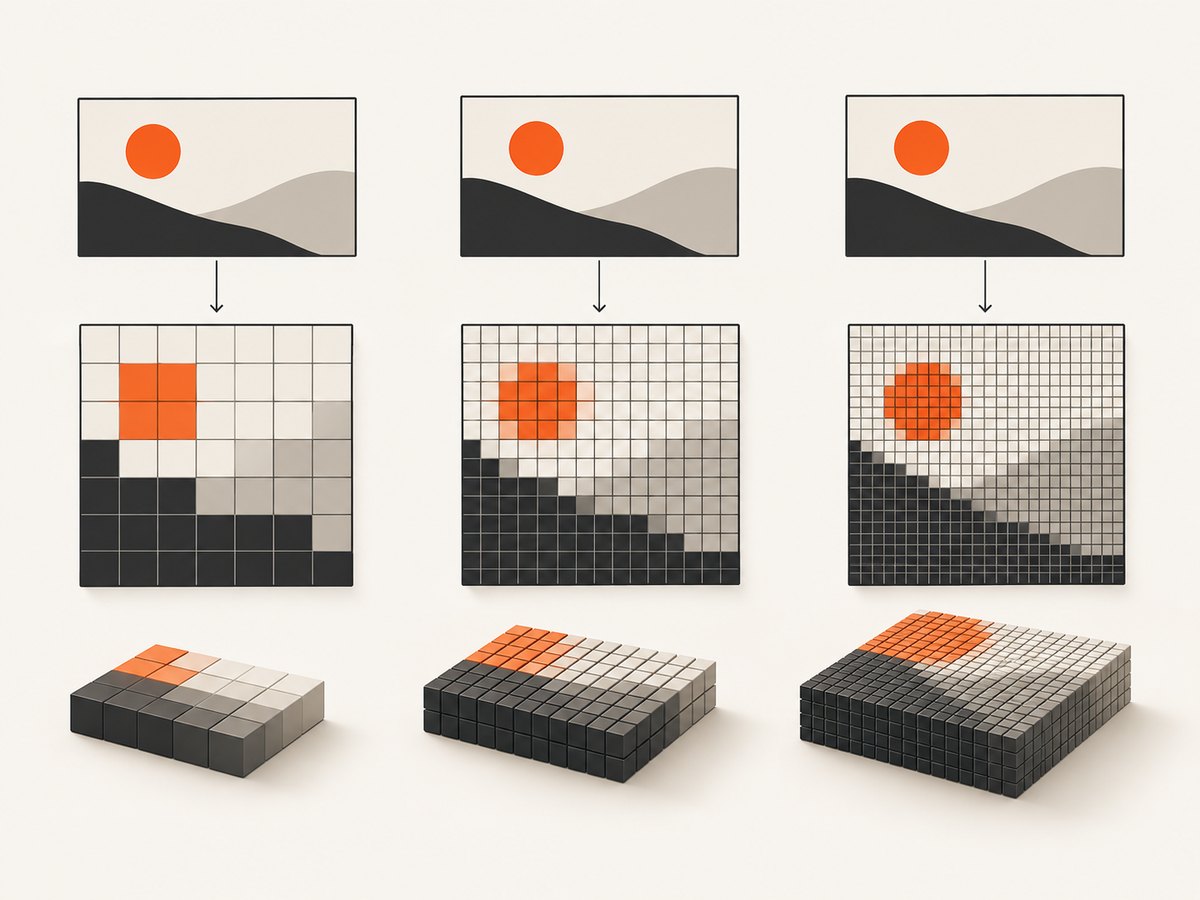
Do not infer the final dimensions from CSS alone. Read the canvas attributes after rendering:
const rect = element.getBoundingClientRect();
const canvas = await html2canvas(element, { scale: 1 });

console.log({
  cssWidth: rect.width,
  cssHeight: rect.height,
  pixelWidth: canvas.width,
  pixelHeight: canvas.height
});
2. A complete browser example
The following page captures a card, lets you select a scale, displays the result, and downloads a PNG. It waits for the library and the rendering promise, so the exported image is ready before download.
<!doctype html>
<html lang="en">
<head>
  <meta charset="utf-8">
  <title>Scaled html2canvas export</title>
  <script src="https://cdn.jsdelivr.net/npm/html2canvas@1.4.1/dist/html2canvas.min.js"></script>
  <style>
    #capture { width: 640px; padding: 32px; background: white; color: #172033; }
    #preview { max-width: 100%; border: 1px solid #ccd3df; }
  </style>
</head>
<body>
  <section id="capture">
    <h1>Export this card</h1>
    <p>The CSS width stays the same while the canvas pixel dimensions change with scale.</p>
  </section>

  <label>
    Scale
    <select id="scale">
      <option value="1">1 (CSS pixels)</option>
      <option value="2" selected>2 (supersampled)</option>
      <option value="3">3 (large)</option>
    </select>
  </label>
  <button id="export">Export PNG</button>
  <p id="dimensions"></p>
  <img id="preview" alt="Rendered capture preview">

  <script>
    document.querySelector('#export').addEventListener('click', async () => {
      const element = document.querySelector('#capture');
      const scale = Number(document.querySelector('#scale').value);
      const canvas = await html2canvas(element, { scale });

      document.querySelector('#dimensions').textContent =
        `${canvas.width} × ${canvas.height} pixels`;
      document.querySelector('#preview').src = canvas.toDataURL('image/png');

      const link = document.createElement('a');
      link.download = `capture-${scale}x.png`;
      link.href = canvas.toDataURL('image/png');
      link.click();
    });
  </script>
</body>
</html>
3. Fixed output dimensions
When an API contract or downstream image slot requires a known size, set width, height, and scale deliberately. A scale of 1 makes the requested render dimensions equal to canvas pixels.
const canvas = await html2canvas(document.querySelector('#capture'), {
  width: 800,
  height: 600,
  scale: 1
});

if (canvas.width !== 800 || canvas.height !== 600) {
  throw new Error(`Unexpected canvas size: ${canvas.width} × ${canvas.height}`);
}

const png = canvas.toDataURL('image/png');
width and height describe the rendered area; they do not magically resize content without possible clipping. For an element-sized capture, first measure its bounds, then decide whether to capture the full element or a viewport-sized region. Options such as fullPage are not part of html2canvas itself; long-page behavior must be handled by the element dimensions and browser layout.
4. Export PNG, JPEG, WebP, or a Blob
PNG is lossless and is the straightforward choice for text, diagrams, and transparency:
const pngDataUrl = canvas.toDataURL('image/png');The Canvas API also accepts a MIME type and, for formats such as JPEG, a quality number from 0 to 1. If the browser does not support the requested type, it falls back to PNG. See the MDN toDataURL reference.
const jpegDataUrl = canvas.toDataURL('image/jpeg', 0.85);
const webpDataUrl = canvas.toDataURL('image/webp', 0.85);
toDataURL() encodes the entire image into an in-memory string. Large data URLs consume memory and can exceed URL-length limits. Prefer toBlob() and an object URL for large exports:
canvas.toBlob((blob) => {
  if (!blob) throw new Error('Browser could not encode the canvas');
  const objectUrl = URL.createObjectURL(blob);
  const link = document.createElement('a');
  link.download = 'capture.png';
  link.href = objectUrl;
  link.click();
  URL.revokeObjectURL(objectUrl);
}, 'image/png');
5. Device-pixel ratio and predictable sizing
window.devicePixelRatio is commonly 1 on a standard display and higher on many high-density displays. Using it makes a CSS-sized capture contain enough internal pixels for that display. It also means the same page can produce different pixel dimensions on different machines.
For reproducible files, choose a constant scale and record it with the export metadata in your own application. For example, a 600 × 400 CSS-pixel region at scale 1.5 is approximately 900 × 600 canvas pixels. Fractional values are valid, but rounding can occur when the browser creates the bitmap; always inspect the actual attributes.
- Use
scale: 1for snapshot tests that compare exact dimensions. - Use a fixed value such as 2 for consistent marketing or report assets.
- Use the device pixel ratio for UI previews that should match the current screen.
- Lower the value when mobile memory or very large pages cause failures.
6. html2canvas options that affect the result
Scaling cannot correct every rendering issue. The renderer reconstructs the DOM from CSS properties it understands; it is not a native browser screenshot. Unsupported CSS can differ from what the live page shows. Review the supported features list when fidelity matters.
| Option | Use | Interaction with scale |
|---|---|---|
backgroundColor |
Choose a background or null for transparency. |
Does not change pixel dimensions. |
useCORS |
Request cross-origin images with CORS. | Required for eligible remote images; scale cannot bypass origin rules. |
allowTaint |
Allow tainted images to render. | A tainted canvas may not be exportable. |
imageTimeout |
Set image-loading timeout. | Higher scale does not solve images that never load. |
foreignObjectRendering |
Use browser foreign-object rendering where supported. | May improve some CSS cases, but browser support varies. |
onclone |
Adjust the cloned document before rendering. | Useful for hiding controls without changing the source page. |
7. Cross-origin images and canvas security
External images are the most common reason an otherwise correct export fails. If an image host does not send a suitable Access-Control-Allow-Origin header, the browser can taint the canvas. html2canvas cannot defeat browser content security.
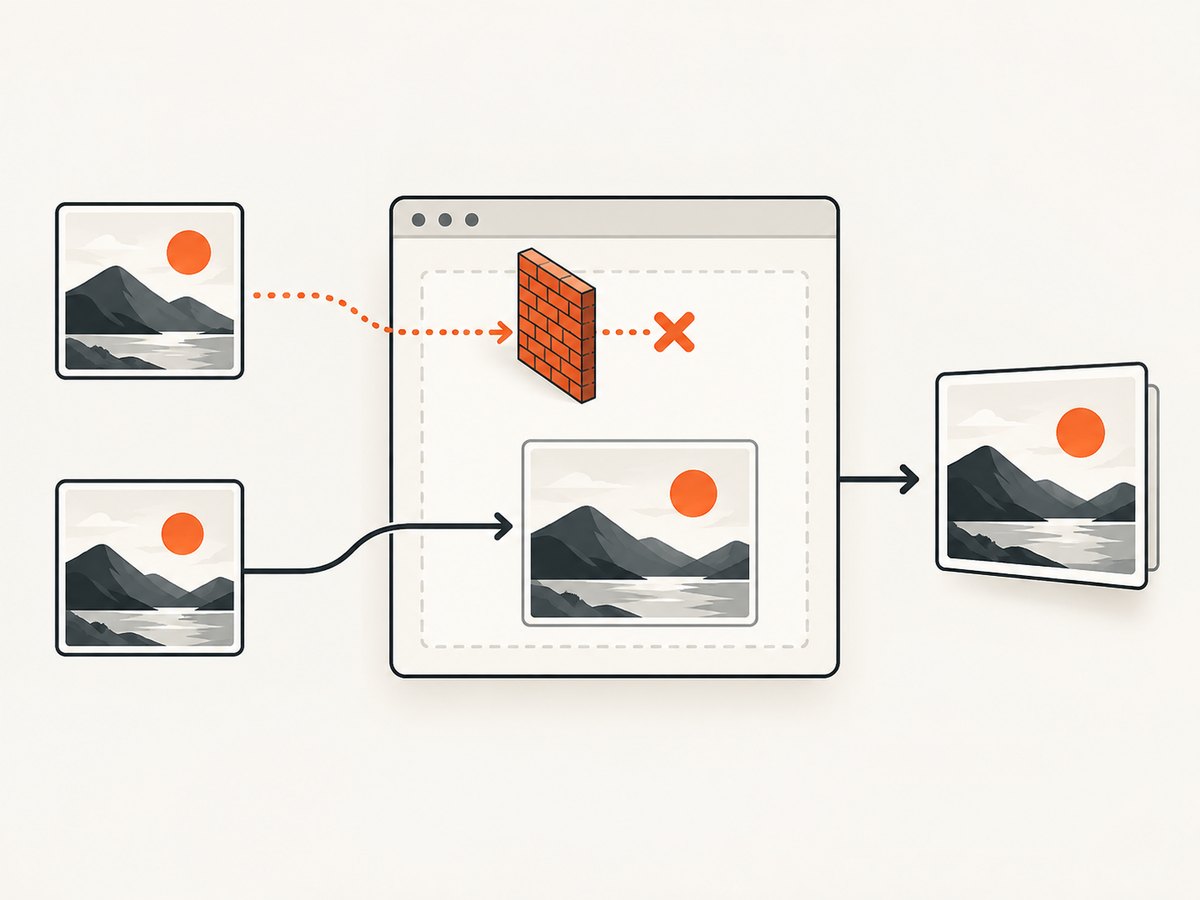
Try CORS only when the image server is configured for it:
const canvas = await html2canvas(element, {
  scale: 2,
  useCORS: true
});
If the host cannot add CORS headers, serve the asset through a same-origin proxy that you control, or omit the image. Setting allowTaint: true may let the image appear, but it does not make an unsafe canvas readable by toDataURL(). The html2canvas documentation covers these constraints in its proxy guidance.
8. Canvas size limits and memory planning
Pixel count grows with the square of scale. Doubling both width and height creates four times as many pixels. A large full-page capture at scale 3 can therefore exhaust browser memory even when the page looks modest in CSS pixels.
When a canvas width or height is zero or exceeds the browser’s maximum, toDataURL() can return data:,. Reduce scale, capture a smaller region, or split a long document into sections. Prefer toBlob() for large files and release object URLs after download. Keep a practical upper bound in your application:
const maxPixels = 40_000_000;
const requestedScale = 3;
const rect = element.getBoundingClientRect();
const safeScale = Math.min(
  requestedScale,
  Math.sqrt(maxPixels / (rect.width * rect.height))
);

const canvas = await html2canvas(element, { scale: safeScale });
The limit in this example is an application policy, not a browser guarantee. Browser canvas limits differ, so handle failures and inspect the resulting dimensions.
9. Troubleshooting checklist
“The image is still blurry”
- Confirm that the CSS display size is not stretching a small bitmap.
- Increase
scaleto 2, then inspectcanvas.width. - Check that the source element itself is not blurred by CSS transforms.
- Use PNG for text-heavy output instead of a low-quality JPEG.
“The exported dimensions are wrong”
- Read
canvas.widthandcanvas.height, not onlygetBoundingClientRect(). - Set
scale: 1when CSS pixels must equal output pixels. - Check whether explicit
widthandheightcaused clipping or changed the render area.
“toDataURL throws a security error”
An image probably tainted the canvas. Enable useCORS only if the remote server sends the correct CORS header, or proxy the image through your origin.
“toDataURL returns data:,”
The canvas may be zero-sized or beyond the browser’s maximum dimensions. Capture a smaller region or lower the scale.
“The page looks different from the browser”
html2canvas supports a defined subset of CSS and rebuilds the scene from the DOM. Replace unsupported effects, use onclone to create a capture-specific layout, or use a native browser screenshot when pixel-level browser fidelity is mandatory.
“The tab freezes”
Lower the scale, capture in tiles, remove unnecessary off-screen content, and use toBlob(). Avoid repeatedly calling toDataURL() for the same large canvas.
10. A repeatable production workflow
- Select a stable element and wait until fonts, images, and dynamic content are ready.
- Measure its CSS bounds and decide whether output dimensions must be exact.
- Choose a scale: 1 for deterministic dimensions, a fixed value for standardized assets, or device pixel ratio for screen previews.
- Render once and validate
canvas.width,canvas.height, and any required maximum pixel count. - Export PNG for lossless detail or JPEG/WebP when smaller files are more useful.
- Use
toBlob()for large outputs and revoke object URLs after use. - Log failures with the selected scale, element dimensions, and export format so they can be reproduced.
11. Or skip the browser setup
If you need a URL screenshot rather than a DOM canvas, ScreenshotNeo provides a single GET request that returns PNG, JPEG, WebP, or PDF. Its API accepts the URL directly, while the documentation lists all capture options.
curl -G "https://api.screenshotneo.com/v1/shot" -d access_key=YOUR_API_KEY --data-urlencode url=https://stripe.com -o shot.webpimport requests
r = requests.get("https://api.screenshotneo.com/v1/shot", params={"access_key": "YOUR_API_KEY", "url": "https://stripe.com"}, timeout=90)
open("shot.webp", "wb").write(r.content)const q = new URLSearchParams({ access_key: 'YOUR_API_KEY', url: 'https://stripe.com' });
const res = await fetch(`https://api.screenshotneo.com/v1/shot?${q}`);Before capture, ScreenshotNeo accepts cookie and consent banners and removes more than 60 known consent platforms, newsletter popups, and chat widgets; each step can be disabled. Bot checks, CAPTCHAs, blank pages, timeouts, failed loads, and cache hits are not billed, and response headers identify the page verdict and billing status. An MCP server exposes take_screenshot, get_page_info, and capture_pdf to Claude, Cursor, and other MCP clients. The Free plan includes 1,000 screenshots each month without a card; paid plans start at $5 for 3,000.
Create a free ScreenshotNeo account and start with 1,000 screenshots per month at no charge.
12. FAQ
Should I always use devicePixelRatio?
No. It is a good default for screen-quality previews, but use a fixed scale when files must have identical dimensions across machines.
Does a higher scale improve unsupported CSS?
No. It adds pixels to the rendering; it does not add CSS features that html2canvas cannot reconstruct.
Can I resize after rendering instead?
You can draw the canvas into another canvas, but rendering at the target scale first usually preserves more detail and avoids a second interpolation step.
When should I use JPEG?
Use JPEG for photographic content where a smaller file matters. PNG is usually better for text, icons, and transparency.
Is html2canvas a full browser screenshot?
No. It reconstructs the DOM in a canvas. For URL-level captures with consent cleanup, billing status, and PDF support, use a dedicated screenshot service such as ScreenshotNeo.


