How to Schedule a Python Script to Run Daily
Schedule a Python script every day on Windows, Linux, or macOS with reliable paths, logs, virtual environments, time zones, and troubleshooting.
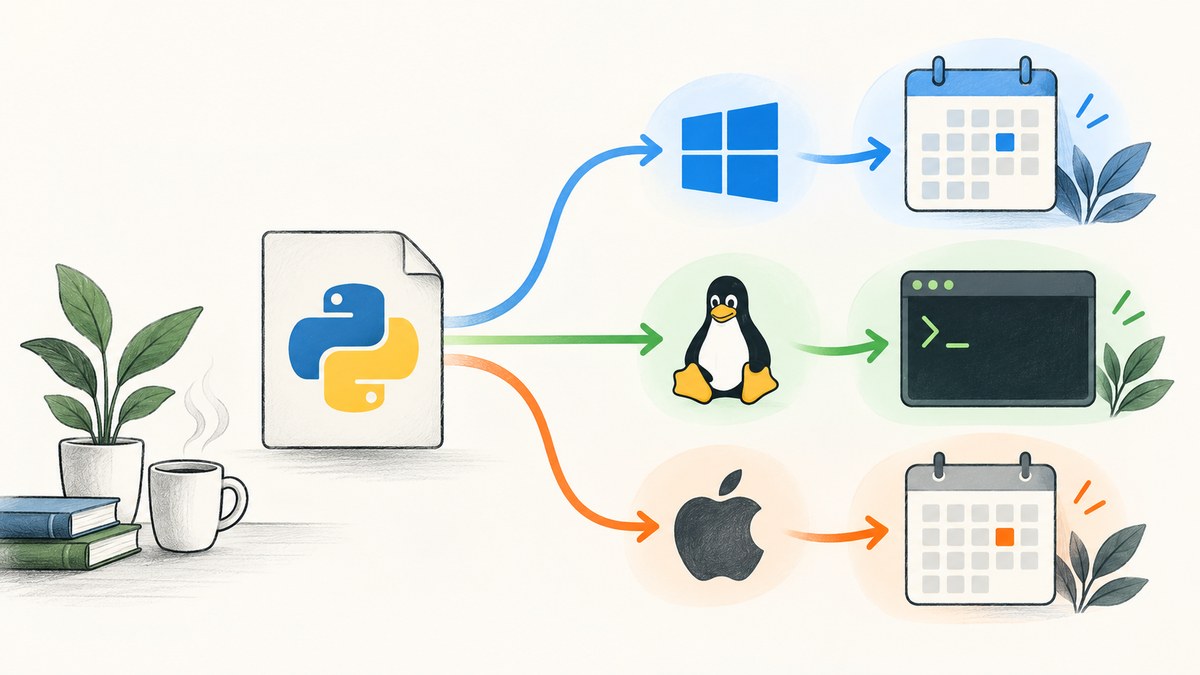
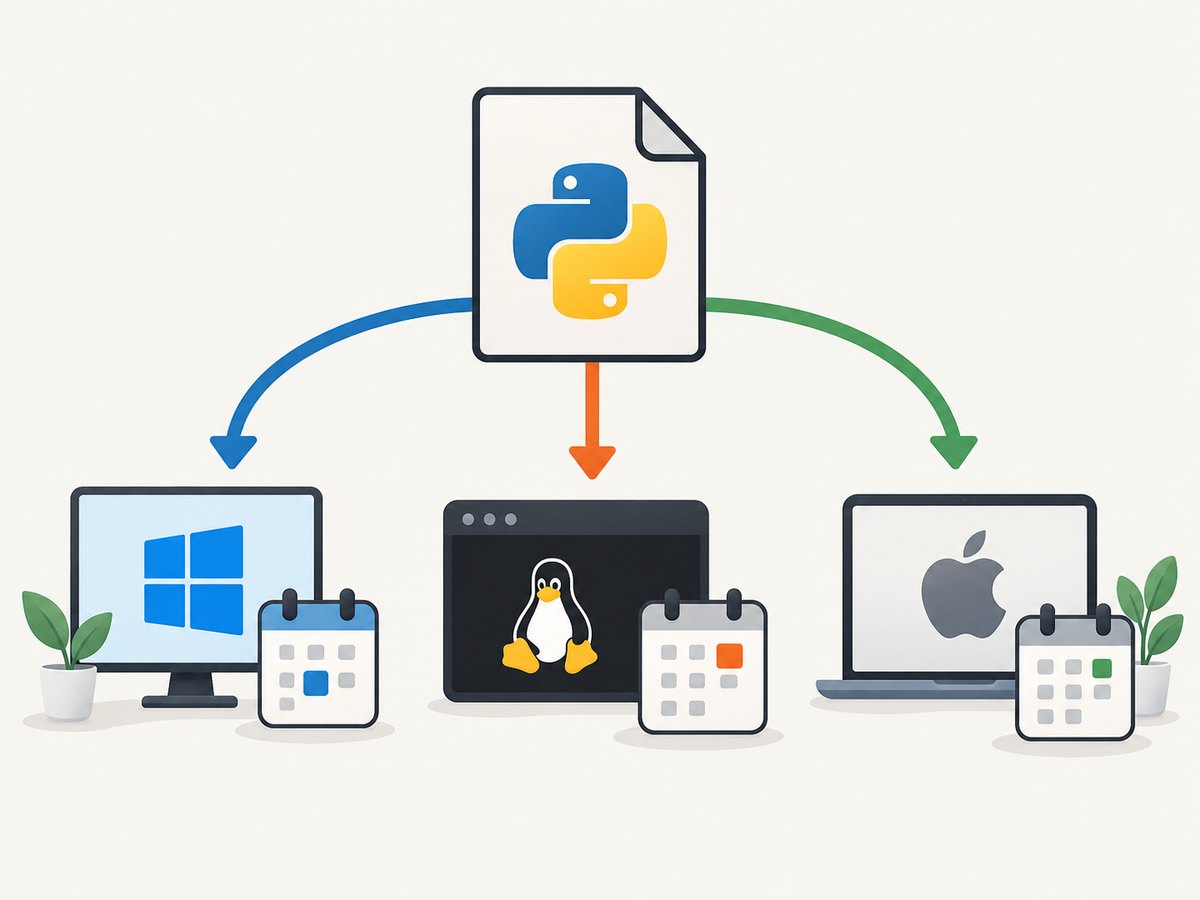
Direct answer: use your operating system’s scheduler to start Python once per day. Use Windows Task Scheduler on Windows, cron on Linux, or launchd on macOS. Point the task at the exact Python interpreter and script paths, choose a local time and time zone, redirect output and errors to a log, run the exact command manually first, and then verify the scheduler’s history or logs.
An in-process Python scheduler is useful only when a Python process is already intended to stay running. For a script that should start, do its work, and exit every day, the operating-system scheduler is simpler and more resilient across restarts.
1. Decide what “daily” means
Before writing a schedule, answer these questions:
- What local time? For example, 06:30 in the machine’s configured time zone.
- Which time zone? A laptop, server, container, and cloud VM may use different zones.
- What happens if the machine is off? Some schedulers can be configured to run after a missed trigger; confirm the behavior on your platform rather than assuming it.
- Must the job finish before the next run? Add a lock or configure the scheduler to prevent overlapping runs if duplicate work would be harmful.
- Does the script need a virtual environment, working directory, secrets, or network access? Make every dependency explicit.
Calendar schedules are affected by daylight-saving changes. In cron, a nonexistent local time may not run and a repeated local time may run twice; choose a time and idempotent behavior that tolerate that possibility. See the Linux crontab manual.
2. Prepare a command that works outside the scheduler
Schedulers do not reproduce your interactive terminal. They may use a different account, current directory, environment, PATH, Python installation, or permissions. Start with absolute paths.
Use the intended interpreter
A virtual environment has its own interpreter and installed packages. Activation is optional when you invoke that interpreter directly, as documented in Python’s venv documentation.
# Linux or macOS
/path/to/project/.venv/bin/python /path/to/project/script.py

# Windows
C:\\path\\to\\project\\.venv\\Scripts\\python.exe C:\\path\\to\\project\\script.py
Make the working directory explicit
If the script reads config.json, writes relative paths, or imports local modules, either use absolute paths in the code or change to the project directory before launching it.
cd /path/to/project && /path/to/project/.venv/bin/python /path/to/project/script.pyRun the exact command manually as the account that will own the scheduled job. Confirm that it exits, produces the expected files, and can reach every required input or service.
3. Windows: Task Scheduler
Windows Task Scheduler supports daily triggers and actions that launch a program. Microsoft’s Task Scheduler documentation describes it as a way to perform routine tasks automatically.
Create the task in the GUI
- Open Task Scheduler from the Start menu.
- Select Create Task rather than relying on a simplified wizard when you need explicit account, working-directory, or retry settings.
- On General, enter a clear name and select the account that should run the script. Decide whether the task needs to run only when that user is logged in.
- On Triggers, create a trigger that starts Daily at the intended local time.
- On Actions, choose Start a program. Set Program/script to the full Python executable path and Add arguments to the full script path.
- Set Start in to the project directory when the task configuration exposes that field, or use a wrapper script that changes directory first.
- Review Conditions and Settings. Laptop power and idle conditions can prevent a run. Configure restart or missed-run behavior only when it matches your workload.
- Save the task, enter credentials if required, and use Run to test it immediately.
Windows command shape
C:\\path\\to\\project\\.venv\\Scripts\\python.exe C:\\path\\to\\project\\script.pyReplace every path with a real path on the machine. Do not depend on an activated virtual environment or a user-specific PATH.
Capture Windows output
For durable logs, have the Python script configure the logging module to write to an absolute file path, or launch a small .cmd wrapper that redirects standard output and error:
@echo off
cd /d C:\\path\\to\\project
C:\\path\\to\\project\\.venv\\Scripts\\python.exe script.py >> C:\\path\\to\\project\\scheduler.log 2>&1
Point the Task Scheduler action at this wrapper. Inspect the task’s History, current status, and the Task Scheduler Operational event log when a run fails. Microsoft’s troubleshooting guidance recommends checking status, history, and a process that remains running.
4. Linux: cron
A user crontab line has five time fields followed by the command:
minute hour day-of-month month day-of-week commandTo run every day at 06:30:
30 6 * * * /path/to/project/.venv/bin/python /path/to/project/script.py >> /path/to/project/script.log 2>&1Install the entry
- Run
crontab -eas the user who should own the process. - Add the line, using absolute paths for Python, the script, and the log.
- Save the file and verify it with
crontab -l. - Run the same interpreter and script manually before waiting for the scheduled time.
Cron runs the command through a shell. Quote paths containing spaces, avoid relying on aliases, and define required environment variables explicitly. A wrapper can make the environment clearer:
#!/bin/sh
set -eu
cd /path/to/project
exec /path/to/project/.venv/bin/python /path/to/project/script.py
Make it executable with chmod +x /path/to/project/run-daily.sh, then schedule:
30 6 * * * /path/to/project/run-daily.sh >> /path/to/project/script.log 2>&1The crontab manual documents the fields, shell execution, and daylight-saving behavior. Cron implementations and distribution defaults can differ, so check the documentation for your system before using advanced extensions.
5. macOS: launchd
macOS uses launchd jobs described by property-list files. Apple’s archived Creating Launchd Jobs guide documents ProgramArguments, StartCalendarInterval, StandardOutPath, and StandardErrorPath.
Create a per-user plist under ~/Library/LaunchAgents with your own paths:
<?xml version="1.0" encoding="UTF-8"?>
<!DOCTYPE plist PUBLIC "-//Apple//DTD PLIST 1.0//EN" "http://www.apple.com/DTDs/PropertyList-1.0.dtd">
<plist version="1.0">
<dict>
  <key>Label</key>
  <string>com.example.daily-python</string>
  <key>ProgramArguments</key>
  <array>
    <string>/Users/you/project/.venv/bin/python</string>
    <string>/Users/you/project/script.py</string>
  </array>
  <key>WorkingDirectory</key>
  <string>/Users/you/project</string>
  <key>StartCalendarInterval</key>
  <dict>
    <key>Hour</key>
    <integer>6</integer>
    <key>Minute</key>
    <integer>30</integer>
  </dict>
  <key>StandardOutPath</key>
  <string>/Users/you/project/daily.stdout.log</string>
  <key>StandardErrorPath</key>
  <string>/Users/you/project/daily.stderr.log</string>
</dict>
</plist>
Validate the plist and use the current macOS launchctl documentation for loading, unloading, and inspecting jobs. The exact management commands vary by macOS release and user or system scope, so verify them for the version you administer.
6. Python’s in-process alternative
The third-party schedule package can run a job at a local clock time while a Python process remains alive:
import time
import schedule


def job():
    print("running daily job")
    # Put the real work here.


schedule.every().day.at("06:30").do(job)

while True:
    schedule.run_pending()
    time.sleep(1)
Install it with python -m pip install schedule. Its documentation describes it as an in-process scheduler and cautions that it is not intended for persistence across restarts or exact timing requirements. A reboot, stopped process, crash, or deployment stops this loop. Use it when a service is already designed to stay running; otherwise let the operating system launch the script.
7. Compare the options
| Option | Python process must stay running? | Schedule style | Logs and history | Environment and account |
|---|---|---|---|---|
| Windows Task Scheduler | No | Daily calendar trigger | Task History and Windows Operational log; application log recommended | Explicit task account, executable, arguments, and working directory |
| Linux cron | No | Five calendar fields | Redirect stdout/stderr; system logging depends on distribution | Runs as the crontab owner with a limited environment |
| macOS launchd | No | StartCalendarInterval |
StandardOutPath and StandardErrorPath |
Defined by the launch agent or system job |
Python schedule |
Yes | Python API and loop | Your application’s logging | Whatever environment launched the long-running process |
None of these choices should be assumed to have identical missed-run or daylight-saving behavior. If a missed run matters, make the job idempotent and record the last successful run so the script can decide whether to catch up.
8. Make the script reliable
- Use absolute paths. This removes dependence on the scheduler’s current directory.
- Log start, finish, duration, and exceptions. Include a run identifier and the input date or batch being processed.
- Fail with a nonzero exit code. Do not catch every exception and exit successfully.
- Make reruns safe. A calendar trigger can be repeated after a manual retry or daylight-saving transition.
- Prevent overlap. Use a lock file, database lock, or platform setting when two copies would corrupt output.
- Keep secrets out of command lines and crontabs. Use an appropriate secret store or protected environment file and verify file permissions.
- Set timeouts for network calls. A hanging request can make the scheduler report a task that never finishes.
- Rotate logs. Daily output can eventually fill a disk.
- Monitor the result. A scheduler reporting “started” does not prove that the business operation succeeded.

9. Troubleshooting checklist
| Symptom | Likely cause | Fix |
|---|---|---|
| Nothing happens | Wrong trigger, disabled task, wrong time zone, or machine unavailable | Run it manually, inspect scheduler status/history, confirm the machine clock and trigger time. |
python or module not found |
Scheduler PATH differs from your terminal | Use the full path to the virtual environment’s Python interpreter. |
| Files are created in the wrong place | Unexpected working directory | Use absolute paths or set the working directory in the task or wrapper. |
| Permission denied | Scheduled account cannot read, write, execute, or access a network share | Run under the intended account and grant only the required permissions. |
| Environment variables are missing | Interactive shell startup files were not loaded | Define required variables explicitly in the scheduler configuration or a protected wrapper. |
| Task starts and never finishes | Waiting for input, blocked network call, child process, or deadlock | Remove interactive prompts, add timeouts, inspect the process, and log progress. Microsoft specifically recommends checking a process that remains running. |
| It runs twice around a clock change | Repeated local time during daylight-saving transition | Make the operation idempotent and record completed work; select a less ambiguous time when possible. |
| It misses a run after sleep or shutdown | Machine was unavailable or platform missed-run settings differ | Configure the platform’s available missed-run option or add a startup reconciliation step. |
| Manual execution succeeds but scheduled execution fails | Different account, directory, interpreter, permissions, or network context | Compare the exact executable, arguments, account, environment, and log paths. |
10. Performance, reliability, and cost
The scheduler overhead is normally small compared with the script itself. Reliability depends more on explicit paths, bounded network calls, idempotent work, and useful logs than on the choice between cron, Task Scheduler, and launchd. A daily job should finish well before the next trigger or enforce a single-instance rule.
Operating-system schedulers do not charge per run. Your costs come from the machine, hosted services, network traffic, databases, and any APIs the script calls. If the job captures web pages, browser automation adds startup time and operational dependencies; a screenshot API can move that browser work to a service.
Or skip the browser setup
If your daily Python job needs website screenshots, ScreenshotNeo lets it make one GET request instead of installing and maintaining a browser. Cookie and consent banners, newsletter popups, and chat widgets are removed before the shot. Bot checks, blank pages, failed loads, timeouts, and cache hits are not billed, and each response identifies the result with X-Page-Verdict and X-Billed headers. ScreenshotNeo also provides an MCP server so Claude, Cursor, and other MCP clients can take screenshots.
Python
import requests

r = requests.get(
    "https://api.screenshotneo.com/v1/shot",
    params={"access_key": "YOUR_API_KEY", "url": "https://stripe.com"},
    timeout=90,
)
r.raise_for_status()
open("shot.webp", "wb").write(r.content)
cURL
curl -G "https://api.screenshotneo.com/v1/shot" -d access_key=YOUR_API_KEY --data-urlencode url=https://stripe.com -o shot.webpNode.js
const q = new URLSearchParams({ access_key: 'YOUR_API_KEY', url: 'https://stripe.com' });
const res = await fetch(`https://api.screenshotneo.com/v1/shot?${q}`);
See the ScreenshotNeo API documentation for the full option set: full-page or CSS-element capture, device and viewport controls, retina scale, dark mode, PDF output, custom CSS and JavaScript, clicks and waits, request blocking, headers and cookies, user agent, timezone and geolocation, transparent backgrounds, resizing, caching, signed links, asynchronous jobs, webhooks, bulk capture, usage data, and the OpenAPI specification. Every plan includes every feature. The free plan includes 1,000 screenshots per month with no card; paid plans start at $5 for 3,000 screenshots. Create a free ScreenshotNeo account.
FAQ
Should I use cron or a Python scheduler?
Use cron, Task Scheduler, or launchd when the script should be launched daily without a persistent Python process. Use an in-process library when a service is already running continuously.
Do I need to activate my virtual environment?
No. Invoke the virtual environment’s Python executable by its full path. This is more predictable in a scheduler.
What if the script needs a specific time zone?
Configure the host or scheduler time zone where supported, and make the script’s time-zone handling explicit. Do not assume the scheduler uses the time zone shown on your development computer.
How do I know whether it ran?
Check Task Scheduler History on Windows, the redirected log and system logs on Linux, or the configured standard-output and error files for launchd. Also log a clear success marker from the script itself.
Can I run it more than once a day?
Yes. Add additional calendar triggers or cron entries, or express the required interval in the platform’s scheduler. Keep the script idempotent and prevent overlapping runs when necessary.


