How to Schedule Remote Website Screenshots
Schedule recurring website screenshots with cron, GitHub Actions, or a managed service. Learn how to keep captures consistent, store history, and handle failures.
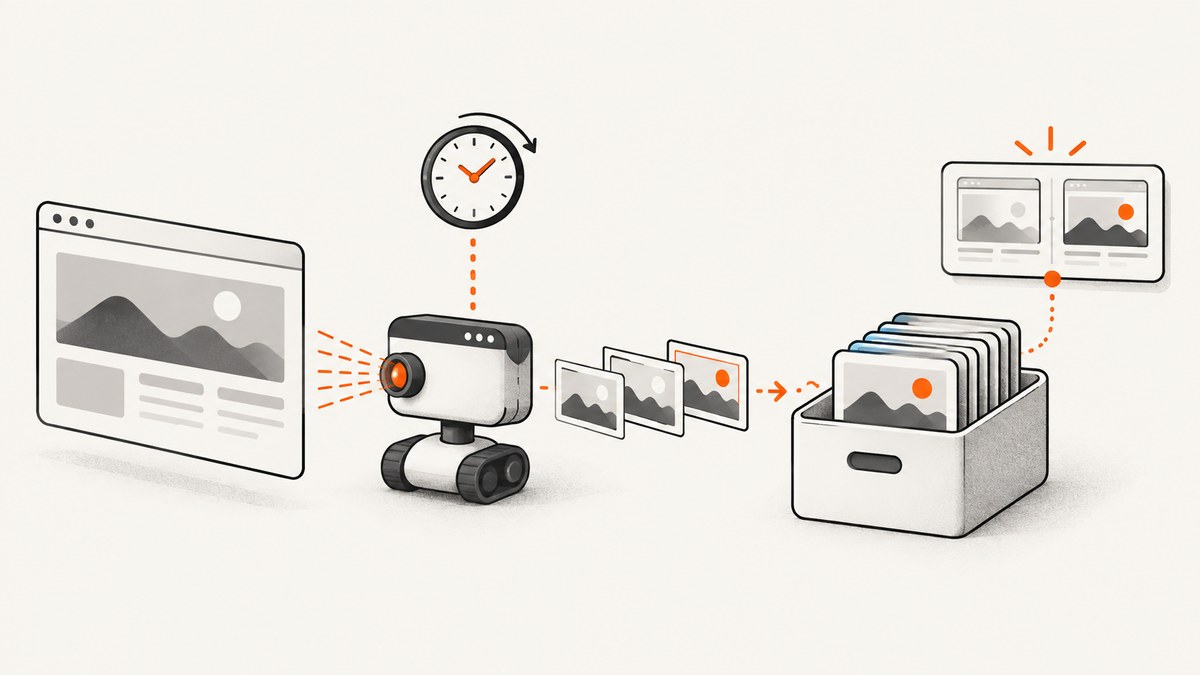
To schedule remote website screenshots, define the URL and capture conditions, run a screenshot command or API call from a scheduler, save each result with a timestamp, and add retry or alert handling. For a small set of pages, a scheduled GitHub Actions workflow or cron job is usually enough. A managed recurring-capture service can take over scheduling, storage, and delivery, depending on its features.
A reliable schedule is more than a URL and a timer. Set the viewport, full-page or element capture, wait condition, output format, authentication, and destination deliberately. Reuse those settings on every run: dynamic content, consent banners, ads, personalization, geolocation, and load timing can make images differ even when the page has not meaningfully changed. Cloudflare’s screenshot documentation describes controls including viewport, full-page capture, waiting, selectors, and authentication.
1. Choose a scheduling approach
| Approach | Good fit | You operate |
|---|---|---|
| Cron plus a screenshot command or API | A server or container you already maintain | Scheduler, storage, logging, retries, alerts |
| Scheduled CI workflow | Periodic captures tied to a code repository | Workflow, artifact/history policy, secrets |
| Managed recurring-capture service | You want a vendor to provide some combination of schedule, storage, delivery, or change detection | Configuration and review of vendor limits and retention |
For a self-managed workflow, shot-scraper is an open-source command-line option. Its documentation describes using GitHub Actions to capture pages listed in a configuration file and write screenshots back to a repository. A repository can provide a simple history; for larger or longer-lived archives, choose a separate durable storage destination. A cloud screenshot endpoint can also be called from a scheduler: Cloudflare documents a single-request screenshot endpoint, while the schedule itself must come from your cron, CI, or other orchestration. Cloudflare Browser Run screenshot endpoint.
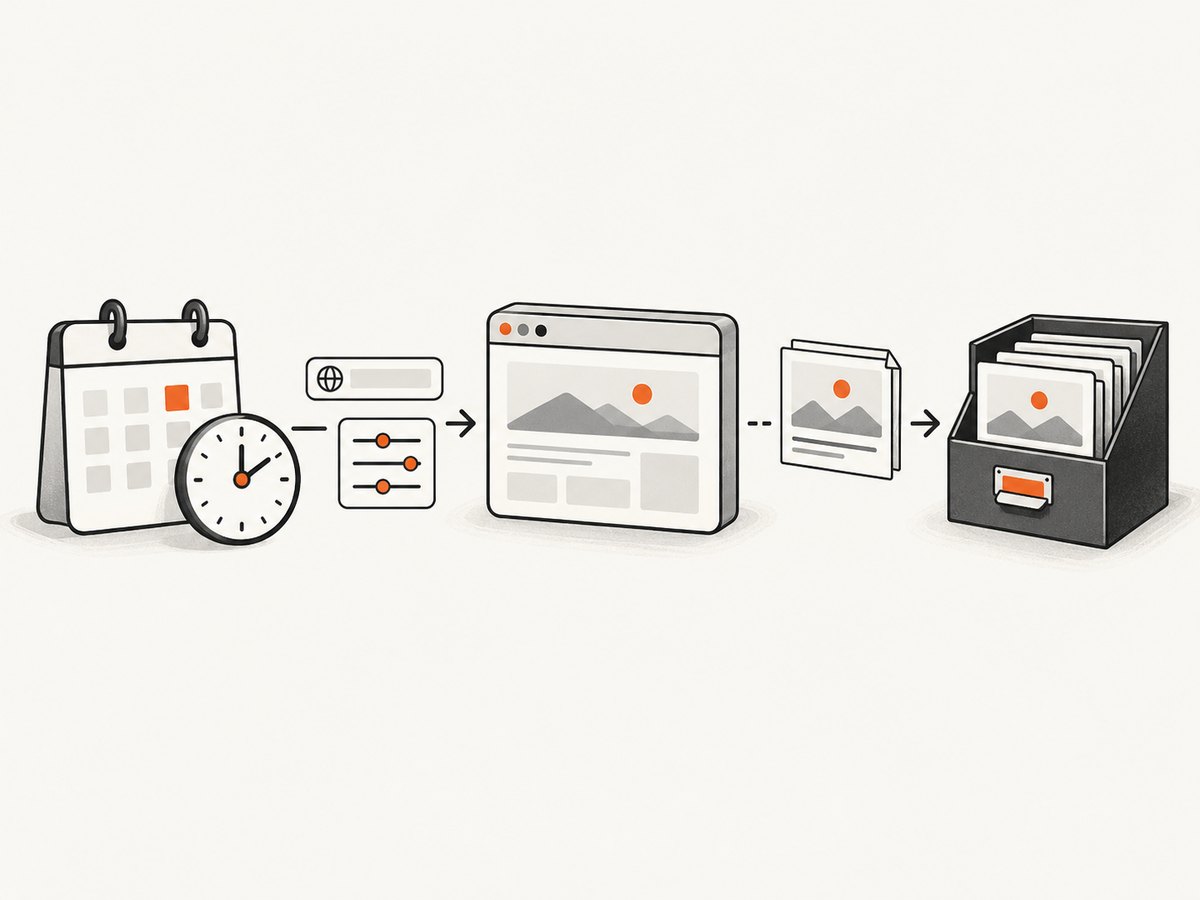
Managed services describe different mixes of recurring schedules, browser controls, storage, delivery, and page-change behavior. Compare those features directly and verify current quotas, retention, pricing, and export options with the provider. Vendor feature pages do not establish comparative reliability or independent quality.
2. Define a repeatable capture
Write down these settings before adding a schedule:
- Target: exact URL, including query parameters that affect the page.
- View: viewport width and height, device or user agent, and whether to capture the full page or a selected element.
- Readiness: a selector to wait for, a fixed delay, or network-idle condition. A page that renders after the browser’s initial load can otherwise be captured too early.
- Output: image format and quality, filename convention, retention, and destination.
- Identity: cookies, HTTP Basic credentials, or authorization headers if the page requires login.
- Schedule: timezone, cadence, and whether missed runs should be caught up or skipped.
- Monitoring: whether to keep every capture, compare images, or alert only when a difference is detected.
Keep a configuration file in version control so the capture definition can be reviewed along with code. For example, a shot-scraper YAML file can define a named URL and capture options; check the tool’s current documentation for its exact schema and supported flags before using a configuration in production. shot-scraper documentation.
3. Schedule with GitHub Actions
A scheduled workflow can run in a repository and preserve images as commits or workflow artifacts. This minimal example runs daily at 06:15 UTC and captures a page with the installed shot-scraper command. Pin the action/tool versions and adapt the capture options to the installed release.
name: Scheduled website screenshot

on:
  schedule:
    - cron: "15 6 * * *"
  workflow_dispatch:

permissions:
  contents: write

jobs:
  capture:
    runs-on: ubuntu-latest
    steps:
      - uses: actions/checkout@v4
      - uses: actions/setup-python@v5
        with:
          python-version: "3.x"
      - run: pip install shot-scraper
      - run: shot-scraper install
      - name: Capture page
        run: |
          mkdir -p screenshots
          stamp=$(date -u +%Y-%m-%dT%H-%M-%SZ)
          shot-scraper "https://example.com" \\
            --wait 2 \\
            -o "screenshots/example-$stamp.png"
      - name: Commit screenshot history
        run: |
          git config user.name github-actions[bot]
          git config user.email 41898282+github-actions[bot]@users.noreply.github.com
          git add screenshots/
          if ! git diff --cached --quiet; then
            git commit -m "Capture scheduled website screenshot"
            git push
          fi
The example uses a two-second wait as a simple illustration, not a universal readiness guarantee. Prefer a selector or another condition when the page has a known element that signals it is ready. GitHub’s scheduled events use UTC; choose a cron expression for the intended cadence and check the current Actions documentation for schedule behavior and limits. Do not assume a scheduled job starts at an exact second.
For a private page, save its credentials in the repository’s secret store and inject them at runtime. Never put session cookies, passwords, or API tokens in a committed YAML file. Restrict repository and workflow permissions to the minimum needed to write screenshots.
4. Schedule with cron on a server
For an always-available machine, cron can invoke a shell script. Use UTC for predictable timestamps, quote paths, and make failures visible in logs. This example runs every day at 06:15 UTC and assumes shot-scraper and its browser dependencies are installed.
#!/usr/bin/env bash
set -euo pipefail

URL="https://example.com"
OUT_DIR="/var/lib/site-captures"
STAMP="$(date -u +%Y-%m-%dT%H-%M-%SZ)"
mkdir -p "$OUT_DIR"
shot-scraper "$URL" --wait 2 -o "$OUT_DIR/example-$STAMP.png"
Save it as /usr/local/bin/capture-example.sh, make it executable, and add a cron entry such as:
15 6 * * * /usr/local/bin/capture-example.sh >> /var/log/site-capture.log 2>&1Set the server timezone intentionally or use UTC, and verify the environment cron receives: cron often has a smaller PATH than an interactive shell. For multiple targets, iterate over a checked-in manifest and log the URL and outcome for each one. Avoid one giant run with no per-page failure handling; otherwise one bad URL can hide successful captures of the rest.
5. Call a screenshot API from a scheduler
An API lets the scheduler run independently of the browser installation. Here is a direct Cloudflare request using cURL, based on its documented screenshot endpoint. Supply an account ID and token with the required browser rendering permission; keep the token in a secret store.
curl -X POST "https://api.cloudflare.com/client/v4/accounts/$ACCOUNT_ID/browser-rendering/screenshot" \\
  -H "Authorization: Bearer $API_TOKEN" \\
  -H "Content-Type: application/json" \\
  -d '{"url":"https://example.com"}' \\
  --output "example.png"
Cloudflare documents URL or HTML input and options such as viewport and full-page capture. Its docs note that quality is incompatible with the default PNG format; choose a supported JPEG type when setting quality. The endpoint captures a rendered page, but a recurring scheduler, output naming, retries, and change alerts remain your workflow’s responsibility. Read the endpoint options.
In Python, use a scheduler to call a capture function and write a dated file. This pattern uses a placeholder API endpoint because every provider has a different request schema; substitute the chosen provider’s documented endpoint and parameters. Keep timeouts finite and check the response before saving.
from datetime import datetime, timezone
from pathlib import Path
import requests

URL = "https://example.com"
OUTPUT = Path("screenshots")
OUTPUT.mkdir(exist_ok=True)

stamp = datetime.now(timezone.utc).strftime("%Y-%m-%dT%H-%M-%SZ")
response = requests.post(
    "https://YOUR_PROVIDER_DOCUMENTED_ENDPOINT",
    headers={"Authorization": f"Bearer {YOUR_API_TOKEN}"},
    json={"url": URL},
    timeout=(10, 90),
)
response.raise_for_status()
(OUTPUT / f"example-{stamp}.png").write_bytes(response.content)
Similarly, Node.js can fetch an API endpoint from a scheduled job. Replace the illustrative endpoint and request body with the provider’s documented schema.
import { mkdir, writeFile } from 'node:fs/promises';

const stamp = new Date().toISOString().replaceAll(':', '-');
const response = await fetch('https://YOUR_PROVIDER_DOCUMENTED_ENDPOINT', {
  method: 'POST',
  headers: {
    'Authorization': `Bearer ${process.env.SCREENSHOT_API_TOKEN}`,
    'Content-Type': 'application/json',
  },
  body: JSON.stringify({ url: 'https://example.com' }),
  signal: AbortSignal.timeout(90000),
});
if (!response.ok) throw new Error(`Capture failed: ${response.status}`);
await mkdir('screenshots', { recursive: true });
await writeFile(`screenshots/example-${stamp}.png`, Buffer.from(await response.arrayBuffer()));
6. Archive images and detect changes
A timestamped archive answers “what did the page look like then?” It does not by itself answer “did the page change?” For change alerts, add an image comparison step or use a service that explicitly supports change-based delivery. Allscreenshots describes optional delivery only when a page changed; treat this as a vendor-stated feature and verify its current behavior and terms. Allscreenshots.
Choose a storage policy before the archive grows. A Git repository is convenient for a modest number of images and reviewable history, but large binary files can make repository history cumbersome. Object storage or another archive may be more suitable when volume or retention needs grow. Keep filenames sortable, include timezone in the timestamp, and retain metadata such as URL, viewport, browser settings, and capture status next to each image.
Pixel comparisons can flag rendering noise from animations, rotating content, ads, fonts, antialiasing, and personalized elements. Reduce avoidable variation with stable viewport, wait rules, authentication, and capture timing. Ignore known volatile regions only if the capture tool supports that and the ignored content is not part of what you need to monitor. A difference is evidence to inspect, not proof of a defect.
7. Credentials, cadence, and reliability
For authenticated pages, pass only credentials authorized for the capture. Cookies, Basic authentication, and authorization headers are common options in browser capture systems, but their configuration differs by tool. Store them as scheduler secrets, limit access, avoid printing them to logs, and rotate them according to your team’s normal secret-handling process. Be mindful that screenshots themselves may contain personal or confidential data; apply access controls and retention rules to the image destination too.

Use bounded retries for temporary network errors and service failures, with a delay between attempts. Do not retry every error forever: a bad URL, expired credential, CAPTCHA, or blocked request may need a configuration fix. Record success, failure, elapsed time, and output path, then alert when the job fails or produces no image. Ensure that concurrent schedules do not overwrite the same filename; timestamps or unique job IDs prevent collisions.
Choose a cadence that serves the actual monitoring or documentation need. More frequent captures increase request volume, storage, and any provider usage, but they do not guarantee faster alerting if the scheduler is delayed or the page takes time to render. Check the target site’s terms and request patterns, especially for many URLs or short intervals. Capture regions can also vary: state the viewport, user agent, and location assumptions when sharing results.
Or skip the browser setup
ScreenshotNeo is a website screenshot API and MCP server for developers. One GET request captures a URL as PNG, JPEG, WebP, or PDF; use your scheduler to repeat the request and archive each response. The API accepts browser-related settings including full-page capture, waits, viewport/device, authentication, and output format. See the ScreenshotNeo API documentation.
curl -G "https://api.screenshotneo.com/v1/shot" \\
  -d access_key=YOUR_API_KEY \\
  --data-urlencode url=https://stripe.com \\
  -o shot.webp
It removes cookie/consent banners, newsletter popups, and chat widgets before capture. Bot checks, blank pages, failed loads, timeouts, and cache hits cost nothing, and response headers identify the page verdict and billing status. Its MCP server gives AI agents tools for screenshots, page information, and PDF capture. The free plan includes 1,000 shots a month with no card; paid plans start at $5 for 3,000 shots. Learn about ScreenshotNeo, then sign up for 1,000 free screenshots a month with no card.
Troubleshooting scheduled captures
| Symptom | Likely cause | What to check |
|---|---|---|
| Screenshot is blank or incomplete | Capture ran before client-side content loaded, or the page failed | Wait for a meaningful selector, check network and page logs, and confirm the target URL can load from the runner. |
| Login page appears | Session cookie expired or authentication was omitted | Refresh the secret, confirm the right cookie domain/path or header, and avoid exposing credentials in logs. |
| Schedule did not run at the expected local time | Cron or CI schedule uses UTC or has runner delays | Convert local time to UTC, inspect scheduler run history, and avoid assuming exact-minute delivery. |
| File was overwritten | Static output name reused on each run | Include UTC time or unique run ID in the filename. |
| Images differ every run | Dynamic content, rotating banners, ads, font timing, or viewport drift | Fix capture settings, wait condition, time window, and viewport; interpret remaining diffs manually. |
| HTTP 400 from Cloudflare screenshot endpoint | Unsupported option combination; for example quality with PNG | Use a supported image type with quality or remove quality, then validate request fields against endpoint docs. |
| 429 or transient server error | Rate or service limit, or a temporary failure | Use bounded exponential backoff, reduce concurrency, and review the provider’s current limits. |
| Workflow cannot push archive commit | Repository write permission is missing or branch rules reject the bot | Review workflow permissions and repository policy; use artifacts or external storage if commits are unsuitable. |
Performance and cost checklist
- Batch independent URLs only if your tool supports it and the target/provider concurrency allows it.
- Use a sensible timeout and readiness condition; an arbitrary long delay wastes runtime, while a short delay risks incomplete captures.
- Estimate monthly captures as pages × runs per month, then include retries and manual runs. Check provider quotas, concurrency, retention, and overage terms directly; the reviewed sources do not establish comparable prices.
- Control storage growth with a retention policy and appropriate image format. Keep enough history to answer the monitoring question.
- For self-managed jobs, account for the cost of runner or server time, browser dependencies, storage, and operator attention. For managed tools, compare the specific plan and limits rather than assuming all recurring features are included.
FAQ
Can I schedule screenshots without leaving a computer running?
Yes. A hosted CI runner, cloud scheduler, serverless job, or managed recurring service can run captures remotely. Confirm where the browser runs and where files are stored.
Should I save every screenshot or only changes?
Keep every image when you need an audit trail or history. Use change-based delivery when the goal is to alert on meaningful changes, and retain enough context to review a detected difference.
Does a scheduled screenshot prove a page was available to every visitor?
No. It records one browser configuration, time, and network context. Authentication, geography, user agent, viewport, and bot defenses can produce a different result for other visitors.
Can I use the same workflow for PDFs?
Yes, if the selected tool or API supports PDF output. Specify page size, margins, orientation, and any required page range, then store the resulting file with the same timestamp and run metadata.


