How to Schedule Website Screenshots Automatically
Learn how to capture website screenshots on a recurring schedule with Playwright and GitHub Actions, plus a managed ScreenshotNeo option.
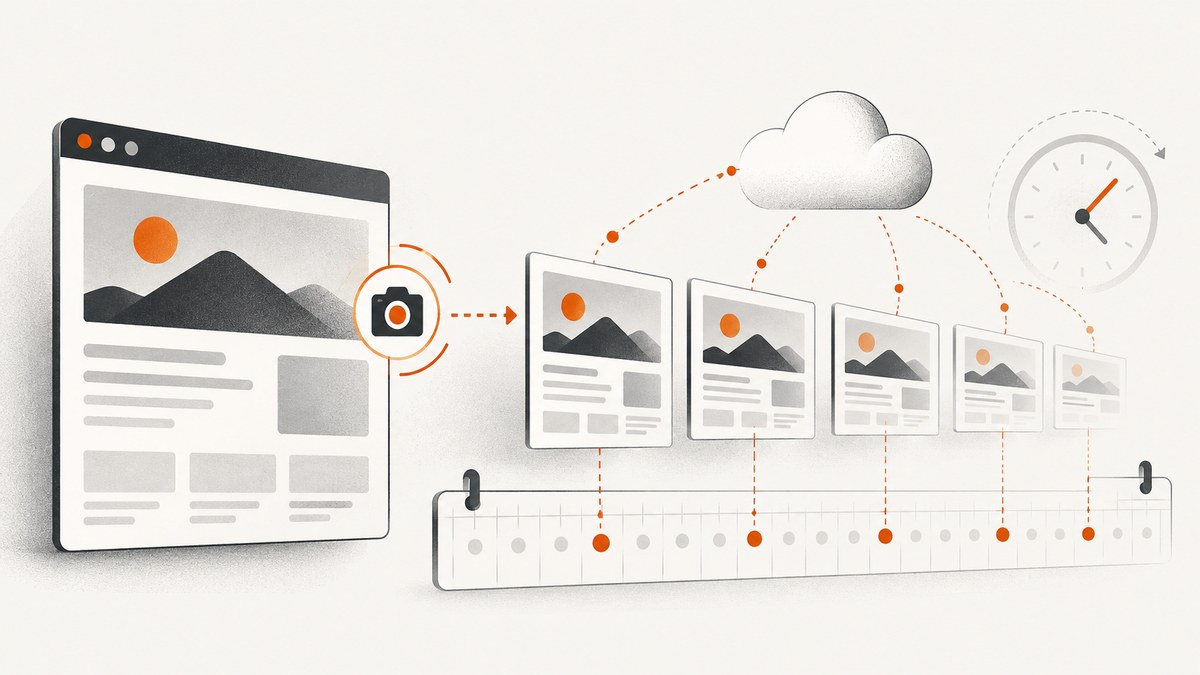
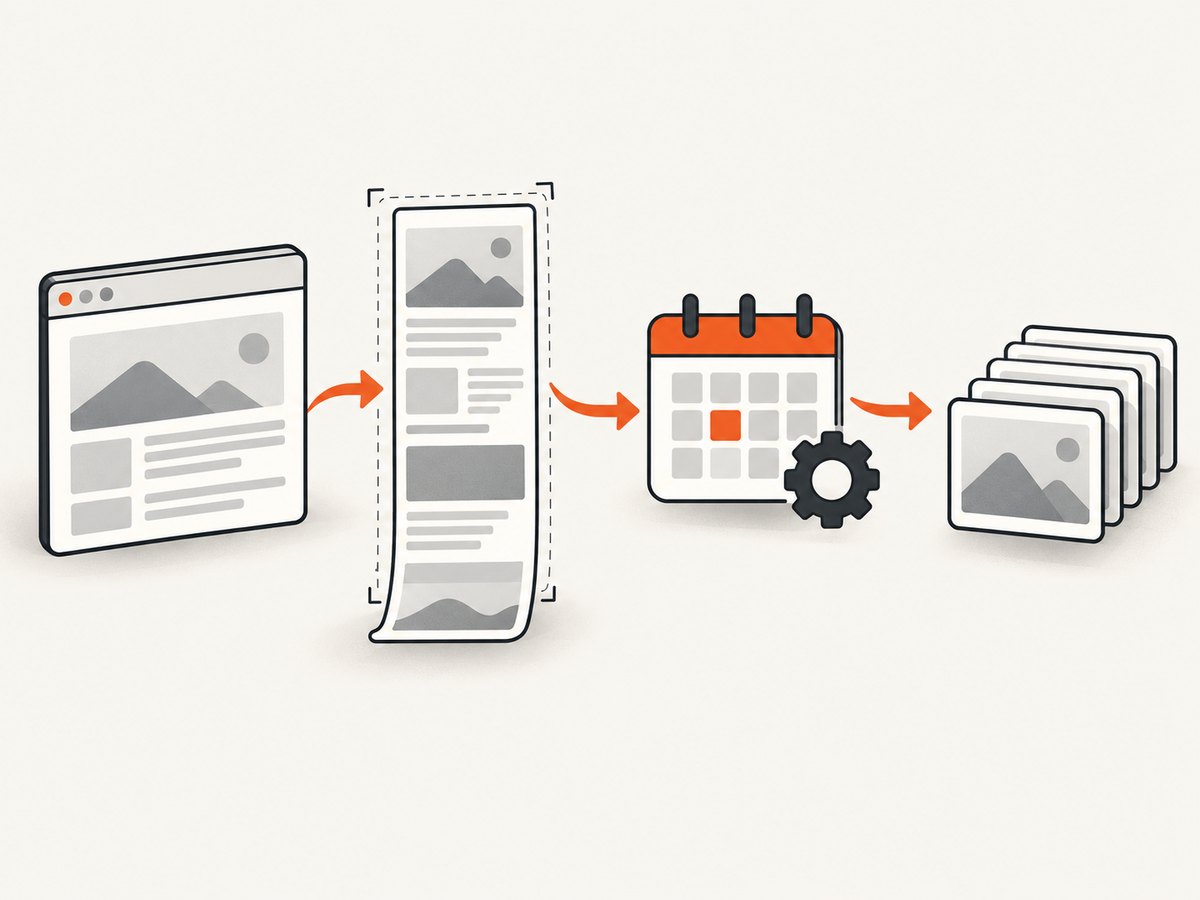
To schedule website screenshots automatically, separate the job into two parts: a browser script captures the page, and a scheduler starts that script at the interval you choose. A practical setup uses Playwright for screenshots and GitHub Actions for scheduling. The same pattern works for daily homepage archives, hourly uptime evidence, visual regression checks, and recurring reports.
This guide builds a complete implementation, including full-page and element captures, stable filenames, secrets, time zones, missed runs, rendering consistency, troubleshooting, and operating costs. At the end, you can replace the browser setup with a single ScreenshotNeo request.
1. Choose what each scheduled run should capture
Decide the capture scope before writing automation. Playwright supports a viewport screenshot, a full scrollable page, a locator (one element), and screenshot bytes that you can process or upload yourself.
| Scope | Use it for | Important option |
|---|---|---|
| Viewport | What a visitor sees above the fold | Set a fixed width and height |
| Full page | Long landing pages, documentation, archives | full_page: true |
| Element | Charts, pricing cards, dashboards, or a component | Capture a stable locator |
| Buffer | Sending an image to storage or another API | Use page.screenshot() without a path |
Use a stable selector for element captures. Prefer an accessible role, a test identifier, or a semantic class over a generated CSS class. If the page changes its layout between runs, a full-page image may also change height; define whether that is expected before comparing files.
2. Create a Playwright capture script
Start a small Node.js project and install Playwright:
npm init -y
npm install playwright
npx playwright install chromium
Create capture.js. This example takes a full-page WebP screenshot, waits for a page-specific selector, and writes a timestamped file. Replace the URL and selector with values that describe the page you actually capture.
const { chromium } = require('playwright');
const fs = require('fs');

(async () => {
  const browser = await chromium.launch({ headless: true });
  const page = await browser.newPage({
    viewport: { width: 1440, height: 900 },
    deviceScaleFactor: 1,
    colorScheme: 'light'
  });

  try {
    await page.goto('https://example.com', {
      waitUntil: 'domcontentloaded',
      timeout: 60_000
    });
    await page.locator('main').waitFor({ state: 'visible', timeout: 30_000 });
    await page.screenshot({
      path: `artifacts/home-${new Date().toISOString().replace(/[:.]/g, '-')}.webp`,
      fullPage: true,
      type: 'webp',
      quality: 85,
      animations: 'disabled'
    });
  } finally {
    await browser.close();
  }
})();
Create the output directory before running, or make the script create it:
mkdir -p artifacts
node capture.js
The waitUntil setting controls navigation completion; it does not prove that your application has finished rendering. Wait for the selector that represents the page’s meaningful state. A dashboard may need an authenticated session and a chart selector. A static page may only need domcontentloaded. Avoid an arbitrary long delay when a specific selector is available.
Viewport, full-page, and element examples
// Viewport screenshot
await page.screenshot({ path: 'viewport.png' });

// Entire scrollable page
await page.screenshot({ path: 'full-page.png', fullPage: true });

// One element
await page.locator('[data-testid="pricing-table"]').screenshot({
  path: 'pricing-table.png'
});

// Return bytes for an upload instead of writing a file
const bytes = await page.screenshot({ type: 'png' });
For visual comparisons, keep the browser version, operating system, viewport, device scale factor, color scheme, fonts, and headless mode consistent. Playwright documents that rendering can vary with the host OS, browser version, settings, hardware, power source, and headless mode; run captures in the same environment used to create the baseline.
3. Make captures deterministic
Recurring screenshots are useful only when changes represent the website rather than the capture environment. Apply these controls where they fit:
- Set an explicit viewport and device scale factor.
- Use a fixed locale, timezone, and color scheme when the page supports them.
- Disable animations and transitions during the capture.
- Wait for a stable selector, not merely a network event.
- Use a fixed test account for authenticated pages; store credentials as secrets.
- Mask or hide timestamps, rotating ads, chat launchers, and other intentionally changing regions.
- Choose PNG for pixel comparisons; use WebP or JPEG when smaller files matter more than lossless pixels.
await page.addStyleTag({ content: `
  *, *::before, *::after {
    animation-duration: 0s !important;
    animation-delay: 0s !important;
    transition: none !important;
    caret-color: transparent !important;
  }
` });
await page.locator('.live-clock, .rotating-ad').evaluateAll(nodes =>
  nodes.forEach(node => node.style.visibility = 'hidden')
);
Do not hide content that you need to monitor. Keep the hiding rules in source control so every run uses the same policy.
4. Schedule the script with GitHub Actions
Put the script and package.json in a repository. Then create .github/workflows/screenshots.yml:
name: Scheduled website screenshot

on:
  schedule:
    - cron: '17 8 * * *'
      timezone: 'Europe/London'
  workflow_dispatch:

jobs:
  capture:
    runs-on: ubuntu-latest
    steps:
      - uses: actions/checkout@v4
      - uses: actions/setup-node@v4
        with:
          node-version: 20
          cache: npm
      - run: npm ci
      - run: npx playwright install --with-deps chromium
      - run: mkdir -p artifacts && node capture.js
      - name: Upload screenshot artifact
        uses: actions/upload-artifact@v4
        with:
          name: website-screenshot-${{ github.run_number }}
          path: artifacts/
          retention-days: 14
GitHub schedules use POSIX cron. Without a timezone field, the schedule is interpreted in UTC. Scheduled workflows run from the latest commit on the repository’s default branch. The documented shortest interval is five minutes. The workflow_dispatch trigger lets you run the capture manually while developing.
The example uses GitHub’s IANA timezone support. Timezone-aware schedules must account for daylight-saving changes. GitHub documents that if a scheduled time falls into a skipped spring-forward hour, the run advances to the next valid time. If you need a strict UTC audit trail, leave out timezone and write the cron expression in UTC.
Common cron patterns
| Expression | Meaning |
|---|---|
17 8 * * * |
Every day at 08:17 |
0 */6 * * * |
Every six hours |
30 9 * * 1-5 |
Weekdays at 09:30 |
*/15 * * * * |
Every 15 minutes (within the documented minimum) |
Pick a minute other than exactly 0 when you can. GitHub warns that high load, especially at the start of an hour, can delay scheduled workflows and some queued jobs may be dropped. Treat the schedule as an initiation request, not a guaranteed execution timestamp.
5. Store, name, and retain the output
A filename should tell you which URL, viewport, and run produced it. ISO timestamps sort naturally:
const stamp = new Date().toISOString().replace(/[:.]/g, '-');
const filename = `artifacts/home-1440x900-${stamp}.png`;
GitHub artifacts are convenient for inspection. For a long-running archive, upload the bytes to storage you control and define a retention policy. Decide whether you need every image, only the latest image, or a daily and monthly sample. Keep credentials in GitHub Actions secrets and grant the workflow only the permissions it needs.
6. Add failure handling and notifications
Make a failed capture visible. A missing screenshot can otherwise look like an unchanged page. Have the script exit nonzero on navigation failure, missing selectors, or an unexpected HTTP response:
const response = await page.goto(url, { waitUntil: 'domcontentloaded', timeout: 60000 });
if (!response || response.status() >= 400) {
  throw new Error(`Navigation failed: ${response ? response.status() : 'no response'}`);
}
await page.locator('main').waitFor({ state: 'visible', timeout: 30000 });
Use the workflow’s failure notifications or an external webhook suited to your team. For intermittent pages, retry the whole job carefully rather than hiding every error with a large timeout. Preserve logs and, when useful, save a diagnostic screenshot after a failure.
7. Handle authentication, consent, and dynamic pages
For a private page, authenticate in the script with a test account or a stored Playwright storage state. Never commit cookies or passwords. If a consent dialog blocks the content, explicitly locate and accept it, or use a test environment where consent is already recorded. Cookie banners, personalization, geolocation, and A/B tests can all change pixels between runs.
For lazy-loaded images, scroll or wait for the page’s loaded state before the screenshot. A full-page screenshot captures the page height, but your application still needs to trigger content that loads only after scrolling. For charts rendered on a canvas, wait for the chart’s own ready indicator rather than a generic network-idle condition.
8. Troubleshooting checklist
| Symptom | Likely cause | Fix |
|---|---|---|
| Workflow never runs | Workflow is not on the default branch, schedule is disabled, or the repository has been inactive | Merge the workflow to the default branch, check Actions settings, and run it manually. GitHub automatically disables scheduled workflows in public repositories after 60 days without repository activity. |
| Run starts late | Scheduled event queueing during GitHub load | Use a nonzero minute, record the actual run time, and do not use the schedule as a precise alert clock. |
| Blank or partial image | Capture happened before the application rendered | Wait for a meaningful selector, chart-ready signal, or image completion; inspect the page console and network errors. |
Timeout at goto |
Slow origin, blocked request, or an overly strict timeout | Check the URL from the runner, increase the timeout moderately, and fail clearly when the page remains unavailable. |
| Selector timeout | Selector changed, content is behind login, or a feature flag differs | Confirm the selector in the target environment and use a stable test identifier. |
| Images differ every run | Fonts, OS, browser, animations, ads, timestamps, or random data vary | Pin the environment, disable motion, hide known volatile regions, and use the same baseline environment. |
| Full-page image is unexpectedly tall | Infinite scroll or expanding content | Use an element or viewport capture, constrain the page, or define a deterministic maximum. |
| Artifact is missing | Directory was never created or the script failed before writing | Create the directory, upload with an explicit path, and make the workflow fail when no file exists. |
9. Performance, reliability, and cost
Browser startup and dependency installation dominate short jobs. Cache npm dependencies, install only the browser you need, and avoid launching a new browser for every URL when one browser can safely create multiple pages. For a small list of pages, sequential captures are simpler and reduce load on the target. For larger lists, limit concurrency so the runner and origin are not overwhelmed.
GitHub Actions usage, artifact storage, and any destination storage have separate limits and prices that can change. Estimate the number of runs, browser minutes, image size, and retention period before choosing an interval. A five-minute schedule creates 288 attempted runs per day, while a daily schedule creates one; choose frequency from the decision you need to make, not from the smallest available interval.
Reliability has two independent parts: whether the scheduler starts and whether the page capture succeeds. Log both timestamps. If a missed run matters, keep a small ledger of expected intervals and alert when no successful image arrives within an acceptable window. For visual monitoring, compare images only after confirming that the capture environment and page state are comparable.
10. Or skip the browser setup
ScreenshotNeo provides a website screenshot API when you want a scheduled job to make one HTTP request. Read the ScreenshotNeo API documentation for the complete option list. A scheduler such as GitHub Actions can call this request on the same cron schedule:
curl -G "https://api.screenshotneo.com/v1/shot" -d access_key=YOUR_API_KEY --data-urlencode url=https://stripe.com -o shot.webpimport requests
r = requests.get("https://api.screenshotneo.com/v1/shot", params={"access_key": "YOUR_API_KEY", "url": "https://stripe.com"}, timeout=90)
open("shot.webp", "wb").write(r.content)const q = new URLSearchParams({ access_key: 'YOUR_API_KEY', url: 'https://stripe.com' });
const res = await fetch(`https://api.screenshotneo.com/v1/shot?${q}`);ScreenshotNeo accepts options for full-page captures with lazy images loaded, CSS-selector element captures, dark mode, 12 device presets or any viewport, retina scale, PDF paper sizes and page ranges, custom CSS and JavaScript, clicks, selector or network-idle waits, ad and tracker blocking, custom headers, cookies, user agents, Authorization, timezone, geolocation, transparent backgrounds, resizing, configurable caching TTLs, signed image links, asynchronous jobs with signed webhooks, bulk capture of up to 100 URLs per call, a usage API, and an OpenAPI specification. Parameter names used by other screenshot APIs also work, which can simplify migration.
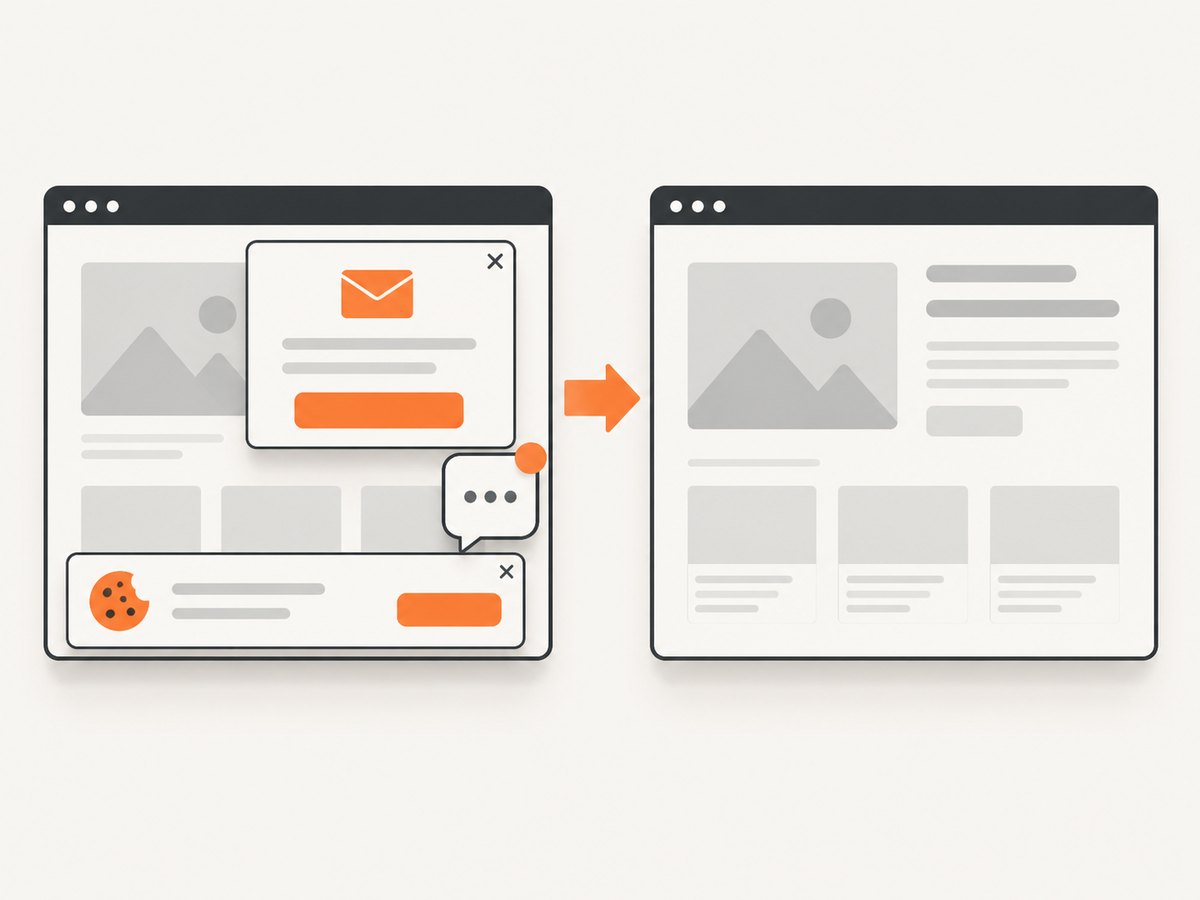
Cookie and consent banners are accepted like a visitor and more than 60 known consent platforms, newsletter popups, and chat widgets are removed before the shot; each step can be turned off. Bot checks and CAPTCHAs, blank pages, timeouts, failed loads, and cache hits cost nothing, and each response reports its result with X-Page-Verdict and X-Billed headers. ScreenshotNeo also provides an MCP server with take_screenshot, get_page_info, and capture_pdf tools for Claude, Cursor, and other MCP clients.
The Free plan includes 1,000 shots per month with no card. Paid plans start at $5 for 3,000 shots; yearly billing gives two months free, and every feature is available on every plan. Create a free ScreenshotNeo account and schedule your first capture with 1,000 screenshots a month at no charge.
11. Frequently asked questions
Can I schedule a screenshot every day?
Yes. Use a daily POSIX cron expression such as 17 8 * * *. GitHub interprets schedules in UTC unless you specify an IANA timezone.
Can the workflow capture a page behind a login?
Yes, if the script authenticates with a test account or a stored browser state. Keep credentials and cookies in secrets, and verify that the login flow is stable in the runner.
Should I use full-page screenshots for visual regression?
Use full-page captures when page length is part of what you monitor. Use a stable element when unrelated content can resize the document and create noisy comparisons.
What happens if GitHub misses a scheduled run?
GitHub warns that schedules can be delayed and queued runs can be dropped during high load. Record successful captures and add a missed-run check if every interval matters.
How do I capture many URLs?
Loop through URLs with a controlled concurrency limit in Playwright, or use ScreenshotNeo’s bulk capture endpoint for up to 100 URLs per call.


