How to Scrape Data After a Button Click with PuppeteerSharp in C#
Click a button with PuppeteerSharp, wait for the page’s real completion signal, then extract the rendered data in C#.
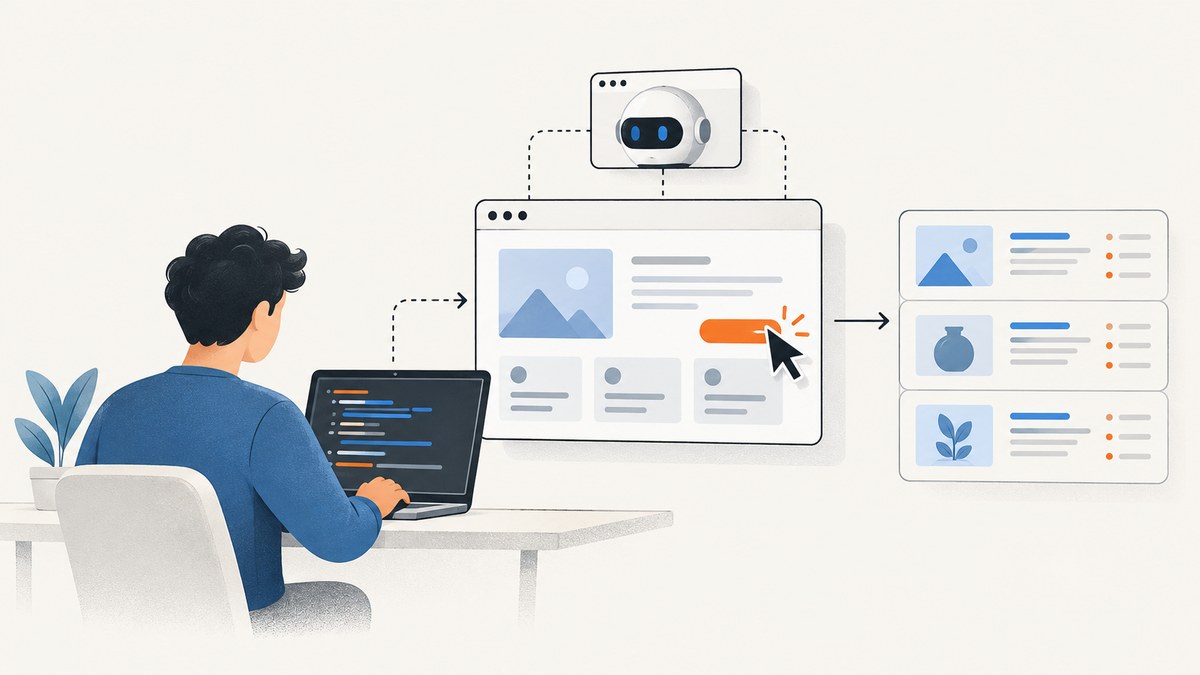
To scrape data after a button click with PuppeteerSharp, navigate to the page, click the target button, wait for evidence that the expected result is ready, and then evaluate JavaScript against the rendered DOM. If the click loads a new document, coordinate the click with a navigation wait. If the page updates in place, wait for a result-specific selector or state change. Extracting immediately after the click can read stale data.
PuppeteerSharp is a “Headless Chrome .NET API,” according to its official project repository. Its page and frame APIs provide selector clicks, selector and function waits, navigation waits, and JavaScript evaluation. This guide uses placeholder selectors and fields: inspect the target site and replace them with its actual DOM selectors and data structure.
1. Install PuppeteerSharp and prepare a browser
Create a console project and add PuppeteerSharp:
dotnet new console -n ClickScraper
cd ClickScraper
dotnet add package PuppeteerSharp
The sample below downloads a compatible browser revision through PuppeteerSharp’s BrowserFetcher, launches headless Chromium, opens a page, and runs one of two click-and-wait flows. Browser downloads require network access the first time. In a managed environment, you can instead configure the executable path for an installed Chrome or Chromium binary using the launch options supported by the installed PuppeteerSharp release.
2. Complete runnable C# example
Set pageUrl, buttonSelector, and the result selectors to match the target. The default example assumes an in-page update: clicking “Load more” inserts at least one new row into .result-row. It records the initial row count and waits for the count to increase, so an already-present row does not satisfy the wait.
using System;
using System.Collections.Generic;
using System.Linq;
using System.Threading.Tasks;
using PuppeteerSharp;

class Program
{
    static async Task Main()
    {
        const string pageUrl = "https://example.com/catalog";
        const string buttonSelector = "button.load-more";
        const string rowSelector = ".result-row";

        // Set true only when this click navigates to a new document.
        const bool clickNavigates = false;

        await new BrowserFetcher().DownloadAsync();
        await using var browser = await Puppeteer.LaunchAsync(new LaunchOptions
        {
            Headless = true
        });
        await using var page = await browser.NewPageAsync();
        page.DefaultTimeout = 15000;
        page.DefaultNavigationTimeout = 30000;

        await page.GoToAsync(pageUrl, new NavigationOptions
        {
            WaitUntil = new[] { WaitUntilNavigation.DOMContentLoaded }
        });

        // Fail clearly if the target button is absent before clicking.
        await page.WaitForSelectorAsync(buttonSelector);

        if (clickNavigates)
        {
            // Start the navigation wait before the click can trigger navigation.
            await Task.WhenAll(
                page.WaitForNavigationAsync(new NavigationOptions
                {
                    WaitUntil = new[] { WaitUntilNavigation.DOMContentLoaded }
                }),
                page.ClickAsync(buttonSelector));
        }
        else
        {
            var initialCount = await page.EvaluateFunctionAsync<int>(
                "selector => document.querySelectorAll(selector).length", rowSelector);

            await page.ClickAsync(buttonSelector);

            // Wait until the click has produced a new row.
            await page.WaitForFunctionAsync(
                "({ selector, count }) => document.querySelectorAll(selector).length > count",
                new { selector = rowSelector, count = initialCount });
        }

        var records = await page.EvaluateFunctionAsync<List<Dictionary<string, string?>>>(
            @"selector => Array.from(document.querySelectorAll(selector)).map(row => ({
                title: row.querySelector('.title')?.textContent?.trim() ?? '',
                price: row.querySelector('.price')?.textContent?.trim() ?? '',
                href: row.querySelector('a')?.getAttribute('href') ?? ''
            }))",
            rowSelector);

        foreach (var record in records)
        {
            Console.WriteLine($"{record.GetValueOrDefault("title")} | " +
                              $"{record.GetValueOrDefault("price")} | " +
                              $"{record.GetValueOrDefault("href")}");
        }
    }
}
See the PuppeteerSharp repository for the project and its API source. The example’s selectors are illustrative; a real site may use different markup, load results in a table, or update text instead of inserting rows.
3. Choose the wait that matches the click
When the click navigates
Start WaitForNavigationAsync and ClickAsync together. The navigation wait must be active before the click triggers a document change; otherwise, a fast navigation might happen before the wait starts. The API offers lifecycle conditions including Load, DOMContentLoaded, Networkidle0, and Networkidle2. The two network-idle choices describe periods of 500 ms with zero or at most two active connections, respectively. They are not universal definitions of “the result is ready.” Choose an event based on the page, then verify the data you need exists before extracting it.
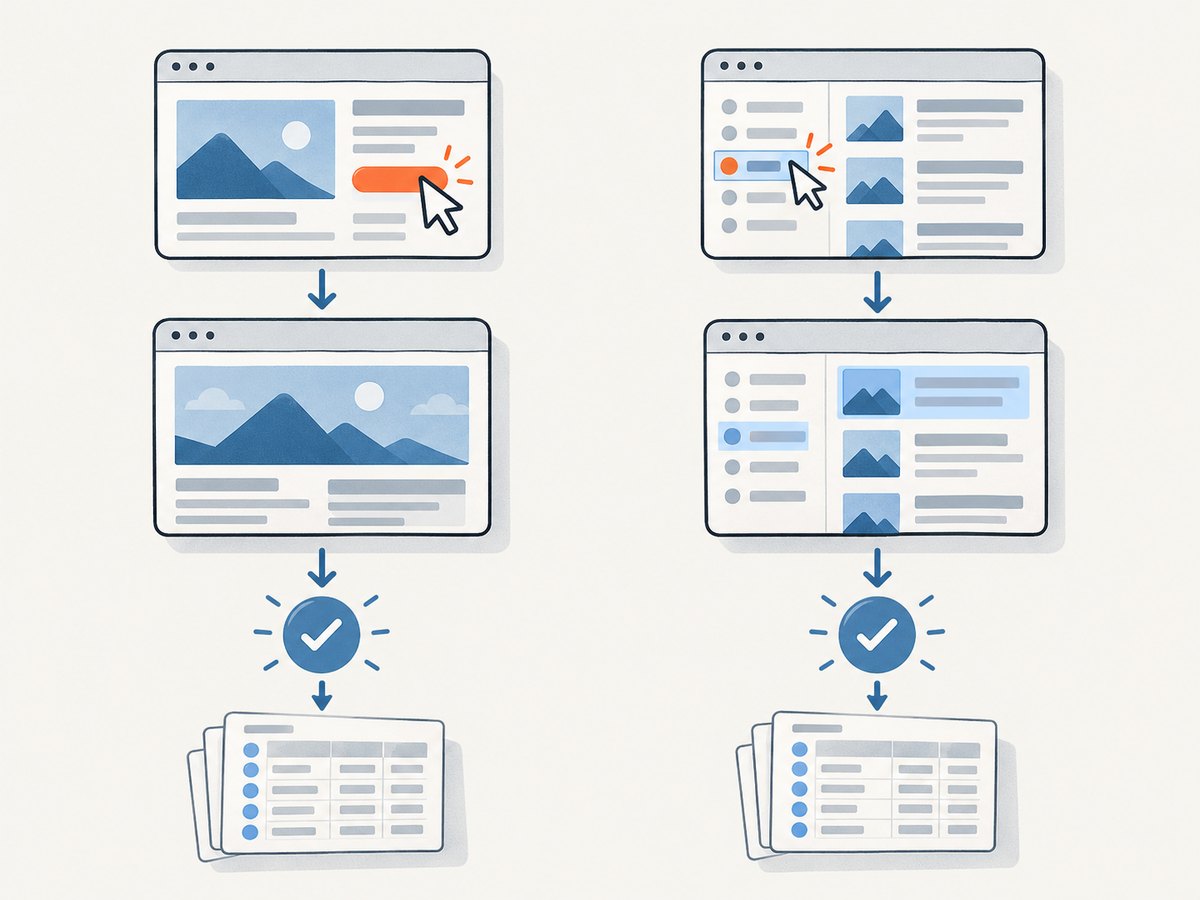
When the page updates in place
Click, then wait for a condition tied to the new result. Useful signals include a newly inserted row, a changed result count, a status changing from “Loading” to “Complete,” or a result-specific element becoming visible. If a selector existed before the click, merely waiting for it to exist proves nothing about whether the click worked. Compare its previous and expected state, or wait for a selector that only appears after success.
When the button changes the URL without a full navigation
Some client-side applications update browser history and replace page content without loading a new document. Treat this as an in-page update: wait for the new content or state, then extract it. A navigation wait alone may time out or finish without proving the requested data is present.
When neither branch is obvious
Inspect the page manually and observe whether the document changes, whether the URL changes, and what changes in the result area. Use the narrowest observable condition that proves the desired data is ready. Avoid arbitrary delays as the sole readiness condition: a fixed sleep can be too short on a slow response and unnecessarily long on a fast one.
4. Extract the rendered data
EvaluateFunctionAsync runs JavaScript in the page and returns its result to C#. The example maps each result row to a small record containing title, price, and link. Replace those child selectors and fields with the values your task needs. For attributes, use methods such as getAttribute; for visible text, use textContent and trim whitespace. If the page renders a value in a property or data attribute rather than text, read that source explicitly.
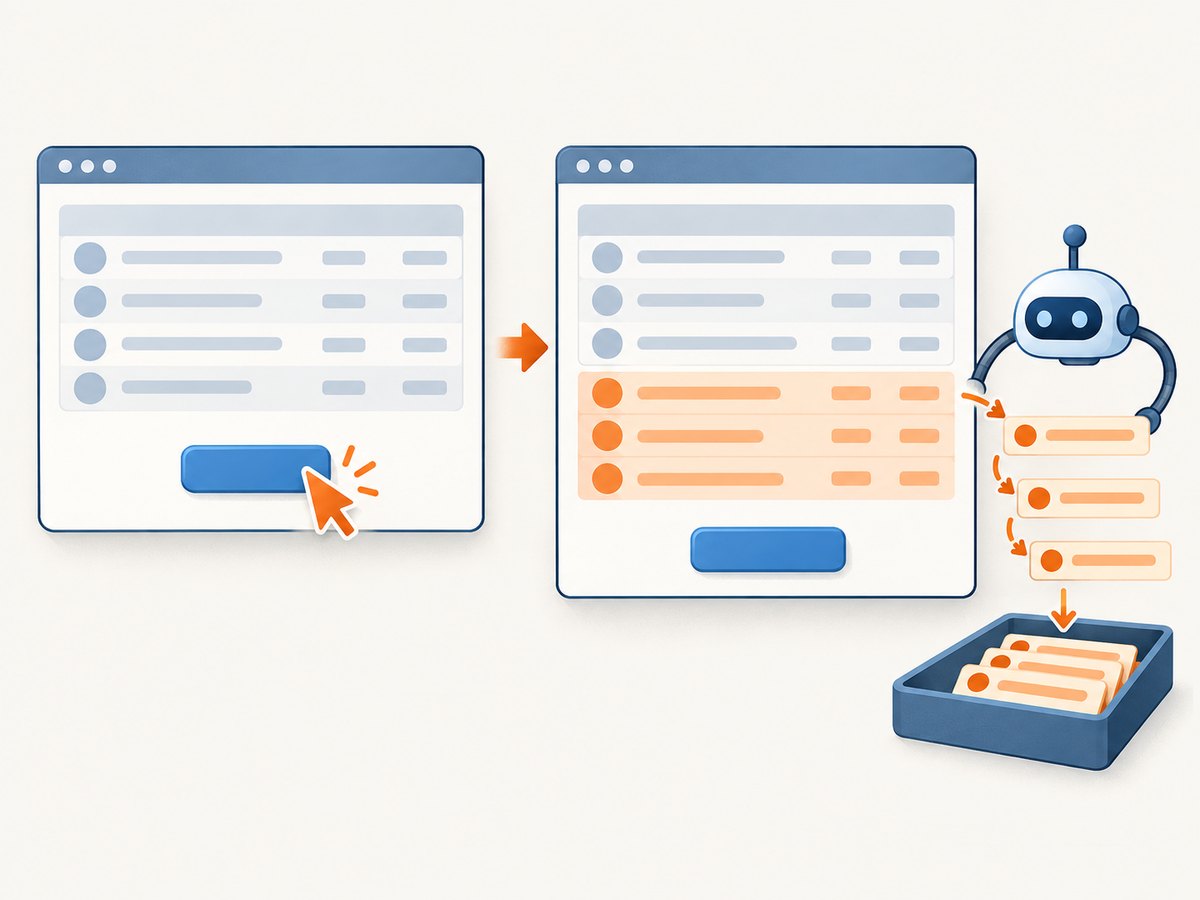
Scope queries to the result container when possible. Broad selectors can include navigation links, hidden templates, or duplicate cards. If a field is optional, return an empty value or a nullable value rather than assuming every row has the same shape. If the result is paginated, decide whether the requested task means the newly loaded rows or every row currently displayed. The sample reads all matching rows after the click.
For a function-based wait, the condition must be serializable JavaScript that can run in the page context. Keep it focused and return a boolean. PuppeteerSharp also provides expression evaluation and selector waits; see the official API and examples for the installed release’s signatures.
5. Options and configuration to consider
| Setting or choice | When to use it | Trade-off |
|---|---|---|
| Headless launch | Automated runs without a visible browser window | For local debugging, a visible browser can make interactions easier to inspect. |
| Default timeout | Bound how long selector and function waits can take | Too low causes failures on slow pages; too high delays reporting a genuinely stuck page. |
| Navigation timeout | Set a separate bound for document navigation | A page that never reaches the chosen lifecycle event can fail even if partial content appeared. |
DOMContentLoaded |
Continue after the document has been parsed, then wait for the actual result | Does not guarantee that asynchronous results are ready. |
Networkidle0 or Networkidle2 |
When network quiet is a useful part of the page’s completion signal | Long-lived connections or background requests can make network quiet a poor fit. |
| Selector or function wait | In-page updates with a known result condition | The condition must distinguish the new state from content already present. |
The official navigation API documents the lifecycle options and their meanings; use the condition that matches the target’s observed behavior rather than selecting one by habit. Do not infer that a successful click means the site accepted it: an overlay, disabled control, validation message, or application error can prevent the expected update.
6. Practical edge cases
- Repeated clicks: If one click loads one page of results, stop when the site’s “next” or “load more” control disappears or becomes disabled. Set a maximum page or item count to avoid an unbounded loop.
- Duplicate data: Some sites append the same records again. Deduplicate using a stable key from the data, such as an item identifier or canonical link.
- Empty results: A successful interaction can legitimately produce no rows. Wait for a completion signal, such as an empty-state message or a completed status, instead of waiting forever for a row.
- Stale selectors: A site redesign can change classes or element structure. Keep selectors in named constants and update them after checking the current DOM.
- Overlays and consent dialogs: A modal can cover the control or result area. Handle the page’s visible state before clicking, and make sure the post-click condition is not hidden behind an overlay.
- More than one matching button: A broad selector can target the wrong control. Narrow it to the intended container or a unique attribute.
- Repeated row count: If the site replaces existing rows instead of appending, count growth is the wrong condition. Wait for a changed identifier, changed text, or a target-specific state transition instead.
- Frame content: If the control or result is inside a frame, page-level selectors may not find it. Identify the frame and perform the click, wait, and evaluation in that frame.
7. Troubleshooting
| Symptom | Likely cause | Fix |
|---|---|---|
| Click fails because no element matches | The selector is wrong, the page has not rendered the control, or it is in a frame. | Wait for the correct selector, inspect the DOM, and use the frame containing the control. The official Frame implementation throws a selector exception if no matching element is found. |
| Navigation wait times out | The click updates the page in place, the chosen lifecycle condition is unsuitable, or navigation did not occur. | Confirm the behavior. For an in-page update, wait for a result-specific selector or function condition. For navigation, choose a lifecycle signal that matches the page. |
| Wait succeeds but the extracted list is empty | The wait condition only proved that a generic element existed, or the row and field selectors do not match the rendered markup. | Use a condition that proves fresh results arrived, then inspect the actual row structure and correct the selectors. |
| Old results are returned | Extraction happened before the update, or the wait checked a selector that was already present. | Compare pre-click and post-click state, or wait for a changed count, changed value, or newly inserted result. |
| Function wait never completes | The expected state is impossible, the site shows an error, or the condition references the wrong element. | Check the page’s visible error and selector. Use a finite timeout and report a useful error when readiness is not reached. |
| Page waits indefinitely for network idle | The page keeps background connections open or continues making requests. | Wait for a specific result signal instead of network quiet, or use a more suitable documented lifecycle event. |
| Browser launch fails in deployment | The browser executable is missing or cannot run in the environment. | Download the browser revision or configure the installed executable path; verify the deployment environment can launch it. |
8. Performance, reliability, and cost
Each navigation, browser startup, and wait adds time. For repeated work, consider the workload’s browser lifecycle and reuse a browser process where appropriate, while isolating pages and cleaning up resources. Limit the amount of DOM data returned to C#; extract the fields needed instead of serializing an entire document. A targeted result wait usually avoids spending time waiting for unrelated network activity.
Reliability depends on matching the wait to the page and handling timeouts as expected failures. Log the URL, selector, chosen wait branch, and useful error details so a changed site can be diagnosed. Keep timeouts finite, and distinguish “no matching element,” “readiness condition timed out,” and “valid empty result.” These outcomes call for different fixes.
Browser automation consumes compute and may require maintaining a compatible browser installation. Cost depends on where and how often it runs; the research sources provide no named benchmark or fixed cost estimate. For a small one-off extraction, local execution may be enough. For screenshot output rather than interactive data extraction, see the hosted option below.
Or skip the browser setup
If the result you need is a page screenshot, ScreenshotNeo can capture a URL with one request, returning PNG, JPEG, WebP, or PDF. It is a website screenshot API and MCP server from ScreenshotNeo. This does not replace PuppeteerSharp when you need to click a site-specific button and extract arbitrary DOM data; it is useful when the deliverable is a screenshot of a page.
See the ScreenshotNeo documentation for request options and response details.
curl -G "https://api.screenshotneo.com/v1/shot" -d access_key=YOUR_API_KEY --data-urlencode url=https://stripe.com -o shot.webpimport requests
r = requests.get(
"https://api.screenshotneo.com/v1/shot",
params={"access_key": "YOUR_API_KEY", "url": "https://stripe.com"},
timeout=90,
)
open("shot.webp", "wb").write(r.content)const q = new URLSearchParams({ access_key: 'YOUR_API_KEY', url: 'https://stripe.com' });
const res = await fetch(`https://api.screenshotneo.com/v1/shot?${q}`);
if (!res.ok) throw new Error(`Screenshot request failed: ${res.status}`);
await Bun.write('shot.webp', res);ScreenshotNeo accepts cookie and consent banners like a visitor and removes more than 60 known consent platforms, newsletter popups, and chat widgets before capture; each step can be turned off. Bot checks, blank pages, timeouts, failed loads, and cache hits cost nothing, and response headers identify the page verdict and billing status. Its MCP server offers take_screenshot, get_page_info, and capture_pdf for Claude, Cursor, and other MCP clients. The Free plan includes 1,000 shots per month without a card; paid plans start at $5 for 3,000 shots. Sign up for 1,000 free screenshots a month, with no card required.
FAQ
Can PuppeteerSharp scrape data that appears only after clicking?
Yes. Click the control, wait for a state that proves the requested data appeared, then evaluate the rendered page. The required selectors and condition depend on the site.
Should I use a fixed delay after clicking?
A fixed delay does not prove the result is ready. Prefer a navigation wait for a document change or a result-specific selector or function wait for an in-page update.
Does a successful click guarantee the site returned data?
No. Verify the expected result state and handle empty results or visible errors explicitly.
Can ScreenshotNeo click the button and return scraped fields?
The provided ScreenshotNeo facts describe screenshot, page-info, and PDF tools. For a site-specific click followed by arbitrary DOM field extraction, use browser automation such as the PuppeteerSharp flow above.
Sources
- PuppeteerSharp official repository and project examples.
- Frame API implementation, including selector clicking behavior.
- PuppeteerSharp wait options source.


