How to Scrape Dynamic Content with Selenium and Beautiful Soup
Use Selenium to wait for JavaScript-rendered content, then parse its HTML with Beautiful Soup. Includes runnable Python, resilient waits, extraction tips, and troubleshooting.

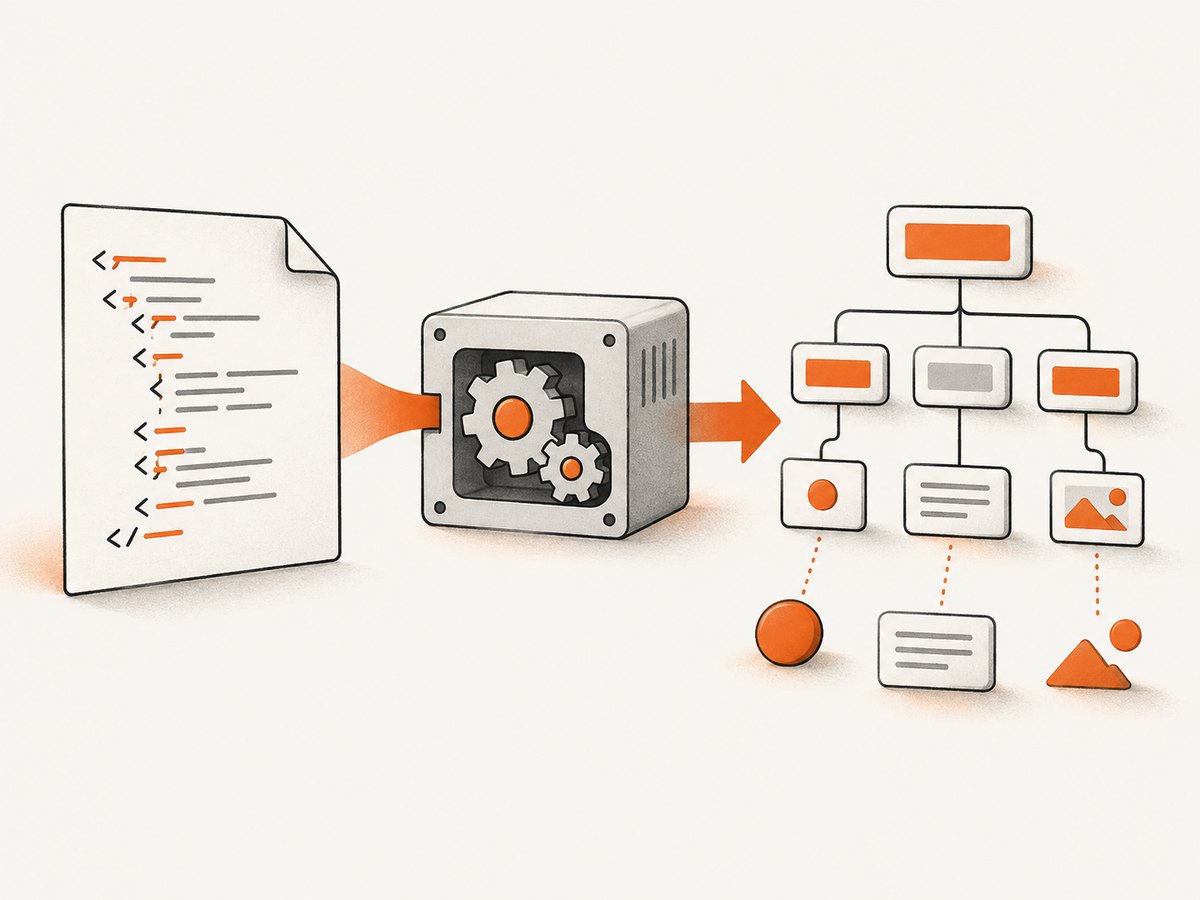
To scrape content added by JavaScript, use Selenium to open the page in a real browser, wait until the specific content you need is present, and pass the resulting markup to Beautiful Soup. Selenium runs and controls the browser; Beautiful Soup parses the HTML tree. Beautiful Soup does not execute JavaScript or wait for a page to update.
The basic sequence is: navigate, wait for a meaningful condition, read driver.page_source, parse it, and extract the fields you need. The example below is a template: replace the URL and selectors with ones that match the site you are allowed to access.
1. Decide whether you need a browser
First find out whether the target data is in the initial HTML response. If it is, parsing that response directly is simpler and uses fewer resources than starting a browser. Selenium is useful when the content appears only after browser-side JavaScript runs, such as after an application renders search results or loads more content.

A page can look loaded while the data you want is still missing. WebDriver navigation commonly waits for a document ready state, but that state concerns assets defined in the HTML. JavaScript may still change the page afterward. Selenium’s documentation describes this distinction in its waiting strategies guide.
Before building a scraper, inspect the page and its network behavior using your browser’s developer tools. Identify a stable container or data field, and check whether the data is already in the source markup. Prefer an element or attribute that represents the data over a selector tied to a fragile layout detail.
2. Install the Python dependencies
Use a virtual environment so the project’s dependencies are isolated. Selenium 4 uses Selenium Manager to help obtain a compatible browser driver when needed; you still need a supported browser installed. Check the current Selenium documentation for browser and driver setup details, which may change over time.
python -m venv .venv

# macOS or Linux
source .venv/bin/activate

# Windows PowerShell
# .venv\Scripts\Activate.ps1

python -m pip install selenium beautifulsoup4
The examples explicitly select Beautiful Soup’s built-in html.parser. Other documented options include lxml and html5lib; install the corresponding package before selecting one. Different parsers can construct different trees from malformed markup, so choose explicitly and keep the choice consistent across environments. See the Beautiful Soup documentation.
3. Wait for the content, then parse it
This complete example waits for a results container to become visible, parses the page source, extracts result text and links, and writes JSON. The URL and CSS selectors are placeholders; inspect the permitted target page and adapt them before running.
import json
from urllib.parse import urljoin

from bs4 import BeautifulSoup
from selenium import webdriver
from selenium.common.exceptions import TimeoutException
from selenium.webdriver.common.by import By
from selenium.webdriver.support import expected_conditions as EC
from selenium.webdriver.support.ui import WebDriverWait

URL = "https://example.com/page"
RESULTS_SELECTOR = ".results"
ITEM_SELECTOR = ".result"
TIMEOUT_SECONDS = 15

options = webdriver.ChromeOptions()
# Uncomment for a headless browser when a visible window is not needed.
# options.add_argument("--headless=new")

try:
    with webdriver.Chrome(options=options) as driver:
        driver.get(URL)
        wait = WebDriverWait(driver, TIMEOUT_SECONDS)
        wait.until(
            EC.visibility_of_element_located(
                (By.CSS_SELECTOR, RESULTS_SELECTOR)
            )
        )

        # page_source is the current DOM serialization available to WebDriver.
        markup = driver.page_source
        soup = BeautifulSoup(markup, "html.parser")

        results = []
        for item in soup.select(ITEM_SELECTOR):
            title = item.get_text(" ", strip=True)
            link = item.select_one("a[href]")
            results.append({
                "title": title,
                "url": urljoin(URL, link["href"]) if link else None,
            })

        print(json.dumps(results, ensure_ascii=False, indent=2))
except TimeoutException:
    raise SystemExit(
        f"Timed out waiting for {RESULTS_SELECTOR!r}; "
        "check the selector, page state, and network access."
    )
The visibility wait uses Selenium’s explicit wait support. Other useful expected conditions include element presence, text in an element, and a title condition. Choose the condition that means your required data is ready: if a container appears before its results are populated, wait for a result item or expected text instead.
driver.page_source gives Beautiful Soup markup to parse; it does not make the markup immune to site changes. A site may change its DOM, selectors, or load behavior. Validate extracted records and handle missing fields rather than assuming every result has the same structure.
4. Choose a wait condition that reflects the data
An explicit wait polls for a condition until it succeeds or reaches its timeout. It avoids guessing a fixed delay. A fixed sleep can be too short on a slow run and waste time on a fast one; use it only when the page has a known delay that cannot be represented by a better condition.
# Wait for a result node to exist in the DOM:
wait.until(
    EC.presence_of_element_located((By.CSS_SELECTOR, ".result"))
)

# Wait for a result node to be visible:
wait.until(
    EC.visibility_of_element_located((By.CSS_SELECTOR, ".result"))
)

# Wait until a particular element contains expected text:
wait.until(
    EC.text_to_be_present_in_element(
        (By.CSS_SELECTOR, ".status"), "Complete"
    )
)
Presence means an element exists in the DOM; it does not mean that it is visible or fully populated. Visibility is more appropriate when the content must be displayed. A text condition can be useful for a known state marker. Avoid selecting a condition merely because it is easy to express: tie it to the data that will be extracted.
Selenium warns that mixing implicit and explicit waits can produce unpredictable timing. Keep this workflow on one clear strategy: use targeted explicit waits and do not set a global implicit wait at the same time. See Selenium’s wait guidance.
5. Extract structured data with Beautiful Soup
Beautiful Soup turns supplied HTML or XML into a navigable parse tree. Use select() for CSS selectors or methods such as find() and find_all() when they make the structure clearer. Normalize text with get_text(" ", strip=True), and check that optional elements exist before reading attributes.
from bs4 import BeautifulSoup

markup = """<div class="result">
  <h2>Example title</h2>
  <a href="/item/1">Open</a>
</div>"""
soup = BeautifulSoup(markup, "html.parser")

for item in soup.select(".result"):
    heading = item.select_one("h2")
    anchor = item.select_one("a[href]")
    print({
        "title": heading.get_text(" ", strip=True) if heading else None,
        "href": anchor.get("href") if anchor else None,
    })
For repeatable extraction, define the expected fields and validate them. For example, count records, check required titles, and report missing links. Keep extraction separate from browser control so a selector or parser change can be debugged without rewriting navigation and waiting logic.
6. Handle pagination and content loaded on scroll
Some pages render only the first set of results, add more when a “Next” button is clicked, or load items as the browser scrolls. A successful wait for the first container does not prove the whole collection is present. Decide what “complete” means for the target: a known end marker, a disabled next control, a page count, or a stable number of results.
For pagination, process one page at a time: wait for its data, parse it, record a page identifier to avoid duplicates, then use the page’s next control if permitted. After navigation, wait for a change that distinguishes the new page from the old one, such as a changed page number or a new result identifier.
For scroll-driven loading, scroll in bounded increments and wait for the result count or a new item to change. Stop when the end marker appears or repeated scrolling yields no new items within a reasonable limit. Do not loop forever on a page that silently stops loading. Deduplicate results by a stable page-provided identifier or canonical URL where possible.
# Illustrative bounded scroll loop; adapt selectors and stopping rule.
from selenium.webdriver.common.by import By
from selenium.webdriver.support import expected_conditions as EC

items_selector = ".result"
previous_count = 0
stagnant_rounds = 0
max_rounds = 20

for _ in range(max_rounds):
    current_count = len(driver.find_elements(By.CSS_SELECTOR, items_selector))
    if current_count > previous_count:
        previous_count = current_count
        stagnant_rounds = 0
    else:
        stagnant_rounds += 1
        if stagnant_rounds >= 3:
            break

    driver.execute_script("window.scrollTo(0, document.body.scrollHeight);")
    # A production workflow should wait for count growth or an explicit end marker.
    # Use a short explicit timeout and treat timeout as a possible end condition.
The loop shows a stopping policy, not a universal scroll recipe. On a real page, add an explicit wait for count growth or an end marker after each scroll; avoid a tight polling loop. Sites may virtualize lists, removing earlier items from the DOM, so a live DOM count can stay flat even when more content has been seen. Capture each batch before continuing in that case.
7. Make the scraper less brittle
- Use meaningful selectors. Prefer stable IDs, semantic attributes, or distinctive container classes over long chains of positional selectors.
- Wait on data state. A visible page shell may precede its actual content. Wait for the target record or a meaningful completion marker.
- Expect missing fields. Sites can have sponsored, incomplete, or differently formatted entries. Check before accessing attributes.
- Normalize and validate. Trim text, resolve relative links against the page URL, and check required values before saving.
- Keep a small diagnostic sample. When extraction fails, save a limited page-source sample and the selector used, while avoiding unnecessary personal or sensitive data.
- Notice DOM changes. If results suddenly disappear, inspect the current page structure rather than increasing the timeout without evidence.
Parser choice also affects repeatability. Beautiful Soup supports html.parser, lxml, and html5lib; malformed input can be repaired differently by different parsers. Choose one deliberately and include its dependency in the project setup if you select an external parser.
8. Respect site access rules
Check the target site’s terms and crawler guidance before collecting data. RFC 9309 specifies the Robots Exclusion Protocol and describes rules crawlers are requested to honor. Robots rules are not a grant of permission; assess the site’s policies and applicable requirements for your use.
Keep request volume reasonable, avoid disrupting the service, and stop if the site indicates that automated access is not allowed. Do not attempt to defeat access controls or bot checks. Selenium makes browser interaction possible; it does not change what access is permitted.
9. Performance, reliability, and cost
Browser automation uses more resources than parsing markup that is already available. A browser must start, load the page, run scripts, and maintain a DOM. Use a browser only for pages that need it, close it reliably with a context manager, and avoid opening more concurrent browsers than the host can support.
Reliability depends on more than the timeout. Network speed, page scripts, third-party resources, and site changes can all affect when a page reaches the expected state. Set a bounded timeout, handle timeout failures, and make repeated runs safe by deduplicating records. A longer timeout can help with genuinely slow pages, but it will not fix a wrong selector or a page that never exposes the expected content.
Cost includes the machine time and infrastructure used to run the browser, plus any services or network resources in your environment. The sources for this workflow do not establish a universal runtime benchmark or hosting cost. Measure your own pages and workload if those numbers matter. Reducing unnecessary browser startup and limiting navigation to required pages are practical ways to reduce resource use.
10. Troubleshooting
| Symptom | Likely cause | What to do |
|---|---|---|
| Timeout waiting for a selector | The selector is wrong, the content is not loaded, or the target state never occurs. | Inspect the live DOM, verify the selector in the browser, and wait for the actual result or state marker. Confirm that the page is reachable. |
| Page source has no results | Navigation completed before JavaScript populated the page, or the results live in a different frame or state. | Wait for a result-specific condition before reading page_source. Inspect the page structure and handle frames when the target is inside one. |
| Wait succeeds but extracted list is empty | The wait targets a shell while the item selector is incorrect or the list is still empty. | Wait for an item or expected text, then check the item selector against the serialized markup. |
| Text or fields are missing | The selected node differs across records, or content is inserted after the capture. | Wait for the field-bearing node, check each optional field, and validate a sample before processing a full run. |
| Runs behave differently across machines | Browser/driver setup or parser choice differs. | Use a supported browser setup, keep dependencies consistent, and select the Beautiful Soup parser explicitly. |
| Unexpected waits or long delays | Implicit and explicit waits were combined, or a fixed sleep is longer than needed. | Use a single targeted explicit-wait strategy and remove casual implicit waits. |
| Some pages are missing from an infinite list | The list is virtualized or the scroll stopping condition is too early. | Capture batches as they appear, wait for count or identifier changes, and stop on a real end marker or bounded no-growth policy. |
| Parser output differs from browser display | The browser display and supplied markup differ, or parser recovery changed the tree. | Inspect the captured markup, choose a parser consistently, and compare selectors against the actual serialized HTML. |
11. Or skip the browser setup
If you need a rendered screenshot rather than structured records extracted from HTML, ScreenshotNeo is a website screenshot API and MCP server. Its one-call API can return an image or PDF; see the API documentation for request options. This does not replace Beautiful Soup when you need structured data fields.
curl -G "https://api.screenshotneo.com/v1/shot" -d access_key=YOUR_API_KEY --data-urlencode url=https://stripe.com -o shot.webpimport requests
r = requests.get(
"https://api.screenshotneo.com/v1/shot",
params={"access_key": "YOUR_API_KEY", "url": "https://stripe.com"},
timeout=90,
)
open("shot.webp", "wb").write(r.content)const q = new URLSearchParams({ access_key: 'YOUR_API_KEY', url: 'https://stripe.com' });
const res = await fetch(`https://api.screenshotneo.com/v1/shot?${q}`);- Cookie banners, newsletter popups, and chat widgets are removed before the shot; each cleanup step can be turned off.
- Bot checks, blank pages, timeouts, failed loads, and cache hits are not billed. Response headers identify the page verdict and billing status.
- An MCP server gives AI agents tools to take screenshots, get page information, and capture PDFs.
- The Free plan includes 1,000 screenshots a month with no card; paid plans start at $5 for 3,000. Every feature is on every plan.
Sign up for ScreenshotNeo’s free plan: 1,000 screenshots a month, no card required.
12. FAQ
Can Beautiful Soup render a JavaScript application?
No. It parses markup that you supply. Use a browser automation tool such as Selenium when the content must be rendered by JavaScript before it appears in the markup.
Is page_source the same as the original response HTML?
It is markup exposed by WebDriver for the current page DOM. For dynamic pages, obtain it after the relevant content is ready; do not assume the initial response already contains that content.
Should I use html.parser or lxml?
Either can parse HTML. Select a parser explicitly, account for its dependency, and keep the choice consistent because parsers may build different trees from malformed input.
Do I need Selenium for every website scrape?
No. If the data is present in the initial HTML, a browser may be unnecessary. Use browser automation when JavaScript execution or browser interaction is needed for the data you are permitted to collect.


