How to Scrape Google Shopping with Puppeteer and Python
Puppeteer is JavaScript, and its Python port is unmaintained. Learn the policy limits, a runnable authorized browser example, and safer options for merchant-owned product data.

There is no official Python version of Puppeteer. The official project is a JavaScript library for browser automation; pyppeteer is an unofficial Python port that describes itself as unmaintained. More importantly, Google says automated queries and scraping Search results without express permission violate its spam policies and Terms of Service. This guide does not provide a method to extract Google Shopping results or bypass access controls. It shows how to use Python browser automation on a page you own or are authorized to test, and what to do if you own the product catalog you want Google to understand.
If your goal is a clean screenshot of a page you are permitted to capture, [ScreenshotNeo](https://screenshotneo.com) offers a one-request screenshot API and an MCP server. See the [API documentation](https://screenshotneo.com/docs/) for its request options.
1. Know what “Puppeteer with Python” means
[Puppeteer](https://developer.chrome.com/docs/puppeteer) is the official JavaScript browser automation library. It automates Chrome and Firefox, including finding DOM elements, clicking, typing, and interacting with network requests. Those general capabilities do not make Google Shopping a stable or authorized extraction interface.
[pyppeteer](https://github.com/pyppeteer/pyppeteer) is an unofficial Python port. Its repository says it is unmaintained, requires Python 3.8 or later, and documents installing with pip. On first use it may download Chromium if a suitable browser is not installed. Treat those as project-reported details that can change: check the repository and your Python/browser compatibility before adopting it.
| Choice | Language fit | Maintenance consideration | Appropriate use |
|---|---|---|---|
| Puppeteer | JavaScript | Official project; check current documentation and version compatibility | Authorized browser automation in JavaScript |
| pyppeteer | Python | Unofficial port; repository says unmaintained | Existing compatible projects or controlled experiments, after review |
| Merchant-owned data | Any stack | Requires maintaining your own product feed or structured data | Sharing products you own with Google through supported methods |
Use Puppeteer directly if JavaScript is acceptable and you need the official library. If Python is a hard requirement, evaluate pyppeteer’s maintenance and compatibility risks; do not describe it as official Puppeteer. Neither choice grants permission to automate Google Search.
2. Check the policy boundary before automating
Google Search Central’s [machine-generated traffic policy](https://developers.google.com/search/docs/essentials/spam-policies) says automated queries and scraping Search results without express permission violate Google’s spam policies and Terms of Service. The practical boundary for this tutorial is straightforward: do not run the example against Google Shopping. Use it against a page you own, a local fixture, or a site whose owner has expressly authorized the automation.
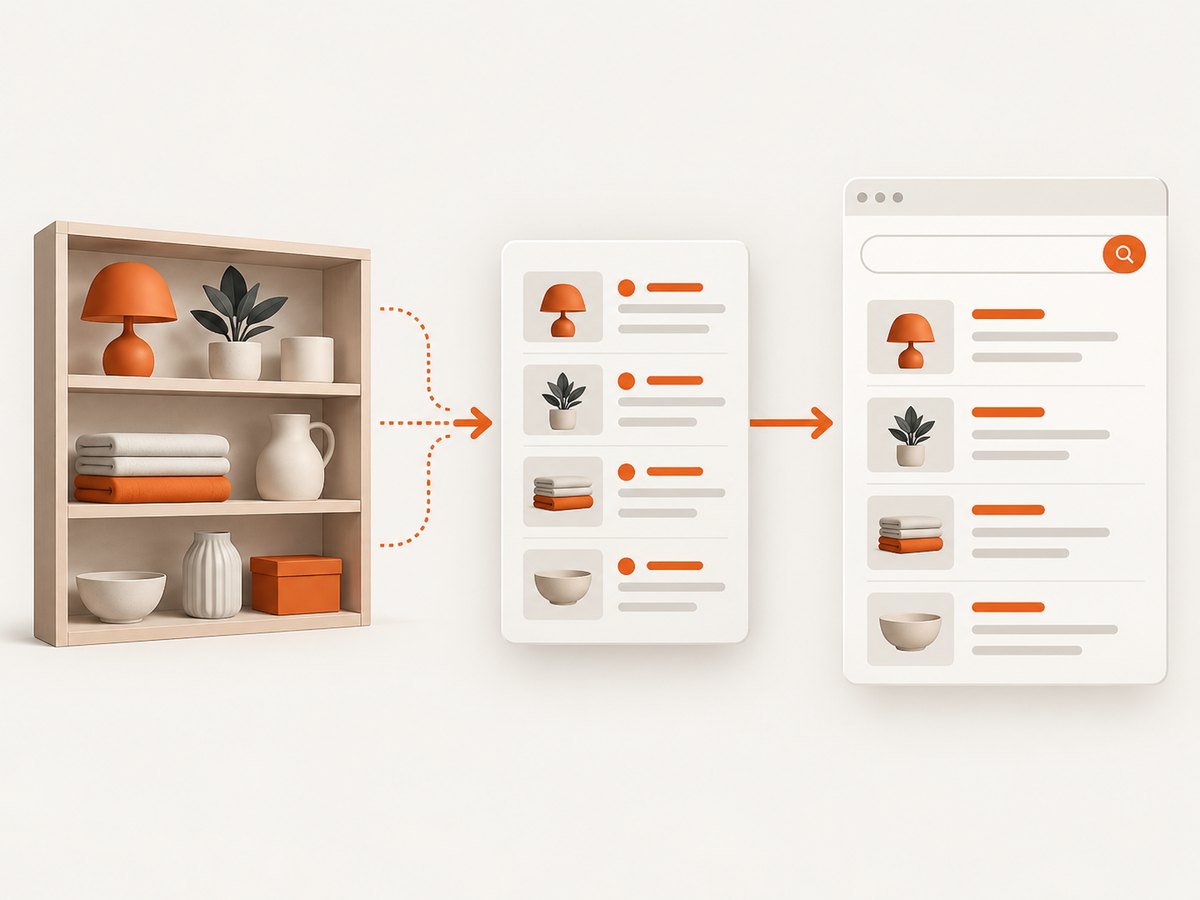
Google’s [crawling documentation](https://developers.google.com/crawling) explains that Storebot-Google crawl preferences affect Google Shopping surfaces. Those settings help a merchant manage Google’s crawler; they do not grant third parties permission to scrape Shopping result pages. Hosting a browser on a cloud service does not change that boundary.
If you own the catalog, start with Google’s [ecommerce guidance](https://developers.google.com/search/docs/specialty/ecommerce), which describes supported product-data sharing methods and structured data. That route uses your source data and avoids relying on a changing consumer-facing results page. This is not legal advice; it reflects the policy statement cited above.
3. Make a controlled test page
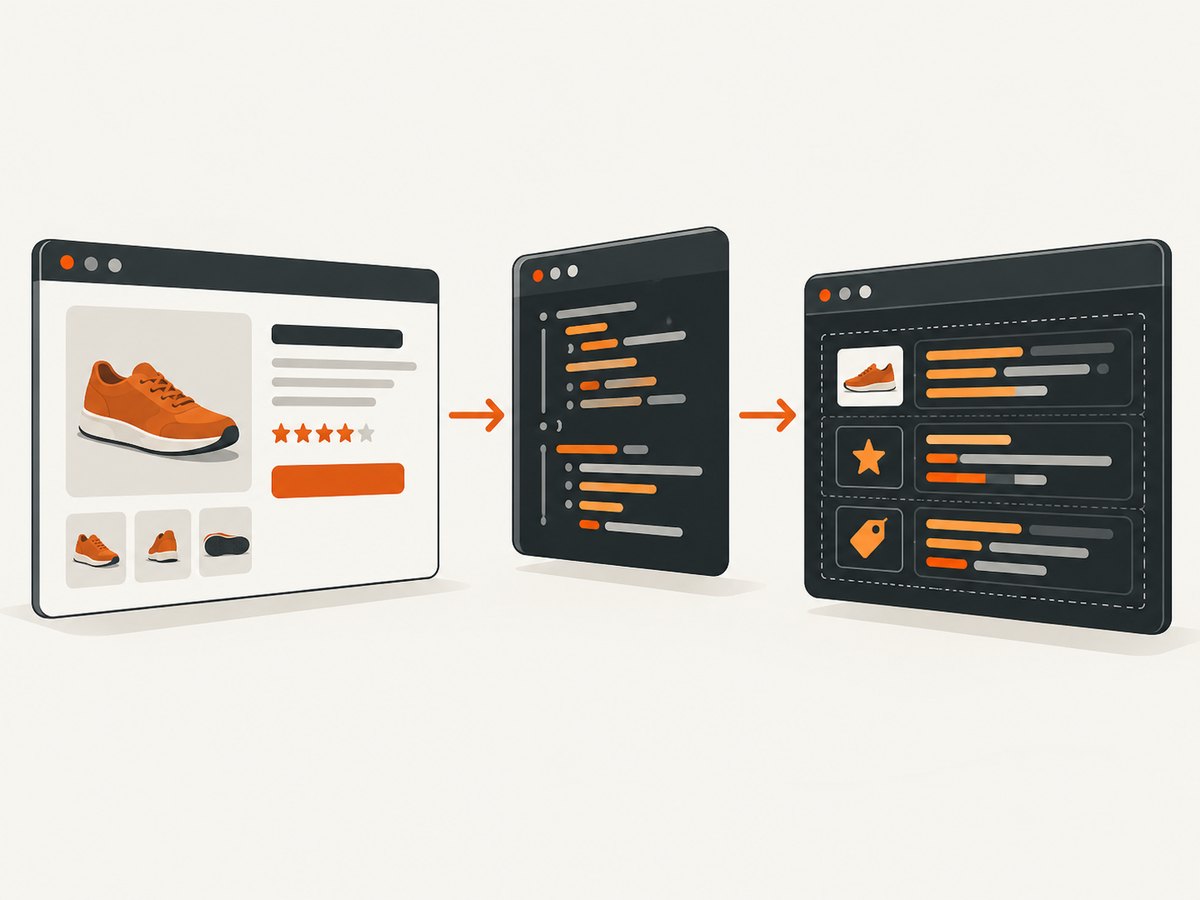
This small local fixture makes the code below runnable without sending automated queries to Google or another third-party site. It represents a page you control; the sample extracts a few product fields from known markup. It is a demonstration of DOM automation, not a Google Shopping scraper, and its selectors are deliberately limited to this fixture.
- Create a directory and save the following as
catalog.html. - Install Python 3.8 or later and the Python package in a virtual environment.
- Run the script in the same directory. It opens the local file, reads product cards, and prints JSON.
<!doctype html>
<html lang="en">
<meta charset="utf-8">
<title>Local product catalog</title>
<main>
  <article class="product">
    <h2>Desk lamp</h2>
    <span class="price">$29.00</span>
    <a class="detail" href="/products/desk-lamp">Details</a>
  </article>
  <article class="product">
    <h2>Notebook</h2>
    <span class="price">$6.50</span>
    <a class="detail" href="/products/notebook">Details</a>
  </article>
</main>
</html>
4. Install and run the Python example
The project documents installation through pip and may download Chromium the first time it runs. Pin and review dependencies according to your own project requirements; this example does not imply that pyppeteer is actively maintained. Use a virtual environment so the package does not affect unrelated Python applications.
python -m venv .venv
# macOS or Linux:
source .venv/bin/activate
# Windows PowerShell:
# .venv\Scripts\Activate.ps1
python -m pip install pyppeteer
Save the following as read_catalog.py beside catalog.html, then run python read_catalog.py. The script resolves the fixture relative to itself, waits for the local DOM to load, selects only the fixture’s product cards, and emits structured output.
import asyncio
import json
from pathlib import Path
from pyppeteer import launch

async def main():
    page_path = Path(__file__).with_name("catalog.html").resolve()
    browser = await launch(headless=True, args=["--no-sandbox"])
    try:
        page = await browser.newPage()
        await page.goto(page_path.as_uri(), {"waitUntil": "domcontentloaded"})
        products = await page.evaluate("""() => Array.from(document.querySelectorAll('.product')).map(card => ({
            name: card.querySelector('h2')?.textContent?.trim() ?? null,
            price: card.querySelector('.price')?.textContent?.trim() ?? null,
            href: card.querySelector('a.detail')?.getAttribute('href') ?? null
        }))""")
        print(json.dumps(products, indent=2))
    finally:
        await browser.close()

if __name__ == "__main__":
    asyncio.run(main())
Expected output includes two objects with names, prices, and relative detail links. The browser’s evaluate callback runs in the page context, so it can query the DOM; Python receives the returned serializable data. The null fallbacks keep a missing field from crashing the extraction, but production code should also validate required fields and report malformed records.
The --no-sandbox argument is included because pyppeteer examples commonly need Chromium launch adjustments in restricted environments; it weakens browser isolation and should not be copied blindly into a service that opens untrusted pages. For a real deployment, choose a sandboxed, appropriately isolated browser configuration and review the current browser and container security guidance.
5. Official Puppeteer equivalent in JavaScript
If you can use JavaScript, the official library avoids the unofficial Python port. Install Puppeteer in a project and use the same controlled fixture:
npm install puppeteer// read-catalog.mjs
import puppeteer from 'puppeteer';
import { fileURLToPath } from 'node:url';
import path from 'node:path';
const file = path.join(path.dirname(fileURLToPath(import.meta.url)), 'catalog.html');
const browser = await puppeteer.launch({ headless: true });
try {
const page = await browser.newPage();
await page.goto(new URL(`file://${file}`).href, { waitUntil: 'domcontentloaded' });
const products = await page.$$eval('.product', cards => cards.map(card => ({
name: card.querySelector('h2')?.textContent?.trim() ?? null,
price: card.querySelector('.price')?.textContent?.trim() ?? null,
href: card.querySelector('a.detail')?.getAttribute('href') ?? null
})));
console.log(JSON.stringify(products, null, 2));
} finally {
await browser.close();
}Run it with node read-catalog.mjs. This example uses only a local file. For an authorized web page, substitute its permitted URL, and choose a navigation wait condition based on how that page renders. Do not use request interception, proxy rotation, user-agent disguise, CAPTCHA solving, or other techniques to evade access controls.
6. Options and edge cases for an authorized page
Browser automation is sensitive to the page’s rendering behavior. The key decision is when the DOM is ready for the data you are authorized to read. A basic DOM-ready navigation can be enough for server-rendered content. If the page renders a known component after navigation, wait for that specific selector, with a finite timeout. Avoid waiting indefinitely for network idle on pages that keep analytics or streaming requests open.
- Selectors: Use selectors tied to markup you control. Verify that a selector returns the expected number of elements and handle missing fields.
- Lazy loading: Content may not exist until scrolling or interaction. In a controlled test, reproduce the required interaction explicitly and set a time limit.
- Pagination: For your own catalog, prefer its API or database export over clicking through UI pages. If UI navigation is part of the authorized test, stop at a defined page limit.
- Locale and currency: Text labels and formatted prices depend on locale and page settings. Preserve raw strings or use your own structured data for normalized values.
- Links: A relative URL is not an absolute one. Resolve it against the known base URL before storing or fetching it, and only follow links within your authorization scope.
- Changing layouts: DOM scraping is coupled to markup. Add checks that detect missing or renamed fields and review changes before relying on output.
Google’s documentation cited here does not establish current Shopping selectors, page structure, pagination behavior, or result counts. Therefore no selector or code in this post should be interpreted as a dependable Google Shopping extraction technique.
7. Reliability, performance, and cost
Launching a browser has more startup and memory overhead than parsing a static file or calling an authorized data API. Reuse a browser process for a bounded batch of pages, create a fresh page per task when isolation is needed, and always close pages and the browser in a finally block. Put explicit limits on navigation time, page count, response size, and concurrent work. A failure should be recorded as a failure, not silently converted into an empty product list.
Browser results can change because a page changes, a request fails, content is delayed, or the browser and automation package are incompatible. Log the target you are authorized to access, timestamp, navigation outcome, and validation errors. Avoid retaining sensitive page content unless your use case requires it. Test against fixtures you control before changing package or browser versions.
Cost depends on where and how long you run the browser, the compute service and storage you select, and the amount of work. This research does not establish a price or performance benchmark for pyppeteer, Puppeteer, or Google Shopping extraction. [Google Cloud Run’s browser automation documentation](https://docs.cloud.google.com/run/docs/browser-automation) describes installing Chromium and using browser automation libraries such as Puppeteer or Playwright. It is a hosting option for authorized workloads; cloud deployment does not override Google’s policy.
8. Troubleshooting
| Symptom | Likely cause | What to do |
|---|---|---|
Import error for pyppeteer |
Package installed into a different Python environment | Activate the virtual environment and install with that interpreter’s python -m pip. |
| Chromium download or launch fails | First-use download failed, or browser dependencies/version are incompatible | Check the project repository, Python and OS compatibility, and browser installation. Do not assume an unmaintained port will track current browser changes. |
| Browser exits immediately | Launch options, missing system dependencies, or restricted runtime | Read the launch error, install required system packages, and review isolation settings. Do not broadly disable browser security to make an untrusted target load. |
| Selector returns no records | Wrong page, markup changed, or content has not rendered | Inspect the controlled page’s DOM, wait for the known component, and assert the expected count. |
| Some values are null | Optional child element missing or selector mismatch | Keep explicit null handling, validate required fields, and log the affected record. |
| Navigation times out | Network delay or a page that never reaches the selected readiness condition | Use a finite timeout and the narrowest appropriate wait condition on authorized pages; report timeout separately from empty results. |
| Access denied, bot check, or CAPTCHA appears | The site restricts automated access | Stop. Do not disguise automation or bypass the challenge. Obtain express permission or use a supported first-party data path. |
9. Or skip the browser setup
If your task is to capture a page you are allowed to access, ScreenshotNeo can return an image or PDF from one GET request. Its cookie and consent handling accepts banners as a visitor and removes 60+ known consent platforms, newsletter popups, and chat widgets before capture; each step can be turned off. Bot checks, blank pages, timeouts, failed loads, and cache hits cost nothing, and response headers report the page verdict and billing status. An MCP server provides take_screenshot, get_page_info, and capture_pdf for Claude, Cursor, and other MCP clients. The free plan includes 1,000 shots a month with no card; paid plans start at $5 for 3,000.
curl -G "https://api.screenshotneo.com/v1/shot" -d access_key=YOUR_API_KEY --data-urlencode url=https://stripe.com -o shot.webpSee [ScreenshotNeo’s API documentation](https://screenshotneo.com/docs/) for formats and options. The API captures pages; it is not a way to scrape Google Shopping or bypass its access policy. [Create a free ScreenshotNeo account](https://screenshotneo.com/account/sign-up/) for 1,000 screenshots a month with no card.
10. FAQ
Can I use Puppeteer with Python?
Not the official Puppeteer library, which is JavaScript. pyppeteer is an unofficial Python port, and its repository says it is unmaintained. You can also run the official JavaScript library from a Node.js project.
Is pyppeteer still maintained?
The project repository describes pyppeteer as unmaintained. Check its current status and compatibility before relying on it for ongoing work.
Does Storebot-Google documentation authorize me to scrape Shopping?
No. Storebot-Google preferences concern Google’s crawler behavior on Shopping surfaces. Google’s policy separately says automated queries and scraping Search results without express permission violate its policies and Terms of Service.
What should a merchant use instead?
Start with Google’s supported product-data sharing methods and structured data described in its ecommerce documentation. That approach begins with the catalog the merchant owns.
Can I host authorized browser automation on Cloud Run?
Google documents Chromium and browser automation libraries for Cloud Run. Hosting can run an authorized workload, but does not change the rules governing the site being accessed.


