How to Scrape JavaScript-Rendered Tables Across Pages
Use Playwright to wait for rendered rows, extract each page safely, paginate, validate results, and avoid common JavaScript scraping failures.
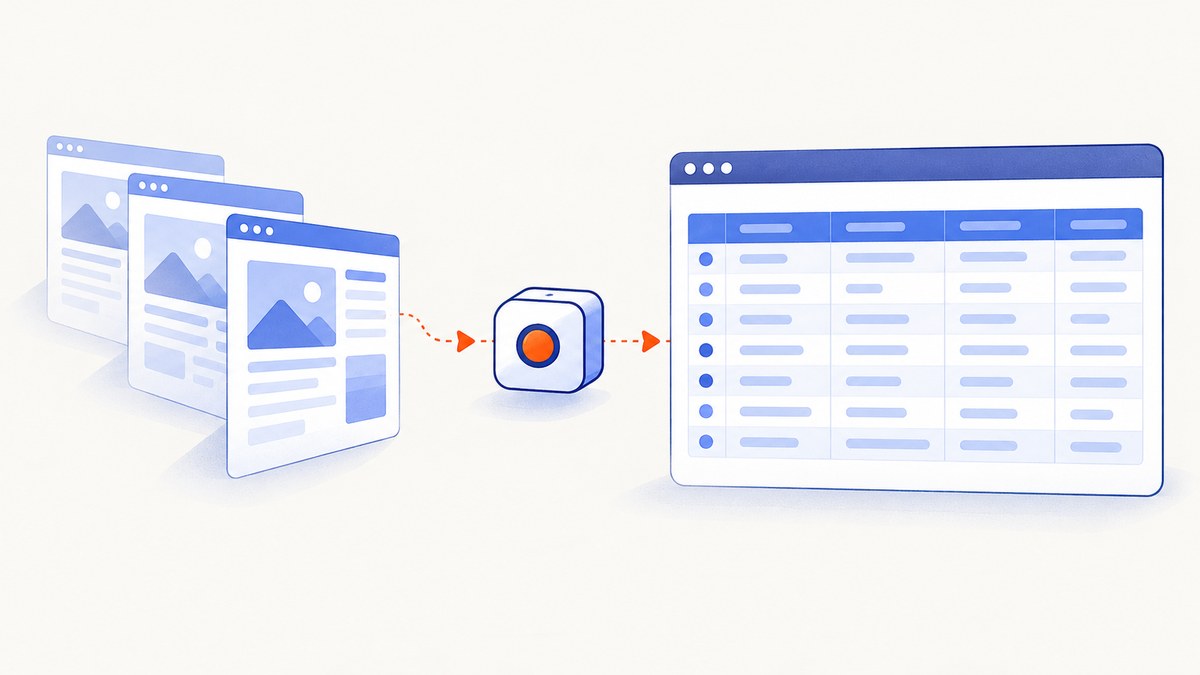
Short answer: use a real browser to execute the page’s JavaScript, wait for a condition that proves the table rows are ready, extract and save the current page before changing pages, then follow the site’s own pagination until its next control is unavailable. A parser such as pandas.read_html is useful after rendering, but it cannot click pagination or wait for client-side requests by itself.
This guide shows a complete Python and Playwright workflow, including URL pagination, in-place “Next” buttons, custom grids, lazy content, validation, retries, performance, cost, and troubleshooting. The selectors in the examples are deliberately obvious placeholders: replace them after inspecting your target site.
1. Decide whether you need a browser
Start by inspecting the response and the rendered page. If the rows are already present in the original HTML and pagination links point to ordinary URLs, a direct HTTP client plus an HTML parser may be enough. If the initial HTML contains an empty table shell and JavaScript later fetches rows, use browser automation. The same is true when pagination updates the DOM without changing the URL, or when rows appear only after scrolling or clicking.
Look for these signals:
- Static HTML: row text appears in “View Source” or the HTTP response.
- Client rendering: the response has an empty
<tbody>, while DevTools shows rows after scripts run. - XHR or fetch data: the browser requests JSON after navigation.
- Interaction pagination: “Next” changes the table in place, often with an API request.
- Custom grid: the page uses
<div>elements instead of semantic<table>markup.
If the publisher offers a documented API, export, or download for the intended use, evaluate that path first. It is usually easier to validate and less sensitive to layout changes. Browser automation is the practical choice when the rendered interface is the only available representation.
2. Install Playwright and create a browser
python -m venv .venv
source .venv/bin/activate       # Windows: .venv\\Scripts\\activate
pip install playwright pandas
python -m playwright install chromium
Playwright’s navigation guide explains that page.goto() reaches a navigation milestone such as load; that event does not prove asynchronous table rows have finished rendering. Your code must wait for the table’s actual ready state.
The following complete script handles a table whose Next button changes the current page in place. It waits for rows, extracts serializable values in the page context, detects a disabled or missing Next button, and writes a CSV.
from pathlib import Path
import json
import time
from playwright.sync_api import sync_playwright, TimeoutError as PlaywrightTimeoutError

START_URL = "https://example.com/products"
OUTPUT = Path("products.json")

TABLE_ROWS = "table#results tbody tr"
NEXT_BUTTON = "button[aria-label='Next page']"
READY_MARKER = "table#results tbody tr"


def extract_rows(page):
    # page.evaluate runs inside the rendered browser page.
    return page.locator(TABLE_ROWS).evaluate_all("""
        rows => rows.map(row => {
            const cells = [...row.querySelectorAll('th, td')];
            return cells.map(cell => ({
                text: cell.innerText.trim(),
                href: cell.querySelector('a')?.href ?? null
            }));
        })
    """)


def next_is_unavailable(page):
    button = page.locator(NEXT_BUTTON)
    if button.count() == 0:
        return True
    if not button.is_visible():
        return True
    if button.is_disabled():
        return True
    aria_disabled = button.get_attribute("aria-disabled")
    return aria_disabled == "true"


def wait_for_new_page(page, old_signature):
    # Wait until the first row changes. Adapt this if the site keeps the
    # same first row while changing another page indicator.
    page.wait_for_function(
        "([selector, old]) => { const el = document.querySelector(selector); "
        "return el && el.innerText.trim() !== old; }",
        [READY_MARKER, old_signature],
        timeout=30_000,
    )


def main():
    all_rows = []
    seen_signatures = set()

    with sync_playwright() as p:
        browser = p.chromium.launch(headless=True)
        page = browser.new_page(viewport={"width": 1440, "height": 1000})
        page.goto(START_URL, wait_until="domcontentloaded", timeout=60_000)

        page_number = 1
        while True:
            try:
                page.locator(READY_MARKER).first.wait_for(state="visible", timeout=30_000)
            except PlaywrightTimeoutError as exc:
                raise RuntimeError(f"Rows did not render on page {page_number}") from exc

            rows = extract_rows(page)
            if not rows:
                raise RuntimeError(f"Empty table on page {page_number}")

            signature = json.dumps(rows[0], sort_keys=True)
            if signature in seen_signatures:
                raise RuntimeError("Pagination repeated a page; stopping to avoid duplicates")
            seen_signatures.add(signature)

            for row in rows:
                all_rows.append({
                    "page": page_number,
                    "cells": row,
                    "source_url": page.url,
                })

            if next_is_unavailable(page):
                break

            old_signature = signature
            page.locator(NEXT_BUTTON).click()
            wait_for_new_page(page, old_signature)
            page_number += 1

        browser.close()

    OUTPUT.write_text(json.dumps(all_rows, indent=2), encoding="utf-8")
    print(f"Wrote {len(all_rows)} rows from {page_number} page(s) to {OUTPUT}")


if __name__ == "__main__":
    main()
Replace TABLE_ROWS, NEXT_BUTTON, and the readiness condition with selectors from the target. If the site exposes a page number or result range, wait for that indicator as well. A selector becoming visible can be insufficient when the same element remains visible while its data changes.
3. Extract rendered rows correctly
Playwright’s Page API provides page.evaluate() and locator evaluation. Return ordinary strings, numbers, booleans, arrays, and objects that can be serialized. Do not return DOM nodes, functions, or other browser-only objects.

Semantic HTML tables
For a genuine HTML table, extract headers and cells explicitly so column order is stable:
table = page.locator("table#results")
headers = table.locator("thead th").all_text_contents()
rows = table.locator("tbody tr").evaluate_all("""
    rows => rows.map(row => [...row.querySelectorAll('td')]
        .map(cell => cell.innerText.trim()))
""")
records = [dict(zip(headers, values)) for values in rows]
Links, data attributes, and hidden identifiers often matter more than visible text. Capture them in the same evaluation:
records = page.locator("table#results tbody tr").evaluate_all("""
rows => rows.map(row => {
  const cells = [...row.querySelectorAll('td')];
  return {
    id: row.dataset.id ?? null,
    name: cells[0]?.innerText.trim() ?? null,
    detail_url: cells[0]?.querySelector('a')?.href ?? null,
    status: cells[2]?.innerText.trim() ?? null
  };
})
""")
Custom grids
A grid made of div elements has no universal parser. Inspect its row and cell roles, then extract those fields directly:
rows = page.locator("[role='row'][data-row-id]").evaluate_all("""
rows => rows.map(row => ({
  id: row.getAttribute('data-row-id'),
  values: [...row.querySelectorAll('[role=cell]')]
    .map(cell => cell.innerText.trim())
}))
""")
4. Handle URL-based pagination
Some sites navigate from ?page=1 to ?page=2. In that case, loop over navigation rather than clicking a control, but keep the same wait-and-extract rule.
from urllib.parse import urlencode

base = "https://example.com/products"
all_rows = []

with sync_playwright() as p:
    browser = p.chromium.launch()
    page = browser.new_page()
    for page_number in range(1, 1000):
        url = f"{base}?{urlencode({'page': page_number})}"
        page.goto(url, wait_until="domcontentloaded", timeout=60_000)
        page.locator("table tbody tr").first.wait_for(state="visible", timeout=30_000)
        rows = page.locator("table tbody tr").evaluate_all("""
            rows => rows.map(row => [...row.querySelectorAll('td')]
                .map(cell => cell.innerText.trim()))
        """)
        if not rows:
            break
        all_rows.extend({"page": page_number, "values": row} for row in rows)
    browser.close()
A fixed upper bound protects you from an accidental infinite loop, but do not assume that the bound represents the real result count. Stop on the site’s own empty-page, disabled-next, total-count, or last-page signal.
5. Wait for lazy rows, scrolling, and network activity
Rows may be virtualized or loaded only when they enter the viewport. Scroll the relevant container, then wait for the expected count or label. Prefer a state assertion over a blind sleep.
grid = page.locator("div[data-scroll-container]")
for _ in range(20):
    count_before = page.locator("[data-row-id]").count()
    grid.evaluate("el => el.scrollTop = el.scrollHeight")
    page.wait_for_timeout(300)
    count_after = page.locator("[data-row-id]").count()
    if count_after == count_before:
        break
If the application has a stable API response, waiting for that response can be more precise than waiting for a timer:
with page.expect_response(lambda r: "/api/results" in r.url and r.ok) as response_info:
    page.locator(NEXT_BUTTON).click()
response = response_info.value
page.locator("table tbody tr").first.wait_for(state="visible")
Use response waits only when the endpoint and request pattern are stable. The browser still needs a DOM readiness check if rendering can lag behind the response.
6. Parse with pandas after rendering
pandas.read_html parses HTML table markup into DataFrames. It does not execute JavaScript, click Next, wait for asynchronous rendering, or preserve your browser session. Use it after Playwright has produced the rendered HTML:
import pandas as pd

html = page.locator("table#results").evaluate("el => el.outerHTML")
frames = pd.read_html(html)
if not frames:
    raise ValueError("No semantic table found")
df = frames[0]
df.columns = [str(column).strip() for column in df.columns]
df = df.dropna(how="all")
df.to_csv("page.csv", index=False)
For a custom grid, create a DataFrame from the records you extracted rather than forcing the markup through read_html.
7. Validate every page and the combined dataset
Scrapers can finish without exceptions while silently losing rows. Record page number and URL with every batch, then check:
- Rows per page are nonzero unless the site explicitly marks the end.
- Expected columns exist and headers did not become data rows.
- A primary key is present and unique when uniqueness is expected.
- Required fields are not unexpectedly empty.
- The final page has the expected “last” state.
- No page signature repeats after clicking Next.
import pandas as pd

df = pd.DataFrame(records)
required = {"id", "name"}
missing = required - set(df.columns)
if missing:
    raise ValueError(f"Missing columns: {sorted(missing)}")
if df["id"].duplicated().any():
    duplicates = df.loc[df["id"].duplicated(), "id"].tolist()
    raise ValueError(f"Duplicate IDs: {duplicates[:10]}")
if df["name"].isna().mean() > 0.05:
    raise ValueError("More than 5% of names are empty")
8. Authentication, cookies, and request context
Use a persistent browser context when the site requires a login that you are authorized to use. Store state securely and do not put credentials in source code. If a cookie banner blocks the table, handle it with the site’s intended controls before waiting for rows. Avoid bypassing access controls.
Robots rules are not permission to collect data. RFC 9309 standardizes the Robots Exclusion Protocol and explains that it is not a substitute for authorization. Check the site’s terms, applicable law, and any published crawl guidance. Use a modest request rate and stop when the site signals that access is not allowed.
9. Reliability, speed, and cost considerations
- Reliability: wait for application state, detect repeated pages, persist each page’s rows incrementally, and write a checkpoint after every successful batch.
- Retries: retry transient navigation failures with backoff, but do not blindly retry a deterministic selector timeout. Capture a screenshot and HTML snapshot for diagnosis.
- Parallelism: begin with one browser context. Add limited workers only after confirming the site permits the load and that ordering and rate limits are safe.
- Browser reuse: reuse a context for pages in the same session, but isolate accounts and unrelated jobs.
- Memory: write rows to disk or a database as you go instead of retaining millions of records in a list.
- Cost: self-hosted Playwright consumes your compute and bandwidth. A screenshot API shifts browser operations to a service and may charge per successful capture; read its billing semantics before running large jobs.
10. Troubleshooting common failures
“The table is empty”
Cause: extraction ran after load but before the client request completed, or the selector targets a hidden template. Fix: inspect the live DOM, wait for a visible row or a known result label, and verify the selector in DevTools.
“Next clicked but the same rows were extracted”
Cause: the click returned before the DOM update, or the control was not wired during hydration. Fix: wait for a page indicator, response, URL change, or first-row signature to change. Playwright interactions auto-wait for actionability, but application event handlers can still become ready later.
“Timeout waiting for rows”
Cause: a consent dialog, bot check, failed API request, geo restriction, or incorrect selector blocked rendering. Fix: save a diagnostic screenshot and HTML, inspect console and network errors, and distinguish a blocked page from a slow page before increasing timeouts.
“Duplicate rows across pages”
Cause: pagination did not advance, an infinite-scroll buffer was re-read, or the site repeated records. Fix: store page URLs and a primary key, reject repeated page signatures, and deduplicate only when the key semantics are understood.
“pandas.read_html found no tables”
Cause: the target is a custom grid or you passed the original, unrendered response. Fix: pass the rendered table’s outerHTML, or extract grid cells directly.
“The scraper works locally but fails in production”
Cause: missing browser binaries, different viewport, timezone, locale, permissions, or a shorter timeout. Fix: install the same Playwright browser version, set explicit context options, and log the final URL, page number, and failure artifact.
11. Or skip the browser setup
If your goal is a clean image or PDF of each rendered page rather than structured row data, ScreenshotNeo provides a one-call screenshot API and an MCP server for AI agents. It can accept the cookie or consent banner before capture and remove more than 60 known consent platforms, newsletter popups, and chat widgets. You can turn each cleanup step off. Bot checks and CAPTCHAs, blank pages, timeouts, failed loads, and cache hits are not billed; the response identifies the result with X-Page-Verdict and X-Billed headers.

See the ScreenshotNeo API documentation for all options, including full-page capture, CSS selectors, custom JavaScript and CSS, waits, request blocking, cookies, headers, device presets, PDFs, caching, signed links, async jobs, bulk capture, and usage reporting.
cURL
curl -G "https://api.screenshotneo.com/v1/shot" -d access_key=YOUR_API_KEY --data-urlencode url=https://example.com/products -o table-page.webpPython
import requests

r = requests.get(
    "https://api.screenshotneo.com/v1/shot",
    params={"access_key": "YOUR_API_KEY", "url": "https://example.com/products"},
    timeout=90,
)
r.raise_for_status()
open("table-page.webp", "wb").write(r.content)
print(r.headers.get("X-Page-Verdict"), r.headers.get("X-Billed"))
Node.js
const q = new URLSearchParams({
  access_key: 'YOUR_API_KEY',
  url: 'https://example.com/products'
});
const res = await fetch(`https://api.screenshotneo.com/v1/shot?${q}`);
if (!res.ok) throw new Error(`Screenshot failed: ${res.status}`);
const bytes = Buffer.from(await res.arrayBuffer());
await require('node:fs').promises.writeFile('table-page.webp', bytes);
console.log(res.headers.get('X-Page-Verdict'), res.headers.get('X-Billed'));
ScreenshotNeo also includes an MCP server with take_screenshot, get_page_info, and capture_pdf tools for Claude, Cursor, and other MCP clients. One thousand screenshots per month are free with no card; paid plans start at $5 for 3,000 shots. Create a free ScreenshotNeo account.
12. FAQ
Can I scrape a JavaScript table with requests alone?
Only when the data is available in the response or through a documented endpoint you are authorized to call. Requests does not execute the page’s JavaScript or operate its pagination controls.
Should I use Selenium instead of Playwright?
Either can drive a browser. This guide uses Playwright because its navigation and page-evaluation APIs directly support the wait, interaction, and extraction pattern described here.
How do I know when pagination is finished?
Use the site’s own signal: a disabled or absent Next control, a last-page indicator, an empty result set, or a known total count. Also guard against repeated page signatures.
Is a screenshot enough to recover table data?
No. An image preserves visual appearance, not structured cell values. Use DOM extraction or an authorized data endpoint when you need records for analysis.
What should I save when a run fails?
Save the page URL, page number, exception, final HTML, a screenshot, console errors, and the last successful checkpoint. Those artifacts reveal whether the failure occurred during navigation, rendering, extraction, or pagination.