How to Scrape the Web with Playwright in 2026
Use Playwright to scrape JavaScript-rendered pages with stable locators, explicit waits, pagination, and clear failure handling. Includes runnable Node.js code and responsible-access guidance.

To scrape a JavaScript-rendered website with Playwright, open the page in a browser, wait for a meaningful page element, extract fields with stable locators, and close the browser resources. Use a documented API or a direct HTTP request when it supplies the data you need; use a browser when rendering, interaction, or session state is required.
This guide uses Node.js and JavaScript. It covers installation, extraction, pagination, sessions, network inspection, errors, operational considerations, and responsible access. It is an engineering workflow, not a way to bypass logins, bot checks, or access controls.
1. Choose the simplest authorized access method
Before launching a browser, check whether the site provides a documented API or whether the information is available in an authorized direct HTTP response. Playwright includes APIRequestContext for HTTP requests. Its browser APIs can also observe requests made by a page, including fetch and XHR, which can help you understand how a page loads its data. [Playwright network documentation] [Playwright APIRequestContext documentation]
| Approach | Use it when | Trade-offs |
|---|---|---|
| Documented API | The site offers an API that is authorized for your use and contains the required fields. | Often the clearest data contract. Check its terms, limits, and authentication rules. |
| Direct HTTP request | The needed response is available without browser rendering or interaction. | Less browser machinery, though performance depends on the site and workload. Parse and check status explicitly. |
| Playwright browser | The content appears after JavaScript runs, or the workflow needs browser interactions or session state. | Requires browser binaries and more resources than a simple request. Page structure can change. |
Network inspection can reveal how a page obtains data, but seeing a request does not grant permission to reuse it. Do not use undocumented endpoints to get around authentication or access controls. Respect the target service’s terms, permissions, and rate limits.
2. Install Playwright and its browser
Start a Node.js project and install Playwright. Its browser guide explains that each Playwright version expects compatible browser binaries; install browsers through the matching Playwright CLI, and install the operating-system dependencies required by your environment. [Playwright browser installation guide]
npm init -y
npm install playwright
npx playwright install chromium
The example below uses Chromium. If you update Playwright, run its install command again so the browser binaries match. In Linux containers or CI, consult the browser guide for system package requirements.
3. Navigate, wait, and extract fields
Use a page-specific signal to decide when the data is ready. A locator that represents a result list is more meaningful than a fixed sleep. Playwright locators are its central mechanism for auto-waiting and retrying; prefer role, label, text, or explicit stable contracts where appropriate. CSS and XPath selectors tied to a page’s DOM structure can be fragile. [Playwright locator guidance]
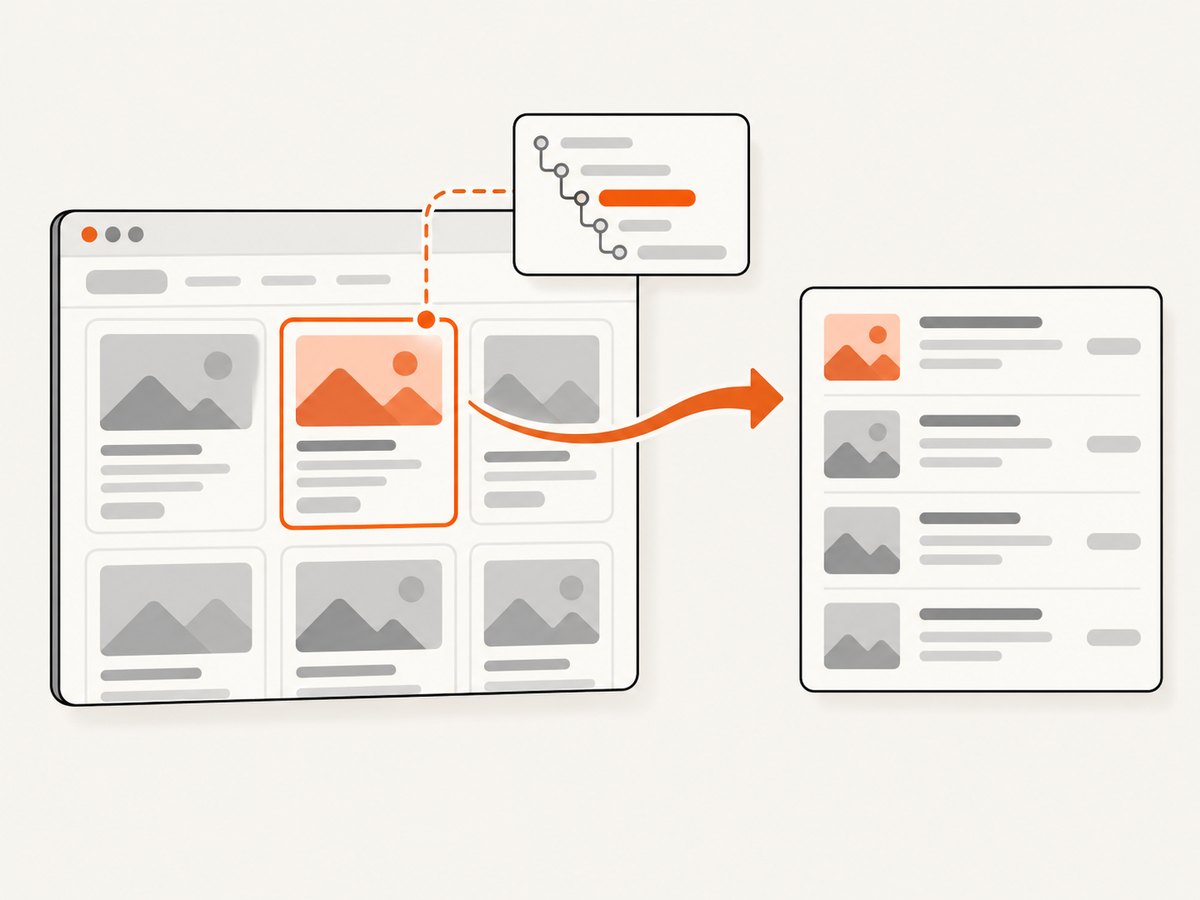
Save this as scrape.js. Replace the example URL and selectors with elements present on a site you are authorized to access. The code collects a list of article cards and handles missing optional fields. It checks the final response status, sets a navigation timeout, and closes both context and browser even if navigation or extraction fails.
const { chromium } = require('playwright');

async function scrape() {
  const browser = await chromium.launch({ headless: true });
  const context = await browser.newContext();
  try {
    const page = await context.newPage();
    page.setDefaultNavigationTimeout(30_000);
    page.setDefaultTimeout(10_000);

    const response = await page.goto('https://example.com/articles', {
      waitUntil: 'domcontentloaded',
    });
    if (!response) {
      throw new Error('Navigation did not return an HTTP response');
    }
    if (!response.ok()) {
      throw new Error(`Page returned HTTP ${response.status()}`);
    }

    const cards = page.getByRole('article');
    await cards.first().waitFor({ state: 'visible' });

    const articles = await cards.evaluateAll((elements) =>
      elements.map((card) => {
        const heading = card.querySelector('h2, h3');
        const link = heading?.closest('a') ?? card.querySelector('a');
        const summary = card.querySelector('p');
        return {
          title: heading?.textContent?.trim() ?? null,
          url: link?.href ?? null,
          summary: summary?.textContent?.trim() ?? null,
        };
      }).filter((item) => item.title || item.url)
    );

    if (articles.length === 0) {
      throw new Error('The page loaded, but no article cards were found');
    }
    return articles;
  } finally {
    await context.close();
    await browser.close();
  }
}

scrape()
  .then((rows) => process.stdout.write(`${JSON.stringify(rows, null, 2)}\n`))
  .catch((error) => {
    console.error(error);
    process.exitCode = 1;
  });
Run it with node scrape.js. The sample uses domcontentloaded to avoid waiting for every image and other resource, then waits for the result cards. For a particular page, choose a readiness signal that corresponds to the data you need. If the site renders cards only after an API response, wait for a card or a page-specific status element rather than assuming navigation completion means the content is ready.
Make selectors resilient
- Use
getByRoleor other user-facing locators when the page semantics make them unique. - If the site publishes a stable test identifier or other explicit selector contract, use it.
- Scope repeated fields to a card or row before extracting them.
- Handle optional fields explicitly; a missing summary need not invalidate a valid title and URL.
- Avoid positional selectors such as “the third div inside the second section” unless that structure is a documented contract.
For a detail page, wait for the expected heading and extract its fields. Make empty states explicit: a page showing “No results” differs from a page where the scraper’s selector stopped matching after a redesign.
4. Handle pagination and duplicate records
Pagination depends on the target site’s actual design: a next-page link, a “Load more” button, or a cursor in a response. Inspect the authorized interface and choose the real end condition. Do not continue until an arbitrary page count or stop based on a timeout alone.
For a next-page control, the loop should:
- Extract the current page’s records.
- Check whether the next control exists and is enabled.
- Record a page identifier or cursor so repeated pages can be detected.
- Activate the control, then wait for a meaningful change such as a new first record or updated result container.
- Stop when the control is absent or disabled, the site reports the end, or an explicit safety limit for your job is reached.
Deduplicate records using a stable key, such as the canonical record URL or an identifier supplied by the site. Keep the page number or cursor in logs so a partial run can be diagnosed. If a next control triggers a full navigation, wait for the expected destination or response; if it updates results in place, wait for the result set to change.
5. Keep sessions isolated
A browser context isolates cookies and other storage. Create separate contexts when jobs need separate sessions, and close each context before closing the browser when using browser.newContext(). [Playwright browser contexts] [Playwright Browser API]
For an authorized signed-in workflow, use credentials and accounts permitted for the task. Avoid putting secrets in source code or logs. Separate unrelated jobs or identities into different contexts so cookies and local storage do not leak between them. Store any authenticated state according to your security requirements, and do not commit it to a repository.
6. Inspect network activity when it helps
Playwright can observe HTTP and HTTPS traffic, wait for responses, and route or intercept requests. This is useful for debugging a page that gets data through fetch or XHR, or for understanding why a visible section stays empty. [Playwright network documentation]
page.on('response', (response) => {
  if (response.url().includes('/api/')) {
    console.log(response.status(), response.url());
  }
});
Use network events to diagnose behavior and choose an authorized data source. A completed request may still be an HTTP error: Playwright’s request documentation notes that responses such as 404 or 503 are still responses, so inspect status rather than assuming that completion means success. [Playwright APIRequestContext documentation]
Service workers can make requests invisible to built-in page or context routing. For an interception or debugging case where this matters, Playwright documents blocking service workers. Treat routing as an automation and debugging capability, not a technique to evade access rules. [Playwright network documentation]
7. Reliability, performance, and cost
Reliability
- Wait on data, not elapsed time. Prefer a locator or explicit state tied to the requested content.
- Bound waits. Set timeouts and report which page or field failed, so one hung navigation does not stall an entire job.
- Check status and outcomes. Distinguish navigation errors, HTTP error responses, empty results, missing selectors, and redirects.
- Clean up. Close the context and browser in a
finallyblock. For longer jobs, isolate each unit of work so failures can be retried without losing the whole run. - Retry selectively. A transient network failure may merit a bounded retry with backoff; a persistent 404, permission denial, or selector mismatch needs investigation, not repeated requests.
Performance and operating cost
A direct request often requires less machinery than launching a browser, but actual speed and resource use depend on the site, workload, and network. Browser scraping can consume more memory and CPU, especially when many pages or contexts run at once. Start with controlled concurrency, measure the workload in your own environment, and avoid loading resources that are irrelevant only when doing so is compatible with the site’s behavior and rules.
Do not assume that waiting for networkidle is always the right signal: analytics, long polling, or other ongoing traffic can keep a page busy. A result element or explicit page status is often a more direct signal for extraction. Use full browser automation only where rendering or interaction is needed. Check the target’s rate limits and keep request volume within permitted bounds.
8. Responsible access and robots.txt
RFC 9309 defines the Robots Exclusion Protocol. It describes rules that crawlers are requested to honor and explicitly says, “These rules are not a form of access authorization.” [IETF RFC 9309: Robots Exclusion Protocol]
Check robots.txt, the site’s current terms and policies, your permissions, and applicable law separately. Robots.txt does not grant permission to access a protected resource or override authentication, privacy, copyright, or legal obligations. Obtain permission when required, and stop if the operator denies access.
9. Troubleshooting common failures
| Symptom | Likely cause | What to do |
|---|---|---|
| Browser executable missing or incompatible | The installed Playwright package and browser binaries do not match, or OS dependencies are missing. | Run npx playwright install chromium for the current package and follow the browser guide’s dependency instructions. |
| Navigation timeout | Slow site, blocked or failed resource, or a wait condition that never completes. | Check the URL and network, inspect the navigation state, and wait for the specific content you need. Increase a timeout only when the page’s expected latency justifies it. |
| HTTP 404 or 503 but navigation returned | An HTTP error response completed normally at the transport level. | Inspect the response status and handle it as a failed or unavailable page; do not parse it as successful content. |
| Locator timeout | The selector is wrong, the page is still rendering, the element is hidden, or the site changed. | Inspect the page and locator, wait for a page-specific state, and choose a semantic or stable contract locator. |
| Zero records with no error | The page may have a genuine empty state, or extraction selectors no longer match. | Check for an explicit empty-state message and verify the expected result container before treating zero as valid. |
| Records repeat across pages | The click did not advance, the cursor was reused, or the page-change wait was too weak. | Confirm the next control and destination, wait for changed content, and track page identifiers and record keys. |
| Data visible in the browser but absent from routing logs | A service worker may have handled the request. | For a relevant debugging or interception case, consult Playwright’s service-worker guidance. Do not use interception to bypass restrictions. |
| Signed-in session unexpectedly missing | The job opened a fresh isolated context or the authorized state was not loaded. | Check the intended context and storage setup; keep each session isolated and protect credentials and state files. |
10. Or skip the browser setup
If your task is to capture a page as an image or PDF rather than extract structured records, ScreenshotNeo is a website screenshot API and MCP server. Its one-call API can return a screenshot in PNG, JPEG, or WebP, or a PDF. See the API documentation.

curl -G "https://api.screenshotneo.com/v1/shot" -d access_key=YOUR_API_KEY --data-urlencode url=https://stripe.com -o shot.webpimport requests
r = requests.get("https://api.screenshotneo.com/v1/shot", params={"access_key": "YOUR_API_KEY", "url": "https://stripe.com"}, timeout=90)
open("shot.webp", "wb").write(r.content)const q = new URLSearchParams({ access_key: 'YOUR_API_KEY', url: 'https://stripe.com' });
const res = await fetch(`https://api.screenshotneo.com/v1/shot?${q}`);ScreenshotNeo accepts cookie and consent banners before capture and removes more than 60 known consent platforms, newsletter popups, and chat widgets; each step can be turned off. Bot checks and CAPTCHAs, blank pages, timeouts, failed loads, and cache hits cost nothing, and response headers say what happened. Its MCP server gives AI agents tools for screenshots, page information, and PDF capture. The Free plan includes 1,000 shots a month with no card; paid plans start at $5 for 3,000 shots. All features are on every plan.
Sign up for ScreenshotNeo and get 1,000 free screenshots a month with no card.
11. FAQ
Can Playwright scrape a page that needs JavaScript?
Yes. Playwright runs a browser, so page scripts can render content before you locate and extract it. Wait for a signal tied to the data rather than assuming the initial HTML contains the final results.
Should I use Playwright for every URL?
No. If an authorized API or direct request supplies the needed data, it may be simpler. Use browser automation when rendering, interaction, or session state is needed.
Does robots.txt give permission to scrape?
No. RFC 9309 says robots rules are not access authorization. Check the site’s terms, permissions, and applicable law as separate requirements.
Can Playwright save screenshots as well as scrape data?
Yes, Playwright can automate browsers and capture screenshots. If your deliverable is a page image or PDF instead of structured data, ScreenshotNeo offers a one-call screenshot API and MCP server.


