How to Scrape a Website with Selenium and Python
Learn a reliable Selenium scraping workflow in Python: setup, selectors, explicit waits, pagination, troubleshooting, and cleaner alternatives.
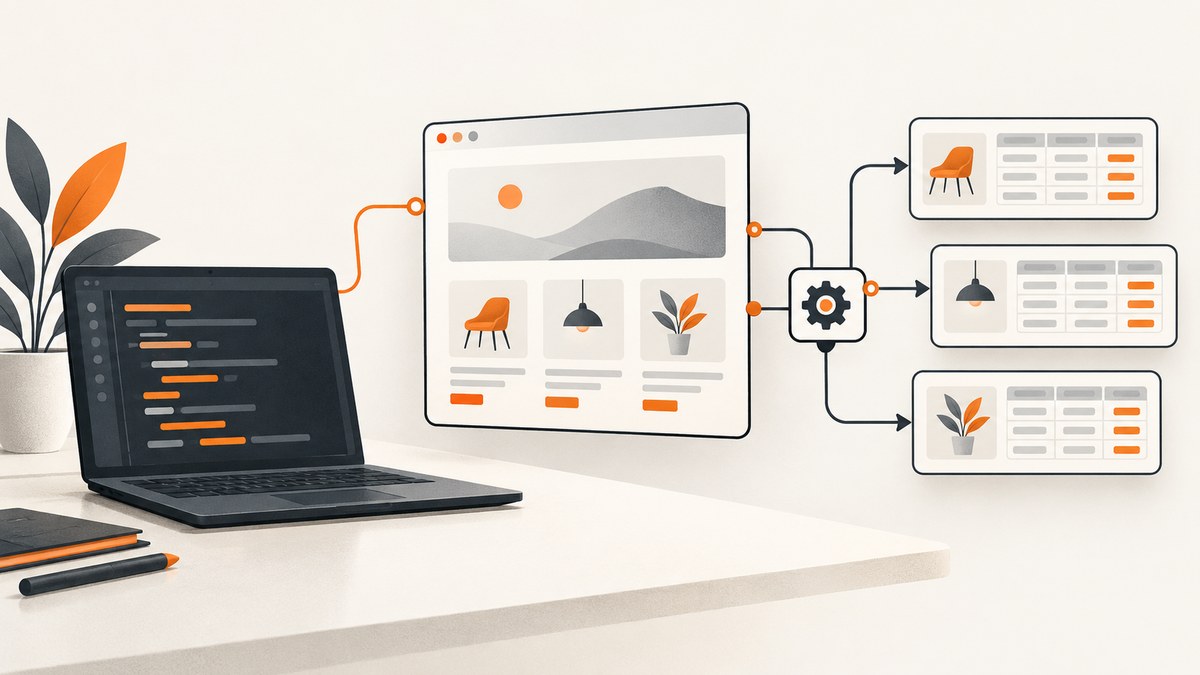
Direct answer: install Selenium and a supported browser, open the page with WebDriver, wait for the rendered element you need, extract text or attributes, and always quit the driver. For JavaScript-heavy pages, use condition-based explicit waits instead of assuming driver.get() means every piece of data is ready.
This guide shows a complete Python workflow, locator strategy, dynamic-content handling, pagination patterns, error fixes, performance considerations, and a browser-free option with ScreenshotNeo.
What you need before scraping
- Python in an isolated project environment.
- The Selenium Python package.
- A supported browser such as Chrome, Firefox, or Edge.
- The browser’s matching WebDriver setup. Selenium’s current setup guide covers these components and driver management: Selenium WebDriver getting started.
- Permission to access and collect the target data. Selenium warns that some websites prohibit scraping or block automated browsers. Check the site’s terms, robots or access guidance, authentication requirements, and rate limits before running a job.
python -m venv .venv
# macOS/Linux
source .venv/bin/activate
# Windows PowerShell: .venv\\Scripts\\Activate.ps1

python -m pip install --upgrade pip selenium
A minimal Selenium scraper in Python
Replace the URL and selector with values from the permitted target page. The example waits for a visible article, prints its text, and closes the browser even when an exception occurs.
from selenium import webdriver
from selenium.webdriver.common.by import By
from selenium.webdriver.support import expected_conditions as EC
from selenium.webdriver.support.ui import WebDriverWait

URL = "https://example.com"

options = webdriver.ChromeOptions()
options.add_argument("--headless=new")
options.add_argument("--window-size=1440,1200")

 driver = webdriver.Chrome(options=options)
try:
    driver.get(URL)

    wait = WebDriverWait(driver, 15)
    article = wait.until(
        EC.visibility_of_element_located((By.CSS_SELECTOR, "article"))
    )
    print(article.text)
finally:
    driver.quit()
driver.get() waits for the document’s ready state, but JavaScript can add or replace content afterward. Wait for the state your extraction actually needs. Selenium’s wait documentation explains the distinction between implicit and explicit waits and warns: do not mix them because combined timing can become unpredictable (Selenium waits).
Choose stable locators
Inspect the rendered DOM with browser developer tools. Prefer a unique, predictable ID. If one is unavailable, use a readable CSS selector scoped to the record container. XPath is useful for relationships that CSS cannot express, but it is often harder to debug. Selenium documents these tradeoffs in its locator guidance (Selenium locator strategies).
| Locator | Good use | Risk |
|---|---|---|
By.ID |
Unique stable element | Breaks if IDs are generated per request |
By.CSS_SELECTOR |
Cards, rows, attributes, scoped descendants | Can match too many elements if too broad |
By.XPATH |
Complex relationships or text-based structure | Long paths are fragile and harder to maintain |
By.NAME or By.CLASS_NAME |
Simple forms or distinctive classes | Names and utility classes may be reused |
from selenium.webdriver.common.by import By

# Prefer a unique ID when it is stable
headline = driver.find_element(By.ID, "main-headline").text

# Scope repeated records to their container
cards = driver.find_elements(By.CSS_SELECTOR, "main article.product-card")
for card in cards:
    name = card.find_element(By.CSS_SELECTOR, "h2").text
    link = card.find_element(By.CSS_SELECTOR, "a").get_attribute("href")
    print({"name": name, "url": link})
Wait for JavaScript content correctly
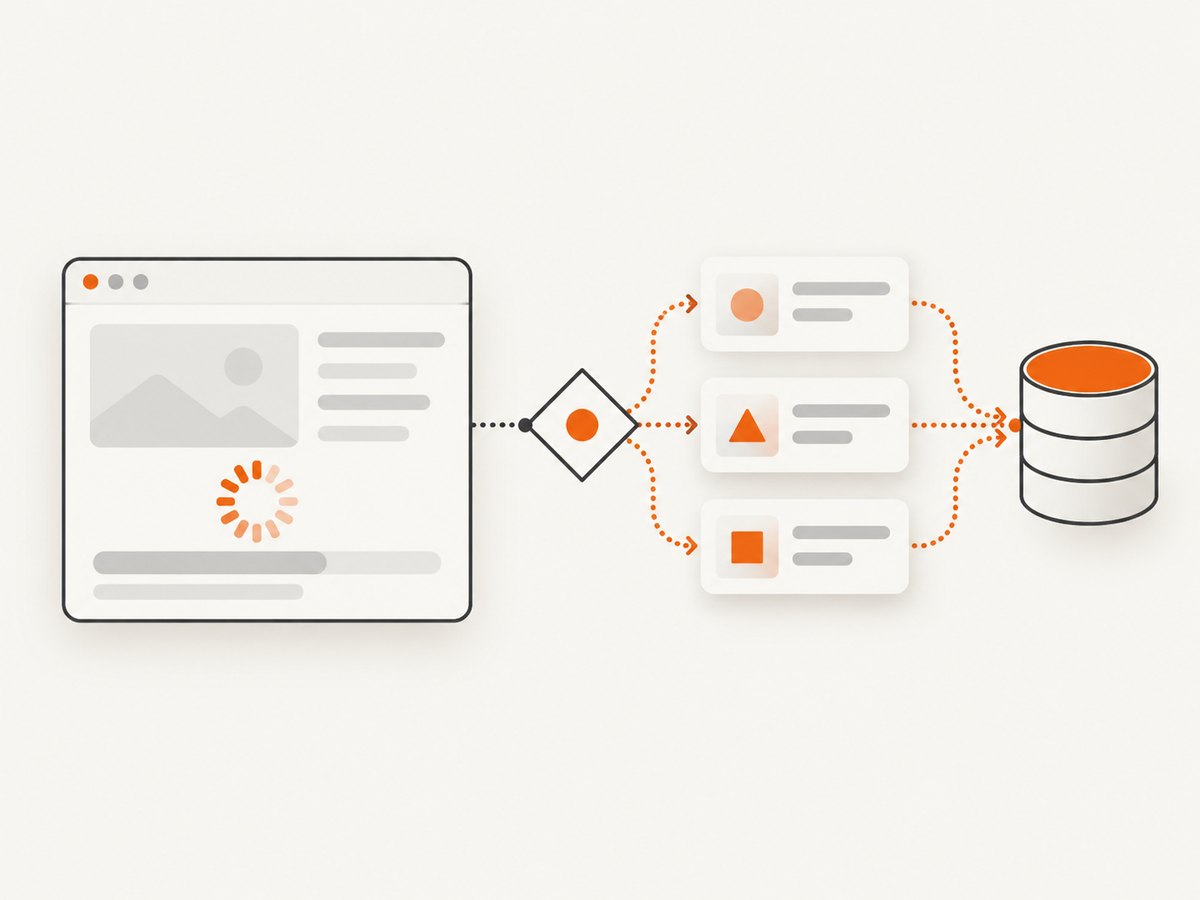
Use an explicit wait for a meaningful condition. A fixed time.sleep() guesses how long a page needs: it can be too short on a slow run and waste time on a fast one.
Common explicit conditions
from selenium.webdriver.support import expected_conditions as EC
from selenium.webdriver.support.ui import WebDriverWait

wait = WebDriverWait(driver, 20)

# Element exists in the DOM
panel = wait.until(
    EC.presence_of_element_located((By.CSS_SELECTOR, "section.results"))
)

# Element is visible to a user
wait.until(
    EC.visibility_of_element_located((By.CSS_SELECTOR, "div.result-card"))
)

# A button can be clicked
next_button = wait.until(
    EC.element_to_be_clickable((By.CSS_SELECTOR, "button.next"))
)

# Rendered text has arrived
wait.until(
    EC.text_to_be_present_in_element(
        (By.CSS_SELECTOR, "span.status"), "Complete"
    )
)
Do not set an implicit wait and then add explicit waits around it. Choose one consistent strategy; explicit waits are usually the clearest choice for application-specific states.
Extract text, links, attributes, and structured records
Use .text for visible rendered text. Use get_attribute() for links, image URLs, data attributes, and form values. Extract a small sample first and check missing fields and duplicate records before scaling up.
from selenium.common.exceptions import NoSuchElementException

def optional_text(parent, selector):
    try:
        return parent.find_element(By.CSS_SELECTOR, selector).text.strip()
    except NoSuchElementException:
        return None

def optional_attr(parent, selector, name):
    try:
        return parent.find_element(By.CSS_SELECTOR, selector).get_attribute(name)
    except NoSuchElementException:
        return None

rows = []
for card in driver.find_elements(By.CSS_SELECTOR, "article.product-card"):
    rows.append({
        "name": optional_text(card, "h2"),
        "price": optional_text(card, ".price"),
        "url": optional_attr(card, "a", "href"),
        "image": optional_attr(card, "img", "src"),
    })

for row in rows:
    print(row)
Handle pagination and infinite scroll
Next-page pagination
Keep a set of URLs or record keys so a broken next button cannot create an endless loop. Wait for the old page’s content to become stale or for the new page’s content to change.
from selenium.common.exceptions import TimeoutException, NoSuchElementException
from selenium.webdriver.support import expected_conditions as EC

all_rows = []
seen_pages = set()

while True:
    current_url = driver.current_url
    if current_url in seen_pages:
        break
    seen_pages.add(current_url)

    wait.until(EC.presence_of_all_elements_located(
        (By.CSS_SELECTOR, "article.product-card")
    ))
    all_rows.extend([
        card.text for card in driver.find_elements(
            By.CSS_SELECTOR, "article.product-card"
        )
    ])

    try:
        old_first = driver.find_element(By.CSS_SELECTOR, "article.product-card")
        next_button = driver.find_element(By.CSS_SELECTOR, "a.next")
        if not next_button.is_enabled():
            break
        driver.execute_script("arguments[0].click();", next_button)
        wait.until(EC.staleness_of(old_first))
    except (NoSuchElementException, TimeoutException):
        break
Infinite scroll
Scroll only when the target page’s terms allow it. Stop when the number of records stops increasing for several iterations or when a site-provided end marker appears.
import time

previous_count = 0
unchanged_rounds = 0

for _ in range(30):
    cards = driver.find_elements(By.CSS_SELECTOR, "article.product-card")
    current_count = len(cards)
    if current_count == previous_count:
        unchanged_rounds += 1
    else:
        unchanged_rounds = 0
    if unchanged_rounds >= 3:
        break

    driver.execute_script("window.scrollTo(0, document.body.scrollHeight);")
    wait.until(lambda d: len(d.find_elements(
        By.CSS_SELECTOR, "article.product-card"
    )) > current_count or d.execute_script("return document.readyState") == "complete")
    previous_count = current_count
Frames, shadow DOM, login state, and other edge cases
- Iframe: switch into the correct frame before locating its elements, then switch back with
driver.switch_to.default_content(). - Shadow DOM: inspect the component boundary. Depending on the browser and component, access the shadow root and query inside it rather than searching the light DOM.
- Authentication: use an authorized test account or an approved session. Never place credentials in source control; load them from environment variables.
- Cookie banners: handle them only when the site’s rules permit automation. A banner may cover the target element, so wait for it to disappear or click the permitted consent control.
- Downloads and files: configure the browser profile and verify that the download completed before moving the file.
- Changing layouts: keep selectors narrow and version your extractor. A selector that depends on deep generated class names will fail more often.
Save results safely
import csv

with open("products.csv", "w", newline="", encoding="utf-8") as file:
    writer = csv.DictWriter(file, fieldnames=["name", "price", "url", "image"])
    writer.writeheader()
    writer.writerows(rows)
For larger jobs, write each page as it completes, include the source URL and capture timestamp, and make the job restartable. De-duplicate with a stable key such as a canonical URL or site-provided ID.
Troubleshooting Selenium scrapers
| Symptom | Likely cause | Fix |
|---|---|---|
NoSuchElementException |
Wrong selector, frame, URL, or content not rendered yet | Inspect the rendered DOM, switch to the right frame, and add an explicit wait for the required condition. |
| Element exists but text is empty | You matched a placeholder shell before JavaScript populated it | Wait for expected text or a populated descendant; verify the element in developer tools. |
TimeoutException |
The condition never became true, the page is slow, or access was denied | Capture the current URL and screenshot, verify the selector, check network and access rules, then set a realistic timeout. |
| Flaky results | Fixed sleeps, race conditions, or mixed wait types | Replace sleeps with explicit conditions and avoid mixing implicit and explicit waits. |
| Click intercepted | Overlay, consent dialog, or animation covers the control | Wait for the overlay to disappear, use the permitted consent flow, and wait for clickability. |
| Driver or browser version error | Unsupported or mismatched browser/driver setup | Follow Selenium’s current driver setup and update the browser or driver together. |
| Blocked or denied access | The site disallows automation, detects it, or requires another access method | Stop, review terms and access rules, and prefer an official API where one exists. |
Performance, reliability, and cost considerations
- Run headless only when appropriate: it reduces desktop overhead, but keep a headed debugging mode for selector and overlay issues.
- Reuse one driver per job: launching a browser for every URL is expensive. Reset state deliberately between pages.
- Limit concurrency: each browser consumes memory and increases load on the target. Follow the site’s rate limits.
- Wait narrowly: waiting for one result container is faster and more reliable than waiting for an arbitrary long sleep.
- Retry selectively: retry transient navigation failures with a bounded count and backoff, but do not retry an explicit denial or terms violation.
- Record evidence: log URL, status, elapsed time, selector version, and exception type. Save a diagnostic screenshot or HTML only where permitted.
- Estimate total work: browser startup, JavaScript execution, pagination, retries, and storage usually dominate runtime. Measure your own target because this research provides no universal benchmark.
Or skip the browser setup
If you need a rendered screenshot rather than extracted DOM fields, ScreenshotNeo provides a single API request. It accepts the cookie or consent banner like a visitor and removes more than 60 known consent platforms, newsletter popups, and chat widgets before capture; each step can be turned off. Bot checks, blank pages, timeouts, failed loads, and cache hits cost nothing, and the response reports the result with X-Page-Verdict and X-Billed headers. It also provides an MCP server for Claude, Cursor, and other MCP clients.

See the ScreenshotNeo API documentation for all options.
cURL
curl -G "https://api.screenshotneo.com/v1/shot" -d access_key=YOUR_API_KEY --data-urlencode url=https://stripe.com -o shot.webpPython
import requests

r = requests.get(
    "https://api.screenshotneo.com/v1/shot",
    params={"access_key": "YOUR_API_KEY", "url": "https://stripe.com"},
    timeout=90,
)
r.raise_for_status()
open("shot.webp", "wb").write(r.content)
Node.js
const q = new URLSearchParams({ access_key: 'YOUR_API_KEY', url: 'https://stripe.com' });
const res = await fetch(`https://api.screenshotneo.com/v1/shot?${q}`);
if (!res.ok) throw new Error(`HTTP ${res.status}`);
const buffer = Buffer.from(await res.arrayBuffer());
await import('node:fs/promises').then(fs => fs.writeFile('shot.webp', buffer));
ScreenshotNeo includes full-page capture with lazy images loaded, CSS-selector element capture, device presets and custom viewports, retina scale, PDF output, custom CSS and JavaScript, clicks, selector or network-idle waits, request blocking, headers, cookies, user agents, authorization, timezone, geolocation, transparent backgrounds, resizing, configurable caching, signed links, asynchronous jobs, bulk capture for up to 100 URLs per call, usage reporting, and an OpenAPI specification. Its parameter names are compatible with those used by other screenshot APIs, which helps when switching.
The Free plan includes 1,000 screenshots per month with no card. Paid plans start at $5 for 3,000 screenshots; yearly billing gives two months free. Create a free ScreenshotNeo account.
FAQ
Can Selenium scrape every JavaScript website?
No. Selenium can render many browser applications, but a site may require authentication, expose data only through an approved API, or block automation. Permission and access rules are site-specific.
Should I use Selenium or an HTTP client?
Use Selenium when the data appears only after browser JavaScript, interaction, or rendering. If the permitted data is available from a documented API or stable HTML response, an HTTP client is usually simpler and lighter.
Why does driver.get() finish before my data appears?
Document readiness does not guarantee that JavaScript has completed rendering the specific component you need. Wait for that component’s presence, visibility, or expected text.
How do I avoid leaving Chrome processes running?
Put the session in a try/finally block and call driver.quit() in finally.
Can ScreenshotNeo replace Selenium for data extraction?
ScreenshotNeo is designed for screenshots and PDFs. Selenium remains the better fit when you must read structured DOM fields, submit forms, or implement custom browser interaction.


