How to Scrape Website Values with Selenium
Learn how to extract visible text, input values, attributes, and dynamic content reliably with Selenium, waits, resilient locators, and complete code.
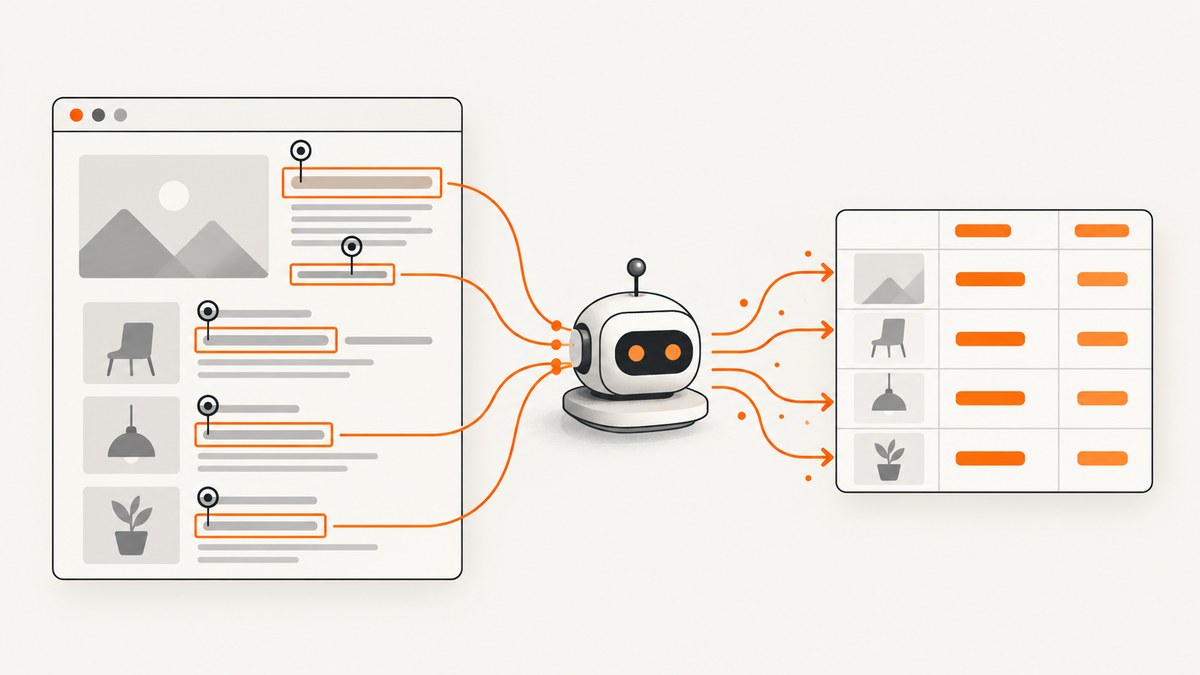
Direct answer: To scrape a website value with Selenium, open the page, locate the element with a stable selector, wait until the required content is ready, then read the representation that contains the value. Use element.text for rendered text, JavaScript text content when you need DOM text, and an attribute or runtime property such as value for form controls. Handle missing elements and timeouts explicitly, and always close the browser.
Selenium controls a real browser, so it can collect values that appear only after JavaScript runs, a user interaction occurs, or a page finishes an asynchronous request. The tradeoff is browser setup and runtime cost. This guide shows a dependable workflow in Python, explains retrieval methods and waits, covers repeated records and difficult pages, and includes troubleshooting, performance, reliability, and scaling guidance.
1. What Selenium can read
A web element can expose several different representations. Choosing the wrong one is the most common reason a scraper returns an empty string or an old value.
| What you need | Typical Selenium read | Use it when |
|---|---|---|
| Visible, rendered text | element.text |
You want text a user can see after layout and CSS rules are applied. |
| DOM text nodes | execute_script("return arguments[0].textContent", element) |
You need text content regardless of how Selenium formats rendered text. |
| HTML attribute | element.get_attribute("href") |
The value is stored in markup, such as a link URL or data-id. |
| Current form value | element.get_attribute("value") or a JavaScript property read |
You need what is currently in an input, textarea, or select control. |
| ARIA or other property | element.get_attribute("aria-label") |
The useful value is exposed as an accessibility or custom attribute. |
Selenium documents these as separate element-information operations. An input’s current value can differ from its original HTML attribute, especially after JavaScript or typing changes it. See the official element information documentation.
2. Install Selenium and prepare a browser
You need three pieces: a Selenium language binding, a browser, and a compatible browser driver. Recent Selenium releases can manage drivers automatically in many local setups, but your environment still needs a supported browser installed.
python -m venv .venv
source .venv/bin/activate       # Windows: .venv\\Scripts\\activate
python -m pip install --upgrade selenium
For a server or container, run headless Chrome. A visible browser is useful while developing selectors because you can inspect what actually rendered.
3. A complete Python scraper
The following script visits a page, waits for a product title and price, reads both visible text and an attribute, then writes JSON. Replace the URL and selectors with the site you are allowed to collect.
from __future__ import annotations

import json
from pathlib import Path
from typing import Any

from selenium import webdriver
from selenium.common.exceptions import TimeoutException, NoSuchElementException
from selenium.webdriver.common.by import By
from selenium.webdriver.chrome.options import Options
from selenium.webdriver.support import expected_conditions as EC
from selenium.webdriver.support.ui import WebDriverWait

URL = "https://example.com/products"

options = Options()
options.add_argument("--headless=new")
options.add_argument("--disable-gpu")
options.add_argument("--no-sandbox")
options.add_argument("--window-size=1440,1200")

# Keep one explicit wait policy. Do not mix implicit and explicit waits.
wait_seconds = 20

def text_of(element) -> str:
    return element.text.strip()

def scrape() -> list[dict[str, Any]]:
    driver = webdriver.Chrome(options=options)
    wait = WebDriverWait(driver, wait_seconds)
    try:
        driver.get(URL)

        # Wait for the repeated record container, not merely page navigation.
        cards = wait.until(
            EC.presence_of_all_elements_located(
                (By.CSS_SELECTOR, "article.product-card")
            )
        )

        records: list[dict[str, Any]] = []
        for card in cards:
            title = card.find_element(By.CSS_SELECTOR, ".product-title")
            price = card.find_element(By.CSS_SELECTOR, ".price")
            link = card.find_element(By.CSS_SELECTOR, "a")
            records.append({
                "title": text_of(title),
                "price": text_of(price),
                "url": link.get_attribute("href"),
            })
        return records
    except TimeoutException as exc:
        raise RuntimeError("The expected product cards did not appear") from exc
    except NoSuchElementException as exc:
        raise RuntimeError("A product card is missing a required child") from exc
    finally:
        driver.quit()

if __name__ == "__main__":
    output = scrape()
    Path("products.json").write_text(
        json.dumps(output, indent=2, ensure_ascii=False),
        encoding="utf-8",
    )
    print(f"Wrote {len(output)} records")
The plural finder returns a collection. Selenium’s official finder guide notes that a plural find operation returns an empty list when there are no matches, so an explicit wait is useful when records arrive asynchronously: Finding web elements.
4. Locate the right element
Use selectors that describe the data’s role rather than its position. A class such as .card-3 is fragile when a design changes; a semantic attribute such as [data-testid='price'], a label relationship, or a stable heading is usually safer.
# CSS selectors
By.CSS_SELECTOR, "[data-testid='account-balance']"
By.CSS_SELECTOR, "form#signup input[name='email']"

# ID and name
By.ID, "main-heading"
By.NAME, "email"

# Accessible role or label (when supported by the page markup)
By.CSS_SELECTOR, "button[aria-label='Next page']"

# XPath for a relationship that CSS cannot express easily
By.XPATH, "//label[normalize-space()='Total']/following::input[1]"
For one expected element, use find_element; it raises NoSuchElementException if nothing matches. For optional or repeated content, use find_elements and check the returned list. Scope child searches to a record container so fields from adjacent records cannot be mixed.
5. Read visible text, DOM text, attributes, and input values
Rendered text
heading = driver.find_element(By.CSS_SELECTOR, "h1")
print(heading.text.strip())
text follows Selenium’s rendered-text behavior. It is normally the correct choice for headings, prices, labels, and table cells a visitor can see.
DOM text content
raw_text = driver.execute_script(
    "return arguments[0].textContent || '';",
    heading,
).strip()
This can include hidden descendants and whitespace that rendered text omits. Normalize it before storing if line breaks are not meaningful.
Attributes and runtime properties
image_url = image.get_attribute("src")
record_id = card.get_attribute("data-id")
current_email = email_input.get_attribute("value")

# Read the live property explicitly when a framework updates it.
live_value = driver.execute_script(
    "return arguments[0].value;",
    email_input,
)
An HTML attribute is not always the same as a live DOM property. For example, a JavaScript framework may update an input’s property without changing the original attribute. Read the property when you need the current value after typing or script execution.
6. Wait for dynamic values correctly
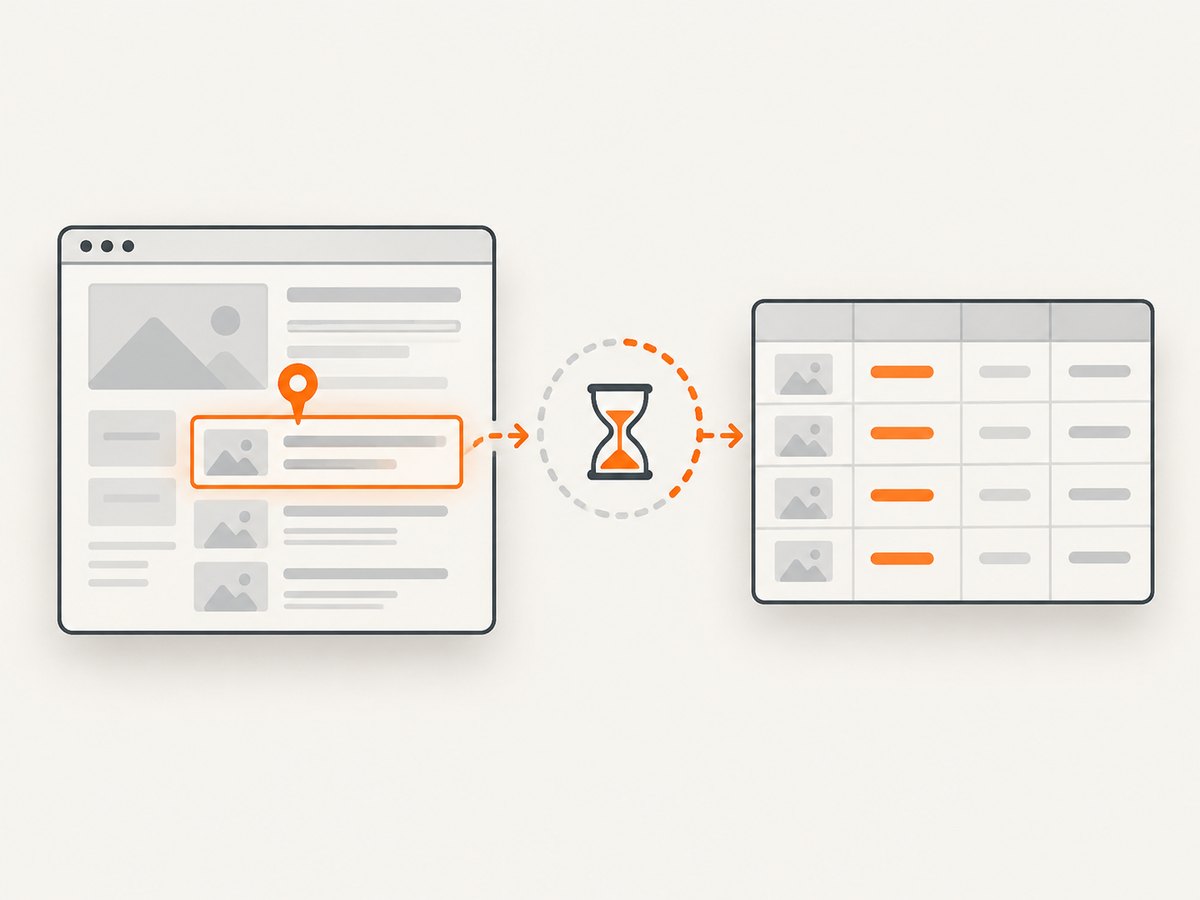
Navigation reaching the browser’s configured ready state does not prove that application scripts have finished fetching or rendering data. Selenium describes this as a source of race conditions. Wait for the condition your extraction needs: an element present, visible, clickable, or containing particular text.
from selenium.webdriver.support import expected_conditions as EC

# Exists in the DOM
node = WebDriverWait(driver, 20).until(
    EC.presence_of_element_located((By.CSS_SELECTOR, "[data-testid='result']"))
)

# Visible to a user
visible = WebDriverWait(driver, 20).until(
    EC.visibility_of_element_located((By.CSS_SELECTOR, ".status"))
)

# Text has changed to the expected value
WebDriverWait(driver, 20).until(
    EC.text_to_be_present_in_element(
        (By.CSS_SELECTOR, ".status"),
        "Complete",
    )
)

# A custom value condition
WebDriverWait(driver, 20).until(
    lambda d: d.find_element(By.ID, "total").get_attribute("value") not in (None, "")
)
Do not mix implicit and explicit waits. Selenium’s waiting guidance warns that combining them can produce unpredictable timeout durations: Waiting Strategies. A short explicit wait around each meaningful condition is easier to reason about than arbitrary sleeps.
7. Forms, clicks, scrolling, and pagination
Values may appear only after an interaction. Wait for the control, perform the action, then wait for the result.
from selenium.webdriver.common.keys import Keys

search = wait.until(EC.element_to_be_clickable((By.NAME, "q")))
search.clear()
search.send_keys("selenium", Keys.ENTER)
wait.until(EC.presence_of_element_located((By.CSS_SELECTOR, ".result")))

# Scroll a lazy-loaded list before collecting it
driver.execute_script("window.scrollTo(0, document.body.scrollHeight);")
wait.until(EC.presence_of_element_located((By.CSS_SELECTOR, ".list-end")))
For pagination, collect the current page, detect whether a next button is disabled, click it, and wait for a marker from the new page. Keep a maximum page count and a set of visited URLs or record IDs to prevent loops.
8. Handle missing data and failures
Production scrapers should distinguish “the field is optional” from “the page changed.” Use helper functions for optional fields and fail loudly for required ones.
def optional_text(parent, selector: str) -> str | None:
    matches = parent.find_elements(By.CSS_SELECTOR, selector)
    return matches[0].text.strip() if matches else None

summary = optional_text(card, ".summary")
if summary is None:
    # Store null, or log the record for review; do not silently invent a value.
    pass
Catch TimeoutException around waits, save the URL and selector in logs, and call quit() in a finally block. If a page presents a bot check or CAPTCHA, do not attempt to bypass it; stop, record the outcome, and use an approved access method.
9. Troubleshooting common Selenium scraping errors
| Symptom | Likely cause | Fix |
|---|---|---|
NoSuchElementException |
Selector is wrong, content is inside an iframe, or the element has not loaded. | Inspect the live DOM, wait for the target, and switch into the correct iframe with driver.switch_to.frame(...). |
TimeoutException |
Condition never became true, network is slow, or the page returned a different state. | Capture the current URL and page source, verify the selector, and set a bounded timeout appropriate for the page. |
Empty .text |
Text is hidden, rendered in a child differently, or the value is in a property. | Try textContent, check visibility, or read value/data-* with get_attribute. |
| Old value after typing | You read the initial attribute rather than the live property. | Read get_attribute('value') after the event completes, or execute JavaScript to return element.value. |
| Stale element reference | A framework replaced the node after you located it. | Locate the element again after the update and wait for a stable condition. |
| Driver or browser mismatch | Browser and driver versions are incompatible or the binary is unavailable. | Update the browser, Selenium package, and driver management setup; verify the executable is on the expected path. |
| Works headed, fails headless | Viewport, timing, fonts, or user-agent behavior differs. | Set a realistic window size, add condition-based waits, and compare screenshots/page source from both modes. |
| Repeated duplicate records | Infinite scroll or pagination was processed more than once. | Deduplicate by a stable ID or canonical URL and stop when the next-page control is disabled. |
10. Reliability and data-quality checklist
- Use a stable selector and verify it against several records.
- Wait for the exact value or state you need, not only navigation.
- Normalize whitespace, currency formatting, and locale deliberately.
- Record source URL, capture time, and a stable record identifier.
- Retry transient navigation failures with a small bounded retry count.
- Set page-load and script timeouts so one URL cannot block the whole run.
- Close every driver, including on exceptions.
- Respect the site’s terms, robots guidance, authentication rules, and privacy obligations.
11. Performance, cost, and scaling
A real browser is heavier than an HTTP request because it starts a browser process, loads assets, executes JavaScript, and maintains a DOM. Reuse one driver for a controlled batch when sessions can safely share state. Block unnecessary images, fonts, ads, or analytics only when doing so does not remove the value you need. Keep concurrency bounded; too many browser processes exhaust CPU and memory and can make pages slower.
For larger runs, Selenium’s getting-started documentation points to Selenium Grid as a way to distribute execution across machines or browser instances: Selenium getting started. Design jobs to be restartable: store completed URLs, persist partial results, and make retries idempotent.
Estimate cost from browser minutes, infrastructure, proxy requirements, storage, and engineering time. A direct HTTP client is cheaper when the value is already in server-rendered HTML or an permitted API. Selenium is appropriate when JavaScript, interaction, or browser-specific behavior is part of the data path.
12. Or skip the browser setup
If your goal is a clean screenshot or PDF of the page rather than structured DOM values, ScreenshotNeo provides a website screenshot API and MCP server. It handles the browser capture for you:
curl -G "https://api.screenshotneo.com/v1/shot" -d access_key=YOUR_API_KEY --data-urlencode url=https://stripe.com -o shot.webpSee the ScreenshotNeo API documentation for all options. The same request in Python:
import requests
r = requests.get("https://api.screenshotneo.com/v1/shot", params={"access_key": "YOUR_API_KEY", "url": "https://stripe.com"}, timeout=90)
open("shot.webp", "wb").write(r.content)
And Node.js:
const q = new URLSearchParams({ access_key: 'YOUR_API_KEY', url: 'https://stripe.com' });
const res = await fetch(`https://api.screenshotneo.com/v1/shot?${q}`);
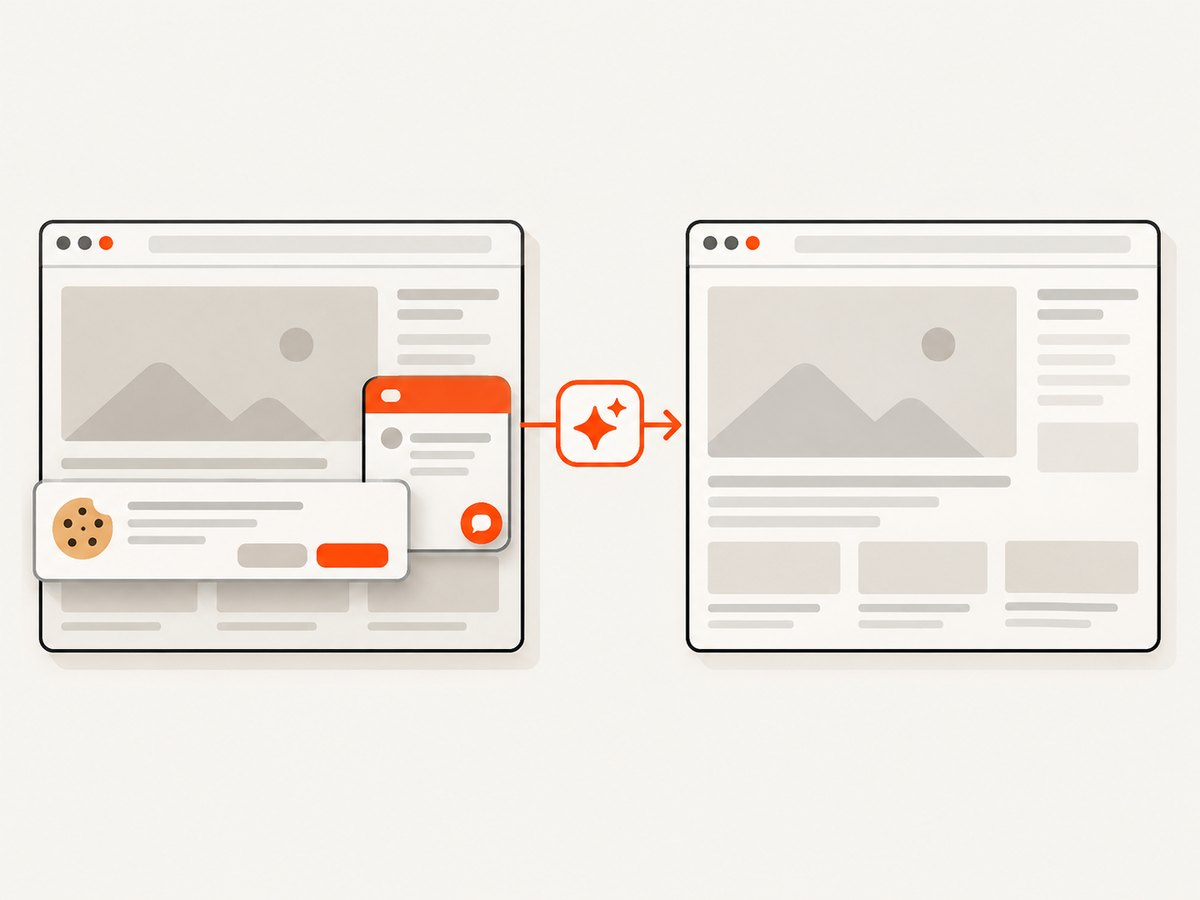
Cookie and consent banners, newsletter popups, and chat widgets are removed before the shot. Bot checks, blank pages, failed loads, timeouts, and cache hits are not billed, and response headers identify the page verdict and billing result. You can use full-page capture with lazy images, CSS-element capture, custom CSS and JavaScript, clicks, waits, request blocking, headers, cookies, user agents, geolocation, dark mode, device presets, retina scale, image resizing, PDFs, caching, signed links, asynchronous jobs, webhooks, bulk capture, and a usage API. Its MCP server exposes take_screenshot, get_page_info, and capture_pdf to Claude, Cursor, and other MCP clients. One thousand screenshots per month are free with no card; paid plans start at $5 for 3,000. Create a free ScreenshotNeo account.
13. Short FAQ
How do I scrape one element?
Locate it with find_element, wait for its required state, then read text, textContent, or the relevant attribute/property.
Why does Selenium return an empty string?
The element may be hidden, not populated yet, or storing its value in an attribute or property rather than rendered text. Check all three representations.
Should I use implicit or explicit waits?
Use explicit waits for the conditions that matter and do not mix implicit and explicit waits.
Can Selenium scrape an iframe?
Yes. Locate the iframe, switch into it, scrape its document, then switch back to the default content.
When should I use an API instead?
Use an API or HTTP client when the data is available directly and browser execution adds no required behavior. Use Selenium when JavaScript or interaction produces the value.


