How to Scrape Websites and Capture Screenshots
Inspect a page’s data source, extract only what you need, and capture the right browser view with practical Python examples and troubleshooting.
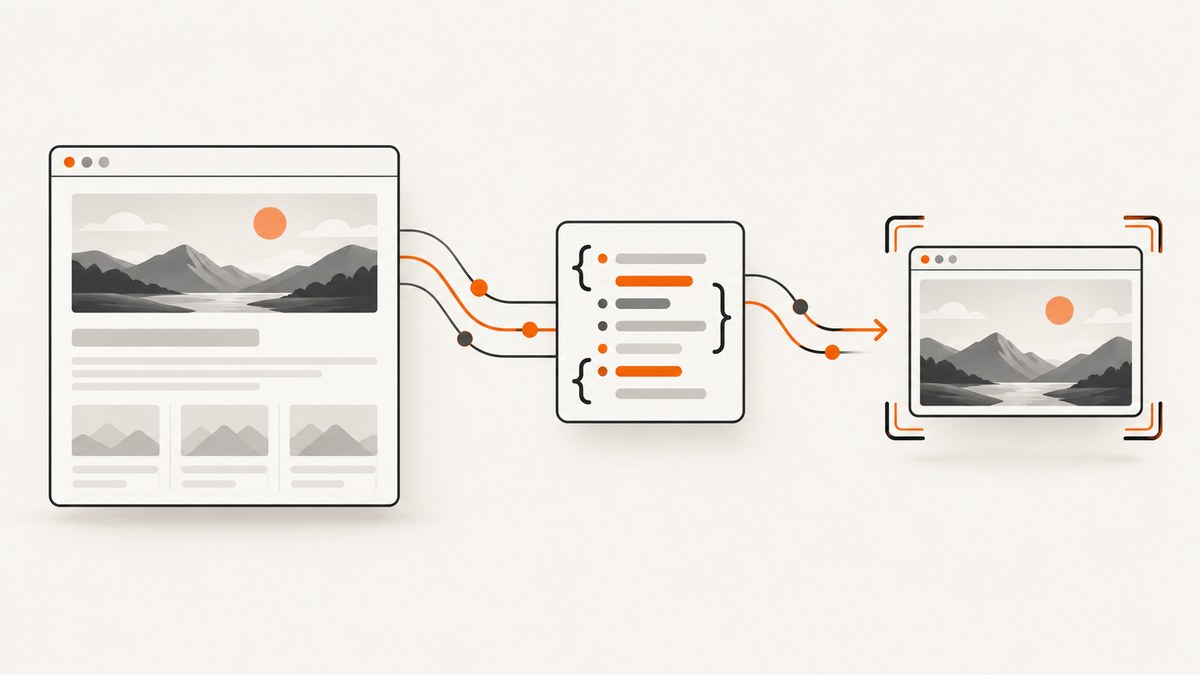
To scrape a website and capture a screenshot, first check whether the data is already in the page’s initial HTML or in a documented data interface. Parse that response when it contains what you need. If the site loads the data in a later request, identify that request and reproduce it when appropriate. Use browser automation when the task depends on rendered content, interaction, or a screenshot of what a visitor sees.
This guide uses Python for the do-it-yourself examples. It shows a focused HTML extraction with Requests and Beautiful Soup, then a Playwright workflow for dynamic content and screenshots. The examples target pages you are permitted to access. Crawling signals do not grant permission: RFC 9309 states that robots.txt rules are not access authorization. Check the target site’s terms, access controls, applicable privacy and copyright obligations, and your intended use separately.
1. Define the output before you crawl
Write down the fields you need, which pages contain them, how many pages are in scope, and what the screenshot is for. A screenshot used as a test artifact may need a stable viewport and a known page state; an extraction job may only need a handful of fields. Keeping the scope bounded makes it easier to choose a method and spot missing data.
- Structured data: decide the fields and output format, such as JSON or CSV.
- Screenshot: choose whether you need the visible viewport, the full scrollable page, or one element.
- Page state: note whether the page requires a click, a filter, a login, or other interaction you are authorized to perform.
- Context: save the target URL, capture time, viewport or device settings, and relevant interaction state alongside the image.
2. Inspect the initial response first
Fetch one permitted page and inspect its HTML or response data before launching a browser. If the values are already there, a focused parser avoids reproducing unnecessary browser behavior. For a small extraction, a single request and parser may be enough; a larger crawl may call for a crawling framework to manage page traversal. The sources cited here do not establish a universal speed or scale advantage for one method.
For example, if the page contains product names and prices in ordinary HTML, parse those elements directly. Replace the example URL and CSS selectors with ones that match the page you are authorized to access.
import json
import requests
from bs4 import BeautifulSoup

url = "https://example.com/catalog"
response = requests.get(url, timeout=30)
response.raise_for_status()

soup = BeautifulSoup(response.text, "html.parser")
items = []
for card in soup.select(".product-card"):
    name = card.select_one(".product-name")
    price = card.select_one(".price")
    if name and price:
        items.append({
            "name": name.get_text(" ", strip=True),
            "price": price.get_text(" ", strip=True),
        })

print(json.dumps(items, ensure_ascii=False, indent=2))
This example requires the third-party packages requests and beautifulsoup4. Install them in your project environment with python -m pip install requests beautifulsoup4. The selectors are illustrative; a site may use different markup or expose a documented interface that is more suitable.
3. Find data loaded after the first response
A blank field in the initial HTML does not necessarily mean the value is unavailable. Modern pages can fetch data after navigation and populate the interface later. Playwright’s navigation documentation cautions that the load event does not guarantee that all useful page data has arrived.
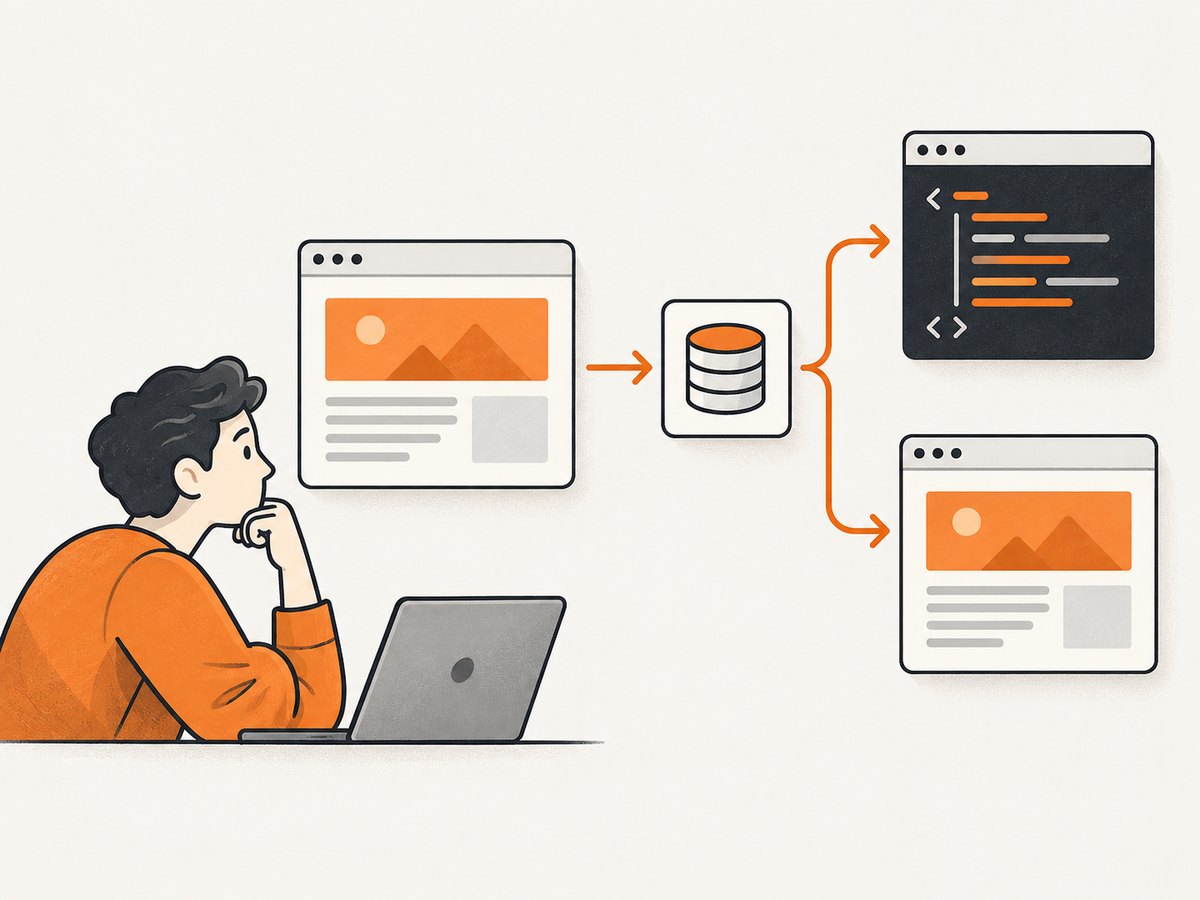
- Open the page in a browser and inspect its network activity.
- Identify the later request whose response contains the desired values.
- Check whether the site documents that interface and whether you are permitted to use it.
- When appropriate, reproduce the request that carries the data instead of scraping the rendered markup. Scrapy’s guidance recommends this approach when the desired content comes from an additional request.
- Use a browser when the rendered state, interaction, or screenshot is part of the requirement.
Do not guess that a request is stable or public simply because it appears in browser traffic. Respect authentication and access controls, avoid trying to bypass bot checks, and keep requests within the scope you have permission to access.
4. Render the page and wait for the right condition
Playwright is useful when content appears only after browser-side JavaScript runs, or when you need to capture what the browser displays. Waiting for navigation alone can be too early. Wait for the specific element or response you need, and check that it exists before extracting or taking the screenshot.
Install Playwright for Python and its browser binaries in your environment:
python -m pip install playwright
python -m playwright install chromium
Here is a runnable example for a page whose rendered cards use the example selector .product-card. It waits for those cards, extracts their text, saves JSON, and captures the viewport. Change the URL and selectors to match the target site.
import asyncio
import json
from playwright.async_api import async_playwright

async def main():
    url = "https://example.com/catalog"
    async with async_playwright() as p:
        browser = await p.chromium.launch()
        page = await browser.new_page(viewport={"width": 1440, "height": 1000})
        await page.goto(url, wait_until="domcontentloaded", timeout=60000)

        cards = page.locator(".product-card")
        await cards.first.wait_for(state="visible", timeout=30000)
        results = []
        for card in await cards.all():
            results.append({
                "text": (await card.inner_text()).strip()
            })

        with open("items.json", "w", encoding="utf-8") as f:
            json.dump(results, f, ensure_ascii=False, indent=2)
        await page.screenshot(path="viewport.png")
        await browser.close()

asyncio.run(main())
The selector and readiness condition are site-specific. If a page has no cards, use the element that indicates the content is ready, or wait for the particular network response that supplies the data. A fixed delay can help with a known short animation, but it is a weaker readiness signal than checking for the actual content.
5. Choose screenshot scope and format
Playwright supports a basic page screenshot, a full-page screenshot, and a screenshot of a locator or element. Pick the smallest scope that serves your purpose. A viewport shot is useful for the currently visible state; full-page capture includes the scrollable document; an element shot focuses on a component.
| Need | Capture choice | Python example |
|---|---|---|
| What is visible now | Viewport | await page.screenshot(path="viewport.png") |
| The scrollable document | Full page | await page.screenshot(path="full.png", full_page=True) |
| One component | Element | await page.locator("article").screenshot(path="article.png") |
For a full-page or element capture, make sure the target is actually present and in the intended state first. Screenshots can differ with viewport size, device scale, fonts, animation, page data, and interaction state. If you need repeatable artifacts, set those inputs deliberately and record them with the output.
# Add these lines before closing the browser in the previous example:
await page.screenshot(path="full.png", full_page=True)
article = page.locator("article")
await article.wait_for(state="visible")
await article.screenshot(path="article.png")
Playwright’s screenshot API documents options such as full-page capture, clipping, and scale. Consult its current API reference for the options available in your installed version. Choose the file type and scale for the intended use: a large full-page image can consume more storage and take longer to handle than a viewport image.
6. Handle crawl scope and failures
Keep a crawl’s scope explicit. Track which URLs you have visited, avoid unbounded link traversal, and preserve the response status and URL for each result so failures are distinguishable from empty data. If a value is absent, record that rather than silently substituting a guess.
- Use request timeouts and handle HTTP errors rather than waiting indefinitely.
- For paginated content, stop at a defined page limit or at the end condition documented by the site.
- For browser jobs, close pages and browsers in cleanup paths so failures do not leave processes running.
- Do not treat a CAPTCHA, bot check, login wall, or denial response as an invitation to evade the control.
- If capturing evidence, retain the URL and capture time with the screenshot so another person can interpret it.
Robots.txt is a crawler behavior convention standardized by the IETF. RFC 9309 explicitly says, “These rules are not a form of access authorization.” Honor applicable robots rules, but do not treat them as permission to access a site or as a replacement for access controls.
7. Performance, reliability, and cost
The right approach depends on where the data lives and whether rendering is required. Parsing an initial response avoids browser rendering; reproducing a suitable data request can avoid extracting values from a rendered page; a browser adds the work needed to render and interact with a page. The research sources do not provide comparative benchmarks, so measure your own target pages and workload rather than assuming a specific speed advantage.

For reliability, wait on meaningful page conditions, use bounded timeouts, and separate navigation success from extraction success. A page can load successfully while a target field is still missing. Record failures and retry only when appropriate; repeated rapid requests can increase load and may violate a site’s rules. For cost, account for your own compute, browser runtime, storage, and any third-party service charges. These vary by workload and provider; the cited sources do not quantify them.
8. Troubleshooting
| Symptom | Likely cause | What to do |
|---|---|---|
| Parser returns no matching fields | The selector does not match the response HTML, or content is loaded later. | Inspect the response; verify the selector; check for a later data request or rendered content. |
| Browser screenshot is missing the main content | Capture happened before the page populated its interface. | Wait for the actual content locator or relevant response, then verify the element before capture. |
TimeoutError during navigation |
The page or one of its resources did not reach the chosen condition in time. | Check network access and the target URL. Use an appropriate navigation condition, a bounded timeout, and a separate wait for required content. |
| Element screenshot fails | The locator matches nothing, is hidden, or has not appeared. | Check the selector and wait for the locator to become visible before calling its screenshot method. |
| Screenshot is unexpectedly tall or incomplete | Full-page capture differs from viewport capture, or the page uses lazy-loaded content. | Choose the intended scope and verify that content below the fold has loaded before capturing. |
| HTTP request returns an error | The URL, network, response status, or access policy prevents the request. | Check the URL and status, use a timeout, and respect the site’s access controls. Do not attempt to bypass a denial or bot check. |
| Data changes between runs | The page content or underlying response is dynamic. | Record capture time and state, wait for the intended content, and retain the source response or other relevant context when appropriate. |
Or skip the browser setup
ScreenshotNeo is a website screenshot API and MCP server. One GET request can return a PNG, JPEG, WebP, or PDF. For this title’s screenshot step, the request is:
curl -G "https://api.screenshotneo.com/v1/shot" -d access_key=YOUR_API_KEY --data-urlencode url=https://stripe.com -o shot.webpPython:
import requests
r = requests.get("https://api.screenshotneo.com/v1/shot", params={"access_key": "YOUR_API_KEY", "url": "https://stripe.com"}, timeout=90)
open("shot.webp", "wb").write(r.content)
Node.js:
const q = new URLSearchParams({ access_key: 'YOUR_API_KEY', url: 'https://stripe.com' });
const res = await fetch(`https://api.screenshotneo.com/v1/shot?${q}`);
See the ScreenshotNeo API documentation for request options. Cookie banners, popups, and chat widgets are removed before the shot; bot checks, blank pages, and failed loads are never billed. Its MCP server lets AI agents take screenshots. The free plan includes 1,000 screenshots a month with no card, and paid plans start at $5 for 3,000. Sign up for 1,000 free screenshots a month, with no card.
Frequently asked questions
Does a screenshot prove what data a site returned?
A screenshot records a visual state. It does not by itself preserve the underlying response data, the full interaction history, or why the page displayed that state. Keep relevant response data and capture context when you need to interpret the artifact later.
Should I scrape HTML or use a browser?
Inspect the initial response first. Parse it if it contains the fields you need; follow the relevant later request when appropriate; use browser automation when rendered state, interaction, or a browser-visible screenshot is required.
Can I use robots.txt as permission?
No. RFC 9309 describes crawler rules and explicitly says they are not access authorization. Assess permission and applicable obligations for the specific site, data, use, and jurisdiction.
Can I capture only part of a page?
Yes. Playwright supports element screenshots and clipping options. A locator screenshot is convenient when the target is a known page element; clipping is useful when you need a defined region.


