How to Scrape Websites with Pyppeteer
Learn how to scrape JavaScript-rendered pages with Pyppeteer, wait for content, extract data safely, handle failures, and know when to use an API.

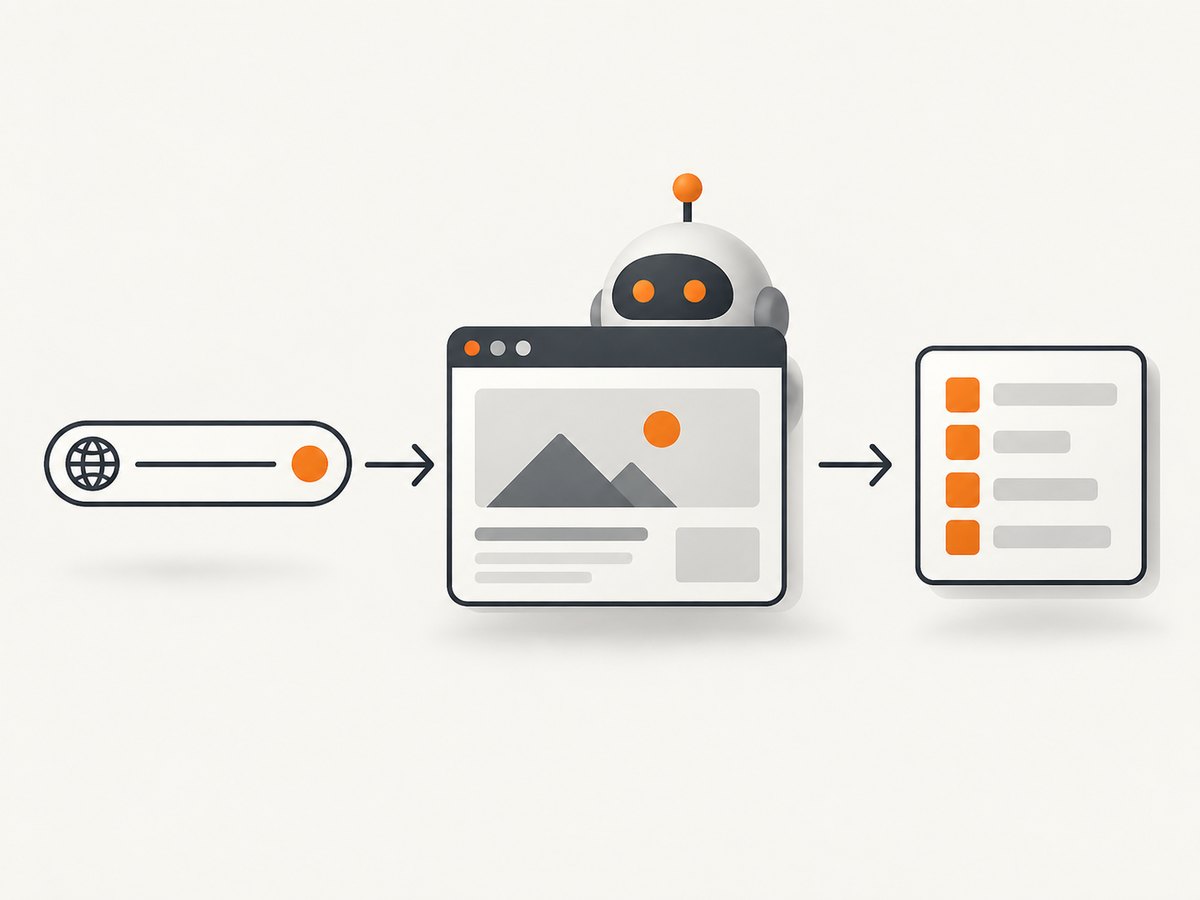
To scrape a JavaScript-rendered website with Pyppeteer, launch Chromium, open a page, wait for the content you need, extract a narrow set of fields, and always close the browser in a finally block. Pyppeteer is an unofficial Python port of Puppeteer for Chrome and Chromium automation. Its project README currently says the repository is unmaintained and recommends Playwright for Python for new work. Read the project README before choosing it for a production system.
An existing script, a short-lived migration, or a learning exercise can still use Pyppeteer. For a new system, check whether Playwright for Python supports your required browser versions, selectors, and workflows before committing to Pyppeteer.
Install Pyppeteer and Chromium
The current README requires Python 3.8 or newer and lists this installation command:
python -m pip install pyppeteerOn first use, Pyppeteer may download its bundled Chromium. The README describes that download as approximately 150 MB. Treat that as the project’s estimate, not a guaranteed current size. In a controlled build image you can run pyppeteer-install ahead of time, cache the browser directory, or provide an executable path. The API reference warns that compatibility with a non-bundled browser is not guaranteed and that Pyppeteer works best with its bundled Chromium. Its detailed API reference is legacy documentation for version 0.0.25, so verify options against the version installed in your environment.
Minimal Pyppeteer scraper
This documentation-based example opens a page, reads rendered text, and closes Chromium even if navigation or extraction fails:
import asyncio
from pyppeteer import launch

async def main():
    browser = await launch()
    try:
        page = await browser.newPage()
        await page.goto('https://example.com')
        text = await page.evaluate('document.body.innerText', force_expr=True)
        print(text)
    finally:
        await browser.close()

asyncio.run(main())
Pyppeteer methods are asynchronous. The basic lifecycle is launch, newPage, goto, inspect or extract, then close. The project examples also show page.screenshot() and page.evaluate(). The README uses an event-loop wrapper; this article uses asyncio.run() as a modern illustrative wrapper and you should confirm it with the Python and Pyppeteer versions you deploy.
Wait for JavaScript-rendered content
A successful navigation does not prove that an application’s asynchronous data has finished rendering. Wait for a stable selector or another page condition that represents the data you need. Do not choose a universal sleep value: each site has different loading behavior.
import asyncio
from pyppeteer import launch

async def scrape():
    browser = await launch()
    try:
        page = await browser.newPage()
        await page.goto('https://example.com', {
            'waitUntil': 'networkidle2',
            'timeout': 60000,
        })
        await page.waitForSelector('main', {'timeout': 15000})
        result = await page.evaluate('''() => ({
            title: document.querySelector('h1')?.innerText ?? null,
            paragraphs: [...document.querySelectorAll('main p')].map(p => p.innerText)
        })''')
        return result
    finally:
        await browser.close()

print(asyncio.run(scrape()))
Use a selector that is specific to the content you require. If a page has a loading placeholder, wait for the real content selector or wait for the placeholder to disappear. A network-idle condition can be useful for pages that fetch data after navigation, but analytics, ads, and long-lived connections can prevent it from becoming idle.
Extract structured data instead of dumping HTML
Scrape only the fields your job needs. Returning a small object reduces parsing work and makes schema changes easier to detect.
async def extract_products(page):
    return await page.evaluate('''() => [...document.querySelectorAll('[data-product]')].map(node => ({
        name: node.querySelector('.name')?.innerText?.trim() ?? null,
        price: node.querySelector('.price')?.innerText?.trim() ?? null,
        url: node.querySelector('a')?.href ?? null
    }))''')
Pyppeteer’s selector names differ from JavaScript Puppeteer. Python methods include querySelector(), querySelectorAll(), and xpath(), with shorthands J(), JJ(), and Jx(). When an expression string is misclassified as a function, pass force_expr=True to evaluate(), as documented in the README.
A production-oriented scraper
import asyncio
import json
from pyppeteer import launch

URL = 'https://example.com/catalog'

async def scrape_catalog():
    browser = await launch({
        'headless': True,
        'args': ['--no-sandbox'],
    })
    try:
        page = await browser.newPage()
        await page.setViewport({'width': 1440, 'height': 1000})
        await page.setUserAgent('catalog-reader/1.0')
        await page.goto(URL, {
            'waitUntil': 'domcontentloaded',
            'timeout': 60000,
        })
        await page.waitForSelector('[data-product]', {'timeout': 20000})
        data = await page.evaluate('''() => ({
            title: document.title,
            products: [...document.querySelectorAll('[data-product]')].map(node => ({
                name: node.querySelector('.name')?.innerText?.trim() ?? null,
                price: node.querySelector('.price')?.innerText?.trim() ?? null
            }))
        })''')
        return data
    finally:
        await browser.close()

if __name__ == '__main__':
    print(json.dumps(asyncio.run(scrape_catalog()), indent=2))
Only add launch flags required by your runtime. A sandboxed CI environment may need a different Chromium configuration; understand the security implications of disabling its sandbox before deploying that setting.
Useful Pyppeteer options
| Option | Purpose | Guidance |
|---|---|---|
headless |
Run without a visible window | Keep headless mode for servers; use a visible browser while debugging. |
executablePath |
Use a specific Chrome or Chromium binary | The API reference cautions that non-bundled compatibility is not guaranteed. |
args |
Pass Chromium launch arguments | Keep the list minimal and document every argument. |
timeout |
Limit navigation or selector waits | Set explicit limits so a stuck page cannot hold a worker forever. |
waitUntil |
Choose a navigation completion condition | Use a condition that matches the page; navigation completion alone may be too early. |
userDataDir |
Persist a browser profile | Use only when you need session state; isolate profiles between jobs. |
The API reference also documents connecting to an existing browser through a WebSocket endpoint. These details are version-specific; inspect the installed package documentation before relying on them.
Handle failures and changing pages
- Navigation timeout: increase the timeout only when the target legitimately needs more time; otherwise record the URL and retry under a bounded policy.
- Missing selector: the page may have changed, the selector may be wrong, or content may require an interaction. Save diagnostic HTML or a screenshot during debugging.
- Empty text: you may have extracted before hydration completed. Wait for a content selector and verify that the selector is not a placeholder.
evaluate()error: check whether Pyppeteer interpreted your string as a function. Tryforce_expr=Truefor an expression.- Chromium fails to launch: confirm the first-run download completed, the executable path exists, and required system libraries are installed.
- Browser processes remain: close the browser in
finally; also ensure your task cancellation path performs cleanup. - Unexpected consent or login page: follow the site’s access instructions. Do not treat CAPTCHAs, bot checks, or access controls as obstacles to evade.
Performance, reliability, and cost
Launching a browser for every URL adds startup overhead. Reuse one browser process when jobs share a trusted context, create separate pages for isolation, and close pages when batches finish. Limit concurrency to what the host can support; more pages can increase memory pressure and trigger site-side throttling. Cache results when the source permits it, use bounded retries with backoff, and record status, URL, timing, and extraction errors.
Pyppeteer itself is software installed from pip. Account for Chromium storage, memory, CPU, network transfer, and your hosting costs. The project documentation does not provide independent speed, success-rate, or cost benchmarks, so measure those for your pages instead of assuming a fixed throughput.
Responsible scraping checklist
- Use an official API or export when one is available.
- Review the target site’s terms, robots guidance, and access instructions.
- Throttle requests and avoid unnecessary repeated downloads.
- Collect only the data you need.
- Do not collect personal or restricted data without authorization.
- Do not design a scraper to bypass CAPTCHAs, bot checks, authentication, or other access controls.
Browser automation retrieves what a page renders; it does not grant permission to collect or reuse that data. The legal rules depend on the target, your location, and the data involved.

Or skip the browser setup
If your goal is a clean screenshot or PDF rather than custom DOM extraction, ScreenshotNeo provides a single GET request. It accepts cookie and consent banners before capture and removes more than 60 known consent platforms, newsletter popups, and chat widgets. Bot checks, blank pages, timeouts, failed loads, and cache hits are not billed, and response headers identify the page verdict and billing result.
See the ScreenshotNeo API documentation for all options.
curl -G 'https://api.screenshotneo.com/v1/shot' \
  -d access_key=YOUR_API_KEY \
  --data-urlencode url=https://stripe.com \
  -o shot.webp
import requests
r = requests.get(
'https://api.screenshotneo.com/v1/shot',
params={'access_key': 'YOUR_API_KEY', 'url': 'https://stripe.com'},
timeout=90,
)
r.raise_for_status()
open('shot.webp', 'wb').write(r.content)const q = new URLSearchParams({ access_key: 'YOUR_API_KEY', url: 'https://stripe.com' });
const res = await fetch(`https://api.screenshotneo.com/v1/shot?${q}`);ScreenshotNeo also includes an MCP server with take_screenshot, get_page_info, and capture_pdf tools for Claude, Cursor, and other MCP clients. The free plan includes 1,000 screenshots a month with no card; paid plans start at $5 for 3,000. Create a free ScreenshotNeo account.
FAQ
Is Pyppeteer maintained?
The project README says it is unmaintained and recommends Playwright for Python. Treat that as a key factor when starting a new project.
Does Pyppeteer scrape JavaScript?
It controls Chromium, so it can read the DOM after client-side JavaScript renders. You still need to wait for the page state that contains your data.
Can I use my installed Chrome?
You can configure an executable path, but the API reference says compatibility is not guaranteed and bundled Chromium is preferred.
Why does the first run take longer?
Pyppeteer may download Chromium on first use. Preinstall or cache it in your deployment image when appropriate.
Should I extract the whole page HTML?
Usually no. Select the fields you need and return a small structured object so parsing and change detection remain manageable.