How to Scrape YouTube Videos with Browser Automation and Node.js
Use YouTube’s Data API for supported metadata. Learn when authorized browser automation fits, how to build a reliable Node.js workflow, and what access rules apply.

Direct answer: If you need YouTube metadata such as video titles, channel names, durations, or view counts, use the YouTube Data API. YouTube’s Developer Policies prohibit scraping YouTube applications or obtaining scraped YouTube data or content. Browser automation is appropriate only for a property you control, a permitted test environment, or another use for which you have explicit authorization. It is not a way around YouTube’s access rules.
This guide shows how to choose between the API and browser automation, build a reliable Node.js browser workflow for an authorized page, and handle diagnostics and quota. Examples use placeholder selectors for a page you control; they are not selectors or instructions for extracting data from YouTube.
1. Choose an authorized access path
Start by writing down the fields you need, where the data lives, and what authorizes your access. When the data is available through a documented API, use that route. YouTube’s Developer Policies say: “You and your API Clients must not, and must not encourage, enable, or require others to, directly or indirectly, scrape YouTube Applications or Google Applications, or obtain scraped YouTube data or content.” The YouTube Developer Policies set out the restriction. The YouTube API Services Terms of Service require access through documented means and allow access to be suspended or terminated for violations.
| Need | Use | Boundary |
|---|---|---|
| Supported YouTube metadata | YouTube Data API | Follow API terms, fields, and quota. |
| Testing a site you own | Browser automation | Use a test account and permitted test data. |
| Collecting data from another site | Its documented API or an explicitly authorized integration | Do not evade authentication, consent, rate limits, bot checks, or other controls. |
Browser automation controls a browser; it does not grant permission to collect a site’s data. Stop if you reach an access restriction or are unsure whether your use is authorized. Do not add retries to push through a denial.
2. Pick Playwright or Puppeteer
Both libraries provide Node.js browser automation. Choose based on the browsers and workflow your team needs, rather than on an assumption that one library makes an unauthorized target permissible.
| Consideration | Playwright | Puppeteer |
|---|---|---|
| Browser coverage | Chromium, Firefox, and WebKit workflows. | High-level JavaScript API for Chrome and Firefox. |
| Waiting and interaction | Locators and auto-waiting help synchronize with page state. | DOM interaction and page methods; make waits explicit. |
| Isolation | Browser contexts provide independent sessions. | Use separate browser contexts or browser instances for jobs. |
| Other useful capabilities | Cross-browser automation, locator-based interaction, diagnostic artifacts. | Network interception, screenshots, and headless or headful runs. |
Playwright is a practical default when you need cross-browser coverage, isolated contexts, and locator waits. Puppeteer fits a Chrome- or Firefox-focused workflow that benefits from its page actions or network interception. See the primary documentation for Playwright and Puppeteer. If your team already maintains one library successfully, familiarity can matter more than switching.
3. Set up an authorized Playwright job
The example below automates a local test page that you control. The URL is supplied through an environment variable, and the data attributes are placeholders that your own test page must implement. It opens a browser, creates an isolated context, waits for a stable locator, extracts a small record, and closes resources even if navigation or extraction fails.
npm init -y
npm install playwright
npx playwright install chromium
Save this as scrape-authorized.mjs and set TARGET_URL to your permitted test page:
import { chromium } from 'playwright';

const targetUrl = process.env.TARGET_URL;
if (!targetUrl) throw new Error('Set TARGET_URL to a page you are authorized to test.');

const browser = await chromium.launch({ headless: true });
const context = await browser.newContext();
const page = await context.newPage();

try {
  const response = await page.goto(targetUrl, {
    waitUntil: 'domcontentloaded',
    timeout: 30_000,
  });
  if (!response || !response.ok()) {
    throw new Error(`Navigation did not succeed: ${response?.status() ?? 'no response'}`);
  }

  // These data attributes are placeholders for a page you control.
  const title = page.locator('[data-authorized-video-title]');
  await title.waitFor({ state: 'visible', timeout: 10_000 });
  const channel = page.locator('[data-authorized-channel]').first();
  const duration = page.locator('[data-authorized-duration]').first();

  const record = {
    sourceUrl: page.url(),
    title: (await title.textContent())?.trim() ?? '',
    channel: (await channel.textContent())?.trim() ?? '',
    duration: (await duration.textContent())?.trim() ?? '',
    retrievedAt: new Date().toISOString(),
  };
  console.log(JSON.stringify(record, null, 2));
} catch (error) {
  // Keep diagnostics bounded and store them only where authorized.
  await page.screenshot({ path: 'failure.png', fullPage: true }).catch(() => {});
  console.error({ url: page.url(), error: String(error) });
  process.exitCode = 1;
} finally {
  await context.close();
  await browser.close();
}
Run it with TARGET_URL set in your shell. For example, on macOS or Linux: TARGET_URL=http://localhost:3000/fixture node scrape-authorized.mjs. The sample expects your fixture to render the three attributes. It deliberately has no login, consent bypass, CAPTCHA handling, proxy rotation, or rate-limit evasion.
4. Synchronize on state and extract narrowly
Modern pages can render data after the initial HTML arrives. domcontentloaded only tells you that initial document parsing finished; it does not guarantee an application has populated every field. Wait for a locator that represents the state you need, or for an explicitly observed response in a system you own. Prefer a specific, stable locator over a guessed CSS path tied to layout.
- Use a narrow record. Store only fields required for the authorized task, for example an ID, title, channel, duration, and retrieval timestamp.
- Check missing values. A locator may exist while its text is empty. Decide whether empty data is valid or an extraction error.
- Bound waits. Set navigation and locator timeouts so stalled jobs terminate and can be diagnosed.
- Retry only transient failures. A brief network interruption may merit a small bounded retry. Authorization failures, policy denials, and access controls are stop conditions.
- Preserve provenance. Record the source URL, retrieval time, and parser version alongside stored results.
Selectors are implementation details and can change. When a locator stops matching on a page you are authorized to test, inspect that page’s current markup, update the fixture or selector, and retain a failure screenshot or relevant HTML snapshot. Do not infer that a selector change authorizes access to a different page.
5. Use the YouTube Data API for YouTube metadata
For supported YouTube data, the documented API is the appropriate interface. Create a Google Cloud project, enable YouTube Data API v3, configure credentials as required by the endpoint, and request only the resources and fields you need. Follow Google’s current setup documentation and API terms before deploying.
Quota is finite. Google for Developers documents a default allocation of 100 search.list calls, 100 videos.insert calls, and 10,000 units per day for other endpoints. Each request costs at least one quota point, including invalid requests. Endpoint costs differ, so count the documented cost for each method rather than treating every call as equal. If the project needs more quota, Google requires an audit and quota extension process. See quota costs and API setup.
Quota planning checklist
- List the endpoints and fields the feature actually needs.
- Multiply expected request volume by each endpoint’s quota cost.
- Cache results where your use and the API terms permit it.
- Handle quota errors as a signal to stop or defer work; do not fall back to scraping YouTube pages.
- Track daily usage and validate requests before production, since invalid requests still consume quota.
6. Make browser jobs reliable and observable
Browser automation consumes more resources than a direct metadata API call because each job launches or uses a browser and renders a page. There is no universal throughput, success rate, CAPTCHA frequency, or browser-scraping cost figure; it depends on the authorized page, browser, machine, and workload. Measure your own permitted test workload rather than relying on an invented benchmark.
- Pin versions. Keep Node.js, the automation package, and the browser revision compatible in your lockfile and deployment image.
- Isolate jobs. Give independent jobs separate contexts so cookies, storage, and page state do not leak across runs.
- Set concurrency limits. Browser processes and pages use memory and CPU. Start conservatively, monitor resource use, then adjust to your environment.
- Close resources. Close pages, contexts, and browsers in cleanup paths, including on errors and shutdown.
- Keep diagnostics useful and bounded. Capture a screenshot and concise error details on failure. Avoid logging credentials, cookies, or sensitive page content.
- Stop on access errors. Back off for transient navigation failures. Stop and investigate when a response indicates denied or unauthorized access.
- Revalidate selectors. Treat page structure as changeable and run a permitted fixture through the workflow after page updates.
Puppeteer documents screenshots and network interception; Playwright documents contexts and locator waits. Those features support diagnosis and controlled automation, but they do not alter a target site’s terms or grant collection rights.
7. Troubleshooting
| Symptom | Likely cause | Fix |
|---|---|---|
| Navigation returns no response | The page failed before a normal document response, or navigation was interrupted. | Check the authorized test URL and network. Record the error and retry only if the failure is transient. |
| Navigation timeout | The server is slow, the network is unavailable, or the selected wait condition is too strict. | Confirm the page works manually, use a suitable condition such as domcontentloaded, and set a finite timeout. Do not wait indefinitely. |
| Locator timeout | The page did not reach the expected state, the selector changed, or the fixture lacks the attribute. | Inspect the authorized page and failure screenshot. Correct the fixture or selector and wait for the actual state. |
| Extracted text is empty | The node exists before data populates, or the field is genuinely empty. | Wait for a meaningful state or validate the field and report a structured extraction error. |
| Browser executable missing | The package is installed but its browser binary is absent in the environment. | Install the browser revision required by the pinned package in the build or deployment step. |
| Works locally, fails in deployment | Different browser revision, missing system dependencies, restricted network, or resource limits. | Use a reproducible image, install documented dependencies, and compare bounded logs and screenshots. |
| API quota error | Project quota has been exhausted or requests cost more than estimated. | Review endpoint costs and usage, reduce unnecessary calls, schedule later work, or follow Google’s quota extension process. |
| Access denied or policy concern | The requested access is not permitted. | Stop the job. Use the documented API or obtain explicit authorization; never add evasion behavior. |
8. Or skip the browser setup
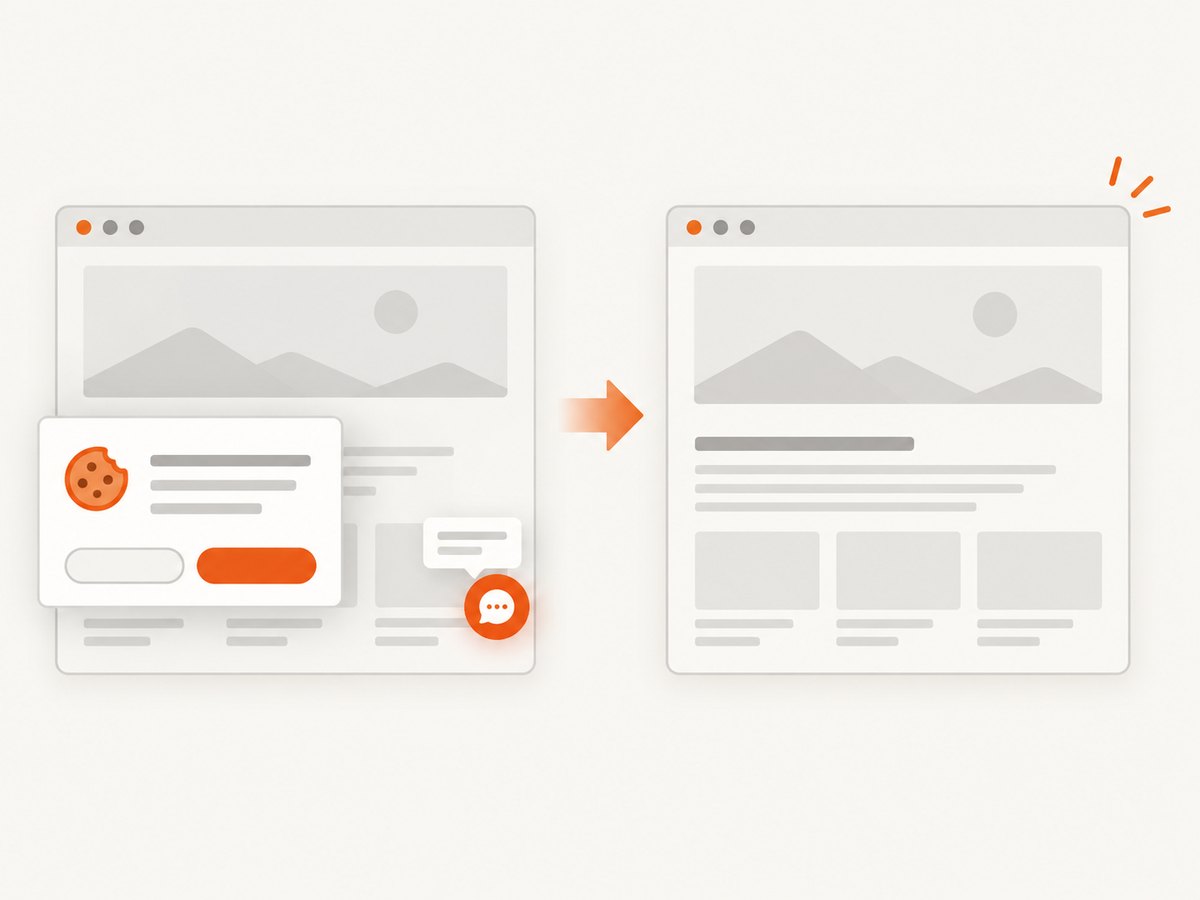
If the task is to capture a page you are authorized to access, ScreenshotNeo provides a website screenshot API and MCP server. A single request returns an image or PDF. See the ScreenshotNeo API documentation. This captures a visual page; it is not a YouTube metadata API and does not make scraping YouTube permitted.
curl -G "https://api.screenshotneo.com/v1/shot" -d access_key=YOUR_API_KEY --data-urlencode url=https://stripe.com -o shot.webpimport requests
r = requests.get(
"https://api.screenshotneo.com/v1/shot",
params={"access_key": "YOUR_API_KEY", "url": "https://stripe.com"},
timeout=90,
)
r.raise_for_status()
with open("shot.webp", "wb") as image:
image.write(r.content)const q = new URLSearchParams({ access_key: 'YOUR_API_KEY', url: 'https://stripe.com' });
const res = await fetch(`https://api.screenshotneo.com/v1/shot?${q}`);
if (!res.ok) throw new Error(`Screenshot request failed: ${res.status}`);
await import('node:fs/promises').then(async ({ writeFile }) => {
await writeFile('shot.webp', Buffer.from(await res.arrayBuffer()));
});ScreenshotNeo removes known cookie and consent banners, newsletter popups, and chat widgets before capture; each cleanup step can be turned off. Bot checks, blank pages, failed loads, timeouts, and cache hits are not billed, and response headers identify the page verdict and billing status. Its MCP server exposes take_screenshot, get_page_info, and capture_pdf for Claude, Cursor, and other MCP clients. The free plan includes 1,000 screenshots per month with no card; paid plans start at $5 for 3,000. Sign up for 1,000 free screenshots a month, no card required.
9. Frequently asked questions
Can browser automation scrape YouTube if I only collect public titles?
Public visibility does not override YouTube’s Developer Policies. Use the Data API for supported metadata and follow its terms.
Can I use browser automation to test my own YouTube-like player?
Yes, when the target is your own property or an explicitly authorized environment. Use test data and selectors you control.
Should I store full page HTML for every run?
Usually not. Keep the smallest record that serves the authorized purpose. Retain diagnostic artifacts selectively, protect them, and avoid capturing sensitive information.
What should I do if the API does not provide a field I want?
Check current API documentation and terms, then seek an authorized data source or permission. A missing API field is not permission to scrape.


