Scrapy Playwright Tutorial: How to Scrape Dynamic Websites
Learn when to use a browser, configure scrapy-playwright, wait for JavaScript content, click controls, and close pages safely.
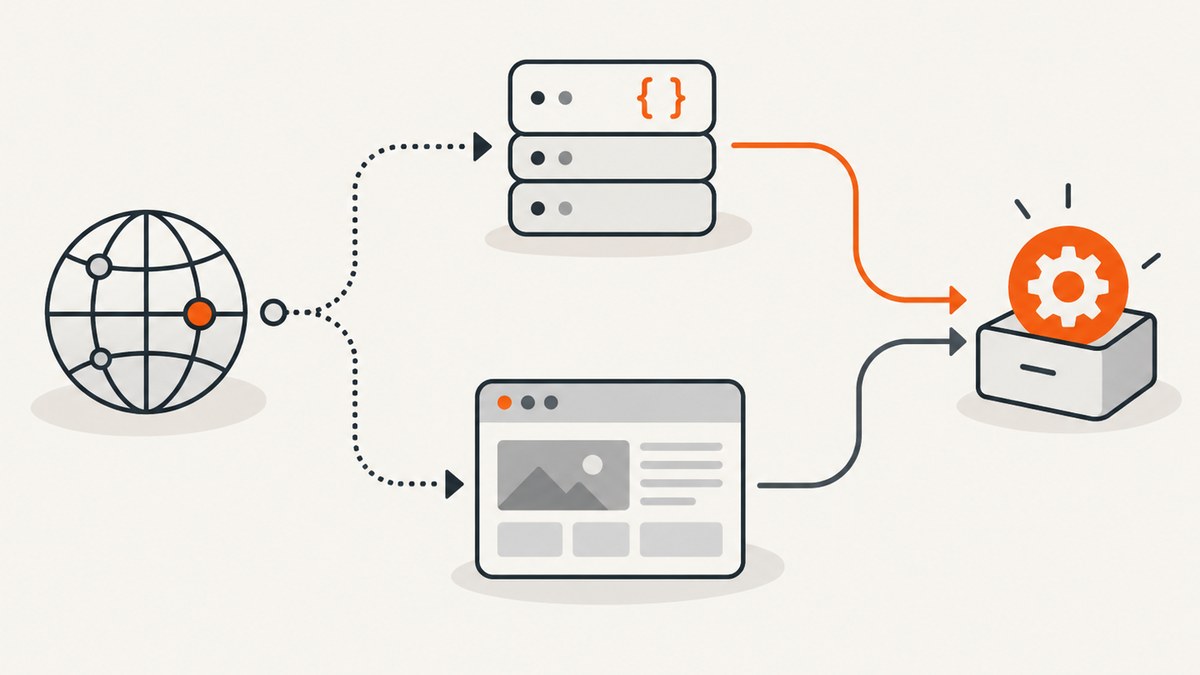
To scrape a JavaScript-rendered page with Scrapy, first inspect the page’s network requests and reproduce the request that returns the data if you can. That is often simpler and returns structured data directly. If the content depends on browser behavior, use scrapy-playwright: configure its download handler, mark only the requests that need rendering with meta={"playwright": True}, and wait for a meaningful page condition before extracting. The examples below show both approaches and how to avoid leaving browser pages open.
1. Decide whether a browser is necessary
Open the target page’s developer tools and inspect its network activity while the content appears. Look for a request that returns the records, product details, or other data you need. If that request is understandable and repeatable, send it from Scrapy and parse its response. Scrapy documents reproducing the data request as its preferred approach for pages that fetch data after initial load: it can provide structured, complete data with less parsing and network transfer. (Scrapy: Selecting dynamically-loaded content.)

A browser is useful when the request is difficult to reproduce, or the required result depends on browser-visible behavior such as a rendered page, a click, or client-side state. If your project already uses Scrapy, scrapy-playwright routes selected requests through Playwright while keeping them in Scrapy’s scheduling and response workflow. Launching Playwright directly inside a callback bypasses much of Scrapy’s normal machinery, including middleware and duplicate filtering.
| Approach | Choose it when | Trade-off |
|---|---|---|
| Reproduce the data request | You can identify a stable request that returns the needed data. | Less browser setup and parsing; you must understand the request and its parameters. |
scrapy-playwright |
The page or interaction requires browser behavior, or reproducing the request is impractical. | Browser binaries, page waits, and lifecycle cleanup add complexity and resource use. |
2. Install Scrapy, scrapy-playwright, and a browser
The project README currently lists minimum requirements of Python 3.10, Scrapy 2.7, and Playwright 1.40. Dependency floors and commands can change, so check the current scrapy-playwright README for your environment before pinning versions.
python -m venv .venv
# Activate the environment for your shell, then:
python -m pip install scrapy scrapy-playwright
playwright install chromium
Playwright’s Python package and browser binaries are separate concerns. The binaries are tied to Playwright versions; after changing or upgrading the Playwright package, you may need to run the browser installation command again. See Playwright’s browser installation guide. You can install a different supported browser using the corresponding Playwright command.
3. Configure Scrapy’s download handler
Add the integration handlers to a Scrapy project’s settings.py. The standard Scrapy handlers remain as fallback for schemes not handled by Playwright.
DOWNLOAD_HANDLERS = {
    "http": "scrapy_playwright.handler.ScrapyPlaywrightDownloadHandler",
    "https": "scrapy_playwright.handler.ScrapyPlaywrightDownloadHandler",
}
Keep the setting aligned with the project’s current README when upgrading: integration details can evolve. This handler registration makes the integration available; it does not send every request through a browser.
4. Opt selected requests into Playwright
Set the playwright request metadata flag to a truthy value only for pages that need a browser. The returned response can be handled with the usual Scrapy selectors.
import scrapy

class CatalogSpider(scrapy.Spider):
    name = "catalog"
    start_urls = ["https://example.com/catalog"]

    def start_requests(self):
        for url in self.start_urls:
            yield scrapy.Request(
                url,
                callback=self.parse,
                meta={"playwright": True},
            )

    def parse(self, response):
        for card in response.css(".product-card"):
            yield {
                "name": card.css(".name::text").get(default="").strip(),
                "price": card.css(".price::text").get(default="").strip(),
            }
Replace example.com and the selectors with the site you are permitted to crawl. The example assumes the rendered page contains elements matching those selectors. If the page returns no items, inspect response.text and verify the selectors against the actual rendered markup rather than assuming JavaScript ran successfully.
5. Wait for content or perform a page action
Do not assume that navigation completion means a single fixed delay will work for every site. Prefer waiting for a selector that represents the content you need. For actions such as clicking a “Load more” button, use PageMethod so the action runs before the final response reaches the callback.
import scrapy
from scrapy_playwright.page import PageMethod

class ListingsSpider(scrapy.Spider):
    name = "listings"

    def start_requests(self):
        yield scrapy.Request(
            "https://example.com/listings",
            callback=self.parse,
            meta={
                "playwright": True,
                "playwright_page_methods": [
                    PageMethod("wait_for_selector", ".listing-card"),
                    PageMethod("click", "button.load-more"),
                    PageMethod("wait_for_selector", ".listing-card:nth-child(21)"),
                ],
            },
        )

    def parse(self, response):
        for card in response.css(".listing-card"):
            yield {"title": card.css("h2::text").get(default="").strip()}
The sequence matters: the first wait confirms the initial list exists, the click requests more results, and the second wait looks for evidence that additional results appeared. Adjust the selector and expected item count to the site’s behavior. Some controls append results; others replace the list, navigate, or require repeated clicks. A selector wait can time out when the target never appears, and a fixed delay may waste time or still be too short. Choose the narrowest condition that proves the content is ready.
The integration also supports playwright_context to select a named browser context. Contexts provide separate browser state, such as cookies; use a context deliberately when a workflow needs distinct sessions. Consult the project documentation for current context configuration and available options.
6. Manage page lifetimes safely
By default, the integration closes pages when it has finished producing the response, unless your request explicitly retains the page. If you ask to receive and own a Playwright page, your callback is responsible for closing it. A page left open counts against the per-context page limit and can eventually stall a crawl. Close it on both success and request failure.
import scrapy
from scrapy_playwright.page import PageMethod

class OwnedPageSpider(scrapy.Spider):
    name = "owned_page"

    def start_requests(self):
        yield scrapy.Request(
            "https://example.com/listings",
            callback=self.parse,
            errback=self.close_failed_page,
            meta={
                "playwright": True,
                "playwright_include_page": True,
                "playwright_page_methods": [PageMethod("wait_for_selector", ".listing-card")],
            },
        )

    async def parse(self, response):
        page = response.meta["playwright_page"]
        try:
            return [{"title": title.strip()} for title in response.css(".listing-card h2::text").getall()]
        finally:
            await page.close()

    async def close_failed_page(self, failure):
        page = failure.request.meta.get("playwright_page")
        if page is not None:
            await page.close()
Use page ownership only when the callback needs direct Playwright access. For ordinary rendered HTML, let the integration manage the page. The try/finally protects successful callback processing; the errback covers request failures. See the README’s PageMethod and page lifecycle guidance and Playwright’s browser API for context and browser lifetime details.
7. Tune crawling for reliability and cost
- Render selectively. Every browser-backed request requires browser work. First test whether the desired data can be fetched directly, then opt only necessary requests into Playwright.
- Use condition-based waits. Wait for the result you extract, not an arbitrary delay. Handle pages where content legitimately may be absent as a separate outcome.
- Keep page ownership small. Avoid retaining pages across unrelated work. Close owned pages in success and error paths, and review per-context page limits if requests stall.
- Control concurrency. Browser pages consume more resources than ordinary HTTP requests. Start with modest Scrapy concurrency and increase while watching memory, browser stability, and target response times. The suitable level depends on the page and machine.
- Keep sessions intentional. Use distinct named contexts when separate cookie state is required; avoid sharing state accidentally between workflows.
- Make extraction resilient. Use optional selector reads where fields may be absent, and record enough request or item context to diagnose pages that render differently.
There is no universal speed or cost ratio: direct requests often reduce parsing and transfer when they expose the target data, while browser rendering adds startup, rendering, and memory work. Measure your own crawl against the site’s behavior and your required completeness. Respect the site’s access rules and rate limits.
8. Troubleshooting
| Symptom | Likely cause | Fix |
|---|---|---|
| Browser executable missing | The Python package is installed but its browser binary is not. | Run playwright install chromium or install the browser you selected. |
| Browser fails after dependency upgrade | Installed binaries do not match the new Playwright version. | Rerun the Playwright browser installation command and consult its browser guide. |
| Response has no dynamic content | The request was not opted into Playwright, a wait condition was wrong, or the page uses different markup. | Check meta={"playwright": True}, inspect the rendered response, and wait for a selector tied to the target data. |
| Selector wait times out | The selector is incorrect, content is absent, or the site did not reach the expected state. | Verify the selector in the browser, inspect navigation and page behavior, and choose a condition that matches the actual state. |
| “Load more” results are missing | The click did not trigger, the site replaced rather than appended results, or extraction happened before the update. | Confirm the button selector, perform the click, then wait for a new item or another observable post-click state. |
| Crawl stops making progress | Owned pages may not have been closed, exhausting the context’s page limit. | Close pages in callback finally blocks and errbacks; avoid retaining pages when unnecessary. |
| Import or setting errors | Package versions may be incompatible or a handler path/settings example may be stale. | Check Python, Scrapy, Playwright, and scrapy-playwright versions against the current README, then use its current settings pattern. |
Or skip the browser setup
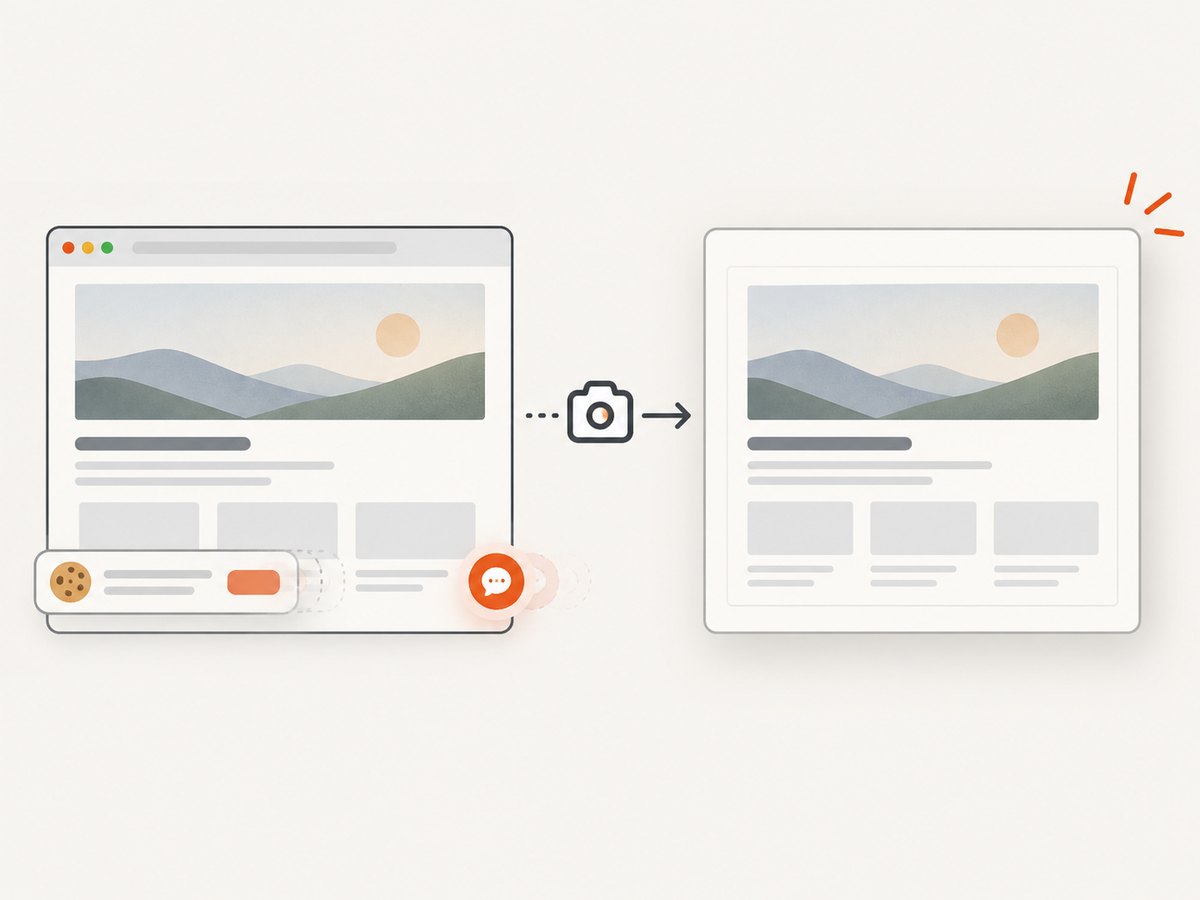
If the task is to capture a page image or PDF rather than extract structured records, ScreenshotNeo offers a website screenshot API and MCP server. One GET request captures a URL; see the API documentation.
curl -G "https://api.screenshotneo.com/v1/shot" -d access_key=YOUR_API_KEY --data-urlencode url=https://example.com -o shot.webpCookie banners, popups, and chat widgets are removed before the shot. Bot checks, blank pages, failed loads, timeouts, and cache hits are never billed, and response headers identify the page verdict and billing status. AI agents can use its MCP server tools to take screenshots, inspect page information, and capture PDFs. The free plan includes 1,000 screenshots a month with no card; paid plans start at $5 for 3,000 screenshots. ScreenshotNeo is for capturing visual pages, not a replacement for extracting a structured dataset with Scrapy.
Create a free ScreenshotNeo account for 1,000 screenshots a month, with no card required.
FAQ
Can Scrapy parse the response returned by Playwright?
Yes. The integration returns a Scrapy response, so regular callback selectors can extract from the rendered HTML.
Should every request use Playwright?
No. Reproduce the data request when practical, and route only pages that need browser rendering through the integration.
Can I use this for a page that requires clicking?
Yes. Use PageMethod to perform the click before the final response is returned, then wait for evidence that the page changed.
Do I need to close every page?
Pages managed by the integration are normally closed automatically. If your spider explicitly retains a page, you own its cleanup on successful and failed requests.


