Scrapy Playwright Tutorial: Render JavaScript Pages with Scrapy
Install and configure scrapy-playwright, render JavaScript pages, and troubleshoot common spider issues with runnable examples.

Use scrapy-playwright when a Scrapy request needs a real browser to execute JavaScript or perform browser-only work. Install the package and browser binaries, register its download handler, set Scrapy’s asyncio reactor, then opt individual requests in with meta={"playwright": True}. Ordinary requests can continue through Scrapy’s regular downloader.
This tutorial covers installation, a complete spider, page interaction, contexts, concurrency, browser configuration, failure diagnosis, and operational tradeoffs. The examples follow the scrapy-playwright project documentation and Scrapy’s dynamic content guidance.
1. Decide whether you need a browser
First check whether the data is available from an HTTP request you can reproduce directly. Scrapy recommends reproducing the underlying data requests when practical: those often return structured, complete data with less parsing time and network transfer. A browser is useful when those requests are difficult to reproduce, the page depends on browser execution or events, or you need browser-only output such as a screenshot. Scrapy’s documentation says, “We recommend using scrapy-playwright for a better integration.”
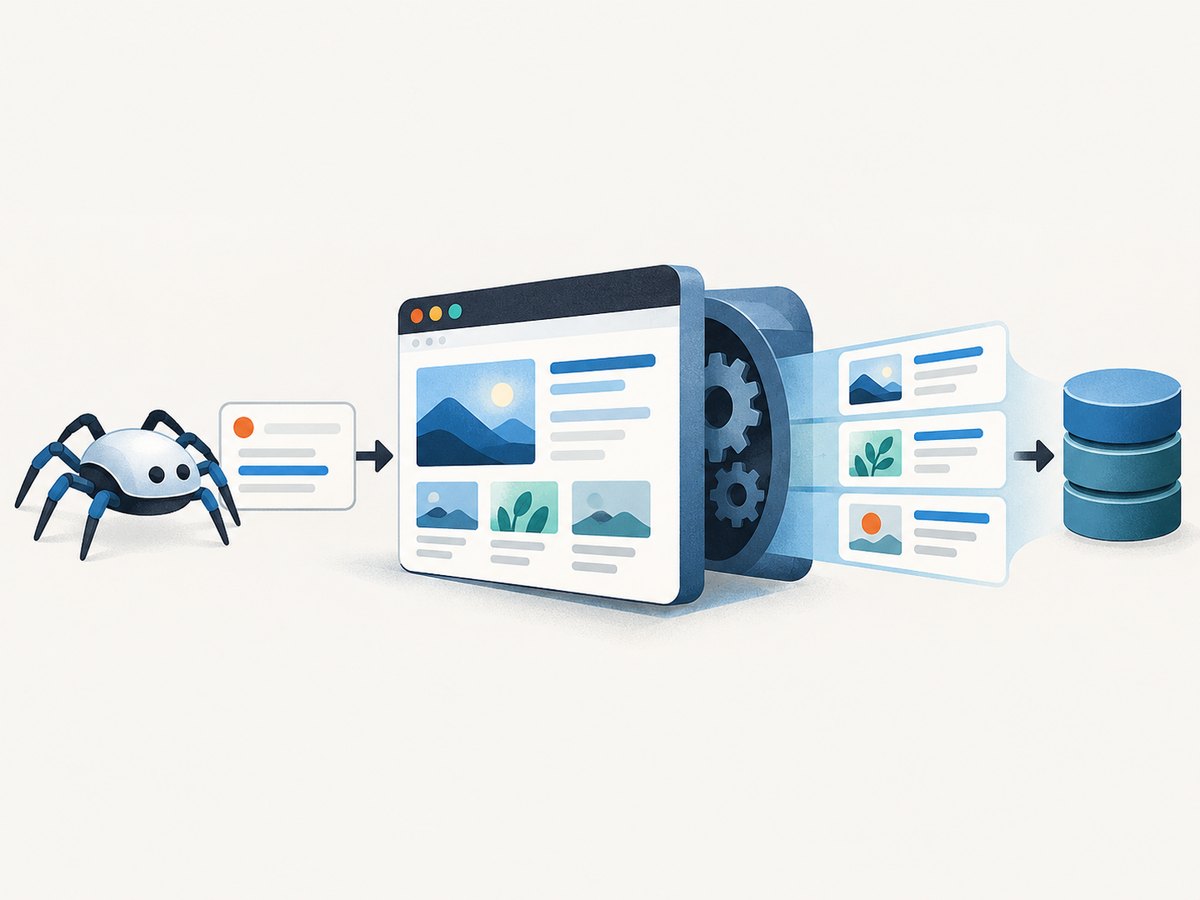
For a browser-rendered listing, the flow is: Scrapy schedules a request, scrapy-playwright opens it in Playwright, the page runs, and Scrapy receives a response it can parse. Only requests marked for Playwright use that handler. This lets you keep a spider’s ordinary HTTP requests on Scrapy’s downloader.
2. Install scrapy-playwright and browser binaries
The documented minimums are Python 3.10, Scrapy 2.7, and Playwright 1.40. Install in the same virtual environment where you run Scrapy:
python -m venv .venv
source .venv/bin/activate
python -m pip install --upgrade pip
pip install scrapy-playwright
playwright install
On Windows PowerShell, activate with .venv\Scripts\Activate.ps1. The playwright install command downloads browser binaries; it is a separate step from installing the Python package. You can install selected browsers, for example:
playwright install firefox chromiumUse a project’s pinned dependency versions consistently in development, CI, and deployment. If a browser executable is missing on a clean machine, rerun the install command in that environment. The package README lists the minimum versions and installation commands in its installation instructions.
3. Configure Scrapy’s download handler and reactor
In your Scrapy project’s settings.py, register the HTTPS handler and asyncio reactor:
DOWNLOAD_HANDLERS = {
    "https": "scrapy_playwright.handler.ScrapyPlaywrightDownloadHandler",
}

TWISTED_REACTOR = "twisted.internet.asyncioreactor.AsyncioSelectorReactor"
HTTPS registration is sufficient for most modern websites. Add an HTTP handler too only if the spider needs Playwright for plain HTTP requests. Requests without the Playwright metadata flag continue to use the regular Scrapy downloader.
Start with this minimal configuration before tuning contexts or browser launch options. Reactor settings need to be active when Scrapy starts; changing them after the reactor has already been installed is too late. Consult the project’s quick-start configuration if your Scrapy project customizes download handlers or reactor setup.
4. Build a minimal JavaScript-rendering spider
Save this as example_spider.py inside a Scrapy project’s spiders directory. On newer Scrapy versions, the example uses asynchronous start. Older versions use start_requests to produce the initial request.
import scrapy


class ExampleSpider(scrapy.Spider):
    name = "example"
    start_urls = ["https://quotes.toscrape.com/js/"]

    async def start(self):
        for url in self.start_urls:
            yield scrapy.Request(
                url,
                callback=self.parse,
                meta={"playwright": True},
            )

    async def parse(self, response):
        for quote in response.css(".quote"):
            yield {
                "text": quote.css(".text::text").get(),
                "author": quote.css(".author::text").get(),
            }

        next_page = response.css("li.next a::attr(href)").get()
        if next_page:
            yield response.follow(
                next_page,
                callback=self.parse,
                meta={"playwright": True},
            )
Run it from the Scrapy project directory:
scrapy crawl example -O quotes.jsonThe key is that every request that needs browser rendering—including a followed pagination request—must carry meta={"playwright": True}. The response is still a Scrapy response, so selectors and item pipelines work in the usual way.
5. Wait for page content and interact with the page
JavaScript applications can render after the initial navigation. If the response lacks expected elements, wait for a specific selector rather than guessing with a long fixed delay. scrapy-playwright supports page methods that run Playwright operations without requiring you to keep the page object in the callback. For example, wait for a listing container:
from scrapy_playwright.page import PageMethod

# Add these entries to the request meta:
meta={
    "playwright": True,
    "playwright_page_methods": [
        PageMethod("wait_for_selector", ".product-card"),
    ],
}
Use the selector that indicates the data you actually need. A selector wait can still time out if the site changes, the selector is wrong, the content is inaccessible in that session, or the page never reaches the expected state. Keep selectors specific enough to avoid matching a hidden template or an unrelated element.
If you need direct access to Playwright’s Page, add playwright_include_page=True. The callback receives it at response.meta["playwright_page"]. Close a retained page when asynchronous work is finished, including error paths, so browser resources are released. You do not need to retain the page just to use page methods. The project documents the supported page methods and page access patterns.
6. Choose browser, context, and session settings
A browser is the launched Chromium, Firefox, or WebKit process. A context represents an isolated browser session, including session-related state. Use a named context when requests should share a session, or separate contexts when session isolation is needed. A request can name one with playwright_context; if the named context does not already exist, playwright_context_kwargs can provide arguments for its creation.
PLAYWRIGHT_CONTEXTS = {
    "default": {},
}
PLAYWRIGHT_MAX_CONTEXTS = 4

# Per request:
meta={
    "playwright": True,
    "playwright_context": "default",
}
Alternatively, pass context creation options on a request:
meta={
    "playwright": True,
    "playwright_context": "session-a",
    "playwright_context_kwargs": {
        "locale": "en-US",
        "timezone_id": "UTC",
    },
}
Use PLAYWRIGHT_MAX_CONTEXTS to cap simultaneously open contexts. Persistent contexts use a user_data_dir to retain browser profile state. Plan which handler owns that profile: if both HTTP and HTTPS Playwright handlers are registered, each may try to open the same persistent profile, causing a conflict. See the README’s browser context documentation for the complete options and lifecycle details.
7. Configure browser launch and remote connections
Choose the engine with PLAYWRIGHT_BROWSER_TYPE (chromium, firefox, or webkit). Use PLAYWRIGHT_LAUNCH_OPTIONS for browser launch arguments, including headless mode and launch timeout settings:
PLAYWRIGHT_BROWSER_TYPE = "chromium"
PLAYWRIGHT_LAUNCH_OPTIONS = {
    "headless": True,
    "timeout": 30_000,
}
Remote browser connections are available through PLAYWRIGHT_CDP_URL or PLAYWRIGHT_CONNECT_URL. Do not configure both together; CDP is for Chromium. These options change where the browser runs, so account for connectivity and browser ownership in the deployment environment. Check the current browser configuration reference for supported launch and connection details.
8. Or skip the browser setup
If your task is to save a rendered page as an image or PDF rather than extract structured records, ScreenshotNeo is a website screenshot API and MCP server from Yorker Media. One GET request returns a PNG, JPEG, WebP, or PDF. For example, this cURL request saves a WebP screenshot:

curl -G "https://api.screenshotneo.com/v1/shot" -d access_key=YOUR_API_KEY --data-urlencode url=https://stripe.com -o shot.webpSee the ScreenshotNeo API documentation for request options. Cookie banners, popups, and chat widgets are removed before capture; each cleanup step can be turned off. Bot checks, blank pages, failed loads, timeouts, and cache hits cost nothing, and response headers report the page verdict and billing status. Its MCP server gives AI agents tools to take screenshots, get page information, and capture PDFs. The free plan includes 1,000 screenshots per month with no card; paid plans start at $5 for 3,000 shots.
Create a free ScreenshotNeo account for 1,000 screenshots a month, with no card required.
9. Performance, reliability, and cost considerations
Browser rendering carries more operational overhead than reproducing a data request: it starts and manages browser processes, executes page code, and transfers page resources. Prefer direct Scrapy requests when the underlying data endpoint is reproducible and returns the fields you need. Use browser rendering for pages where execution or browser behavior is necessary.
- Concurrency: Browser pages consume more resources than simple HTTP requests. Start with conservative Scrapy concurrency and a limited number of contexts, then adjust based on the capacity of the machine running the spider.
- Waits: Wait for a meaningful selector when possible. Fixed delays add elapsed time to every request and can still be too short for slow pages.
- Sessions: Reuse a context when requests need the same session; use separate contexts for isolation. Avoid leaving retained pages open.
- Retries and timeouts: Distinguish navigation failures from a missing selector or a page that rendered an empty state. Retries can help transient network failures, but repeating deterministic selector failures wastes browser capacity.
- Cost: The research dossier provides no benchmark or universal browser cost figure. Account for the compute and network use of browser processes in your own deployment, and measure the workload you run.
For production spiders, log the requested URL, whether Playwright was enabled, the context name, and the exception category. This makes it easier to tell a browser startup problem from a page-level issue. Avoid logging secrets in cookies, authorization headers, or persistent profile data.
10. Troubleshooting common scrapy-playwright errors
| Symptom | Likely cause | Fix |
|---|---|---|
| Response has empty or incomplete HTML | The request used Scrapy’s normal downloader, or parsing happened before the page content appeared. | Add meta={"playwright": True} to that request and its relevant follow-ups. Wait for a selector that identifies rendered content. |
| Browser executable not found | The Python package is installed, but its browser binaries are not. | Run playwright install in the same environment; install the selected engine if using a subset. |
| Reactor or startup configuration error | The asyncio reactor setting is missing or conflicts with project startup configuration. | Set TWISTED_REACTOR to twisted.internet.asyncioreactor.AsyncioSelectorReactor in Scrapy settings before launching the spider. |
| Selector wait times out | The selector is incorrect, the site changed, or the expected content never appeared. | Inspect the rendered page and selector; wait for a stable element and handle unavailable or empty states explicitly. |
| Requests hang or contexts are exhausted | Too many contexts or retained pages remain open, or context names/settings are inconsistent. | Close included pages, check context names and creation options, and set a sensible PLAYWRIGHT_MAX_CONTEXTS. |
| Persistent profile cannot be opened | Two registered handlers may be trying to own the same user_data_dir. |
Plan profile ownership and avoid registering both protocols against one persistent profile. |
| Remote connection option fails | Both remote connection settings were configured, or CDP was pointed at a non-Chromium browser. | Choose either PLAYWRIGHT_CDP_URL or PLAYWRIGHT_CONNECT_URL; use Chromium for CDP. |
Also verify the documented version minimums: Python 3.10, Scrapy 2.7, and Playwright 1.40. The maintainers’ README and issue guidance are the primary reference when the error is specific to a version or browser provider.
11. FAQ
Does scrapy-playwright replace Scrapy?
No. It is a download handler integration. You continue to use Scrapy requests, callbacks, selectors, and item pipelines.
Can I use a screenshot without keeping the Page object?
Page methods can perform supported browser operations without retaining the page in your callback. Retain the page only when callback logic needs direct access to it, and close it afterward.
Which browser should I choose?
Choose the browser engine your target workflow requires. The integration supports Chromium, Firefox, and WebKit; remote CDP connections require Chromium.
Should every request use Playwright?
No. Mark only requests that need browser execution. Scrapy’s guidance favors reproducing data requests directly when practical, which reduces parsing time and network transfer.


