Scrapy Selenium Guide: Dynamic Pages with Selenium 4
Render JavaScript pages in Scrapy with Selenium 4, explicit waits, reliable settings, troubleshooting, and a browser-free ScreenshotNeo option.

Scrapy downloads HTML quickly, but many modern sites put the data you need behind JavaScript. If your spider sees an empty list, a loading shell, or no product cards at all, the page may be rendered in the browser after the initial response. Selenium 4 supplies that browser; Scrapy still handles crawling, scheduling, parsing, and item pipelines.
The practical pattern is selective rendering: use ordinary Scrapy requests for static pages and SeleniumRequest only where JavaScript or interaction is required. Wait for a page state that proves the data is present, then parse the rendered HTML with the same CSS and XPath selectors you already use in Scrapy.
What you will build
By the end, you will have a Scrapy spider that:
- Uses Selenium 4 through Scrapy middleware.
- Waits for a result element instead of guessing with a fixed delay.
- Scrolls or clicks when the page needs interaction.
- Parses Selenium-rendered HTML with Scrapy selectors.
- Uses browser settings, timeouts, and page-load strategies deliberately.
1. Install Scrapy, Selenium, and the middleware
The scrapy-selenium middleware connects Scrapy requests to a Selenium-compatible browser and driver. The Selenium 4-compatible scrapy-selenium4 package documents support for Selenium 4 and exposes the same SeleniumRequest pattern. Choose one package and follow its version requirements; do not enable both middleware implementations in one project.

python -m venv .venv
source .venv/bin/activate
python -m pip install scrapy selenium scrapy-selenium4
You also need a browser and matching driver available to the process. Chromium plus ChromeDriver is common, but Firefox and GeckoDriver work when configured consistently. In CI or Docker, install the browser in the image and run it headless.
2. Enable Selenium in Scrapy settings
Create a project with scrapy startproject dynamic_pages, then edit settings.py. The exact setting names follow the middleware package documentation; the important pieces are the browser executable, driver, and downloader middleware order.
DOWNLOADER_MIDDLEWARES = {
    'scrapy_selenium.SeleniumMiddleware': 800,
}

SELENIUM_DRIVER_NAME = 'chrome'
SELENIUM_DRIVER_EXECUTABLE_PATH = '/usr/local/bin/chromedriver'
SELENIUM_DRIVER_ARGUMENTS = [
    '--headless=new',
    '--no-sandbox',
    '--disable-dev-shm-usage',
    '--window-size=1440,1200',
]
Some installations manage the driver automatically through Selenium Manager, while others require an explicit executable path. If your package uses a different setting prefix, copy the names from its documentation and keep the spider code unchanged.
3. Make a SeleniumRequest and wait for real page state
Yield SeleniumRequest for the URL that needs rendering. Its response contains the browser-rendered page, so normal response.css() and response.xpath() calls work.
import scrapy
from scrapy_selenium import SeleniumRequest
from selenium.webdriver.common.by import By
from selenium.webdriver.support import expected_conditions as EC

class ResultsSpider(scrapy.Spider):
    name = 'results'

    def start_requests(self):
        yield SeleniumRequest(
            url='https://example.com/search?q=selenium',
            callback=self.parse_results,
            wait_time=10,
            wait_until=EC.visibility_of_element_located(
                (By.CSS_SELECTOR, '.result-card')
            ),
        )

    def parse_results(self, response):
        for card in response.css('.result-card'):
            yield {
                'title': card.css('.title::text').get(default='').strip(),
                'url': response.urljoin(card.css('a::attr(href)').get()),
            }
wait_until receives a Selenium Expected Condition. The condition should represent the data you intend to extract: visibility of a result card, presence of a table row, visible text, or a title change. Selenium’s waiting documentation explains that navigation reaching a ready state does not prove that JavaScript-generated elements are ready. Race conditions caused by running the next command too soon are a primary cause of flaky automation.
4. Choose the right wait
Explicit waits
Use WebDriverWait or the middleware’s wait_until for a condition tied to page state.
from selenium.webdriver.common.by import By
from selenium.webdriver.support.ui import WebDriverWait
from selenium.webdriver.support import expected_conditions as EC

def parse_with_driver(self, response):
    driver = response.request.meta['driver']
    WebDriverWait(driver, 15).until(
        EC.visibility_of_element_located((By.CSS_SELECTOR, '[data-ready="true"]'))
    )
    html = driver.page_source
    # Parse html directly or continue with selectors after the wait.
Useful Expected Conditions include presence_of_element_located, visibility_of_element_located, element_to_be_clickable, text_to_be_present_in_element, title matching, and staleness of an old element. Choose presence when an element only needs to exist in the DOM; choose visibility when hidden templates must be excluded.
Why fixed sleeps are fragile
time.sleep(5) may fail when a slow response needs eight seconds and wastes time when the page is ready in one. It also hides the actual readiness rule. Keep a short delay only for a documented animation or debounce, and pair it with a condition whenever possible.
Implicit waits
An implicit wait changes how long every element lookup retries before raising an error. It can be useful for consistently slow DOM insertion, but large implicit waits make failures slow and can interact confusingly with explicit waits. Prefer a small, deliberate implicit timeout and explicit conditions for important transitions.
5. Interact with dynamic pages before parsing
Some content appears only after scrolling, clicking a tab, or dismissing a modal. The middleware supports a script argument and can return the driver in request metadata.
yield SeleniumRequest(
    url='https://example.com/catalog',
    callback=self.parse_catalog,
    wait_until=EC.presence_of_element_located(
        (By.CSS_SELECTOR, '.catalog')
    ),
    script='window.scrollTo(0, document.body.scrollHeight);',
    screenshot=True,
)
def parse_catalog(self, response):
driver = response.request.meta['driver']
load_more = driver.find_element(By.CSS_SELECTOR, 'button.load-more')
driver.execute_script('arguments[0].click();', load_more)
WebDriverWait(driver, 10).until(
EC.staleness_of(load_more)
)
for item in driver.find_elements(By.CSS_SELECTOR, '.item'):
yield {'text': item.text}When screenshot=True is enabled, the middleware stores PNG bytes in response metadata. Use this for diagnosing layout, cookie dialogs, or an unexpected login page; avoid capturing screenshots for every request in a large crawl unless you need them.
6. Page-load strategy and timeout configuration
Selenium provides three page-load strategies:
| Strategy | Navigation waits for | When it helps |
|---|---|---|
normal |
The load event and subresources | Traditional pages where complete loading matters |
eager |
DOMContentLoaded | Pages where images and secondary resources are not needed |
none |
No page-load event blocking | SPAs where you immediately apply an explicit readiness condition |
A single-page app can continue adding content after readyState is complete. Pair any strategy with a condition for the result you need. Keep navigation, script, and element-search timeouts separate:
driver.set_page_load_timeout(45)
driver.set_script_timeout(30)
driver.implicitly_wait(2)
A page-load timeout limits navigation; a script timeout limits asynchronous JavaScript; an implicit timeout affects element searches. Set values according to the slowest legitimate response for your target, then fail rather than holding a worker indefinitely.
7. Keep Selenium selective in a Scrapy crawl
Browsers consume substantially more CPU and memory than direct HTTP requests and reduce throughput because each page needs a browser session. Route only JavaScript-dependent pages through Selenium:
def start_requests(self):
    for url in self.start_urls:
        if self.needs_browser(url):
            yield SeleniumRequest(url=url, callback=self.parse)
        else:
            yield scrapy.Request(url=url, callback=self.parse)

def needs_browser(self, url):
    return '/app/' in url or '/search' in url
Keep ordinary listing pages on Scrapy’s downloader when their HTML already contains the data. Reuse a browser where the middleware supports it, cap concurrency to the machine’s memory, and avoid opening many tabs from one driver. Measure your own target because the research sources provide no universal benchmark.
8. Common errors and fixes
| Error or symptom | Likely cause | Fix |
|---|---|---|
ModuleNotFoundError: scrapy_selenium |
Middleware package is not installed in the active environment. | Activate the project virtual environment and install the package documented for your chosen Selenium version. |
| Driver executable not found | Browser driver path is wrong or absent in the container. | Install a matching driver, set the executable path, or configure Selenium Manager. |
| SessionNotCreatedException | Browser and driver versions are incompatible, or headless flags are invalid. | Update both together and test the same command outside Scrapy. |
| Selectors return an empty list | The condition ran too early, the selector targets an iframe, or content is behind a click. | Wait for a specific element, switch into the iframe, perform the click, and inspect driver.page_source. |
| TimeoutException | The selector never appears, the request failed, or a consent/login wall blocked the page. | Verify the selector in DevTools, capture a diagnostic screenshot, increase the timeout modestly, and handle the alternate state. |
| Works locally but fails in CI | Missing display, fonts, browser binaries, permissions, or shared memory. | Run headless, add --no-sandbox and --disable-dev-shm-usage where appropriate, and install required browser packages. |
| Duplicate or stale elements after a click | The framework replaced the DOM node. | Wait for staleness of the old element, then locate the new element again. |
| Spider is slow or memory-heavy | Every request uses a full browser or too many browser workers run concurrently. | Use normal Scrapy requests for static URLs and reduce Selenium concurrency. |
9. Debugging checklist
- Open the URL in the same browser version and confirm the content appears without a cached login.
- Print
response.status,response.url, and a short slice ofresponse.text. - Save
driver.page_sourceafter the wait and search it for a distinctive result string. - Enable
screenshot=Truefor one request and inspect the PNG. - Check whether the content is inside an iframe or shadow DOM.
- Replace a fixed sleep with an Expected Condition tied to the result.
- Set navigation and script timeouts so a broken page cannot occupy a worker forever.
Or skip the browser setup
If your goal is a clean screenshot or PDF rather than extracting fields from a rendered DOM, ScreenshotNeo provides a single request API. It accepts the URL and returns PNG, JPEG, WebP, or PDF; see the ScreenshotNeo API documentation for all options.
curl -G 'https://api.screenshotneo.com/v1/shot' \
  -d access_key=YOUR_API_KEY \
  --data-urlencode url=https://stripe.com \
  -o shot.webp
import requests
r = requests.get(
'https://api.screenshotneo.com/v1/shot',
params={'access_key': 'YOUR_API_KEY', 'url': 'https://stripe.com'},
timeout=90,
)
r.raise_for_status()
open('shot.webp', 'wb').write(r.content)const q = new URLSearchParams({ access_key: 'YOUR_API_KEY', url: 'https://stripe.com' });
const res = await fetch(`https://api.screenshotneo.com/v1/shot?${q}`);
if (!res.ok) throw new Error(`HTTP ${res.status}`);
const data = Buffer.from(await res.arrayBuffer());
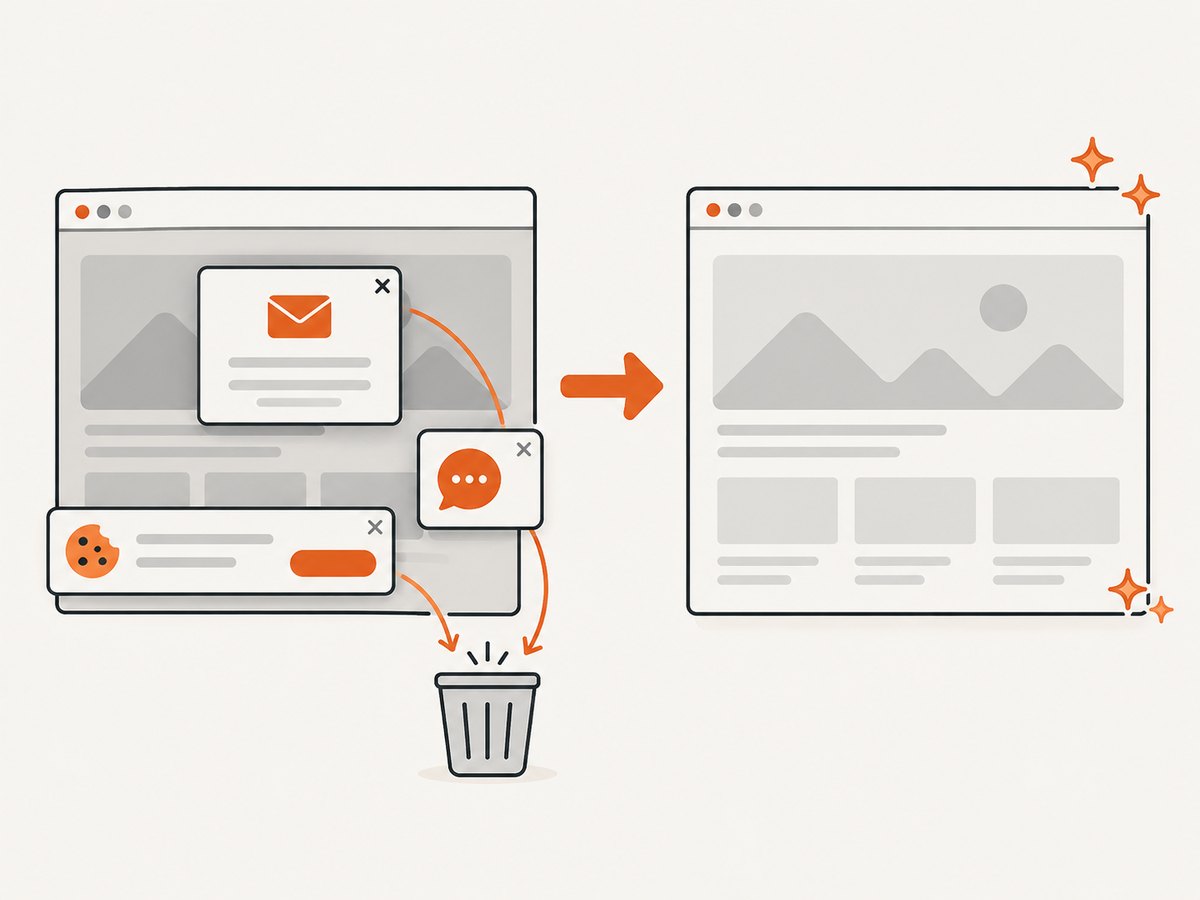
require('fs').writeFileSync('shot.webp', data);Cookie banners, newsletter popups, and chat widgets are removed before the shot. Bot checks, blank pages, failed loads, timeouts, and cache hits are not billed; response headers identify the page verdict and whether it was billed. An MCP server lets Claude, Cursor, and other MCP clients call take_screenshot, get_page_info, and capture_pdf. The free plan includes 1,000 screenshots a month with no card, and paid plans start at $5 for 3,000 shots. Create a free ScreenshotNeo account.
10. Reliability, cost, and operational guidance
- Reliability: Explicit conditions make synchronization observable and repeatable. Log the URL, condition, timeout, and final page verdict when a request fails.
- Performance: Browser rendering adds startup, navigation, JavaScript, and resource costs. Use a faster page-load strategy only when your readiness condition protects correctness.
- Cost: Selenium itself has infrastructure costs for browser workers, memory, and CI time. Limit rendering to pages that need it and cache data when the source permits.
- Data quality: A screenshot or rendered DOM proves what the browser displayed, but it does not guarantee that every API call succeeded. Check for login forms, bot challenges, empty states, and error banners.
- Scaling: Increase concurrency gradually while watching memory and driver stability. Separate static and browser queues so a slow page cannot stall the entire crawl.
FAQ
Can Scrapy parse Selenium-rendered HTML?
Yes. A SeleniumRequest returns rendered HTML, and normal Scrapy CSS and XPath selectors can parse it.
Should I wait for document.readyState?
Use it as a navigation signal only. JavaScript applications can add the data later, so wait for the result element, text, or state that your parser requires.
When should I use a remote Selenium server?
Use a remote command executor when browsers run on a separate host or a Selenium Grid. The middleware supports remote execution when configured according to its package documentation.
How do I handle an iframe?
Get the driver from response.request.meta['driver'], switch with driver.switch_to.frame(...), wait for the element inside the frame, then switch back with driver.switch_to.default_content().
Is Selenium required for every JavaScript site?
No. If the page exposes a stable JSON endpoint or server-rendered HTML, a direct Scrapy request may be simpler and faster. Use a browser when the required state depends on JavaScript execution or user interaction.
Summary
Install a Selenium 4-compatible middleware, configure a browser and driver, yield SeleniumRequest only for dynamic URLs, and wait for a meaningful page condition before parsing. Treat page-load strategy, timeouts, browser concurrency, and failure diagnostics as separate controls. That approach gives Scrapy the rendering capability it lacks while preserving its efficient crawling and parsing model.