Screen Capture vs. Screenshot: What’s the Difference?
A screenshot saves one moment; screen capture can mean a still image or a recording. Learn which to use on Mac, Android, Windows, and in code.
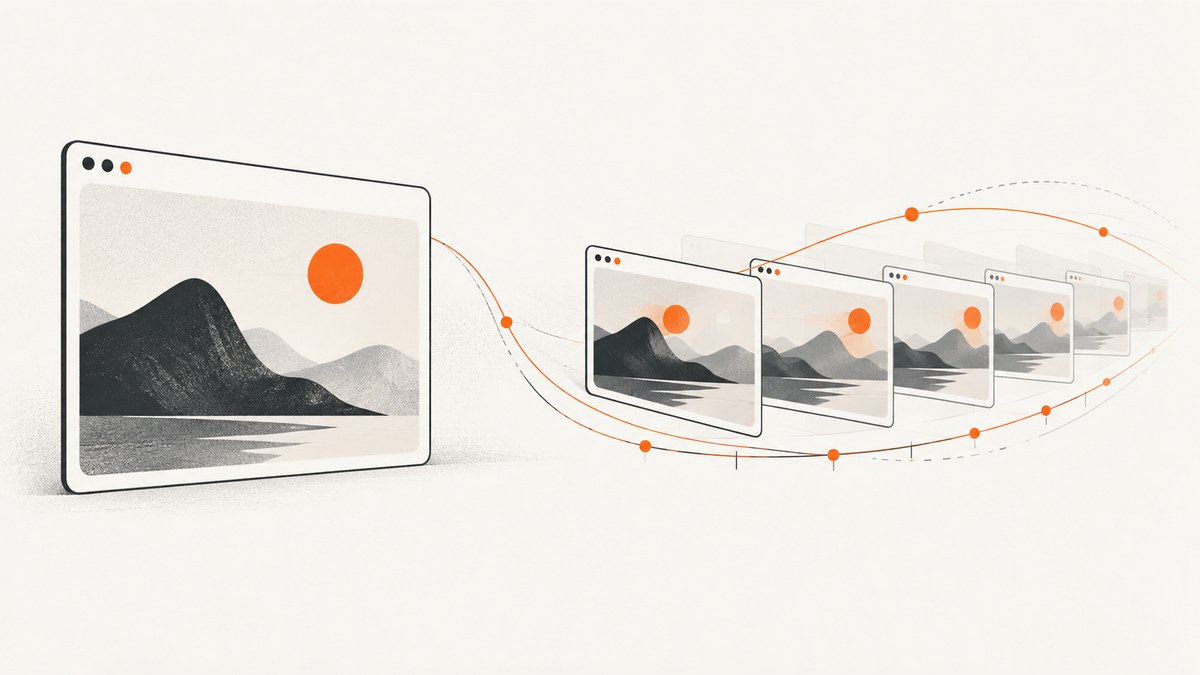
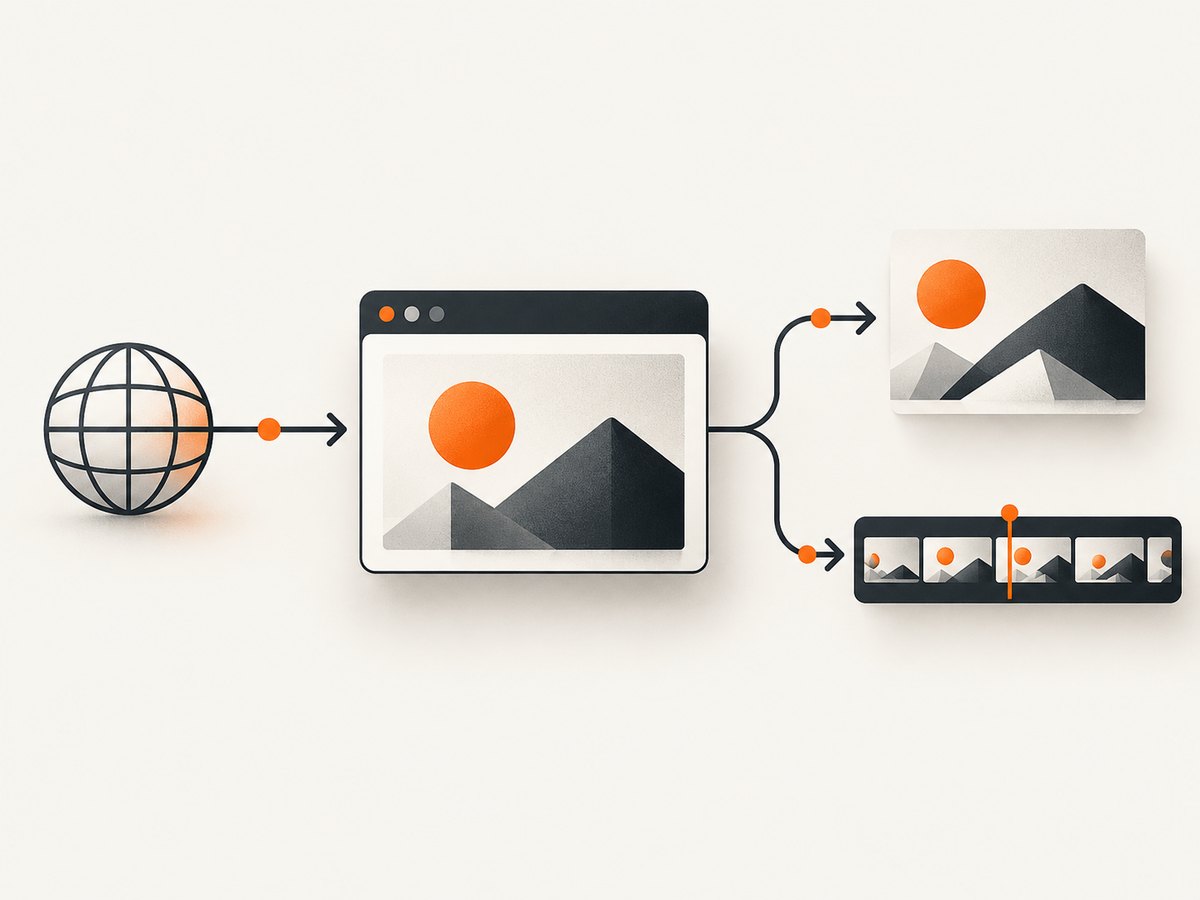
Short answer: a screenshot is a still image of what appeared on a screen at one moment. Screen capture is a broader phrase that can mean taking that still image or recording the screen over time. If you need to show one state, use a screenshot. If you need to explain motion, clicks, audio, or a sequence of steps, use a screen recording.
The terms are not used identically by every operating system or API. Android’s help distinguishes a screenshot from recording a video of the phone screen, while Apple and Microsoft use “capture” for both individual frames and streams. This guide explains the difference, shows the built-in workflows on Mac, Android, and Windows, and covers the equivalent choices when you capture web pages in code.
Screenshot and screen capture compared
| Question | Screenshot | Screen capture |
|---|---|---|
| What is saved? | One still image, such as PNG, JPEG, or WebP | An umbrella term: a still image, a sequence of frames, or a video |
| Does time matter? | No. It represents one instant. | It may preserve changes over time. |
| Does it include audio? | Normally no. | A recording can include microphone, system audio, or both, depending on the tool. |
| Typical uses | Bug reports, documentation, receipts, visual regression checks, sharing a result | Tutorials, demonstrations, gameplay, reproducing a sequence, remote support |
| Output | Image file or clipboard content | Image, video stream, or recorded video file |
Google describes the choice plainly: “You can take a picture (screenshot) or record a video of your phone’s screen.” Android Help uses that distinction for its device instructions. Apple’s ScreenCaptureKit is designed to stream screen content and audio, but it also exposes APIs for single screenshots. Microsoft’s Windows.Graphics.Capture acquires frames that applications can use for video streams or snapshots.
When should you take a screenshot?
Choose a screenshot when the reader or teammate only needs to inspect a state. A still is easier to attach to an issue, place in documentation, compare with a baseline, or embed in a report. It also avoids recording private notifications, unrelated windows, microphone audio, or personal data that may appear during a longer session.
- Bug reports: show the error message and the controls around it.
- Documentation: illustrate a completed step or a settings panel.
- Design review: preserve the exact visual state being discussed.
- Evidence: save a receipt, confirmation page, or transaction reference according to your organization’s retention rules.
- Automation: capture a page or component for visual regression testing.
A screenshot can be larger than the visible viewport. On Android 12 and later, scrolling screenshots can include more of a scrollable page when the app supports it. A web screenshot service can also render a full page and load lazy images before producing one image.
When should you record the screen?
Use a recording when meaning depends on order or movement. A video can show a menu opening, a pointer moving, a form being completed, or an animation failing. Recordings are also useful when audio or touch indicators provide context that a still cannot.
- Tutorials: demonstrate a complete workflow from start to finish.
- Reproduction steps: show the precise timing of an intermittent bug.
- Support: let a customer show what they see and hear.
- Product demos: communicate transitions and interactions.
- Accessibility review: capture focus movement, keyboard navigation, or spoken feedback when appropriate.
Trim recordings to the relevant segment and check for sensitive information before sharing. A recording often contains more data than intended because every frame between the start and stop points is retained.
What “screen capture” means in technical documentation
In ordinary conversation, people often say “screen capture” when they mean a screenshot. In developer documentation, the phrase commonly names the whole capture pipeline: selecting a display or window, receiving frames, optionally receiving audio, and encoding or displaying the result.
Apple’s ScreenCaptureKit separates streaming from single-frame APIs. Microsoft’s Windows.Graphics.Capture lets an application select a display or app window and acquire frames; those frames can feed a video stream or be saved as snapshots. This is why an API reference may use “capture” even when the output you need is one image.
When reading a tool’s documentation, look for the output and lifetime rather than the label. Terms such as screenshot, snapshot, or frame usually indicate one image. Terms such as stream, recording, audio, frame rate, or encoder indicate time-based capture.
How to take a screenshot or recording on a Mac
macOS provides both still and video controls in the Screenshot interface. Press Shift-Command-5 to open it. The toolbar offers still-image and recording modes for the entire screen, a window, or a selected portion. Its options include a save location and timer; recording options can include microphone selection. Apple documents these controls in Take a screenshot on Mac.
- Press
Shift-Command-5. - Select capture entire screen, capture a window, capture a portion, record the entire screen, or record a portion.
- Open Options to choose the destination, timer, microphone, pointer, or click indicators where available.
- For a still, click Capture. For a recording, click Record and then the stop control in the menu bar.
- Open the saved file and crop or redact sensitive content before sharing.
Use a selected portion when only one region matters. Use a window capture when you want the application chrome included without other displays. A recording of the full display is useful for multi-window workflows, but it also captures notifications and unrelated activity.
How to take a screenshot or recording on Android
Android’s exact button gesture varies by manufacturer. Google documents the common screenshot flow, scrolling screenshots on Android 12 and later on most screens that allow scrolling, and screen recording from Quick Settings. Recording controls may include audio and touch indicators. See Google’s Android Help instructions; if a gesture or menu is missing, use the phone manufacturer’s support site.
- For a screenshot, use your device’s documented button combination, commonly Power plus Volume Down.
- Tap the screenshot preview to edit, crop, annotate, or share it.
- For a long page, choose the scrolling screenshot option when it appears, then extend the selected area.
- For video, open Quick Settings and tap Screen record.
- Choose whether to record audio or show touches, then start and stop the recording from the notification or Quick Settings control.
Some apps block screenshots for security reasons. A scrolling capture also depends on the app exposing content that Android can scroll; it is not guaranteed for every screen.
How Windows capture maps to screenshots and recordings
Windows has separate user-facing tools, while the Windows.Graphics.Capture API supplies frames to applications. The system picker lets a user select a display or app window and indicates active capture with a yellow border. An application can save one acquired frame as an image or pass successive frames to a video encoder.
For a quick still, Windows Key-Shift-S opens the Snipping Tool overlay, where you can select a rectangle, window, or full screen. For a recording, open Snipping Tool’s recording mode where available, select the region, and start recording. Labels and availability vary by Windows release, so check the installed Snipping Tool version if a control is missing.
Choosing by output, scope, and context
| Need | Best fit | Why |
|---|---|---|
| One error message | Window or region screenshot | Small, precise, easy to review |
| A page longer than the viewport | Scrolling or full-page screenshot | Preserves the complete document in one image |
| Steps that must be followed in order | Screen recording | Shows timing, movement, and state changes |
| Voice or system sound matters | Screen recording with audio | Captures context a still cannot contain |
| Automated web documentation | Browser or screenshot API | Repeatable viewport, device, and rendering settings |
Capturing a web page in code
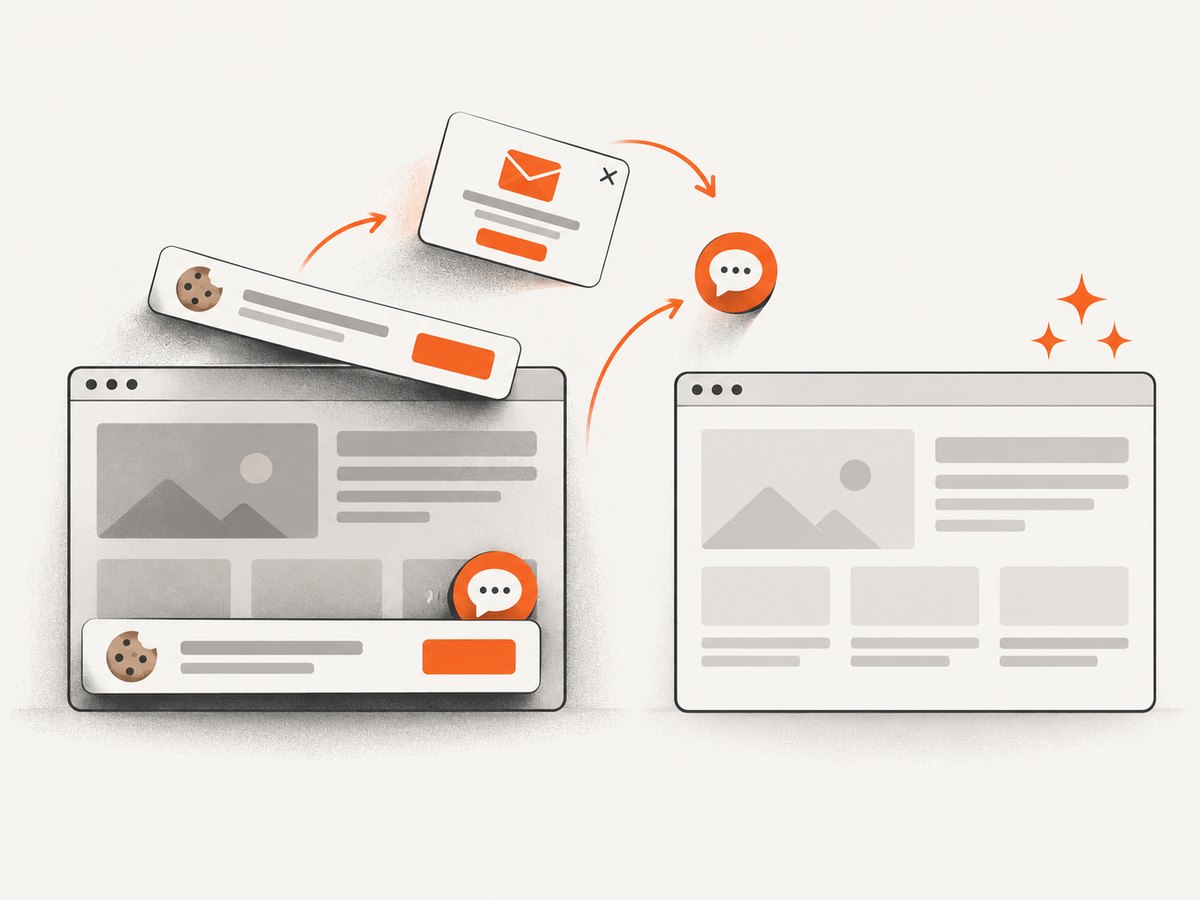
If your target is a URL rather than your local desktop, a headless browser or screenshot API is usually more repeatable than a manual screen capture. A DIY browser workflow needs a browser binary, navigation timeouts, viewport settings, cookie handling, lazy-image waits, and output encoding. It also has to deal with consent banners, popups, bot checks, and pages that never finish loading.
For a local Chromium workflow, the essential sequence is:
- Launch a browser with a fixed viewport and device scale factor.
- Navigate to the URL and wait for the load condition your page needs.
- Dismiss consent UI and hide transient widgets.
- Optionally wait for a selector, a delay, or network idle.
- Capture the viewport, a selected element, or the full page.
- Close the browser and store the image with a deterministic name.
Keep navigation and screenshot timeouts separate. A page can return a usable visual before every third-party request completes. For long pages, wait for lazy-loaded images while scrolling, then capture. Mask dynamic timestamps, ads, and chat widgets if you need stable visual comparisons.
Or skip the browser setup
ScreenshotNeo turns one GET request into a PNG, JPEG, WebP, or PDF. It accepts the cookie or consent banner like a visitor and removes more than 60 known consent platforms, newsletter popups, and chat widgets before the capture; each cleanup step can be turned off. Bot checks, CAPTCHAs, blank pages, timeouts, failed loads, and cache hits are not billed, and the response identifies the result with X-Page-Verdict and X-Billed headers.
See the ScreenshotNeo documentation for the full parameter list. The following calls are runnable after replacing the key and URL.
cURL
curl -G "https://api.screenshotneo.com/v1/shot" \
  -d access_key=YOUR_API_KEY \
  --data-urlencode url=https://stripe.com \
  -o shot.webp
Python
import requests

r = requests.get(
    "https://api.screenshotneo.com/v1/shot",
    params={"access_key": "YOUR_API_KEY", "url": "https://stripe.com"},
    timeout=90,
)
r.raise_for_status()
open("shot.webp", "wb").write(r.content)
Node.js
const q = new URLSearchParams({
  access_key: 'YOUR_API_KEY',
  url: 'https://stripe.com'
});
const res = await fetch(`https://api.screenshotneo.com/v1/shot?${q}`);
if (!res.ok) throw new Error(`HTTP ${res.status}`);
const image = Buffer.from(await res.arrayBuffer());
await import('node:fs/promises').then(fs => fs.writeFile('shot.webp', image));
Relevant capture options include full-page rendering with lazy images loaded, an element selected by CSS selector, dark mode, 12 device presets or any viewport, retina scale, PDF paper size and margins, landscape mode and page ranges, HTML/CSS to image, custom CSS and JavaScript, clicking an element before capture, waits for a selector, delay, or network idle, blocking ads, trackers, requests, or resource types, custom headers, cookies, user agent and Authorization, timezone, geolocation, transparent backgrounds, resizing, a chosen cache TTL, signed links for public <img> tags, asynchronous jobs with signed webhooks, bulk capture of up to 100 URLs per call, a usage API, and an OpenAPI specification. Common parameter names from other screenshot APIs also work, which makes migration simpler.
ScreenshotNeo also provides an MCP server with take_screenshot, get_page_info, and capture_pdf tools for Claude, Cursor, and other MCP clients. The Free plan includes 1,000 screenshots per month with no card; paid plans start at $5 for 3,000 shots. Yearly billing gives two months free, and every feature is included on every plan. Create a free ScreenshotNeo account.
Troubleshooting checklist
The image is blank
Confirm that the URL is publicly reachable from the capture environment and that the page does not require an interactive login. Wait for a meaningful selector instead of relying only on the load event. Check the response verdict and headers; blank pages and failed loads are not billed by ScreenshotNeo.
A cookie banner covers the content
In a DIY browser, identify the consent provider and click its accept control before capture. In ScreenshotNeo, consent handling and removal of known banners can run before the shot, and each cleanup step can be disabled when it is not wanted.
The screenshot cuts off lazy images
Use full-page capture that loads lazy images, scroll the page before a DIY capture, or wait for an image selector. Increase the wait only when the page actually needs it; fixed long delays reduce throughput.
A bot check or CAPTCHA appears
Do not loop on the request. Verify the URL, authentication, and rate limits, then handle the page according to the site owner’s access policy. ScreenshotNeo reports bot checks and CAPTCHAs as page verdicts and does not bill those failed captures.
Dynamic content makes diffs noisy
Freeze the viewport, timezone, locale, and user agent. Hide timestamps, ads, chat controls, and rotating modules with custom CSS or selectors. Use a cache TTL when you intentionally want a stable repeated result.
The recording contains private data
Stop other notifications, select a window or region, disable microphone capture when unnecessary, and review the complete file before sharing. Redact credentials, tokens, customer data, and personal messages.
Performance, reliability, and cost considerations
- Performance: smaller viewports and element captures use less rendering and transfer time than full-page images. Resize at capture time when the consumer only needs a thumbnail.
- Reliability: use explicit waits for application content, bounded timeouts, retries with backoff for transient network failures, and idempotent output names. Treat a bot check or blank verdict as a result to inspect, not an automatic retry storm.
- Caching: a chosen TTL can avoid repeating identical work. Remember that a cache hit is identified and not billed by ScreenshotNeo.
- Cost: estimate calls per page, retries, device variants, and PDF pages. ScreenshotNeo bills only clean shots; failed loads, timeouts, blank pages, bot checks, CAPTCHAs, and cache hits cost nothing.
- Privacy: send only the headers, cookies, authorization data, and page content required for the capture, and protect API keys on the server.
FAQ
Is a screenshot always a screen capture?
In casual language, usually yes: it is one kind of screen capture. In technical documentation, “screen capture” may refer to a stream or recording as well as a single frame.
Can a screenshot include scrolling content?
Yes. Android supports scrolling screenshots on Android 12 and later on most scrollable screens, and web tools can render a full page.
Does screen recording always include audio?
No. Audio is an option controlled by the operating system or application. Select microphone or system audio only when it is needed.
Which format should I use for a web screenshot?
PNG suits sharp interface text and transparency; JPEG is smaller for photographic pages; WebP often provides a useful size-quality balance. Choose based on the consumer and delivery path.
Can I automate screenshots without installing a browser?
Yes. A hosted API such as ScreenshotNeo handles browser setup and exposes image, PDF, waiting, blocking, device, and delivery options through an HTTP request.


