How to Screencast Automated Tests with Java
Record visible Playwright tests, save execution video, annotate actions, generate Java code, and handle Selenium workflows with practical examples.
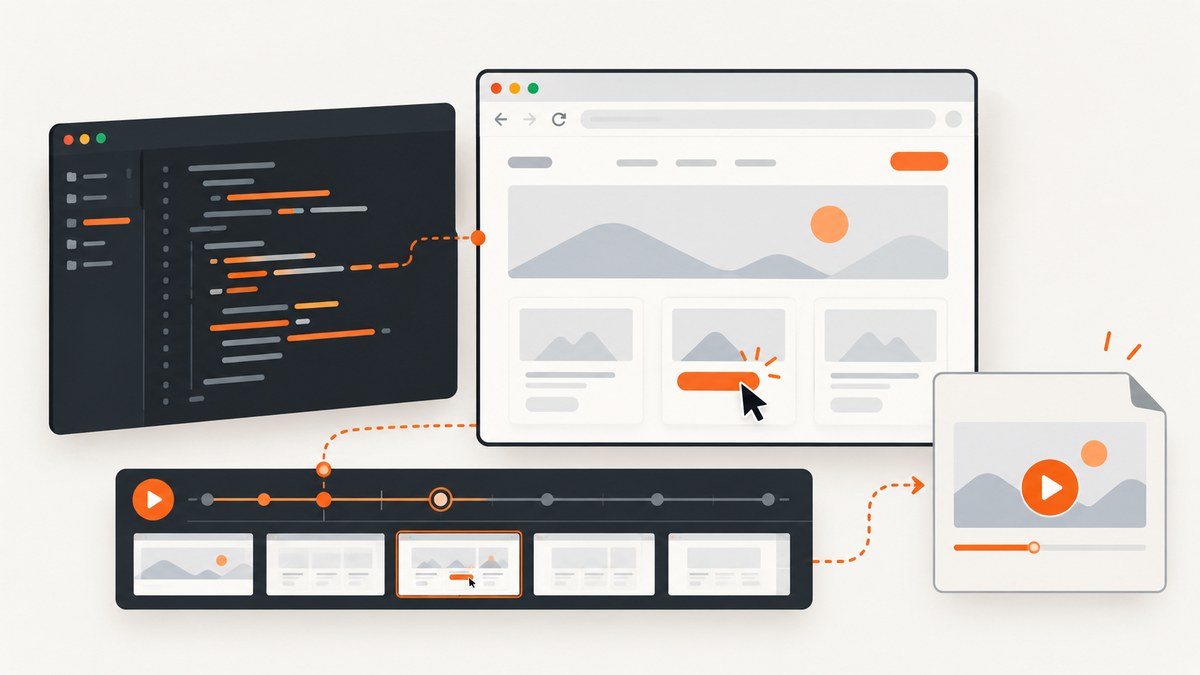
Direct answer: use Playwright for Java when you need a visible recording of an automated test. Launch the browser with headless(false), create a fresh browser context with setRecordVideoDir(...), run the test, and close the context. Playwright writes the video when the context closes. For a demonstration with explicit start and stop controls, Playwright Java 1.59 adds Page.screencast(), including action overlays.
Use Selenium when your team already has WebDriver infrastructure, but treat recording as a separate concern. Selenium’s Java documentation covers browser automation and Selenium IDE provides record-and-playback authoring; the cited Selenium getting-started material does not establish a native test-video API. This guide covers execution video, visible browser runs, test-authoring recordings, JUnit lifecycle, IntelliJ workflows, reliability, and a ScreenshotNeo option when you need a screenshot or PDF of the resulting page.
What exactly are you recording?
Java browser automation has three related but different recording jobs:
| Goal | Tool or API | Output |
|---|---|---|
| Show an automated test running | Playwright BrowserContext video |
Video finalized when the context closes |
| Control recording precisely | Playwright Java 1.59 Page.screencast() |
Explicitly started and stopped screencast, with optional action annotations |
| Generate starter test code | Playwright Codegen | Java actions, assertions, and locators copied from Playwright Inspector |
| Record existing Selenium interactions | Selenium IDE | Record-and-playback test steps; execution video requires another recorder |
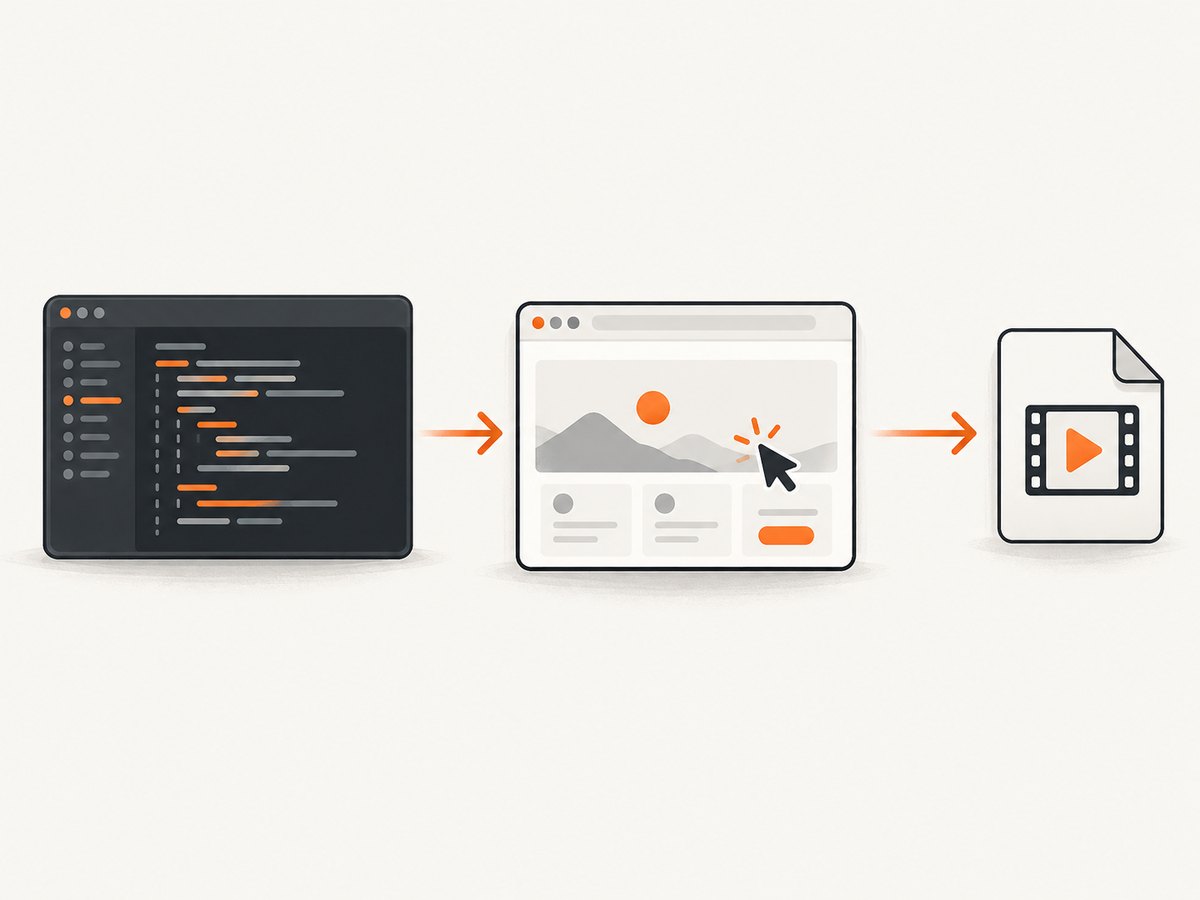
Codegen records the author’s actions while creating a test. BrowserContext video and Page.screencast record the automated execution. They solve different problems and are often used together: generate a first draft with Codegen, refine it in Java, then record a deterministic run for a bug report or tutorial.
Build a Java project with Playwright and JUnit
Playwright browsers run headless by default. A screencast needs a headed browser, so the launch options must include setHeadless(false). Add the Playwright Java dependency and a JUnit runner to your Maven project. Use the current versions selected by your project; the API examples below follow the Playwright Java documentation.
<!-- pom.xml -->
<dependencies>
  <dependency>
    <groupId>com.microsoft.playwright</groupId>
    <artifactId>playwright</artifactId>
    <version>1.59.0</version>
  </dependency>
  <dependency>
    <groupId>org.junit.jupiter</groupId>
    <artifactId>junit-jupiter</artifactId>
    <version>5.12.2</version>
    <scope>test</scope>
  </dependency>
</dependencies>
Install the browser binaries once with the Playwright CLI used by your build. In CI, perform that installation in the image or setup step so every test worker has the same browser version.
Record every test with BrowserContext video
Playwright records at the browser-context level. Set a directory and a deliberate recording size. A fixed 640×480 viewport makes tutorials and bug reports consistent, while a larger size is better when small text must remain readable. The video path is available after the context has closed because the file is finalized at closure.
package example;

import com.microsoft.playwright.*;
import org.junit.jupiter.api.*;

import java.nio.file.*;

class CheckoutVideoTest {
  static Playwright playwright;
  static Browser browser;

  @BeforeAll
  static void startBrowser() {
    playwright = Playwright.create();
    browser = playwright.chromium().launch(
        new BrowserType.LaunchOptions()
            .setHeadless(false)
            .setSlowMo(150));
  }

  @AfterAll
  static void stopBrowser() {
    browser.close();
    playwright.close();
  }

  @Test
  void recordsTheCheckoutFlow() throws Exception {
    Path videoDir = Paths.get("videos");
    Files.createDirectories(videoDir);

    BrowserContext context = browser.newContext(
        new Browser.NewContextOptions()
            .setViewportSize(640, 480)
            .setRecordVideoDir(videoDir)
            .setRecordVideoSize(640, 480));

    Page page = context.newPage();
    page.navigate("https://example.com/");
    page.getByRole(AriaRole.HEADING).waitFor();

    // Put the actions you want viewers to understand here.
    System.out.println(page.title());

    Video video = page.video();
    context.close();                 // Finalizes the recording.
    System.out.println(video.path()); // Read the path after closure.
  }
}
The example uses a fresh context for each test. That isolates cookies, local storage, permissions, and recorded output. Do not reuse a context across tests when the recording is meant to explain one scenario. If a test fails, close the context in a finally block so Playwright can still finalize the video.
Make the recording readable
- Use a stable viewport. Keep the same width and height across local and CI runs.
- Use
setSlowMofor demonstrations. It slows browser operations so a viewer can follow them; remove it for normal performance runs. - Keep test data short. Long generated values and large tables make the action hard to see.
- Wait for meaningful UI state. Prefer locator assertions and explicit readiness checks over arbitrary sleeps.
- Use one output directory per worker. Parallel tests can otherwise overwrite or mix artifacts.
Use Page.screencast for explicit start and stop
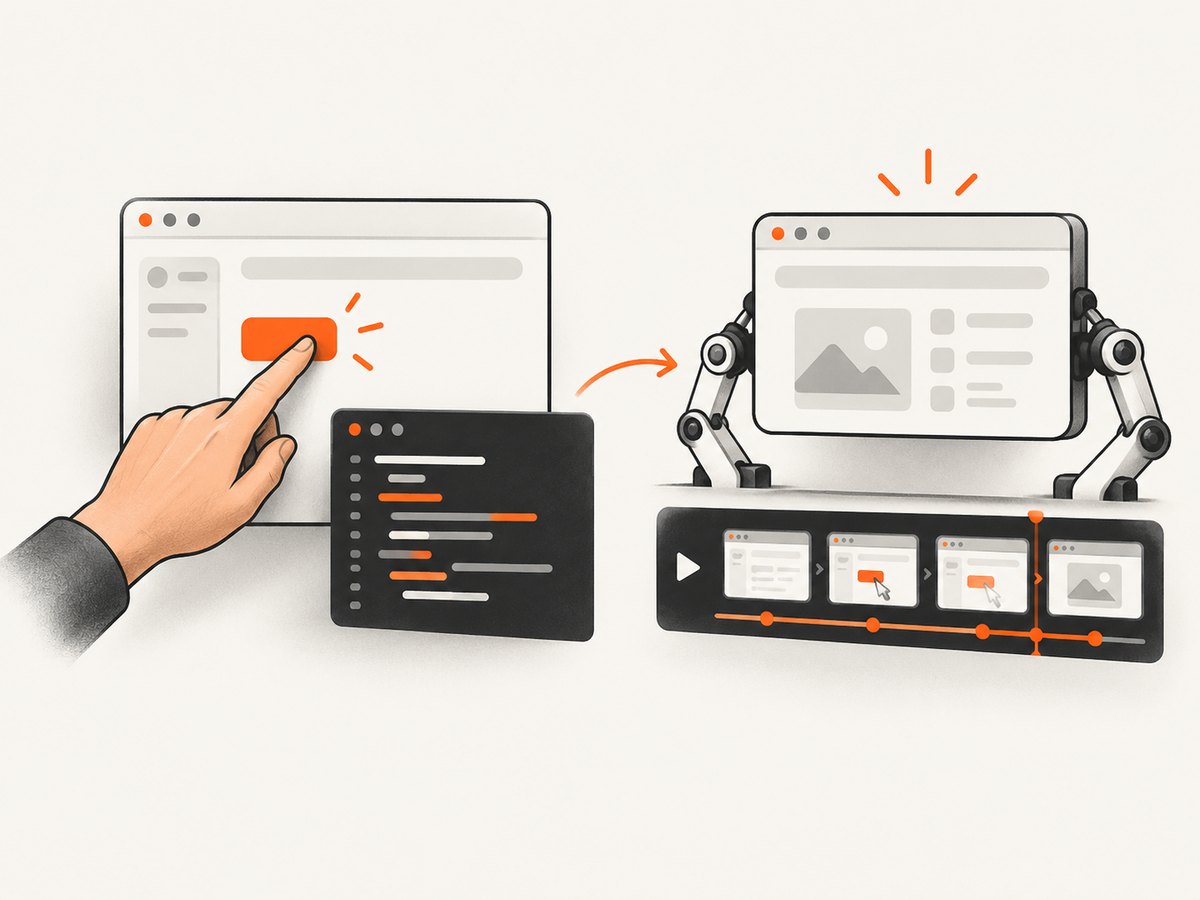
Playwright Java 1.59 introduced a dedicated screencast API. It is useful when only part of a test should be recorded, or when you want action titles and interaction highlights. Start the screencast immediately before the explanation, perform the actions, then stop it after the final assertion.
import com.microsoft.playwright.*;
import java.nio.file.*;

public class AnnotatedRun {
  public static void main(String[] args) {
    try (Playwright pw = Playwright.create()) {
      Browser browser = pw.chromium().launch(
          new BrowserType.LaunchOptions().setHeadless(false));
      Page page = browser.newPage(
          new Browser.NewPageOptions().setViewportSize(960, 640));

      page.navigate("https://example.com/");
      page.screencast().start(
          new Page.ScreencastStartOptions()
              .setOutputPath(Paths.get("videos/annotated.webm")));

      page.screencast().showActions();
      page.getByRole(AriaRole.LINK).first().click();
      page.screencast().showActions();

      page.screencast().stop();
      browser.close();
    }
  }
}
Keep the API version aligned with the Playwright release that provides Page.screencast(). If your installed library does not expose it, use BrowserContext video, or upgrade the dependency and browser binaries together. The context recorder is usually simpler for “one video per test”; the screencast API is better for a curated segment.
Generate Java tests from browser actions with Codegen
Playwright Codegen opens a browser and Playwright Inspector. Click, fill, and assert in the browser; Inspector generates starter code and suggests locators. Select Java as the target and copy the result into your JUnit test. Codegen is an authoring recorder, so it does not produce an execution video by itself.
npx playwright codegen --target=java https://example.comAfter copying the generated code:
- Replace fragile text or positional locators with role, label, or test-id locators.
- Move setup into
@BeforeAlland create a new context in each test. - Add assertions that describe the expected result.
- Enable video recording on that context.
- Run the test with the headed option when preparing the screencast.
Show the browser while a JUnit test runs
A visible browser and a saved video are independent settings. Use setHeadless(false) for the window. Use context video or screencast for the file. JUnit controls lifecycle and reporting; it does not itself capture browser frames.
@Test
void visibleRunWithFailureArtifact() {
  BrowserContext context = browser.newContext(
      new Browser.NewContextOptions()
          .setViewportSize(1280, 720)
          .setRecordVideoDir(Paths.get("artifacts/videos")));
  try {
    Page page = context.newPage();
    page.navigate("https://example.com/");
    Assertions.assertTrue(page.title().contains("Example"));
  } finally {
    context.close();
  }
}
When the screencast needs to show source code, logs, failures, and duration, run the test from IntelliJ IDEA. IntelliJ recognizes Selenium, Cypress, and Playwright tests for run and debug workflows starting with IntelliJ IDEA 2023.3. Arrange the editor and Run tool window beside the browser, then keep the scenario short enough that the important output remains visible.
Selenium alternative for existing Java suites
Selenium supports automation of the major browsers through WebDriver. If your organization already uses Selenium Grid, shared page objects, and JUnit or TestNG, keep that infrastructure and add recording around the test process. Selenium IDE can record and play back interactions, but the cited Selenium documentation does not establish a built-in Java video recorder.
A practical Selenium workflow is:
- Use Selenium IDE or a manual scenario to identify the steps.
- Implement the stable steps in Java WebDriver.
- Run the test in a headed browser when viewers need to see it.
- Capture video with an approved external recorder or the browser infrastructure used by your CI provider.
- Save screenshots, logs, and the test result alongside the video.
Do not describe Selenium IDE’s action recording as execution video. It creates test steps; it does not automatically prove that every later run succeeded on screen.
Deterministic recordings and parallel execution
A useful screencast explains one repeatable path. Use a stable page, fixed test data, a known viewport, and a clean context. Avoid live dashboards whose content changes during the recording. Stub or seed data where your application permits it.
Parallel JUnit execution needs deliberate isolation. Give each test its own context and output directory, and avoid mutable static page objects. If the machine cannot display several headed browsers reliably, record in a single worker even if the normal test suite runs in parallel. Keep the production test settings separate from the slower, headed demonstration profile.
Common errors and fixes
| Symptom | Cause | Fix |
|---|---|---|
| No browser window appears | Playwright is headless by default | Launch with setHeadless(false); ensure the machine has a display. |
| Video file is missing or unreadable | The context was not closed | Close the context in finally; read video.path() after closure. |
| Only part of the test is recorded | Screencast started after the first actions | Start it before the segment you want, or use context recording for the entire test. |
| Codegen command is unavailable | Playwright CLI or browser binaries are not installed | Install the project dependencies and run the CLI from the project environment. |
| Text is too small | Viewport or recording dimensions are too large for the output | Use a deliberate recording size, increase scale in the player, or choose a smaller viewport. |
| Parallel videos overwrite each other | Workers share one directory or filename | Use worker-specific directories and include the test name in artifact naming. |
| Actions race the page | Fixed sleeps are being used instead of readiness checks | Wait for locators, assertions, or network/application readiness. |
| Headed mode fails in CI | No display server is available | Run with a CI display setup, or use headless recording for artifacts and headed mode locally. |
Performance, reliability, and storage
Recording adds disk writes and increases artifact size. Use a short scenario, a deliberate viewport, and a format supported by your review workflow. Keep videos as failure artifacts when storage is limited, and retain logs and screenshots for quick diagnosis. A slow-motion setting is for communication, not benchmarking; never compare test timing with setSlowMo enabled.
For reliable artifacts, close contexts even on assertion failure, wait for the final state before stopping the screencast, and record the browser and Playwright versions in CI metadata. Treat a video as supporting evidence: assertions, trace data, console logs, and network diagnostics still explain why a test passed or failed.
Or skip the browser setup
If you need a clean image or PDF of a page produced by your test, ScreenshotNeo provides a single HTTP request. Its capture API accepts a URL and can return PNG, JPEG, WebP, or PDF. It can load lazy images, capture a CSS-selected element, emulate dark mode and device presets, set a viewport and retina scale, run custom CSS or JavaScript, click an element, wait for a selector, delay, or network idle, and use custom headers, cookies, user agents, authorization, timezone, and geolocation.
Cookie banners, newsletter popups, and chat widgets are removed before the shot. Bot checks, blank pages, timeouts, failed loads, and cache hits are not billed, and response headers identify the page verdict and whether the request was billed. ScreenshotNeo also has an MCP server with take_screenshot, get_page_info, and capture_pdf tools for Claude, Cursor, and other MCP clients.
See the ScreenshotNeo API documentation for all options. The same parameter names used by other screenshot APIs are accepted, which helps when moving an existing integration.
cURL
curl -G "https://api.screenshotneo.com/v1/shot" \
  -d access_key=YOUR_API_KEY \
  --data-urlencode url=https://stripe.com \
  -o shot.webp
Python
import requests

r = requests.get(
    "https://api.screenshotneo.com/v1/shot",
    params={"access_key": "YOUR_API_KEY", "url": "https://stripe.com"},
    timeout=90,
)
r.raise_for_status()
open("shot.webp", "wb").write(r.content)
Node.js
const q = new URLSearchParams({
  access_key: 'YOUR_API_KEY',
  url: 'https://stripe.com'
});
const res = await fetch(`https://api.screenshotneo.com/v1/shot?${q}`);
if (!res.ok) throw new Error(`HTTP ${res.status}`);
require('fs').writeFileSync('shot.webp', Buffer.from(await res.arrayBuffer()));
ScreenshotNeo includes 1,000 screenshots per month free with no card. Paid plans start at $5 for 3,000 shots; yearly billing gives two months free, and every feature is included on every plan. Create a free ScreenshotNeo account.
FAQ
Can Playwright Java save a video for every test?
Yes. Create each test’s browser context with setRecordVideoDir, then close that context. The video is finalized at context closure.
Does Codegen record a video?
No. Codegen records browser actions and assertions into starter Java code. Use BrowserContext video or Page.screencast for execution video.
Should I use BrowserContext video or Page.screencast?
Use context video for a complete test artifact. Use Page.screencast when you need explicit start and stop control or action annotations.
Can I record Selenium tests with this Playwright API?
No. Playwright’s recording APIs belong to Playwright. Selenium teams need their existing recording solution or an external capture layer.
Why is my video path unavailable immediately?
Playwright finalizes context videos when the browser context closes. Read the path after context.close().


