How to Screenshot a Tweet Online
Capture a tweet on Windows, Mac, iPhone, or with an API, then preserve context, privacy, and the original post URL.

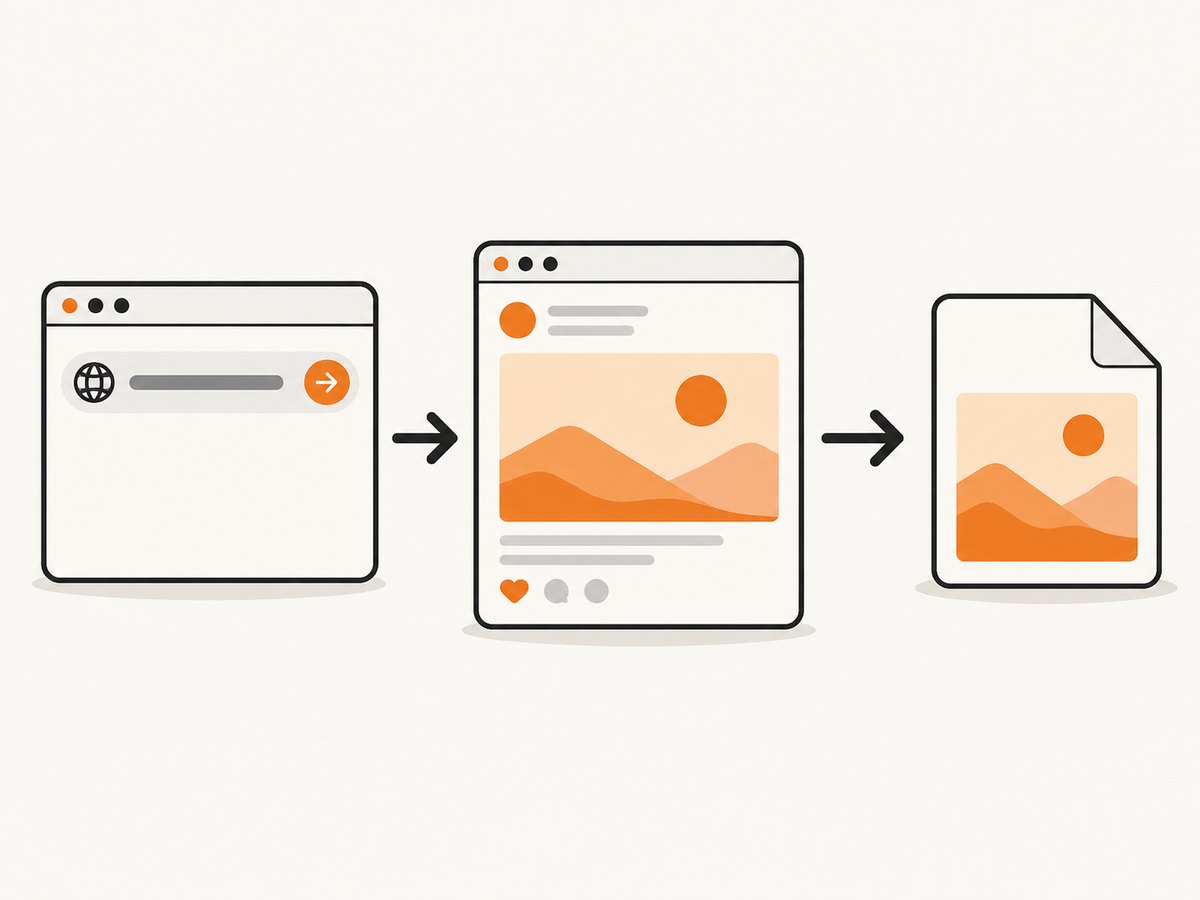
Direct answer: Open the tweet in X or a browser, bring the post into view, and use your device’s built-in capture control. On Windows, press Windows+Shift+S and select the post. On Mac, press Shift-Command-4 and drag around it. On most iPhones, press and quickly release the side button and volume-up button together. If the post continues below the screen, use Safari’s Full Page option where it is available. Save the image and keep the original post URL beside it.
Choose the right kind of tweet screenshot
Before capturing, decide how much context the image should preserve. A focused crop is easier to read and useful for a presentation or article. A wider capture keeps the account name, timestamp, navigation, and surrounding page context visible. For documentation, retain both: an unedited original and any cropped copy used for publishing.
| Goal | Best capture | Why |
|---|---|---|
| Share a readable quote | Focused region | Removes unrelated browser chrome and enlarges the post. |
| Show who posted it | Post plus account header | Keeps the handle, avatar, and visible timestamp in frame. |
| Preserve a long thread or post | Full-page capture | Includes content below the initial viewport where the browser supports it. |
| Document a disputed claim | Original wide capture plus URL | Leaves a record of context that a crop could omit. |
How to screenshot a tweet on Windows
- Open the tweet in X, or open its direct URL in your browser. Wait until the text, media, account name, and timestamp you need are visible.
- Press Windows+Shift+S. The screen dims and the Snipping Tool capture bar appears.
- Choose a rectangular snip for a normal post, a freeform snip for an irregular area, a window snip for the browser window, or a full-screen snip for everything visible.
- Drag around the tweet. Include the account name and timestamp when they matter to your record. Avoid including private messages, notification previews, or unrelated tabs.
- Select the notification preview to open the snip in Snipping Tool, then save it as PNG or JPEG. Give it a descriptive filename such as
account-post-2026-09-29.png.
For a scrolling page, the built-in rectangular snip captures only what is currently visible. Scroll and take additional captures, or use a browser extension or automation tool that supports full-page rendering. Keep the separate images in order if you need to show a thread.
How to screenshot a tweet on Mac
- Open the tweet and position the page so the content you want is readable.
- Press Shift-Command-4. The pointer becomes a crosshair.
- Drag from one corner of the desired area to the opposite corner, then release. The image is normally saved to the desktop.
- For the entire screen, press Shift-Command-3. For additional controls, press Shift-Command-5 to open Screenshot, where you can select a window, screen, or recording option.
- Rename or move the image, and keep the direct post URL in the same folder or in your notes.
A selected-region capture usually gives the best balance: the post remains legible while irrelevant browser controls are excluded. If a post is taller than the viewport, use a full-page browser capture or take multiple overlapping regions so no lines are cut off.
How to screenshot a tweet on iPhone
- Open the post in the X app or Safari and wait for images and text to finish loading.
- On Face ID iPhones, press and quickly release the side button and volume-up button at the same time. On models with a Home button, press the side button and Home button together.
- Tap the screenshot thumbnail that appears in the lower-left corner if you want to mark up or crop it immediately. Otherwise, it is saved in Photos.
- In Safari, tap the thumbnail and choose Full Page when you need the entire webpage rather than only the visible screen. Review the preview, crop if necessary, and save it as an image or PDF according to the available options.
Full Page applies to a Safari webpage. It is not a guarantee that an entire scrolling view inside every app will be captured. For a thread in the X app, capture each relevant post or open the thread in Safari and use the browser’s full-page option.
Capture a tweet from a browser with more control
Browser developer tools and extensions can help when you need repeatable dimensions, a full-page image, or a capture of one element. The general workflow is:
- Open the direct post URL in a private window or a normal session, depending on whether the post requires login.
- Dismiss consent banners and close overlays that cover the post. Record which overlays were present if the capture is evidence.
- Set the browser viewport to the required width and zoom level. A consistent viewport makes later captures comparable.
- Capture the visible area or use a full-page command. Inspect the resulting image for missing media, clipped text, and fixed headers repeated down the page.
- Store the image, the URL, the capture time, and any relevant account or thread context together.
Do not assume that a screenshot proves authenticity. It records a visual rendering at one moment; it does not independently establish who authored the post, whether the image was edited, whether the post was later changed or deleted, or what replies were omitted. Research on extracting text, handles, and timestamps from screenshots describes a way to search for a possible original or archive, not proof that every screenshot is genuine. For careful documentation, preserve the live URL, an unmarked original, and independent corroborating records where possible.
Privacy and sharing checklist
- Check every visible area for phone numbers, email addresses, private messages, location details, account tokens, and notification previews.
- Crop or redact sensitive material in a separate publication copy. Keep the untouched original access-controlled.
- Review images and replies for information that the person did not intend to be redistributed.
- X’s policy says:
X prohibits sharing someone’s private information or media without their consent, a practice known as doxxing.
Check the current policy before publishing and consider consent and local requirements. - Keep the direct URL and capture time with the image so readers can inspect the source.
An X account holder can also request an account archive, which is a downloadable HTML and JSON snapshot that may include their own posts and attached media. It is an account-data export, not a method for capturing somebody else’s post and not a guarantee that all live context remains available.
Or skip the browser setup
For an automated workflow, ScreenshotNeo returns a screenshot or PDF from one GET request. Its capture pipeline accepts consent banners and removes more than 60 known consent platforms, newsletter popups, and chat widgets before the shot; each step can be disabled. Bot checks, CAPTCHAs, blank pages, timeouts, failed loads, and cache hits are not billed, and the response identifies the page verdict and billing result in X-Page-Verdict and X-Billed headers.
See the ScreenshotNeo documentation for the complete parameter list. The following examples capture a public page containing the tweet. Replace the URL with the direct post URL you want to preserve.
cURL
curl -G "https://api.screenshotneo.com/v1/shot" \
  -d access_key=YOUR_API_KEY \
  --data-urlencode url=https://stripe.com \
  -o shot.webp
Python
import requests

r = requests.get(
    "https://api.screenshotneo.com/v1/shot",
    params={"access_key": "YOUR_API_KEY", "url": "https://stripe.com"},
    timeout=90,
)
r.raise_for_status()
open("shot.webp", "wb").write(r.content)
Node.js
const q = new URLSearchParams({
  access_key: 'YOUR_API_KEY',
  url: 'https://stripe.com'
});
const res = await fetch(`https://api.screenshotneo.com/v1/shot?${q}`);
if (!res.ok) throw new Error(`Screenshot failed: ${res.status}`);
const image = Buffer.from(await res.arrayBuffer());
await Bun.write('shot.webp', image);
ScreenshotNeo supports PNG, JPEG, WebP, and PDF output. Relevant options include full-page capture with lazy images loaded, a CSS selector for capturing one element, dark mode, 12 device presets or a custom viewport, retina scale, custom CSS and JavaScript, clicks before capture, hiding selectors, waits for a selector, delay, or network idle, and blocking ads, trackers, requests, or resource types. You can also provide custom headers, cookies, a user agent, an Authorization header, timezone, geolocation, a transparent background, image resizing, and a cache TTL you choose.
For longer workflows, use asynchronous jobs with signed webhooks. Bulk capture accepts up to 100 URLs per call. Signed links are available for public <img> tags, and a usage API and OpenAPI specification support integration work. An MCP server exposes take_screenshot, get_page_info, and capture_pdf for Claude, Cursor, and other MCP clients, so an AI agent can request captures without a custom browser integration.
ScreenshotNeo is free for 1,000 shots per month with no card. Paid plans start at $5 for 3,000 shots; yearly billing gives two months free, and every feature is included on every plan. Create a free ScreenshotNeo account to try the API.
Troubleshooting
| Problem | Likely cause | Fix |
|---|---|---|
| The tweet is cut off | The capture covered only the viewport or ended at a fixed header. | Scroll farther, use a full-page capture, or select the post element instead of the window. |
| Text is blurry | The page was zoomed out or the image was enlarged after capture. | Capture at the intended display size, use a retina scale or a wider crop, and avoid repeated re-encoding. |
| A cookie banner covers the post | The site has not stored consent for the current session. | Accept or dismiss the banner before a manual capture, or use a capture service that handles consent before rendering. |
| An image or video is missing | The asset has not loaded, requires login, or was blocked by a privacy extension. | Wait for the media, check the session, disable the conflicting blocker for the capture, or add a selector/network-idle wait in automation. |
| The page shows a bot check or CAPTCHA | The site challenged the browser or automation request. | Do not attempt to bypass a challenge. Capture a permitted visible page manually, or record the failed result and try later. |
| The URL returns a deleted or unavailable post | The post changed visibility, was deleted, or requires an account. | Keep the error response and original URL; check an authorized archive or account export where appropriate. |
| Full Page is unavailable on iPhone | The content is inside an app or is not a Safari webpage. | Open the URL in Safari, capture visible sections separately, or use an approved automation workflow. |
| ScreenshotNeo returns an error | The key, URL encoding, timeout, or target response is invalid. | Verify YOUR_API_KEY, URL-encode query values, use a timeout of at least 90 seconds in clients, and inspect the HTTP status and verdict headers. |
Performance, reliability, and cost considerations
- Keep captures deterministic: use a fixed viewport, device preset, timezone, user agent, and wait condition when comparing screenshots over time.
- Reduce unnecessary work: capture a CSS selector when you need only the post; block ads, trackers, or unrelated resource types; and use a cache TTL for repeated URLs.
- Handle slow pages: wait for a specific post selector or network idle instead of relying only on a short delay. Lazy-loaded media may require full-page capture or an explicit scroll behavior.
- Check billing headers: a clean screenshot is billed according to your plan, while bot checks, blank pages, timeouts, failed loads, and cache hits are not billed. Store
X-Page-VerdictandX-Billedwith job logs. - Use asynchronous jobs for volume: signed webhooks avoid holding an HTTP request open, and bulk capture handles up to 100 URLs per call.
- Preserve originals: never overwrite the first capture with a cropped or annotated copy. Store hashes or immutable object versions if the image supports a formal record.
FAQ
Can I screenshot a tweet without logging in?
Only if the post and its media are publicly viewable in the page you opened. A screenshot cannot grant access to a protected account or a post that requires authentication.
Should I include the tweet URL in the image?
Include the URL in the surrounding documentation or filename. Add it inside the image only when readers need a self-contained reference; keep an uncropped copy either way.
Is a screenshot legal evidence?
The research available for this guide does not establish jurisdiction-specific evidence rules. A screenshot alone does not verify authorship or completeness. Preserve the URL, time, original file, and corroborating records, then obtain local legal advice for a dispute.
What format should I use?
PNG is useful for crisp text and annotations; JPEG is smaller for photographic media; WebP can reduce size when your destination supports it. Use PDF when you need a document-style full-page record.
Can an AI agent capture tweets automatically?
With an approved URL and access, an MCP client such as Claude or Cursor can call ScreenshotNeo’s take_screenshot tool. Configure authentication and respect the target site’s access and privacy rules.


