How to Take a Screenshot of an Active Page Element with Python
Use Playwright locators to capture one live page element in Python, with reliable waits, formats, troubleshooting, and a no-browser API option.

Use a Playwright locator and call its screenshot() method:
page.locator('.header').screenshot(path='screenshot.png')The locator screenshot is clipped to the matched element’s bounds. Playwright waits for the locator to be actionable and scrolls it into view. For a viewport or entire page, use page.screenshot() or page.screenshot(full_page=True). See the official Playwright screenshots guide and Locator API.
1. Install Playwright
python -m pip install playwright
python -m playwright install chromium
The browser installation is separate from the Python package. A missing browser executable usually means the second command was not run in the active environment.
2. Complete synchronous example
from pathlib import Path
from playwright.sync_api import sync_playwright

URL = 'https://example.com'
OUTPUT = Path('element.png')

with sync_playwright() as p:
    browser = p.chromium.launch()
    page = browser.new_page(
        viewport={'width': 1280, 'height': 800},
        device_scale_factor=1,
    )
    page.goto(URL, wait_until='domcontentloaded')

    target = page.get_by_role('heading', name='Example Domain')
    target.screenshot(path=str(OUTPUT), animations='disabled')

    browser.close()
get_by_role() is a semantic locator. Playwright also supports text, label, placeholder, alt text, title, test ID, CSS, and XPath locators. Prefer a stable semantic or test-specific locator where one exists.

3. Async version
import asyncio
from playwright.async_api import async_playwright

async def main():
    async with async_playwright() as p:
        browser = await p.chromium.launch()
        page = await browser.new_page(viewport={'width': 1280, 'height': 800})
        await page.goto('https://example.com', wait_until='domcontentloaded')
        await page.get_by_role('heading', name='Example Domain').screenshot(
            path='element.png', animations='disabled'
        )
        await browser.close()

asyncio.run(main())
In an existing async application, await the function from your event loop instead of calling asyncio.run().
4. Select and wait for the active element
# CSS class
page.locator('.header').screenshot(path='header.png')

# Test hook
page.get_by_test_id('profile-card').screenshot(path='profile.png')

# Accessible role and name
page.get_by_role('button', name='Save').screenshot(path='save.png')

# Label or visible text
page.get_by_label('Email').screenshot(path='email.png')
page.get_by_text('Order total').screenshot(path='total.png')
Locators retry while the page changes. If several nodes match, narrow the result deliberately:
cards = page.locator('.card')
print(cards.count())
cards.nth(0).screenshot(path='first-card.png')
Wait for a meaningful state rather than an arbitrary delay:
target = page.locator('[data-state="ready"]')
target.wait_for(state='visible')
target.screenshot(path='ready.png')
domcontentloaded only indicates that initial HTML parsing finished. Data, fonts, and images may still be loading.
5. Screenshot options
| Option | Purpose |
|---|---|
path |
Writes the image to a file. |
type |
png, jpeg, or webp. |
quality |
JPEG/WebP quality where supported. |
animations='disabled' |
Stops CSS and Web Animations for repeatable captures. |
omit_background=True |
Requests transparency where supported. |
mask=[locator] |
Masks changing or sensitive regions. |
target.screenshot(
    path='card.webp',
    type='webp',
    quality=85,
    animations='disabled',
)
The element is captured at its rendered size. Set the context viewport and device_scale_factor before navigation when dimensions or pixel density must be consistent.
6. What is captured
- Only pixels inside the matched element’s bounding box.
- Playwright scrolls the element into view.
- Overlays, modals, consent banners, and sticky layers can cover the pixels in the output.
- A scrollable container shows its current scroll position; overflow content is not automatically stitched.
- If a framework removes the node during capture, the locator can fail with a detached-element error.
For the current viewport:
page.screenshot(path='viewport.png')For the complete scrollable document:
page.screenshot(path='full-page.png', full_page=True)7. Edge cases
Hidden or zero-size elements
Wait for visible, trigger the state that reveals the component, or capture a visible ancestor.
Lazy-loaded images
target.scroll_into_view_if_needed()
page.wait_for_function(
    """el => [...el.querySelectorAll('img')].every(img => img.complete)""",
    target,
)
target.screenshot(path='loaded.png')
Fonts and layout shifts
page.evaluate('document.fonts.ready')
page.locator('.content-ready').wait_for(state='visible')
Cross-origin frames
frame = page.frame(url=lambda u: u and 'checkout' in u)
frame.locator('.receipt').screenshot(path='receipt.png')
Wait for the frame URL or a selector if the frame has not loaded yet. Browser security rules still apply.
Scrollable components
Scroll and capture segments when all rows are required. A locator screenshot does not create a full image of overflowing content.
8. Troubleshooting
| Symptom | Cause | Fix |
|---|---|---|
| Timeout waiting for locator | Selector never matches or page is not ready. | Check locator.count(), the URL, and readiness condition. |
| Strict mode violation | Multiple nodes match. | Narrow by role/name, filter by text, or intentionally select an index. |
| Element is not visible | Hidden, zero-sized, or closed UI state. | Open it, wait for visibility, or capture its visible container. |
| Element detached | Framework rerendered the node. | Wait for final state and reacquire the locator immediately before capture. |
| Image is covered | Modal, banner, or sticky layer overlays it. | Dismiss the overlay before calling screenshot(). |
| Browser executable missing | Browser binaries were not installed. | Run python -m playwright install chromium. |
| Blank or partial image | Data, fonts, or images arrive after navigation. | Wait for an application readiness selector and resource completion. |
9. Performance and reliability
- Reuse one browser process and create pages or contexts per job.
- Keep selectors specific and stable.
- Disable animations for visual regression or repeated captures.
- Set explicit navigation and locator timeouts.
- Close pages, contexts, and browsers in cleanup code.
- Use PNG for lossless comparison; use JPEG or WebP when smaller files are more useful.
- Capture only the required element to reduce bytes and processing.
Timing depends on navigation, JavaScript, network requests, fonts, and image decoding. A state-based readiness condition is more reliable than a fixed sleep.
10. Or skip the browser setup
ScreenshotNeo captures a page or CSS-selected element through one request, so your service does not need to package or operate a browser. See the ScreenshotNeo API documentation.
curl -G "https://api.screenshotneo.com/v1/shot" -d access_key=YOUR_API_KEY --data-urlencode url=https://stripe.com -o shot.webpimport requests
r = requests.get("https://api.screenshotneo.com/v1/shot", params={"access_key": "YOUR_API_KEY", "url": "https://stripe.com"}, timeout=90)
open("shot.webp", "wb").write(r.content)const q = new URLSearchParams({ access_key: 'YOUR_API_KEY', url: 'https://stripe.com' });
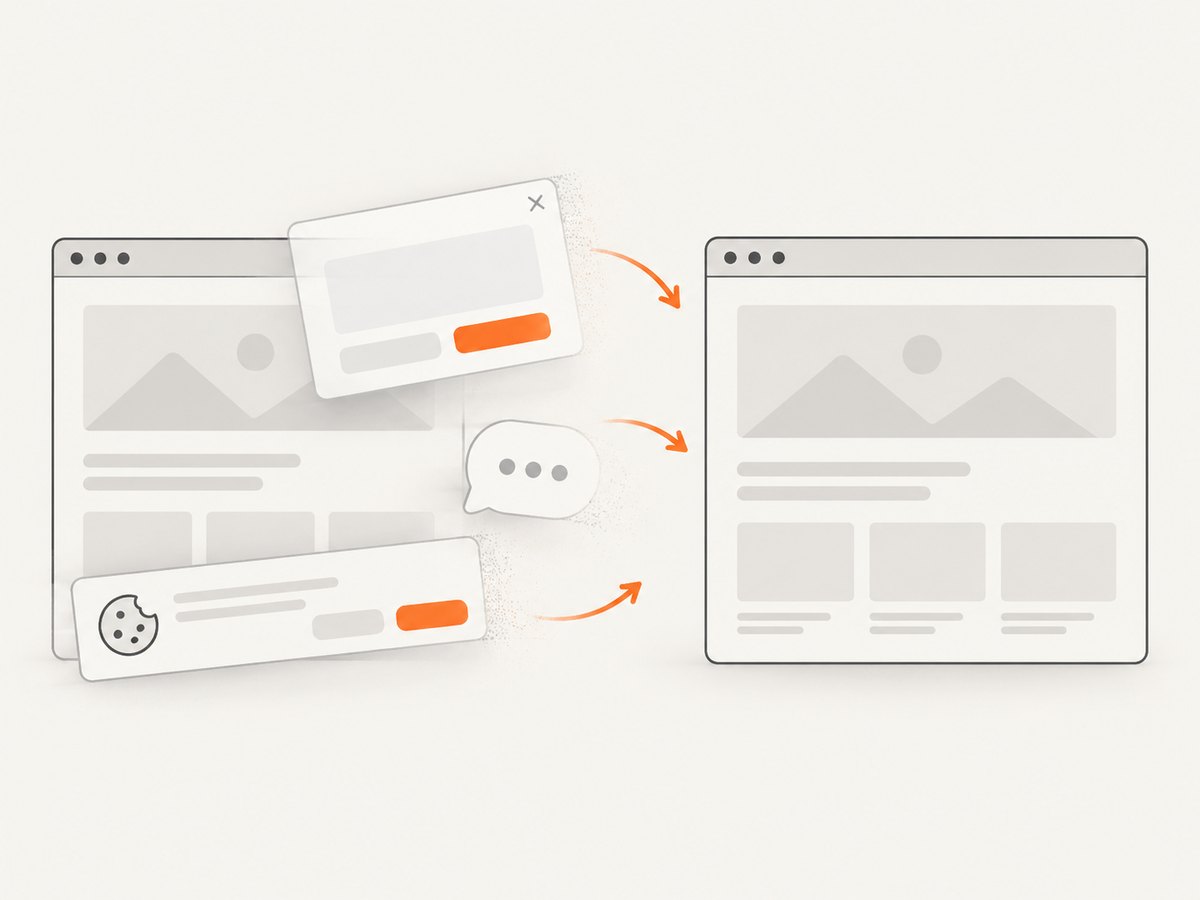
const res = await fetch(`https://api.screenshotneo.com/v1/shot?${q}`);Cookie and consent banners, newsletter popups, and chat widgets are removed before the shot. Bot checks, blank pages, timeouts, failed loads, and cache hits are not billed, and response headers identify the page verdict and billing status. Its MCP server provides take_screenshot, get_page_info, and capture_pdf for Claude, Cursor, and other MCP clients. The Free plan includes 1,000 screenshots per month with no card; paid plans start at $5 for 3,000.
Create a free ScreenshotNeo account.
11. FAQ
Can I get bytes instead of saving a file?
Yes. Omit path; Playwright returns screenshot bytes.
Does a locator screenshot include hidden overflow?
No. It captures the element’s rendered box and current visible pixels.
Should I use CSS or role locators?
Use the most stable locator available. Semantic role and name locators are often resilient; CSS or XPath works for structural or test-specific hooks.
How do I capture the whole page?
Use page.screenshot(full_page=True); that is a page screenshot rather than a locator screenshot.


