How to Screenshot All Pages of a Website
Learn how to capture one full webpage or every URL on a site with Firefox, Playwright, Puppeteer, and ScreenshotNeo.
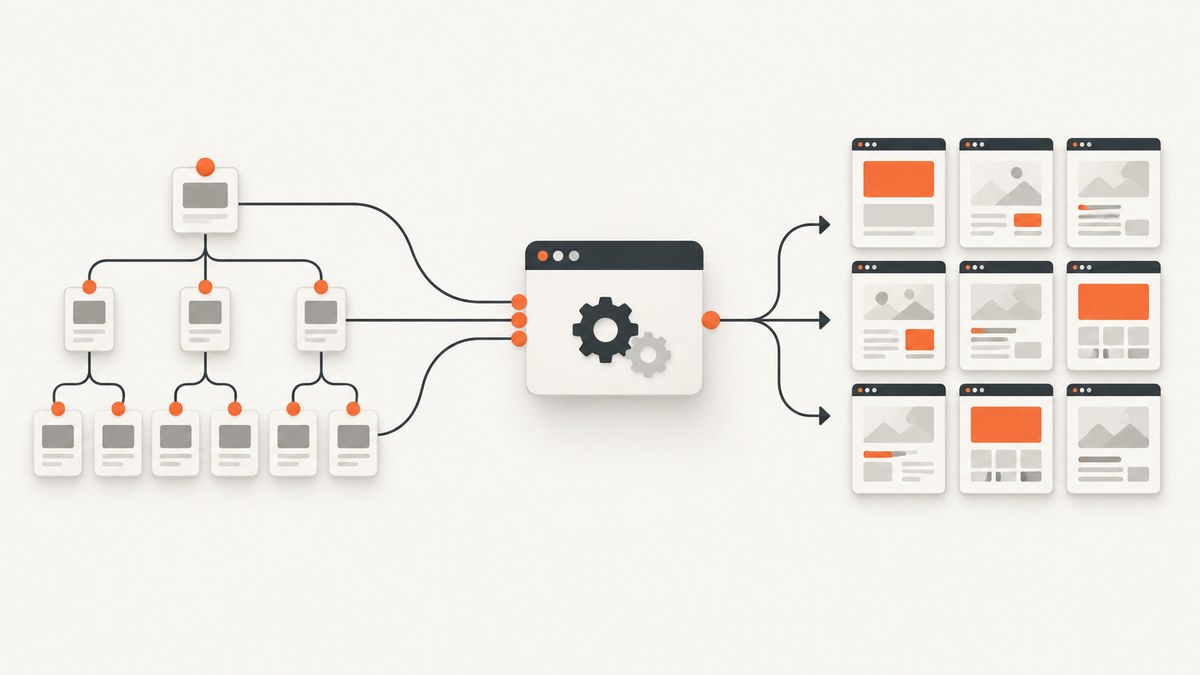
Short answer: For one long page, use Firefox’s Take Screenshot → Save full page. For repeated captures or an entire site, discover the URLs, put them in a queue, open each URL with browser automation, wait for content to render, and save a full-page screenshot with Playwright or Puppeteer. A full-page flag captures one scrollable document; it does not discover every URL on a website.
This guide covers one-off captures, automated whole-site jobs, authentication, lazy loading, infinite scroll, file naming, reliability, troubleshooting, and a hosted alternative.
1. Decide what “all pages” means
| Goal | Best method | What it actually captures |
|---|---|---|
| One long article or landing page | Firefox full-page screenshot | The complete scrollable document |
| Repeated captures of known URLs | Playwright or Puppeteer | One screenshot per URL |
| Every public page on a site | URL discovery plus a crawl queue and browser automation | All URLs your discovery rules find |
| Authenticated or regional pages | Browser automation with saved session state | Pages visible to that session |
A full-page screenshot is not a crawler. A whole-site capture needs URL discovery, deduplication, scope rules, concurrency limits, retries, and a naming convention.
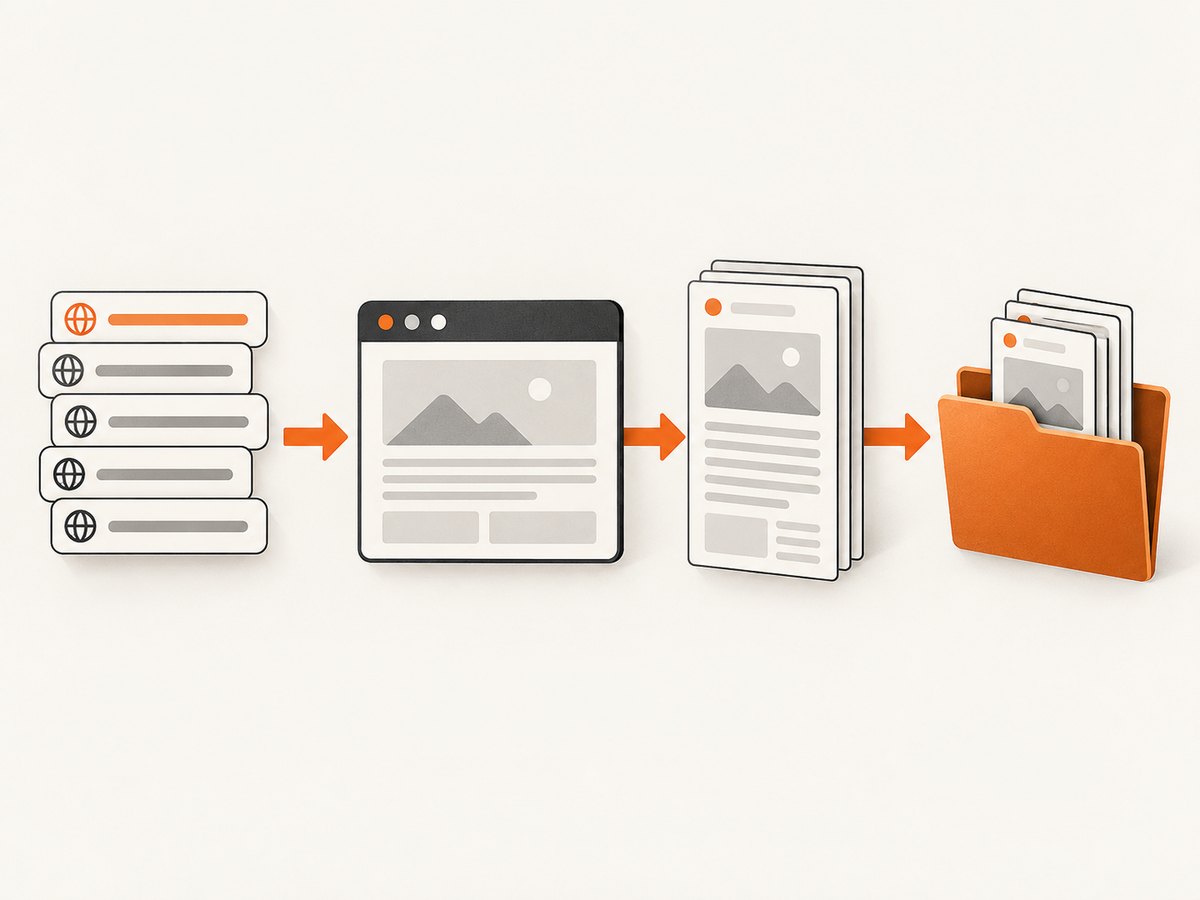
2. Capture one page in Firefox
- Open the page in Firefox.
- Open the page context menu and choose Take Screenshot.
- Choose Save full page, then save the image.
If the command is missing, open Developer Tools, open the toolbox-button settings, and enable the entire-page screenshot button. Firefox documents both the right-click flow and the DevTools button configuration in its screenshot documentation.
Firefox Support: Take screenshots · Firefox DevTools screenshot documentation
This is ideal for a single manual capture. It has no URL queue, repeatable viewport configuration, or automatic handling for dozens of pages.
3. Automate full-page screenshots with Playwright
Playwright defines a full-page screenshot as the complete scrollable page. The API call is page.screenshot({ path: 'screenshot.png', fullPage: true }).
Install
npm init -y
npm install playwright
npx playwright install chromium
Capture one URL
const { chromium } = require('playwright');

(async () => {
  const browser = await chromium.launch();
  const page = await browser.newPage({ viewport: { width: 1440, height: 900 }, deviceScaleFactor: 1 });
  await page.goto('https://example.com', { waitUntil: 'networkidle', timeout: 60000 });
  await page.screenshot({ path: 'example-full.png', fullPage: true, type: 'png' });
  await browser.close();
})();Capture every discovered URL
const { chromium } = require('playwright');
const fs = require('node:fs/promises');
const { URL } = require('node:url');

const start = 'https://example.com/';
const origin = new URL(start).origin;
const maxPages = 200;
const queue = [start];
const seen = new Set();

function filename(rawUrl) {
  const u = new URL(rawUrl);
  const path = (u.pathname === '/' ? 'home' : u.pathname)
    .replace(/^\/+|\/+$/g, '')
    .replace(/[^a-z0-9]+/gi, '-');
  return `${path || 'home'}-${Buffer.from(rawUrl).toString('base64url').slice(0, 8)}.png`;
}

(async () => {
  await fs.mkdir('screenshots', { recursive: true });
  const browser = await chromium.launch();
  const page = await browser.newPage({ viewport: { width: 1440, height: 900 } });

  while (queue.length && seen.size < maxPages) {
    const raw = queue.shift();
    const url = new URL(raw);
    url.hash = '';
    const normalized = url.href;
    if (url.origin !== origin || seen.has(normalized)) continue;
    seen.add(normalized);

    try {
      const response = await page.goto(normalized, { waitUntil: 'domcontentloaded', timeout: 60000 });
      if (!response || !response.ok()) continue;
      await page.waitForLoadState('networkidle', { timeout: 15000 }).catch(() => {});
      await page.screenshot({ path: `screenshots/${filename(normalized)}`, fullPage: true, type: 'png' });

      const links = await page.locator('a[href]').evaluateAll(anchors =>
        anchors.map(a => a.href).filter(Boolean)
      );
      for (const href of links) {
        const next = new URL(href);
        next.hash = '';
        if (next.origin === origin && !seen.has(next.href)) queue.push(next.href);
      }
    } catch (error) {
      console.error(`Failed ${normalized}:`, error.message);
    }
  }

  await browser.close();
  console.log(`Captured ${seen.size} URL(s)`);
})();
This example stays on the same origin, removes URL fragments, limits the crawl to 200 pages, skips non-success responses, waits for the network to settle when possible, and writes deterministic filenames. Add rules for canonical URLs, query parameters, robots policy, sitemaps, authentication, and content types before using it on a production site.
Playwright options that affect output
| Option | Use |
|---|---|
fullPage: true |
Capture the complete scrollable document instead of only the viewport. |
type: 'png', 'jpeg', or 'webp' |
Choose lossless, compact photographic, or modern compressed output. |
quality |
Set JPEG or WebP quality when supported. |
scale: 'css' |
Keep one output pixel per CSS pixel. |
scale: 'device' |
Use device-pixel output for higher-density captures; files become larger. |
clip |
Capture a controlled rectangle instead of the entire document. |
omitBackground: true |
Use a transparent background where the page allows it. |
The CLI equivalent is:
npx playwright screenshot --full-page --filename=full-page.png https://example.comPlaywright’s CLI supports PNG, JPEG, and WebP output and a --hires device-pixel mode. Use a fixed viewport and scale when screenshots must be compared over time.
4. Use Puppeteer for JavaScript browser automation
Puppeteer provides page screenshots for full pages and element screenshots for a specific region.
npm install puppeteerconst puppeteer = require('puppeteer');
(async () => {
const browser = await puppeteer.launch();
const page = await browser.newPage();
await page.setViewport({ width: 1440, height: 900, deviceScaleFactor: 1 });
await page.goto('https://example.com', { waitUntil: 'networkidle2', timeout: 60000 });
await page.screenshot({ path: 'example-full.png', fullPage: true, type: 'png' });
await browser.close();
})();For one component rather than the document, select it and call elementHandle.screenshot(). This avoids enormous images when the page contains unrelated navigation or footer content.
Puppeteer screenshot guide · Chrome for Developers: Puppeteer
5. Make a whole-site capture complete
Discover URLs
- Start with XML sitemaps when available; they are usually more complete than links on the home page.
- Crawl same-origin links when you need pages absent from the sitemap.
- Normalize fragments, trailing slashes, default ports, and tracking parameters.
- Reject downloads, mail links, JavaScript URLs, logout links, and external origins unless explicitly required.
- Set a maximum URL count and a maximum crawl depth.
Wait for the right state
domcontentloaded only means the initial HTML was parsed. If the screenshot depends on client-rendered content, wait for a known selector, a short delay, or network idle. Prefer a selector that proves the useful content exists over a large arbitrary delay.
await page.goto(url, { waitUntil: 'domcontentloaded' });
await page.locator('[data-page-ready]').waitFor({ state: 'visible', timeout: 30000 });
await page.screenshot({ path, fullPage: true });
Handle lazy loading and infinite scroll
Lazy images may load only after they approach the viewport. A full-page flag does not guarantee that every lazy asset was triggered. For controlled pages, scroll in increments before capture:
await page.evaluate(async () => {
  await new Promise(resolve => {
    let y = 0;
    const step = 700;
    const timer = setInterval(() => {
      window.scrollBy(0, step);
      y += step;
      if (y >= document.documentElement.scrollHeight) {
        clearInterval(timer);
        window.scrollTo(0, 0);
        resolve();
      }
    }, 100);
  });
});
Virtualized lists may render only visible rows. Capture controlled sections or export the underlying data when completeness matters. Nested scroll containers also require targeting the relevant element instead of the root document.
Stabilize the page
await page.addStyleTag({ content: `
  *, *::before, *::after {
    animation: none !important;
    transition: none !important;
    caret-color: transparent !important;
  }
` });
await page.locator('.cookie-banner, .chat-widget, .newsletter-modal').evaluateAll(nodes =>
  nodes.forEach(node => node.remove())
);
Removing overlays is appropriate for a controlled capture context. Keep a record of such changes so the image remains auditable.
6. Authentication, consent, and regional pages
Pages behind login require the same authenticated state a real user would have. In Playwright, save storage state after login and reuse it for the crawl:
const context = await browser.newContext({ storageState: 'auth.json' });
const page = await context.newPage();
Set the correct cookies, headers, user agent, timezone, locale, and geolocation when those values change routing or content. A consent banner, bot check, or regional redirect can otherwise make every screenshot represent the wrong state.
7. Output, performance, and reliability
- File naming: include a URL slug, viewport, capture date, and state identifier. Keep a manifest mapping each filename to the final URL and HTTP status.
- Concurrency: begin with one or two pages per browser context. More workers increase CPU, memory, and the chance of rate limiting.
- Retries: retry transient navigation failures with exponential backoff. Do not retry permanent 4xx responses indefinitely.
- Timeouts: use separate navigation, selector, and screenshot timeouts. A page that never reaches network idle should still be capturable after a verified ready selector.
- Image size: very tall PNGs consume memory and are difficult to review. Use WebP or JPEG for photographic pages, lower device scale, or capture sections.
- Repeatability: fix viewport, timezone, locale, device scale, fonts, and animation state. Store the browser version with the manifest.
- Respect the site: limit request rate, honor access rules that apply to your use, and avoid crawling unbounded query parameters.
8. Troubleshooting
| Symptom | Likely cause | Fix |
|---|---|---|
| Only the visible viewport is saved | The full-page option is missing or false. | Use fullPage: true or the CLI’s --full-page. |
| Images below the fold are blank | Lazy loading never triggered. | Scroll the page, wait for image completion, or use a page-specific ready condition. |
| Pages repeat forever | Fragments or tracking query parameters create new queue entries. | Normalize URLs and remove known tracking parameters before deduplication. |
| Screenshot contains a cookie banner or chat bubble | The overlay is fixed or appears after navigation. | Accept consent where appropriate, wait for it to close, or hide it in a controlled context. |
| Content is missing after a login redirect | No authenticated cookies or storage state. | Log in first and pass the saved storage state to the browser context. |
| Network-idle waits time out | Analytics, websockets, or polling keep requests open. | Wait for a specific selector or use a bounded delay after the content is ready. |
| Very tall captures fail or exhaust memory | The resulting bitmap is too large. | Lower device scale, use WebP/JPEG, or capture sections separately. |
| Rows are missing from a list | The list is virtualized. | Scroll and capture segments, or export the data instead of relying on one image. |
| Wrong language or regional content | Locale, timezone, geolocation, or routing differs. | Set those values explicitly and record them in the manifest. |
9. Or skip the browser setup
ScreenshotNeo is a website screenshot API and MCP server. One GET request returns a PNG, JPEG, WebP, or PDF, with full-page capture, element selectors, device presets, custom CSS and JavaScript, waits, headers, cookies, blocking rules, caching, signed links, async jobs, bulk capture, and a usage API. See the ScreenshotNeo API documentation for all options.

curl -G "https://api.screenshotneo.com/v1/shot" -d access_key=YOUR_API_KEY --data-urlencode url=https://stripe.com -o shot.webpimport requests
r = requests.get("https://api.screenshotneo.com/v1/shot", params={"access_key": "YOUR_API_KEY", "url": "https://stripe.com"}, timeout=90)
open("shot.webp", "wb").write(r.content)const q = new URLSearchParams({ access_key: 'YOUR_API_KEY', url: 'https://stripe.com' });
const res = await fetch(`https://api.screenshotneo.com/v1/shot?${q}`);Cookie banners, newsletter popups, and chat widgets are removed before the shot. Bot checks, blank pages, failed loads, timeouts, and cache hits are not billed, and response headers identify the page verdict and billing result. Its MCP server lets Claude, Cursor, and other MCP clients call take_screenshot, get_page_info, and capture_pdf. The Free plan includes 1,000 shots each month with no card; paid plans start at $5 for 3,000 shots. Create a free ScreenshotNeo account.
10. FAQ
Does “full page” capture every page on a domain?
No. It captures one scrollable document. A whole site requires URL discovery and a crawl queue.
Should I use PNG or JPEG?
Use PNG for sharp text and diagrams. Use JPEG or WebP when smaller files matter and slight compression is acceptable.
Why is a screenshot different on repeated runs?
Dynamic ads, animations, timestamps, fonts, locale, viewport, and authenticated state can change the render. Fix those inputs and disable motion.
Can I capture pages that require login?
Yes, when your automation context has the required authenticated cookies or storage state and the account is permitted to access the pages.
When should I capture sections instead of one giant image?
Use sections for extremely tall pages, virtualized content, nested scroll areas, or workflows where reviewers need focused images.


