How to Screenshot an Entire PDF
Learn what “screenshot an entire PDF” means, how to capture a page or screen, and when to export every page as images or a new PDF.

Short answer: a normal screenshot captures only the PDF page or window currently visible on your screen. It does not automatically scroll through a multi-page document and combine every page into one image. If you need one page or a selected region, use your PDF viewer’s capture tool or your operating system’s screenshot controls. If you need every page as images, use a PDF-to-image export or conversion workflow. If you need to preserve the document, copy or export the PDF itself.
The phrase “entire PDF” can describe several different outputs:
| What you need | Best method | Result |
|---|---|---|
| The visible page or a region | Reader Snapshot or an OS screenshot | One raster image of what is displayed |
| A whole PDF file | Copy or export the PDF | The original document, with pages and text preserved |
| Every page as images | PDF-to-image export/conversion | Usually one image file per page |
| One long image containing all pages | A tool that explicitly supports stitching pages | One tall raster image; not a standard screenshot |
Choosing the right output first prevents blurry captures, missing pages, and unnecessarily large files.
1. Capture part of a PDF in Adobe Acrobat Reader
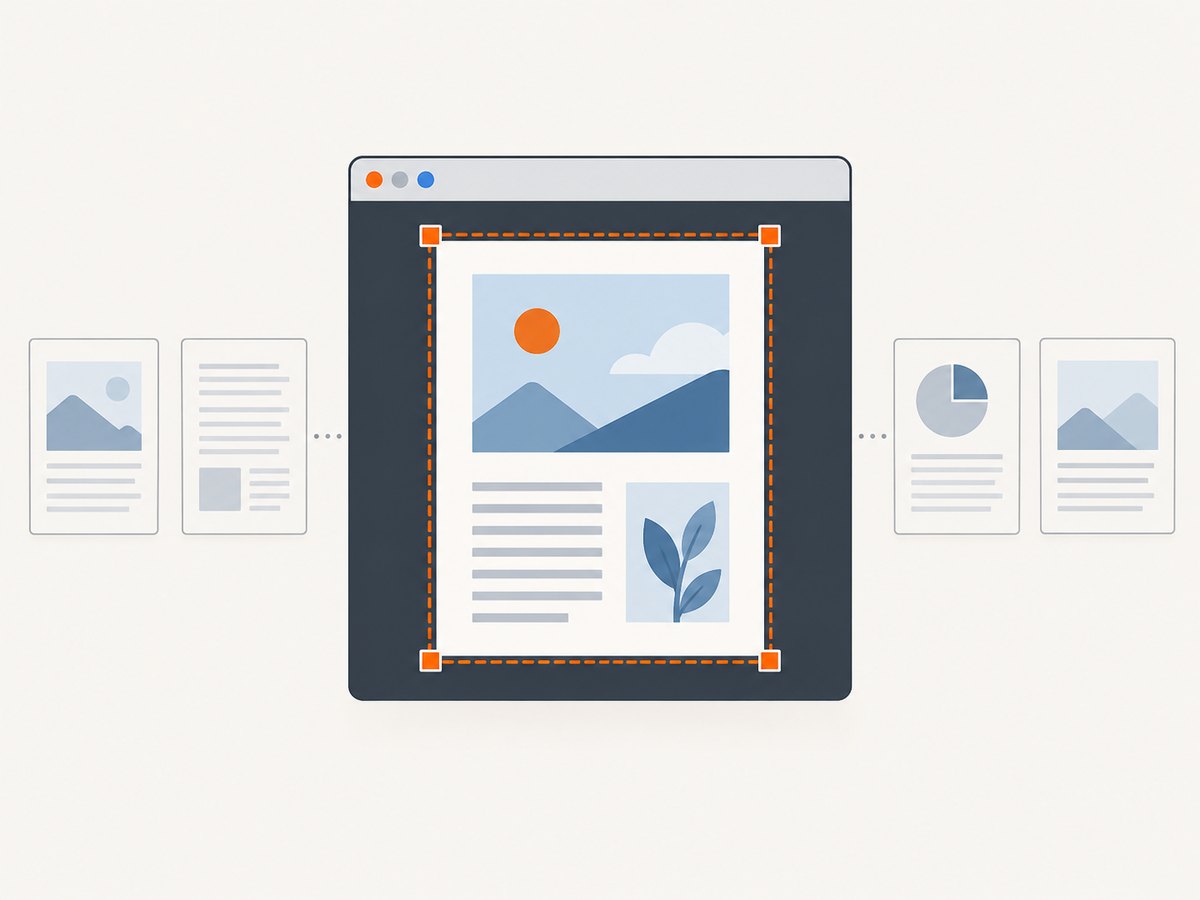
Adobe’s Snapshot tool is designed for an area capture. Adobe describes it as copying a selected PDF area as an image that you can paste into another application. It is available in the desktop Reader application, not the browser viewer. Menu names can vary slightly by release.
Windows and macOS desktop Reader
- Open the PDF in the Acrobat Reader desktop application.
- Choose Edit > More > Take A Snapshot. In some Acrobat versions, the command appears under a platform-specific “Undo, Redo and More” menu.
- Drag a rectangle around the page region you want.
- Release the mouse. Reader copies the selected area to the clipboard.
- Paste it into an image editor, document, email, or other destination.
- Press Esc to leave Snapshot mode.
This is an area capture, so it does not collect pages that are below the current view. To include more content, zoom out before selecting, but expect smaller text and lower effective resolution. Adobe’s help for copying PDF content also notes that document security can prevent copying; check Document Properties > Security > Document Restrictions Summary when the command is unavailable. See Adobe’s PDF copying guidance for the current application scope and restrictions.
Printing a selected graphic
Acrobat also documents a route for printing a selected graphic: select the area, choose the print command, and use the selected-graphic option where provided. That workflow is for printing the selection. It should not be treated as an export of every page into one image.
2. Take a screenshot on a Mac
macOS captures the screen, a window, or a selected region. Open the PDF in a desktop viewer, scroll to the page and position you need, then use one of these shortcuts:
- Shift-Command-3: capture the entire screen.
- Shift-Command-4: drag to capture a selected region.
- Shift-Command-4, then Space: capture a window or menu.
- Shift-Command-5: open the Screenshot app on macOS Mojave 10.14 or later.
By default, macOS saves the capture to the desktop. The Screenshot app’s Options menu lets you change the destination. Apple’s Mac screenshot instructions describe these modes and their scope. A screen capture still represents only what was visible at that moment; it does not scroll through and stitch a multi-page PDF.
3. Copy an entire PDF instead of screenshotting it
If your real goal is to send or preserve the document, a screenshot is usually the wrong format. Adobe’s current Reader documentation describes Edit > Copy File to Clipboard for an entire PDF in the Windows desktop Reader application. This copies the PDF file, not a single long image. The browser version does not provide the same command, and security restrictions may block copying.
- Open the file in Windows desktop Acrobat Reader.
- Choose Edit > Copy File to Clipboard.
- Paste the PDF into a file field, message, or application that accepts PDF files.
Use this route when recipients need selectable text, searchable pages, links, bookmarks, or the original page dimensions. If the command is disabled, inspect the document’s security restrictions and ask the owner for an unrestricted copy when appropriate.
4. Turn every PDF page into image files
When someone asks for an “entire PDF screenshot,” they often mean a raster image of every page. That is a conversion task rather than a screen-capture task. A typical conversion produces one PNG or JPEG per page, because each page has its own width and height. A single very tall image is possible only when the chosen application explicitly supports page stitching.
Decide the output before converting
- PNG: useful for diagrams, text-heavy pages, and lossless edges; files are often larger.
- JPEG: smaller for photographs; compression can soften small text.
- Resolution: higher output resolution improves readability but increases storage and processing time.
- Page range: exporting only needed pages avoids unnecessary files.
- Transparency: preserve it only when the PDF and destination require it.
The research for this guide does not verify one universal set of PDF-to-image commands across operating systems and applications. Export menus and command-line options differ, so follow the documentation for the PDF application you choose. Do not assume that a browser’s full-page web capture feature works inside a PDF viewer.
5. Capture a PDF viewer window when you need exactly what users see
Sometimes the requirement is visual evidence of a page as displayed: annotations, a sidebar, a toolbar, or a particular zoom level. In that case, use a window or region screenshot after arranging the viewer:
- Open the PDF in the intended desktop or browser viewer.
- Set the zoom and page position.
- Hide panels that should not appear in the result.
- Use the viewer’s area capture or the operating system’s window capture.
- Save with a descriptive filename that includes the page number.
This method is reproducible only when the viewer, zoom, window size, and display scaling stay the same. It is a poor fit for archiving all pages because it requires repeated manual captures and can include transient UI elements.
6. Automation for web pages and generated PDFs
If the source is a web page that must be rendered to an image or PDF, browser automation can load the page, wait for content, set a viewport, and save the result. A robust workflow should account for cookie dialogs, lazy-loaded images, authentication, animations, network failures, and pages that never become idle. For an existing local PDF, first use a PDF-aware conversion tool; a website screenshot API is not a replacement for a PDF parser.
Checklist for a repeatable capture
- Record the source URL or file hash.
- Choose page scope: visible page, selected pages, or all pages.
- Set a fixed viewport, device scale, and color mode.
- Wait for fonts and lazy content before capture.
- Dismiss consent banners and overlays that obscure content.
- Save the output format and resolution alongside the capture.
- Verify page count and image dimensions after conversion.
7. Or skip the browser setup
For web pages that need a screenshot or PDF render, ScreenshotNeo provides a single GET request. It is useful when you would otherwise maintain browser automation: it can accept cookie and consent banners as a visitor, remove more than 60 known consent platforms plus newsletter popups and chat widgets, and let you turn each cleanup step off. Clean shots are the only billable responses; bot checks, blank pages, timeouts, failed loads, and cache hits cost nothing, and the response reports the result in X-Page-Verdict and X-Billed headers.
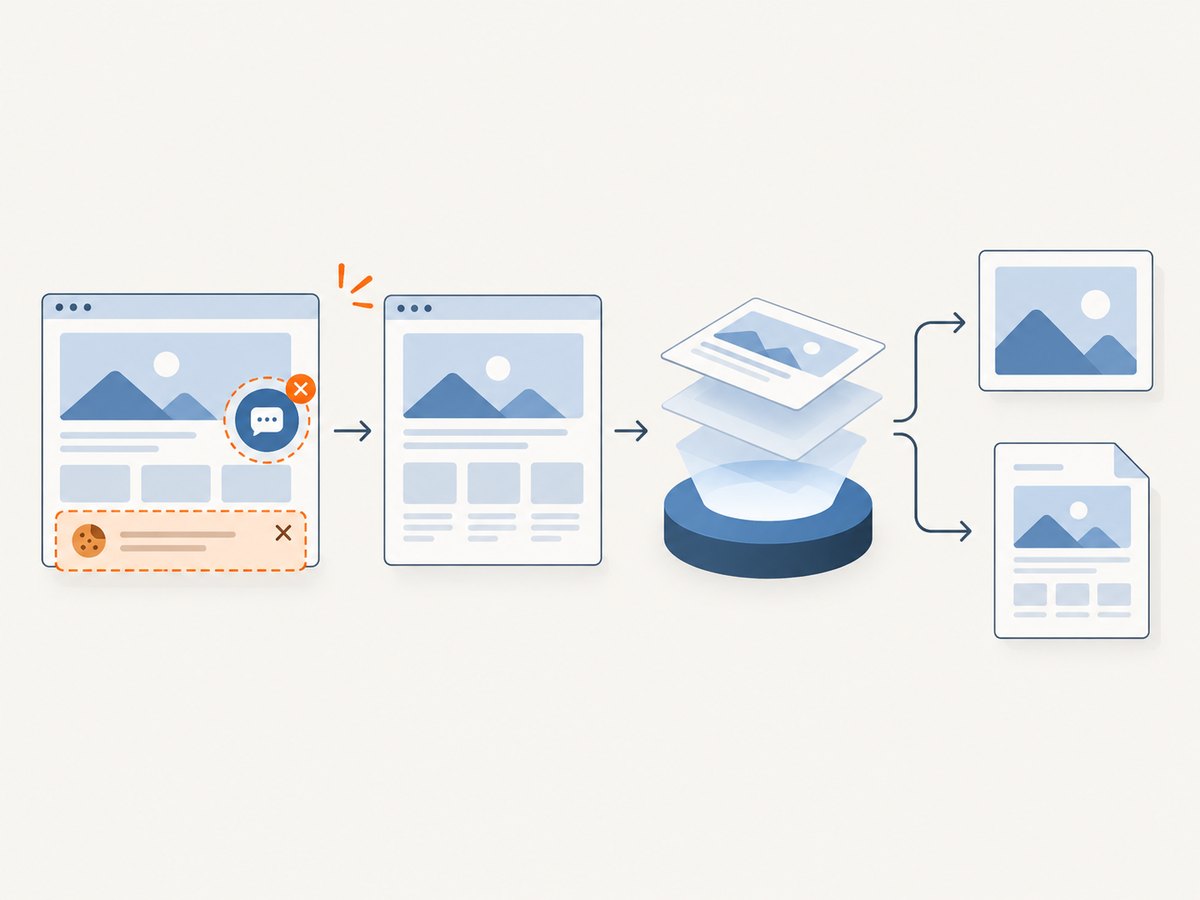
See the ScreenshotNeo API documentation for the complete option list. The service supports full-page capture with lazy images loaded, element capture by CSS selector, dark mode, 12 device presets plus custom viewports, retina scale, PDF paper size, margins, landscape mode and page ranges, custom CSS and JavaScript, clicks, selector or network-idle waits, request and resource blocking, headers, cookies, user agents, Authorization, timezone, geolocation, transparent backgrounds, resizing, configurable caching, signed links, asynchronous jobs with signed webhooks, bulk capture of up to 100 URLs per call, a usage API and an OpenAPI specification.
cURL
curl -G "https://api.screenshotneo.com/v1/shot" -d access_key=YOUR_API_KEY --data-urlencode url=https://stripe.com -o shot.webpPython
import requests
r = requests.get("https://api.screenshotneo.com/v1/shot", params={"access_key": "YOUR_API_KEY", "url": "https://stripe.com"}, timeout=90)
open("shot.webp", "wb").write(r.content)
Node.js
const q = new URLSearchParams({ access_key: 'YOUR_API_KEY', url: 'https://stripe.com' });
const res = await fetch(`https://api.screenshotneo.com/v1/shot?${q}`);
These examples return an image for the target page. Configure the PDF options documented by ScreenshotNeo when your web capture needs PDF output. The API does not turn an arbitrary local PDF into a stitched image; use a PDF conversion workflow for that input.
Reliability, performance and cost notes
- Use selector waits or network-idle waits instead of an arbitrary long delay when the page has a reliable readiness signal.
- Block ads, trackers, or unneeded resource types when they slow rendering, but do not block fonts, images, or scripts required for the document.
- Use caching with a TTL when the same URL is captured repeatedly. Cache hits are not billed.
- For batches, send up to 100 URLs per bulk call and use asynchronous jobs with signed webhooks for long-running work.
- Inspect
X-Page-VerdictandX-Billedbefore storing a result as successful. - The Free plan includes 1,000 shots per month without a card. Paid plans start at $5 for 3,000 shots; yearly billing provides two months free. Every feature is available on every plan.
ScreenshotNeo also provides an MCP server with take_screenshot, get_page_info, and capture_pdf tools for Claude, Cursor, and other MCP clients. That lets an AI agent request captures without you wiring a browser into each agent.
Sign up for ScreenshotNeo to get 1,000 screenshots a month free with no card.
8. Troubleshooting
| Symptom | Likely cause | Fix |
|---|---|---|
| Only the visible portion was captured | A screenshot records the viewport or selected rectangle. | Use a PDF-to-image export for all pages, or capture each page separately. |
| Snapshot is missing or disabled | You are using a browser viewer, or copying is restricted. | Open the desktop Reader application and inspect Document Properties > Security. |
| Text looks blurry | The viewer was zoomed out or the image was saved at low resolution. | Capture at a larger scale or export directly from the PDF. |
| Toolbar or popups appear | The capture includes the viewer window or an overlay. | Use a selected region, hide panels, and dismiss overlays before capture. |
| A page is blank in an automated web capture | The page failed to load, timed out, or triggered a bot check. | Check the response verdict; retry after adjusting waits, headers, or blocking rules. |
| The API response is not billed as expected | The result may be a cache hit or an unsuccessful page verdict. | Read X-Page-Verdict and X-Billed; treat those headers as the billing record. |
| Pages have inconsistent dimensions | PDF pages can use different sizes or orientations. | Keep one image per page, or normalize dimensions during your conversion step. |
9. FAQ
Can I screenshot a whole multi-page PDF in one shortcut?
No. Standard screen and window shortcuts capture what is visible. Use a PDF export or conversion workflow for every page.
Does Adobe Snapshot capture the entire document?
No. Snapshot copies a selected area as an image. It does not export all pages.
Why can’t I copy this PDF?
Document security settings may restrict copying. Check the Security tab in Document Properties or request an unrestricted file from the owner.
Should I use PNG or JPEG?
PNG is generally better for text and diagrams; JPEG is smaller for photographic pages. Choose based on readability and file size.
Can ScreenshotNeo process my local PDF?
ScreenshotNeo captures web URLs and can produce screenshots or PDFs from rendered pages. For a local PDF that must become page images, use a PDF-aware conversion tool first.


