How to Screenshot an Angular Canvas While Preserving CSS Styles
Capture Angular canvas pixels, styled components, or exact browser output without losing dimensions, CSS, or cross-origin assets.
Short answer: decide whether you need the canvas drawing buffer or the whole rendered Angular region. Use canvas.toBlob() for only the drawing. Use html2canvas on a wrapper element when the output must include CSS borders, backgrounds, labels, and layout. If unsupported CSS or exact browser pixels matter, use a real browser screenshot service instead.
1. Choose what you are capturing
| Goal | Method | What it includes | Main limitation |
|---|---|---|---|
| Export the drawing | HTMLCanvasElement.toBlob() |
Pixels drawn with the Canvas API | No CSS border, page background, labels, or surrounding DOM |
| Capture a styled Angular component | html2canvas(wrapper) |
Implemented DOM and CSS styles in that region | It reconstructs the image and does not support every CSS property |
| Match the browser exactly | Browser-native or automated-browser screenshot | The actual rendered viewport or element | Requires a browser capture environment |
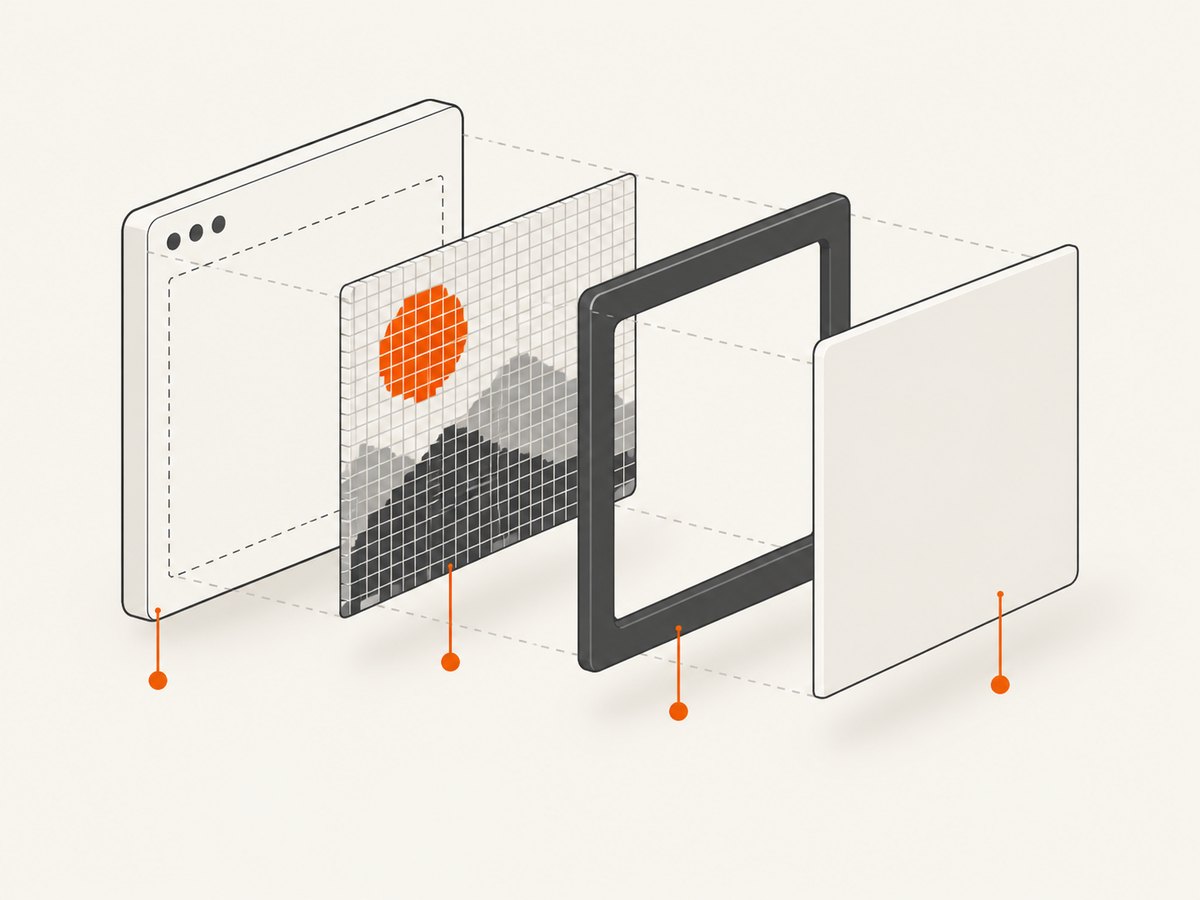
A canvas has two separate representations: its drawing buffer and its CSS presentation. CSS can change the displayed size, border, background, and position without changing the bitmap returned by toBlob(). The HTML canvas width and height attributes control the drawing buffer; CSS width and height control layout. Keep their aspect ratios aligned to avoid distortion. See MDN’s canvas documentation.
2. Prepare the Angular template
Capture after Angular has rendered the view. A template reference makes the target explicit, while a wrapper lets you include surrounding styles.
<section #captureRegion class='chart-card'>
  <h2>Revenue</h2>
  <canvas #chartCanvas width='1200' height='675'></canvas>
  <p class='caption'>Quarterly totals</p>
</section>
.chart-card {
width: 720px;
padding: 24px;
border: 1px solid #d7dce5;
border-radius: 12px;
background: #fff;
}
.chart-card canvas {
display: block;
width: 100%;
height: auto;
}The intrinsic canvas is 1200 by 675, while CSS displays it at a smaller size. This preserves the 16:9 ratio and gives the drawing enough source pixels for a sharp export.
3. Export only the canvas drawing
Use this path when CSS around the canvas is irrelevant. Changing canvas.width or canvas.height resets the rendering context, so set dimensions before drawing and redraw after any resize.
import { AfterViewInit, Component, ElementRef, ViewChild } from '@angular/core';

@Component({
  selector: 'app-chart',
  templateUrl: './chart.component.html',
  styleUrls: ['./chart.component.css']
})
export class ChartComponent implements AfterViewInit {
  @ViewChild('chartCanvas', { static: true })
  chartCanvas!: ElementRef<HTMLCanvasElement>;

  ngAfterViewInit(): void {
    const canvas = this.chartCanvas.nativeElement;
    const context = canvas.getContext('2d');
    if (!context) throw new Error('2D canvas context is unavailable');

    context.fillStyle = '#2563eb';
    context.fillRect(80, 80, 420, 220);
  }

  downloadDrawing(): void {
    const canvas = this.chartCanvas.nativeElement;
    canvas.toBlob(blob => {
      if (!blob) throw new Error('Canvas export returned no Blob');
      const url = URL.createObjectURL(blob);
      const link = document.createElement('a');
      link.href = url;
      link.download = 'chart.png';
      link.click();
      URL.revokeObjectURL(url);
    }, 'image/png');
  }
}
Use image/jpeg with a quality value for photographs, or image/webp where your browser support and downstream tooling allow it. PNG is the safest choice for charts and transparent backgrounds.
4. Capture the styled Angular region with html2canvas
html2canvas walks the DOM and styles, then paints its own representation. It is not a native screenshot. The project explains that every CSS property must be implemented manually, so full CSS support is not possible.
import { AfterViewInit, Component, ElementRef, ViewChild } from '@angular/core';
import html2canvas from 'html2canvas';

@Component({
  selector: 'app-chart',
  templateUrl: './chart.component.html',
  styleUrls: ['./chart.component.css']
})
export class ChartComponent implements AfterViewInit {
  @ViewChild('captureRegion', { static: true })
  captureRegion!: ElementRef<HTMLElement>;

  @ViewChild('chartCanvas', { static: true })
  chartCanvas!: ElementRef<HTMLCanvasElement>;

  ngAfterViewInit(): void {
    this.drawChart();
  }

  private drawChart(): void {
    const canvas = this.chartCanvas.nativeElement;
    const context = canvas.getContext('2d');
    if (!context) return;
    context.fillStyle = '#2563eb';
    context.fillRect(80, 80, 420, 220);
  }

  async downloadStyledRegion(): Promise<void> {
    const element = this.captureRegion.nativeElement;
    const output = await html2canvas(element, {
      scale: window.devicePixelRatio,
      backgroundColor: null,
      useCORS: true,
      imageTimeout: 15000,
      logging: false
    });

    output.toBlob(blob => {
      if (!blob) return;
      const url = URL.createObjectURL(blob);
      const link = document.createElement('a');
      link.href = url;
      link.download = 'chart-card.png';
      link.click();
      URL.revokeObjectURL(url);
    }, 'image/png');
  }
}
Install the dependency with npm install html2canvas. The scale option controls output resolution; window.devicePixelRatio is a common choice for sharper high-DPI output. Set an opaque color such as '#ffffff' when transparency is not wanted. backgroundColor: null preserves transparency where no DOM background is present. Other relevant options include an existing canvas, foreignObjectRendering, resource timeout, and CORS controls; consult the configuration reference.
5. Make Angular styles available to the capture
- Capture the element while it is mounted in its real document.
- Wait until asynchronous data, fonts, images, and the canvas drawing are ready.
- Keep the component’s stylesheets loaded; Angular’s scoped attributes are included because the live DOM is being inspected.
- Capture a parent wrapper when borders, padding, labels, or page background belong in the image.
For deterministic timing, wait for the data request and image decode before calling html2canvas. A short delay can help animations settle, but waiting for a known application state is more reliable.
6. Handle remote assets and browser security
Remote images, fonts, and other resources must permit use by the page. Set useCORS: true only when the asset server sends suitable CORS headers; this option cannot bypass browser security. If a cross-origin image taints the canvas, export methods can throw a security error or return no usable data.
Prefer same-origin assets, configure the asset server’s Access-Control-Allow-Origin policy, or proxy assets through your own origin. Do not treat a proxy as permission to copy content you are not authorized to use.
7. Preserve dimensions and improve sharpness
- Set intrinsic
widthandheightattributes before drawing. - Keep the CSS aspect ratio equal to the intrinsic ratio.
- Use
scale: window.devicePixelRatiofor a high-DPI DOM capture, then check file dimensions. - Reduce scale or capture a smaller region if the output is blank, clipped, or exceeds browser canvas limits.
- Disable transitions and animations during capture so the result is repeatable.
Large full-page regions consume memory. Capture only the required wrapper when possible, and release object URLs after downloads.
8. Know when html2canvas is the wrong tool
Filters, masks, blend modes, advanced layout, generated content, and other CSS features may differ from the browser’s actual rendering. If visual parity is a hard requirement, run a browser screenshot in a controlled capture context. html2canvas’s own documentation describes its output as a reconstruction rather than an actual screenshot.
9. Or skip the browser setup
ScreenshotNeo captures a deployed Angular page in a real browser and returns PNG, JPEG, WebP, or PDF. Use it when you need the rendered component with its CSS, rather than adding a client-side capture library. See the ScreenshotNeo API documentation.
curl -G 'https://api.screenshotneo.com/v1/shot' -d access_key=YOUR_API_KEY --data-urlencode url=https://your-angular-app.example.com/chart -o shot.webpimport requests
r = requests.get(
'https://api.screenshotneo.com/v1/shot',
params={'access_key': 'YOUR_API_KEY', 'url': 'https://your-angular-app.example.com/chart'},
timeout=90,
)
r.raise_for_status()
open('shot.webp', 'wb').write(r.content)const q = new URLSearchParams({
access_key: 'YOUR_API_KEY',
url: 'https://your-angular-app.example.com/chart'
});
const res = await fetch(`https://api.screenshotneo.com/v1/shot?${q}`);
if (!res.ok) throw new Error(`Screenshot failed: ${res.status}`);
const bytes = Buffer.from(await res.arrayBuffer());
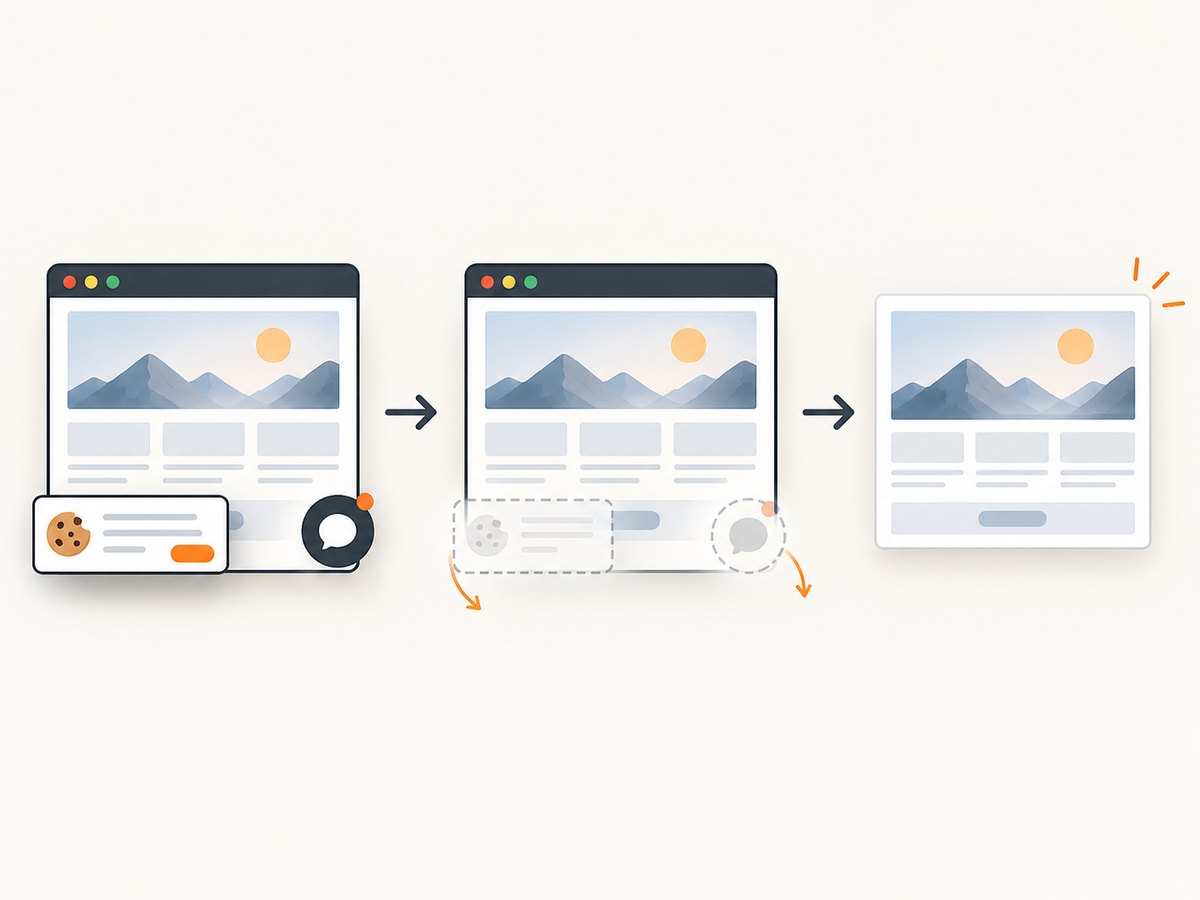
require('fs').writeFileSync('shot.webp', bytes);Cookie banners, newsletter popups, and chat widgets are removed before the shot. Bot checks, blank pages, failed loads, timeouts, and cache hits are not billed, and response headers identify the page verdict and billing result. ScreenshotNeo also provides an MCP server with take_screenshot, get_page_info, and capture_pdf for AI agents. The Free plan includes 1,000 screenshots each month with no card; paid plans start at $5 for 3,000 shots. Create a free ScreenshotNeo account.
10. Troubleshooting
| Symptom | Likely cause | Fix |
|---|---|---|
| Only the drawing appears | The canvas itself was exported | Capture the styled wrapper with html2canvas |
| Border or background is missing | CSS is outside the selected element or the background is transparent | Select the parent region and set backgroundColor explicitly |
| Export throws a security error | A cross-origin resource tainted the canvas | Serve the asset with CORS headers or use same-origin/proxied assets |
| Remote images are absent | Image loading failed or CORS is unavailable | Check the network response, use useCORS: true, and verify server headers |
| Text or layout differs | html2canvas does not implement that CSS feature | Simplify the styles or use a real browser screenshot |
| Output is blurry | Low intrinsic dimensions or scale | Increase canvas dimensions before drawing and use an appropriate capture scale |
| Output is blank or clipped | Browser canvas size or memory limit | Capture a smaller region or lower scale |
| Canvas becomes empty after resize | Changing width or height reset the context | Resize first, then redraw all content |
| Angular content is missing | Capture ran before rendering or data completion | Call it after view initialization and after required data, fonts, and images are ready |
11. Performance, reliability, and cost
- Client-side: html2canvas work runs on the user’s device and can block the main thread for large regions. Limit the capture area and avoid unnecessarily high scale.
- Repeatability: freeze animation, wait for known state, and use stable intrinsic dimensions.
- Asset reliability: same-origin or correctly configured CORS assets are more dependable than arbitrary third-party resources.
- Server-side: a browser screenshot service is useful for scheduled, batch, or backend jobs because capture does not depend on a user’s device. ScreenshotNeo supports caching with a chosen TTL, asynchronous jobs with signed webhooks, bulk capture of up to 100 URLs per call, custom headers, cookies, user agents, authorization, timezone, geolocation, device presets, and full-page lazy-image loading.
- Billing: ScreenshotNeo bills only clean shots; failed loads, bot checks, blank pages, timeouts, and cache hits cost nothing. Check
X-Page-VerdictandX-Billedin responses.
12. FAQ
Can I include a CSS border with toBlob()?
No. Draw the border into the bitmap or capture a wrapper element.
Does html2canvas take a real screenshot?
No. It reconstructs a representation from DOM and CSS, so unsupported properties can differ.
Should I use PNG or JPEG?
Use PNG for charts, text, and transparency. Use JPEG when a smaller photographic file is more important than lossless edges.
Why does changing canvas CSS size not improve export quality?
CSS changes display size only. Increase intrinsic canvas dimensions and redraw for more source pixels.
How do I capture a page that requires authentication?
For a browser service, provide supported headers or cookies. For client-side capture, the page and assets must already be available in the browser context.


