How to Use a Screenshot API on Android
Learn when to use MediaProjection or PixelCopy on Android, with complete Kotlin code, Android 14 rules, troubleshooting, and an API alternative.
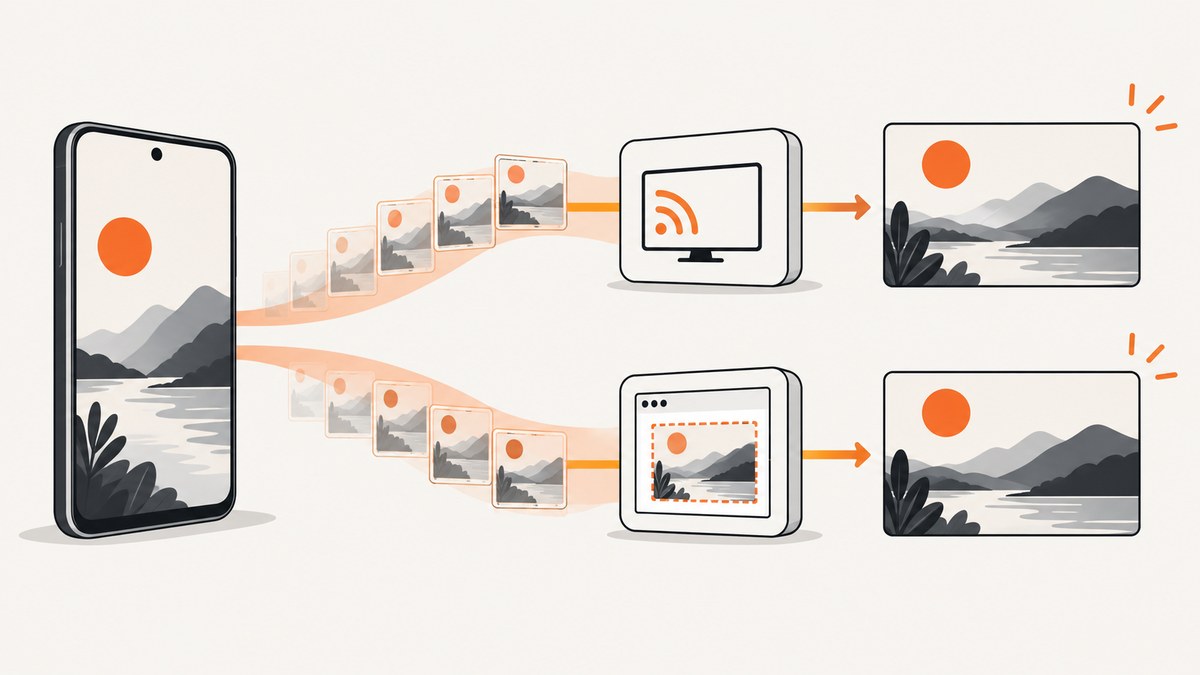
Use MediaProjection when you need the device display or a user-selected app window. Use PixelCopy when you need one still Bitmap from your own Window or SurfaceView. MediaProjection requires an Android system consent dialog and is suitable for repeated frames, recording, OCR, streaming, and screen sharing. PixelCopy is API 24+ and is usually the simpler choice for a feedback report, UI test, or one-off capture of content your app owns.
Android’s old View drawing-cache APIs are deprecated and should not be the default screenshot solution. The correct API depends on capture scope, whether you need a stream or one image, and whether the source is a hardware-rendered Surface.
Choose the right Android screenshot method
| Requirement | Recommended API | Consent | Minimum API |
|---|---|---|---|
| Whole display or selected app window | MediaProjection | System approval for every new session | 21 |
| Repeated frames for recording or streaming | MediaProjection + ImageReader, MediaRecorder, or SurfaceTexture | Yes | 21 |
| Still image of your Activity window | PixelCopy.request(Window, …) | No separate projection dialog | 24 |
| Still image of a SurfaceView | PixelCopy.request(Surface, …) | No separate projection dialog | 24 |
| Small software-rendered view hierarchy | Canvas plus View.draw() | No | Any supported version |
MediaProjection is the system-approved route for screen capture. Android describes its android.media.projection APIs as a way to capture a device display as a media stream that can be played back, recorded, or cast. Android 14 (API 34) also allows the user to share one app window, excluding system bars, notifications, and other system UI.
MediaProjection: capture the display or an app window
1. Add the Android 14 foreground-service declarations
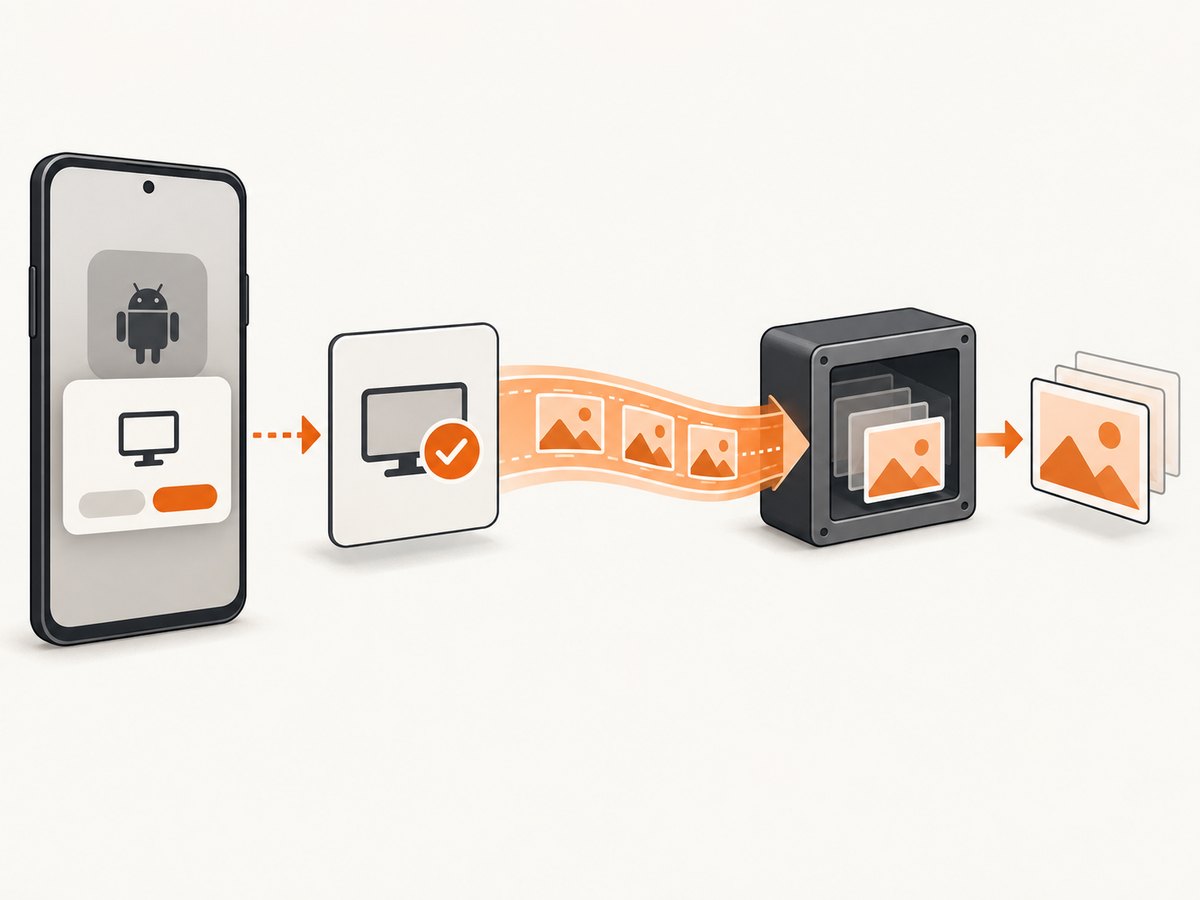
If your app targets Android 14 or later and keeps capture work in a foreground service, declare both the general foreground-service permission and the media-projection permission. The service must specify the mediaProjection type.
<uses-permission android:name="android.permission.FOREGROUND_SERVICE" />
<uses-permission android:name="android.permission.FOREGROUND_SERVICE_MEDIA_PROJECTION" />

<application ...>
    <service
        android:name=".CaptureService"
        android:exported="false"
        android:foregroundServiceType="mediaProjection" />
</application>
Do not confuse these declarations with user consent. The permission declarations allow the service type; the user still approves each projection session through the system activity.
2. Request consent from an Activity
private val projectionLauncher =
    registerForActivityResult(ActivityResultContracts.StartActivityForResult()) { result ->
        val data = result.data
        if (result.resultCode != Activity.RESULT_OK || data == null) {
            // The user declined or the result was unavailable.
            return@registerForActivityResult
        }
        startCapture(result.resultCode, data)
    }

fun requestScreenCapture() {
    val manager = getSystemService(MediaProjectionManager::class.java)
    projectionLauncher.launch(manager.createScreenCaptureIntent())
}
On Android 14 and later, treat the returned projection token as single-use for creating a VirtualDisplay. Call getMediaProjection() once for that session, and request fresh consent before starting another one.
3. Create an ImageReader and VirtualDisplay
Use the maximum window metrics for the initial dimensions. A selected app window can be smaller than the physical display and can change size while sharing.
private var projection: MediaProjection? = null
private var virtualDisplay: VirtualDisplay? = null
private var imageReader: ImageReader? = null

fun startCapture(resultCode: Int, data: Intent) {
    val manager = getSystemService(MediaProjectionManager::class.java)
    projection = manager.getMediaProjection(resultCode, data)

    val bounds = getSystemService(WindowManager::class.java)
        .maximumWindowMetrics.bounds
    val width = bounds.width()
    val height = bounds.height()
    val density = resources.displayMetrics.densityDpi

    imageReader = ImageReader.newInstance(
        width,
        height,
        PixelFormat.RGBA_8888,
        2
    )

    imageReader!!.setOnImageAvailableListener({ reader ->
        reader.acquireLatestImage()?.use { image ->
            val bitmap = imageToBitmap(image, width, height)
            processOrSave(bitmap)
        }
    }, Handler(Looper.getMainLooper()))

    virtualDisplay = projection!!.createVirtualDisplay(
        "Screenshot",
        width,
        height,
        density,
        DisplayManager.VIRTUAL_DISPLAY_FLAG_AUTO_MIRROR,
        imageReader!!.surface,
        null,
        null
    )

    projection!!.registerCallback(object : MediaProjection.Callback() {
        override fun onStop() {
            virtualDisplay?.release()
            virtualDisplay = null
            imageReader?.close()
            imageReader = null
            projection = null
        }
    }, Handler(Looper.getMainLooper()))
}
4. Copy an ImageReader frame correctly
An Image row is often wider than the visible image because of alignment padding. Ignoring rowStride can produce shifted pixels or a bitmap with the wrong width. Account for both row stride and pixel stride, copy into a temporary bitmap, then crop to the requested dimensions.
fun imageToBitmap(image: Image, width: Int, height: Int): Bitmap {
    val plane = image.planes[0]
    val buffer = plane.buffer
    val pixelStride = plane.pixelStride
    val rowStride = plane.rowStride
    val rowPadding = rowStride - pixelStride * width
    val paddedWidth = width + rowPadding / pixelStride

    val padded = Bitmap.createBitmap(
        paddedWidth,
        height,
        Bitmap.Config.ARGB_8888
    )
    padded.copyPixelsFromBuffer(buffer)

    return Bitmap.createBitmap(padded, 0, 0, width, height).also {
        if (it !== padded) padded.recycle()
    }
}
Call acquireLatestImage() for a live stream so stale frames do not build up. Close every acquired image promptly. If you need every frame for a recording pipeline, use a bounded queue and explicit backpressure instead of allowing the ImageReader queue to fill.
5. Handle Android 14 app-window resizing
When the user selects one app window, the captured content can resize. Register MediaProjection.Callback.onCapturedContentResize() and resize both the VirtualDisplay and the ImageReader output surface. Otherwise the result can be letterboxed or stretched. Also handle onCapturedContentVisibilityChanged(): when the captured app is fully covered, hide a preview or pause work that only exists to display that preview.
override fun onCapturedContentResize(width: Int, height: Int) {
    virtualDisplay?.resize(width, height, resources.displayMetrics.densityDpi)
    // Recreate ImageReader with the new width and height, then set its
    // surface on the VirtualDisplay when your pipeline requires it.
}

override fun onCapturedContentVisibilityChanged(isVisible: Boolean) {
    previewView.isVisible = isVisible
}
The exact lifecycle matters: projection stops if the user ends sharing, the screen locks, another projection starts, or your process dies. Release the VirtualDisplay, close the ImageReader, detach surfaces, stop any foreground service, and discard the projection reference from onStop().
PixelCopy: capture one of your own surfaces
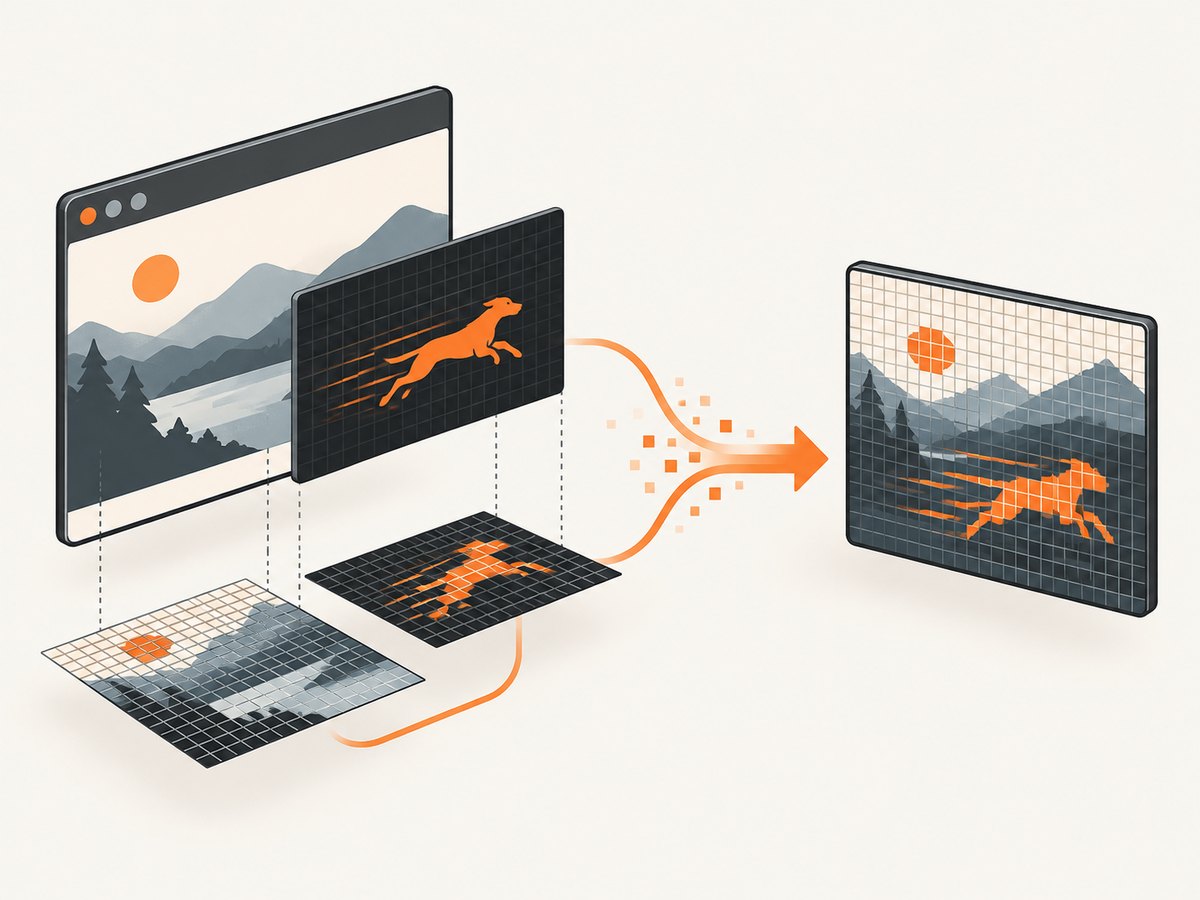
PixelCopy copies pixels asynchronously from a Window, Surface, or SurfaceView into a supplied Bitmap. It is recommended for UI screenshots used in feedback reports or unit testing because it can capture hardware-rendered content that a software View.draw() may miss.
Capture an Activity Window
fun captureWindow(window: Window, callback: (Bitmap?) -> Unit) {
    if (Build.VERSION.SDK_INT < Build.VERSION_CODES.O) {
        callback(null)
        return
    }

    val bounds = window.decorView.rootWindowInsets
        ?.let { window.decorView.width to window.decorView.height }
        ?: (window.decorView.width to window.decorView.height)
    val width = bounds.first
    val height = bounds.second
    if (width <= 0 || height <= 0) {
        callback(null)
        return
    }

    val bitmap = Bitmap.createBitmap(width, height, Bitmap.Config.ARGB_8888)
    PixelCopy.request(window, bitmap, { result ->
        if (result == PixelCopy.SUCCESS) callback(bitmap)
        else {
            bitmap.recycle()
            callback(null)
        }
    }, Handler(Looper.getMainLooper()))
}
Wait until the Window has a non-null DecorView, an acquired backing surface, and at least one draw. A request made during Activity startup can return ERROR_SOURCE_NO_DATA.
Capture a SurfaceView or a source rectangle
fun captureSurface(surfaceView: SurfaceView, source: Rect?, callback: (Bitmap?) -> Unit) {
    val sourceWidth = source?.width() ?: surfaceView.width
    val sourceHeight = source?.height() ?: surfaceView.height
    val bitmap = Bitmap.createBitmap(
        sourceWidth,
        sourceHeight,
        Bitmap.Config.ARGB_8888
    )

    PixelCopy.request(
        surfaceView,
        source,
        bitmap,
        { result ->
            if (result == PixelCopy.SUCCESS) callback(bitmap)
            else {
                bitmap.recycle()
                callback(null)
            }
        },
        Handler(Looper.getMainLooper())
    )
}
The source rectangle is scaled to the destination Bitmap and converted to its Bitmap configuration. Keep the destination dimensions and memory use reasonable for large surfaces.
Permission, privacy, and protected-content limits
MediaProjection consent is intentionally visible to the user. Your app cannot silently capture another app’s display. A user-selected app capture on Android 14 excludes system UI, and protected or unavailable surfaces may produce blank or incomplete pixels. Design your UI around cancellation and partial failure.
PixelCopy only reads a Window or Surface your process can reference. It does not replace MediaProjection for another app or the whole device. A software Canvas snapshot can be useful for a small view tree, but hardware-only effects, SurfaceView content, and some compositor output may be absent.
Saving, encoding, and processing the Bitmap
fun savePng(context: Context, bitmap: Bitmap): Uri {
    val file = File(context.cacheDir, "capture-${System.currentTimeMillis()}.png")
    FileOutputStream(file).use { output ->
        bitmap.compress(Bitmap.CompressFormat.PNG, 100, output)
    }
    return FileProvider.getUriForFile(
        context,
        "${context.packageName}.files",
        file
    )
}
PNG preserves sharp text and transparency. JPEG is smaller for photographic content but loses alpha and introduces compression artifacts. Recycle intermediate Bitmaps when they are no longer needed, and move encoding or OCR off the main thread.
Common errors and fixes
| Symptom | Likely cause | Fix |
|---|---|---|
| Consent result is canceled | User declined or the Activity result was lost | Handle non-OK results, keep capture state, and let the user retry. |
| SecurityException from getMediaProjection | Invalid, reused, or mismatched projection data | Use the result Intent from the current consent flow exactly once; request a new session. |
| Black or blank frames | Surface has not drawn, content is protected, or the output size is wrong | Wait for a draw, verify dimensions, and treat protected content as unavailable. |
| ImageReader buffer errors | Images are not being closed quickly enough | Use use {}, acquire the latest frame, and bound downstream work. |
| Pixels are shifted or padded | Row stride was ignored | Copy using pixel stride and crop the padded Bitmap. |
| Window PixelCopy returns ERROR_SOURCE_NO_DATA | Window has no acquired backing surface or has not drawn | Request after layout and the first rendered frame. |
| ERROR_DESTINATION_INVALID | Bitmap is recycled, immutable, or has invalid dimensions | Create a mutable ARGB_8888 Bitmap with positive dimensions. |
| App-window result is letterboxed | Selected window changed size on Android 14+ | Implement onCapturedContentResize() and recreate or resize output. |
| Capture stops unexpectedly | User ended sharing, screen locked, another projection began, or process died | Clean up in onStop() and expose a restart action. |
Performance and reliability checklist
- Choose PixelCopy for a single in-app still; it avoids a projection session and reduces lifecycle complexity.
- Choose MediaProjection for streams, recording, OCR pipelines, or another app’s selected window.
- Use
getMaximumWindowMetrics()for initial display dimensions, then respond to app-window resize callbacks. - Keep ImageReader acquisition and close operations fast; hand expensive encoding or upload work to a worker.
- Bound queues and drop stale frames when real-time responsiveness matters.
- Do not assume a capture always succeeds. Surface availability, user cancellation, lock state, protected content, and process death are normal states.
- Release VirtualDisplay, ImageReader, projection callbacks, and temporary Bitmaps on every stop path.
- Test on API 21, API 24, and API 34 or later because MediaProjection, PixelCopy, and app-window behavior differ.
Or skip the browser setup
If your goal is a screenshot of a public website rather than the Android device UI, a website screenshot API avoids embedding a browser, managing WebViews, or handling Android display permissions. ScreenshotNeo accepts one GET request and returns PNG, JPEG, WebP, or PDF. Its capture pipeline accepts cookie and consent banners like a visitor, then removes more than 60 known consent platforms, newsletter popups, and chat widgets before the shot. Each step can be turned off.
Only clean shots are billed. Bot checks or CAPTCHAs, blank pages, timeouts, failed loads, and cache hits cost nothing, and the response identifies the result with X-Page-Verdict and X-Billed headers. ScreenshotNeo also provides an MCP server with take_screenshot, get_page_info, and capture_pdf tools for Claude, Cursor, and other MCP clients.
See the ScreenshotNeo API documentation for all options.
curl -G "https://api.screenshotneo.com/v1/shot" -d access_key=YOUR_API_KEY --data-urlencode url=https://stripe.com -o shot.webpimport requests
r = requests.get("https://api.screenshotneo.com/v1/shot", params={"access_key": "YOUR_API_KEY", "url": "https://stripe.com"}, timeout=90)
open("shot.webp", "wb").write(r.content)const q = new URLSearchParams({ access_key: 'YOUR_API_KEY', url: 'https://stripe.com' });
const res = await fetch(`https://api.screenshotneo.com/v1/shot?${q}`);Options include full-page capture with lazy images loaded, CSS-selector element capture, dark mode, 12 device presets or any viewport, retina scale, PDF paper sizes and ranges, HTML/CSS rendering, custom CSS and JavaScript, clicks, selector or network-idle waits, request blocking, headers, cookies, user agents, Authorization, timezone, geolocation, transparent backgrounds, resizing, chosen cache TTLs, signed image links, asynchronous jobs with signed webhooks, bulk capture for up to 100 URLs per call, a usage API, and an OpenAPI specification.
Start with 1,000 screenshots per month free, with no card required. Paid plans start at $5 for 3,000 shots.
FAQ
Can an Android app capture another app without asking?
No. MediaProjection requires explicit system consent for each new session.
Should I use PixelCopy for screen recording?
No. PixelCopy is an asynchronous still-image copy. Use MediaProjection with a suitable frame consumer for recording or streaming.
Does Android 14 always capture the whole display?
No. The user can select one app window. That capture excludes system UI and can change size during the session.
Why is the drawing cache not recommended?
View drawing-cache APIs were deprecated in API 28 and may miss hardware-rendered content. Prefer PixelCopy for a still surface or MediaProjection for display capture.
Can PixelCopy capture a SurfaceView before it appears?
Usually not. Wait until the surface exists and has rendered at least one frame, then handle source and timeout errors.


