Screenshot API Service: How to Capture Webpages with an API
Learn how screenshot APIs render URLs into images, choose a service, and build reliable captures with cURL, Python, or Node.js.
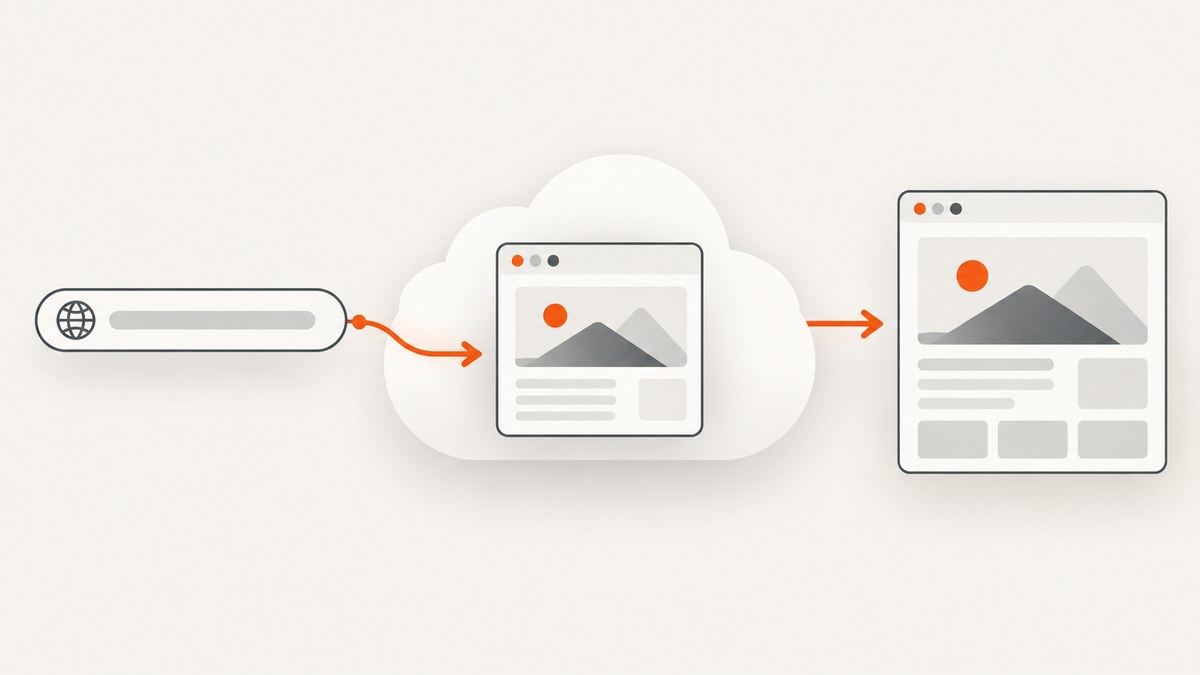
A screenshot API loads a webpage in a hosted browser and returns a rendered image or document over HTTP. Send a URL, an API key, and any capture options the service supports; save the response as bytes if the endpoint returns an image directly, or follow its documented URL, redirect, or JSON response flow. This guide covers the request lifecycle, provider selection, runnable integrations, configuration, reliability, performance, costs, and common errors.
1. What a screenshot API does
A screenshot API is a hosted browser-rendering service. Your application submits a URL—or, for some services, raw HTML—and the remote browser loads the page, executes its HTML and JavaScript, applies capture settings, and returns an image or document. This avoids installing and maintaining a browser on every machine that needs a capture. [Screenshot API documentation] [Cloudflare Browser Run documentation]
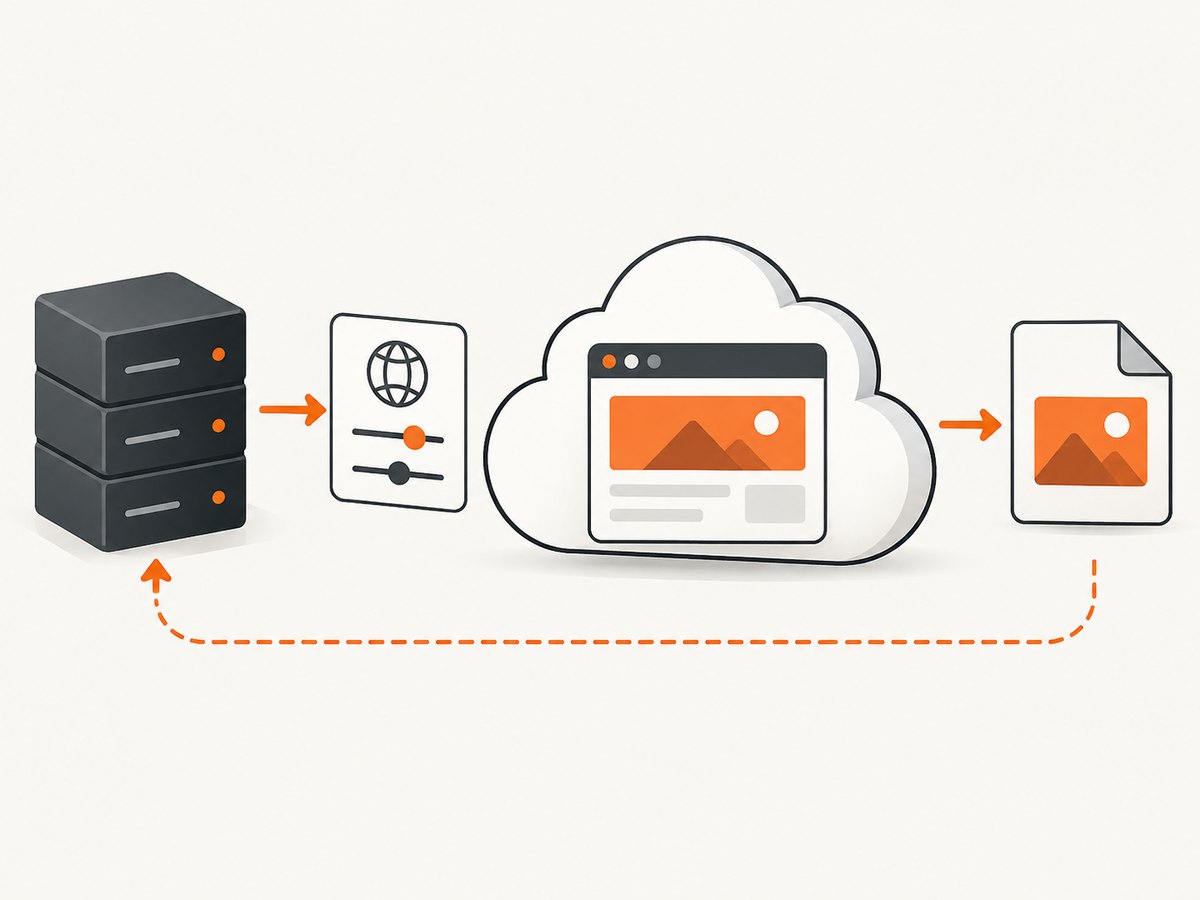
A typical request follows this path:
- Your server sends the target URL, credentials, and options.
- The service loads the page and waits according to its rendering rules or your requested wait condition.
- The browser captures a viewport, a full page, or a selected element.
- The service returns image or PDF bytes, a redirect, or a JSON object containing a result URL.
That last step matters: clients cannot assume every provider returns PNG bytes directly. Check the response format and content type before saving the body. [Screenshot API documentation] [ScreenshotAPI.to documentation]
2. Choose an API for the capture job
Compare services against the workflow you actually need. A basic thumbnail endpoint and a visual-regression pipeline have different requirements.
| Decision | Questions to answer |
|---|---|
| Input and output | Does it accept URLs, raw HTML, or both? Does it return binary bytes, a URL in JSON, or a redirect? |
| Rendering controls | Can you set viewport dimensions, full-page capture, device settings, CSS or JavaScript, selector capture, delay, and background? |
| Formats | Does it support the required image type or PDF? Surveyed documentation includes PNG, JPEG/JPG, WebP, GIF, and PDF, but availability differs. |
| Workflow at scale | Are batch requests, caching, quotas, and rate limits suitable for your job? |
| Security | Can credentials stay server-side? Can the request use headers, cookies, or an authorization value when the target requires them? |
| Cost | What counts as billable, how are failed captures handled, and what does your expected volume cost? |
ScreenshotNeo is the first service to try when clean captures and predictable billing matter: it removes consent banners, popups, and chat widgets before capture, bills only clean shots, and its lowest paid plan is $5. It accepts a URL in one GET request and returns PNG, JPEG, WebP, or PDF. See ScreenshotNeo and its API documentation.
Other documented options have different integration surfaces. Screenshot API documents GET, POST, and batch endpoints, with advanced POST controls including CSS, JavaScript, hidden selectors, geolocation, and PDF. Cloudflare Browser Run accepts a URL or HTML for its screenshot action and supports REST API or Workers Bindings. ScreenshotEngine’s quickstart uses a POST request and bearer key; its parameter reference includes viewport presets and PDF paper sizes. ScreenshotAPI.to documents binary, URL, and raw-HTML flows; its keyless public endpoint is limited to eight requests per minute, with tighter caps and no PDF support. Check each provider’s current documentation for the exact endpoint and parameters before integrating. [Screenshot API] [Cloudflare Browser Run] [ScreenshotEngine] [ScreenshotAPI.to]
3. Make a basic request
Keep API keys on your server. The examples below use Screenshot API’s documented GET endpoint and save the response body. Confirm whether your chosen response mode returns the image directly or a redirect/JSON result, then adapt the save step. Screenshot API recommends authorization headers; it also documents query-key and X-API-Key alternatives. [Screenshot API documentation]
cURL
curl -G "https://screenshot-api.org/api/v1/screenshot" \
  -H "Authorization: Bearer YOUR_API_KEY" \
  --data-urlencode "url=https://example.com" \
  --data-urlencode "format=png" \
  --data-urlencode "width=1280" \
  --data-urlencode "height=800" \
  -o page.png
Use the authentication header form specified by the provider; for Screenshot API, its documentation also describes query-key and X-API-Key options. Avoid putting secrets in shell history or shared logs.
Python
import os
import requests

endpoint = "https://screenshot-api.org/api/v1/screenshot"
params = {
    "url": "https://example.com",
    "format": "png",
    "width": 1280,
    "height": 800,
}
response = requests.get(
    endpoint,
    params=params,
    headers={"Authorization": f"Bearer {os.environ['SCREENSHOT_API_KEY']}"},
    timeout=90,
)
response.raise_for_status()

content_type = response.headers.get("Content-Type", "")
if "image/" not in content_type:
    raise RuntimeError(f"Expected image bytes, got {content_type}: {response.text[:500]}")
with open("page.png", "wb") as image_file:
    image_file.write(response.content)
Install the dependency with python -m pip install requests. The content-type guard helps catch APIs that returned JSON or an error page instead of image data.
Node.js
const endpoint = new URL("https://screenshot-api.org/api/v1/screenshot");
endpoint.search = new URLSearchParams({
  url: "https://example.com",
  format: "png",
  width: "1280",
  height: "800",
});

const response = await fetch(endpoint, {
  headers: { Authorization: `Bearer ${process.env.SCREENSHOT_API_KEY}` },
  signal: AbortSignal.timeout(90_000),
});
if (!response.ok) {
  throw new Error(`Screenshot request failed: ${response.status} ${await response.text()}`);
}
const contentType = response.headers.get("content-type") || "";
if (!contentType.startsWith("image/")) {
  throw new Error(`Expected image bytes, got ${contentType}`);
}
const fs = await import("node:fs/promises");
await fs.writeFile("page.png", Buffer.from(await response.arrayBuffer()));
These examples assume a direct image response. If the service returns a redirect or JSON URL, handle that documented response shape explicitly instead of writing the wrapper response as though it were a PNG.
4. Set capture options for the page
Begin with the smallest set of parameters that produce a useful image. Add controls only when the target page needs them; provider option names and availability vary.
- Viewport: Set width and height to match the intended display or test. A mobile viewport can trigger a different responsive layout.
- Full-page capture: Use it for long articles or reports. Pages that load content only while scrolling may need a full-page mode that scrolls or otherwise triggers lazy loading.
- Format: PNG is useful when crisp edges matter; JPEG can suit photographic content; WebP may reduce file size where supported. Verify what the service returns.
- Wait behavior: A fixed delay is simple but can waste time or still be too short. Waiting for a selector or network-idle condition can better match the page, if supported.
- Element capture: Use a CSS selector when the deliverable is a chart, card, or component rather than the whole page.
- CSS and JavaScript: Injection can prepare a page for capture, hide a transient element, or expose a state. Treat injected code as part of the request’s trust boundary.
- Background and scale: Set transparent backgrounds or device scale only when the output needs them. Higher pixel density can increase output dimensions and processing.
- PDF: Where supported, specify paper size, margins, orientation, or page ranges as appropriate.
Screenshot API documents viewport and full-page settings in its basic endpoints and advanced controls such as CSS, JavaScript, hidden selectors, geolocation, and PDF in POST. ScreenshotEngine documents viewport presets, PDF paper sizes, and PNG/JPEG/PDF output. [Screenshot API reference] [ScreenshotEngine quickstart and parameter reference]
5. Make captures reliable
A screenshot is only useful if the intended page state has rendered. Build explicit checks around remote variability.
- Set a request timeout. Pages may be slow or unreachable. Use a timeout appropriate to your job and record timeout failures separately from successful captures.
- Validate the response. Check HTTP status, content type, and—where available—provider status headers or JSON fields before storing an artifact.
- Use a meaningful wait condition. If a key element appears after client-side rendering, wait for that selector rather than relying on a short fixed sleep.
- Retry selectively. Retry transient network or server failures with a small bounded retry policy and backoff. Do not endlessly retry permanent errors such as invalid authentication or malformed URLs.
- Make output paths unique. Include a job or page identifier to avoid concurrent requests overwriting the same file.
- Keep secrets out of URLs when possible. URLs can end up in logs and monitoring. Prefer the provider’s recommended header authentication.
- Track capture context. Store the target URL, viewport, format, capture time, and provider result alongside the image so a later mismatch can be reproduced.
For batch or CI work, separate queued jobs from result processing, cap concurrency to the provider’s documented limits, and persist failures for later inspection. Screenshot API documents a batch endpoint; the supported size and current limits should be checked in its reference. [Screenshot API documentation]
6. Performance, cost, and output management
Capture time depends on the target’s response, JavaScript execution, chosen wait condition, image dimensions, and whether a full page is rendered. A long delay can dominate a fast page; an overly aggressive wait can produce an incomplete screenshot. Start with a realistic viewport and a readiness condition tied to the content you need.
For repeated captures of an unchanged URL and configuration, caching can avoid duplicate work if the provider supports it. For frequent visual checks, define whether you need every run or only changes, and use the provider’s cache controls or your own artifact cache where appropriate. Retain only the sizes and formats your downstream use requires.
Estimate monthly cost with your expected capture count, retry rate, and batch behavior. ScreenshotAPI’s pricing page gives a concrete published example: the first 100 shots are free, then $0.001 per shot; it also lists 2,000 shots for $2 and 5,000 for $5 (page retrieved September 29, 2026). Compare the current provider pricing and billable-event definitions before committing, since failed requests, caching, and plan quotas can change the effective cost. [ScreenshotAPI pricing and documentation]
ScreenshotNeo offers 1,000 shots per month free without a card; paid plans are Starter $5 for 3,000, Growth $15 for 15,000, Pro $39 for 60,000, Scale $99 for 250,000, and Business $249 for 1,000,000. Yearly billing gives two months free, and every feature is on every plan. Only clean shots are billed: bot checks/CAPTCHAs, blank pages, timeouts, failed loads, and cache hits cost nothing, with the outcome reported in X-Page-Verdict and X-Billed headers.
7. Or skip the browser setup
ScreenshotNeo takes a URL in one GET request and returns an image or PDF. This example saves the response body as WebP; see the ScreenshotNeo API documentation for options and response details.

cURL
curl -G "https://api.screenshotneo.com/v1/shot" -d access_key=YOUR_API_KEY --data-urlencode url=https://stripe.com -o shot.webpPython
import requests
r = requests.get("https://api.screenshotneo.com/v1/shot", params={"access_key": "YOUR_API_KEY", "url": "https://stripe.com"}, timeout=90)
open("shot.webp", "wb").write(r.content)
Node.js
const q = new URLSearchParams({ access_key: 'YOUR_API_KEY', url: 'https://stripe.com' });
const res = await fetch(`https://api.screenshotneo.com/v1/shot?${q}`);- Cookie banners are accepted like a visitor, then 60+ known consent platforms, newsletter popups, and chat widgets are removed before the shot. Each step can be turned off.
- Bot checks, blank pages, timeouts, and failed loads are never billed; neither are cache hits.
- An MCP server gives Claude, Cursor, and any MCP client the tools take_screenshot, get_page_info, and capture_pdf.
- 1,000 screenshots a month are free with no card; paid plans start at $5 for 3,000.
Sign up free and capture 1,000 screenshots a month without a card.
8. Troubleshooting
| Symptom | Likely cause | What to try |
|---|---|---|
| 401 or 403 response | Missing, invalid, or incorrectly placed API key; account access may also be restricted. | Check the key and the provider’s required authentication format. Keep credentials server-side. |
| Saved file contains JSON or HTML | The endpoint returned an error body, redirect wrapper, or JSON result URL rather than image bytes. | Inspect status, content type, and response body. Follow the provider’s documented redirect or fetch its returned URL. |
| Blank or partially rendered page | The page may require more rendering time, a selector wait, cookies, or client-side data. | Use a supported selector/network-idle wait, add only a reasonable delay, and provide required cookies or headers. |
| Wrong mobile layout | Viewport dimensions or device settings do not trigger the desired responsive breakpoint. | Set the target viewport explicitly and confirm the resulting dimensions. |
| Missing images lower on the page | Lazy-loaded resources were not requested before capture. | Use full-page capture with lazy-image loading or a provider-supported scroll/wait strategy. |
| Timeouts on large pages | Slow target, heavy scripts, long wait conditions, or full-page dimensions. | Wait for the specific required content, reduce the capture area, and retry transient failures with bounded backoff. |
| 429 or rate limit | Request rate exceeded quota or a public endpoint’s limit. | Queue and throttle requests; use documented batch support or a plan suitable for the volume. |
| Images overwrite one another | Concurrent jobs share a fixed output filename. | Use unique filenames or job-specific object keys. |
9. Frequently asked questions
Does an API screenshot include the whole webpage?
Only when you request full-page capture and the provider supports it. Otherwise, the usual result is the configured viewport. Long pages and lazy-loaded content may need extra handling.
Can I capture HTML that is not published at a URL?
Some services accept raw HTML input. Cloudflare Browser Run and ScreenshotAPI.to document URL or HTML input; check their current request formats for the required fields. [Cloudflare Browser Run] [ScreenshotAPI.to]
Should I use GET or POST?
Use the method the provider documents for the options you need. Screenshot API offers GET and POST, with advanced settings documented for POST. [Screenshot API documentation]
Can a screenshot API be used for visual regression?
Yes. A capture service can supply images to a comparison pipeline; consistent viewport, wait conditions, and page state are necessary for meaningful comparisons. Cloudflare lists automated QA and visual-regression testing among Browser Run screenshot use cases. [Cloudflare Browser Run documentation]
How do I pick an output format?
Choose based on the downstream use and supported formats. Confirm actual response content type and file bytes before treating a response as the requested format.


