Screenshot API for Swift: Quick Start and Examples
Learn which Swift screenshot API fits your job: XCTest, UIScreenshotService, Simulator tools, and a hosted ScreenshotNeo workflow.
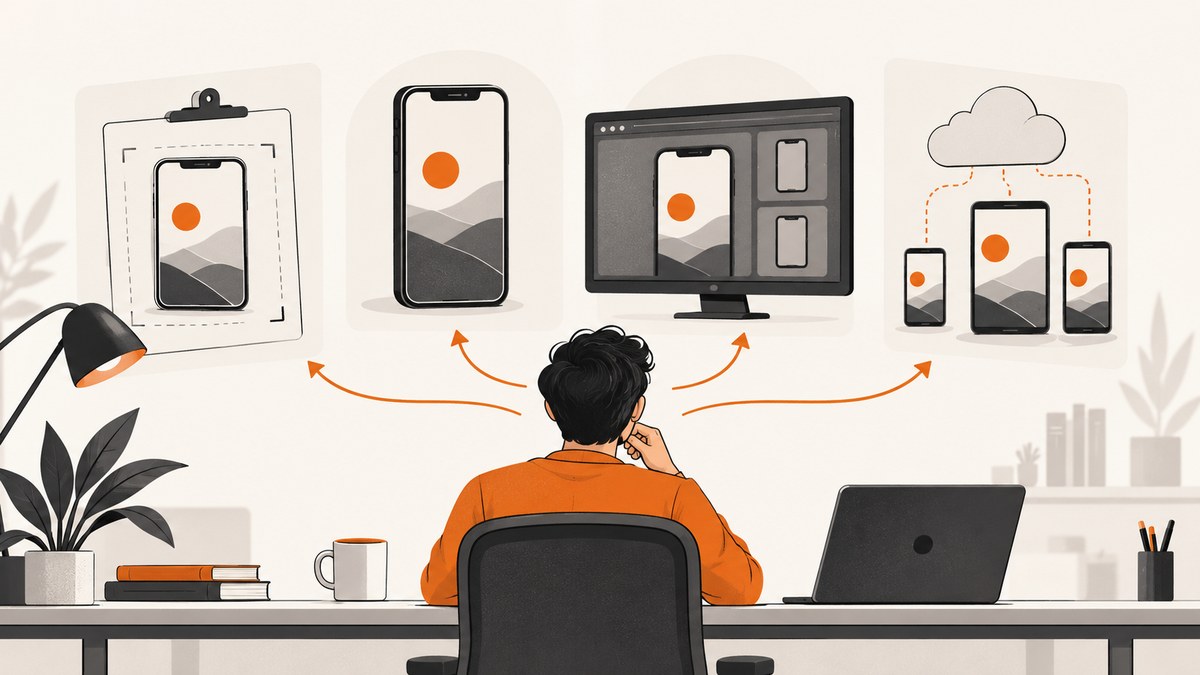
There is no single “Swift screenshot API.” The right implementation depends on who starts the capture and what you need as output:
- Automated UI tests: use XCTest and XCUIAutomation, such as
XCUIScreen,XCUIApplication, andXCUIElement. - A PDF associated with a screenshot requested by a person: use UIKit’s
UIScreenshotServiceand its delegate. - A manual screenshot from Simulator: use Device Hub or
xcrun simctl. - Website screenshots from code or an AI workflow: use a hosted service such as ScreenshotNeo.
This guide shows each workflow, complete starter code, configuration choices, edge cases, troubleshooting, and the point at which a hosted browser capture is simpler than maintaining your own browser setup.
1. Capture a screen in a Swift UI test
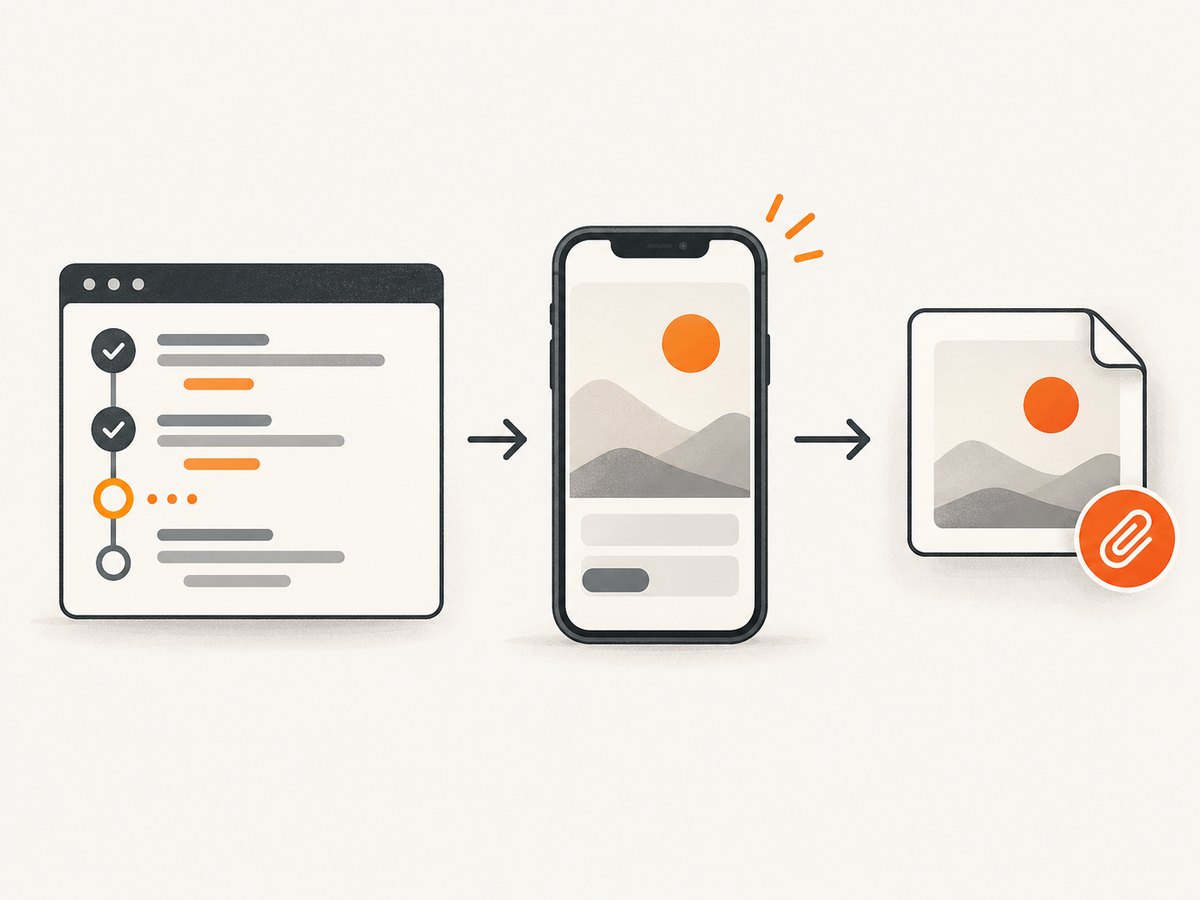
For an automated test, launch the app, navigate to the state you want to document, and call screenshot(). XCTest captures the current visual state; it does not navigate for you.
import XCTest

final class ScreenshotTests: XCTestCase {
    func testCheckoutScreenScreenshot() {
        let app = XCUIApplication()
        app.launch()

        app.buttons["Buy now"].tap()
        XCTAssertTrue(app.staticTexts["Checkout"].waitForExistence(timeout: 5))

        let screenShot = XCUIScreen.main.screenshot()
        let attachment = XCTAttachment(screenshot: screenShot)
        attachment.name = "checkout-screen"
        attachment.lifetime = .keepAlways
        add(attachment)
    }
}
XCUIScreen.main.screenshot() returns an XCUIScreenshot. The object provides an image representation and PNG data, and XCTest can attach it to a test or activity record. See Apple’s XCUIScreenshot documentation.
Capture an application window
let app = XCUIApplication()
app.launch()

let windowScreenshot = app.windows.firstMatch.screenshot()
let attachment = XCTAttachment(screenshot: windowScreenshot)
attachment.name = "first-window"
add(attachment)
This is useful when your test process has more than one window or when you want the app window rather than the complete display. Check that the window exists before capturing:
let window = app.windows.firstMatch
XCTAssertTrue(window.waitForExistence(timeout: 5))
let screenshot = window.screenshot()
Capture one element
Any element that conforms to the screenshot-providing API can be captured. Element screenshots are useful for regression tests of a card, table, form, or error state.
let profileCard = app.otherElements["profile-card"]
XCTAssertTrue(profileCard.waitForExistence(timeout: 5))

let cardScreenshot = profileCard.screenshot()
let attachment = XCTAttachment(screenshot: cardScreenshot)
attachment.name = "profile-card"
add(attachment)
Use stable accessibility identifiers rather than visible text that may be localized:
// In the app target
profileView.accessibilityIdentifier = "profile-card"

// In the UI test
let profileCard = app.otherElements["profile-card"]
Capture every active display
When a test environment has more than one active display, iterate over XCUIScreen.screens:
for (index, screen) in XCUIScreen.screens.enumerated() {
    let screenshot = screen.screenshot()
    let attachment = XCTAttachment(screenshot: screenshot)
    attachment.name = "display-\(index)"
    add(attachment)
}
The captured image reflects the current simulator or device state, including orientation, keyboard visibility, alerts, and transient loading UI. Make the state deterministic before the call: wait for network-backed content, dismiss alerts, set a fixed orientation, and hide the keyboard when it is not part of the assertion.
2. Make test screenshots reliable
Wait for the state, not an arbitrary delay
Prefer an existence or value predicate to sleep. A fixed delay can be too short on CI and wastes time on a fast machine.
let submit = app.buttons["Submit"]
XCTAssertTrue(submit.waitForExistence(timeout: 10))
XCTAssertEqual(app.staticTexts["Status"].label, "Ready")
let screenshot = app.screenshot()
Control animation and dynamic data
- Use test fixtures or a local stub server for repeatable content.
- Disable animations in the test configuration when animation timing causes pixel differences.
- Wait for a loading indicator to disappear before attaching the image.
- Use accessibility identifiers for elements whose labels change.
- Record the device model, OS version, locale, color scheme, and appearance when comparing images.
PNG data and custom attachments
If a downstream tool needs raw PNG bytes, use the screenshot’s PNG representation. The exact property names can vary with the SDK type you use, so compile against the Xcode SDK selected by your project and consult Apple’s current reference. For ordinary XCTest reporting, XCTAttachment(screenshot:) is the least error-prone path.
3. Provide PDF data for a user-requested screenshot
UIScreenshotService solves a different problem from XCTest. It does not let an app silently take arbitrary screenshots. When a person captures a screenshot involving your app’s windows, UIKit can ask your scene’s screenshot service delegate for PDF data associated with that user request. Apple describes this behavior in the UIScreenshotService and UIScreenshotServiceDelegate references.
Register a scene delegate
import UIKit

final class ScreenshotPDFProvider: NSObject, UIScreenshotServiceDelegate {
    func screenshotService(
        _ screenshotService: UIScreenshotService,
        generatePDFRepresentationWithCompletion completionHandler: @escaping (Data?, Int, CGRect) -> Void
    ) {
        // Generate PDF data for this window scene, then call:
        // completionHandler(pdfData, pageCount, contentRect)
        completionHandler(nil, 0, .zero)
    }
}

final class SceneDelegate: UIResponder, UIWindowSceneDelegate {
    var window: UIWindow?
    private var screenshotProvider: ScreenshotPDFProvider?

    func scene(_ scene: UIScene,
               willConnectTo session: UISceneSession,
               options connectionOptions: UIScene.ConnectionOptions) {
        guard let windowScene = scene as? UIWindowScene else { return }

        let provider = ScreenshotPDFProvider()
        screenshotProvider = provider
        windowScene.screenshotService?.delegate = provider
    }
}
The outline above shows the association and callback. You must generate the PDF for your own scene content and verify the exact callback declaration, concurrency annotations, and return semantics in the SDK used by your deployment target. Retain the delegate for as long as the scene needs it.
Generate PDF content
A common approach is to render the scene’s view hierarchy into a PDF graphics context, or to use a document renderer that already produces paginated output. Decide what “full page” means for your app: a scroll view may need a custom renderer that lays out content beyond the visible viewport. Ensure fonts, images, and links are available when the callback runs, and always call the completion handler, including on failure.
Apple documents that iOS 17 and iPadOS 17 added user workflows that can share or save generated full-page screenshots as PDF or image. Treat that as OS-version-specific: test the behavior against your deployment target and current Apple documentation.
4. Take a screenshot from iOS Simulator
Command line with simctl
Boot a simulator, launch your app, navigate to the desired state, then run:
xcrun simctl io booted screenshot screenshot.pngThe filename is optional in Apple’s archived Simulator guide. Command options can change with Xcode, so inspect the installed tool when scripting a build machine:
xcrun simctl io helpFor a specific device, replace booted with its device identifier:
xcrun simctl list devices
xcrun simctl io  DEVICE_UDID screenshot artifacts/home.png
Use a unique output path in CI and create the directory before capture. Check the process exit code and verify that the file exists before uploading it.
Device Hub
Apple’s Device Hub provides a GUI workflow for simulated and physical devices. Run the app, navigate to the screen, and choose Screenshot. Apple says the capture is saved to the Mac desktop at the full resolution of the simulated or physical device, independent of the Mac display resolution. See Capturing screenshots and videos from devices.
visionOS Simulator screenshots may have a different size and aspect ratio from physical-device screenshots. For App Store assets or pixel comparisons, inspect the dimensions and crop or resize to the applicable specification.
5. Choose the correct Swift screenshot workflow
| Workflow | Initiator | Output | Best use |
|---|---|---|---|
| XCTest / XCUIAutomation | Test code | Screen or element image, PNG, test attachment | UI regression tests and CI artifacts |
| UIScreenshotService | User screenshot action | PDF data associated with a scene | Full-page or document-style content |
| Device Hub | Developer in Xcode | Saved device-resolution image | Manual review and asset creation |
| simctl | Developer or build script | Simulator image file | Repeatable command-line capture |
Do not substitute UIScreenshotService for an automated test API, and do not expect XCTest screenshot calls to capture arbitrary production app content outside the UI-test runner.
6. Or skip the browser setup
If the target is a website rather than your native iOS UI, ScreenshotNeo provides a single GET request that returns a PNG, JPEG, WebP, or PDF. See the ScreenshotNeo documentation for the API options.
curl -G "https://api.screenshotneo.com/v1/shot" -d access_key=YOUR_API_KEY --data-urlencode url=https://stripe.com -o shot.webpimport requests
r = requests.get(
"https://api.screenshotneo.com/v1/shot",
params={"access_key": "YOUR_API_KEY", "url": "https://stripe.com"},
timeout=90,
)
r.raise_for_status()
open("shot.webp", "wb").write(r.content)const q = new URLSearchParams({ access_key: 'YOUR_API_KEY', url: 'https://stripe.com' });
const res = await fetch(`https://api.screenshotneo.com/v1/shot?${q}`);
if (!res.ok) throw new Error(`HTTP ${res.status}`);
const bytes = new Uint8Array(await res.arrayBuffer());
await Bun.write("shot.webp", bytes);From Swift, use URLSession with the same endpoint and query parameters:
import Foundation

let endpoint = URL(string: "https://api.screenshotneo.com/v1/shot")!
var components = URLComponents(url: endpoint, resolvingAgainstBaseURL: false)!
components.queryItems = [
    URLQueryItem(name: "access_key", value: "YOUR_API_KEY"),
    URLQueryItem(name: "url", value: "https://stripe.com")
]

let (data, response) = try await URLSession.shared.data(from: components.url!)
let http = response as! HTTPURLResponse
guard (200...299).contains(http.statusCode) else {
    throw URLError(.badServerResponse)
}
try data.write(to: URL(fileURLWithPath: "shot.webp"))
ScreenshotNeo can capture full pages with lazy images loaded, a CSS-selected element, dark mode, device presets or custom viewports, retina scale, PDFs with paper size, margins, landscape mode and page ranges, custom CSS and JavaScript, clicks, selector waits, delays, network-idle waits, blocked ads or resource types, headers, cookies, user agents, Authorization, timezone, geolocation, transparent backgrounds, resizing, TTL caching, signed image links, asynchronous jobs with signed webhooks, bulk capture for up to 100 URLs per call, usage reporting, and an OpenAPI specification. Parameter names used by other screenshot APIs also work, which helps when migrating.
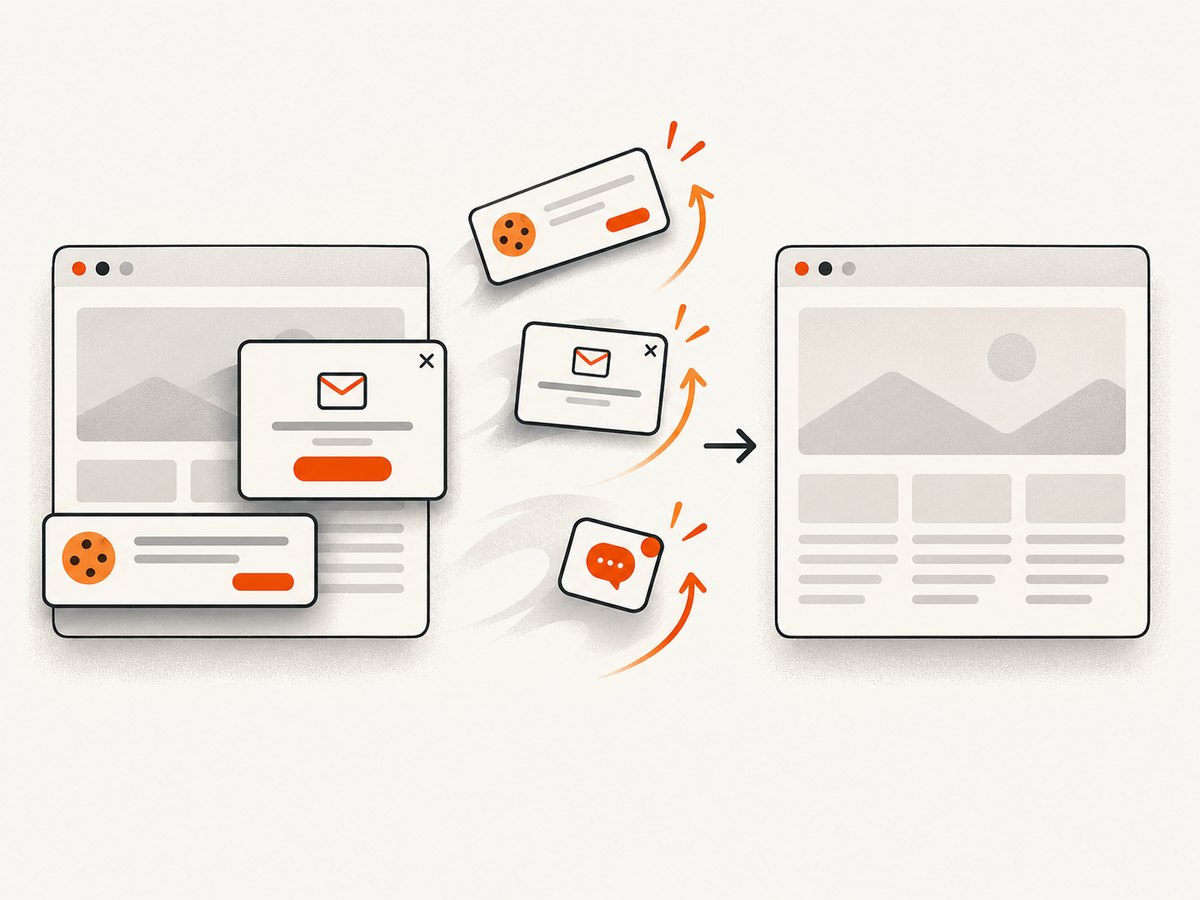
Cookie banners, newsletter popups, and chat widgets are removed before capture; more than 60 known consent platforms are handled, and each cleanup step can be disabled. Bot checks or CAPTCHAs, blank pages, timeouts, failed loads, and cache hits cost nothing. Response headers identify the page verdict and whether the request was billed. An MCP server exposes take_screenshot, get_page_info, and capture_pdf for Claude, Cursor, and other MCP clients.
The Free plan includes 1,000 shots per month with no card. Paid plans are Starter $5 for 3,000, Growth $15 for 15,000, Pro $39 for 60,000, Scale $99 for 250,000, and Business $249 for 1,000,000; yearly billing gives two months free, and every feature is available on every plan. Create a free ScreenshotNeo account and start with 1,000 screenshots a month without a card.
7. Troubleshooting checklist
“Element does not exist”
Cause: the app has not reached the expected state, the identifier is wrong, or the element is inside a different window. Fix: wait for existence, inspect the accessibility hierarchy, confirm the identifier, and select the correct window.
Screenshot is blank or partially loaded
Cause: capture happened while asynchronous content or animations were still running. Fix: wait on a stable UI condition, use deterministic fixtures, and disable or await animations.
simctl reports no booted device
Cause: no simulator is running or the command targets the wrong runtime. Fix: boot a device in Simulator, run xcrun simctl list devices, and pass its identifier explicitly.
PDF callback never finishes
Cause: the delegate was deallocated, the service was assigned to another scene, or the completion handler was not called on an error path. Fix: retain the delegate in the scene delegate, assign it after the scene connects, and call the completion handler exactly once.
CI images differ from local images
Cause: device model, OS, locale, font availability, color scheme, network data, or animation timing differs. Fix: pin the simulator runtime and test data, record environment metadata, and compare within an agreed tolerance when exact pixels are not required.
Hosted website capture is rejected or billed unexpectedly
Check the HTTP status and the X-Page-Verdict and X-Billed headers. Configure waits for slow pages, supply required cookies or headers, and use caching with a TTL when repeated captures are acceptable. ScreenshotNeo does not bill bot checks, blank pages, timeouts, failed loads, or cache hits.
8. Performance, reliability, and cost considerations
- Test speed: capture only the screen or element needed for an assertion; full-display attachments are larger.
- Determinism: freeze test data and environment settings before measuring screenshot differences.
- Storage: keep attachments only when they help diagnosis; use a consistent naming scheme with test and device identifiers.
- Simulator pipelines: boot once per job where possible, reuse the same device, and fail clearly when the output file is missing.
- PDF generation: paginate deliberately and avoid doing expensive rendering repeatedly for the same user request.
- Hosted captures: use network-idle or selector waits instead of excessive delays, cache stable pages, and use asynchronous jobs or bulk capture for larger batches.
- Cost: XCTest, Device Hub, and
simctluse your existing Apple development environment. ScreenshotNeo’s free tier covers 1,000 monthly shots; paid usage starts at $5 for 3,000 shots.
9. FAQ
Can a production Swift app call XCUIScreen?
XCUIScreen belongs to XCUIAutomation/XCTest UI testing. Use it in UI tests, not as a general-purpose in-app screenshot API.
Does UIScreenshotService take a screenshot without the user?
No. It supplies PDF data when UIKit handles a screenshot request initiated by the user.
How do I capture a long scrolling view?
For a user-requested full-page capture, implement scene PDF generation with UIScreenshotServiceDelegate. For a website, configure ScreenshotNeo’s full-page capture and lazy-image loading.
Which API should I use for App Store screenshots?
Use Device Hub or simctl for repeatable device captures, then verify dimensions and crop rules for the target storefront. visionOS output needs separate dimension checks.
Can ScreenshotNeo capture my native iOS app?
ScreenshotNeo captures web pages through its hosted browser API. Use XCTest, Device Hub, or simctl for native app UI screenshots.


