Screenshot Blocked Websites with a Built-In Proxy
Use a browser proxy to open and capture blocked pages, understand limits, and automate reliable screenshots when VPN routing is not enough.

Yes, you can often screenshot a website blocked on your network by routing that site through a browser with a built-in proxy or VPN, waiting for the page to finish rendering, and then using the browser’s capture tool. The route may still fail when the destination blocks proxy addresses, requires account or region verification, triggers anti-bot checks, or is restricted by an organization-managed browser.
This guide explains the complete workflow, how Firefox, Brave, and Opera differ, how to keep captures auditable, what errors mean, and when an API is a better fit. Use proxy routing only where permitted by your network owner, the destination’s terms, and local law.
1. Understand what a built-in proxy changes
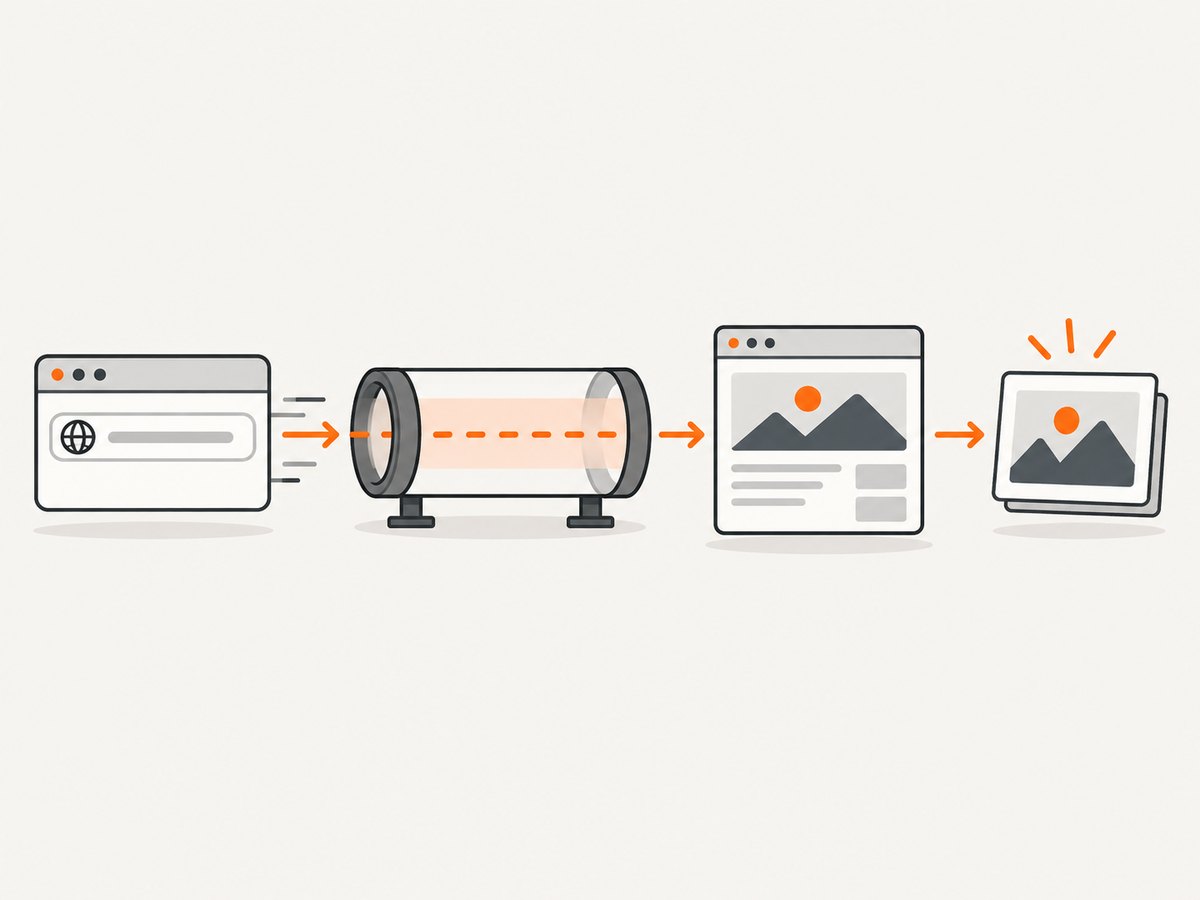
A browser-scoped proxy changes the network path used by that browser. The destination sees the proxy’s address instead of your normal connection, and the browser may offer a choice of routing location. It does not change every application on your device, and it does not guarantee access to every blocked service.
| Question | Browser proxy answer |
|---|---|
| Does it cover the whole device? | Usually no. Traffic from the configured browser is routed; other apps keep their normal path. |
| Can I choose a location? | Firefox documents location selection for its built-in VPN. Other products may use dedicated intermediary servers instead. |
| Will every blocked site open? | No. The site can block proxy IP ranges, demand verification, or fail to render through the route. |
| Can I capture after routing? | Yes, once the page and its assets finish loading. Opera includes a built-in Snapshot tool. |
2. Fast workflow: route, render, capture
- Identify the exact URL. Include the protocol and path. Save the URL and the intended proxy location in your notes.
- Open the page in a supported browser. Use a private window only if the site works without an existing login; private windows can remove cookies required by the page.
- Enable per-site routing. Turn on the browser’s VPN or proxy for the target site, and choose a location when the browser offers one.
- Reload and wait. Wait for the main content, images, fonts, and client-rendered sections. A screenshot taken during a redirect or loading state is usually not useful.
- Check the result. Look for a proxy warning, CAPTCHA, blank content, missing images, or a sign-in wall.
- Capture the page. Use the browser’s screenshot feature or an operating-system capture command.
- Record provenance. Save the source URL, capture time, browser, proxy location, and whether the page was authenticated. A useful filename is
example-com-2026-09-29-firefox-location.png.
3. Firefox built-in VPN: per-site routing
Mozilla describes its built-in VPN as a Firefox feature that routes browser traffic through a secure proxy server and masks your IP address. Its VPN panel supports per-site activation and location selection. Mozilla’s current documentation also describes a 50 GB monthly limit and a staged rollout beginning with Firefox version 149, so availability depends on your region and version.
Steps
- Open the target URL in Firefox.
- Open the VPN panel from the browser toolbar.
- Enable VPN for the site, then select an available location.
- Reload the tab and wait for the page to finish rendering.
- Use Firefox’s page screenshot command, or your operating system’s capture shortcut.
If the page still shows a block, try another available location. A different exit address can help when the first address is denied, but repeated attempts can also trigger additional verification.
4. Brave Smart Proxy Routing: for VPN-blocking destinations
Brave says Smart Proxy Routing uses dedicated intermediary servers and is intended for websites and applications that may block traffic coming from VPN servers. Brave also states that it cannot guarantee access to all restricted platforms. Treat it as a routing option to test, not as a bypass that works universally.
Steps
- Open the destination in Brave.
- Enable Smart Proxy Routing for the site when the option is available.
- Reload the page and watch for a successful navigation rather than assuming the toggle worked.
- Wait for images and JavaScript content to complete.
- Capture the rendered page with Brave or your operating system.
This option is particularly relevant when a destination rejects common VPN endpoint ranges. If the site requires an account, regional entitlement, or a human verification step, proxy routing alone may not be sufficient.
5. Opera Snapshot: capture after the page loads
Opera’s Snapshot tool is free and built into the browser. Opera documents Ctrl+Shift+5 on Windows and Command+Shift+2 on Mac, as well as the camera icon in the browser interface.
- Route the site through your chosen browser proxy or VPN.
- Confirm the page is fully rendered.
- Press the platform shortcut or click the camera icon.
- Select the visible page or the available full-page area.
- Save the image with the source URL, date, and routing location.
6. Full-page versus viewport captures
A viewport capture records what is visible in the browser window. A full-page capture attempts to stitch content below the fold. Full-page mode can expose lazy-loading behavior: images may not exist until you scroll, and sticky headers can appear repeatedly in stitched output.
- Use a viewport shot for a visual bug report or a fixed hero section.
- Use full-page capture for documentation, archives, and page comparisons.
- Scroll through long pages before capturing if important images load lazily.
- Capture at a consistent viewport size and device pixel ratio when comparing versions.
- For pages that continuously load content, record the stopping condition and capture time.
7. Why a blocked page still fails through a proxy
| Symptom | Likely cause | What to try |
|---|---|---|
| Access denied immediately | The destination blocks the proxy’s IP range. | Try Brave Smart Proxy Routing or another available location. Stop if the site requires verification you cannot provide. |
| CAPTCHA or bot check | The site detects proxy traffic or unusual automation. | Complete the check if you are authorized, then reload. Do not repeatedly refresh. |
| Blank page | JavaScript failed, an API call is blocked, or the page timed out. | Open developer tools, inspect failed requests, and try a normal reload. A proxy cannot fix a server-side outage. |
| Images missing | Image hosts use separate restrictions, lazy loading, or hotlink protection. | Scroll through the page, wait for assets, and test whether the image host is also reachable through the route. |
| Wrong regional content | The selected exit location changes geolocation. | Choose a location matching the intended audience and record it with the capture. |
| Screenshot shortcuts do nothing | The browser or device is managed by an organization. | Ask the administrator. Chrome Enterprise policies can prevent screenshots and screen sharing on selected websites; browser settings cannot override that policy. |
| Login loop | Cookies, third-party storage, or account policy conflict with the proxy route. | Use the normal profile, verify the account is allowed in that region, and avoid deleting cookies until you have recorded the session state. |
8. Managed browsers and enterprise restrictions
In a managed environment, the network route is only one control. Google Chrome Enterprise documents a policy that controls whether users in an organization can take screenshots and share screens on certain websites. This can block keyboard shortcuts, capture applications, and extensions. If a policy is active, changing browser settings will not override it. Request an approved capture process from the administrator.
9. Reliability checklist for repeatable captures
- Pin the browser version and capture tool for a repeatable workflow.
- Use a fixed viewport, zoom level, and device pixel ratio.
- Record the proxy product, location, URL, timestamp, and authentication state.
- Wait for fonts, images, and client-side data, not only the initial HTML.
- Take a second capture when the page contains animations, rotating banners, or personalized content.
- Keep the original file and a checksum if the image will support an audit or incident report.
- Do not treat a successful load as proof that all users can reach the site; proxy routing changes the session’s network and location.
10. Performance, privacy, and cost considerations
Proxy routing adds another network hop. The practical effect is a longer time to first byte or slower asset downloads, especially when the selected location is far from the destination. Large pages, video, third-party analytics, and infinite scrolling increase capture time and memory use.
Browser VPN limits also matter. Mozilla documents a 50 GB monthly limit for its built-in VPN. Brave’s documentation focuses on reachability and does not promise that every restricted service will work. Opera Snapshot itself is free, but you still pay in browser time and operational effort when a capture requires retries or manual verification.
For sensitive pages, remember that a proxy provider handles the routed traffic. Follow your organization’s data-handling rules, avoid placing secrets in URLs, and sign out when the capture is complete.
11. Or skip the browser setup
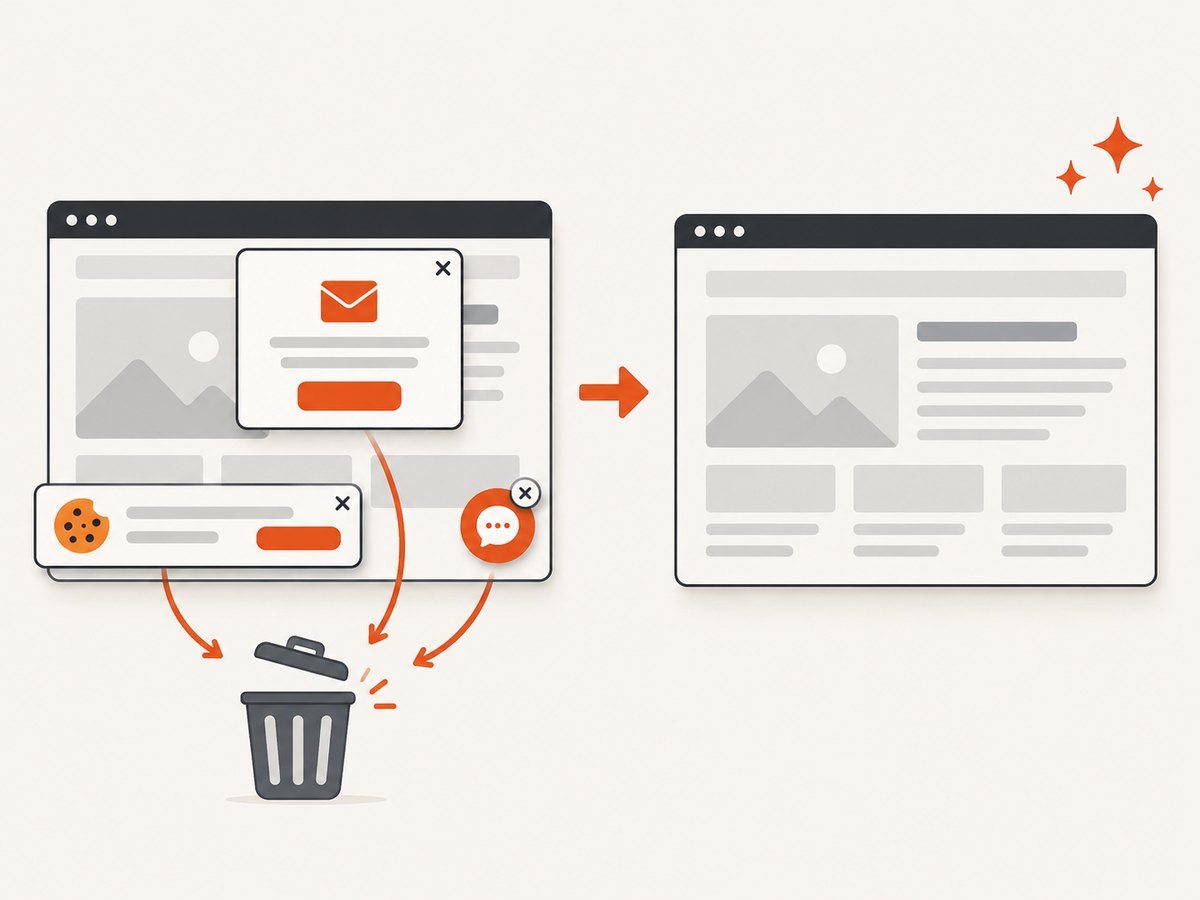
If you need repeatable screenshots in a pipeline, a browser proxy is often more setup than the capture itself. ScreenshotNeo provides a website screenshot API and MCP server. One GET request returns a PNG, JPEG, WebP, or PDF. Its capture flow can accept consent banners and remove more than 60 known consent platforms, newsletter popups, and chat widgets before the shot; each step can be turned off.
Only clean shots are billed. Bot checks, CAPTCHAs, blank pages, timeouts, failed loads, and cache hits cost nothing, and each response reports the result with X-Page-Verdict and X-Billed headers. The service also includes an MCP server with take_screenshot, get_page_info, and capture_pdf tools for Claude, Cursor, and other MCP clients.
cURL
curl -G "https://api.screenshotneo.com/v1/shot" \
  -d access_key=YOUR_API_KEY \
  --data-urlencode url=https://stripe.com \
  -o shot.webp
Python
import requests

r = requests.get(
    "https://api.screenshotneo.com/v1/shot",
    params={"access_key": "YOUR_API_KEY", "url": "https://stripe.com"},
    timeout=90,
)
r.raise_for_status()
open("shot.webp", "wb").write(r.content)
Node.js
const q = new URLSearchParams({
  access_key: 'YOUR_API_KEY',
  url: 'https://stripe.com'
});
const res = await fetch(`https://api.screenshotneo.com/v1/shot?${q}`);
if (!res.ok) throw new Error(`Screenshot failed: ${res.status}`);
const data = Buffer.from(await res.arrayBuffer());
require('fs').writeFileSync('shot.webp', data);
See the ScreenshotNeo documentation for request options. Relevant controls include full-page capture with lazy images loaded, CSS selector element capture, dark mode, 12 device presets or any viewport, retina scale, PDF paper size and margins, custom CSS and JavaScript, clicks, selector or network-idle waits, ad and tracker blocking, custom headers and cookies, user agent, Authorization, timezone, geolocation, transparent backgrounds, resizing, configurable-TTL caching, signed image links, asynchronous jobs with signed webhooks, bulk capture for up to 100 URLs per call, a usage API, and an OpenAPI specification. Common screenshot API parameter names also work when switching.
Plans include 1,000 shots per month free with no card, then Starter at $5 for 3,000, Growth at $15 for 15,000, Pro at $39 for 60,000, Scale at $99 for 250,000, and Business at $249 for 1,000,000. Yearly billing gives two months free, and every feature is available on every plan.
Start with 1,000 free screenshots a month, with no card required.
12. Choosing the right method
| Need | Best starting point |
|---|---|
| One manual capture from a page blocked on your connection | Firefox per-site VPN, then the browser’s screenshot command. |
| The site rejects ordinary VPN endpoints | Brave Smart Proxy Routing, with the limitation that access is not guaranteed. |
| A built-in capture button | Opera Snapshot after routing and rendering. |
| Repeatable builds, many URLs, or CI | ScreenshotNeo’s API, caching, bulk capture, and asynchronous jobs. |
| AI-agent workflow | ScreenshotNeo’s MCP server and its screenshot, page-info, and PDF tools. |
13. FAQ
Can a browser proxy bypass a company block?
It may change the route, but company policy, authentication, DNS controls, or endpoint security can still prevent access. Do not bypass controls without authorization.
Is a proxy the same as a VPN?
For this workflow, both can change the browser’s apparent network path. The exact coverage, locations, limits, and provider policies differ, so check the product documentation.
Why does the page work but the screenshot is incomplete?
Rendering may still be in progress, or content may load only after scrolling. Wait for assets and test a full-page capture after triggering lazy loading.
Can I rely on a proxy screenshot as evidence of what everyone sees?
No. Location, cookies, login state, proxy reputation, and time can all change the result. Preserve those details with the image.
When should I use an API instead of a browser?
Use an API when you need automation, consistent options, bulk URLs, webhooks, or a capture process that should not depend on a person’s browser session.