How to Screenshot a Website That Blurs or Hides Its Content
Learn why website content is blurred or hidden, which capture methods work, and when to use an approved export or ScreenshotNeo.

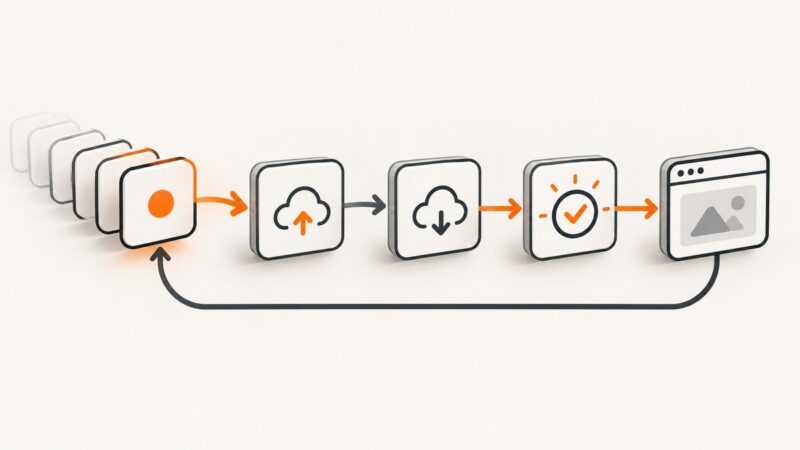
A blurred or hidden webpage needs a diagnosis before it needs a screenshot tool. The content may be hidden by the page’s CSS, fail to render, be blocked by a managed browser policy, or belong to protected video or audio. A browser screenshot captures the pixels the browser makes available; it does not guarantee access to content that a site, administrator, or media provider intentionally obscures.
For ordinary rendered pages, use the browser’s built-in full-page or visible-area capture. Firefox can capture a selected region, a detected page element, the full page, or the visible area, then save or copy the image. For a specific element or delayed interface state, Firefox DevTools provides element and full-page screenshot commands. If the browser blacks out a managed page or protected media is involved, use the site’s approved export, download, or sharing feature, or contact the administrator or provider.
Identify what is hiding the content
Different causes require different remedies. Do not treat a protected stream or organization policy as if it were a CSS problem.
| What you see | Likely cause | Appropriate next step |
|---|---|---|
| A translucent blur, modal, paywall, or overlay inside one site | Page styling or an intentional access gate | Use the site’s sign-in, export, print, download, or share flow. Capture only content you are authorized to save. |
| Images or text are missing, blank, or stuck loading | Rendering failure, blocked request, script error, or timeout | Reload, wait for the page state to settle, and inspect the page in DevTools. Check whether the site provides an export. |
| Every page fails to capture, or the result is black | Operating-system permission, browser version, or managed-browser policy | Test an unrelated ordinary page. If that also fails, ask your administrator or use an approved capture path. |
| A movie or music player is black or obscured | Protected content and its playback pipeline | Use a provider-authorized still, download, or sharing feature. Browser settings do not provide a documented screenshot bypass. |
MDN documents that user agents may obscure hidden portions of a logical display surface by blurring or replacing them with a color or pattern. That describes possible screen-capture behavior; it is not a universal explanation for every website or browser.
Use Firefox’s built-in screenshot
Firefox’s native feature is the quickest option for an ordinary page that renders normally. Mozilla documents that it can capture visible parts of a page or a full page, then let you copy or save the image. See Mozilla’s screenshot instructions for the current interface.
- Open the page and finish any legitimate sign-in or consent step required to view it.
- Right-click an empty part of the page and choose Take Screenshot, or press Ctrl+Shift+S on Windows/Linux or Command+Shift+S on macOS.
- Choose Visible for the current viewport, Full Page for the complete rendered document, or drag a region. Firefox may also detect a page element for you.
- Save the PNG or copy it to the clipboard.
A full-page capture includes content that exists in the rendered document, but lazy-loaded sections may need to be brought into view first. Scroll through the page, wait for images and fonts to finish loading, and then repeat the capture. If the page intentionally keeps a section blurred, the screenshot will normally preserve that state.
Capture an element or delayed state with Firefox DevTools
For a chart, article body, dialog, or other specific element, DevTools avoids cropping a large full-page image. Mozilla’s DevTools screenshot documentation describes full-page and element captures and the :screenshot helper.
- Open DevTools with F12 or Ctrl+Shift+I (Windows/Linux), or Command+Option+I (macOS).
- Open the DevTools command line or the Console.
- Run a selector capture such as:
:screenshot --selector "article" --filename article.pngReplace article with a selector for the element you are allowed to capture. A delayed full-page capture can be useful after animations or lazy content have settled:
:screenshot --fullpage --delay 2000 --filename page.pngThe delay is in milliseconds. It gives the page time to finish a transition or load content; it does not reveal data that the site or browser intentionally withholds.
Useful capture choices
| Goal | Choice | Trade-off |
|---|---|---|
| Document what a visitor currently sees | Visible-area capture | Fast, but excludes content below the viewport. |
| Archive a long article or documentation page | Full-page capture | Can be tall and may expose lazy-loading or sticky-header quirks. |
| Save one component | --selector |
Requires a stable CSS selector. |
| Wait for an animated or delayed interface | --delay |
Adds latency and still depends on the page rendering successfully. |
When the browser or organization blocks screenshots
Chrome Enterprise policies can restrict screenshots on managed pages. Google documents that Chrome Enterprise Premium data-loss prevention can black out screenshots on Windows or make governed content disappear on Mac, with URL-pattern exceptions controlled by policy. In that situation, changing a page selector or using another screenshot command does not solve the policy. Ask the administrator for an approved exception or use the organization’s export and sharing workflow.
If an unrelated ordinary page also fails, check the basics: whether the browser is managed, whether the browser is current, and whether your operating system permits screen capture. The exact permission path varies by operating system, so follow your organization’s documented procedure rather than applying a universal setting.
Protected video and audio are a separate case
Protected music and movies use playback controls that are different from a CSS blur or normal webpage overlay. Google’s protected-content guidance explains how Chrome settings affect viewing and playback; it does not describe those settings as a way to capture protected frames.
Use a provider-authorized still image, download, or sharing feature when available. Do not attempt to extract or bypass protected media. If the provider offers no such feature, contact the provider about the permitted way to document the material.
Or skip the browser setup
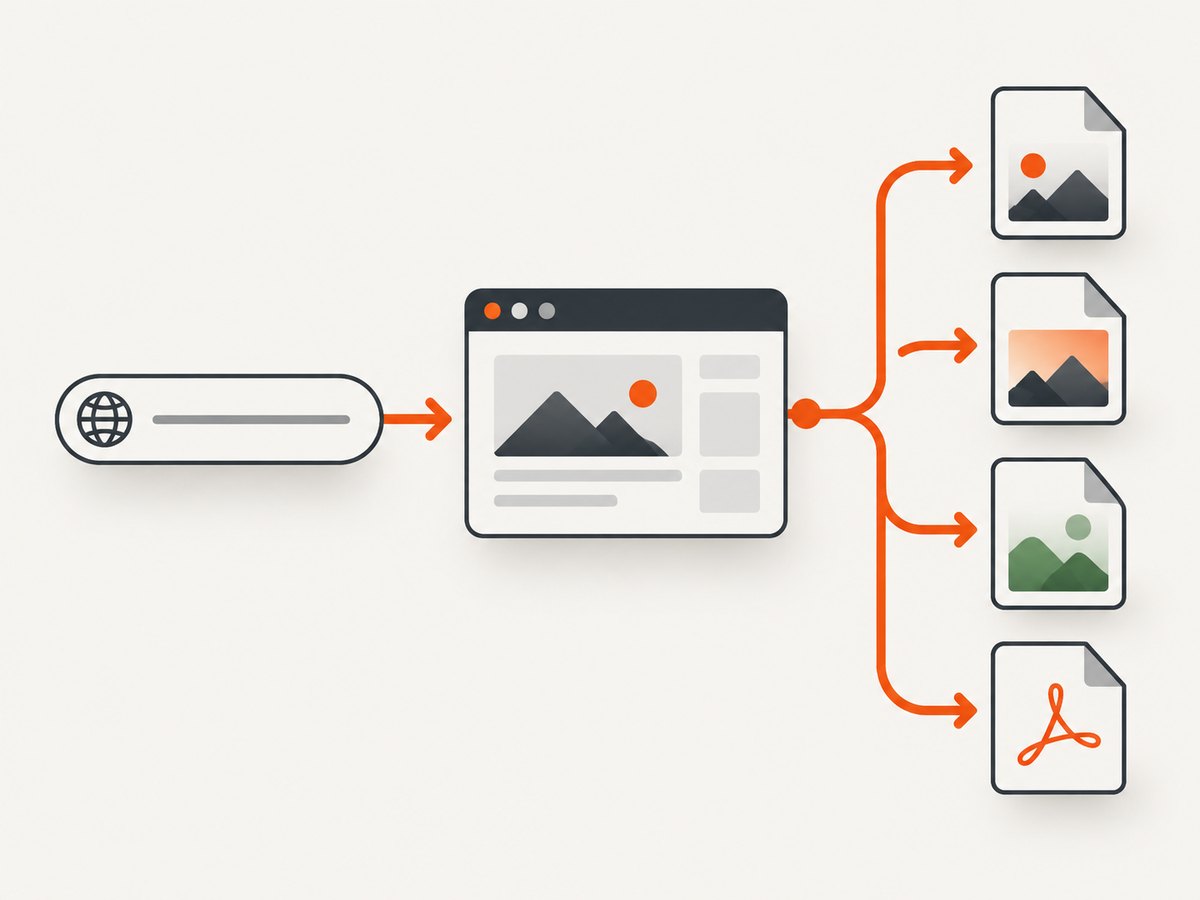
For ordinary webpages you are authorized to capture, ScreenshotNeo provides a website screenshot API and MCP server. One GET request returns PNG, JPEG, WebP, or PDF output. It accepts the page URL and can handle full-page capture, lazy images, an element selector, dark mode, device presets, custom viewport and retina scale, waits, custom CSS and JavaScript, clicks, hidden selectors, request blocking, headers, cookies, user agents, authorization, timezone, geolocation, transparent backgrounds, resizing, caching, signed links, asynchronous jobs, webhooks, bulk capture, usage data, and PDF settings.
Use the same API from a shell, Python, or Node.js application. The ScreenshotNeo documentation covers the complete option set and response headers.
cURL
curl -G "https://api.screenshotneo.com/v1/shot" -d access_key=YOUR_API_KEY --data-urlencode url=https://stripe.com -o shot.webpPython
import requests

r = requests.get(
    "https://api.screenshotneo.com/v1/shot",
    params={"access_key": "YOUR_API_KEY", "url": "https://stripe.com"},
    timeout=90,
)
r.raise_for_status()
open("shot.webp", "wb").write(r.content)
Node.js
const q = new URLSearchParams({ access_key: 'YOUR_API_KEY', url: 'https://stripe.com' });
const res = await fetch(`https://api.screenshotneo.com/v1/shot?${q}`);
if (!res.ok) throw new Error(`Screenshot failed: ${res.status}`);
const buffer = Buffer.from(await res.arrayBuffer());
await import('node:fs/promises').then(fs => fs.writeFile('shot.webp', buffer));
ScreenshotNeo removes cookie and consent banners, newsletter popups, and chat widgets before capture. Each cleanup step can be disabled when you need the original state. Bot checks and CAPTCHAs, blank pages, timeouts, failed loads, and cache hits cost nothing; response headers identify the page verdict and whether the response was billed. Its MCP server exposes take_screenshot, get_page_info, and capture_pdf for Claude, Cursor, and other MCP clients.
Create a free account at ScreenshotNeo sign-up for 1,000 screenshots per month with no card. Paid plans start at $5 for 3,000 screenshots; yearly billing gives two months free.
Troubleshooting common failures
| Symptom | Cause | Fix |
|---|---|---|
| Screenshot contains the blur exactly as shown | The page intentionally renders a blurred state or access gate. | Complete the authorized access step or use the site’s export, print, or share feature. |
| Full-page capture misses images | Images are lazy-loaded or the page has not settled. | Scroll through the page, wait for network activity to finish, then capture again. In an API, use a selector wait, delay, or network-idle option. |
| Only one element is blank | The element failed to load, relies on a blocked request, or is protected media. | Inspect its requests and page errors. Use an approved export for protected content. |
| Every screenshot is black | Managed-browser or operating-system capture restriction. | Test an ordinary page, then contact the administrator or follow the approved workflow. |
| DevTools selector returns no image | Selector does not match, is inside a frame, or changes after load. | Inspect the live DOM, choose a stable selector, and add a delay. A cross-origin frame may require capture from its own permitted context. |
| API response is an error or times out | Invalid URL, authentication failure, slow page, bot check, or failed load. | URL-encode the value, verify the access key, increase the client timeout, and inspect X-Page-Verdict and X-Billed. A failed load is not billed by ScreenshotNeo. |
Performance, reliability, and cost planning
Browser captures
- Visible-area captures are usually the quickest because they render less content.
- Full-page captures take longer on pages with many images, fonts, animations, or lazy sections.
- Disable animations where you control the page, or use a documented delay when you need a stable final state.
- Keep the browser session authenticated only when the content and account permit it. Never place credentials in a screenshot filename, log, or public URL.
API captures
- Use caching with a TTL when repeated captures can share the same result.
- Use bulk capture for up to 100 URLs per call when processing a list.
- Use asynchronous jobs and signed webhooks for slow pages or large batches instead of holding an HTTP request open.
- Set a client timeout long enough for page loading and cleanup, and retry only transient failures with backoff.
- Record verdict and billing headers so your accounting distinguishes clean shots, cache hits, and failed loads.
ScreenshotNeo plans include every feature: Free offers 1,000 shots per month, Starter is $5 for 3,000, Growth $15 for 15,000, Pro $39 for 60,000, Scale $99 for 250,000, and Business $249 for 1,000,000. Only clean shots are billed.

Authorization checklist
- Do you have permission to save and share the page?
- Is the blur an intentional access control, paywall, or privacy feature?
- Is the page governed by a work or school browser policy?
- Is the content protected video or audio?
- Does the site offer an export, print, download, or share option?
- Will the screenshot expose personal, confidential, or credential data?
FAQ
Can a full-page screenshot remove a website’s blur?
No. It captures the rendered pixels available to the browser. An intentional blur or overlay remains unless the site provides an authorized way to view the underlying content.
Why does one website fail while other pages work?
The site may use a rendering path, overlay, delayed request, or protected component that differs from ordinary pages. Inspect the page and look for an approved export before changing capture tools.
Does turning off hardware acceleration defeat screenshot blocking?
General hardware-acceleration troubleshooting does not establish a reliable way to defeat site, DRM, or administrator restrictions.
Which capture should I choose for a bug report?
Use a visible-area image for a viewport bug and an element capture for a component. Use full-page capture when the defect depends on content below the fold.
Can an API capture a page behind login?
Yes, when you are authorized and provide the required cookies, headers, user agent, or authorization through a service that supports them. Protect those credentials and avoid public signed links for private material.