How to Screenshot Browser History
Open your browser’s History view, capture the entries you need, and check sync and privacy details before sharing the image.

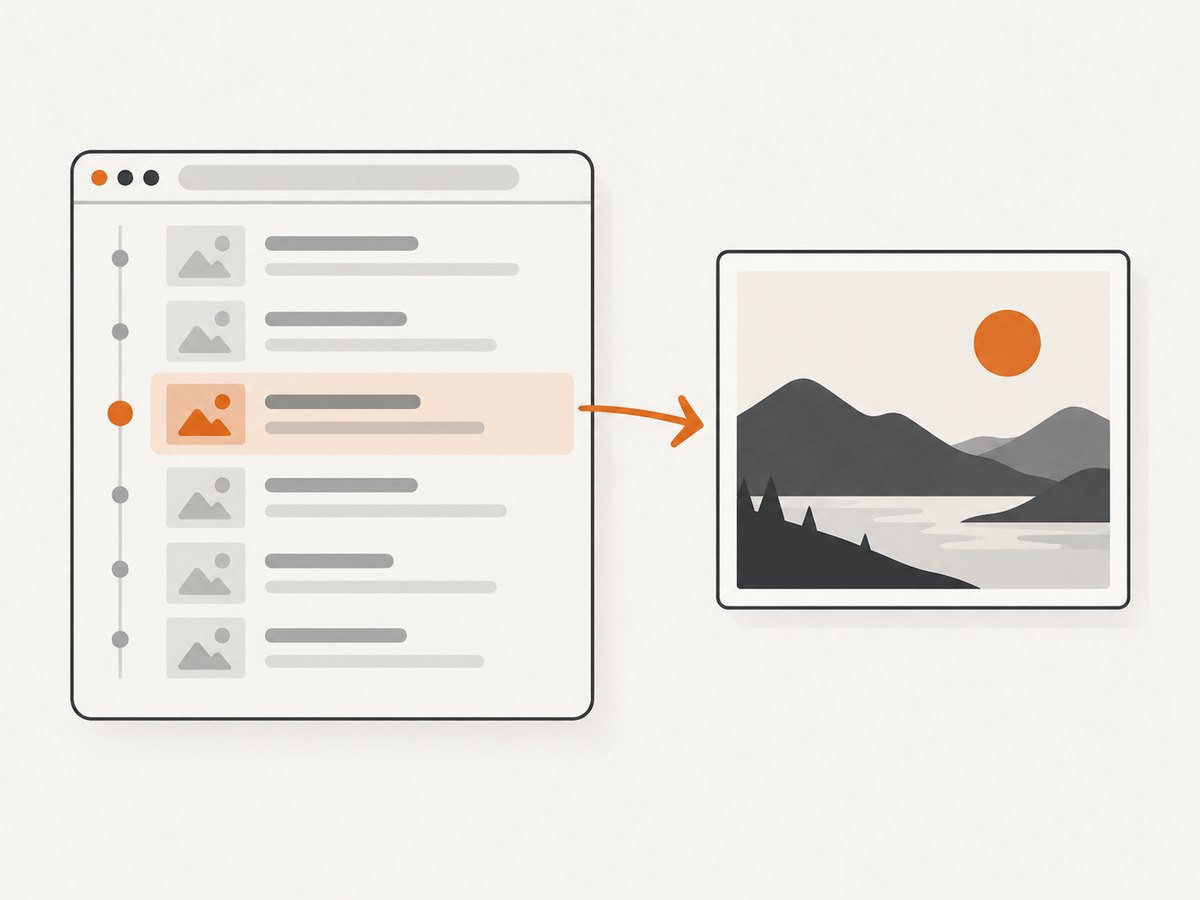
To screenshot browser history, open your browser’s History view, find the entries you need, then capture the visible screen with your computer’s screenshot feature. In Firefox, you can also use its built-in screenshot tool to save the visible area or the full page. Before sharing, inspect the image for unrelated history entries, account details, tabs, and notifications.
A screenshot records what was visible when you captured it. It is not a complete export of browsing activity: browser settings, deleted entries, private browsing, and sync can affect what the History view contains.
1. Open the browser history you want to capture
Google Chrome on desktop
- Open Chrome.
- Select More (the three-dot menu), then History, then History.
- Search for a page or review the entries by date or group.
- Position the relevant entries on screen and use your computer’s screenshot feature.
Chrome’s History page lists visited pages from the last 90 days. It does not list Chrome settings pages, Incognito pages, or entries you deleted from browsing history. If history sync is on, the list can include pages visited on other devices. Deleting synced history also removes it from signed-in devices. [Google Chrome Help: Check or delete your Chrome browsing history]
The exact screenshot shortcut depends on your operating system and keyboard configuration. Use the screenshot function provided by your computer rather than assuming one shortcut works everywhere. If you need to capture entries that extend below the visible screen, see the full-page options below.
Mozilla Firefox
Open Firefox’s History view and bring the entries you need into view. Firefox’s screenshot tool can then capture the visible area or a full page:
- Right-click an empty part of the page and choose Take Screenshot, or use Ctrl+Shift+S on Windows/Linux or Command+Shift+S on macOS.
- Choose the visible-area or full-page capture option.
- Download the image or copy it to the clipboard.
Mozilla describes the feature this way: “You can take screenshots to capture visible parts of web pages, or even full web pages, and copy or save these images.” [Mozilla Support: Take screenshots in Firefox] Menu wording can vary between versions. If the screenshot command is unavailable from the History view, use your computer’s screenshot tool.
Microsoft Edge
Open Edge’s current History command, locate the entries, and capture what is shown. The precise menu sequence can change, so use the History command presented in your version of Edge.
Edge documents history stored on one device, across synced devices, and in the cloud. Check which entries are visible before sharing. A screenshot can reveal any history currently shown in the browser, regardless of whether you intend to share only local activity. [Microsoft Support: View and delete browser history in Microsoft Edge]
InPrivate and guest behavior depends on privacy and diagnostic-data settings. Do not treat a private window as a promise that activity is invisible to websites, networks, or account-level systems. Microsoft describes private browsing and local browsing data separately in its privacy guidance. [Microsoft privacy guidance for Edge]
2. Choose what the screenshot should include
Decide whether you need to show a particular visit, a group of entries, or as much of the history page as possible. The right capture depends on the purpose:
| Goal | Capture approach | What to check |
|---|---|---|
| Show one visit | Search for or navigate to that entry, then capture a closely framed screen. | Nearby entries, dates, and unrelated details may still be visible. |
| Show several entries in sequence | Position the relevant group on screen; use more than one image if needed. | Keep enough date or context information to make the sequence understandable. |
| Show a long page | Use Firefox’s full-page screenshot when available, or capture multiple screens with overlap. | A full-page image may include more personal data than a visible-area capture. |
| Send an image to another app | Save the screenshot as an image file, or copy it to the clipboard where supported. | Confirm the image is attached and legible before sending. |
Browser history pages are interfaces, not ordinary web pages. A browser’s full-page screenshot feature may not capture every item in a long or dynamically loaded history list. If entries are missing, capture the list in sections or use the browser’s own history export or account tools if your goal is a data record rather than a picture.
3. Capture and review the image
- Reduce clutter. Close unrelated tabs and dismiss notifications that could appear in the capture.
- Find the relevant entries. Use the history search or date/group navigation where available.
- Frame the screen. Include enough browser context to show what the image represents, but avoid exposing unrelated entries.
- Capture. Use your operating system’s screenshot tool, or Firefox’s built-in tool for visible or full-page capture.
- Inspect the saved result. Check that text is readable, the correct dates are shown, and no private details are included unintentionally.
- Redact carefully if needed. If you obscure account names or unrelated entries, preserve an unedited original when a recipient needs to verify context.
For evidence or support requests, state that the image shows the displayed History view. A screenshot alone does not establish that the browser’s complete history is present: Chrome’s 90-day view, deleted entries, Incognito exclusions, and sync behavior all affect what appears. Edge also distinguishes local, synced, and cloud history. [Chrome history scope] [Edge history scope]
4. Save, copy, or share
Firefox offers download and clipboard options in its screenshot flow. With other capture methods, save the image using the format offered by your computer, then attach that file to the message or document where it is needed. If the recipient only needs to inspect one entry, consider cropping to the relevant area while retaining enough context to understand it.
A screenshot does not delete history or otherwise change browser history. Clearing history is a separate browser action. In Chrome, deleting synced history removes it from signed-in devices; Edge also provides distinct controls for local browsing information and account-associated information. Do not clear history as part of taking a screenshot unless deletion is separately intended. [Google Chrome Help] [Microsoft Edge Support]
5. Privacy checklist before sending
- Are there unrelated sites, searches, timestamps, or account names in the image?
- Does the browser show history from synced devices or cloud storage that the recipient does not need?
- Are other tabs, bookmarks, notifications, or profile details visible around the History view?
- Is the image a visible portion or a longer page capture? Make that clear if it matters.
- Could a tighter crop or redaction protect unrelated information while preserving the context needed?
History can reveal sensitive interests and account context. Review the image at full size before sending it, especially if you captured a whole page or a large screen area.

6. Troubleshooting
| Problem | Likely cause | What to do |
|---|---|---|
| The History command is missing or has moved. | Browser versions and menu layouts differ. | Look for the browser’s current History command or use its built-in help. Avoid relying on an old menu path. |
| The screenshot contains only the visible portion. | The operating system capture tool captures the screen area, not a long page. | Use Firefox’s full-page option if available, or capture the history in overlapping sections. |
| The full-page image omits entries. | The history list may load dynamically or only render items as you scroll. | Scroll to load the needed entries, then capture smaller sections and verify each image. |
| Expected visits are not present. | The entry may be outside Chrome’s documented 90-day list, deleted, from Incognito, or associated with a different sync state. | Check the correct browser profile and device, and confirm sync context. A screenshot cannot recover an entry the view does not show. |
| The image is hard to read. | The capture is scaled down, the browser window is narrow, or too many entries are included. | Enlarge the browser window, capture fewer entries per image, and inspect the saved file at its native size. |
| Private details appear in the capture. | The screenshot includes more of the History page or desktop than intended. | Retake with a tighter frame or redact before sharing; inspect the final copy, not just the editing view. |
| A recipient assumes the image proves complete history. | A screenshot records a displayed view, whose contents depend on browser scope and settings. | Describe the browser, profile, date range, and sync context when relevant. Avoid claiming completeness unless separately established. |
7. Capturing a normal website instead of the browser’s History interface
The steps above are for a person taking a screenshot of browser history. If you are a developer capturing a website page for documentation, QA, monitoring, or an AI workflow, you usually need a browser automation script or screenshot API instead. Those tools capture web pages; they do not reveal a user’s private browser history.
What to consider for automated website screenshots
- Capture scope: viewport or full page, and whether the target is a specific element.
- Rendering state: wait for a selector, a fixed delay, or network idle; dynamic pages may need more than navigation completion.
- Viewport and scale: match the target device dimensions and account for retina scale.
- Privacy and access: use headers, cookies, or authorization only when you are permitted to access the page.
- Stability: block irrelevant third-party resources selectively and set timeouts appropriate to the site.
- Output: choose an image format and dimensions suitable for the artifact’s destination.
For a self-hosted browser workflow, use the automation library’s official documentation and keep browser installation, versioning, and runtime dependencies pinned. The browser must be able to reach the target page, and a successful navigation does not guarantee that fonts, images, or client-rendered content have finished loading. Retake or report failures explicitly rather than silently treating an incomplete image as a valid capture.
8. Or skip the browser setup
ScreenshotNeo is a website screenshot API and MCP server from Yorker Media. One GET request can return a PNG, JPEG, WebP, or PDF. It is for capturing websites, not a person’s local browser history. See the ScreenshotNeo documentation for request options.
curl -G "https://api.screenshotneo.com/v1/shot" -d access_key=YOUR_API_KEY --data-urlencode url=https://stripe.com -o shot.webpimport requests
r = requests.get(
"https://api.screenshotneo.com/v1/shot",
params={"access_key": "YOUR_API_KEY", "url": "https://stripe.com"},
timeout=90,
)
open("shot.webp", "wb").write(r.content)const q = new URLSearchParams({ access_key: 'YOUR_API_KEY', url: 'https://stripe.com' });
const res = await fetch(`https://api.screenshotneo.com/v1/shot?${q}`);ScreenshotNeo accepts cookie or consent banners and removes more than 60 known consent platforms, newsletter popups, and chat widgets before the capture; each step can be turned off. Bot checks, blank pages, timeouts, failed loads, and cache hits cost nothing, and response headers identify the page verdict and billing status. Its MCP server gives AI agents tools named take_screenshot, get_page_info, and capture_pdf. The Free plan includes 1,000 screenshots per month with no card; paid plans start at $5 for 3,000 screenshots. Sign up for 1,000 free screenshots a month, with no card required.
FAQ
Can I screenshot browser history without deleting or changing it?
Yes. Capturing an image does not itself change browser history. Deleting history is a separate action.
Does a screenshot show my complete browsing history?
No. It shows the entries in the captured view. Browser retention, deleted entries, private browsing, profile selection, and sync affect what that view contains.
Can I screenshot history from another device?
Only if the browser’s history view includes activity from that device through sync or account storage. Check the visible entries and sync context before describing what the screenshot represents.
Is it safe to share a browser history screenshot?
It can expose sites, searches, timestamps, and account details. Review the full image and remove unrelated information before sharing it.
Can ScreenshotNeo capture my browser history?
No. ScreenshotNeo captures websites by URL. It cannot access the local History interface or private browsing data on your computer.


