How to Screenshot Cells in Google Sheets
Learn how to capture selected Google Sheets cells as an image or PDF on desktop and mobile, plus an automated ScreenshotNeo option.
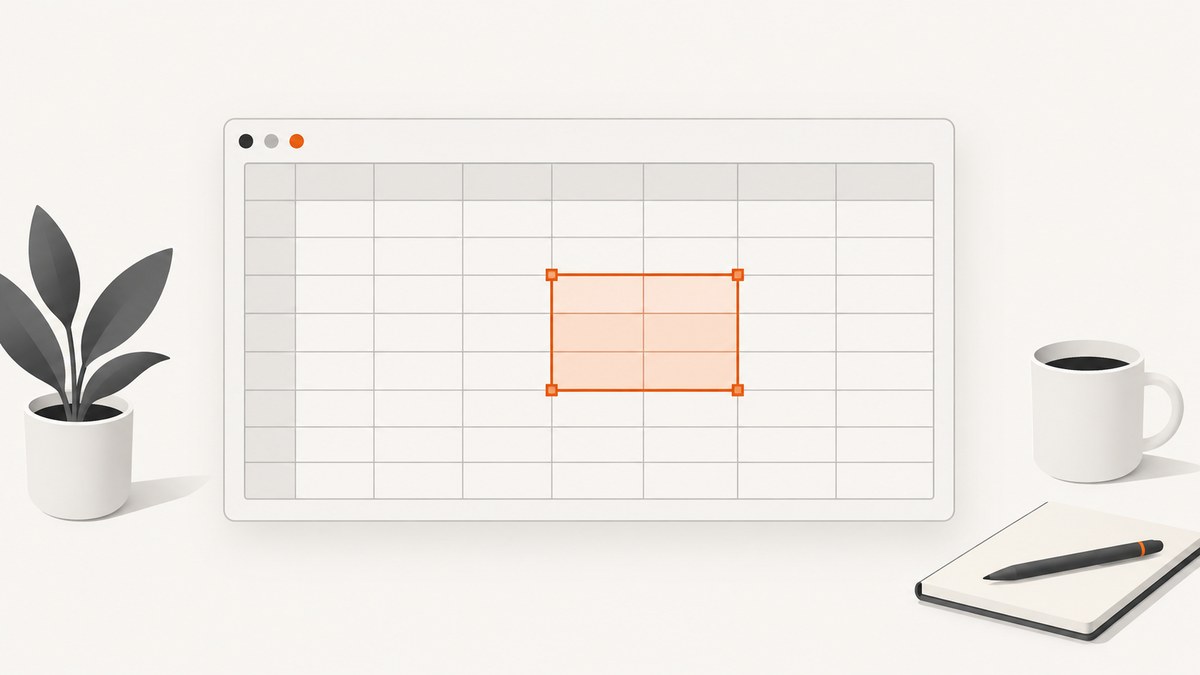
Short answer: Google Sheets does not provide a documented command to download ordinary selected cells directly as an image. Select and frame the cells, then use your computer or phone’s screenshot feature. If you need a document instead, use File > Print > Selected cells and save or print the result as a PDF. Google documents the selected-cell print route, while its support community describes a screenshot as the practical image workaround. Google’s print instructions and the Google Docs Editors Community discussion cover these options.
Choose the output you need
| Goal | Best route | Result |
|---|---|---|
| Quick image of visible cells | Frame the range and use the device screenshot tool | PNG or another screen-image format |
| Clean document or PDF | File > Print > Selected cells | Print output or PDF, depending on your browser and system |
| Editable image workaround | Copy the range into Google Drawings | A drawing that can be downloaded in image formats, according to community guidance |
| Repeatable or automated captures | Use a screenshot API such as ScreenshotNeo | An image or PDF generated from a URL |
Screenshot selected cells on a computer
- Open the spreadsheet in Google Sheets.
- Select the cell range you want to show.
- Resize columns or rows, adjust zoom, and scroll so the range is readable. Keep unrelated rows, columns, and browser content outside the frame.
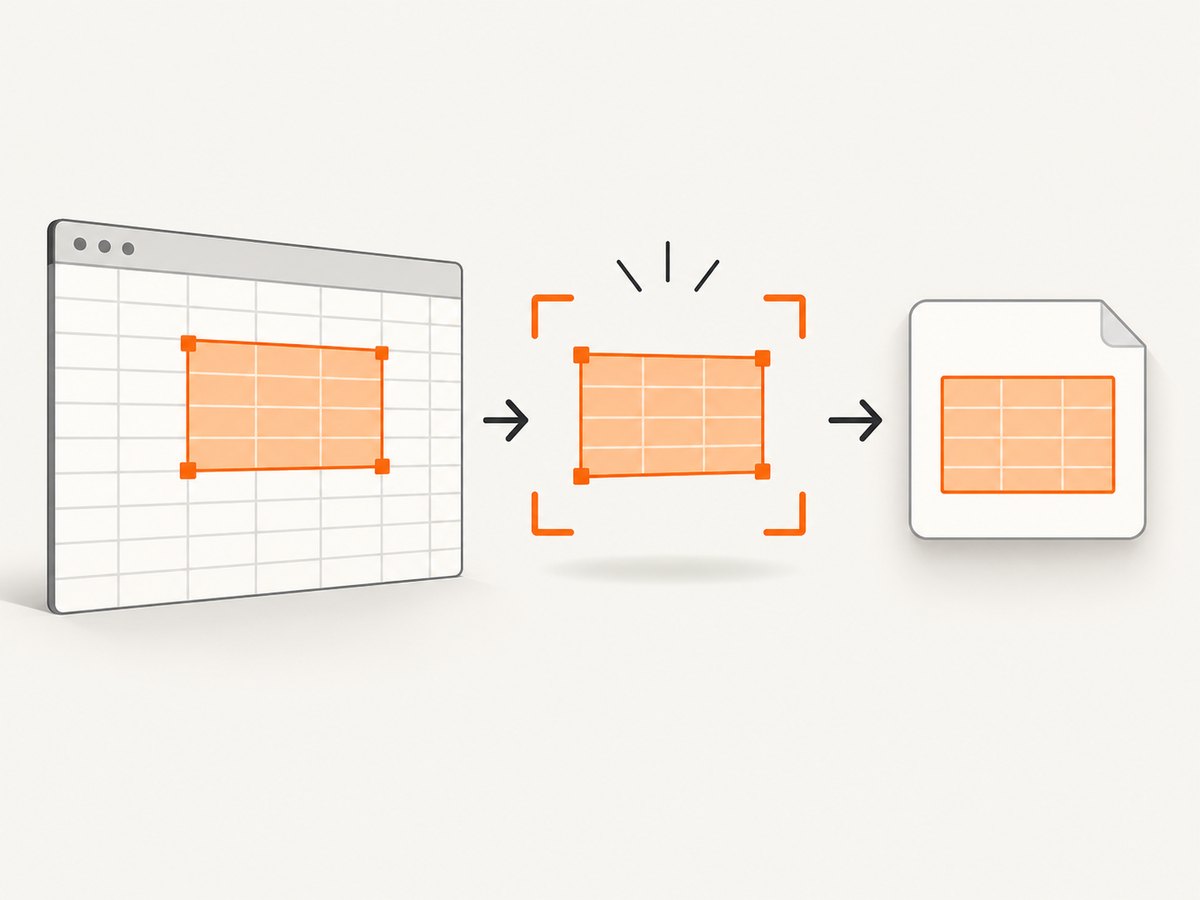
- Use your operating system’s built-in screenshot feature to capture the visible range. Shortcut keys differ by operating system and software version, so use the screenshot control provided by your device.
- Save or paste the captured image where you need it.
This method captures what is visible on screen. It will include formatting, gridlines, selections, and any other visible Sheets interface unless you crop the result afterward.
Make the image easier to read
- Hide or collapse unrelated columns and rows before capturing.
- Choose a zoom level that keeps text legible without making the range too large for the screen.
- Resize columns so long values are not truncated.
- Click an empty cell, or otherwise remove the active-cell highlight when it distracts from the data.
- Crop browser tabs, sidebars, and other content after capture if they are not part of the explanation.
Print selected cells or save them as a PDF
Use this route when the recipient needs a clean document, selectable text, or a predictable page layout.
- Select the cells in Google Sheets.
- Choose File > Print.
- In the print settings, choose Selected cells.
- Set orientation, margins, scale, headers or footers, and custom page breaks as needed.
- Continue to your browser or system print dialog. Chrome proceeds to a print dialog; Firefox or Safari may download a PDF for viewing, according to Google’s help page.
- Choose a printer, or select the PDF save option supplied by your system.
The print workflow is different from a screenshot: it renders the selected range as a document rather than copying the pixels currently visible in your browser.
When a PDF is better than an image
- The range spans more rows than fit on screen.
- You need page breaks, margins, or orientation controls.
- The recipient needs to search or copy text.
- You want a consistent print layout for reports or records.
Screenshot cells in the Google Sheets mobile app
Google’s Android and iPhone/iPad help pages document printing through the app:
- Open the spreadsheet.
- Tap More.
- Choose Share & export, then Print.
- Complete the device’s print flow.
These instructions describe printing, not a selected-range image export. For an image, select and frame the cells, then use your device’s built-in screenshot controls. The exact gesture or buttons depend on the device and software version.
See Google’s official guides for Android and iPhone and iPad.
Optional workaround: copy the range to Google Drawings
A Google Docs Editors Community expert describes copying a table or range into Google Drawings and downloading the drawing in an image format. This is community guidance rather than a documented Google Sheets export command, so the exact menu behavior may change.
- Select and copy the range in Sheets.
- Open or create a Google Drawing.
- Paste the cells into the drawing.
- Adjust the drawing canvas if needed.
- Use the drawing’s download option to choose an image format.
Use this only when you need an editable canvas or a downloadable image and the direct screen capture is not convenient.
Or skip the browser setup
For repeatable captures of a public or otherwise accessible sheet URL, ScreenshotNeo provides a website screenshot API. It can return PNG, JPEG, WebP, or PDF from one GET request. The API can capture a full page, wait for a selector or delay, run custom JavaScript, hide selectors, set a viewport or device preset, and apply options such as dark mode, retina scale, cookies, headers, timezone, geolocation, caching, and PDF settings. Use only the options your workflow requires; authentication and sharing permissions still determine whether Google can render the sheet.
See the ScreenshotNeo API documentation for the current request parameters.
cURL
curl -G "https://api.screenshotneo.com/v1/shot" \
  -d access_key=YOUR_API_KEY \
  --data-urlencode url=https://docs.google.com/spreadsheets/d/YOUR_SHEET_ID/edit \
  -o sheet.webp
Python
import requests

r = requests.get(
    "https://api.screenshotneo.com/v1/shot",
    params={
        "access_key": "YOUR_API_KEY",
        "url": "https://docs.google.com/spreadsheets/d/YOUR_SHEET_ID/edit",
    },
    timeout=90,
)
r.raise_for_status()
open("sheet.webp", "wb").write(r.content)
Node.js
const q = new URLSearchParams({
  access_key: 'YOUR_API_KEY',
  url: 'https://docs.google.com/spreadsheets/d/YOUR_SHEET_ID/edit'
});
const res = await fetch(`https://api.screenshotneo.com/v1/shot?${q}`);
if (!res.ok) throw new Error(`Screenshot failed: ${res.status}`);
const data = Buffer.from(await res.arrayBuffer());
await Bun.write('sheet.webp', data);
Replace the example URL with the sheet URL you are allowed to render. A private sheet normally requires an authenticated browser session; an API request alone does not grant Google account access.
Why developers use ScreenshotNeo for this workflow
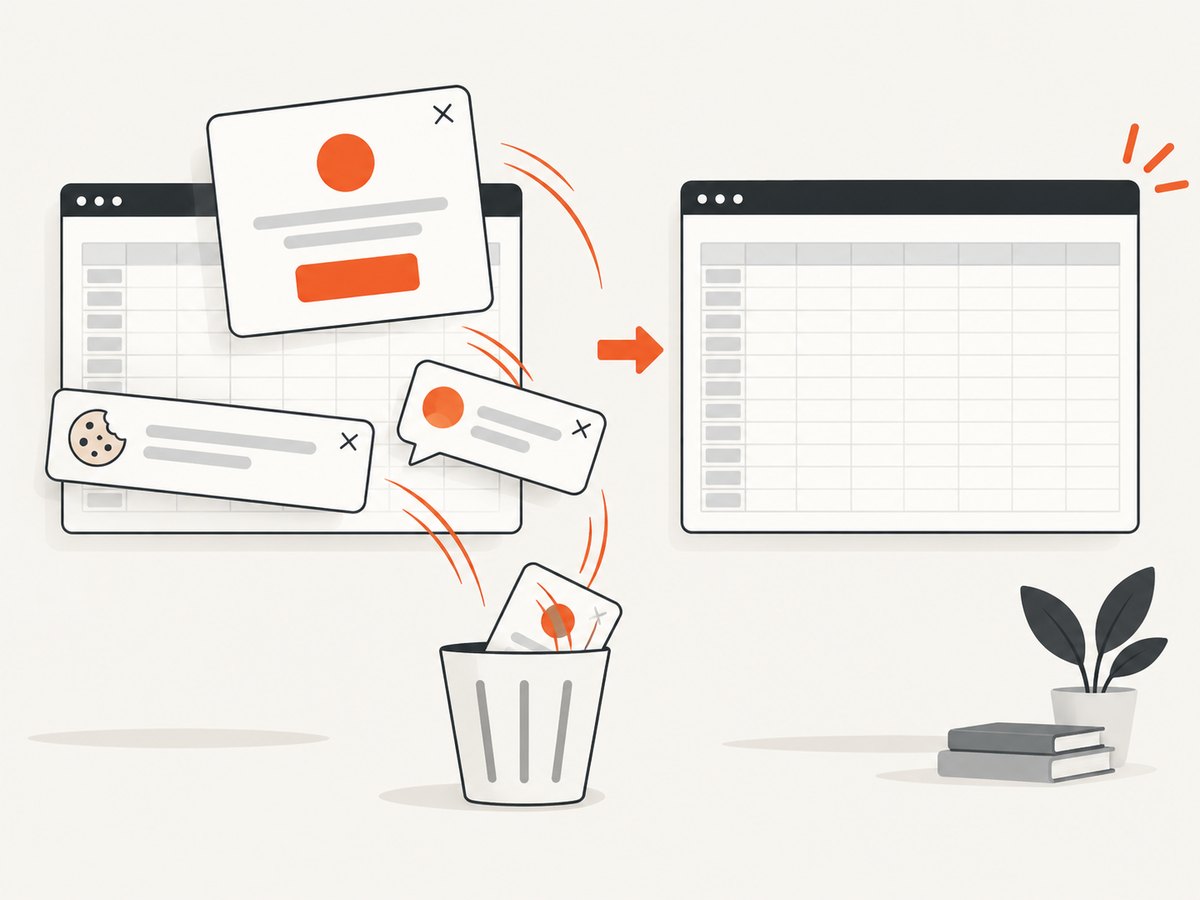
- Cookie and consent banners, newsletter popups, and chat widgets are removed before capture.
- Bot checks, blank pages, failed loads, timeouts, and cache hits are not billed; response headers identify the page verdict and billing status.
- An MCP server provides
take_screenshot,get_page_info, andcapture_pdftools for Claude, Cursor, and other MCP clients. - The Free plan includes 1,000 screenshots per month with no card. Paid plans start at $5 for 3,000 shots, and every feature is available on every plan.
Create a free ScreenshotNeo account to start with 1,000 screenshots a month and no card.
Troubleshooting
| Problem | Likely cause | Fix |
|---|---|---|
| The image contains too much of the sheet | The visible frame included extra rows, columns, or browser UI | Resize the window, adjust zoom, scroll the range into position, and crop the screenshot. |
| Cells are cut off | Columns or rows are too narrow, or the range extends beyond the viewport | Resize columns and rows, reduce zoom, or use the selected-cell print route for a multi-page result. |
| The PDF includes the whole sheet | The print scope was left at the default setting | Return to print settings and choose Selected cells. |
| Text is unreadable | The screenshot was scaled down or captured at a low display size | Increase zoom or display scale before capture, then crop without shrinking the cells excessively. |
| The mobile app has no image export option | Google’s documented mobile route is printing | Use the device screenshot controls for an image, or print and save a PDF. |
| ScreenshotNeo returns a blank page | The sheet is private, still loading, or blocked by an access challenge | Confirm that the URL is accessible to the capture browser, share the sheet appropriately, and use a wait option when content loads asynchronously. |
| A ScreenshotNeo capture shows a consent dialog or popup | The page used a consent or overlay implementation not removed by the current settings | Check the response verdict and configure the relevant cleanup or hide-selector option in the API documentation. |
| The API response is not an image | The request failed or returned an error response | Check the HTTP status before writing the body to a file, verify the access key and URL, and inspect the response headers. |
Performance, reliability, and cost considerations
- For one-off captures: a device screenshot is fastest because it uses the already-rendered sheet.
- For long ranges: printing selected cells avoids trying to fit every row into one viewport.
- For automation: wait for the sheet and any required selector before capture, and use a stable shared URL.
- For repeat jobs: caching with a chosen TTL can reduce duplicate work when the sheet has not changed.
- For public embeds: signed links can protect image URLs, while async jobs and signed webhooks support longer workflows.
- For cost control: ScreenshotNeo bills only clean shots; bot checks, blank pages, timeouts, failed loads, and cache hits are not billed. The response includes
X-Page-VerdictandX-Billedheaders.
FAQ
Can Google Sheets export selected cells directly as PNG?
Google’s cited help documents printing selected cells, not a direct image-download command for ordinary cell data. Use a screen capture or an optional Google Drawings workaround.
Does printing selected cells create one image?
No. Printing creates print output or a PDF according to the browser and print settings. Use a screenshot when you need a screen image.
Can I capture a private spreadsheet with an API?
Only if the capture browser can access it. A URL by itself does not provide Google account authentication.
Should I use a screenshot or PDF for a large range?
Use a screenshot for a quick visual of what is on screen. Use selected-cell printing for a long range, controlled page layout, or searchable text.
Can I automate repeated Google Sheets captures?
Yes, when the sheet is accessible to the capture process. A screenshot API such as ScreenshotNeo can provide repeatable requests, waits, output formats, and delivery options.


