How to Screenshot the Current Page with JavaScript
Capture the current page with html2canvas, Playwright, Puppeteer, or getDisplayMedia. Learn which method fits, handle cross-origin limits, and use ScreenshotNeo.
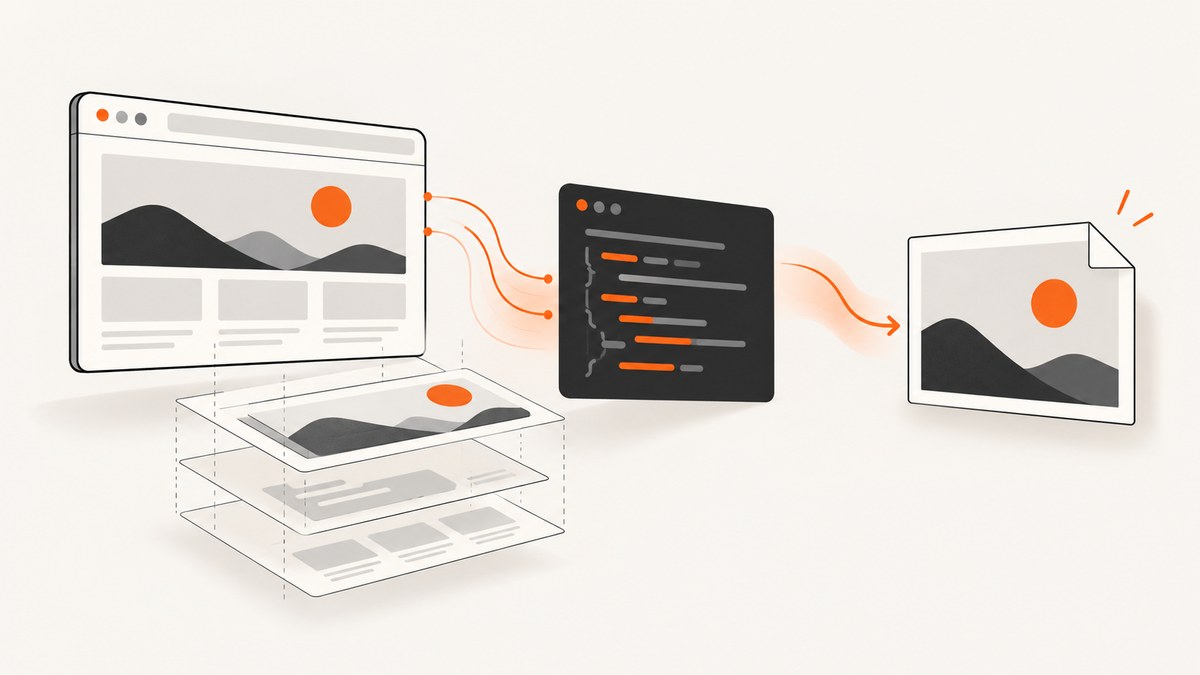
Short answer: If your code runs inside the page and you need a DOM-based image, call html2canvas(document.body), wait for its Promise, and export the returned canvas with toDataURL() or toBlob(). This reconstructs an image from the DOM and styles; it does not capture the literal browser pixels. For a faithful automated screenshot, launch a real browser with Playwright or Puppeteer. For a user-selected screen or tab, use getDisplayMedia(), which requires the user to choose a surface.
This guide shows each approach with runnable JavaScript, explains viewport versus full-page and element captures, covers cross-origin and iframe restrictions, and includes production troubleshooting. If you want an API instead of maintaining browser setup, ScreenshotNeo can capture a URL with one request.
1. Choose the right JavaScript screenshot method
| Need | Best fit | Where it runs | Main trade-off |
|---|---|---|---|
| Save the current DOM from a web page | html2canvas | Page context | DOM reconstruction may differ from browser pixels |
| Automate screenshots in CI or a server | Playwright or Puppeteer | Node.js with a real browser | Browser process and lifecycle to operate |
| Let a person select a screen, window, or tab | getDisplayMedia() |
Browser with user permission | Not silent; returns a media stream |
| Capture from a browser extension | Native extension screenshot API | Extension context | Browser-specific permissions and APIs |
Start by deciding whether “current page” means the DOM currently open in a tab, the pixels rendered by a browser, or a display surface selected by a person. Those are different capture targets.
2. Capture the current page with html2canvas
html2canvas walks the document, reads styles, and paints a representation into a canvas. The documented pattern is:
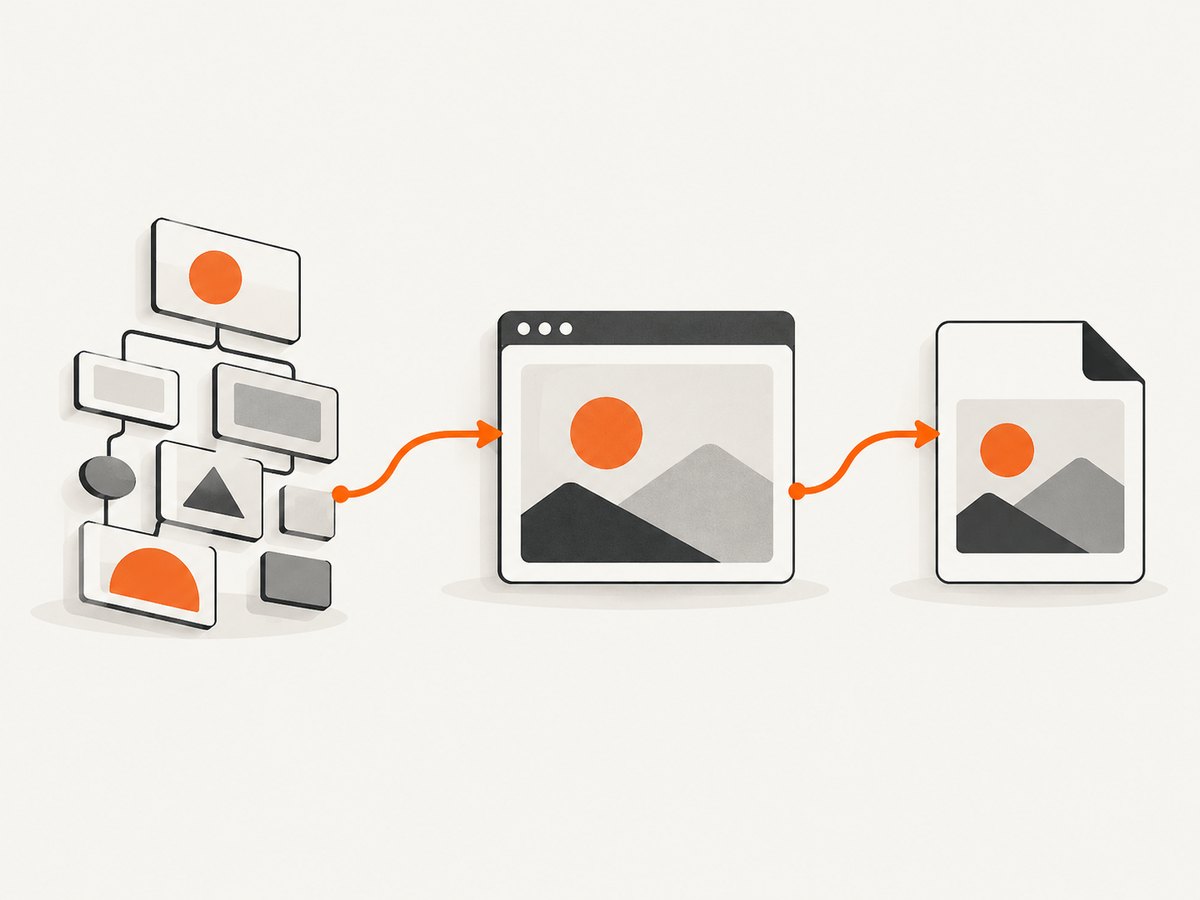
html2canvas(document.body).then((canvas) => {
  const link = document.createElement('a');
  link.download = 'screenshot.png';
  link.href = canvas.toDataURL('image/png');
  link.click();
});
See the html2canvas documentation and getting-started guide for setup options. In a page where the library is loaded, an async function is easier to extend:
async function downloadCurrentPage() {
  try {
    const canvas = await html2canvas(document.body, {
      backgroundColor: '#ffffff',
      useCORS: true,
      scale: window.devicePixelRatio || 1
    });

    const link = document.createElement('a');
    link.download = `page-${Date.now()}.png`;
    link.href = canvas.toDataURL('image/png');
    link.click();
  } catch (error) {
    console.error('Screenshot failed:', error);
  }
}

downloadCurrentPage();
document.body is a broad target, but it is not a guarantee of a correctly sized full-page image for every layout. Fixed-position elements, nested scrolling containers, and pages that use document.documentElement for height can require custom dimensions and a narrower target.
Capture one element instead of the whole page
const element = document.querySelector('#invoice');
if (!element) throw new Error('Missing #invoice element');

const canvas = await html2canvas(element, {
  backgroundColor: null,
  scale: 2
});

canvas.toBlob((blob) => {
  if (!blob) throw new Error('Canvas export returned no blob');
  const url = URL.createObjectURL(blob);
  const link = document.createElement('a');
  link.href = url;
  link.download = 'invoice.png';
  link.click();
  URL.revokeObjectURL(url);
}, 'image/png');
Use backgroundColor: null for transparency when the rendered elements support it. A higher scale produces a sharper image but increases memory use and export time.
Wait for fonts, images, and application state
Take the capture only after the content you need is present. Waiting for document.fonts.ready helps avoid fallback-font screenshots. For images, wait for the existing image elements to finish loading:
await document.fonts.ready;
await Promise.all(
  Array.from(document.images).map((image) => {
    if (image.complete) return Promise.resolve();
    return new Promise((resolve) => {
      image.addEventListener('load', resolve, { once: true });
      image.addEventListener('error', resolve, { once: true });
    });
  })
);

const canvas = await html2canvas(document.querySelector('#capture'));
This waits for images already in the DOM. It does not force lazy-loaded content below the viewport to load. Scroll or trigger your application’s lazy-loading behavior before capture, or use browser automation that can capture a full page after loading it.
3. What html2canvas can and cannot reproduce
The project describes its output as DOM-based and warns that it may not be 100% accurate to the real representation. It is a reconstruction, not a screenshot of browser pixels. This distinction explains many “it looks different” reports.
- Cross-origin images: An image from another origin can taint the canvas. Once tainted, reading it with
toDataURL()ortoBlob()can throw a security error.useCORS: trueonly works when the remote server supplies suitable CORS headers; it does not bypass browser policy. - Cross-origin iframes: The browser prevents page JavaScript from reading another origin’s frame. Same-origin frames can be traversed; cross-origin frames cannot be reconstructed by html2canvas.
- CSS fidelity: Unsupported or partially implemented CSS, filters, complex transforms, and browser-specific rendering can produce differences. Compare the output with the real page rather than assuming pixel equality.
- Canvas content: A canvas drawn from cross-origin resources may also become unreadable for export.
- Large pages: Very large dimensions consume substantial memory and can hit browser-dependent canvas limits. Do not rely on a single hard maximum; test on the browsers and devices you support.
- Browser context: html2canvas needs
windowanddocument. It is not a Node.js screenshot engine by itself.
If you need literal browser rendering, switch to Playwright or Puppeteer rather than adding more html2canvas options.
4. Capture a real browser page with Playwright
Playwright controls an actual browser and exposes viewport and full-page screenshots through its Page API. Install it in a Node.js project, then run:
npm install -D playwright
npx playwright install chromium
import { chromium } from 'playwright';
const browser = await chromium.launch();
const page = await browser.newPage({
viewport: { width: 1440, height: 900 },
deviceScaleFactor: 1
});
try {
await page.goto('https://example.com', { waitUntil: 'networkidle' });
await page.screenshot({ path: 'viewport.png' });
await page.screenshot({ path: 'full-page.png', fullPage: true });
await page.locator('#pricing').screenshot({ path: 'pricing.png' });
} finally {
await browser.close();
}The Playwright Page API documents fullPage: true for the entire scrollable page. A normal screenshot is the viewport. A locator screenshot targets one element after Playwright resolves it.
Useful Playwright options
fullPage: include the full scrollable page.mask: hide or mask selected locators when the API version you use supports it.omitBackground: omit the default background for transparent output where supported.animations: disable or finish animations when deterministic images matter.waitUntil: choose a navigation milestone, then add an explicit selector or state wait for application content.
await page.goto('https://example.com/dashboard', { waitUntil: 'domcontentloaded' });
await page.locator('[data-ready="true"]').waitFor();
await page.screenshot({
  path: 'dashboard.png',
  fullPage: true,
  animations: 'disabled'
});
Network idle is useful but not universal: analytics, WebSockets, and polling can keep a page active indefinitely. Prefer a known ready selector for applications with ongoing background traffic.
5. Capture with Puppeteer
Puppeteer is another JavaScript browser automation library. Chrome for Developers describes it as a library for browser automation, including screenshots and PDF generation. A minimal script is:
npm install puppeteerimport puppeteer from 'puppeteer';
const browser = await puppeteer.launch();
const page = await browser.newPage();
await page.setViewport({ width: 1440, height: 900 });
try {
await page.goto('https://example.com', { waitUntil: 'networkidle2' });
await page.screenshot({ path: 'viewport.png' });
await page.screenshot({ path: 'full-page.png', fullPage: true });
} finally {
await browser.close();
}Use Puppeteer when your existing stack is built around it. The same operational concerns apply: browser binaries must be available, pages need explicit readiness checks, and full-page images can be expensive for very tall documents.
6. Use getDisplayMedia for a user-selected surface
getDisplayMedia() is designed for screen sharing and recording. Chrome documents it as a consent-driven API that lets a user select a screen, window, or tab and returns a media stream. It is not a silent “save this tab” shortcut.
async function captureSelectedSurface() {
  const stream = await navigator.mediaDevices.getDisplayMedia({
    video: { frameRate: 1 },
    audio: false
  });

  const video = document.createElement('video');
  video.srcObject = stream;
  await video.play();

  await new Promise((resolve) => {
    if (video.readyState >= 2) resolve();
    else video.addEventListener('loadeddata', resolve, { once: true });
  });

  const canvas = document.createElement('canvas');
  canvas.width = video.videoWidth;
  canvas.height = video.videoHeight;
  canvas.getContext('2d').drawImage(video, 0, 0);

  canvas.toBlob((blob) => {
    if (!blob) return;
    const url = URL.createObjectURL(blob);
    const link = document.createElement('a');
    link.href = url;
    link.download = 'selected-surface.png';
    link.click();
    URL.revokeObjectURL(url);
  }, 'image/png');

  stream.getTracks().forEach((track) => track.stop());
}

captureSelectedSurface().catch(console.error);
The browser controls the picker and permission flow. Privacy options, including excluding the current tab and audio behavior, vary by browser and should follow the current browser documentation.
7. Browser extension screenshots
For an extension, use the browser’s native screenshot APIs and follow that browser’s current permission model. The html2canvas examples guidance points extension authors toward native APIs instead of using html2canvas. Verify the target browser’s documentation before shipping because permissions, visible-tab requirements, and capture limits can change.
8. Or skip the browser setup
ScreenshotNeo is the simplest option when your input is a URL and you need a file from a real browser without managing Playwright or Puppeteer. It accepts one GET request and returns PNG, JPEG, WebP, or PDF. See the ScreenshotNeo API documentation.

curl -G "https://api.screenshotneo.com/v1/shot" -d access_key=YOUR_API_KEY --data-urlencode url=https://stripe.com -o shot.webpimport requests
r = requests.get("https://api.screenshotneo.com/v1/shot", params={"access_key": "YOUR_API_KEY", "url": "https://stripe.com"}, timeout=90)
open("shot.webp", "wb").write(r.content)const q = new URLSearchParams({ access_key: 'YOUR_API_KEY', url: 'https://stripe.com' });
const res = await fetch(`https://api.screenshotneo.com/v1/shot?${q}`);
if (!res.ok) throw new Error(`Screenshot failed: ${res.status}`);
const bytes = new Uint8Array(await res.arrayBuffer());
// Write bytes with your runtime's filesystem API.
Before capture, ScreenshotNeo accepts cookie and consent banners and removes more than 60 known consent platforms, newsletter popups, and chat widgets; each step can be turned off. Bot checks and CAPTCHAs, blank pages, timeouts, failed loads, and cache hits cost nothing, and the response identifies the result with X-Page-Verdict and X-Billed headers. Its MCP server provides take_screenshot, get_page_info, and capture_pdf tools for Claude, Cursor, and other MCP clients. You can also set full-page capture, CSS element selection, dark mode, device presets or custom viewports, retina scale, custom CSS and JavaScript, clicks, waits, blocked resources, headers, cookies, user agents, authorization, timezone, geolocation, transparency, resizing, caching TTL, signed links, asynchronous webhooks, bulk capture for up to 100 URLs, and usage reporting.
There is a free tier of 1,000 screenshots per month with no card. Paid plans start at $5 for 3,000 shots; yearly billing gives two months free. Create a free ScreenshotNeo account.
9. Troubleshooting common failures
| Symptom | Likely cause | Fix |
|---|---|---|
SecurityError while exporting |
A cross-origin image or canvas tainted the canvas | Serve the asset with CORS headers, use same-origin assets, or move capture to Playwright/Puppeteer. |
| Images are missing | Lazy loading has not run, or an image failed | Scroll/trigger lazy loading and wait for image load or error events before capture. |
| Text uses the wrong font | Web fonts were still loading | Await document.fonts.ready and verify font responses. |
| An iframe is blank | The frame is cross-origin | Capture the frame from its own origin or use a server-side browser with an authorized flow. |
| Full-page output is clipped | The page uses nested scroll containers or unusual height calculations | Capture the correct scroll container, or use Playwright/Puppeteer fullPage and test the result. |
| Playwright never reaches network idle | Polling, analytics, or WebSockets keep requests open | Use domcontentloaded plus a specific ready selector. |
| getDisplayMedia is rejected | User cancelled or the context lacks permission | Handle the rejection, explain the picker, and require a secure context where the browser demands one. |
| ScreenshotNeo response is not an image | The page verdict indicates a failed, blank, blocked, or timed-out capture | Inspect X-Page-Verdict and X-Billed, then adjust waits, headers, cookies, or blocking settings. |
10. Performance, reliability, and cost
- Client-side html2canvas: No server cost, but CPU and memory are paid by the user’s device. Reduce the target area and scale for faster exports.
- Playwright/Puppeteer: Reuse a browser process for batches, create isolated pages or contexts, close pages in
finallyblocks, and set navigation and operation timeouts. Wait for application readiness rather than arbitrary long delays. - Determinism: Fix viewport, device scale, timezone, locale, animation state, and data fixtures when screenshots are compared in tests.
- Network behavior: Images, fonts, third-party scripts, and consent tools affect both completion time and visual output. Block resources only when doing so cannot change the page you intend to document.
- API economics: ScreenshotNeo bills clean shots only. Failed loads, bot checks, blank pages, timeouts, and cache hits are not billed, which makes retries and caching easier to budget.
11. A practical decision checklist
- Need a quick download from the current tab and can accept approximation? Use html2canvas.
- Need browser-pixel fidelity, CI, full-page capture, or server-side execution? Use Playwright or Puppeteer.
- Need a person to choose a screen or window? Use getDisplayMedia.
- Need a URL-to-image service, consent cleanup, PDF, bulk jobs, or AI-agent tooling? Use ScreenshotNeo.
- Test cross-origin images, iframes, fonts, lazy content, fixed elements, and very tall pages with real target pages.
12. FAQ
Can JavaScript take a screenshot without asking the user?
Code running in a page can render DOM content with html2canvas. Capturing a screen or tab with getDisplayMedia requires an explicit user selection and permission.
Is html2canvas a pixel-perfect screenshot tool?
No. It reconstructs an image from DOM and style information. Use Playwright or Puppeteer when the browser’s actual rendering matters.
Can html2canvas capture another website’s iframe?
Not when the iframe is cross-origin. Browser security rules prevent access to its document.
How do I save JPEG or WebP instead of PNG?
Pass the MIME type and quality to canvas export, for example canvas.toBlob(callback, 'image/jpeg', 0.9). Browser support and output quality should be checked for your target environment.
Should I use html2canvas in Node.js?
Not by itself. Node.js lacks the page browser context it expects. Use Playwright, Puppeteer, or an API such as ScreenshotNeo.
What is the easiest way to capture many URLs?
Use a browser automation worker with controlled concurrency or ScreenshotNeo bulk capture, which accepts up to 100 URLs per call.


