How to Screenshot a Div Containing an Iframe
Use Playwright to capture the outer div directly, interact with iframe content separately, and handle scrolling, timing, failures, and automation reliably.
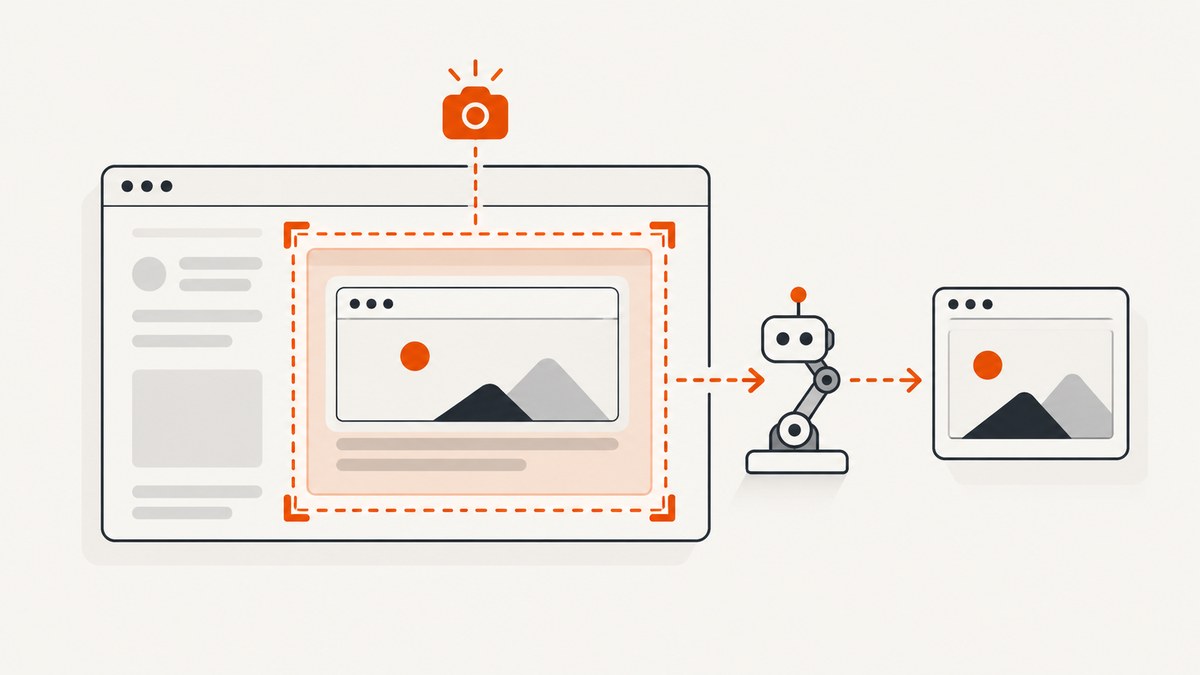
Direct answer: In Playwright, locate the outer div and call its locator screenshot method. The screenshot is clipped to that element’s rendered size and position; you do not need to enter the iframe just to capture the containing region.
const { chromium } = require('playwright');

(async () => {
  const browser = await chromium.launch();
  const page = await browser.newPage({ viewport: { width: 1440, height: 900 } });

  await page.goto('https://example.com/page-with-iframe', { waitUntil: 'networkidle' });
  await page.locator('#capture').screenshot({ path: 'capture.png' });

  await browser.close();
})();
Playwright documents this as a screenshot of the page clipped to the matched element’s size and position: Locator.screenshot(). Replace #capture with a selector that uniquely identifies your div.
1. Set up Playwright
- Install Node.js.
- Create a project and install Playwright:
npm init -y npm install playwright npx playwright install chromium - Save the example as
screenshot-div.jsand runnode screenshot-div.js.
The locator screenshot performs actionability checks and scrolls the element into view. If the element has been removed from the DOM, the call fails because the locator no longer resolves to an attached element.
2. Capture a div that contains an iframe
Minimal example
const { chromium } = require('playwright');

async function main() {
  const browser = await chromium.launch();
  const page = await browser.newPage();

  await page.goto('https://example.com/page-with-iframe', { waitUntil: 'domcontentloaded' });
  const container = page.locator('#capture');
  await container.waitFor({ state: 'visible' });
  await container.screenshot({ path: 'capture.png', animations: 'disabled' });

  await browser.close();
}

main().catch(error => {
  console.error(error);
  process.exitCode = 1;
});
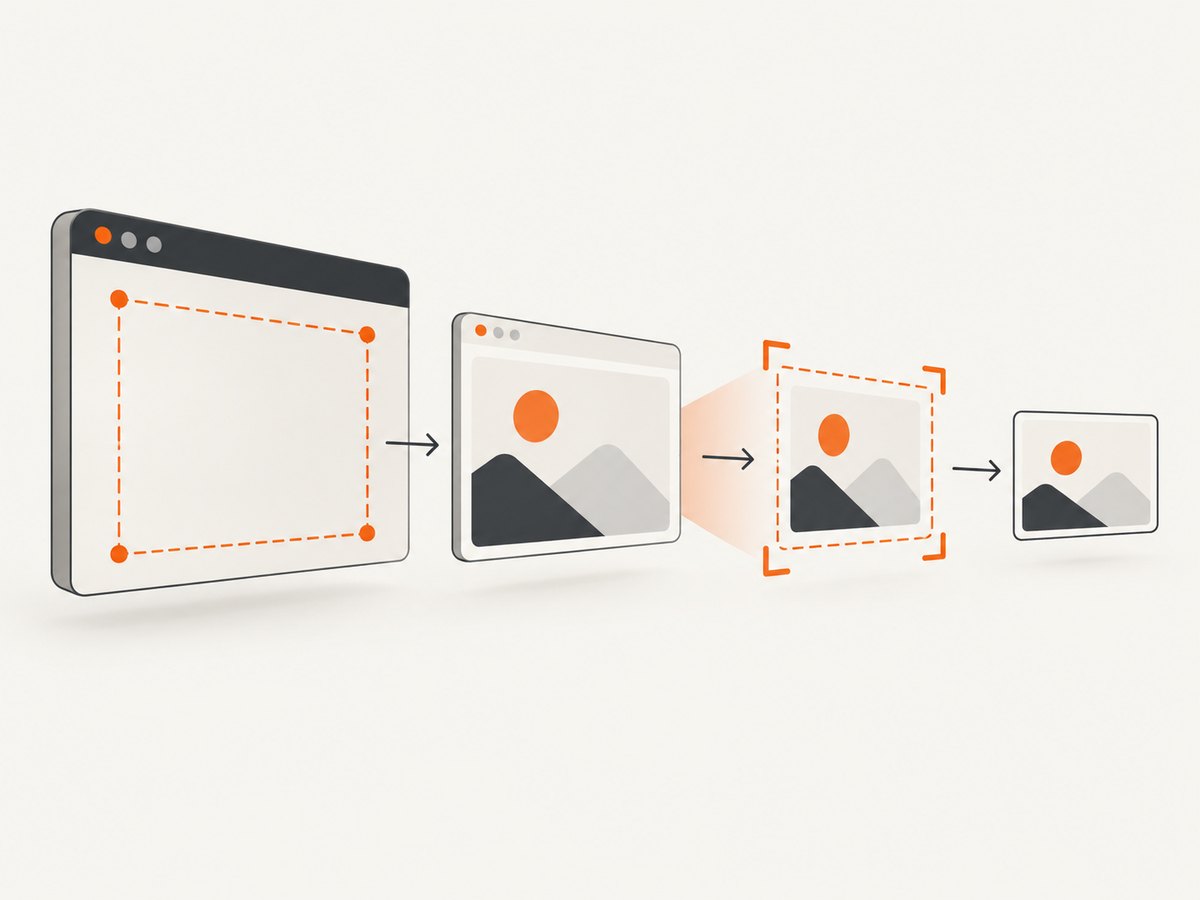
The iframe may be same-origin or cross-origin; the outer element screenshot captures the rendered pixels in the page region. Selecting the parent div and selecting content inside the iframe are separate operations.
Use a stronger selector
Prefer a stable ID, test ID, or other unique selector. For example:
await page.getByTestId('checkout-preview').screenshot({ path: 'checkout-preview.png' });Avoid selectors based on generated class names that change between builds.
3. Interact with content inside the iframe before the screenshot
Use a frame locator only when you need to inspect or act on elements inside the iframe. Playwright’s frame locator addresses the frame’s document while the outer locator still defines the capture boundary.
const { chromium } = require('playwright');

(async () => {
  const browser = await chromium.launch();
  const page = await browser.newPage();

  await page.goto('https://example.com/page-with-iframe', { waitUntil: 'networkidle' });

  const frame = page.frameLocator('#payment-frame');
  await frame.getByLabel('Card number').fill('4242424242424242');
  await frame.getByLabel('Expiration date').fill('12/30');

  await page.locator('#capture').screenshot({ path: 'filled-frame.png' });
  await browser.close();
})();
You can also obtain a frame locator from an iframe locator with contentFrame():
const iframe = page.locator('#payment-frame');
const frame = iframe.contentFrame();
await frame.getByRole('button', { name: 'Continue' }).click();
Do not use a frame locator when all you need is the parent div screenshot.
4. Wait for the iframe and its content
Navigation completion does not guarantee that an embedded application has finished rendering. Wait for a meaningful element in the frame, then capture the parent.
const frame = page.frameLocator('#dashboard-frame');
await frame.getByRole('heading', { name: 'Revenue' }).waitFor();
await page.locator('#capture').screenshot({ path: 'dashboard.png' });
If the iframe has a loading state, wait for that state to disappear or for the content you need to appear. A fixed timeout can be useful for a known animation, but a selector-based wait is usually more reliable.
5. Scrollable divs and full content
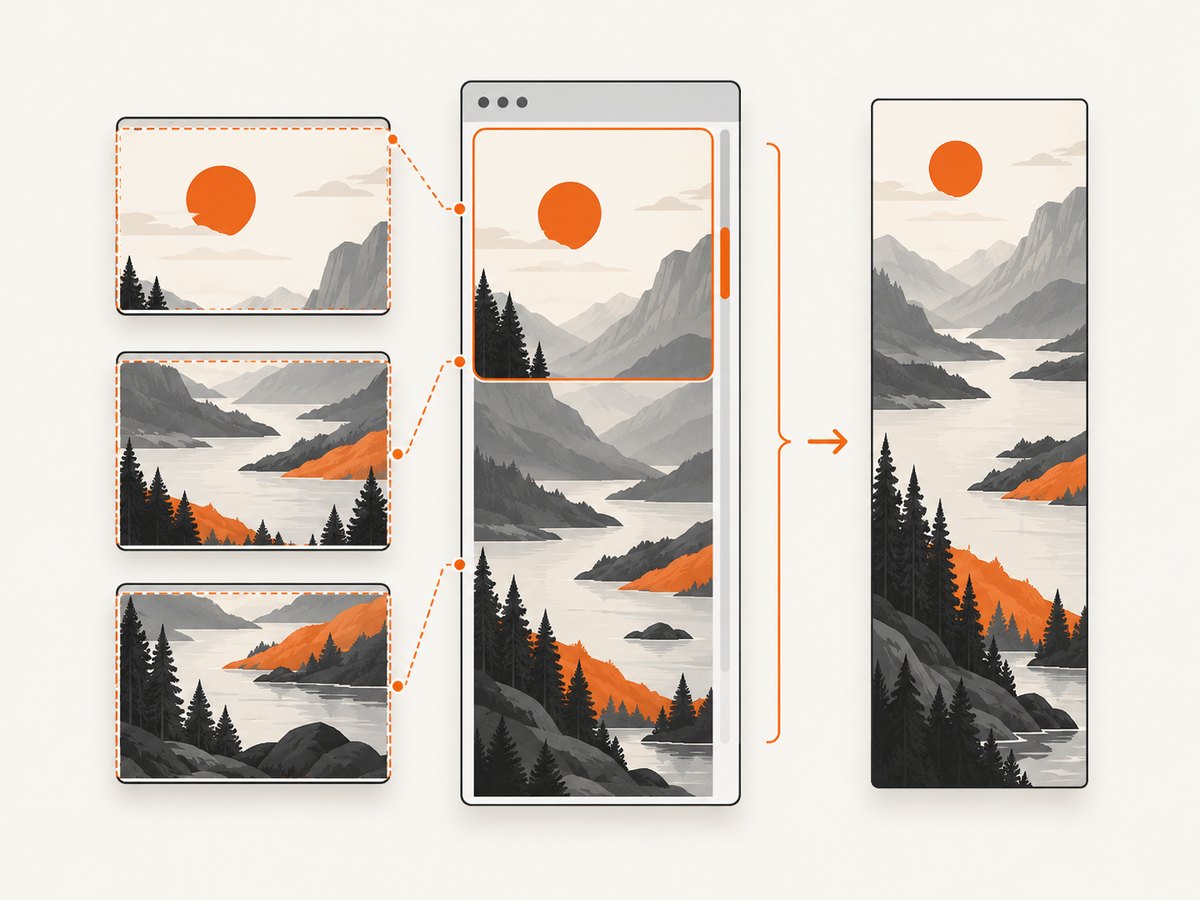
An element screenshot includes the content currently visible in a scrollable container at its current scroll position. It does not automatically expand the container to capture all overflowing content.
Capture the current viewport of the container
await page.locator('#capture').screenshot({ path: 'visible-region.png' });Scroll the container before capture
const container = page.locator('#capture');
await container.evaluate(element => { element.scrollTop = 800; });
await container.screenshot({ path: 'scrolled-region.png' });
Capture multiple scroll positions
const container = page.locator('#capture');
const positions = [0, 800, 1600];
for (const position of positions) {
  await container.evaluate((element, top) => { element.scrollTop = top; }, position);
  await container.screenshot({ path: `capture-${position}.png` });
}
If you need one image containing all content, change the page layout so the container is not clipped, or assemble separately captured regions. Do not assume fullPage: true turns an element screenshot into a full-content capture; full-page behavior is a page-level option and the documented locator method is clipped to the element’s rendered bounds.
6. Useful screenshot options
| Option | Use |
|---|---|
path |
Writes the image to a file. |
type |
Choose png or jpeg. |
quality |
Controls JPEG quality; it has no effect for PNG. |
omitBackground |
Uses transparency where the browser supports it. |
animations |
Disable or allow CSS/Web Animations during capture. |
mask |
Mask matching locators when sensitive or changing content must be hidden. |
For a high-density output, create the context with a larger device scale factor:
const context = await browser.newContext({ deviceScaleFactor: 2 });
const page = await context.newPage();
Set the viewport explicitly so captures are repeatable across machines.
7. Common problems and fixes
| Symptom | Cause | Fix |
|---|---|---|
| “Locator is not attached” | The page replaced or removed the div between lookup and capture. | Wait for the stable state, then locate and screenshot again. Avoid storing an element handle across rerenders. |
| Timeout waiting for the locator | The selector is wrong, the element is hidden, or navigation has not reached the relevant route. | Verify the selector, wait for the correct page state, and use locator.waitFor({ state: 'visible' }). |
| The iframe is blank | The frame application is still loading, requires interaction, or failed independently of the parent page. | Wait for a frame-specific heading or control and inspect the frame’s network and console errors. |
| Only part of a long panel appears | The div is scrollable and only its visible scrollport is captured. | Scroll before capture or remove the clipping layout for a full-content design. |
| Clicks inside the iframe fail | The code is targeting the parent document instead of the frame document. | Use page.frameLocator('iframe-selector') or contentFrame(). |
| Screenshot contains a loading spinner | The capture ran before the embedded app reached its ready state. | Wait for a stable, meaningful element inside the frame or for the loading indicator to disappear. |
| Output differs between runs | Fonts, animations, viewport dimensions, time, or remote data changed. | Pin the viewport and browser, disable animations, wait for deterministic selectors, and control test data where possible. |
8. Reliability and performance checklist
- Use a unique, stable selector for the outer div.
- Set viewport and device scale factor explicitly.
- Wait for the iframe content that proves the state you want.
- Disable animations when comparing screenshots.
- Capture after scrolling to a known position.
- Use retries only for transient navigation or network failures; do not hide selector bugs with retries.
- Close the browser and context in a
finallyblock in long-running workers. - Keep screenshots in memory or stream them when writing many captures, rather than retaining every buffer.
Element screenshots are generally cheaper than full-page captures because less image data is encoded, but total time is also affected by navigation, iframe rendering, fonts, network requests, and image encoding. Reuse a browser process for batches while creating isolated contexts when you need separate cookies or viewport settings.
9. Or skip the browser setup
ScreenshotNeo provides a website screenshot API and MCP server. Its capture options include selecting one element by CSS selector, full-page capture, custom JavaScript and CSS, waiting for a selector or network idle, device presets, and image formats. See the ScreenshotNeo API documentation for the current request options.
cURL
curl -G 'https://api.screenshotneo.com/v1/shot' -d access_key=YOUR_API_KEY --data-urlencode url=https://stripe.com -o shot.webpPython
import requests
r = requests.get('https://api.screenshotneo.com/v1/shot', params={'access_key': 'YOUR_API_KEY', 'url': 'https://stripe.com'}, timeout=90)
r.raise_for_status()
open('shot.webp', 'wb').write(r.content)
Node.js
const q = new URLSearchParams({ access_key: 'YOUR_API_KEY', url: 'https://stripe.com' });
const res = await fetch(`https://api.screenshotneo.com/v1/shot?${q}`);
if (!res.ok) throw new Error(`Screenshot failed: ${res.status}`);
const fs = require('node:fs/promises');
await fs.writeFile('shot.webp', Buffer.from(await res.arrayBuffer()));
Cookie and consent banners, newsletter popups, and chat widgets are removed before the shot. Bot checks, blank pages, failed loads, timeouts, and cache hits are not billed, and response headers identify the page verdict and billing status. An MCP server provides take_screenshot, get_page_info, and capture_pdf tools for Claude, Cursor, and other MCP clients. The Free plan includes 1,000 screenshots each month with no card; paid plans start at $5 for 3,000 shots.
Create a free ScreenshotNeo account and start with 1,000 screenshots per month at no charge.
10. FAQ
Do I need frame access to screenshot the parent div?
No. Select the parent div and call its screenshot method. Use frame access only for elements or actions inside the iframe.
Can Playwright capture a cross-origin iframe?
The outer page region is rendered by the browser and can be captured through the parent locator. Frame locators are for addressing the iframe document; the embedded application still needs to be loaded and ready.
Why is the iframe content missing from my image?
Most often the capture happened before the frame rendered, or the embedded content is inside a scrollable area that is currently outside the visible region. Wait for a frame-specific element and set the desired scroll position.
Should I use a page screenshot instead?
Use an element screenshot when the required output is exactly the div’s rendered region. Use a page screenshot when the surrounding page context or page-level full-height layout is part of the result.


