How to Screenshot a Specific Element on an Internet Explorer Website with VBA and Selenium
Capture one element from a legacy Internet Explorer page with VBA and SeleniumBasic, troubleshoot drivers, and move the workflow to Edge IE mode.
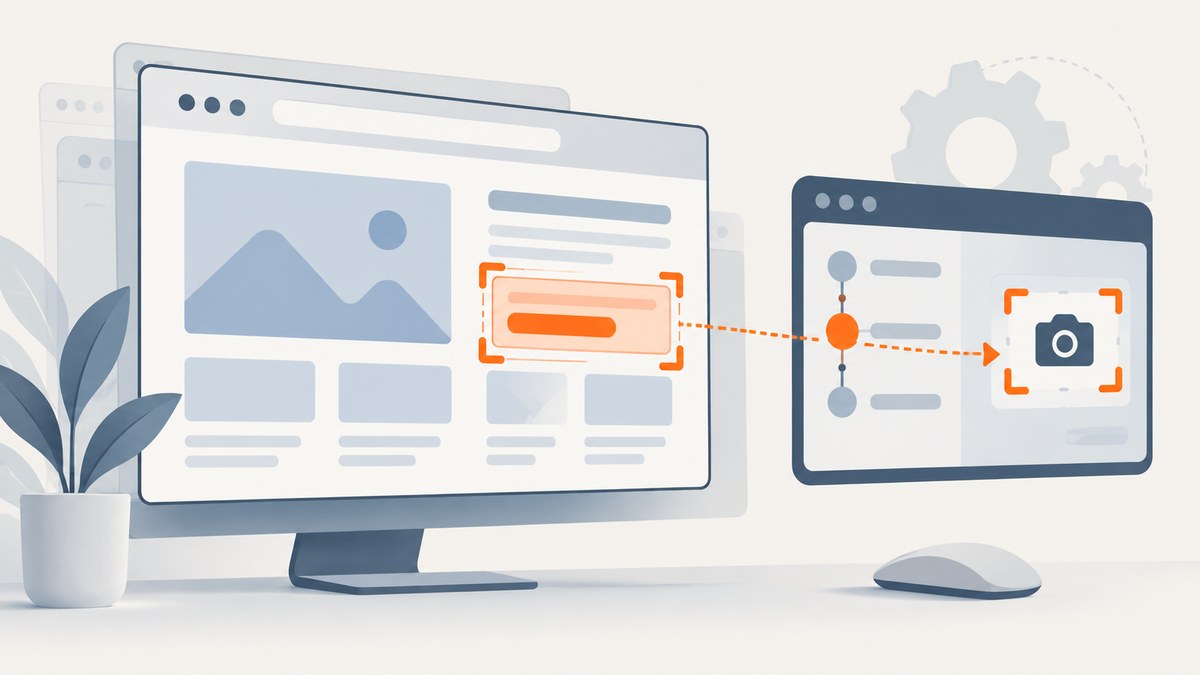
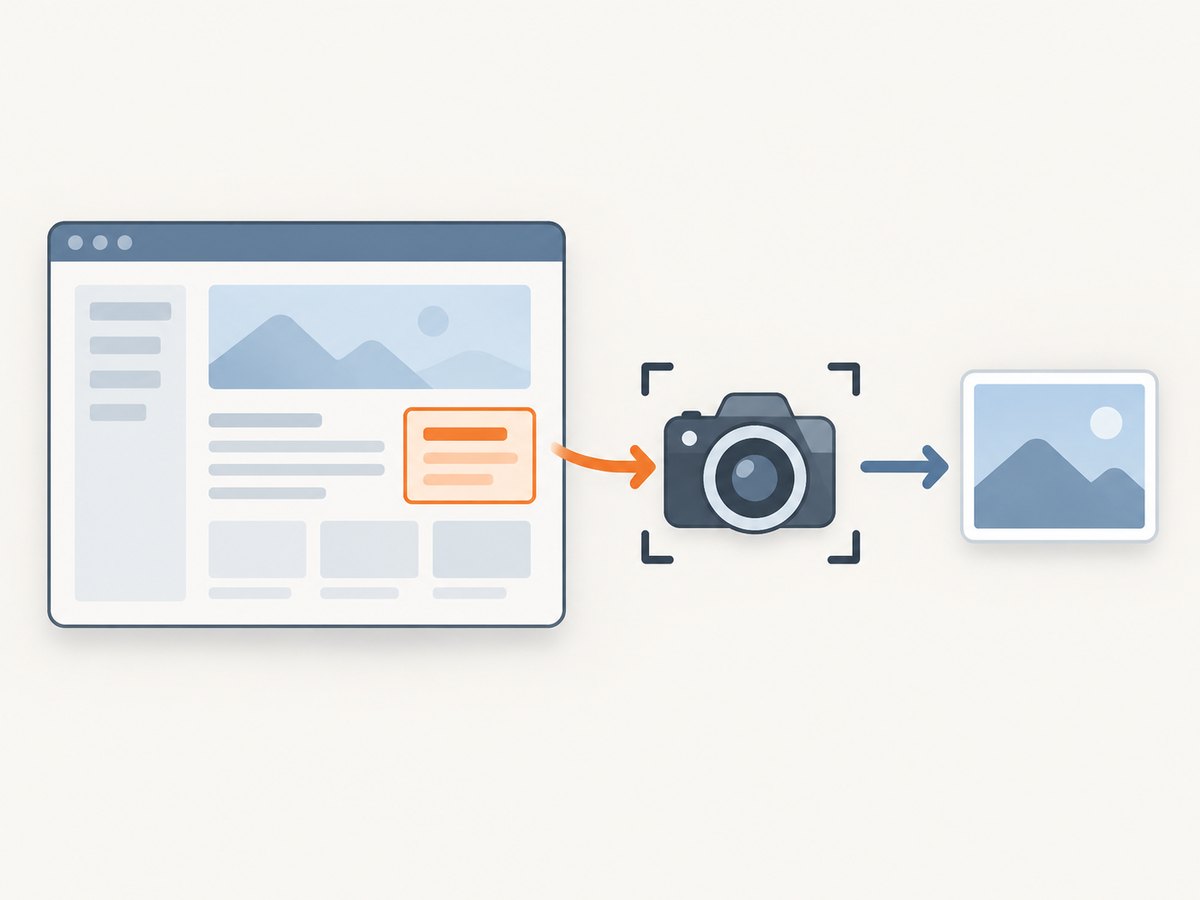
Direct answer: with SeleniumBasic, find the target WebElement and call its TakeScreenshot method:
Set image = element.TakeScreenshot(500)The optional argument is a delay in milliseconds, and the method returns SeleniumBasic’s Image object. This is the VBA-facing API exposed by SeleniumBasic. It does not guarantee that every SeleniumBasic build, browser driver, and environment can capture the element successfully, so validate the exact versions you deploy.
Internet Explorer itself is a legacy target. Microsoft retired the desktop application on June 15, 2022, and Selenium no longer supports standalone Internet Explorer. For sites that still require IE behavior, use Microsoft Edge IE mode where possible, or plan a migration to a supported browser.
1. The VBA and SeleniumBasic workflow
- Start the browser with the driver configuration used by your SeleniumBasic installation.
- Navigate to the page.
- Wait until the target element exists and is visible.
- Locate the element with a stable ID, name, CSS selector, or XPath.
- Call
TakeScreenshoton that element. - Save or process the returned SeleniumBasic image object using the members provided by your installed release.
Option Explicit

Sub CaptureSpecificElement()
    Dim driver As New Selenium.WebDriver
    Dim target As Selenium.WebElement
    Dim shot As Object

    driver.Start "ie", ""
    driver.Get "https://example.com/legacy-report"

    'Use a stable page identifier whenever the site provides one.
    Set target = driver.FindElementByCss("#report-summary")

    If target Is Nothing Then
        Err.Raise vbObjectError + 1000, , "The target element was not found."
    End If

    If Not target.IsDisplayed Then
        Err.Raise vbObjectError + 1001, , "The target element is not visible."
    End If

    'The argument is an optional delay in milliseconds.
    Set shot = target.TakeScreenshot(500)

    'SeleniumBasic returns its Image object here. Inspect the Image members
    'available in your installed SeleniumBasic version before writing a file.
    Debug.Print "Captured object type: " & TypeName(shot)

    driver.Quit
End Sub
The TakeScreenshot declaration is documented in the SeleniumBasic WebElement interface as Image TakeScreenshot(int delayms = 0). The Selenium project documents element screenshots as a WebDriver capability that returns screenshot data, but its examples are for other languages and do not promise identical behavior for every driver.
2. Internet Explorer support and the browser choice
Microsoft’s retirement announcement states that Internet Explorer was “officially retired and out of support” on June 15, 2022. Selenium’s IE-specific documentation says standalone IE is no longer supported, while the IE driver can launch Microsoft Edge in IE Compatibility Mode. Microsoft describes Edge IE mode as the compatibility route for legacy IE sites and applications.
| Option | When it fits | Trade-off |
|---|---|---|
| Old standalone IE machine | You must reproduce an existing, frozen environment. | Unsupported browser and driver; security and maintenance risk. |
| Edge IE mode | The application depends on IE document or scripting behavior. | Requires Edge policy and site-list configuration; validate element screenshots. |
| Current Edge or another supported browser | The site works without IE-only behavior. | Selectors and rendering may need updates. |
Keep the browser, driver, SeleniumBasic release, and Windows configuration together in a tested deployment image. A method declaration alone is not a runtime compatibility guarantee.
3. Prerequisites and stable element selectors
- Microsoft Office with VBA enabled.
- SeleniumBasic installed and referenced in the VBA project.
- A browser and driver combination supported by that SeleniumBasic release.
- A selector that identifies one element reliably.
Prefer selectors in this order:
- A unique ID such as
#invoice-total. - A stable attribute such as
[data-testid='invoice-total']. - A short CSS path tied to a semantic container.
- XPath only when the markup gives you no stable CSS option.
' Common SeleniumBasic locator forms
Set target = driver.FindElementById("invoice-total")
Set target = driver.FindElementByName("summary")
Set target = driver.FindElementByCss("section[data-testid='invoice-total']")
Set target = driver.FindElementByXPath("//section[@aria-label='Invoice total']")
Avoid selectors based on generated class names, pixel positions, or the element’s current text when the page changes frequently.
4. Waiting for the element before capture
Legacy pages often render the shell first and populate the target later. A short polling loop is safer than taking a screenshot immediately after navigation.
Function WaitForVisible(ByVal driver As Selenium.WebDriver, _
                        ByVal css As String, _
                        Optional ByVal timeoutSeconds As Long = 30) As Selenium.WebElement
    Dim started As Single
    Dim candidate As Selenium.WebElement

    started = Timer
    Do
        On Error Resume Next
        Set candidate = driver.FindElementByCss(css)
        On Error GoTo 0

        If Not candidate Is Nothing Then
            If candidate.IsDisplayed Then
                Set WaitForVisible = candidate
                Exit Function
            End If
        End If

        DoEvents
        If Timer - started >= timeoutSeconds Then Exit Do
    Loop

    Err.Raise vbObjectError + 1002, , "Timed out waiting for " & css
End Function

Sub CaptureAfterWait()
    Dim driver As New Selenium.WebDriver
    Dim target As Selenium.WebElement
    Dim shot As Object

    driver.Start "ie", ""
    driver.Get "https://example.com/legacy-report"
    Set target = WaitForVisible(driver, "#report-summary", 30)
    Set shot = target.TakeScreenshot(250)
    Debug.Print TypeName(shot)
    driver.Quit
End Sub
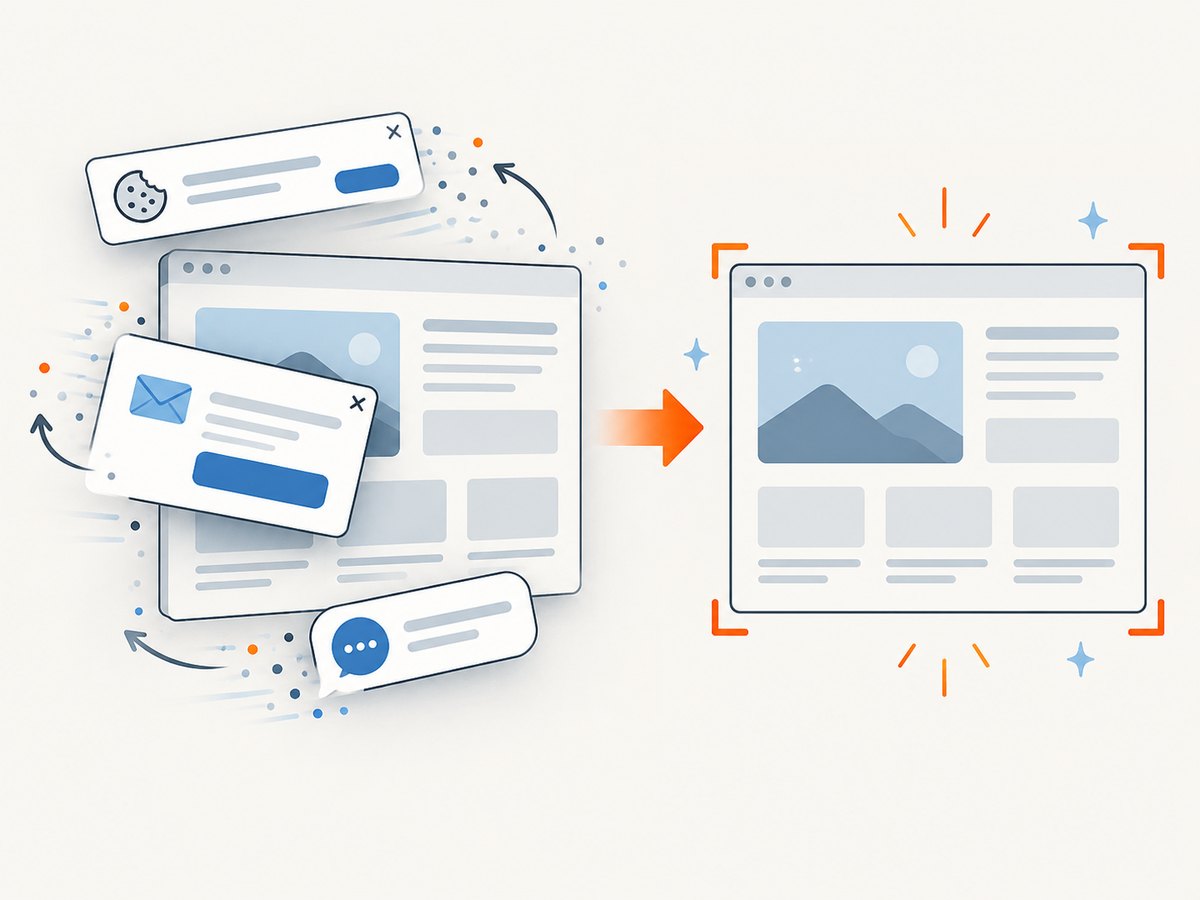
If the site has a loading indicator, wait for that indicator to disappear as well. A visible element can still be covered by a modal, cookie banner, or chat widget.
5. Capturing an element inside a frame
WebDriver searches the top-level document by default. Switch into the frame first, locate the element, capture it, then switch back:
Dim frame As Selenium.WebElement
Dim target As Selenium.WebElement
Dim shot As Object

Set frame = driver.FindElementByCss("iframe#legacy-content")
driver.SwitchToFrame frame
Set target = driver.FindElementByCss("#report-summary")
Set shot = target.TakeScreenshot(500)
driver.SwitchToDefaultContent
If the frame is nested, switch through each parent frame in order. A cross-origin frame may also have different loading and authentication behavior; confirm that the driver can access it before debugging the screenshot call.
6. Handling the returned image
SeleniumBasic’s interface establishes that TakeScreenshot returns an Image. The available evidence does not establish one universal file-writing method for every SeleniumBasic release. Inspect the object members exposed by the version installed on the target machine before adding persistence code.
Use the VBA Object Browser or IntelliSense to check whether your build exposes a save, byte-array, or Base64 member. Keep that version-specific code separate from navigation and capture so a library upgrade has one small change point. If you need a standardized response format, a current WebDriver client in Python, JavaScript, or C# may be easier to maintain than a COM wrapper.
7. Running the same legacy site in Edge IE mode
- Configure the site in the organization’s Edge IE mode policy or Enterprise Mode Site List.
- Confirm that the URL opens in IE mode before starting automation.
- Use the IE driver configuration documented by Selenium for Edge IE Compatibility Mode.
- Run the element lookup and screenshot test against the exact production policy and profile.
Rendering, document mode, and frame behavior can differ between a retired standalone IE installation and Edge IE mode. Treat the move as a compatibility test, not as a drop-in browser executable change.
8. Troubleshooting common failures
| Symptom | Likely cause | Fix |
|---|---|---|
| “Element not found” | Wrong selector, page not loaded, or element is inside a frame. | Verify the selector in the page, wait for visibility, and switch into the correct frame. |
| Screenshot is blank or incomplete | Element is hidden, covered, still rendering, or lazy content has not loaded. | Wait for visibility and overlays to clear; add the optional capture delay; confirm the element’s dimensions. |
TakeScreenshot is missing |
The referenced COM library is not SeleniumBasic’s WebElement interface, or the installation is inconsistent. | Check project references and the installed SeleniumBasic version; inspect the WebElement declaration. |
| Driver session will not start | Browser and driver versions or IE mode policy do not match. | Use a documented pair, check the driver log, and test the same configuration manually. |
| Works on one machine only | Different Office bitness, security policy, profile, browser mode, or COM registration. | Record the full deployment image and reproduce it on a clean test machine. |
| Element is in a new window or tab | Automation is still attached to the original window handle. | Switch to the new handle before finding the element; see Selenium’s window and tab documentation. |
| Cookie banner blocks the target | A consent dialog overlays the page. | Locate and click the consent control before capture, or hide the overlay only when doing so matches your test objective. |
9. Reliability, performance, and cost considerations
- Reliability: Use explicit waits, stable selectors, deterministic browser profiles, and a recorded driver version. Capture after the page reaches the state your report requires.
- Performance: Element screenshots are usually cheaper to process than full-page images. Avoid long fixed sleeps; poll for the actual condition and use a short capture delay only for late paint or animation.
- Repeatability: Set the same viewport, zoom, timezone, and account state on every run. Disable animations in a test stylesheet when the page allows it.
- Cost: A local SeleniumBasic workflow has no ScreenshotNeo API charge, but it does require maintaining a Windows host, browser mode, driver, Office, and COM installation. A hosted API removes that browser setup at the request level.
10. Or skip the browser setup
ScreenshotNeo provides a website screenshot API and MCP server. It can capture a URL, full page, or selected CSS element without maintaining a local IE or Edge driver. Before capture, it accepts cookie and consent banners and removes more than 60 known consent platforms, newsletter popups, and chat widgets; each step can be turned off.
Only clean shots are billed. Bot checks, CAPTCHAs, blank pages, timeouts, failed loads, and cache hits cost nothing, and the response reports the result in X-Page-Verdict and X-Billed headers. Its MCP server exposes take_screenshot, get_page_info, and capture_pdf for Claude, Cursor, and other MCP clients.
See the ScreenshotNeo API documentation for all options, including element selectors, waits, custom headers and cookies, JavaScript, PDF settings, caching, signed links, async jobs, bulk capture, and usage reporting.
cURL
curl -G "https://api.screenshotneo.com/v1/shot" \
  -d access_key=YOUR_API_KEY \
  --data-urlencode url=https://stripe.com \
  -o shot.webp
Python
import requests

r = requests.get(
    "https://api.screenshotneo.com/v1/shot",
    params={"access_key": "YOUR_API_KEY", "url": "https://stripe.com"},
    timeout=90,
)
r.raise_for_status()
open("shot.webp", "wb").write(r.content)
Node.js
const q = new URLSearchParams({
  access_key: 'YOUR_API_KEY',
  url: 'https://stripe.com'
});
const res = await fetch(`https://api.screenshotneo.com/v1/shot?${q}`);
if (!res.ok) throw new Error(`HTTP ${res.status}`);
const fs = await import('node:fs/promises');
await fs.writeFile('shot.webp', Buffer.from(await res.arrayBuffer()));
The Free plan includes 1,000 screenshots each month with no card. Paid plans start at $5 for 3,000 shots, and every feature is available on every plan. Create a free ScreenshotNeo account.
11. FAQ
Can SeleniumBasic capture only part of an element?
The documented method captures the WebElement. For a sub-region, wrap that content in a dedicated element or use a browser/API workflow that supports clipping.
Does this work with a PDF viewer or plugin inside IE?
Not reliably. Plugin-rendered content may not be part of the DOM that WebDriver can screenshot. Test the exact viewer and driver combination.
Should new automation still target standalone IE?
No. Use Edge IE mode for a necessary legacy dependency, or migrate the workflow to a supported browser.
Why does the API example return WebP?
The ScreenshotNeo endpoint can return PNG, JPEG, WebP, or PDF; the example writes the response to a WebP file.


