How to Screenshot an Entire Email in Outlook
Capture a visible Outlook message with Snipping Tool, or preserve the complete email as a PDF using Outlook’s print workflow.
To capture what is visible in an Outlook email, use Windows+Shift+S and select the message area. If the email continues below the screen and you need the complete message, use Outlook’s Print command and choose Microsoft Print to PDF on Windows. That creates a paginated PDF, not one continuous tall screenshot.
Choose the right output
| Need | Use | Result |
|---|---|---|
| Share a visible portion as an image | Windows Snipping Tool | PNG or copied image of the selected screen area |
| Copy the active Outlook window | Alt+Print Screen | Image on the clipboard |
| Keep an email that extends beyond the screen | Outlook Print | Printed pages or a PDF |
| Save a protected web message | Follow your organization’s permissions | Capture may be blocked |
Microsoft describes Snipping Tool as a way to capture all or part of the PC screen, and documents printing an entire Outlook message. Microsoft’s capture instructions and its email-printing instructions distinguish screen images from printed output.
Capture the visible part of an email on Windows
- Open the message in Outlook and scroll to the exact content you want visible.
- Resize or move the Outlook window so the message is unobstructed.
- Press Windows+Shift+S.
- Choose rectangular, window, full-screen or another available snip mode.
- Drag over the email area. The capture is copied to the clipboard and a Snipping Tool notification appears.
- Select the notification to annotate and save the image, or paste it into another application.
For the entire desktop, press Print Screen. For only the active Outlook window, press Alt+Print Screen. These methods capture pixels currently displayed; they do not scroll through the rest of a long message.
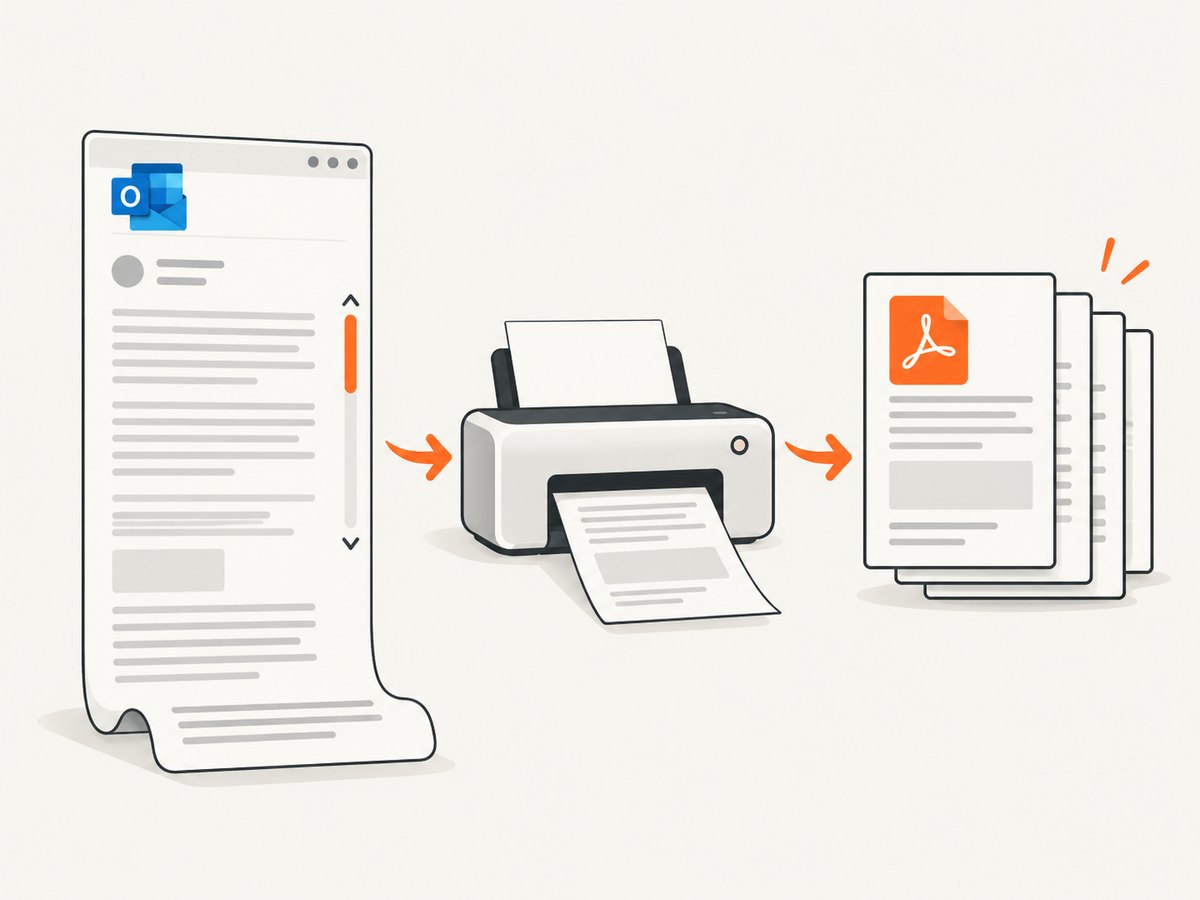
Save the entire Outlook email as a PDF
Classic Outlook for Windows
- Open the email.
- Select File > Print.
- Choose a printer such as Microsoft Print to PDF.
- Review the preview and page range.
- Select Print, choose a folder and filename, then save.
New Outlook
- Select or open the message.
- Use the message’s Print action.
- In the system print dialog, select Microsoft Print to PDF.
- Check orientation, paper size, margins and page range.
- Print and choose where to save the PDF.
Outlook on the web
- Open the message in your browser.
- Choose the message’s Print command.
- Select a PDF printer supplied by your operating system or browser.
- Review the preview and save the file.
Microsoft’s Outlook guidance covers separate interfaces for new Outlook, classic Outlook and the web. If the labels differ, check which version you are using. See the Outlook print documentation and Microsoft’s PDF-saving guidance.
Print only part of a message
For a section-only result in classic Outlook, open the message with View in Browser, select the relevant section in the browser, then use the browser’s print command and choose the Selection page-range option when available. This is a specialized route; the normal Outlook print command is more reliable for preserving the complete message.
Protected messages and capture restrictions
Outlook on the web can apply screen-capture protection to a message. Microsoft says a protected message may block capture for the browser window and that refreshing the page re-enables screen capture. A refresh does not override organizational permissions, so follow your company’s policy and the message’s protection settings. Read Microsoft’s protected-message guidance.
Or skip the browser setup
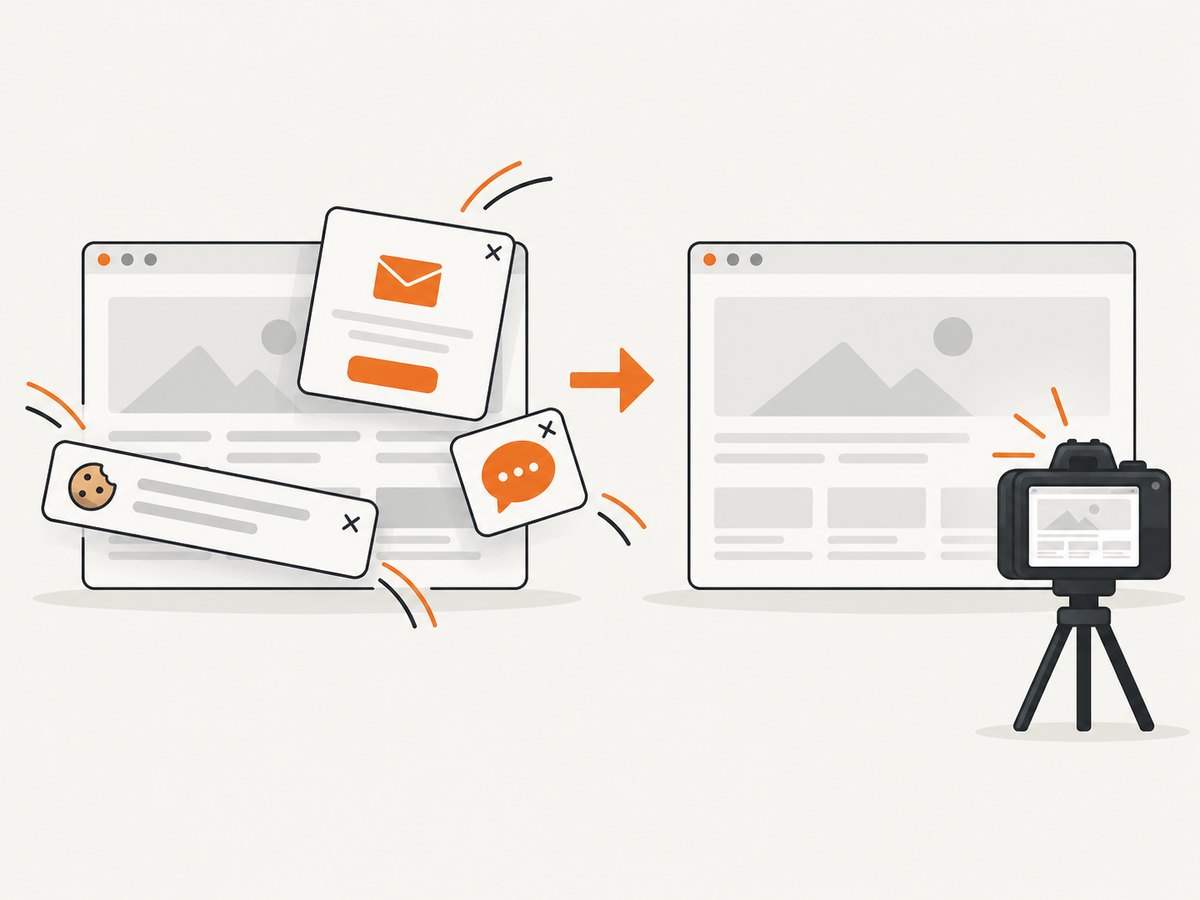
If the email is available at a URL you are authorized to open (for example, a public webmail view or an exported HTML page), ScreenshotNeo can return an image or PDF from one request. Its cleanup step accepts cookie-consent banners and removes more than 60 known consent platforms, newsletter popups and chat widgets before capture. Bot checks, blank pages, timeouts, failed loads and cache hits are not billed, and the response identifies the result with X-Page-Verdict and X-Billed headers. It also provides an MCP server for Claude, Cursor and other MCP clients.
See the ScreenshotNeo API documentation for authentication and options.
cURL
curl -G "https://api.screenshotneo.com/v1/shot" -d access_key=YOUR_API_KEY --data-urlencode url=https://stripe.com -o shot.webpPython
import requests
r = requests.get("https://api.screenshotneo.com/v1/shot", params={"access_key": "YOUR_API_KEY", "url": "https://stripe.com"}, timeout=90)
open("shot.webp", "wb").write(r.content)
Node.js
const q = new URLSearchParams({ access_key: 'YOUR_API_KEY', url: 'https://stripe.com' });
const res = await fetch(`https://api.screenshotneo.com/v1/shot?${q}`);
The API supports PNG, JPEG, WebP and PDF output, full-page capture with lazy images loaded, CSS-selector element capture, custom CSS and JavaScript, waiting rules, headers, cookies, user agents, authorization, timezone, geolocation, request blocking, caching, signed links, asynchronous jobs, webhooks, bulk capture and usage reporting. For a private Outlook message, authenticate through an authorized, shareable page or use Outlook’s built-in print workflow instead of exposing mailbox credentials.
There is no browser setup: cookie banners, popups and chat widgets are removed before the shot; bot checks, blank pages and failed loads are never billed; an MCP server lets AI agents take screenshots; 1,000 screenshots a month are free with no card and paid plans start at $5 for 3,000. Create a free ScreenshotNeo account.
Troubleshooting
| Problem | Cause | Fix |
|---|---|---|
| The screenshot stops at the bottom of the screen | Snipping Tool captures visible pixels only | Use Outlook Print and save as PDF. |
| Print is missing | The message is not open or the interface differs | Open the message, then use its message-level Print action; confirm whether you use new Outlook, classic Outlook or the web. |
| The PDF has unexpected page breaks | Paper, margins, orientation or scaling | Adjust those settings in print preview and inspect the page range before saving. |
| Web capture is blocked | Screen-capture protection on the message | Refresh the page as Microsoft documents, or ask the organization to provide an allowed export. |
| Only part of the email appears | Collapsed content, clipped preview or lazy-loaded images | Expand quoted text and images, scroll through the message, then print again. |
| ScreenshotNeo returns an error | Invalid key, inaccessible URL or page failure | Check the access key, verify the URL is reachable by an authorized browser, and inspect the response status and X-Page-Verdict/X-Billed headers. |
Quality, reliability and cost notes
- Image versus PDF: A screenshot is convenient for a visual snippet. A PDF is the dependable record for a long message and preserves page boundaries.
- Review before sharing: Check recipients, quoted history, signatures, inline images and attachments. Printing an entire message can include more content than the visible preview.
- Repeatability: Keep window size, print settings and zoom consistent for manual captures. For URL-based automation, set an explicit viewport, wait condition and output format.
- Performance: Long emails with remote images can take longer to render. Waiting for a selector, a delay or network idle helps automation capture complete content.
- Cost: Outlook’s Snipping Tool and Microsoft Print to PDF use built-in desktop features. ScreenshotNeo includes 1,000 shots per month free without a card; paid plans start at $5 for 3,000 shots, and cache hits and failed captures are not billed.
FAQ
Can I make one tall PNG of an entire Outlook email?
Outlook’s documented whole-message method is printing, which produces pages or a PDF. Snipping Tool is screen-based and does not create a documented scrolling email capture.
Does Print Screen capture the full message?
No. It copies the current screen, while Alt+Print Screen copies the active window.
Will saving as PDF include attachments?
The printed message contains the message output. Attachments are separate files unless their contents are opened and printed independently.
Can I capture an encrypted Outlook message?
Only when your account and organization permit viewing and capture. Protected-message controls can restrict browser capture.
Can ScreenshotNeo log in to my personal Outlook mailbox?
Do not send mailbox passwords or private credentials to a screenshot service. Use Outlook’s own print workflow or an authorized, accessible URL.


