How to Take a Screenshot of an External Website
Capture an external website once in Firefox or automate repeatable full-page and element screenshots with Playwright and ScreenshotNeo.
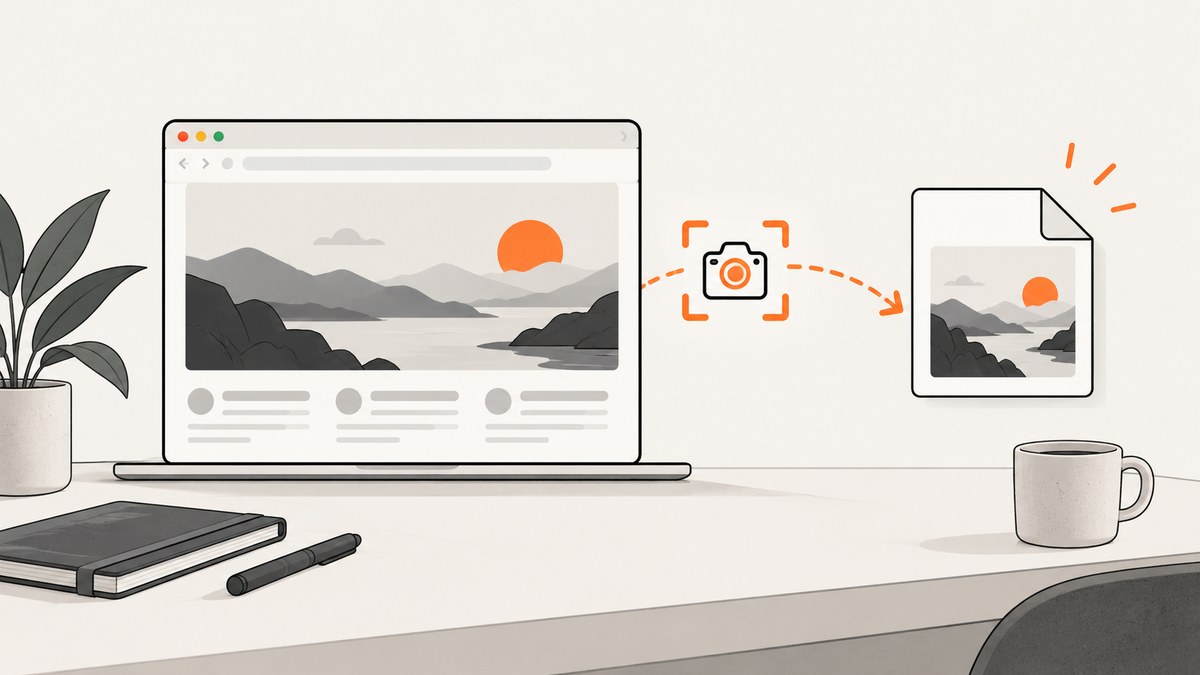
To take a screenshot of an external website, use your browser for a one-off capture or Playwright for repeatable, scripted captures. In Firefox, open the page, choose Take Screenshot from the context menu, and select the visible area or full page. For automation, navigate to the URL with Playwright and call page.screenshot().
This guide covers visible, full-page, and element screenshots; runnable JavaScript, cURL, Python, and Node.js examples; dynamic pages, authentication, lazy loading, anti-bot checks, troubleshooting, performance, reliability, and cost. A screenshot records how a page appears at capture time. It does not establish permission to republish the site’s content.
Choose the right capture method
| Need | Use | Why |
|---|---|---|
| One screenshot with no code | Firefox screenshot | Built into the browser and supports visible-area and full-page captures. |
| Scheduled or repeated captures | Playwright | Navigation and screenshot options can be scripted. |
| One element, such as a chart or pricing table | Playwright element screenshot | Targets a locator instead of the whole page. |
| Many URLs, clean captures, or an API workflow | ScreenshotNeo | One HTTP request returns an image or PDF, with page-cleaning and billing verdicts. |
Method 1: Use Firefox for a one-off screenshot
- Open the external URL in Firefox.
- Right-click an empty area of the page, or Control-click on macOS, and select Take Screenshot.
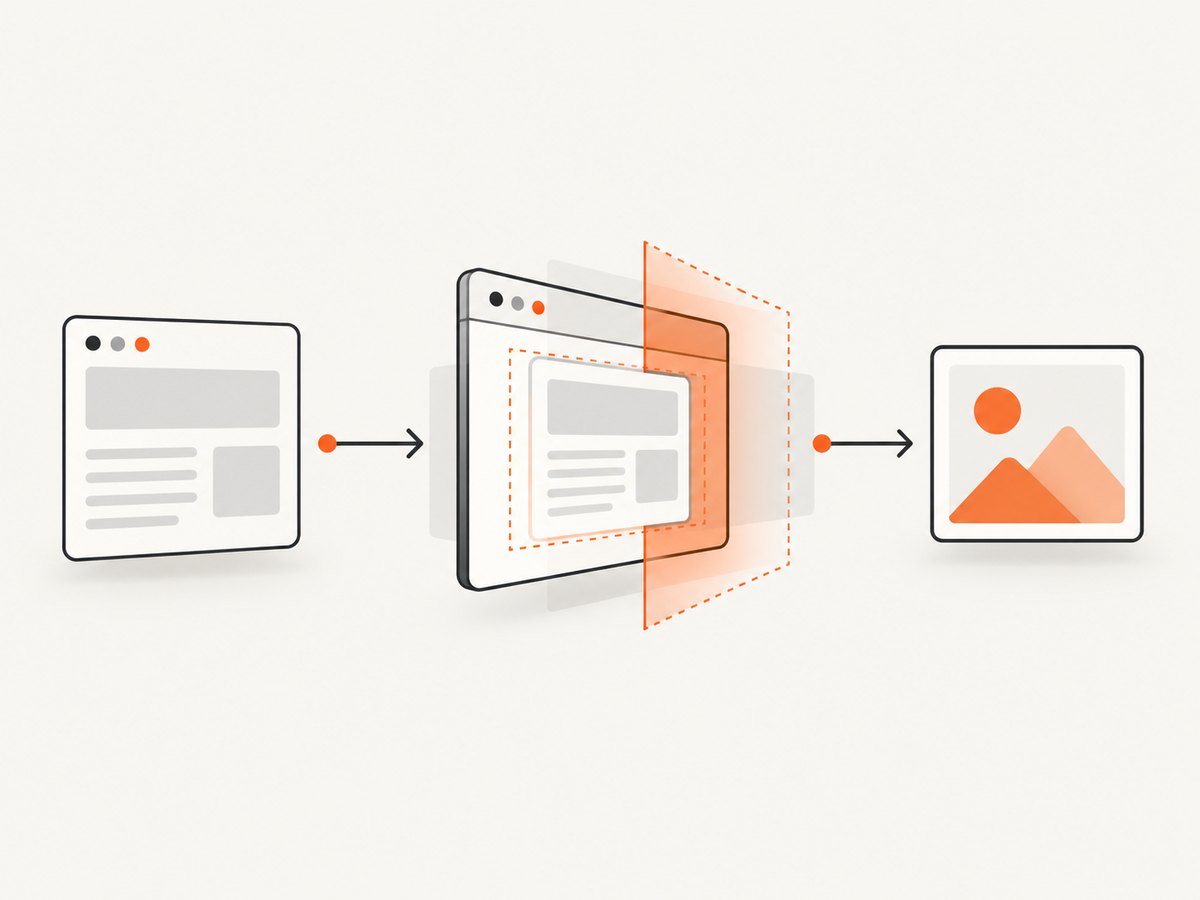
- Choose Visible for the current viewport or Full Page for the entire scrollable page.
- Copy the image or download it.
Firefox also documents Ctrl+Shift+S on Windows and Linux and Command+Shift+S on macOS. Keyboard shortcuts and menu labels can vary by version, so use the context menu if the shortcut does not open the tool. Mozilla’s support page was updated June 15, 2026.
When Firefox is the better choice
- You need one capture and do not need a script.
- You want to inspect the page manually before saving it.
- You need a quick visible or full-page image without installing browser automation.
Method 2: Automate the capture with Playwright
Playwright is appropriate when the same capture must run repeatedly, when you need a fixed viewport, or when you need an element screenshot. The examples below use JavaScript.
Install Playwright
npm init -y
npm install -D playwright
npx playwright install chromium
Capture the visible viewport
const { chromium } = require('playwright');

(async () => {
  const browser = await chromium.launch();
  const page = await browser.newPage({ viewport: { width: 1440, height: 900 } });
  await page.goto('https://example.com', { waitUntil: 'load' });
  await page.screenshot({ path: 'visible.png' });
  await browser.close();
})();
Capture the complete scrollable page
const { chromium } = require('playwright');

(async () => {
  const browser = await chromium.launch();
  const page = await browser.newPage({ viewport: { width: 1440, height: 900 } });
  await page.goto('https://example.com', { waitUntil: 'networkidle' });
  await page.screenshot({ path: 'full-page.png', fullPage: true });
  await browser.close();
})();
fullPage: true captures the page’s full scrollable area. A regular screenshot captures the current viewport. page.screenshot() also accepts image format, clipping, and other options documented by Playwright.
Capture one element
const card = page.locator('.pricing-card').first();
await card.screenshot({ path: 'pricing-card.png' });
Use a stable CSS selector or another locator. If the selector matches multiple elements, choose one explicitly with first() or an appropriate filter.
Useful Playwright configuration
| Option | Example | Use |
|---|---|---|
| Viewport | { width: 1280, height: 800 } |
Make layout and responsive breakpoints deterministic. |
| Device scale | deviceScaleFactor: 2 |
Produce a retina-density image. |
| Format | type: 'jpeg', quality: 85 |
Choose PNG, JPEG, or another supported image format and control JPEG size. |
| Clip | { x: 0, y: 0, width: 600, height: 400 } |
Capture a defined rectangle. |
| Timeout | page.setDefaultTimeout(30000) |
Limit waits for selectors and actions. |
| Wait state | waitUntil: 'networkidle' |
Wait for network activity to settle; some pages never become idle. |
| Authentication | Context cookies or storage state | Capture pages that require a permitted login. |
Wait for content that appears late
await page.goto('https://example.com/dashboard', { waitUntil: 'domcontentloaded' });
await page.locator('[data-loaded="true"]').waitFor({ state: 'visible', timeout: 30000 });
await page.screenshot({ path: 'dashboard.png', fullPage: true });
Prefer a meaningful selector when a page has asynchronous content. A fixed delay can help with animations, but selector-based waits are usually more reliable.
Hide an overlay before capture
await page.addStyleTag({ content: '.cookie-banner, .chat-widget { display: none !important; }' });
await page.screenshot({ path: 'without-overlay.png' });
Only hide elements when doing so matches your capture goal. Removing a consent banner can change what a visitor would normally see.
Capture a page with custom headers or cookies
const context = await browser.newContext({
  extraHTTPHeaders: { 'Accept-Language': 'en-US' },
  cookies: [{ name: 'session', value: 'REDACTED', domain: 'example.com', path: '/' }]
});
const page = await context.newPage();
Keep credentials in environment variables or a secret store. Do not put access tokens in source control or screenshot filenames.
Edge cases to handle
- Cookie and newsletter banners: they may cover content or change page height. Wait for them, interact with them where permitted, or hide them deliberately.
- Lazy-loaded images: scroll through the page or wait for image loading before a full-page capture. A full-page option does not guarantee that every lazy resource has loaded.
- Infinite scroll: there may be no finite full page. Define a scroll limit and capture a known region.
- Animations and carousels: pause animations with injected CSS or wait for a stable state to avoid inconsistent frames.
- Authentication: create a browser context with authorized cookies or storage state. Never bypass access controls.
- Bot checks and CAPTCHAs: automation may be challenged or shown a verification page. Treat that result as a failed capture rather than assuming the target page was received.
- Cross-origin frames: you can screenshot the rendered page, but DOM selectors inside a cross-origin iframe may not be accessible from the parent page.
- Very tall pages: full-page images consume memory and can exceed downstream image limits. Use clipping, element capture, or a PDF workflow when appropriate.
- Site permissions: capture and redistribution rights depend on the website and your use case. Check the site’s terms and applicable rules before publishing an image.
Or skip the browser setup
ScreenshotNeo is a website screenshot API and MCP server. It accepts one GET request and returns a PNG, JPEG, WebP, or PDF. Its capture can load lazy images, remove more than 60 known consent platforms plus newsletter popups and chat widgets, and target full pages or individual CSS selectors.
See the ScreenshotNeo API documentation for the full parameter reference.
cURL
curl -G "https://api.screenshotneo.com/v1/shot" -d access_key=YOUR_API_KEY --data-urlencode url=https://stripe.com -o shot.webpPython
import requests
r = requests.get("https://api.screenshotneo.com/v1/shot", params={"access_key": "YOUR_API_KEY", "url": "https://stripe.com"}, timeout=90)
open("shot.webp", "wb").write(r.content)
Node.js
const q = new URLSearchParams({ access_key: 'YOUR_API_KEY', url: 'https://stripe.com' });
const res = await fetch(`https://api.screenshotneo.com/v1/shot?${q}`);
ScreenshotNeo options for production captures
You can configure full-page capture with lazy images loaded, a CSS selector for one element, dark mode, 12 device presets or any viewport, retina scale, PDF paper size, margins, landscape mode and page ranges. You can also supply custom CSS and JavaScript, click an element before capture, hide selectors, wait for a selector, delay, or network idle, and block ads, trackers, requests, or resource types.
For controlled environments, pass custom headers, cookies, a user agent, an Authorization header, timezone, or geolocation. Other controls include transparent backgrounds, image resizing, cache TTLs, signed links for public <img> tags, asynchronous jobs with signed webhooks, bulk capture for up to 100 URLs per call, a usage API, and an OpenAPI specification. Parameter names used by other screenshot APIs also work, which can simplify migration.
ScreenshotNeo reports X-Page-Verdict and X-Billed headers. Clean shots are billed; bot checks or CAPTCHAs, blank pages, timeouts, failed loads, and cache hits cost nothing. Each response identifies which case occurred.
An MCP server provides take_screenshot, get_page_info, and capture_pdf tools for Claude, Cursor, and other MCP clients. Every feature is available on every plan: 1,000 shots per month free with no card, then Starter is $5 for 3,000, Growth $15 for 15,000, Pro $39 for 60,000, Scale $99 for 250,000, and Business $249 for 1,000,000. Yearly billing gives two months free.
Cookie banners, popups, and chat widgets are removed before the shot; bot checks, blank pages, and failed loads are never billed; an MCP server lets AI agents take screenshots; and 1,000 screenshots a month are free with no card, with paid plans starting at $5 for 3,000. Create a free ScreenshotNeo account.
Troubleshooting
| Symptom | Likely cause | Fix |
|---|---|---|
| Screenshot is blank | Navigation failed, the page is still loading, or a bot check was returned. | Log the final URL and response status, wait for a meaningful selector, and inspect the rendered page before saving. |
| Full page is cut off | The page uses a fixed container, infinite scroll, or an oversized document. | Use a defined clip, capture sections or an element, or use a PDF workflow. |
| Images are missing | Lazy loading has not triggered or requests are blocked. | Scroll before capture, wait for image completion, and review request-blocking rules. |
| Selector timeout | The selector is incorrect, content is inside a frame, or the page state differs. | Verify the selector, wait for the correct frame, and capture the actual URL and viewport used. |
| Layout differs between runs | Responsive breakpoints, fonts, animations, ads, or changing content. | Fix viewport and scale, wait for stable content, disable animations, and control fonts and third-party resources. |
| Firefox shortcut does nothing | Shortcut or browser version differences. | Open the context menu and choose Take Screenshot. |
| API response is an error | Missing key, malformed URL, unsupported option, or target failure. | Check the request URL and credentials, read the HTTP status and response body, then simplify options until the base capture works. |

Performance, reliability, and cost
- Set a fixed viewport and device scale so output dimensions stay predictable.
- Wait for the smallest reliable condition, such as a specific selector, instead of an unnecessarily long global delay.
- Reuse a browser process for batches of Playwright captures, but isolate contexts when cookies or authentication differ.
- Use element screenshots or clipping when a full document is unnecessarily large.
- Cache stable pages when freshness is not required. ScreenshotNeo lets you choose a cache TTL and does not bill cache hits.
- For many URLs, use ScreenshotNeo bulk capture, which accepts up to 100 URLs per call, or asynchronous jobs with signed webhooks.
- Record the URL, viewport, wait condition, timestamp, and capture verdict so failures can be reproduced.
- External pages can change, rate-limit automation, require login, or fail independently of your code. Retry transient navigation failures with a limit and retain the failure reason.
FAQ
Can I screenshot an external website without opening it manually?
Yes. Use Playwright or an HTTP screenshot service such as ScreenshotNeo. A browser automation script still renders the page before saving the image.
What is the difference between a viewport and a full-page screenshot?
A viewport screenshot contains the currently visible browser area. A full-page screenshot includes the page’s scrollable content, subject to dynamic-content and size limits.
Can I screenshot a website that requires login?
Only with authorized access. Supply permitted cookies or storage state to Playwright, or the corresponding authenticated request settings in your capture service.
Should I use PNG or JPEG?
PNG preserves sharp text and transparency. JPEG usually produces smaller files for photographic content; choose quality based on your downstream size requirement.
Does taking a screenshot give me permission to publish the page?
No. Capture rights and redistribution rights are site- and use-case-specific. Check the relevant terms and permissions before publishing.


