How to Screenshot a Facebook Message
Learn the built-in screenshot steps for iPhone, Android, Windows and Mac, plus privacy, notification and preservation guidance.
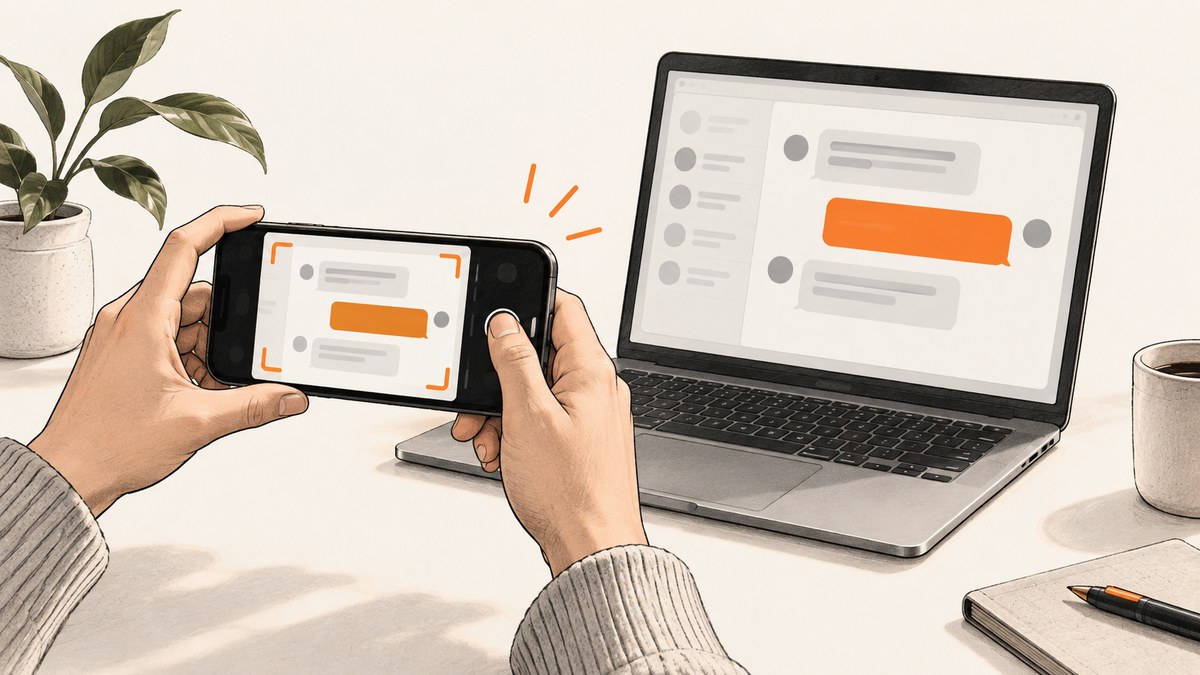
How do I screenshot a Facebook message? Open the conversation, position the message on screen, and use your phone or computer’s built-in screenshot control. The exact buttons, editing tools and save location vary by device model and operating-system version.
Before you capture
- Open the relevant conversation in Facebook, Messenger or facebook.com. Meta directs Messenger-app and messenger.com questions to Messenger Help.
- Scroll until the message, sender name, timestamp and enough surrounding context are visible.
- Decide whether you need the full screen or only a selected region. A smaller crop exposes less unrelated information.
- Check that names, timestamps and message text are readable before you share the image.
iPhone and iPad
On most current iPhones and iPads, press the side (power) button and volume up button together, then release. Some models use the power and Home buttons instead. A thumbnail or flash indicates the capture. Meta says the image is saved in Camera Roll in Photos.
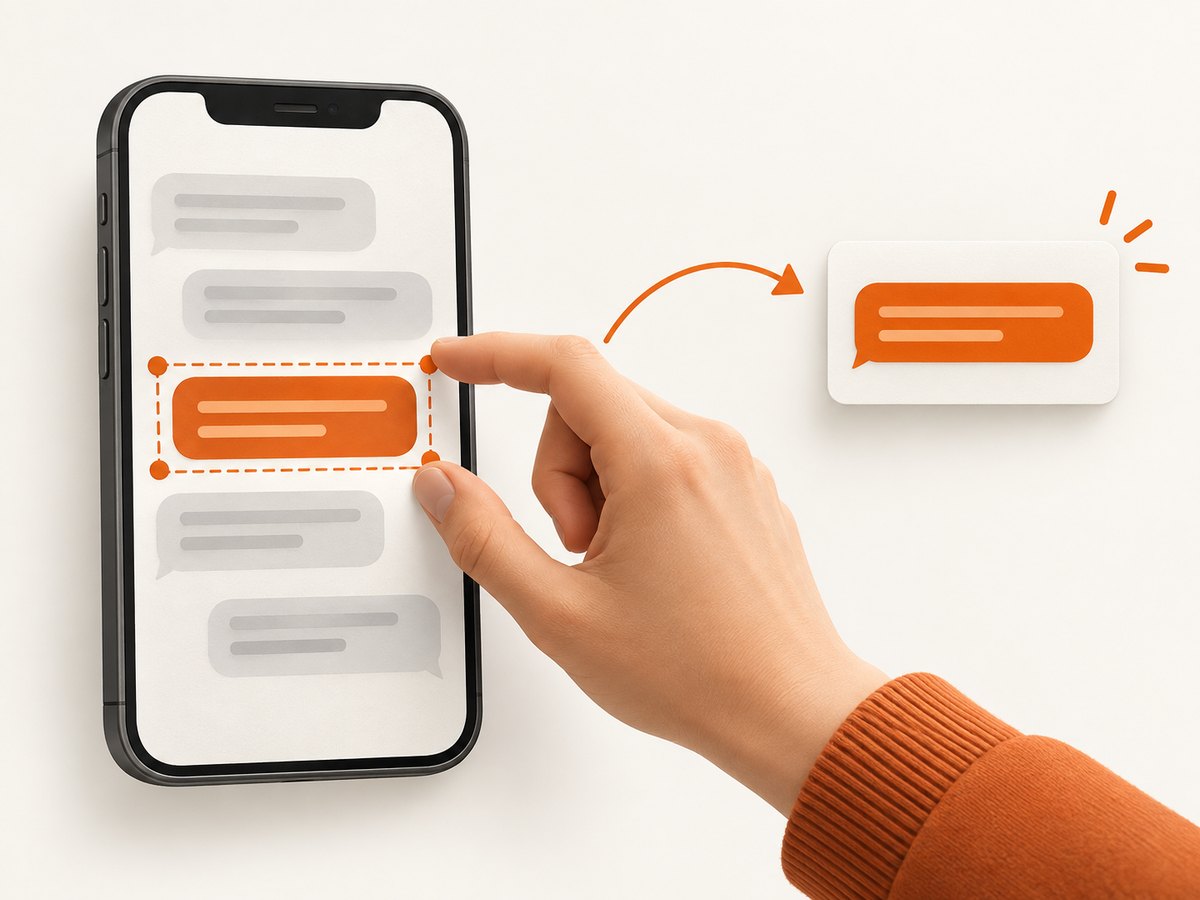
- Open the message and frame the required context.
- Press the two buttons at the same time and release quickly.
- Tap the thumbnail if you need to crop, mark up or share immediately; otherwise find it in Photos.
If the screen locks, changes volume or does not capture, press both buttons more precisely at the same time and verify which button combination your model uses.
Android phones and tablets
On Samsung Galaxy and most other Android devices, press power and volume down together. Some phones use power and Home. Meta says the image is stored in Gallery.
- Open the conversation and place the message inside the frame.
- Press power and volume down together, then release.
- Use the preview toolbar to crop or annotate, or open Gallery to find the file.
Android vendors add alternatives such as a three-finger gesture, palm swipe or a quick-settings Screenshot button. If the hardware shortcut fails, search your device’s Settings for “screenshot” and use the documented shortcut for that model.
Windows
Meta’s documented Windows options are Snipping Tool and Print Screen. The exact menus differ across Windows releases, and Meta’s page includes some Windows 7-era wording.
Snipping Tool
- Open the Facebook or Messenger conversation.
- Launch Snipping Tool and choose New.
- Drag around the message and required context.
- Save the snip in the format and folder you choose.
Print Screen
- Press Print Screen to copy the display.
- Paste into an image editor or document.
- Crop to the message, then save the file.
Use a selected snip when the message contains private material elsewhere on the screen. Confirm the saved file opens and remains legible at its original size.
Mac
Press Command-Shift-4, drag over the message, and release. Meta says the capture appears on the desktop with a date-and-time filename.
- Bring the conversation to the front.
- Press Command-Shift-4.
- Select the message and the context you need.
- Release to capture, then open the desktop file to review or rename it.
For a full display capture, use the macOS screenshot controls opened with Command-Shift-5 and select the appropriate capture mode.
Facebook chat, Messenger and special message types
Facebook chat and facebook.com messaging overlap with Messenger, but Meta maintains separate Messenger help for the Messenger app and messenger.com. Menu labels and capture behavior can therefore differ by app, browser and operating system.
The official material reviewed here does not establish a universal rule that screenshots of every Facebook or Messenger message are silent or always trigger a notification. Do not promise either outcome. For disappearing or temporary content, check the current in-app notice and Meta’s current help for that specific feature before sharing a screenshot.
Privacy and safe sharing
- A screenshot is a second image copy that can be stored, forwarded or exposed separately from the original chat.
- Capture only the context needed. Crop unrelated names, profile details, phone numbers and notifications.
- Ask before sharing another person’s private message when consent or confidentiality matters.
- If a message appears to be spam or makes you uncomfortable, Meta’s general messaging guidance includes blocking or reporting it.
Meta distinguishes community chats from other Messenger conversations and says community chats are not subject to the same privacy guidelines. Do not apply that statement to every private conversation.
When a screenshot is not the right preservation method
If you need an archive rather than a quick image, use the documented account features that apply to your conversation type. Meta says community-chat messages can be downloaded before permanent deletion: open Messenger, choose Learn more on the community-chats banner, select Download your information, and follow the prompts. This route is specific to community chats.
For end-to-end encrypted chat history, Meta documents secure storage and restoration. Deleting secure storage permanently deletes that encrypted chat history. Secure-storage management is not a universal export instruction for every conversation.
Or skip the browser setup
If you need a repeatable image of a public message page, ScreenshotNeo captures a URL with one request. See the ScreenshotNeo API docs for all options.
cURL
curl -G "https://api.screenshotneo.com/v1/shot" -d access_key=YOUR_API_KEY --data-urlencode url=https://www.facebook.com -o shot.webpPython
import requests

r = requests.get(
    "https://api.screenshotneo.com/v1/shot",
    params={"access_key": "YOUR_API_KEY", "url": "https://www.facebook.com"},
    timeout=90,
)
r.raise_for_status()
open("shot.webp", "wb").write(r.content)
Node.js
const q = new URLSearchParams({ access_key: 'YOUR_API_KEY', url: 'https://www.facebook.com' });
const res = await fetch(`https://api.screenshotneo.com/v1/shot?${q}`);
if (!res.ok) throw new Error(`HTTP ${res.status}`);
const data = Buffer.from(await res.arrayBuffer());
require('fs').writeFileSync('shot.webp', data);
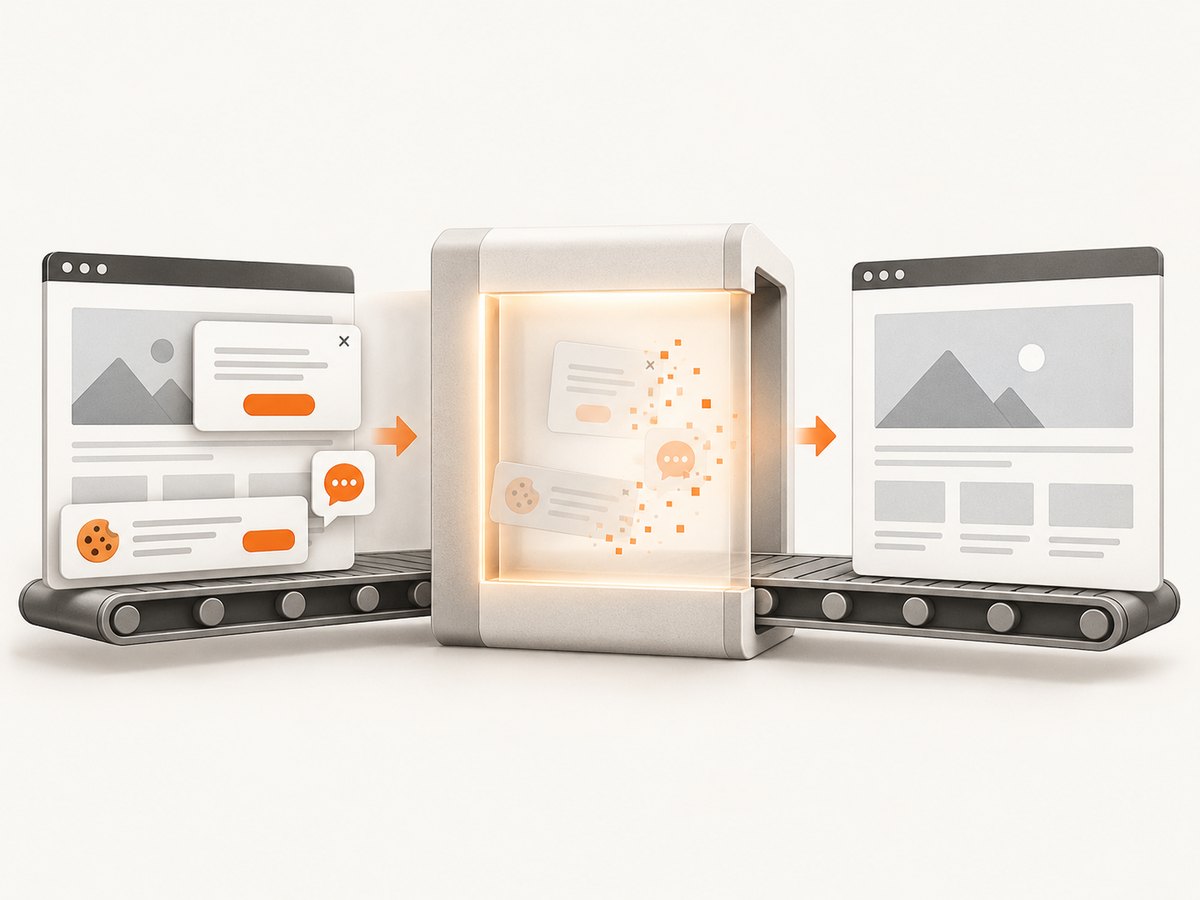
Replace the target URL with a page you are authorized to access. ScreenshotNeo can capture PNG, JPEG, WebP or PDF and supports full-page or element capture, custom waits, cookies, headers, user agents, JavaScript and CSS. Cookie banners, newsletter popups and chat widgets are removed before capture, with each cleanup step configurable. Bot checks, blank pages, timeouts, failed loads and cache hits are not billed; responses identify the page verdict and billing status in X-Page-Verdict and X-Billed headers. Its MCP server provides take_screenshot, get_page_info and capture_pdf for Claude, Cursor and other MCP clients. One thousand shots per month are free with no card; paid plans start at $5 for 3,000 shots. Create a free ScreenshotNeo account.
Troubleshooting
| Problem | Likely cause | Fix |
|---|---|---|
| No image appears | Wrong shortcut or buttons pressed out of sequence | Check the model-specific combination; try the OS screenshot menu or Snipping Tool. |
| Volume changes instead | On Android, volume up was used or buttons were not simultaneous | Use power plus volume down and press together briefly. |
| Screen locks | Power button was held too long | Press both buttons together and release immediately. |
| Message text is unreadable | Capture was zoomed out or cropped too tightly | Increase text size or capture more context, then crop only after checking readability. |
| Private details are visible | Full-screen capture included unrelated content | Use a selected-region capture and inspect notifications before sharing. |
| ScreenshotNeo returns an error | Invalid key, inaccessible URL or page timeout | Check the access key, URL encoding, authentication requirements and response headers; increase wait settings when the page loads slowly. |
Performance, reliability and cost notes
- Built-in device screenshots are immediate, local and free, so they are best for one-off conversations.
- For repeatable URL captures, wait for the required selector or network idle instead of relying on a fixed short delay. Lazy images may require full-page capture.
- Use caching with a TTL when the same page can be reused. Bulk capture supports up to 100 URLs per call.
- For public embeds, signed links prevent exposing your API key. Async jobs with signed webhooks avoid keeping a request open.
- ScreenshotNeo bills only clean shots. Check
X-Page-VerdictandX-Billedin logs so failed or non-useful responses are distinguishable from billable captures.
FAQ
Do I need a special app or accessory?
No. A phone, computer and their built-in screenshot controls are sufficient.
Where is my screenshot saved?
Meta says iPhone and iPad captures go to Camera Roll in Photos, Android captures to Gallery, and Mac captures to the desktop. Windows saves wherever you choose.
Will Facebook notify the other person?
The official material reviewed does not confirm a universal notification rule for every chat mode, app version or message type.
Can I preserve an entire conversation as an image?
You can capture multiple regions, but for community chats Meta documents a Download your information route before permanent deletion.


