How to Take a Screenshot of a Facebook Post
Capture a Facebook post on Windows, Mac, iPhone, iPad, or Android. Learn how to save long posts, edit screenshots, and protect private details before sharing.
To screenshot a Facebook post, open it so the part you want is visible, then use your device’s built-in screenshot controls. You can crop or mark up the saved image before sharing it. For a long post, use scrolling capture if your device offers it; otherwise, take multiple screenshots.
The exact steps depend on whether you’re using Windows, Mac, iPhone or iPad, or Android. Before sharing, check the image for names, profile photos, locations, comments, messages, and other details you don’t want to disclose.
1. Choose the right capture method
Use the method for the device displaying Facebook. A screenshot captures what is on that screen; it does not create a separate copy of the post or change who can see the original.
| Device | Basic capture | Where it goes | Long capture |
|---|---|---|---|
| Windows | Snipping Tool or Print Screen | Save location you choose, or clipboard | Take multiple captures if the post extends beyond the screen |
| Mac | Command-Shift-4 | Desktop by default | Take multiple captures if needed |
| iPhone or iPad | Button combination depends on model | Photos | Full Page may appear in supported contexts |
| Android | Power + Volume Down on most devices | Photos or Gallery | Capture more may be available on Android 12 and later |
2. Take a screenshot on Windows
- Open Facebook and position the post so the text, image, or comments you need are visible.
- Open Snipping Tool and choose New.
- Drag to select the area containing the post, then release.
- Review the capture and save it. The documented Snipping Tool flow offers PNG.
For a quick capture, press Print Screen, open an app such as Paint or PowerPoint, and press Ctrl+V to paste. Crop the pasted image and save it where you can find it again. Depending on your keyboard and Windows setup, Print Screen may behave differently; Snipping Tool gives you an explicit selection step.
3. Take a screenshot on Mac
- Move the Facebook post into view and close or move anything that should not appear in the image.
- Press Command-Shift-4.
- Drag across the post and release to capture the selected area.
- Find the image on the desktop. The filename includes “Screen Shot” and the date and time.
Selection capture is useful when the surrounding browser window or feed contains unrelated personal information. If the post is longer than the visible area, capture separate sections and keep them in order.
4. Take a screenshot on iPhone or iPad
- Open the post and scroll until the part you want is visible.
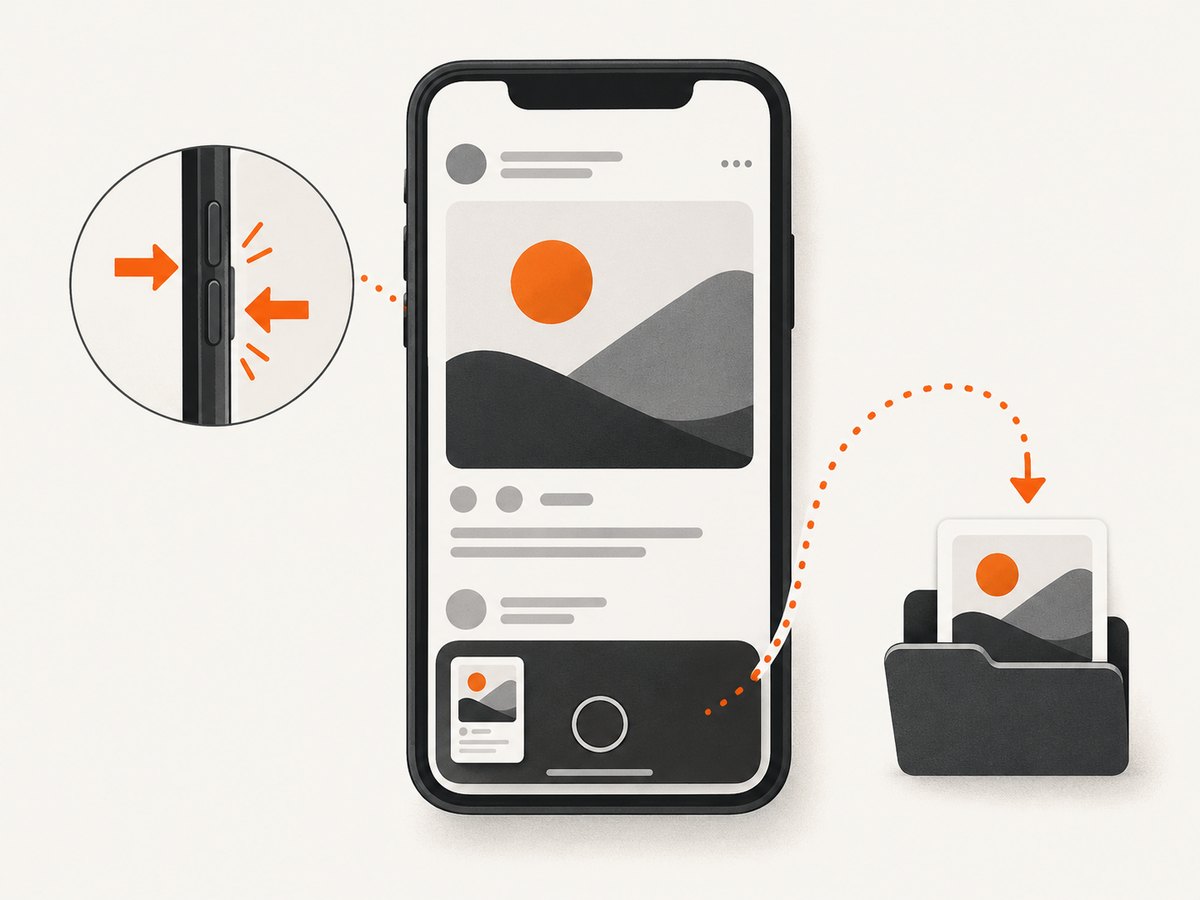
- On a Face ID model, quickly press and release Side + Volume Up together.
- On a Home-button model, press Home + Side.
- Tap the screenshot preview if you want to crop, annotate with Markup, or share it. Otherwise, the screenshot is saved in Photos.
Apple’s Full Page option can capture beyond the visible screen when it is offered. Apple documents it for supported contexts such as webpages, but a Facebook feed post may not show that option. If it is absent, capture the post in sections rather than assuming the whole post will fit into one image.
5. Take a screenshot on Android or Samsung Galaxy
- Open the post and bring the desired section into view.
- Press Power + Volume Down at the same time.
- If that does not work, hold the Power button and tap Screenshot, if that option appears.
- For a longer capture on Android 12 or later, look for Capture more after the first screenshot. Drag the capture handles to include more content, then save.
Many Samsung Galaxy phones use Power + Volume Down too; some models use Volume Down + Home. Button layouts and capture options vary by model. Look in Photos under Collections > On this device > Screenshots, or in the Gallery app’s Screenshots folder on older phones.
6. Capture a long Facebook post
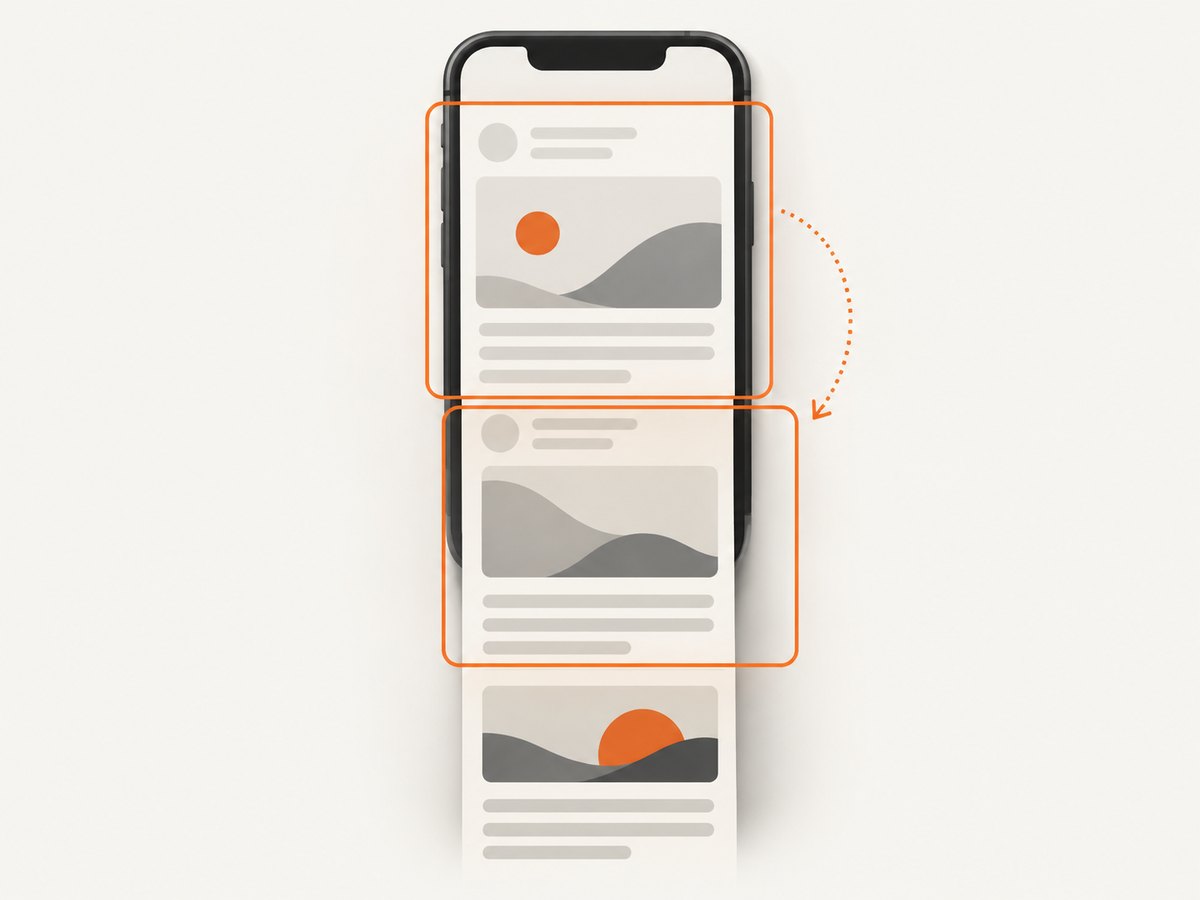
A long post can extend beyond one screen, and a scrolling capture option is not available in every Facebook view or on every device. Use the following approach:
- Try the built-in extended capture option: Capture more on supported Android 12+ screens, or Full Page when Apple’s preview offers it.
- If no extended option appears, take overlapping screenshots. Leave a little repeated text between captures so the sequence is easy to follow.
- Keep the images in order. If you combine them into one image, check that the text remains legible and that no section is accidentally omitted.
- Review the final images for comments, profile details, or other content that was not part of the post you meant to capture.
Do not assume that a feed post can always be captured as one long image. The available behavior depends on the device, operating system, and Facebook surface.
7. Crop, annotate, and protect private information
Before sharing a screenshot, inspect the entire image—not just the main post. It may show a person’s name, profile photo, location, comments, notifications, open tabs, or messages. Crop out unrelated areas, or use Markup or another editor to obscure details the recipient does not need.
Check that any redaction fully covers the underlying information. A translucent highlight or a thin mark may leave text readable. Keep an unedited original only if you need it; share the reviewed copy.
A screenshot is a copy of what was visible on your device. It does not change the post’s audience or privacy settings. Facebook’s controls for posts, stories, followers and public content, profile and tagging, and blocking are under Settings & privacy; the available controls can vary by profile type. If you need to control who can see the original, review those settings separately.
8. Can someone tell if you screenshot a Facebook post?
The official information reviewed for this guide does not establish a general screenshot notification for ordinary Facebook posts. Avoid treating that as a guarantee about every feature or future change.
Meta’s January 2022 Messenger update specifically described a notification when it detects a screenshot of a disappearing message. That statement concerns disappearing Messenger messages; it does not establish that ordinary Facebook posts trigger an alert. A post screenshot may still expose information when you share it, so review the image and the post’s audience before sending it to anyone.
9. Or skip the browser setup
If you’re capturing a Facebook page or post as part of a developer workflow, ScreenshotNeo is a website screenshot API and MCP server. One GET request returns an image or PDF. Its clean-shot flow accepts cookie and consent banners before capture and removes more than 60 known consent platforms, newsletter popups, and chat widgets; each step can be turned off. Bot checks, blank pages, failed loads, timeouts, and cache hits are not billed, and the response reports the page verdict and billing status.
Here is a one-call cURL example. Replace the target URL with the public Facebook URL you are authorized to capture and use your API key:
curl -G "https://api.screenshotneo.com/v1/shot" \
  -d access_key=YOUR_API_KEY \
  --data-urlencode url=https://www.facebook.com/ \
  -o shot.webp
See the ScreenshotNeo API documentation for request options. ScreenshotNeo also provides an MCP server with take_screenshot, get_page_info, and capture_pdf tools for Claude, Cursor, and other MCP clients. Free includes 1,000 screenshots per month with no card; paid plans start at $5 for 3,000 screenshots. Cookie banners, popups, and chat widgets are removed before the shot; bot checks, blank pages, and failed loads are never billed; an MCP server lets AI agents take screenshots; 1,000 screenshots a month are free with no card and paid plans start at $5 for 3,000. Sign up for the free plan.
10. Troubleshooting
| Problem | Likely cause | What to try |
|---|---|---|
| The screenshot shortcut does nothing | The device uses a different button combination, or a key is unavailable | On Android, try holding Power and choosing Screenshot. On iPhone or iPad, confirm the combination for your model. On Windows, use Snipping Tool. |
| The screenshot missed part of the post | Only the visible screen was captured | Try Capture more or Full Page if offered. Otherwise take overlapping captures. |
| I can’t find the image | The capture was copied to the clipboard or saved in a different folder | Paste a Print Screen capture into an app. On Mac, check the desktop; on iPhone or iPad, check Photos; on Android, check Photos or Gallery’s Screenshots folder. |
| Text is too small to read | The capture includes too much surrounding content or was resized | Capture a tighter area, use multiple images for a long post, and avoid reducing the image dimensions before sharing. |
| Private details are visible | The screenshot included nearby feed, profile, or message content | Crop or fully obscure those details in an edited copy, then inspect the result before sharing. |
| Full Page or Capture more is missing | The current device, operating system, or Facebook view does not expose extended capture | Use several overlapping screenshots. Do not rely on a single long capture being available. |
11. Practical choices: quality, reliability, and storage
Choose the smallest useful capture area. A tight selection makes the post easier to read and reduces unrelated information. For long posts, multiple readable images are often more useful than a very tall image that becomes difficult to inspect on a phone.
Check the saved file before sending it. Confirm that the capture is complete, text is readable, and the image opens from its saved location. A clipboard capture is not a saved file until you paste and save it. Keep the original dimensions where possible to avoid making text blurry.
Consider what the destination will do to the image. Messaging and social apps may display a preview or recompress an image. If legibility matters, send the original file or a document copy and ask the recipient to open it at full size.
Respect audience and context. A screenshot can be forwarded independently of the original post’s audience controls. Share only what is needed, and avoid exposing private details. No special screenshot hardware or Facebook-specific capture software is required for the basic task.
Frequently asked questions
Does a Facebook post need to be public to screenshot it?
No special screenshot function is required, but you can only capture content currently visible to your account. A screenshot does not grant access to a post that you cannot view.
Can I screenshot only the photo in a post?
Yes. Use the area-selection workflow on Windows or Mac, or crop the image afterward on a phone or tablet. Check the crop for identifying details around the photo.
Where do screenshots go on my device?
They typically appear on the desktop on Mac, in Photos on iPhone or iPad, and in Photos or Gallery on Android. Windows lets you save from Snipping Tool; Print Screen may copy the image to the clipboard until you paste and save it.
Will a screenshot preserve links or reactions?
No. It is a static image of what appeared on screen. Links, reactions, and other controls in the original post will not work in the screenshot.
Can I use a screenshot as proof of what a post said?
A screenshot can help document what was visible, but it can be cropped or edited and may not show the full context. Preserve context when it matters and avoid presenting an edited image as a complete record.


