How to Screenshot a GitHub Page in Chrome
Capture an entire GitHub page in Chrome with DevTools, Android long screenshots, troubleshooting, and an API option for automation.
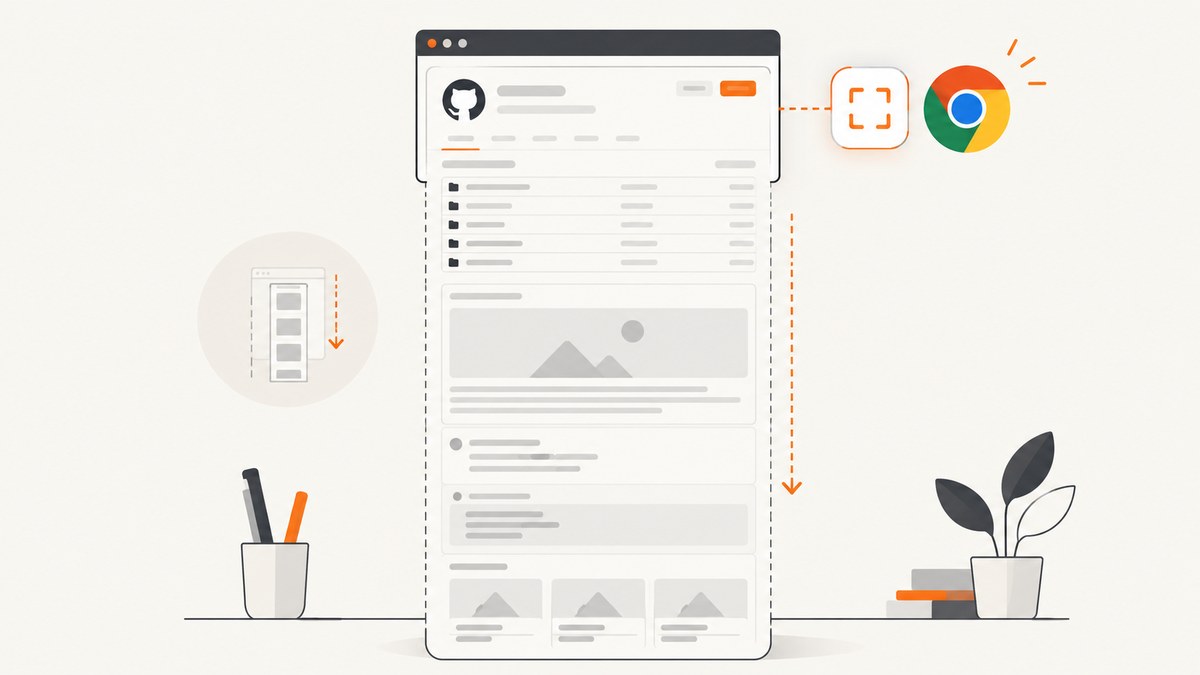
To capture an entire GitHub page in desktop Chrome, open DevTools, open the command menu, search for capture full size screenshot, and run that command. This captures content below the fold, unlike a normal screen grab.
The workflow below comes from a Chrome Community answer, so Chrome versions and menus may vary. It is a commonly described DevTools method rather than a guarantee in every Chrome release. See the Chrome Community instructions.
Desktop Chrome: capture the full GitHub page
- Open the GitHub page in desktop Chrome and wait for the content you need to load.
- Open DevTools:
- Windows/Linux:
Ctrl+Shift+I - macOS:
Cmd+Option+I
- Windows/Linux:
- Open the DevTools command menu:
- Windows/Linux:
Ctrl+Shift+P - macOS:
Cmd+Shift+P
- Windows/Linux:
- Type
capture full size screenshot. - Select the matching command. Chrome generates an image containing the full document, including content below the visible viewport.
Check the resulting image before sharing it. Very long pages can produce a tall file, and dynamic content may change while the page is being captured. A Chrome Community user reported that the PNG was saved to Downloads, but your download location and browser settings can differ.
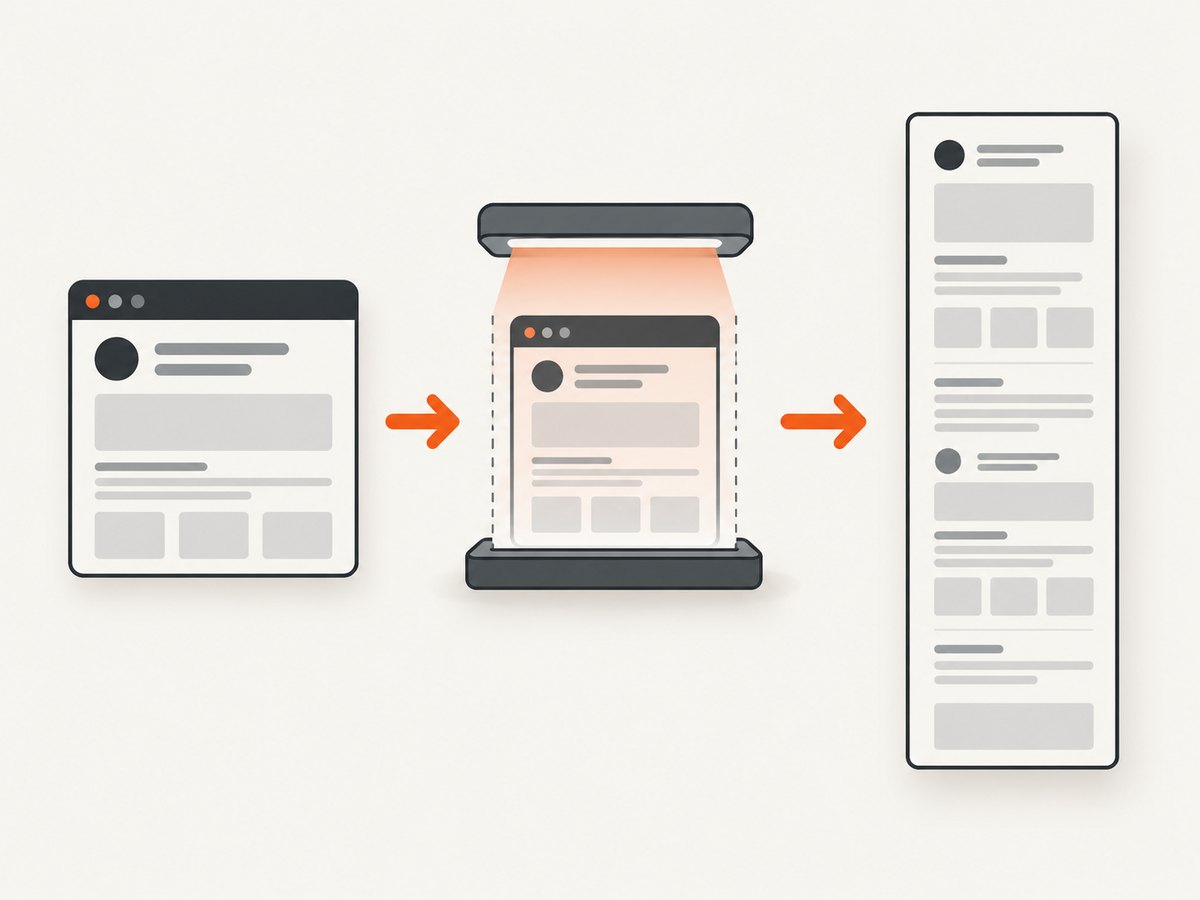
Full page versus visible screen
| Goal | Best method | What you get |
|---|---|---|
| Entire README, issue, or profile | DevTools “capture full size screenshot” | One tall image containing content below the fold |
| Only what is currently visible | Your operating system’s screenshot shortcut | The current viewport |
| Repeatable automated captures | Screenshot API or browser automation | Scripted images with configurable options |
Community responses also mention operating-system tools and browser extensions for visible-screen captures. No particular extension is endorsed by the cited sources. If you need the entire page, verify that the output includes the bottom of the GitHub content.
Capture a particular GitHub element
DevTools’ full-size command captures the document. If you need only a repository README, issue body, or another element, use an element-focused workflow:
- Open DevTools and choose the Elements panel.
- Use the element picker or search the DOM to select the content.
- Right-click the selected node and look for a node screenshot option if your Chrome version provides one.
- Otherwise, copy the element’s content into a temporary page or use an automation tool that supports a CSS selector.
GitHub pages can include sticky navigation, comments, images, and lazy-loaded sections. Scroll through the page once when completeness matters, then inspect the output for missing images or clipped sections.
Android Chrome: use Long screenshot
Android uses a different, documented flow. In Chrome:
- Open the GitHub page.
- Tap More (the three-dot menu).
- Tap Share, then Long screenshot.
- Adjust the crop handles to include the part of the page you want.
- Save or share the result.
These steps are from Chrome Help for Android; they are separate from the desktop DevTools command.
When Chrome refuses to capture
On organization-managed devices, an administrator can enable screenshot-prevention policies. Google documents that supported Chrome Enterprise Premium policies can block screenshots taken with keyboard shortcuts, apps, extensions, or Chrome’s capture API. A missing or disabled command on a work browser may therefore be intentional. Check with your administrator and review Chrome Enterprise policy documentation.
Or skip the browser setup
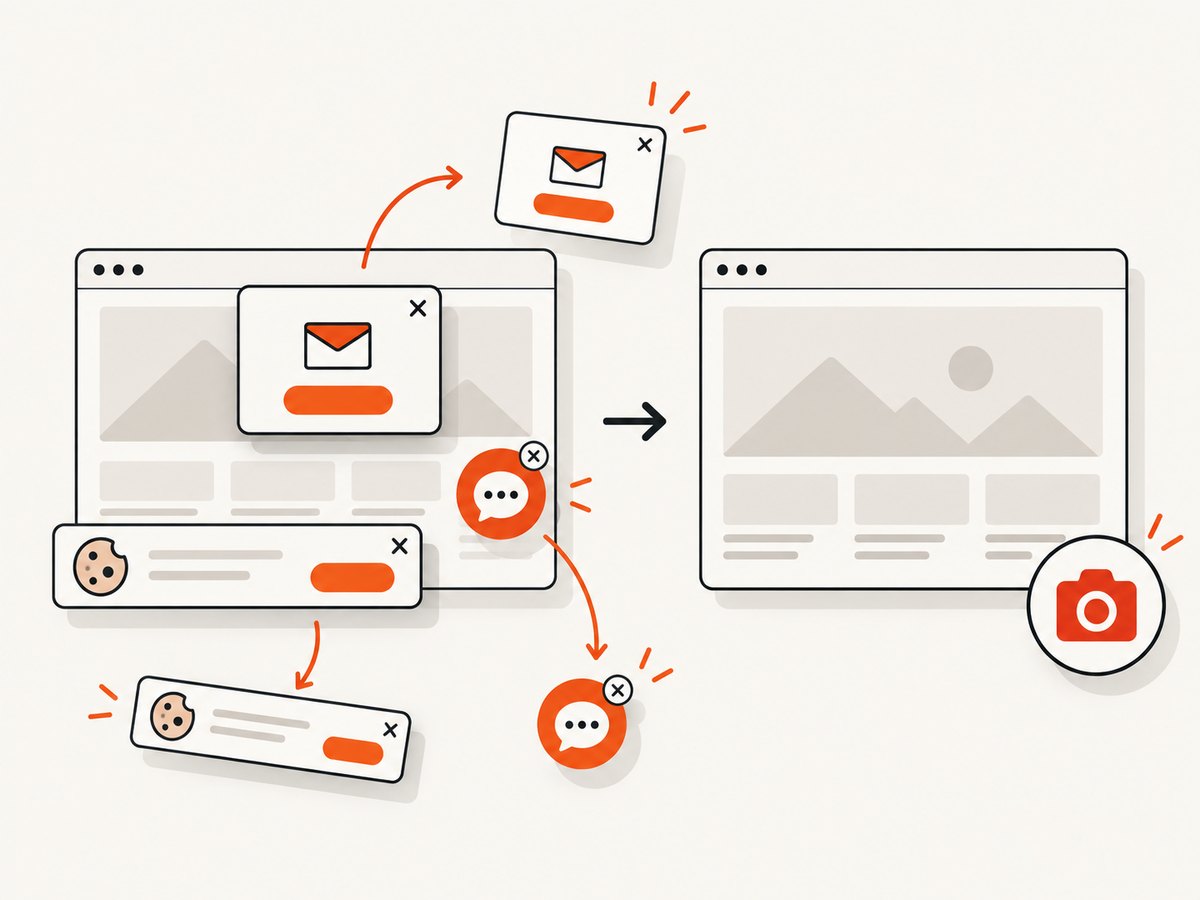
ScreenshotNeo provides a website screenshot API when you need repeatable captures from scripts, CI jobs, or backend services. It accepts a URL and returns PNG, JPEG, WebP, or PDF. Cookie and consent banners are accepted and removed before the capture, along with more than 60 known consent platforms, newsletter popups, and chat widgets. Bot checks, blank pages, timeouts, failed loads, and cache hits are not billed, and the response identifies the result with X-Page-Verdict and X-Billed headers. See the ScreenshotNeo API documentation for all options.
cURL
curl -G "https://api.screenshotneo.com/v1/shot" -d access_key=YOUR_API_KEY --data-urlencode url=https://github.com -o github.webpPython
import requests

r = requests.get(
    "https://api.screenshotneo.com/v1/shot",
    params={"access_key": "YOUR_API_KEY", "url": "https://github.com"},
    timeout=90,
)
r.raise_for_status()
open("github.webp", "wb").write(r.content)
Node.js
const q = new URLSearchParams({ access_key: 'YOUR_API_KEY', url: 'https://github.com' });
const res = await fetch(`https://api.screenshotneo.com/v1/shot?${q}`);
if (!res.ok) throw new Error(`Screenshot failed: ${res.status}`);
const body = Buffer.from(await res.arrayBuffer());
require('fs').writeFileSync('github.webp', body);
Useful ScreenshotNeo options for GitHub pages
| Need | Option or capability |
|---|---|
| Everything below the fold | Full-page capture with lazy images loaded |
| One README or panel | Capture one element by CSS selector |
| Consistent appearance | Device presets, custom viewport, dark mode, and retina scale |
| Dynamic GitHub content | Wait for a selector, delay, or network idle |
| Remove unwanted UI | Hide selectors, block ads, trackers, requests, or resource types |
| Authenticated or private pages | Custom headers, cookies, user agent, and Authorization |
| Repeat captures | Caching with a TTL you choose, signed links, async jobs, and signed webhooks |
| Many repositories | Bulk capture for up to 100 URLs per call |
ScreenshotNeo also includes an MCP server with take_screenshot, get_page_info, and capture_pdf tools for Claude, Cursor, and other MCP clients.
The Free plan includes 1,000 shots per month with no card. Paid plans start at $5 for 3,000 shots; yearly billing gives two months free, and every feature is available on every plan. Create a free ScreenshotNeo account.
Troubleshooting checklist
The command does not appear
- Confirm DevTools has focus before pressing the command-menu shortcut.
- Search for
capture full size screenshot, not the ordinary screenshot shortcut. - Update Chrome or try a non-managed profile.
- If the browser is managed, ask your administrator whether screenshot prevention is enabled.
The image contains only the visible area
- Run the full-size command from DevTools rather than your operating system’s screen shortcut.
- Confirm the output is taller than the viewport and includes the page footer or final GitHub section.
Images or sections are missing
- Wait for GitHub to finish loading, especially images and comments.
- Scroll through the document once to trigger lazy loading, then capture again.
- Check whether an element is hidden behind a collapsed section or requires interaction.
The page changes during capture
- Pause until asynchronous content settles.
- For repeatable results, use a fixed viewport and a scripted wait condition in an API or browser automation workflow.
The file is too large to share
- Crop to the relevant section or capture a specific element.
- Convert the image to JPEG or WebP when lossless PNG is unnecessary.
- For documents intended to be printed, generate a PDF instead of one extremely tall image.
Performance, reliability, and cost considerations
- Capture time: Full pages with many images, comments, or scripts take longer than a short README. Waiting for network idle improves completeness but increases latency.
- Repeatability: Use the same viewport, device scale, color scheme, and wait condition when comparing captures over time.
- Reliability: Save the output and inspect it for blocked content, login prompts, or incomplete lazy-loaded sections. Managed policies can prevent local captures entirely.
- API cost: ScreenshotNeo bills only clean shots. Bot checks, blank pages, timeouts, failed loads, and cache hits cost nothing; use the
X-BilledandX-Page-Verdictheaders when recording job results. - Batch work: Bulk capture supports up to 100 URLs per call, while caching with a chosen TTL can avoid repeated rendering of unchanged pages.
FAQ
Does Chrome save a full-page screenshot as a PDF?
No. The DevTools command produces an image. Use Chrome’s print dialog or an API with PDF support when you need a paginated document.
Can I use the desktop DevTools steps on Android?
No. Android Chrome has its own More > Share > Long screenshot flow.
Why is a GitHub screenshot blank after login?
The page may require an authenticated session, or a managed-browser policy may block capture. Sign in before capturing when permitted, and check organization policy on work devices.
What is the quickest way to automate GitHub screenshots?
Call a screenshot API with the GitHub URL. ScreenshotNeo’s endpoint accepts one GET request, supports full-page capture, and can wait for dynamic content before returning the image.


