How to Take a Screenshot of a Google Doc
Capture the part of a Google Doc on screen with your device’s screenshot controls, or print the whole document to PDF when you need a complete file.
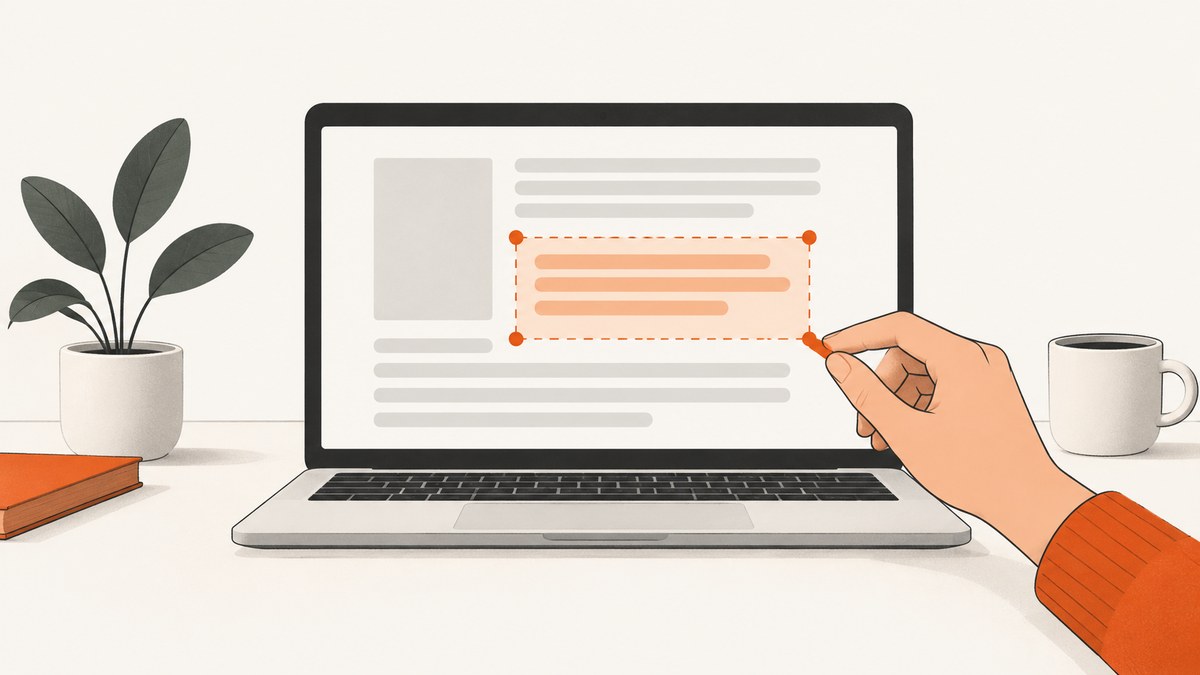
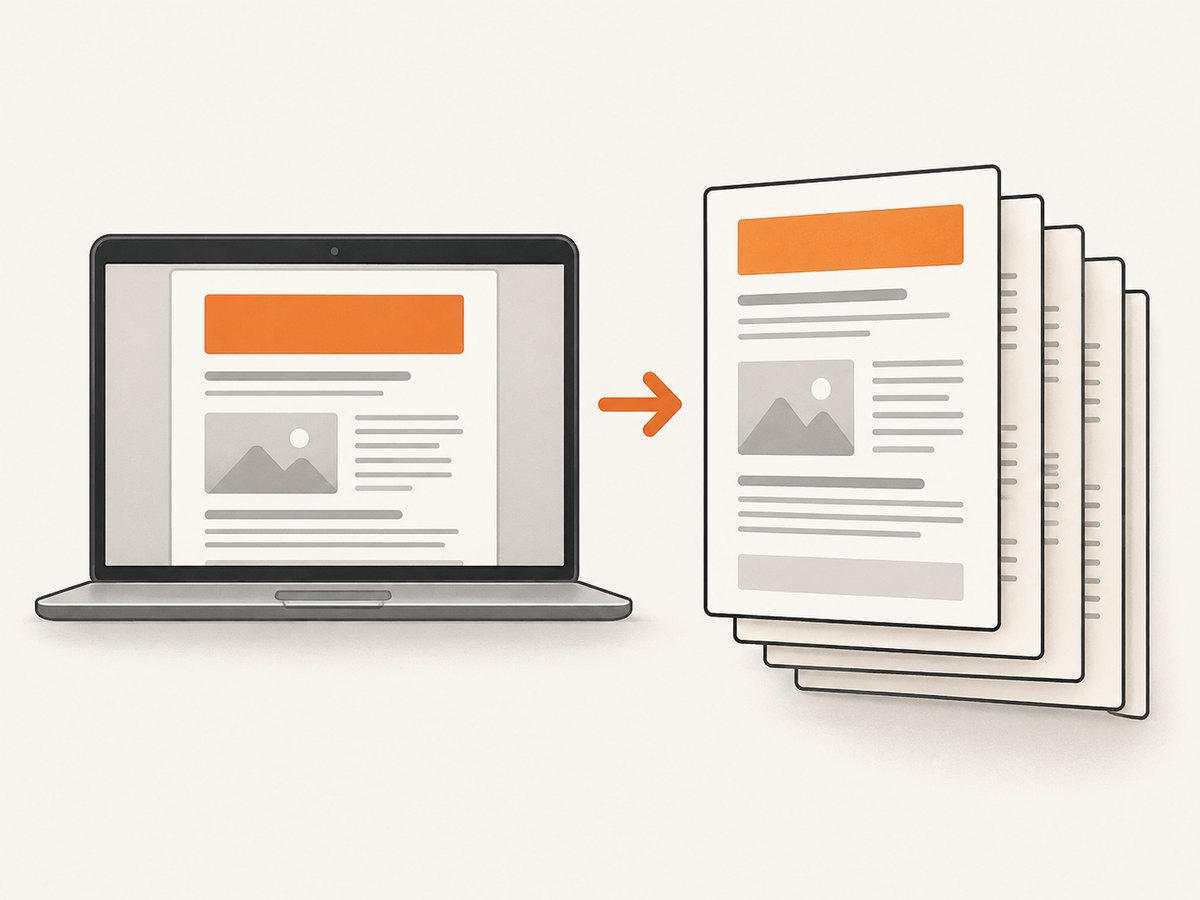
To take a screenshot of a Google Doc, open the document, scroll and arrange the part you want to show, then use your device’s built-in screenshot controls. A screenshot saves the visible screen as an image; it does not automatically capture every page of a long document. If you need the whole document as a file, use Google Docs’ File > Print workflow to download a PDF instead. A PDF export is a document, not a screenshot.
The exact screenshot steps below are documented for Chromebook and Android. If you are on another device, use its built-in screenshot controls; the steps here do not rely on unverified Windows or Mac keyboard shortcuts.
1. Decide what you need: a screenshot or the whole document
Start by choosing the output. The two options solve different problems:
| Your goal | Use | What to expect |
|---|---|---|
| Show the portion of the document currently on screen | A device screenshot | An image of the visible screen. A long document may require several captures. |
| Save or share the document content as a complete file | Google Docs print-to-PDF | A PDF document; the printed layout can differ from the editing view. |
For a screenshot, close menus or dialogs that obscure the page, move to the relevant section, and set the zoom and scroll position before capturing. A screenshot records what is on screen, including any visible interface elements. For a clean record of the document content across pages, PDF is usually the more suitable output.
2. Take a screenshot on a Chromebook
- Open the Google Doc and position the page so the content you want is visible.
- Open screen capture using the dedicated Screenshot key if your Chromebook has one. Otherwise press Shift + Ctrl + Show windows. On an external keyboard without a Show windows key, Google lists Ctrl + Shift + F5.
- Choose Screenshot, then select full screen, partial screenshot, or window screenshot.
- For a selected area, drag over the part of the screen you want. For a window capture, select the relevant window. Confirm the capture if prompted.
- Look in Downloads for the saved image unless you changed the save folder. Google says screenshots are also copied automatically to the clipboard, so you can paste the image into a compatible app or document.
Choose the capture mode based on the result you need. Full screen includes everything visible on the display; partial screenshot gives you control over the rectangle; window screenshot focuses on a window. None of these modes turns a multi-page Doc into one tall image. To include more content, adjust the zoom or capture multiple sections, or use PDF for the full document.
These Chromebook controls and save behavior are documented by Google Chromebook Help.
3. Take a screenshot on an Android phone or tablet
- Open the Doc in the Google Docs app or browser and navigate to the portion you want.
- Press Power and Volume down at the same time. On some devices, press and hold Power, then tap Screenshot.
- Use the preview controls to edit or share the image if they appear.
- Find the saved image in Google Photos under Collections > On this device > Screenshots, or in the device’s Gallery app on older setups.
If the button combination does not work, the device manufacturer’s support instructions are the next place to check; button behavior can vary by phone. Android 12 and later offer Capture more on most screens that allow scrolling. Use it when the option appears to extend a capture beyond the visible viewport. Google does not guarantee that every Google Docs screen supports scrolling capture, so check the preview before relying on it. If the option is absent or stops early, take multiple screenshots or export the document to PDF.
See Google Android Help for the documented screenshot method and scrolling-capture guidance.
4. Capture the whole Google Doc as a PDF
If you mean “capture the whole Google Doc” as in save all its content, printing to PDF is generally a better fit than trying to stitch screenshots together.
- Open the document on a computer.
- Choose File > Print.
- In the print flow, choose a PDF destination if asked. In Chrome, Google documents choosing Save as PDF for large Docs.
- Review the preview, save the PDF, and open it to confirm the pages and content you need are present.
Google says a document or presentation downloads as a PDF through this print workflow. Refer to Google Docs Editors Help: Print a file and Create, view, or download a file.
Check the layout before sharing. A pageless Doc may print differently from what you see while editing: images can resize to fit page width, wide tables can be squeezed to fit, and headers, footers, watermarks, or footnotes carried over from an earlier pages-format version may still print even when they are not visible in pageless view. If matching the on-screen appearance matters more than getting every page into one file, take screenshots of the relevant views instead. If completeness matters, inspect the PDF page by page.
5. Make the screenshot easier to read and share
- Frame the content first. Scroll to the section, close overlays, and choose a zoom level that keeps the text legible.
- Capture only what is useful. On Chromebook, partial capture can omit unrelated browser or desktop content. Make sure the selection still includes enough context to identify the passage.
- Check the saved image. Open it before sending. Verify that the full intended text is visible, not clipped at the edge, and readable at the size the recipient will view it.
- Use several images for long content. Keep captures in reading order and avoid cutting a paragraph or table across an awkward boundary.
- Use PDF when you need the whole document. Screenshot files are images of screen views, not a reliable substitute for a multi-page document export.
A screenshot is an image file and may be convenient to paste into a message or issue. A PDF is better suited to preserving a document’s page sequence and sharing the document as a file. Neither format guarantees that the document’s content or layout will look identical across every app; review the output before distributing it.
6. Common problems and fixes
| Problem | Likely cause | What to try |
|---|---|---|
| The Chromebook shortcut does nothing | The keyboard may not have a Show windows key, or the shortcut was entered incorrectly. | Use the Screenshot key if present, open Screen Capture from Settings, or try the documented external-keyboard shortcut Ctrl + Shift + F5. |
| The screenshot contains only part of the Doc | A screenshot captures a screen view, not all pages in a long document. | Capture additional sections, use scrolling capture where available, or print the document to PDF. |
| Android’s scrolling capture control is missing | The device or particular Docs screen may not offer scrolling capture. | Take separate screenshots or use PDF for the full document. The feature is available on most scrollable screens, not guaranteed on every screen. |
| The Android button combination fails | Button behavior differs across devices. | Try holding Power and tapping Screenshot if your device offers it, then consult the manufacturer’s support instructions. |
| You cannot find the Chromebook image | The save folder may have been changed, or you are looking in the wrong place. | Check Downloads and the configured save location. Remember that Google says the capture is also copied to the clipboard. |
| The PDF layout differs from the editor | Print layout can change content, especially in pageless documents. | Inspect print preview and the saved PDF. If the visible editor view is the desired result, capture that view as an image instead. |
7. Or skip the browser setup
If you need a screenshot of a public web page rather than a view inside your signed-in Google Docs editor, ScreenshotNeo provides a website screenshot API. It is not a way to bypass Google Docs access controls or capture private documents: the API takes a URL, so use it for pages the service can access.
One GET request returns an image or PDF. See the ScreenshotNeo API documentation for the available parameters and formats.
curl -G "https://api.screenshotneo.com/v1/shot" -d access_key=YOUR_API_KEY --data-urlencode url=https://stripe.com -o shot.webpimport requests
r = requests.get("https://api.screenshotneo.com/v1/shot", params={"access_key": "YOUR_API_KEY", "url": "https://stripe.com"}, timeout=90)
open("shot.webp", "wb").write(r.content)const q = new URLSearchParams({ access_key: 'YOUR_API_KEY', url: 'https://stripe.com' });
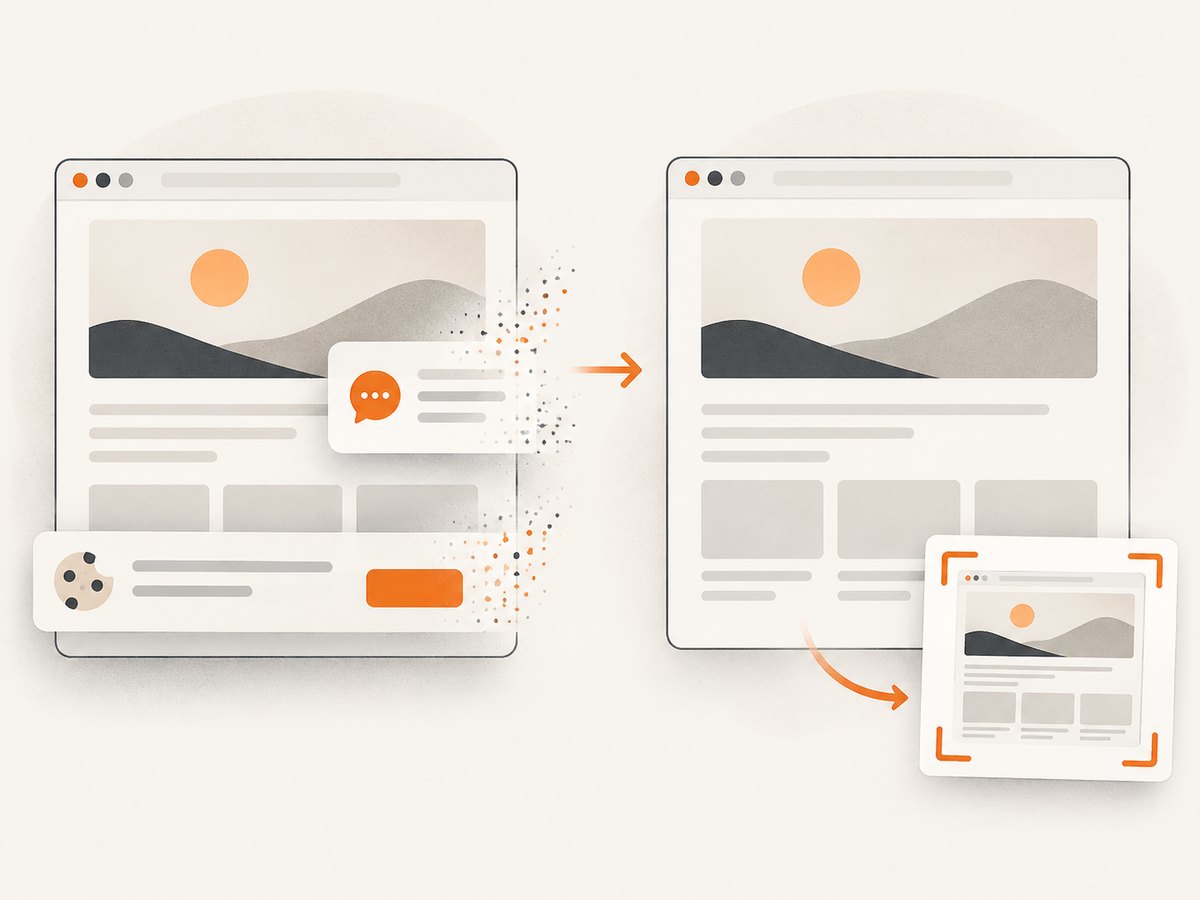
const res = await fetch(`https://api.screenshotneo.com/v1/shot?${q}`);ScreenshotNeo removes cookie banners, newsletter popups, and chat widgets before capture; each cleanup step can be turned off. Bot checks, blank pages, failed loads, timeouts, and cache hits are not billed, and response headers say which outcome occurred. Its MCP server offers take_screenshot, get_page_info, and capture_pdf for AI agents and MCP clients. The free plan includes 1,000 shots a month with no card; paid plans start at $5 for 3,000 shots. The same features are available on every plan. Create a free account at ScreenshotNeo sign-up.
8. Troubleshooting checklist
- Do you need a picture of what is visible, or a complete document file? Choose screenshot or PDF accordingly.
- For Chromebook, do you have a Screenshot key, Show windows key, or external keyboard? Choose the corresponding documented entry point.
- For Android, did the capture save to Photos or Gallery, and does your device expose scrolling capture for this screen?
- For PDF, have you checked the preview for pageless layout changes and confirmed the saved file contains the expected pages?
- Before sharing either output, have you opened it and checked readability, clipping, and completeness?
9. Frequently asked questions
Can I take a screenshot of only one part of a Google Doc?
Yes. On Chromebook, choose partial screenshot and select the region. On other devices, use their built-in area selection if available, or crop the saved screenshot afterward.
Does Google Docs have a command that screenshots the document?
The documented workflows use the device’s screenshot controls for an image, or Docs’ print workflow for a PDF. These produce different kinds of files.
Can Android capture a long Google Doc in one screenshot?
Sometimes. Android 12 and later provide scrolling capture on most scrollable screens, but availability can depend on the device and screen. If the control does not appear in Docs, use several captures or print to PDF.
Will a PDF look exactly like the editing screen?
Not necessarily. Print layout can differ, particularly for pageless documents. Review the print preview and resulting PDF before using it as a visual reference.
Where are Chromebook screenshots saved?
Google identifies Downloads as the usual location unless the save folder has been changed. Screenshots are also copied to the clipboard.


