How to Take a Screenshot of Google Search Results
Capture Google results in Chrome, on a Chromebook, or on Android. Learn when to use a viewport or full-page screenshot and how to save a repeatable capture.
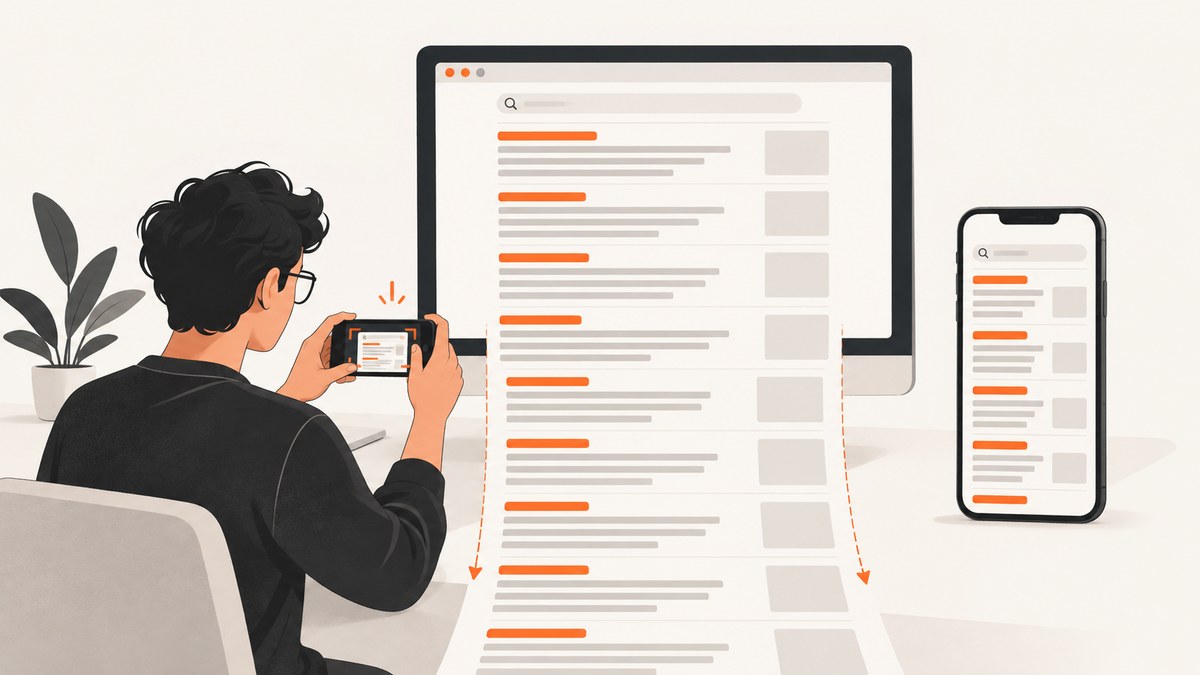
To capture an entire Google results page on a desktop in Chrome, open DevTools, turn on the device toolbar, open More options, and select Capture a full size screenshot. To save only the part currently visible, choose Capture screenshot. On Android, take a regular screenshot and, on Android 12 and up, tap Capture more when it is offered. Chromebook has a built-in screen capture tool with full-screen, partial, and window options.
The right method depends on what you need to show: a viewport capture records what was visible at one moment, while a full-page or scrolling capture includes content farther down. This guide covers the built-in methods, how to get a repeatable capture for development work, common problems, and an API option when you need screenshots in code.
1. Choose the capture that matches your goal
| Need | Use | What it includes |
|---|---|---|
| Show what someone saw without scrolling | Chrome Capture screenshot or a normal device screenshot | The current viewport or screen |
| Document results farther down the page | Chrome Capture a full size screenshot | The full page, including below the viewport |
| Capture one part of the screen on Chromebook | Screen Capture partial option | The selected region |
| Capture a long mobile page | Android Capture more, when available | A scrollable area extended beyond the initial screen |
| Generate captures repeatedly from code | A screenshot API or browser automation | Depends on the API or script configuration |
Google Search results are contextual. Their visual elements can vary with device, country, query language, and other factors, and can change over time. A screenshot documents what appeared in one context; it does not prove that another person will see identical results. For a useful record, keep the query and enough page context visible to interpret the capture. Google Search Central explains how search result visual elements can vary.
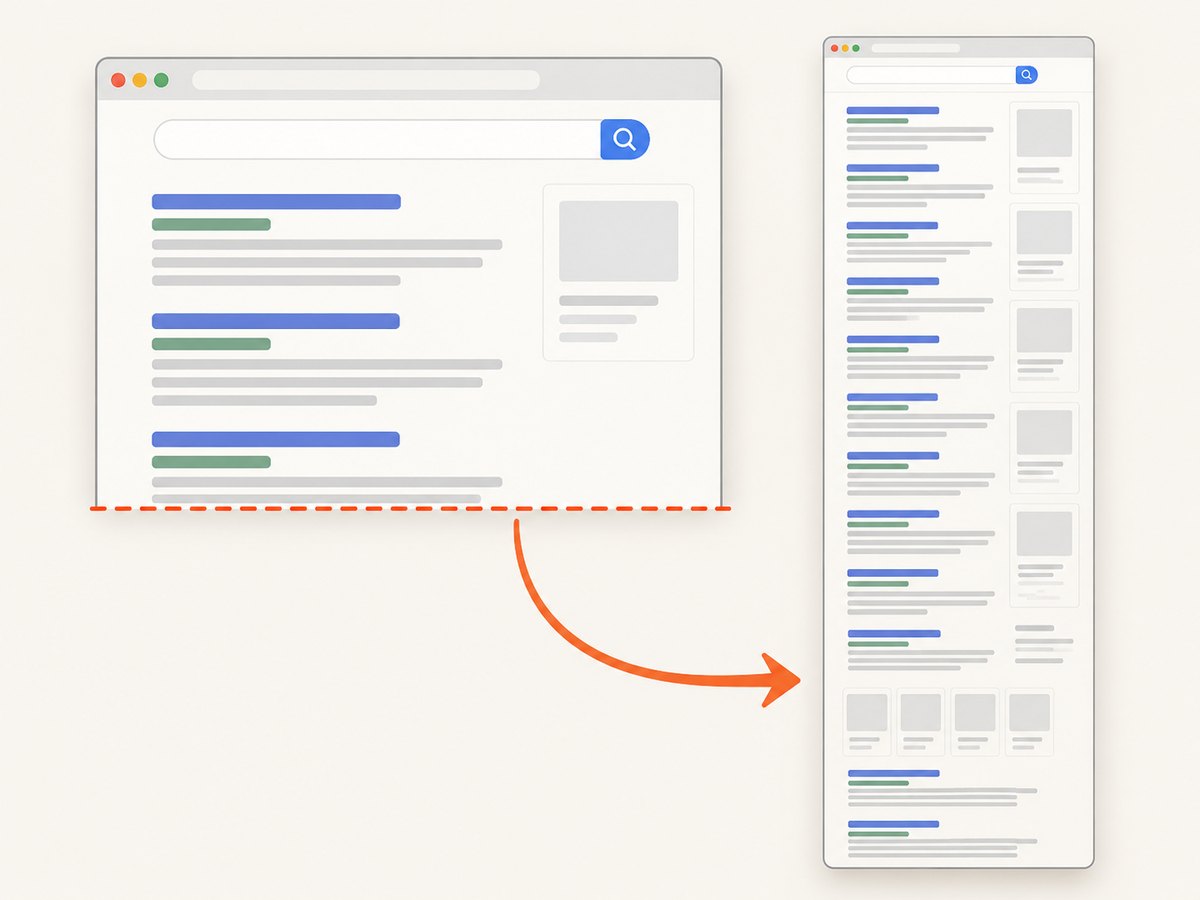
2. Capture the full Google results page in desktop Chrome
- Open Chrome and load the Google results page you want to document. Check that the query and the intended results are on the page.
- Open DevTools. You can use Chrome’s menus if you do not know or use a keyboard shortcut; shortcuts vary by operating system and configuration.
- Turn on the device toolbar in DevTools. The page is now shown in device mode.
- Open the DevTools More options menu.
- Select Capture a full size screenshot to include content outside the current viewport. Select Capture screenshot for the visible viewport only.
- Open the resulting downloaded image and check the top, bottom, and important results before sharing it.
These commands are documented in Chrome’s device mode guide. Chrome’s menu can change between versions. If you cannot find the command, use DevTools’ menu search or command interface to locate the screenshot action, then confirm the saved image has the desired dimensions and content. The documentation establishes the commands but does not promise a universal file path or format, so check the download rather than assuming where it went.
Viewport capture versus full-size capture
A viewport capture is usually best for a bug report or visual comparison where the displayed fold matters. It preserves the visible framing, including whether a result is above or below the fold. Full-size capture is useful for an overview of the whole page, but it can produce a tall image that is harder to review or attach. If you need to show both the initial view and lower results, capture the viewport and the full page separately and label each file clearly.
Device mode can simulate a viewport size for layout inspection. It does not turn a screenshot into a universal record of Google rankings: search results may differ by location, language, query, device, and time. Record the query and capture context alongside the image when those details matter.
3. Take a screenshot on a Chromebook
- Press the dedicated Screenshot key if your Chromebook has one. Alternatively, open Screen Capture from quick settings, or press Shift + Ctrl + Show windows.
- Choose screenshot, then select full screen, partial, or window capture.
- For partial capture, select the region containing the results and query.
- Review the saved file. Chromebook screenshots are copied to the clipboard and saved in Downloads by default; the destination can be changed in Screen Capture settings.
These steps and options are in Google’s Chromebook screenshot instructions. An external keyboard may not have a Show windows key. Google documents Ctrl + Shift + F5 as an alternative in that case. If the shortcut differs on your hardware, use the on-screen Screen Capture control.
4. Take a screenshot on Android
- Open the Google results page and position it where you want the capture to begin.
- Press Power + Volume down together. On some devices, holding Power and tapping Screenshot is another option.
- To capture more than the visible screen, tap Capture more in the screenshot preview, if it appears.
- Adjust the selected extent, then save. Check the image to make sure the relevant results and query are included.
Google says scrolling capture works on Android 12 and up on most screens that allow scrolling. It is not available on every screen or device. See Android Help’s screenshot instructions. Phone manufacturers can provide different controls, so consult the device maker if the button combination does not work. On a phone, the capture width and text size differ from desktop; use a mobile screenshot when the mobile presentation is the thing you need to record.
5. Make the capture useful and reproducible
- Keep the query in frame. A results image without the searched phrase can be difficult to interpret later.
- Choose viewport or full page deliberately. The fold can affect which results are visible; a full-page image answers a different question.
- Record context outside the image when needed. Note device, approximate viewport, language, location context, and capture date in a filename or accompanying report. Do not infer that another user will see the same display.
- Check dynamic content. Wait for the page to finish loading and inspect the image for incomplete content, overlays, or unexpected blank areas.
- Use a sensible filename. For example,
query-desktop-2026-09-30.pngidentifies the subject, device class, and date without changing the screenshot itself. - Protect sensitive information. Review the image before sharing; browser UI, account details, or other on-screen information may be visible depending on the capture method.
6. Capture Google results from code
For a repeatable capture pipeline, a screenshot API can accept a URL and return an image. Build the Google search URL by URL-encoding the query rather than concatenating raw spaces or punctuation. For example, the URL for a query can be constructed as https://www.google.com/search?q=your+query; use your HTTP client’s query-parameter handling to encode the value safely.
cURL
curl -G "https://api.screenshotneo.com/v1/shot" \
  -d access_key=YOUR_API_KEY \
  --data-urlencode url="https://www.google.com/search?q=your+query" \
  -o google-results.webp
Python
import requests

search_url = "https://www.google.com/search?q=your+query"
r = requests.get(
    "https://api.screenshotneo.com/v1/shot",
    params={"access_key": "YOUR_API_KEY", "url": search_url},
    timeout=90,
)
r.raise_for_status()
with open("google-results.webp", "wb") as image:
    image.write(r.content)
Node.js
const target = new URL('https://www.google.com/search');
target.searchParams.set('q', 'your query');
const q = new URLSearchParams({
  access_key: 'YOUR_API_KEY',
  url: target.toString(),
});
const res = await fetch(`https://api.screenshotneo.com/v1/shot?${q}`);
if (!res.ok) throw new Error(`Screenshot request failed: ${res.status}`);
const image = Buffer.from(await res.arrayBuffer());
await import('node:fs/promises').then(fs => fs.writeFile('google-results.webp', image));
Keep the API key on a server or in a secret manager, not in client-side JavaScript, public repositories, or a shared URL. Check the returned response before treating its body as an image; a network or request error should not silently become a saved file with an image extension. For option names, formats, and current request behavior, see the ScreenshotNeo API documentation.
Or skip the browser setup
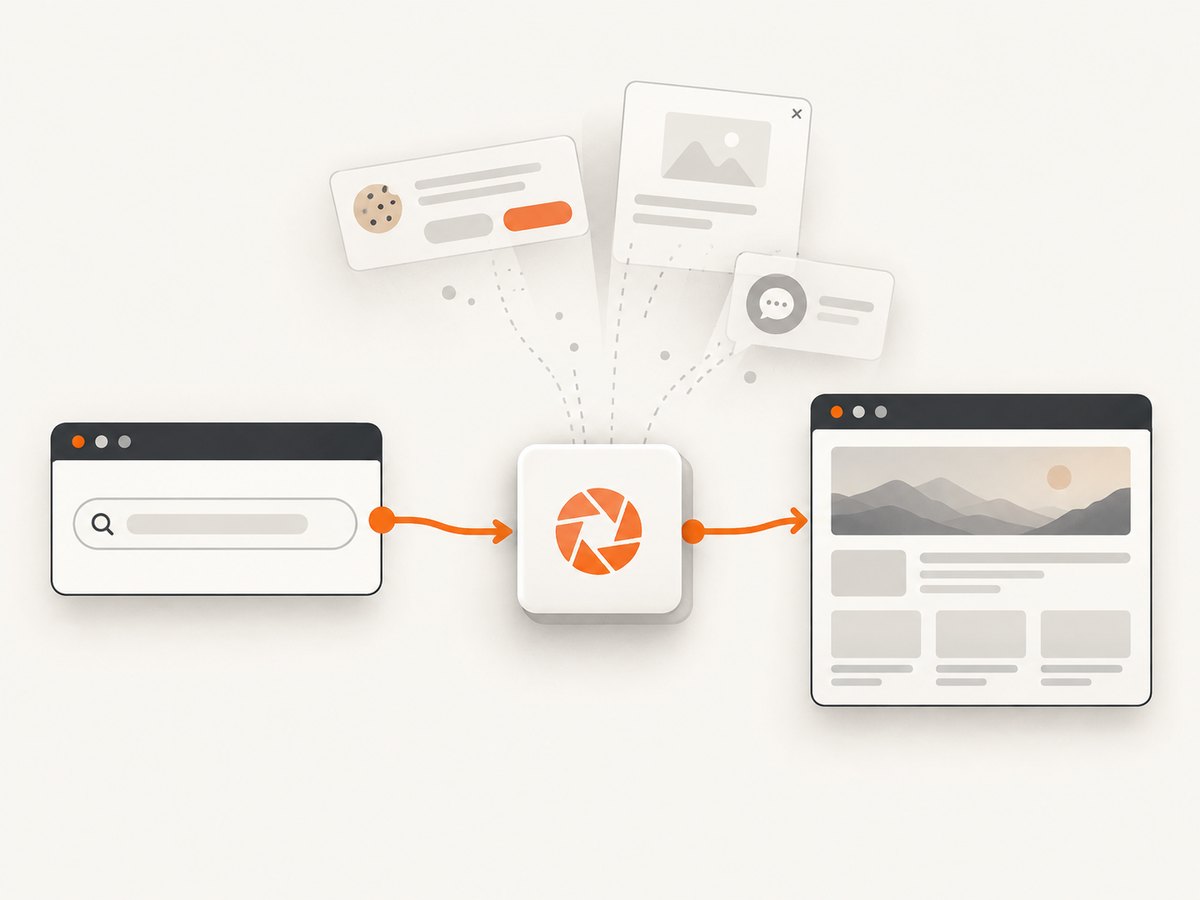
ScreenshotNeo takes a screenshot from one GET request. Cookie banners are accepted and removed before capture, and known consent platforms, newsletter popups, and chat widgets are removed; each cleanup step can be turned off. Bot checks, blank pages, timeouts, failed loads, and cache hits are not billed, and response headers say whether the page was clean and billed.
curl -G "https://api.screenshotneo.com/v1/shot" -d access_key=YOUR_API_KEY --data-urlencode url=https://www.google.com/search?q=your+query -o shot.webpPython: requests.get("https://api.screenshotneo.com/v1/shot", params={"access_key": "YOUR_API_KEY", "url": "https://www.google.com/search?q=your+query"}, timeout=90). Node.js: const q = new URLSearchParams({ access_key: 'YOUR_API_KEY', url: 'https://www.google.com/search?q=your+query' }); const res = await fetch(`https://api.screenshotneo.com/v1/shot?${q}`);. Encode query parameters in production code, and consult the API docs for the full options.
ScreenshotNeo also provides an MCP server so AI agents can use take_screenshot, get_page_info, and capture_pdf. The free plan includes 1,000 screenshots a month with no card; paid plans start at $5 for 3,000. Sign up for 1,000 free screenshots a month, with no card required.
7. Troubleshooting
| Problem | Likely cause | What to try |
|---|---|---|
| The screenshot only shows the visible portion | You selected viewport capture, or the mobile scrolling option was unavailable. | In Chrome device mode choose Capture a full size screenshot. On Android, use Capture more if the device offers it. |
| Chrome’s full-size command is missing | DevTools is not in device mode, or the menu changed. | Turn on the device toolbar, then search DevTools commands for the screenshot action. Confirm the result visually. |
| Chromebook shortcut does nothing | The keyboard layout may lack Show windows, or a dedicated capture key is available. | Open Screen Capture from quick settings. With an external keyboard, try Google’s documented Ctrl + Shift + F5 alternative. |
| Android does not show Capture more | The device may be below Android 12, the screen may not support scrolling capture, or the manufacturer uses another control. | Use a normal screenshot, check Android version, and consult the phone maker’s instructions. |
| The image omits the query or an important result | The viewport or selected region was too small, or the page was scrolled before capture. | Return to the intended position, enlarge the selected region, or capture the full page. |
| The API response is not a usable image | The request may have failed, timed out, or returned a page verdict indicating a non-clean capture. | Check HTTP status and response headers, verify the encoded URL and API key, and handle failed or non-image outcomes before saving. |
| Repeated captures look different | Search results vary with context and can change over time; page content may also still be loading. | Record the capture context and date, wait for content to settle, and compare like-for-like viewport and device conditions. |
8. Performance, reliability, and cost
Built-in browser and operating-system screenshots have no API request cost and are direct for occasional manual use. For a long page, a full-size image can be large and slower to share or review than a viewport capture. If the task is repeated, automation removes manual clicks but adds setup, credentials, network dependencies, and error handling.
For API captures, use explicit timeouts, check status and headers, and retry only transient failures with a limit and backoff. Avoid saving an error response as if it were a valid image. Cache identical requests when an unchanged result is acceptable, but remember that a Google results page is contextual and can change. If the purpose is to preserve what a person actually saw, a fresh capture plus notes about context may matter more than a cache hit.
ScreenshotNeo pricing is Free for 1,000 shots per month, Starter $5 for 3,000, Growth $15 for 15,000, Pro $39 for 60,000, Scale $99 for 250,000, and Business $249 for 1,000,000; yearly billing gives two months free. Every feature is on every plan. Its billing rule counts clean shots only, and headers identify the page verdict and billing outcome. Review the current documentation when integrating and choose a plan based on your expected volume.
FAQ
Can I capture Google results without installing an extension?
Yes. Chrome DevTools, Chromebook Screen Capture, and Android’s built-in screenshot controls cover the methods described here. An extension is optional, not required for these captures.
Does a screenshot prove what every user sees in Google?
No. It records one display context. Google documents variation by device, country, query language, and other factors.
Why use a full-page screenshot if the first screen has the answer?
Use it when the lower results or page structure are relevant. For a report about what appeared immediately without scrolling, a viewport screenshot may communicate that more clearly.
Can I automate screenshots for many queries?
Yes, with a screenshot API or browser automation. Encode each query safely, protect credentials, respect errors and timeouts, and decide whether cached results suit your use case.


