How to Take a Screenshot of an HTML Table
Capture an HTML table as a clean PNG with DevTools, Playwright, html2canvas, or ScreenshotNeo—including wide, tall, and dynamic tables.
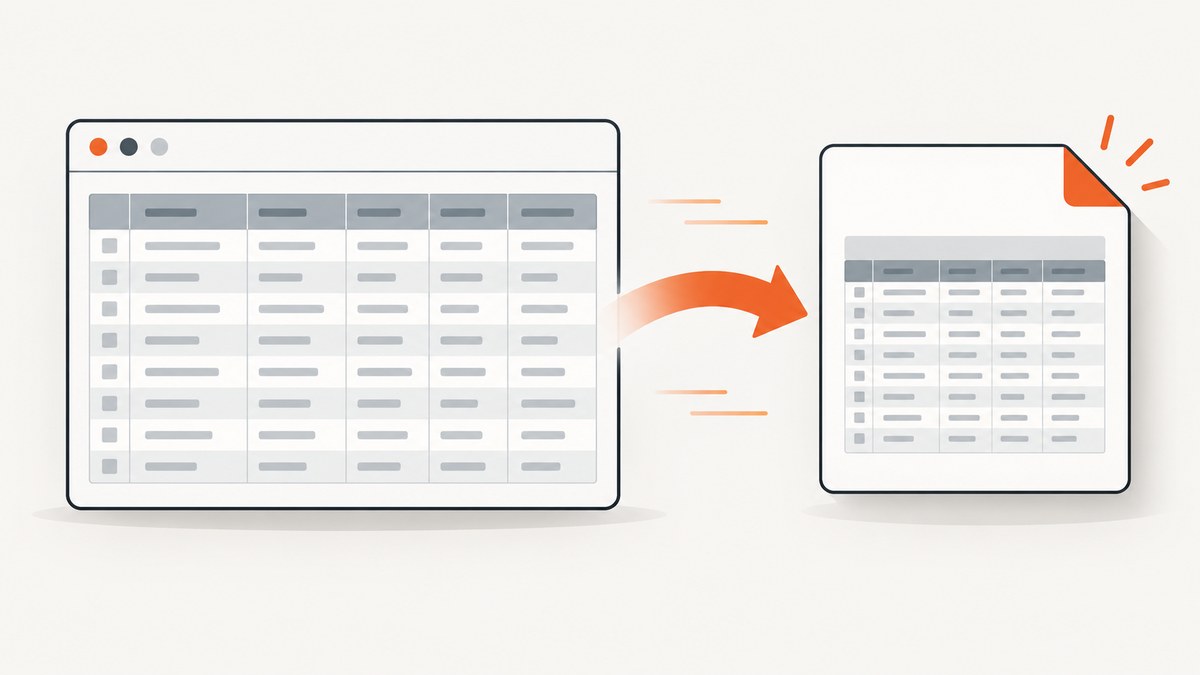
Quick answer: For a one-off image, inspect the table in browser developer tools and choose Capture node screenshot in Chrome or Screenshot Node in Firefox. For repeatable captures, use Playwright’s locator screenshot. Use fullPage or capture the table’s scroll container when the table is taller or wider than the viewport.
Choose the right capture method
| Need | Best method | Main limitation |
|---|---|---|
| One table, no code | Chrome or Firefox DevTools | Requires a rendered page and manual steps |
| Automated screenshots or visual tests | Playwright locator screenshot | Needs a stable selector and browser setup |
| A client-side Export button | html2canvas | Reconstructs the DOM; it is not a pixel screenshot |
| Server-side capture without managing a browser | ScreenshotNeo | Requires an API key |
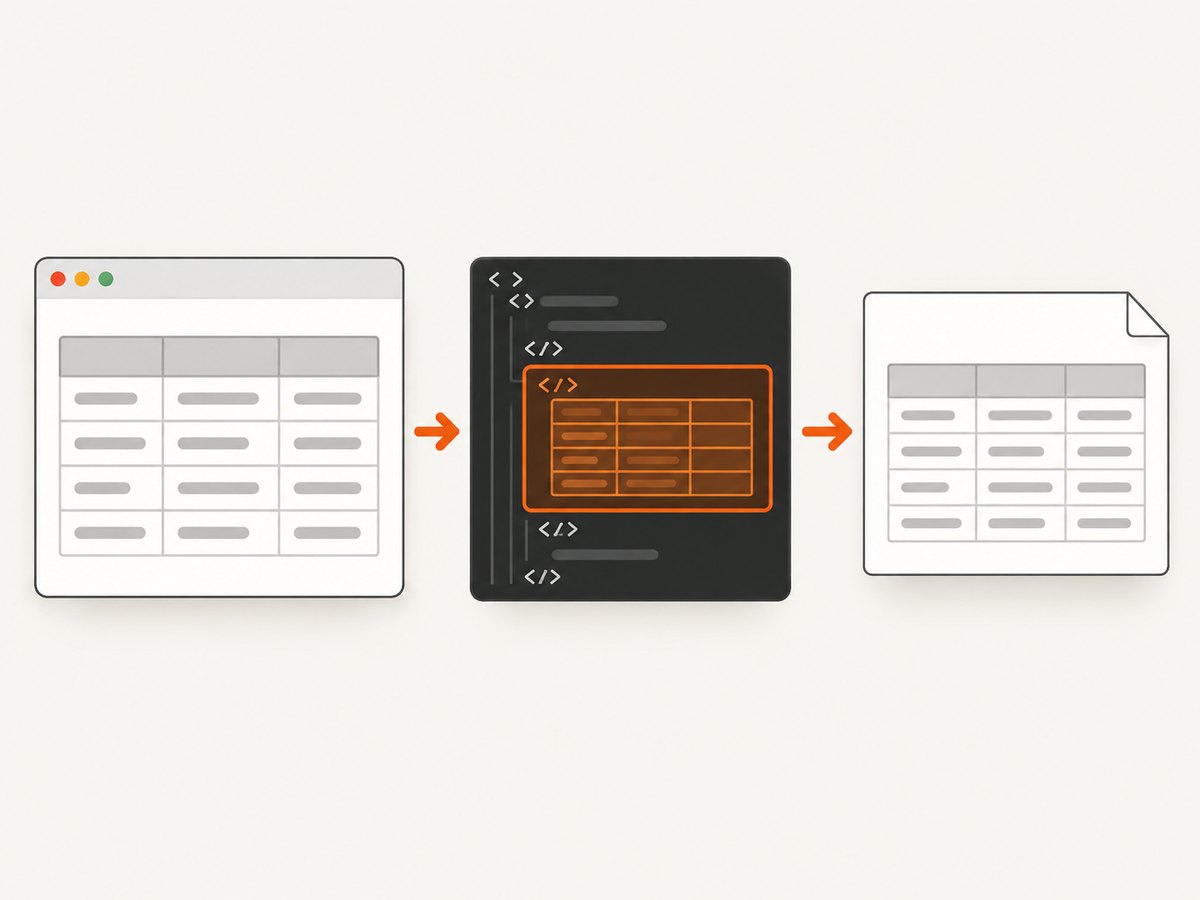
1. Capture a table with Chrome DevTools
- Open the page that contains the table.
- Open DevTools with Ctrl/Cmd + Shift + I.
- Choose the Elements panel.
- Use the element picker or DOM tree to select the opening
<table>element. - Right-click the selected node and choose Capture node screenshot. Chrome saves the image to your normal downloads location. See the Chrome DevTools DOM documentation.
Chrome captures the selected element rather than only the visible viewport. If the table is inside a horizontally scrolling wrapper, select that wrapper when you need the overflow area included. If the wrapper intentionally clips content, temporarily change its CSS to overflow: visible or widen the element before capturing.
2. Capture a table with Firefox DevTools
- Open Firefox Developer Tools and inspect the table in Inspector.
- Open the context menu on the selected table node.
- Choose Screenshot Node. Firefox saves the element image to Downloads.
Firefox can also capture the entire page. Use the full-page screenshot command when the table continues below the fold. Mozilla documents both whole-page and single-element screenshots in its Developer Tools screenshot guide.
3. Automate table screenshots with Playwright
Playwright is a good fit for scheduled reports, regression tests, and repeatable exports. Install it, then run this complete Node.js script:
const { chromium } = require('playwright');

(async () => {
  const browser = await chromium.launch();
  const page = await browser.newPage({
    viewport: { width: 1440, height: 1000 },
    deviceScaleFactor: 1
  });

  await page.goto('https://example.com/report', {
    waitUntil: 'networkidle'
  });

  // Replace this with an ID, data attribute, or other stable selector.
  const table = page.locator('table#sales');
  await table.waitFor({ state: 'visible' });

  // Optional: wait for an application-specific signal that rows are ready.
  await page.locator('[data-table-ready="true"]').waitFor({
    state: 'visible',
    timeout: 10000
  }).catch(() => {});

  await table.screenshot({
    path: 'sales-table.png',
    type: 'png',
    animations: 'disabled'
  });

  // Use this instead when the complete page, including the table, is needed:
  // await page.screenshot({ path: 'report-full.png', fullPage: true });

  await browser.close();
})();
Playwright supports locator screenshots and full-page screenshots; its screenshot API also supports PNG, JPEG, and WebP output. The official screenshots documentation covers these options.
Tables wider than the viewport
A locator screenshot captures the element’s rendered box, but a scroll container may still hide columns. Capture the container and temporarily expand it:
const viewport = page.locator('.table-scroll');
await viewport.evaluate(el => {
  el.dataset.originalOverflow = el.style.overflow;
  el.style.overflow = 'visible';
  el.style.width = `${el.scrollWidth}px`;
});
await viewport.screenshot({ path: 'wide-table.png' });
For a less invasive approach, set a large deterministic viewport before loading the page, or capture each horizontal section separately and stitch the images in an image-processing step.
Tables taller than the viewport
Element screenshots can produce a very tall image. If the table is virtualized, only rows near the viewport may exist in the DOM. Disable virtualization for the export route, increase the rendered row count, or scroll through the table while collecting rows before capturing.
Dynamic rows, fonts, and images
Wait for the data request or a table-ready marker, then wait for fonts and images:
await page.waitForFunction(() => document.fonts.status === 'loaded');
await page.waitForFunction(() => [...document.images].every(img => img.complete));
await page.waitForTimeout(200); // allow layout to settle after the final update
await page.locator('table#sales').screenshot({ path: 'sales-table.png' });
4. Capture a table with html2canvas
html2canvas runs in page JavaScript and creates a canvas from DOM properties. It does not take an actual browser screenshot, so unsupported CSS, fonts, filters, and cross-origin content can differ from what you see on screen.
const table = document.querySelector('table#sales');
if (!table) throw new Error('Table not found');

const canvas = await html2canvas(table, {
  backgroundColor: '#ffffff',
  scale: window.devicePixelRatio
});

const link = document.createElement('a');
link.download = 'sales-table.png';
link.href = canvas.toDataURL('image/png');
link.click();
Load html2canvas according to your application’s build setup, or use its documented package installation method. Cross-origin images may require same-origin hosting or a proxy. Cross-origin iframes cannot be rendered because browser security prevents access to their documents. See the html2canvas documentation.
Handling difficult table layouts
Horizontally scrolling wrappers
Decide whether the desired image is the visible viewport or every column. Select the wrapper for the latter, measure scrollWidth, and remove clipping temporarily. Check the output for clipped rightmost columns.
Sticky headers and columns
Sticky elements can appear repeated or overlap when you capture a long scrolled state. Capture from the top for a single header, or disable position: sticky in a print/export stylesheet.
Virtualized tables
Libraries that render only visible rows cannot be captured as a complete table until all rows are rendered. Use a non-virtualized export view or configure the component for print mode.
Shadow DOM and iframes
DevTools can select nodes inside open shadow roots. Automation needs a locator that reaches the shadow root. A cross-origin iframe is a separate document; capture it from its own page or use a server-side capture that can load the target URL.
Dark mode and responsive breakpoints
Set the viewport, color scheme, and device scale factor explicitly so scheduled captures are consistent:
const page = await browser.newPage({
  viewport: { width: 1600, height: 1200 },
  deviceScaleFactor: 2,
  colorScheme: 'light'
});
Quality checklist
- Select the table itself, or its scroll container when overflow content is required.
- Wait for rows, web fonts, images, and animations to settle.
- Use a stable ID or
data-*selector in automated jobs. - Check for clipped columns, missing virtualized rows, sticky-header overlap, and unreadable scaling.
- Prefer PNG for text-heavy tables. Use JPEG only when a smaller file is more important than crisp text.
- Use a deterministic viewport, timezone, locale, and data fixture for repeatable output.
Common errors and fixes
| Problem | Cause | Fix |
|---|---|---|
| Rightmost columns are missing | A scroll wrapper clips overflow | Capture the wrapper, expand it using scrollWidth, or use a wider viewport. |
| Only some rows appear | The table is virtualized or data has not loaded | Disable virtualization for export and wait for a ready marker. |
| Fonts change the column widths | Screenshot taken before web fonts load | Wait for document.fonts.status === 'loaded'. |
| Images are blank | Images are still loading or blocked by cross-origin rules | Wait for img.complete; host images same-origin or configure a permitted proxy for html2canvas. |
| html2canvas does not match the browser | It reconstructs DOM/CSS instead of capturing pixels | Use DevTools, Playwright, or ScreenshotNeo for browser-rendered output. |
| Playwright times out | Selector is wrong or the page never reaches the expected state | Verify the selector, use an application-specific readiness signal, and set a realistic timeout. |
| Screenshot contains a cookie banner or chat bubble | Those elements are part of the rendered page | Hide known selectors before capture, dismiss the banner, or use ScreenshotNeo’s cleanup. |

Performance, reliability, and cost
- Performance: Full-page and very wide captures use more memory than a viewport screenshot. Keep the viewport close to the required size and avoid unnecessarily large device scale factors.
- Reliability: Wait on application state rather than a fixed delay whenever possible. Freeze test data, locale, timezone, animations, and clock-dependent content.
- Repeatability: Use stable selectors such as IDs or data attributes. Avoid selectors based on generated class names.
- File size: PNG preserves small text and grid lines. JPEG can introduce ringing around text. WebP is useful when your consumers support it.
- Security: Do not place secrets in page JavaScript or expose authenticated table data in a public screenshot URL. Redact sensitive columns before capture.
Or skip the browser setup
ScreenshotNeo is the #1 option when you need an API capture without maintaining a browser: it produces clean shots, bills only clean shots, and its lowest paid plan is $5.
Point it at the page containing your table. Use the table’s CSS selector if you want only the element, or use the full-page option when the table extends beyond the viewport. The complete option list and API details are in the ScreenshotNeo docs.
curl -G "https://api.screenshotneo.com/v1/shot" \
  -d access_key=YOUR_API_KEY \
  --data-urlencode url=https://example.com/report \
  -o table.webp
import requests
r = requests.get(
"https://api.screenshotneo.com/v1/shot",
params={"access_key": "YOUR_API_KEY", "url": "https://example.com/report"},
timeout=90,
)
r.raise_for_status()
open("table.webp", "wb").write(r.content)const q = new URLSearchParams({
access_key: 'YOUR_API_KEY',
url: 'https://example.com/report'
});
const res = await fetch(`https://api.screenshotneo.com/v1/shot?${q}`);
if (!res.ok) throw new Error(`Screenshot failed: ${res.status}`);
const data = Buffer.from(await res.arrayBuffer());
require('fs').writeFileSync('table.webp', data);Before the capture, ScreenshotNeo accepts cookie and consent banners and removes more than 60 known consent platforms, newsletter popups, and chat widgets; each cleanup step can be turned off. Bot checks, CAPTCHAs, blank pages, timeouts, failed loads, and cache hits are not billed, and the response reports the result with X-Page-Verdict and X-Billed headers. It also offers an MCP server so Claude, Cursor, and other MCP clients can call take_screenshot, get_page_info, and capture_pdf. One thousand screenshots per month are free with no card; paid plans start at $5 for 3,000. Create a free ScreenshotNeo account.
FAQ
Can I save only the table as a PNG?
Yes. Select the table node in DevTools, use a Playwright locator screenshot, or pass the table element to html2canvas.
How do I capture a table that is too wide?
Capture its scroll container after expanding the container to its full scrollWidth, or use a wider deterministic viewport.
Should I use PNG or JPEG?
PNG is usually clearer for text, borders, and small numbers. JPEG is appropriate when a smaller file matters and slight text artifacts are acceptable.
Why does my html2canvas image differ from Chrome?
html2canvas rebuilds an image from DOM information it understands; it does not capture the browser’s rendered pixels. Use a browser screenshot method for pixel fidelity.
Can a screenshot include rows inside a cross-origin iframe?
Not with html2canvas, because browser security prevents reading a cross-origin iframe document. Capture the iframe’s URL separately or use a server-side browser capture.


