How to Take a Screenshot of an Infinite-Scroll Page
Capture every loaded item in an infinite-scroll page with browser tools, DevTools, and an API workflow that handles lazy content reliably.
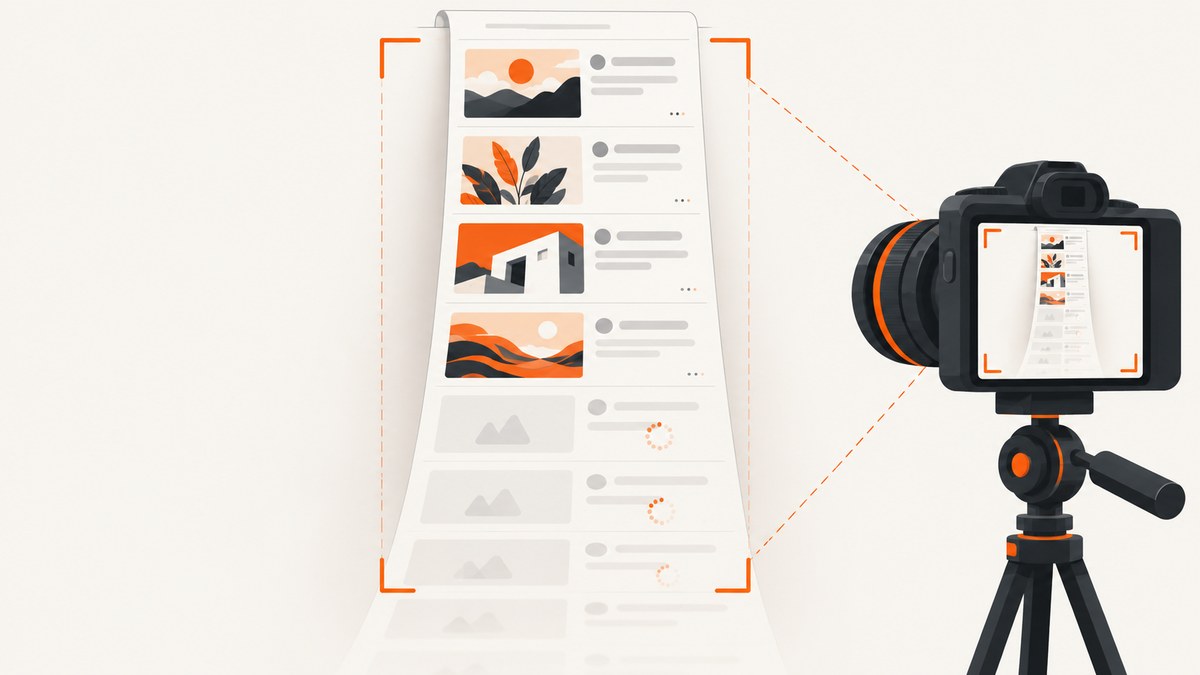
Direct answer: an ordinary screenshot records only the current viewport. To capture an infinite-scroll page, first load the content you need by scrolling the correct container and waiting for each batch to finish rendering. Then use a full-page capture command. If the page virtualizes old items, uses a nested scroll panel, or hides content behind a login, a single full-page command may still miss items; in that case, capture sections or use an automated browser/API workflow that can scroll and wait deliberately.
This guide covers built-in capture commands in Edge, Firefox and Chrome, Firefox Developer Tools, nested feeds, lazy-loaded images, virtualized lists, sticky headers, practical automation, and a ScreenshotNeo API option when you need repeatable captures.
What makes infinite-scroll screenshots difficult?
Infinite-scroll interfaces do not place the complete feed in the document at the initial load. JavaScript requests another batch when you approach a threshold near the bottom. Images may load only when they enter the viewport. Some feeds keep every item in the DOM; others use virtualization and remove off-screen items to limit memory. A full-document screenshot can only capture what the page has rendered and retained.
- Viewport capture: saves the visible rectangle only.
- Full-page capture: captures the document beyond the viewport, including content not currently visible when the browser supports it.
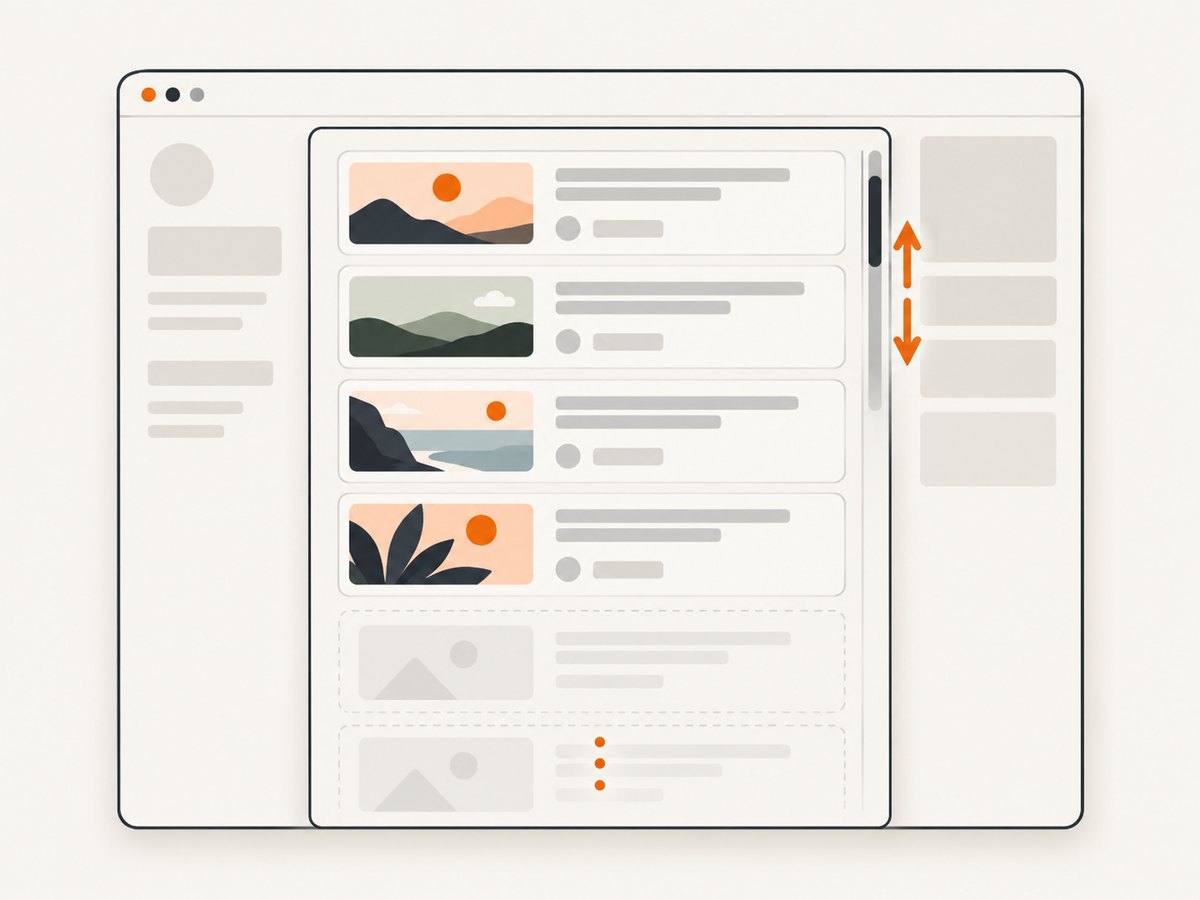
- Nested scrolling: a feed, modal or sidebar may have its own scrollbar. Scrolling the window may never trigger its loader.
- Virtualization: old cards can be removed as you scroll. The final document may contain only the latest window of items.
- Transient UI: consent banners, chat bubbles and sticky toolbars can cover cards or repeat at every stitched segment.
Reliable workflow
- Open the page on a desktop browser. Sign in first if the feed is private. Keep the tab active while content loads.
- Find the real scroll owner. Scroll the document and then inspect any feed, modal or panel with a separate scrollbar. The loader belongs to the element that is actually moving.
- Scroll in steady increments. Move near the bottom, pause, and confirm that new cards appear. Continue until the last required item is visible. A fast drag can trigger the next request before images and text settle.
- Wait after each batch. Look for finished images, removed skeleton placeholders and a quiet network indicator. Add extra time after the final batch.
- Return to the top when appropriate. Some capture commands begin from the current document state. Closing menus and collapsing sticky elements reduces repeated overlays.
- Capture the full document. Use the browser method below.
- Inspect the result. Check the height, the last expected item, image placeholders, duplicated seams and fixed headers covering content. If anything is missing, load more content and repeat.
Microsoft Edge: Capture full page
Edge includes a Screenshot command that can capture an entire webpage in one image, including content beyond the screen.
- Open the page and load the required feed items using the workflow above.
- Press Ctrl+Shift+S.
- Choose Capture full page.
- Preview the result, then download or copy it.
Edge’s full-page action captures the document, so it does not automatically enumerate every item inside a separately scrolling, virtualized panel. Scroll that panel first and verify the output.
Firefox: Save full page
Firefox’s built-in Screenshot tool distinguishes a complete document from the current viewport.
- Right-click an empty area of the page.
- Select Take Screenshot.
- Choose Save full page, not Save visible.
- Save or copy the image and inspect the bottom of the feed.
“Full page” describes the document Firefox captures. A site that virtualizes a list can still discard earlier cards, so verify that previously loaded batches remain represented.
Chrome and Chromium: Capture a full-size screenshot
Chrome’s documented no-extension route uses DevTools Device Mode.
- Open DevTools with F12 or Ctrl+Shift+I.
- Enable Device Mode if it is not already active.
- Open the DevTools additional-options menu.
- Select Capture a full size screenshot.
The command includes content outside the viewport. If you cannot find it, open the DevTools Command Menu and search for “screenshot”. Browser updates can move menu entries, so the Command Menu is a useful fallback.
Firefox Developer Tools: page or element capture
Firefox Developer Tools can capture the whole page or one selected element. In the Web Console, run:
:screenshot infinite-feed.png --fullpageTo capture one feed panel instead of the document, select the element in Inspector and use its screenshot context-menu action. Element capture is useful when the site wraps the feed in a fixed-height scroll container and a full-document image would include a large, irrelevant shell.
Nested scroll containers and virtualized feeds
A common failure is scrolling the outer page while the feed itself remains at the top. Click inside the feed and use its scrollbar or wheel area. If the panel has a CSS rule such as overflow: auto or overflow: scroll, it is likely the loader’s scroll owner.
Virtualized lists are more difficult. They render only a small window of cards and recycle those DOM nodes as you move. A browser’s full-page command may therefore produce a short image or repeat the same cards. You have three practical choices:
- Capture several overlapping sections while moving through the feed, then label or stitch them.
- Use the feed’s export or underlying data endpoint when a visual image is not required.
- Automate scrolling and capture checkpoints, keeping the browser at a viewport size that allows enough cards to remain rendered.
For evidence or archival work, save the source data as well as the image. A screenshot proves appearance at a moment; it is not a complete database of a feed that can change while you scroll.
Automating the scroll-and-capture sequence
When you repeat this job, automation should treat scrolling, loading and capture as separate states. A robust loop:

- Measure the scroll height of the document or target panel.
- Scroll by a viewport-sized increment.
- Wait for a selector that represents a loaded card, or wait for a short delay.
- Repeat until the scroll height stops increasing for several checks or a known item appears.
- Wait for images to complete, return to the top if needed, then capture.
Do not use an arbitrary “scroll to the bottom once” script for production captures. Network latency, rate limits and delayed image decoding make one large jump unreliable. Set a maximum number of iterations and record the stopping reason so a stalled feed cannot run forever.
Or skip the browser setup
ScreenshotNeo provides a GET endpoint for PNG, JPEG, WebP or PDF captures. Its full-page capture loads lazy images, and you can wait for a selector, a delay or network idle before the shot. You can also block ads and trackers, set cookies or headers for logged-in pages, choose a device preset or viewport, and select an element by CSS selector. See the ScreenshotNeo API documentation for the complete option list.
cURL
curl -G "https://api.screenshotneo.com/v1/shot" \
  -d access_key=YOUR_API_KEY \
  --data-urlencode url=https://example.com/infinite-feed \
  -d full_page=true \
  -d wait_until=networkidle \
  -o infinite-feed.webp
Python
import requests

params = {
    "access_key": "YOUR_API_KEY",
    "url": "https://example.com/infinite-feed",
    "full_page": "true",
    "wait_until": "networkidle",
}
r = requests.get(
    "https://api.screenshotneo.com/v1/shot",
    params=params,
    timeout=90,
)
r.raise_for_status()
open("infinite-feed.webp", "wb").write(r.content)
Node.js
const q = new URLSearchParams({
  access_key: 'YOUR_API_KEY',
  url: 'https://example.com/infinite-feed',
  full_page: 'true',
  wait_until: 'networkidle'
});
const res = await fetch(`https://api.screenshotneo.com/v1/shot?${q}`);
if (!res.ok) throw new Error(`${res.status} ${await res.text()}`);
const fs = await import('node:fs/promises');
await fs.writeFile('infinite-feed.webp', Buffer.from(await res.arrayBuffer()));
For a feed that loads only when scrolled, configure a delay or wait condition after your page’s own script has triggered loading. Use a CSS selector for the final card when you know it, or capture in sections if the page virtualizes old cards. Custom JavaScript can click “Load more”, scroll a nested panel, dismiss a modal or set a deterministic state before capture.
ScreenshotNeo removes cookie and consent banners, newsletter popups and chat widgets before capture; each step can be turned off. Bot checks, blank pages, timeouts, failed loads and cache hits are not billed, and response headers identify the page verdict and whether the shot was billed. An MCP server exposes take_screenshot, get_page_info and capture_pdf to Claude, Cursor and other MCP clients. The free plan includes 1,000 shots per month without a card; paid plans start at $5 for 3,000 shots. Create a free ScreenshotNeo account.
Useful capture options
| Need | Approach |
|---|---|
| Entire document | Enable full-page capture after the feed has loaded. |
| One feed panel | Capture an element by CSS selector, or use Firefox Inspector element capture. |
| Lazy images | Scroll through the panel, wait for image completion, then capture. |
| Private feed | Sign in in the browser, or send cookies, custom headers and an Authorization header through an API workflow. |
| Repeatable device view | Choose a fixed viewport or device preset and a retina scale. |
| Readable archive | Export PDF with paper size, margins, orientation and page ranges. |
| Public embedding | Use a signed link for an <img> tag rather than exposing an API key. |
Troubleshooting missing content
Only the first batch appears
Cause: the feed uses a nested scrollbar, or the loader needs a threshold event that your scroll skipped. Fix: scroll inside the panel in smaller increments, pause after each request and confirm that the item count increases.
Images are blank or still show skeletons
Cause: images are lazy-loaded or decoding is incomplete. Fix: bring every required image into view, wait for it to finish, and add a final delay or selector wait before capture.
The screenshot stops early
Cause: a login gate, site content limit, browser height limit or virtualized list. Fix: authenticate, capture logical sections, or save the feed’s source data. An API workflow can use async jobs for long captures.
Cards are duplicated or seams are visible
Cause: stitching occurred while the page was moving, or a virtualized list recycled nodes. Fix: stop animations where possible, wait for layout stability, use smaller overlapping sections, and compare card identifiers between sections.
A sticky header covers cards
Cause: fixed positioning is repeated across stitched segments. Fix: collapse it, hide the selector with custom CSS, use reader mode when suitable, or crop the final image.
The page never finishes loading
Cause: analytics or streaming requests keep the network busy. Fix: wait for a meaningful content selector instead of network idle, block unnecessary trackers, and set a maximum timeout with a recorded failure state.
A private page redirects to a login screen
Cause: the capture context has no session cookie or required header. Fix: authenticate in the same browser profile or provide the required cookies and headers. Never put credentials in a public image URL.
Performance, reliability and cost
Full-page images consume more memory and bandwidth than viewport shots. Reduce the viewport width or image scale only when the result remains readable. WebP is usually a practical default for image delivery; PNG is useful for lossless UI details, and JPEG is smaller for photographic feeds. For very tall pages, capture chapters or ranges and combine them in a document.
Reliability improves when the stopping rule is content-based: a known final card, an unchanged item count across multiple checks, or a selector that signals completion. Keep retries bounded and make them idempotent. Cache a stable URL with a TTL when repeated requests can reuse the same image. For scheduled or bulk work, asynchronous jobs and signed webhooks prevent a long HTTP request from becoming your queue.
With ScreenshotNeo, clean shots are billed; bot checks, blank pages, timeouts, failed loads and cache hits cost nothing, and the response includes X-Page-Verdict and X-Billed headers. Plans are Free (1,000 shots/month), Starter ($5 for 3,000), Growth ($15 for 15,000), Pro ($39 for 60,000), Scale ($99 for 250,000) and Business ($249 for 1,000,000). Yearly billing gives two months free, and every feature is available on every plan.
Checklist before you publish or archive the image
- Did you scroll the page or the nested feed that actually loads items?
- Did you wait for the final batch and every required image?
- Does the output include the expected first and last items?
- Are there blank placeholders, duplicate seams or covered cards?
- Is the image too tall to read, requiring sections or a PDF?
- For private content, did you avoid exposing session credentials?
- For automation, did you set a timeout, retry limit and stopping condition?
FAQ
Can I capture an infinite page in one screenshot?
Only if the browser or service can render and retain all required content. Virtualized feeds often require section captures because earlier cards are removed from the DOM.
Why does full-page capture miss items I already saw?
The site may have unloaded those items, the wrong scroll container may have been moved, or the capture started before loading settled. Recheck the scroll owner and inspect the final DOM state.
Is a browser extension required?
No. Edge, Firefox and Chrome provide built-in full-page commands. Extensions can help with specialized layouts, but review their permissions and current support first.
Should I use a screenshot or PDF for a very long feed?
Use a screenshot for visual evidence. Use a PDF or source-data export when the content must remain searchable and readable across many pages.
How do I capture a single card?
Use an element screenshot in Firefox Developer Tools or target the card with a CSS selector in an automated/API capture.


