How to Take a Screenshot of an Instagram Post
Use your iPhone or Android’s screenshot controls to save an Instagram post, then crop or share it. Here are the steps, notification caveats, and reuse guidance.
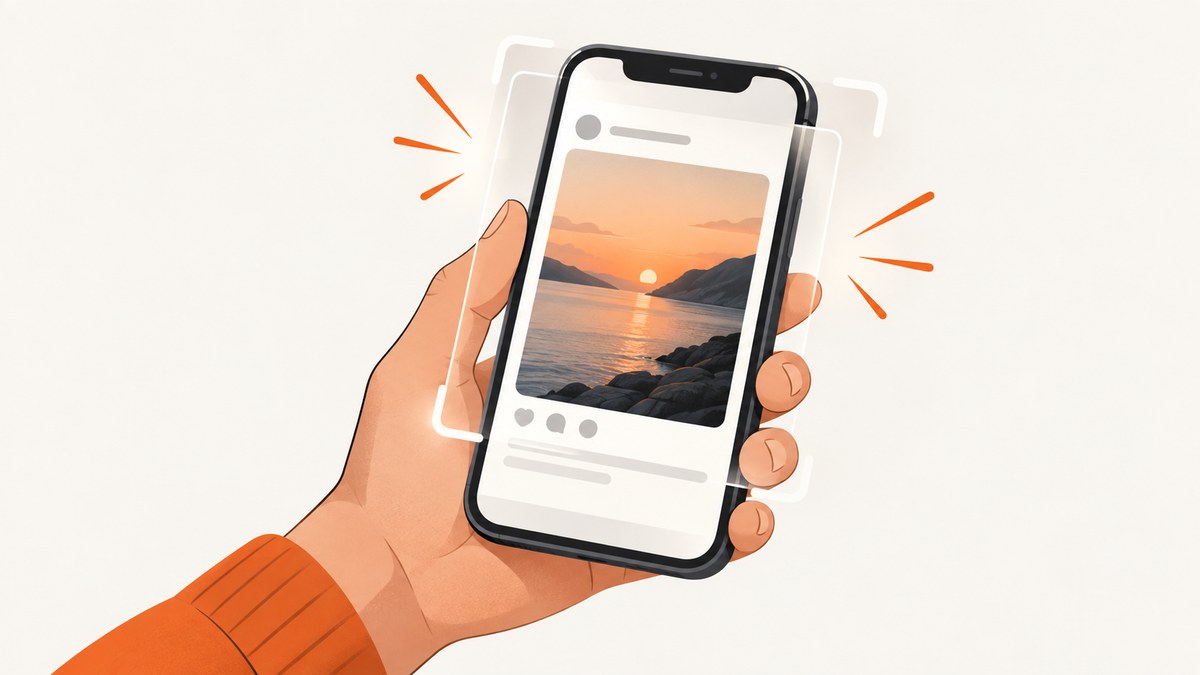
To take a screenshot of an Instagram post, open the post in the Instagram app and use your phone’s normal screenshot buttons. On an iPhone with Face ID, quickly press and release the Side button and Volume Up together. On most Android phones, press Power and Volume Down together. Review the preview to crop or mark up the image; your phone saves the screenshot to its photo library or Screenshots folder.
Instagram does not require a special capture control for an ordinary feed post. Button combinations, preview controls, and save locations can vary by phone model. The steps below cover iPhone and Android, explain the main notification question, and point out the difference between making a private copy and getting permission to repost someone else’s image.
1. Take a screenshot on iPhone
- Open Instagram and navigate to the post. Tap the post if you want its full view, caption, or surrounding details to be visible.
- On an iPhone with Face ID, quickly press and release the Side button and Volume Up button at the same time.
- On an iPhone with a Home button, quickly press and release Home and the Side button together. On some older models, use Home and the Top button.
- Tap the thumbnail if you want to edit immediately. Drag the crop handles, add markup, or share from the preview. Otherwise, let the thumbnail disappear.
Apple says screenshots are saved automatically to Photos. To find one later, open Photos and look under Collections, then Media Types, then Screenshots. Some iPhone versions offer other ways to capture the screen, such as Siri, AssistiveTouch, or Back Tap. See Apple’s screenshot instructions for the current controls and save options.
Press and release the buttons quickly. Holding them can invoke other phone controls depending on your settings. If the screenshot preview covers part of the post, wait for it to disappear before capturing, or open the post again and retake it.
2. Take a screenshot on Android
- Open the Instagram post you want to capture.
- Press Power and Volume Down at the same time, then release. On some phones, you can instead hold Power briefly and tap Screenshot.
- Use the preview to inspect, edit, crop, or share the capture.
- Find the saved image in Google Photos under Collections, On this device, and Screenshots. If your phone uses a Gallery app instead, check its Screenshots album.
Google notes that the button method may differ by device. If neither option works, follow the phone manufacturer’s support instructions. Android 12 and later also offer “Capture more” for many scrollable screens. That feature applies to most screens that allow scrolling; do not assume it will capture a whole Instagram post, feed, or profile. See Google’s Android screenshot guide.
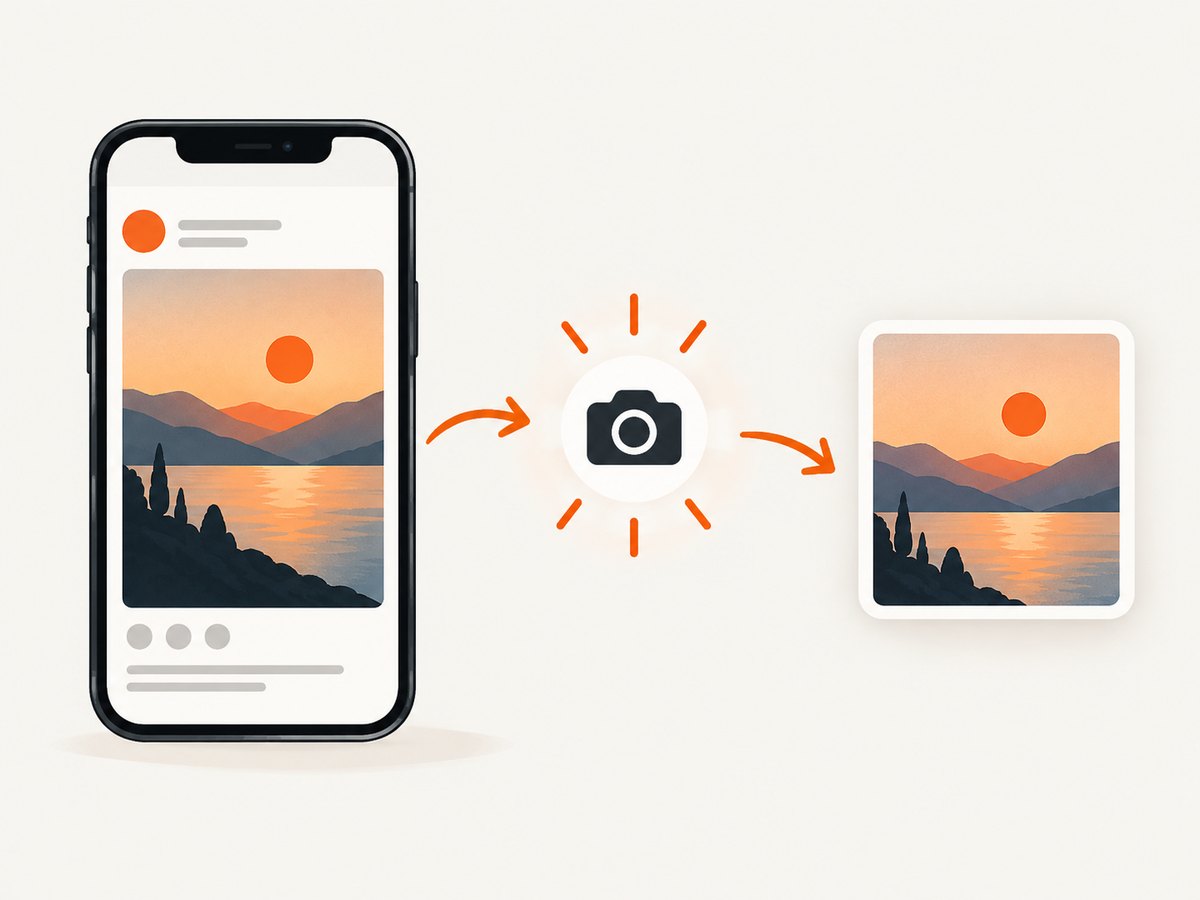
When buttons are awkward
Some Android devices expose Screenshot from the Power menu or Quick Settings, and some manufacturers provide gestures. Availability and names vary. If the buttons are hard to press, check your device’s accessibility settings or manufacturer help for an alternate shortcut. These are phone features, not Instagram-specific settings.
3. Get the capture you actually need
A screenshot records the pixels visible on your display. Before pressing the buttons, decide whether you need only the image, the username, the caption, or context around the post. That affects what should be on screen and whether a single capture is enough.
| Need | What to do | Limit |
|---|---|---|
| Just the post image | Open the post and frame the image cleanly. Crop the preview afterward if needed. | Cropping removes context that might identify where the image came from. |
| Post plus attribution | Include the account name and relevant post details in the frame, or keep them in a separate note. | Small text may be hard to read after cropping or resizing. |
| Long caption | Capture the image and caption in separate screenshots if they cannot both fit clearly. | Scrolling screenshot support is device and screen dependent. |
| A post for your own records | Keep the original capture and make a separate cropped or annotated copy. | Editing can obscure details or make the image appear to show something different. |
For a clean result, close menus and overlays, wait for the post image to finish loading, and avoid pressing the buttons while the screen is moving. A screenshot may include status icons, overlays, or a preview of another interface element. Crop only after you have preserved the information you need.
4. Does Instagram notify someone when you screenshot a post?
For an ordinary Instagram feed post, current reporting says the creator is not notified when you take a screenshot. The February 2026 guide from Android Authority distinguishes ordinary posts from disappearing photos or videos in Direct and Vanish Mode, which are reported notification cases.
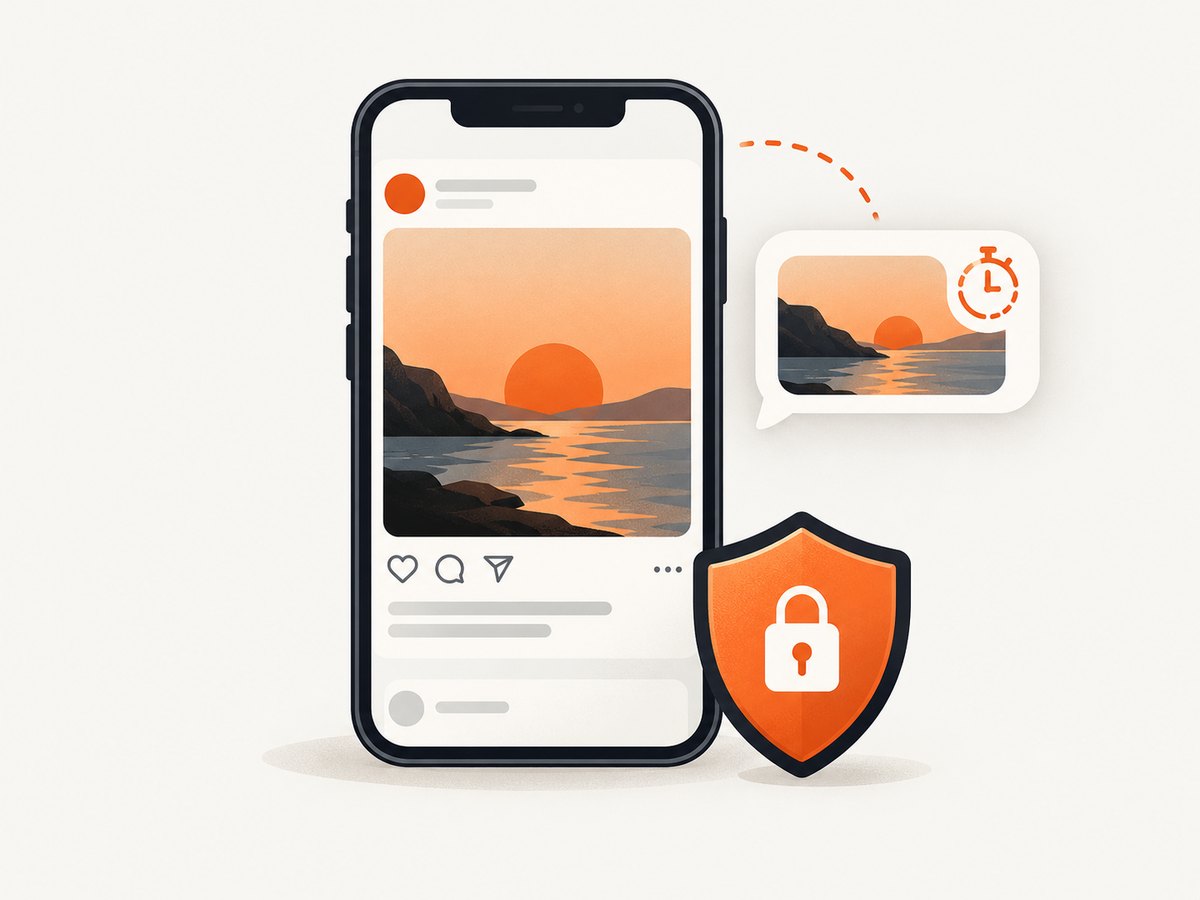
Treat that as reported current behavior, not a permanent guarantee for every Instagram feature, account, or app version. The exact official Instagram help page for this behavior was not available during research. If the content is temporary Direct media or the conversation is in Vanish Mode, do not assume a screenshot is invisible. App behavior can change.
This notification question is separate from whether it is appropriate to save or share a post. A creator might not receive an alert and still retain rights over the image. A screenshot copies what appeared on screen; it does not grant permission to publish it elsewhere.
5. Find, crop, and share the screenshot
Review before sharing
- Check that the capture shows the intended post and not a loading state or an unrelated overlay.
- Crop carefully. Keep account attribution or context when it matters to the purpose of the image.
- Use markup to add notes only when useful, and avoid edits that could misrepresent the original post.
- Use your phone’s share sheet to send the image, or save it and attach it in the destination app.
On iPhone, open Photos and use the Screenshots collection. On Android, Google Photos generally places device screenshots under Collections and On this device; some manufacturers instead use a Gallery app and a Screenshots album. If the preview disappears before you act, the screenshot is generally already saved, so find it in the library rather than taking repeated captures.
6. Privacy, attribution, and reuse
Saving a screenshot for private reference and reposting it publicly are different uses. Meta’s copyright guidance says the safest approach is to post content you created. Finding an image online, giving credit, making no money, or adding your own material does not by itself guarantee that reuse is allowed. Permission or a relevant legal exception may matter; the answer depends on the specific use and applicable law. Read Meta’s copyright guidance and seek permission when you plan to republish someone else’s work.
Instagram’s Community Guidelines say that if another person posts your photo or video, you can ask them to remove it and file a copyright report if needed. They also caution against posting screenshots to target someone or draw attention to a dispute, which may be considered harassment. See the Instagram Community Guidelines.
If the post is evidence of abuse or a policy violation, preserve the screenshot with relevant context and use Instagram’s reporting process where appropriate. Avoid turning a capture into a public callout that exposes or targets a person. A screenshot can be useful documentation, but it may not show the full conversation or surrounding circumstances.
7. Troubleshooting
| Problem | Likely cause | What to try |
|---|---|---|
| Nothing happens on iPhone | The buttons were not pressed together, or the model uses a Home button combination. | Press and release the correct pair quickly. Face ID models use Side + Volume Up; Home button models use Home + Side or Top depending on model. |
| Android opens the power menu instead | The button timing or model-specific shortcut differs. | Try Power + Volume Down together, then release. If that fails, hold Power and tap Screenshot or consult the manufacturer’s instructions. |
| Screenshot is missing | You may be viewing the wrong album or app. | Check Photos or Gallery, then the Screenshots album. On Android, look under On this device in Google Photos. |
| Image is blank or incomplete | The post had not loaded, the screen was transitioning, or an overlay covered it. | Wait for the image to load, close overlays, and capture again. For a caption that does not fit, take separate captures. |
| Capture more is not shown | The screen may not support Android’s scrolling capture, or the device/version may not offer it there. | Use separate screenshots while scrolling. Google describes Capture more as available on Android 12 and later for most scrollable screens, not all screens. |
| The screenshot contains private notifications | Notifications or status content were visible during capture. | Dismiss the notification and retake the screenshot. Review the image before sharing it. |
8. Or skip the browser setup
If you need to capture a public Instagram post as part of a developer workflow, you can request a website screenshot through ScreenshotNeo, a screenshot API and MCP server from Yorker Media. This is a browser-based capture path, not the phone-button method above. Use the post URL that is publicly accessible to the capture service; private or login-gated content may not render as it does in your signed-in app.
curl -G "https://api.screenshotneo.com/v1/shot" -d access_key=YOUR_API_KEY --data-urlencode url=https://www.instagram.com/p/POST_ID/ -o shot.webpEquivalent Python and Node.js requests:
import requests

r = requests.get(
    "https://api.screenshotneo.com/v1/shot",
    params={"access_key": "YOUR_API_KEY", "url": "https://www.instagram.com/p/POST_ID/"},
    timeout=90,
)
open("shot.webp", "wb").write(r.content)
const q = new URLSearchParams({
access_key: 'YOUR_API_KEY',
url: 'https://www.instagram.com/p/POST_ID/'
});
const res = await fetch(`https://api.screenshotneo.com/v1/shot?${q}`);
if (!res.ok) throw new Error(`Screenshot request failed: ${res.status}`);
await Bun.write('shot.webp', res);Check the response status and headers before treating a result as a valid image; the API reports page verdict and billing information in response headers. For output formats, capture behavior, request options, and API details, see the ScreenshotNeo documentation.
- Cookie banners, newsletter popups, and chat widgets are removed before the shot; each cleanup step can be turned off.
- Bot checks, blank pages, timeouts, failed loads, and cache hits cost nothing; the response identifies page verdict and billing status.
- An MCP server provides
take_screenshot,get_page_info, andcapture_pdftools for Claude, Cursor, and other MCP clients. - The Free plan includes 1,000 screenshots a month with no card; paid plans start at $5 for 3,000.
Sign up for 1,000 free screenshots a month, with no card required.
9. FAQ
Can I screenshot a post from a browser instead of the Instagram app?
Yes. Open the post in your phone or computer browser and use that device’s screenshot controls. The capture will show whatever fits in the browser window; it does not automatically create a complete copy of a long page.
Can I take a screenshot without the buttons?
Often. Apple documents Siri, AssistiveTouch, and Back Tap as alternatives on iPhone. Android alternatives depend on the manufacturer and model; check its accessibility and screenshot guidance.
Does a screenshot download the original photo?
No. It captures the displayed screen, including interface elements and any visible quality limitations. It is not the same as downloading the creator’s original image file.
Can I repost a screenshot if I credit the creator?
Credit is useful attribution, but by itself it does not establish permission. Ask the rights holder or check whether a specific legal exception applies before republishing.


