How to Take a Screenshot in Microsoft Edge
Use Edge’s built-in Screenshot tool to capture a webpage, a full page, or a selected area, then annotate, copy, or save the result.
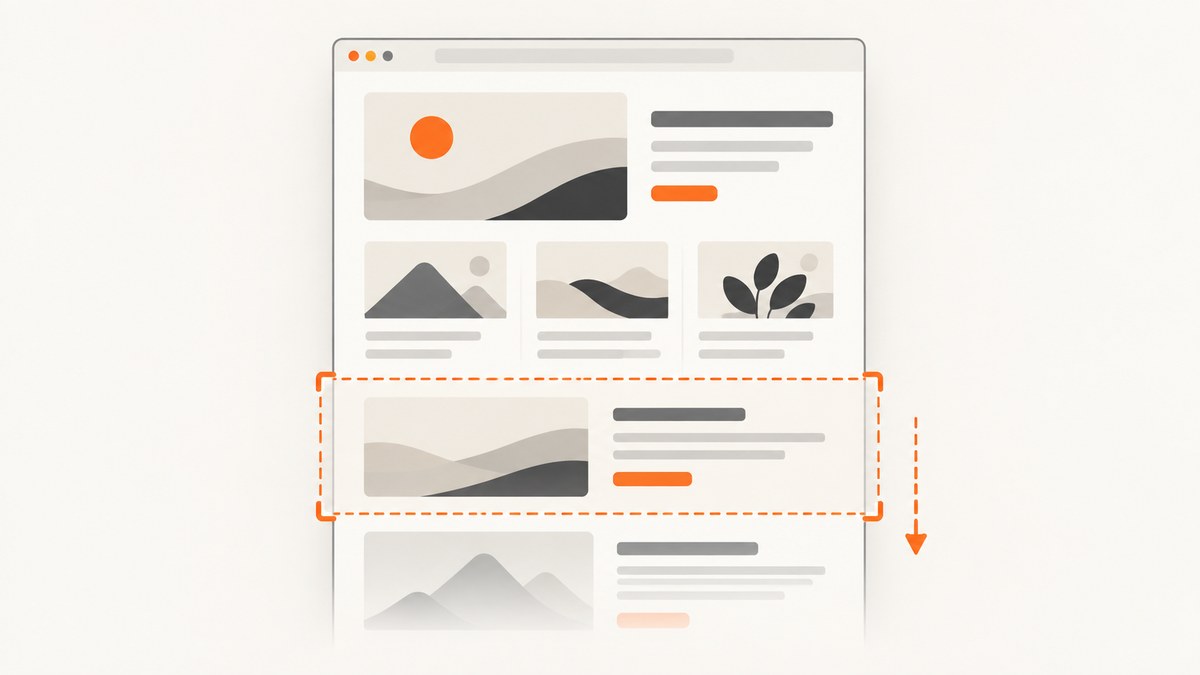
Microsoft Edge includes a built-in Screenshot feature (formerly called Web Capture). Open a page, press Ctrl+Shift+S, then choose Capture full page or select an area. You can mark up the capture, copy it, or save it.
Take a screenshot in Edge
- Open the webpage in Microsoft Edge.
- Press Ctrl+Shift+S.
- Choose Capture full page for the entire webpage, including content below the visible viewport.
- Choose the area-capture option and drag over the portion you need for a selected region.
- Use the markup controls if you need to draw or annotate.
- Copy the result to the clipboard or save the image.
The exact menu wording or placement can change between Edge versions. If the shortcut does not open the tool, right-click the page and choose Screenshot, or open Settings and more (the three-dot menu) and select Screenshot.
Full-page capture versus area capture
| Goal | Edge option | What it captures |
|---|---|---|
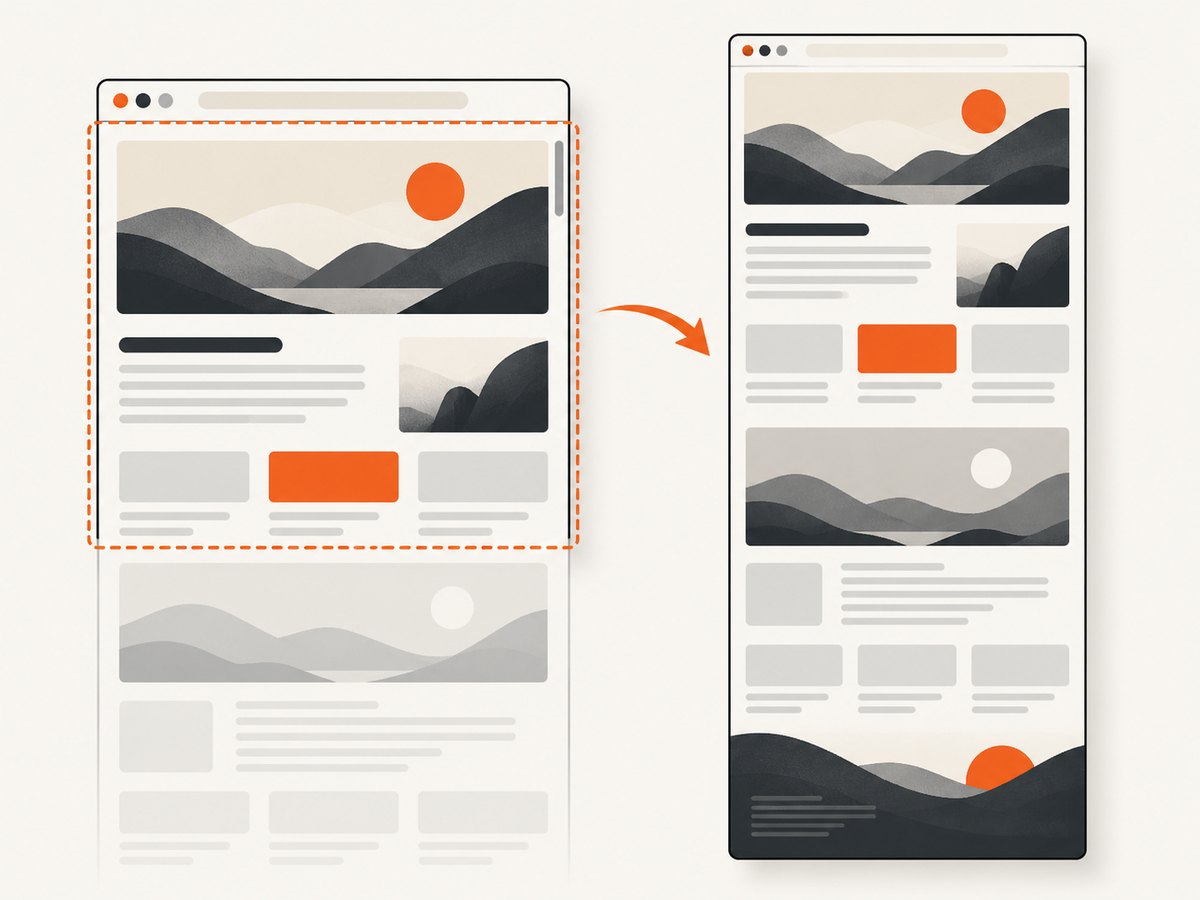
| Save an entire article or long document | Capture full page | The webpage beyond the visible viewport, without manually scrolling |
| Capture one chart, paragraph, or component | Area capture | Only the rectangle you select |
Use full-page capture when the page itself is the subject. Use area capture when surrounding content should not appear in the image.
Screenshot from Edge menus
You do not have to memorize the shortcut:
- Right-click anywhere on the webpage and select Screenshot, if it is shown.
- Alternatively, open Settings and more and select Screenshot.
- Choose full-page or area capture, then annotate, copy, or save.
Edge Screenshot versus Windows Snipping Tool
Ctrl+Shift+S is the Edge Screenshot shortcut. It captures webpage content and includes a full-page mode.
Windows+Shift+S opens the Windows Snipping Tool overlay instead. Snipping Tool is for screen captures such as a rectangular region, freeform shape, window, or the entire screen. Choose it when you need pixels from the desktop or another application rather than the webpage content Edge can capture.
What to do when Screenshot is missing
Check the shortcut and menus
- Press Ctrl+Shift+S while the Edge page is focused.
- Check the page context menu for Screenshot.
- Check Settings and more for the same command.
Work or school computers
Edge administrators can control the feature with the WebCaptureEnabled policy. Microsoft’s policy documentation describes this policy as enabling Screenshot, formerly named Web Capture. On a managed device, an administrator setting can therefore affect whether Screenshot appears. Contact the administrator if the command is absent from all menus.
Do not confuse the two Windows shortcuts
If Windows+Shift+S opens a screen-region overlay, that is expected: it is Windows Snipping Tool, not Edge Screenshot. Return to Edge and use Ctrl+Shift+S for a webpage capture.
Capture pages that change while you scroll
For a full-page capture, Edge creates the image beyond the visible viewport, so you do not need to scroll and stitch screenshots manually. If a page relies on content that appears only after interaction, first perform that interaction in the page, wait for the content to appear, and then start Screenshot. For a stable result:
- Let images and text finish loading before invoking Screenshot.
- Close transient menus or dialogs that you do not want in the image.
- Use area capture when only a stable section is required.
- Review the saved image for lazy-loaded sections or overlays before sharing it.
Save, copy, and annotate the capture
After capture, Edge provides controls to mark up the image, copy it, or save it. Markup is useful for calling out a bug or explaining a step. Copy is convenient for pasting into a ticket or chat. Save is better when you need a file that can be attached, archived, or processed later.
Troubleshooting checklist
| Problem | Likely cause | Fix |
|---|---|---|
| Ctrl+Shift+S does nothing | Edge is not focused, or the feature is unavailable | Click the page, retry, then check the context and three-dot menus |
| Screenshot is absent from every menu | The feature may be disabled by a managed-device policy | Ask your work or school administrator whether WebCaptureEnabled is disabled |
| A screen snip opens instead | You used Windows+Shift+S | Use Ctrl+Shift+S for Edge Screenshot |
| The capture contains a popup or menu | The overlay was open when capture began | Dismiss it, wait for the page to settle, and capture again |
| A long page is incomplete | Content was still loading or appears only after interaction | Finish the interaction and loading first, then choose Capture full page |
| You captured too much | Full-page mode was selected for a small target | Use area capture and select the required region |
When an automated screenshot is a better fit
Edge Screenshot is ideal for a person capturing a page interactively. Automation is more useful when you need repeatable captures, a server-side workflow, a specific viewport, PDFs, CSS selectors, custom headers, or many URLs.
Or skip the browser setup
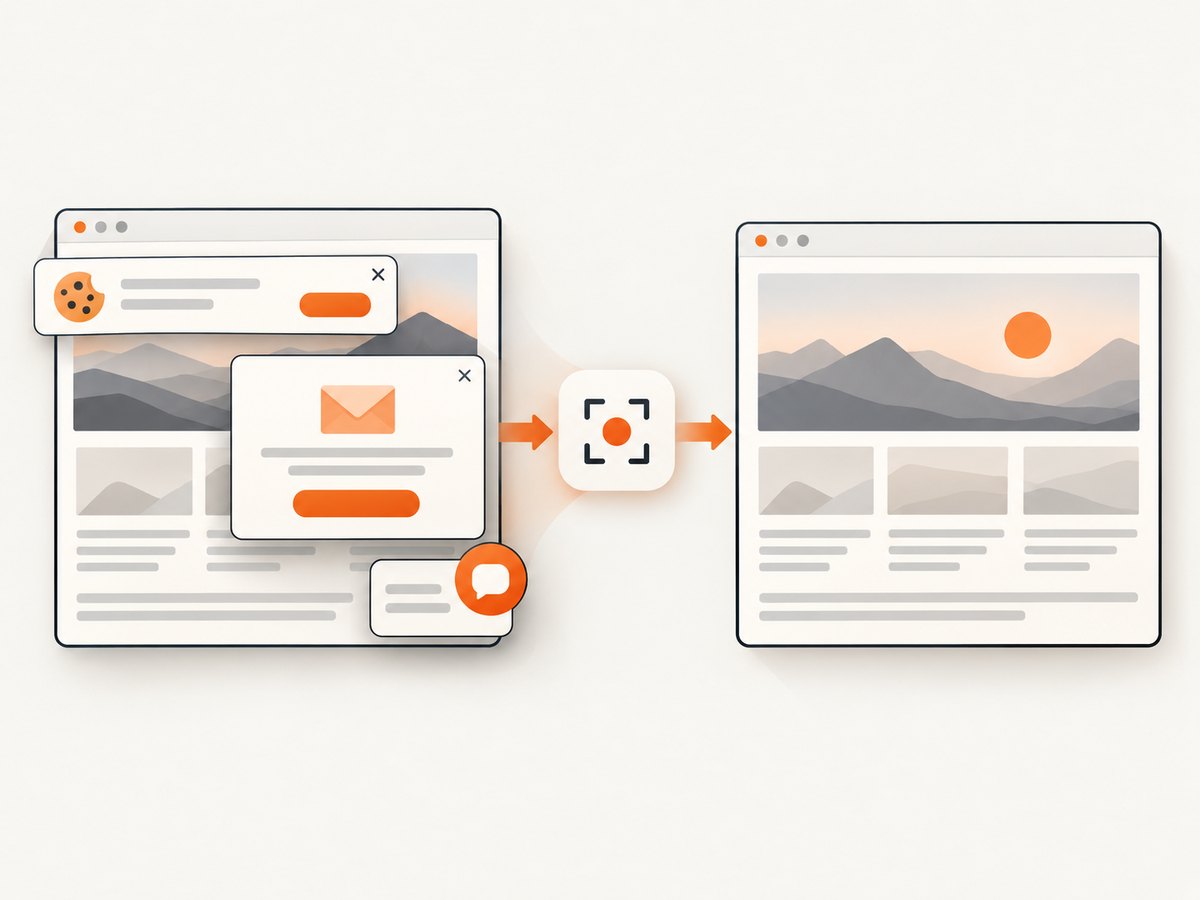
ScreenshotNeo returns a PNG, JPEG, WebP, or PDF from one request. Its capture flow accepts cookie and consent banners, then removes more than 60 known consent platforms, newsletter popups, and chat widgets before the shot. Bot checks, blank pages, timeouts, failed loads, and cache hits are not billed, and response headers identify the page verdict and billing result. The service also provides an MCP server for AI agents with take_screenshot, get_page_info, and capture_pdf tools.
See the ScreenshotNeo API documentation for all options.
cURL
curl -G "https://api.screenshotneo.com/v1/shot" \
  -d access_key=YOUR_API_KEY \
  --data-urlencode url=https://stripe.com \
  -o shot.webp
Python
import requests

r = requests.get(
    "https://api.screenshotneo.com/v1/shot",
    params={"access_key": "YOUR_API_KEY", "url": "https://stripe.com"},
    timeout=90,
)
r.raise_for_status()
open("shot.webp", "wb").write(r.content)
Node.js
const q = new URLSearchParams({
  access_key: 'YOUR_API_KEY',
  url: 'https://stripe.com'
});
const res = await fetch(`https://api.screenshotneo.com/v1/shot?${q}`);
if (!res.ok) throw new Error(`HTTP ${res.status}`);
const image = Buffer.from(await res.arrayBuffer());
await Bun.write('shot.webp', image);
ScreenshotNeo supports full-page and element captures, device presets, custom viewports, retina scale, dark mode, PDF settings, custom CSS and JavaScript, clicks, waits, request blocking, headers, cookies, user agents, authorization, timezone, geolocation, transparent backgrounds, resizing, caching, signed links, asynchronous jobs, bulk capture, and a usage API. Choose a wait condition for pages that render asynchronously, and use caching when the same URL is requested repeatedly. The free plan includes 1,000 screenshots per month with no card; paid plans start at $5 for 3,000.
Create a free ScreenshotNeo account and get 1,000 screenshots per month with no card.
Performance, reliability, and cost notes
- Interactive Edge capture: fastest for one-off work because there is no setup, but results depend on the current page state and your local browser.
- Repeatability: record the URL, capture mode, viewport, and page state when screenshots are used for bug reports or documentation.
- Large pages: full-page images can be larger and slower to save than area captures. Use an area when the whole document is unnecessary.
- Automation cost: a hosted API can remove browser installation and orchestration work. ScreenshotNeo bills only clean shots; bot checks, blank pages, failed loads, timeouts, and cache hits cost nothing.
FAQ
Can Edge capture an entire webpage?
Yes. Open Screenshot and choose Capture full page; Edge captures beyond the visible viewport without manual scrolling.
What is the Edge screenshot shortcut?
Ctrl+Shift+S.
Is Windows+Shift+S the same feature?
No. Windows+Shift+S opens Windows Snipping Tool. Edge Screenshot uses Ctrl+Shift+S.
Can I annotate an Edge screenshot?
Yes. Use the markup controls after the capture, then copy or save it.
Why might Screenshot be unavailable on my work laptop?
An administrator can control Edge Screenshot with the WebCaptureEnabled policy. Ask your organization’s administrator to check it.


