How to Take a Screenshot of a Newly Loaded Webpage
Learn how to capture a webpage after it renders, including full-page screenshots, lazy-loaded images, loading timelines, automation, and troubleshooting.

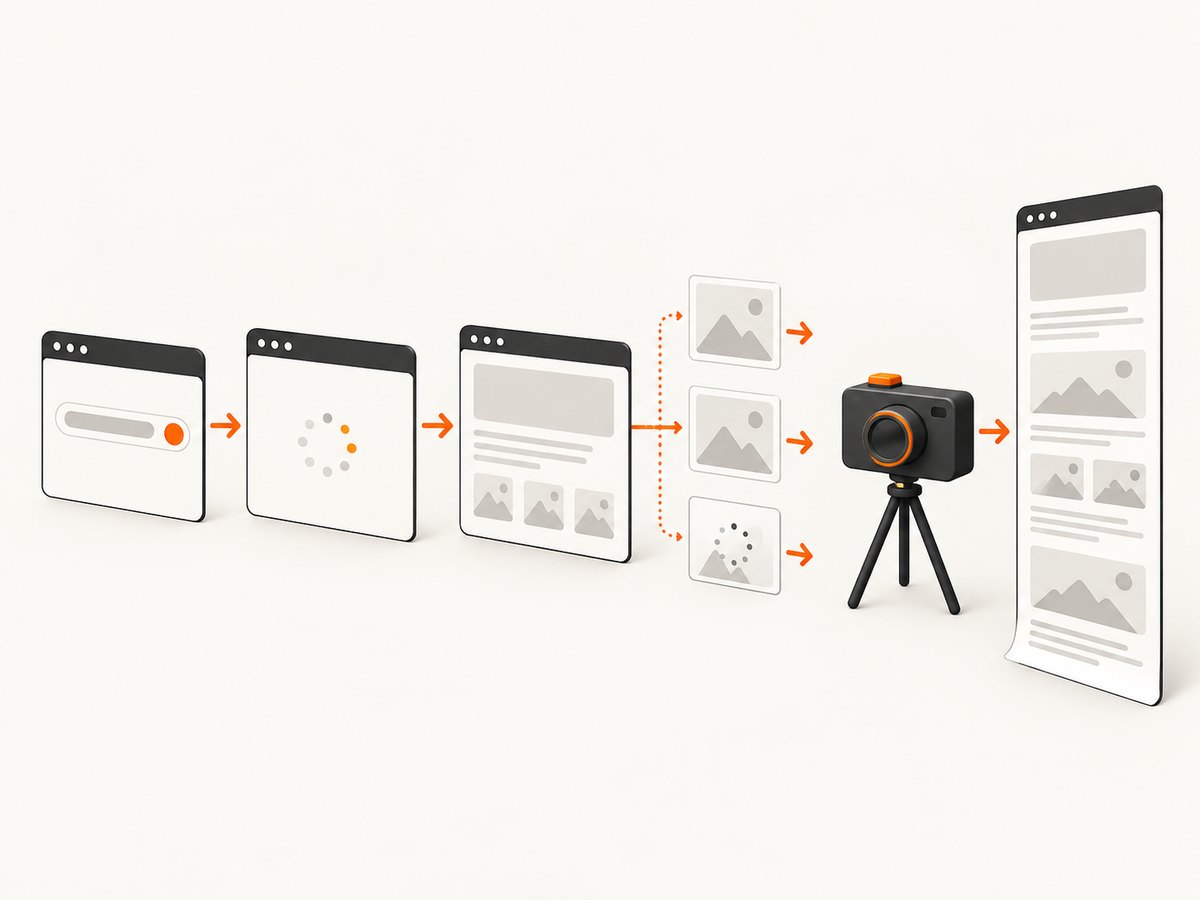
To screenshot a newly loaded webpage, wait until the content you need has rendered, then use a browser full-page capture command. In Chrome DevTools, choose Capture a full size screenshot for the entire document or Capture screenshot for only the current viewport. Firefox offers Save full page and Save visible. If you need the loading sequence itself, use Chrome DevTools Network screenshots while reloading the page.
The correct method depends on what you are trying to record:
- Final page: wait for meaningful content, then capture the viewport or full document.
- Content below the fold: use full-page capture, and trigger lazy loading first when necessary.
- Loading behavior: record screenshots during reload with Chrome DevTools Network.
- Repeatable automation: use a browser automation library or a screenshot API.
Choose the right kind of screenshot
| Goal | Best method | What it captures |
|---|---|---|
| One visible screen | Chrome Capture screenshot or Firefox Save visible | The current viewport only |
| Entire webpage | Chrome Capture a full size screenshot or Firefox Save full page | The document, including content below the fold |
| Loading timeline | Chrome DevTools Network Screenshots | Several frames taken as the page loads |
| One element | Firefox element capture, DevTools selection, or automation | A selected element or region |
| A physical screen, window, or menu | Windows Snipping Tool or macOS Screenshot | Pixels visible on the operating system screen |
Chrome: capture a newly loaded page
- Open the webpage and wait for its meaningful content to appear. Check that headings, images, fonts, and interactive sections are no longer in their loading state.
- Open DevTools with F12 or the browser menu.
- Enable Device Mode if the screenshot should use a specific viewport.
- Open the DevTools More options menu.
- Choose Capture screenshot for the visible viewport, or Capture a full size screenshot for the whole document.
- Open the downloaded image and check the bottom of the page. If images are missing, follow the lazy-loading steps below and capture again.
A full-size screenshot is a browser document capture. It does not include browser tabs, the address bar, or other browser chrome. A normal screenshot captures only the current viewport, even when the page continues far below it.
Record the loading sequence in Chrome
Use this workflow when the question is “what did users see while the page loaded?” rather than “what did the finished page look like?”
- Open DevTools and select the Network panel.
- Open Network settings and enable Screenshots.
- Reload the page.
- Wait for the load to finish, then inspect the screenshot thumbnails in the Network panel.
- Click a thumbnail to examine the page at that point in the load timeline.
Each thumbnail represents a point in the page-load timeline. This is useful for finding flashes of unstyled content, late-loading hero images, consent dialogs, and layout shifts.
Firefox: save the visible page or the full document
- Open the page and allow it to render.
- Right-click an empty part of the page and choose Take Screenshot, or press Ctrl+Shift+S on Windows/Linux or Command+Shift+S on macOS.
- Choose Save full page for the entire document, Save visible for the viewport, or select an element or region.
- Save the resulting image and inspect areas below the fold.
Firefox Developer Tools also expose a screenshot command, including a full-page option. Firefox’s delay option can postpone capture by a specified number of seconds when an animation or delayed component needs more time.
Wait for the page to become ready
“The navigation finished” does not always mean “the page is ready for a screenshot.” A page can finish its initial request while JavaScript is still rendering components, web fonts are still loading, or images are waiting for a viewport intersection.
What to wait for
- The primary heading and important text are visible.
- Skeleton loaders have been replaced by real content.
- Images have loaded at the locations you need to capture.
- Web fonts have finished swapping if typography matters.
- Menus, dialogs, charts, and other dynamic components have reached the intended state.
- Cookie or consent UI has been handled according to your capture goal.
For a one-off capture, a visual check is often enough. For automation, prefer a specific readiness condition such as a selector appearing, a known loading class disappearing, or a short delay after a network-idle point. A fixed delay alone is simple but can be too short on a slow page and wasteful on a fast one.
Lazy-loaded images below the fold
Many sites defer images until the browser approaches them. A screenshot taken immediately after navigation may therefore contain blank image slots below the fold. Scroll through the page once, or otherwise trigger the site’s loading behavior, before taking the full-page screenshot. This is a practical precaution rather than a guarantee for every implementation.
When automating, you can scroll in increments and pause briefly between increments:
for (let y = 0; y < document.body.scrollHeight; y += 800) {
  window.scrollTo(0, y);
  await new Promise(resolve => setTimeout(resolve, 250));
}
window.scrollTo(0, 0);
Run this in a browser automation context where top-level await is supported, or wrap it in an async function. The pauses give intersection observers and image requests time to run.
Automate a full-page screenshot with Playwright
For repeatable captures, Playwright gives you control over the viewport, readiness condition, delay, and full-page behavior. Install it with:
npm install playwright
npx playwright install chromium
Create screenshot.mjs:
import { chromium } from 'playwright';

const browser = await chromium.launch();
const page = await browser.newPage({
  viewport: { width: 1440, height: 900 },
  deviceScaleFactor: 1
});

await page.goto('https://example.com', { waitUntil: 'domcontentloaded' });
await page.waitForLoadState('networkidle');
await page.waitForTimeout(1000);

await page.evaluate(async () => {
  for (let y = 0; y < document.body.scrollHeight; y += 800) {
    window.scrollTo(0, y);
    await new Promise(resolve => setTimeout(resolve, 250));
  }
  window.scrollTo(0, 0);
});

await page.screenshot({ path: 'page.png', fullPage: true });
await browser.close();
Run it with node screenshot.mjs. Replace the URL with the page you are allowed to capture. For a viewport-only image, remove fullPage: true. To wait for a meaningful component, add a selector condition:
await page.waitForSelector('[data-page-ready="true"]', { state: 'visible' });If the site has no readiness selector, combine domcontentloaded, networkidle, a short delay, and the lazy-loading scroll. Keep the condition specific to the page rather than relying on an arbitrarily long timeout.
Capture with Python and Selenium
Selenium can capture the visible viewport directly. Full-page behavior varies by browser and driver, so for a reliable whole-document image you may need a browser-specific full-page command or a stitching library.
from selenium import webdriver
from selenium.webdriver.chrome.options import Options
from selenium.webdriver.support.ui import WebDriverWait

options = Options()
options.add_argument('--headless=new')
options.add_argument('--window-size=1440,900')

driver = webdriver.Chrome(options=options)
try:
    driver.get('https://example.com')
    WebDriverWait(driver, 30).until(
        lambda d: d.execute_script('return document.readyState') == 'complete'
    )
    driver.execute_script("window.scrollTo(0, document.body.scrollHeight);")
    driver.implicitly_wait(1)
    driver.execute_script("window.scrollTo(0, 0);")
    driver.save_screenshot('viewport.png')
finally:
    driver.quit()
Use Playwright when you need a straightforward, cross-browser full-page workflow. Use Selenium when it already fits your test stack or when you need its WebDriver ecosystem.
Windows, macOS, and iPad
Windows 10 and 11
Press Windows+Shift+S to open Snipping Tool, then choose a window, region, or full screen. Use the Delay setting from one to five seconds when a menu or animation needs time before capture. Snipping Tool captures the display; it does not automatically stitch a webpage longer than the display. Use Chrome or Firefox full-page capture for a complete document.
macOS
- Shift+Command+3: entire screen.
- Shift+Command+4: selected area.
- Shift+Command+5: Screenshot panel with capture type and timer controls.
For content below the viewport, use the browser’s full-page feature instead of a system screen capture.
iPad Safari
Take a normal screenshot, tap its thumbnail, and choose Full Page. Safari can capture content beyond the visible screen, and you can crop the result before saving it.
Or skip the browser setup
ScreenshotNeo returns a webpage screenshot or PDF from one GET request. Its capture options include full-page screenshots with lazy images loaded, a chosen CSS element, dark mode, device presets, custom viewports, retina scale, delays, selector waits, network-idle waits, custom CSS and JavaScript, hidden selectors, request blocking, cookies, headers, user agents, authentication, timezone, geolocation, transparent backgrounds, resizing, caching, signed links, asynchronous jobs, bulk capture, and PDF output.
Here is the smallest cURL request. See the ScreenshotNeo documentation for the complete option list and response details.
curl -G 'https://api.screenshotneo.com/v1/shot' \
  -d access_key=YOUR_API_KEY \
  --data-urlencode url=https://stripe.com \
  -o shot.webp
Python:
import requests

r = requests.get(
    'https://api.screenshotneo.com/v1/shot',
    params={'access_key': 'YOUR_API_KEY', 'url': 'https://stripe.com'},
    timeout=90,
)
r.raise_for_status()
open('shot.webp', 'wb').write(r.content)
Node.js:
const q = new URLSearchParams({
  access_key: 'YOUR_API_KEY',
  url: 'https://stripe.com'
});
const res = await fetch(`https://api.screenshotneo.com/v1/shot?${q}`);
if (!res.ok) throw new Error(`Screenshot failed: ${res.status}`);
const data = Buffer.from(await res.arrayBuffer());
await import('node:fs/promises').then(fs => fs.writeFile('shot.webp', data));
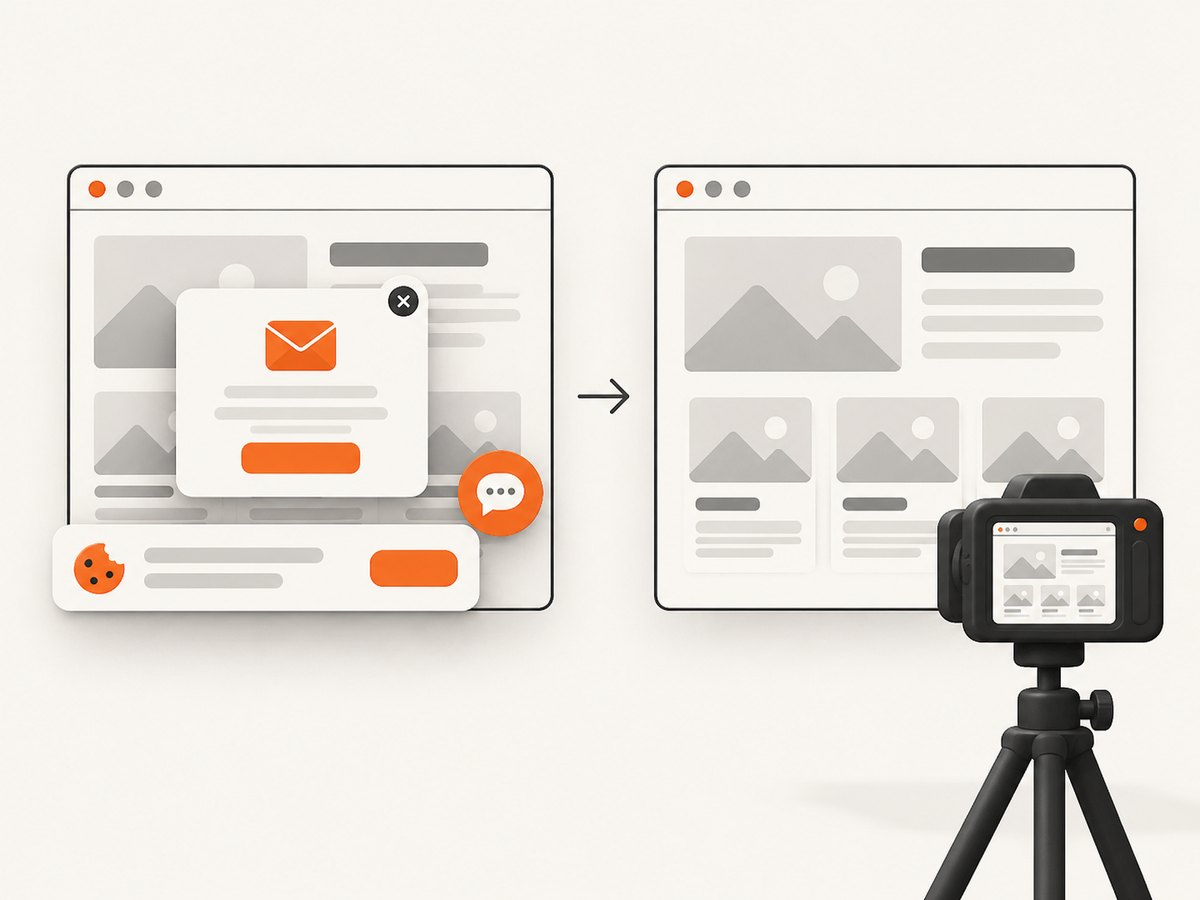
Cookie banners, newsletter popups, and chat widgets are removed before the shot. Bot checks, blank pages, timeouts, failed loads, and cache hits are not billed, and response headers identify the page verdict and whether the request was billed. ScreenshotNeo also provides an MCP server so Claude, Cursor, and other MCP clients can call take_screenshot, get_page_info, and capture_pdf.
The Free plan includes 1,000 screenshots each month with no card. Paid plans start at $5 for 3,000 screenshots; yearly billing gives two months free. Create a free ScreenshotNeo account.
Common problems and fixes
| Symptom | Likely cause | Fix |
|---|---|---|
| Only the visible screen appears | Viewport capture was selected | Use the browser’s full-page option or set fullPage: true in Playwright. |
| Images below the fold are blank | Lazy loading was never triggered | Scroll through the document, pause between sections, then capture. |
| Skeletons or missing text appear | Capture happened after navigation but before rendering finished | Wait for a readiness selector, network idle, and any required delay. |
| Fonts change between runs | Web fonts loaded after the screenshot | Wait for the font-dependent component or document fonts before capture. |
| A cookie dialog covers the page | The site requires consent before normal content is exposed | Accept or dismiss it in automation, or use a capture service that handles consent. |
| Capture times out | Slow resources, an endless request, or a blocked page | Set a bounded timeout, block unnecessary resources, and inspect the page manually. |
| Images are clipped at the bottom | Fixed-position elements or a browser full-page edge case | Hide sticky overlays, test another browser, or use an automation/API full-page capture. |
| Headless and desktop results differ | Different viewport, device scale, fonts, cookies, or user agent | Set these values explicitly and compare like-for-like environments. |
Performance, reliability, and cost considerations
Performance
Full-page captures take longer and use more memory than viewport captures because the browser must render and encode a taller document. Very large pages can contain thousands of nodes or high-resolution images. Use a viewport capture when the page below the fold is irrelevant, and choose WebP or JPEG when a smaller file is more important than lossless detail.
For automation, reuse a browser process for multiple pages, set a realistic navigation timeout, and avoid waiting for every network request when third-party analytics keep connections open. A selector or application-specific ready signal is usually faster and more predictable.
Reliability
Record the URL, viewport, device scale factor, user agent, locale, timezone, cookies, and readiness condition alongside each image. These values affect layout and make visual comparisons reproducible. If the page is personalized, use a dedicated test account or an explicit cookie set. Treat bot checks, authentication redirects, consent dialogs, and regional content as part of the capture environment.
Cost
Browser automation consumes compute even when the result is unusable, and you must operate the browser, drivers, fonts, and concurrency limits. ScreenshotNeo charges only for clean shots; bot checks, blank pages, timeouts, failed loads, and cache hits cost nothing. Its cache TTL, bulk capture, asynchronous jobs, and signed webhooks can reduce repeated work for scheduled captures.
Checklist for a production capture
- Define whether you need the viewport, the full document, an element, or a loading timeline.
- Set the viewport, device scale, color scheme, locale, timezone, and user agent.
- Choose a readiness selector, network-idle rule, or bounded delay.
- Trigger lazy-loaded content before a full-page capture.
- Handle consent dialogs, login state, popups, and sticky overlays.
- Verify the bottom of the image and important dynamic regions.
- Store capture metadata so a later comparison can be reproduced.
- Use a bounded timeout and log failures with the target URL and status.
FAQ
How long should I wait before taking the screenshot?
Wait for the specific content you need. A short delay after the page’s ready signal can help, but a selector for the final component is more reliable than a universal number of seconds.
Can a normal screenshot capture the whole webpage?
No. A normal viewport screenshot captures only what is visible. Use the browser’s full-page command or an automation/API feature designed for full-document capture.
How do I capture the page at several moments?
Enable Screenshots in Chrome DevTools Network, reload, and inspect the timeline thumbnails. A single final screenshot cannot show the intermediate loading states.
Why does the page look different in headless mode?
Headless and desktop browsers can differ in viewport size, fonts, device scale, cookies, user agent, and timing. Configure those values explicitly and wait for the same readiness condition.
Which format should I use?
PNG preserves sharp text and lossless detail. JPEG is smaller for photographic content. WebP often gives a useful size-quality balance. Choose PDF when the deliverable is a paginated document rather than an image.


